
History Panel and Layers Adobe Photoshop CS 4
History Panel and Layers Adobe Photoshop CS (4)
Outlines History Panel About layers Layer Plate Components Layer General Options References l. Ghadah R. Hadba 2
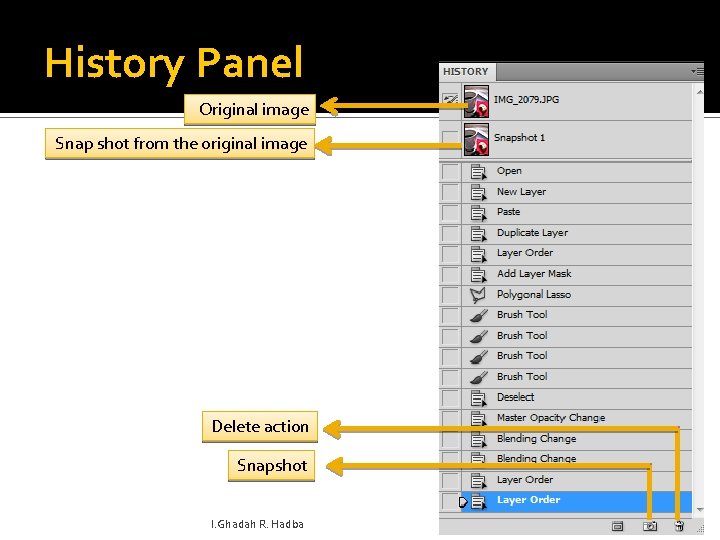
History Panel Original image Snap shot from the original image Delete action Snapshot l. Ghadah R. Hadba 3
Layers
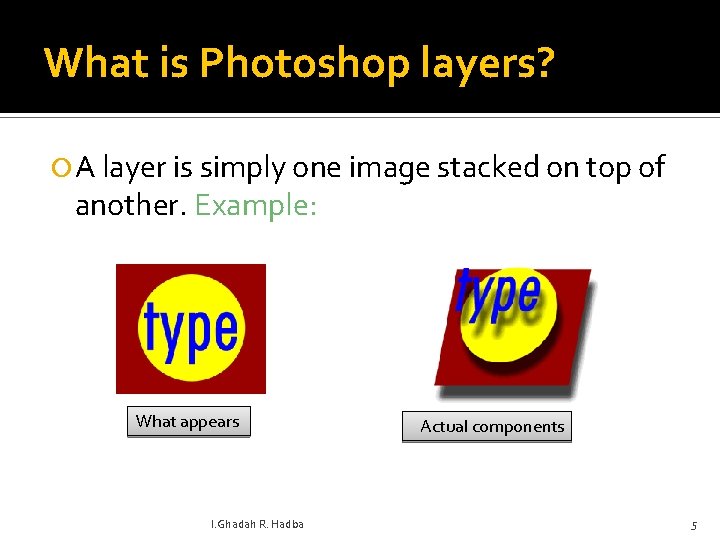
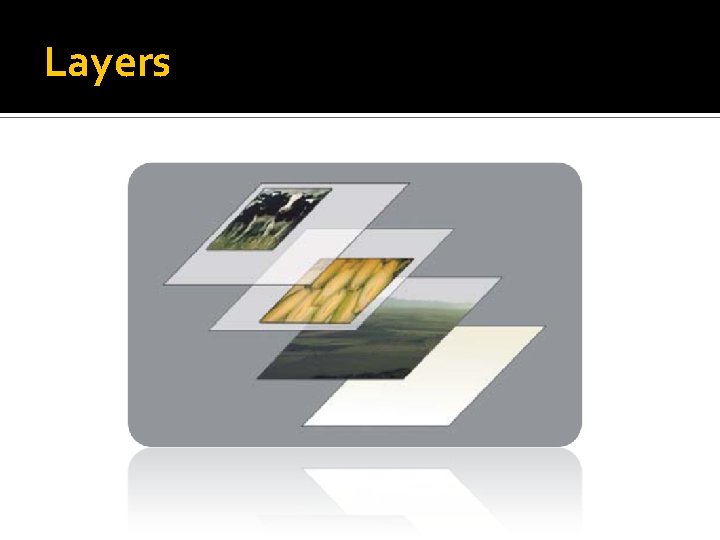
What is Photoshop layers? A layer is simply one image stacked on top of another. Example: What appears l. Ghadah R. Hadba Actual components 5
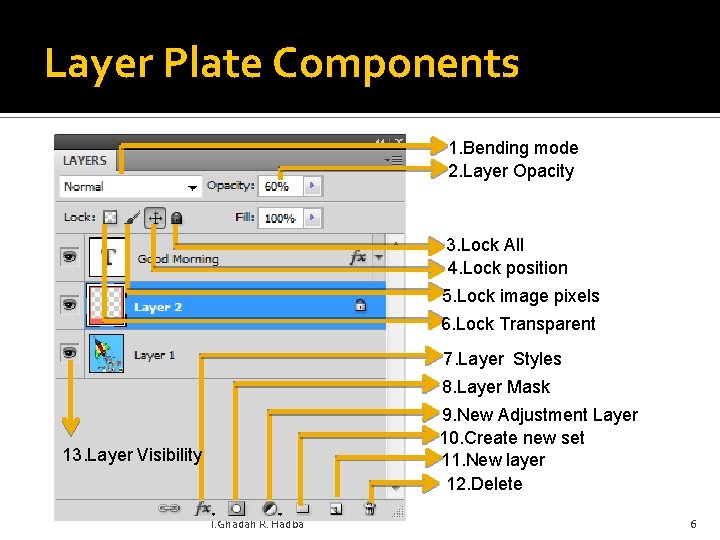
Layer Plate Components 1. Bending mode 2. Layer Opacity 3. Lock All 4. Lock position 5. Lock image pixels 6. Lock Transparent 7. Layer Styles 8. Layer Mask 9. New Adjustment Layer 10. Create new set 11. New layer 12. Delete 13. Layer Visibility l. Ghadah R. Hadba 6
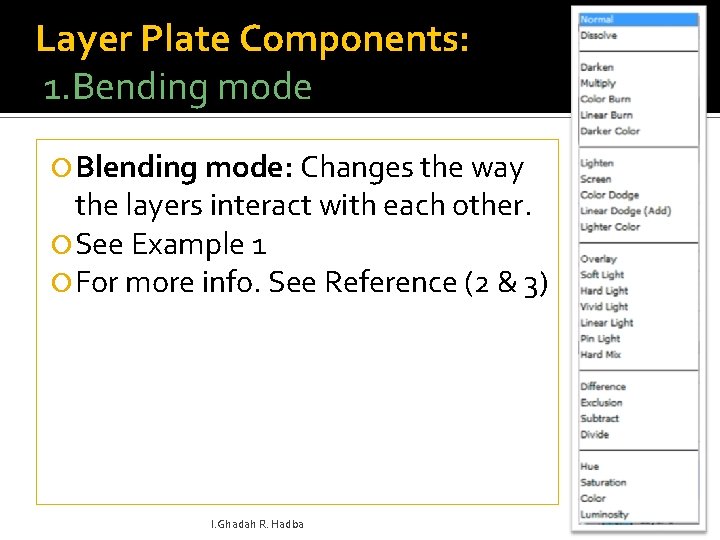
Layer Plate Components: 1. Bending mode Blending mode: Changes the way the layers interact with each other. See Example 1 For more info. See Reference (2 & 3) l. Ghadah R. Hadba 7
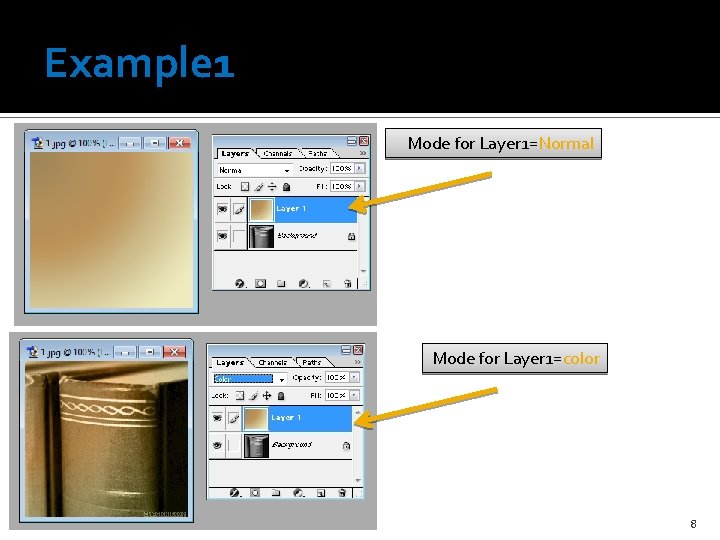
Example 1 Mode for Layer 1=Normal Mode for Layer 1=color l. Ghadah R. Hadba 8
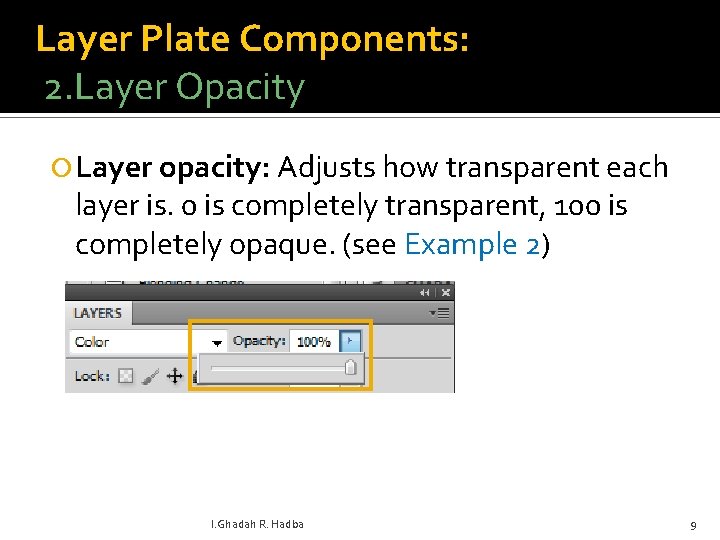
Layer Plate Components: 2. Layer Opacity Layer opacity: Adjusts how transparent each layer is. 0 is completely transparent, 100 is completely opaque. (see Example 2) l. Ghadah R. Hadba 9
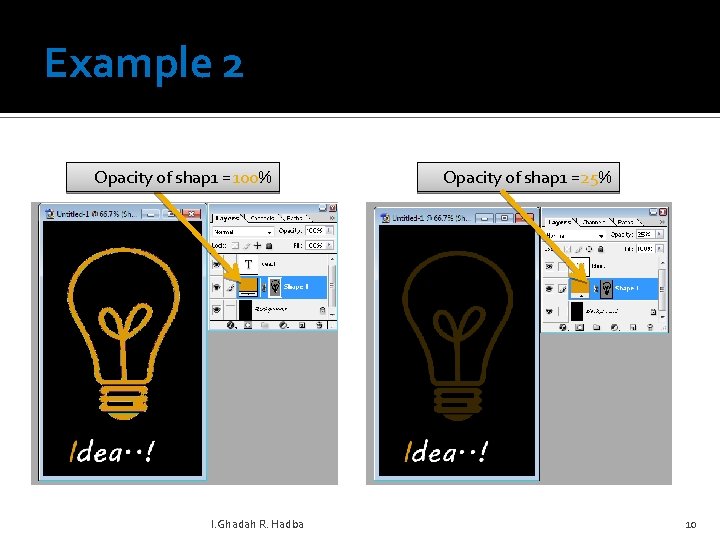
Example 2 Opacity of shap 1 =100% l. Ghadah R. Hadba Opacity of shap 1 =25% 10
Layer Plate Components: 3. Lock All Lock all: If the box is checked the layer is totally protected from any editing. l. Ghadah R. Hadba 11
Layer Plate Components: 4. Lock Position: You can make any changes except for moving the image. l. Ghadah R. Hadba 12
Layer Plate Components: 5. Lock Pixels Lock Image pixels: You cannot draw on this layer if checked. l. Ghadah R. Hadba 13
Layer Plate Components: 6. Lock Transparent Lock transparent: You can paint on this layer but not where it is transparent. l. Ghadah R. Hadba 14
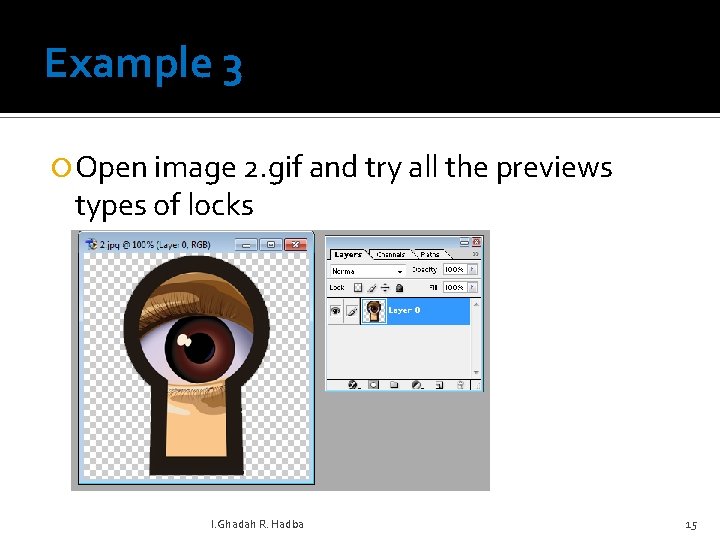
Example 3 Open image 2. gif and try all the previews types of locks l. Ghadah R. Hadba 15
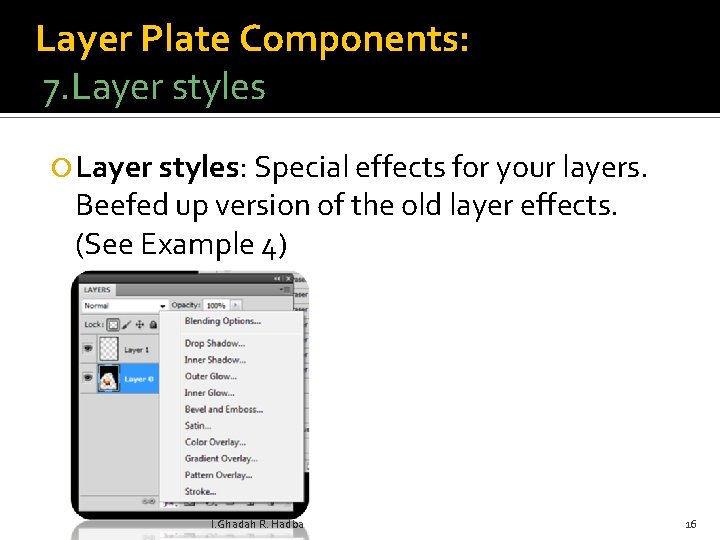
Layer Plate Components: 7. Layer styles: Special effects for your layers. Beefed up version of the old layer effects. (See Example 4) l. Ghadah R. Hadba 16
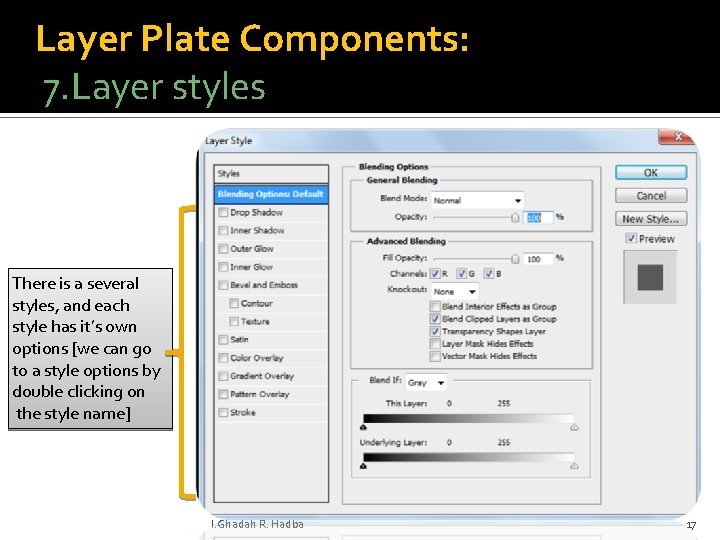
Layer Plate Components: 7. Layer styles There is a several styles, and each style has it’s own options [we can go to a style options by double clicking on the style name] l. Ghadah R. Hadba 17
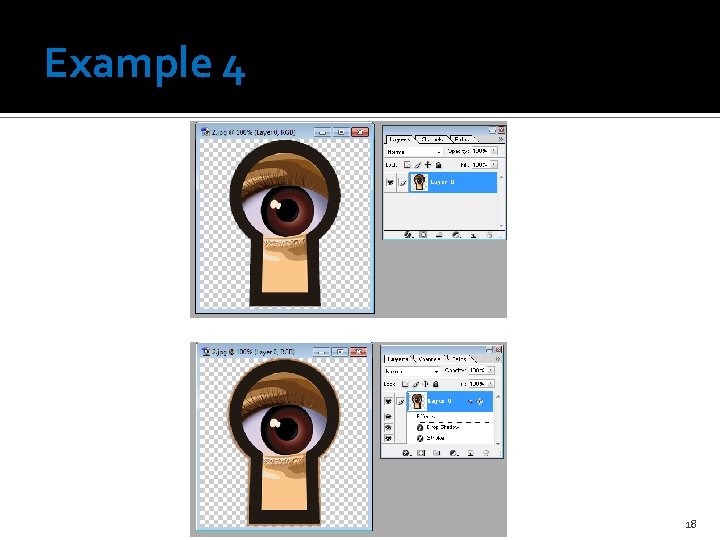
Example 4 l. Ghadah R. Hadba 18
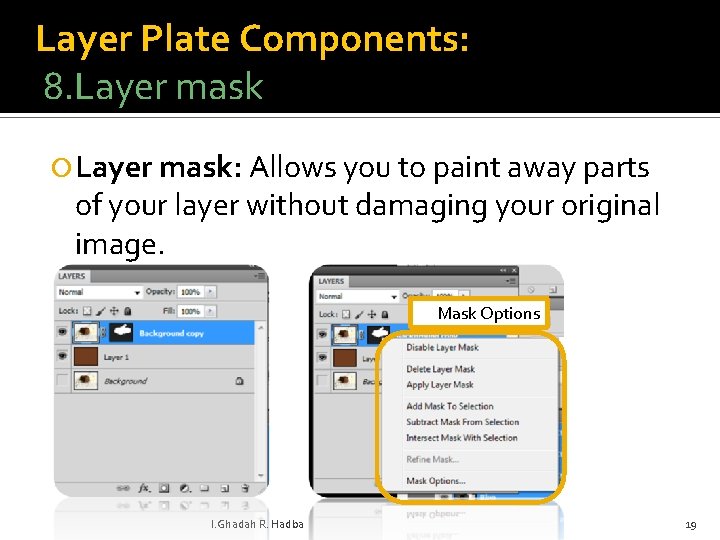
Layer Plate Components: 8. Layer mask: Allows you to paint away parts of your layer without damaging your original image. Mask Options l. Ghadah R. Hadba 19
Layer Plate Components: 8. Layer mask can’t be applied on the background layer unless it is converged to a normal layer through: Layer New Layer from Background Or Double click on the background layer l. Ghadah R. Hadba 20
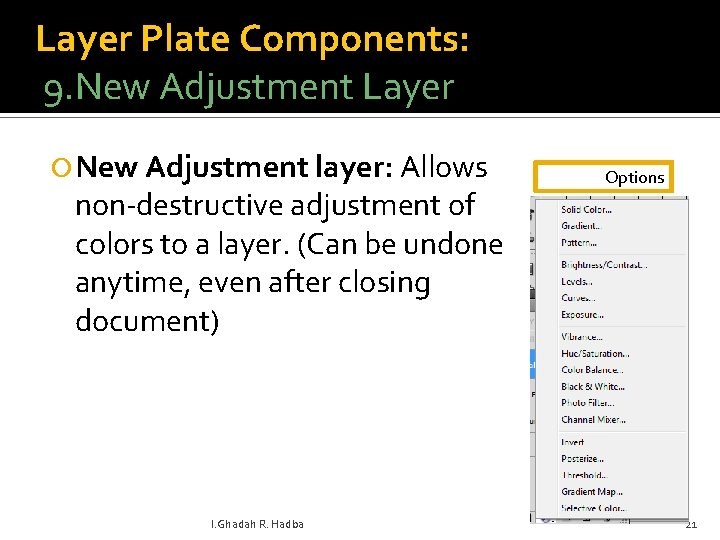
Layer Plate Components: 9. New Adjustment Layer New Adjustment layer: Allows non-destructive adjustment of colors to a layer. (Can be undone anytime, even after closing document) l. Ghadah R. Hadba Options 21
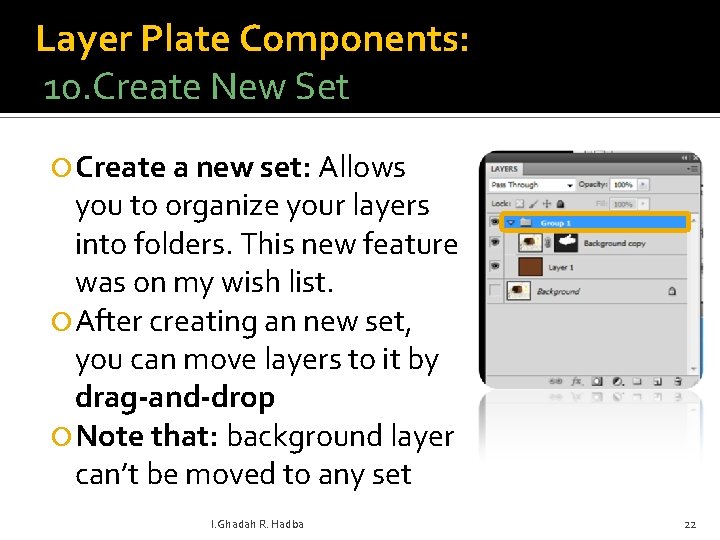
Layer Plate Components: 10. Create New Set Create a new set: Allows you to organize your layers into folders. This new feature was on my wish list. After creating an new set, you can move layers to it by drag-and-drop Note that: background layer can’t be moved to any set l. Ghadah R. Hadba Options 22
Layer Plate Components: 11. New Layer: Click to add a new blank layer. Or drag an existing layer thumbnail to create a duplicate l. Ghadah R. Hadba 23
Layer Plate Components: 12. Delete: Will delete an entire layer. Either Drag the thumbnail to the icon or select the layer* and click on the trash can (delete icon). l. Ghadah R. Hadba 24
Layer Plate Components: 13. Layer Visibility See the Example on the next slide l. Ghadah R. Hadba 25
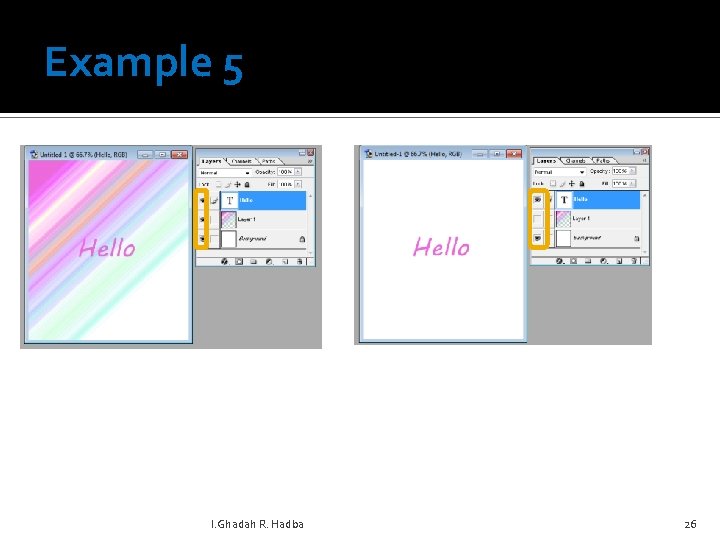
Example 5 l. Ghadah R. Hadba 26
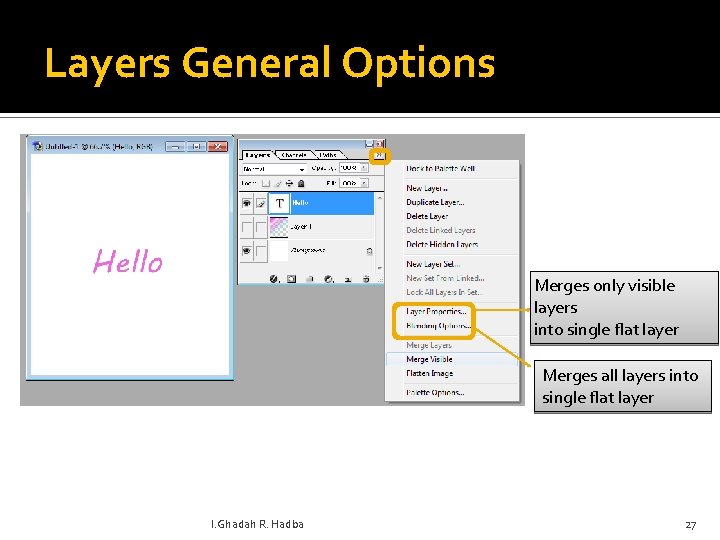
Layers General Options Merges only visible layers into single flat layer Merges all layers into single flat layer l. Ghadah R. Hadba 27
![References [1]http: //www. photoshopcafe. com/tutorials/layers/intro. htm [2]http: //help. adobe. com/en_US/photoshop/cs/using/WSfd 1 234 e 1](http://slidetodoc.com/presentation_image/454fc9b9109454db78b231009e2e013f/image-28.jpg "References [1]http: //www. photoshopcafe. com/tutorials/layers/intro. htm [2]http: //help. adobe. com/en_US/photoshop/cs/using/WSfd 1 234 e 1")
References [1]http: //www. photoshopcafe. com/tutorials/layers/intro. htm [2]http: //help. adobe. com/en_US/photoshop/cs/using/WSfd 1 234 e 1 c 4 b 69 f 30 ea 53 e 41001031 ab 64 -77 e 9 a. html [3]http: //help. adobe. com/en_US/photoshop/cs/using/WSfd 1 234 e 1 c 4 b 69 f 30 ea 53 e 41001031 ab 64 -77 e 8 a. html l. Ghadah R. Hadba 28
- Slides: 28