
Histograms Summary Data Histograms Summary Data o Summarizing

- Slides: 31
Histograms & Summary Data
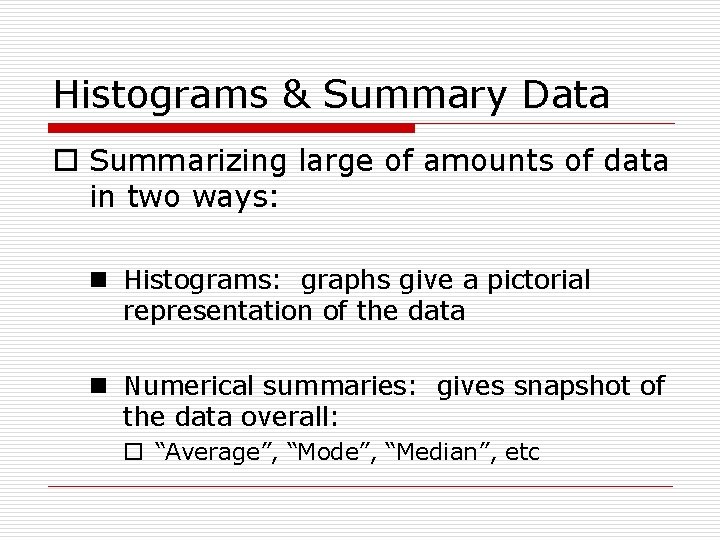
Histograms & Summary Data o Summarizing large of amounts of data in two ways: n Histograms: graphs give a pictorial representation of the data n Numerical summaries: gives snapshot of the data overall: o “Average”, “Mode”, “Median”, etc
Histograms & Summary Data o Microsoft Excel has several tools that allows to summarize data: n n n n sorting Maximum Minimum range (difference between max and min) mean (average) grouping data plotting a histogram
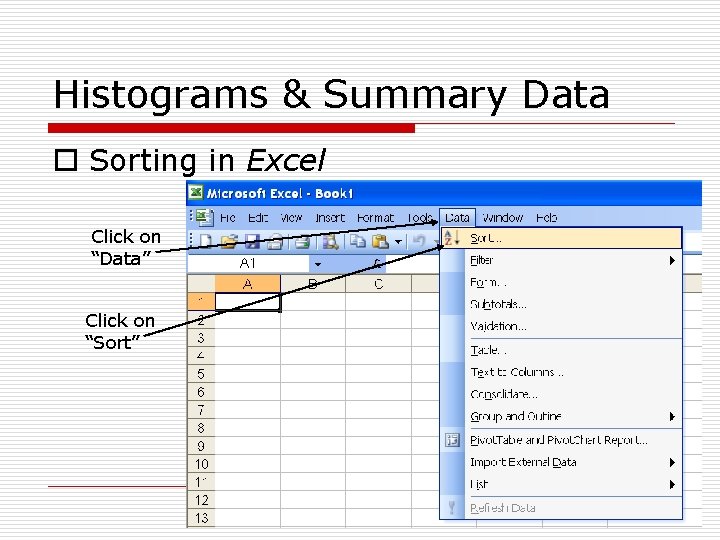
Histograms & Summary Data o Sorting in Excel Click on “Data” Click on “Sort”
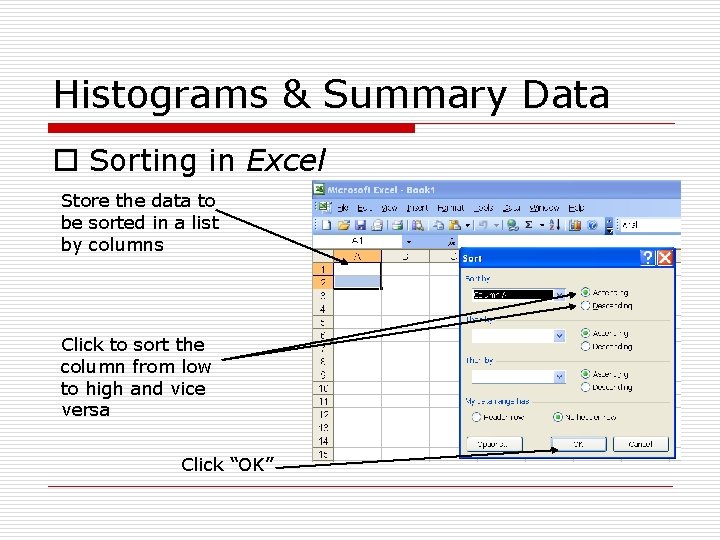
Histograms & Summary Data o Sorting in Excel Store the data to be sorted in a list by columns Click to sort the column from low to high and vice versa Click “OK”
Histograms & Summary Data o Sorting in Excel o Ex: On the class webpage, go to the file NBAPlayer. Heights. xls o File contains data for the top ten player heights (in inches) by team during the 1990 -91 season
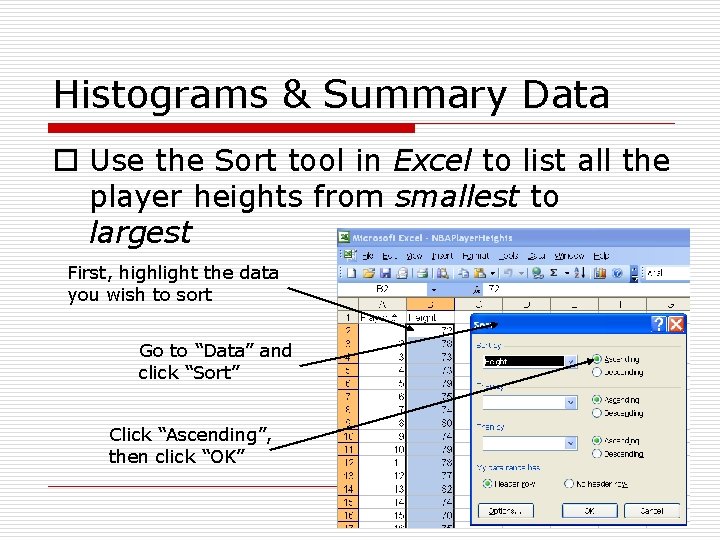
Histograms & Summary Data o Use the Sort tool in Excel to list all the player heights from smallest to largest First, highlight the data you wish to sort Go to “Data” and click “Sort” Click “Ascending”, then click “OK”
Histograms & Summary Data o What is the smallest height? n Answer: 67 inches o What is the largest height? n Answer: 91 inches
Histograms & Summary Data o MIN and MAX functions find the minimum value(s) and maximum value(s) in a list o The range is the maximum minus the minimum o AVERAGE function finds the average or mean o SUM function adds numbers in a list
Histograms & Summary Data o Excel also has a Histogram tool o This function separates data into bins o The function counts how much data lies within each bin o You can (and should) define the size of the bin prior to opening the function
Histograms & Summary Data o A histogram organizes data into groups by counting how much data is in each group n The groups are sometimes called “bins” n The number of observations in each “bin” is called the frequency
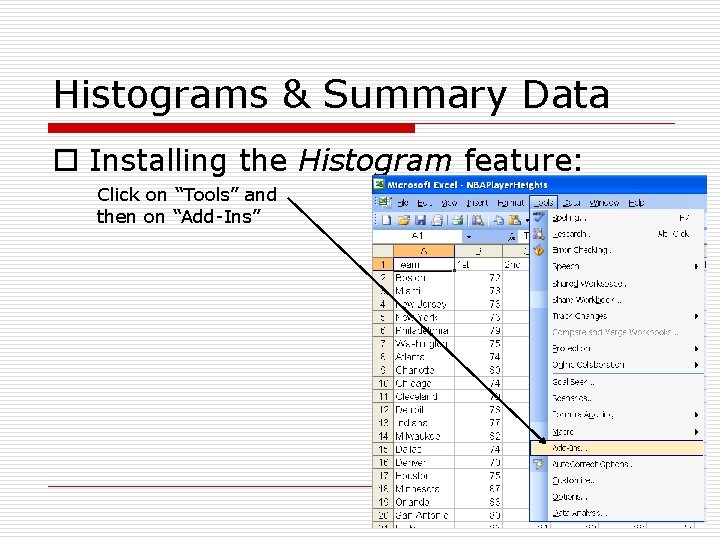
Histograms & Summary Data o Installing the Histogram feature: Click on “Tools” and then on “Add-Ins”
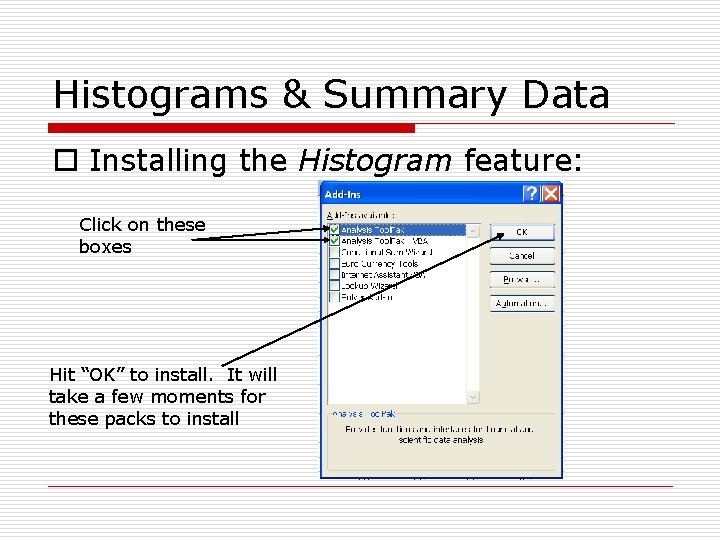
Histograms & Summary Data o Installing the Histogram feature: Click on these boxes Hit “OK” to install. It will take a few moments for these packs to install
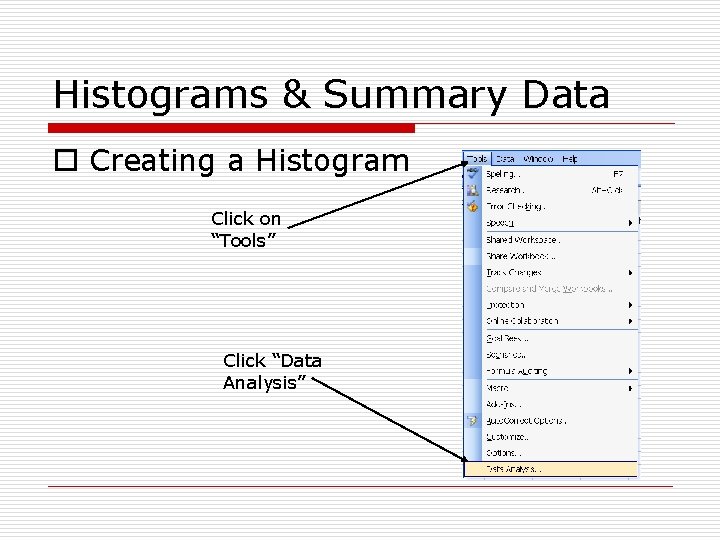
Histograms & Summary Data o Creating a Histogram Click on “Tools” Click “Data Analysis”
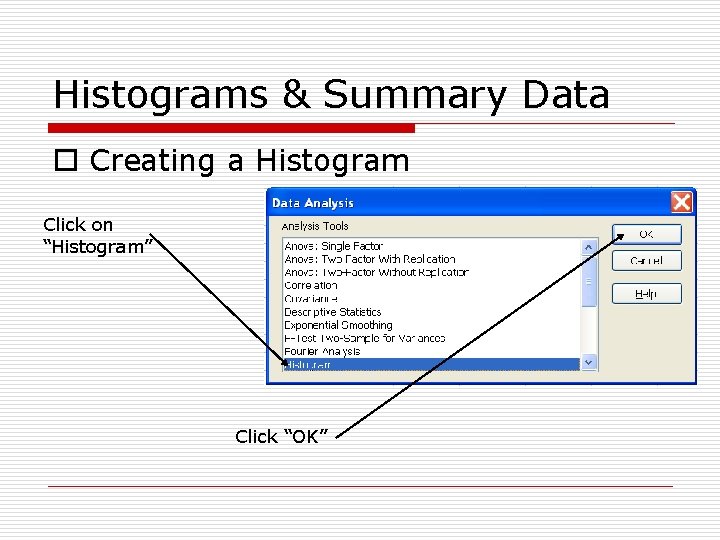
Histograms & Summary Data o Creating a Histogram Click on “Histogram” Click “OK”
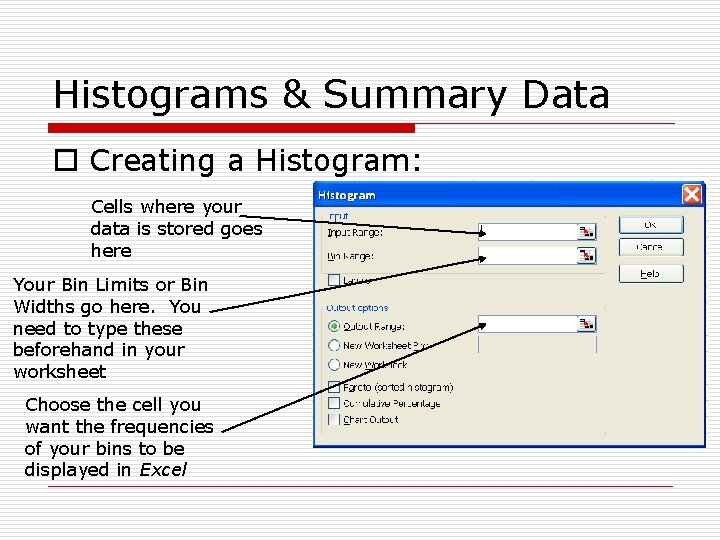
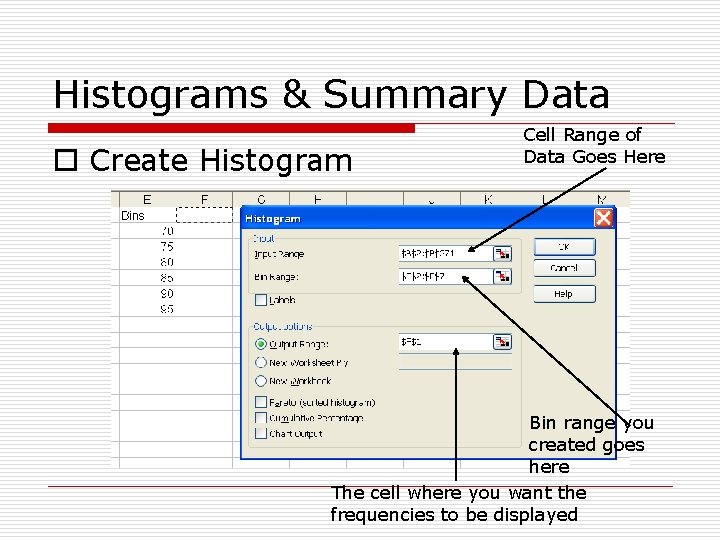
Histograms & Summary Data o Creating a Histogram: Cells where your data is stored goes here Your Bin Limits or Bin Widths go here. You need to type these beforehand in your worksheet Choose the cell you want the frequencies of your bins to be displayed in Excel
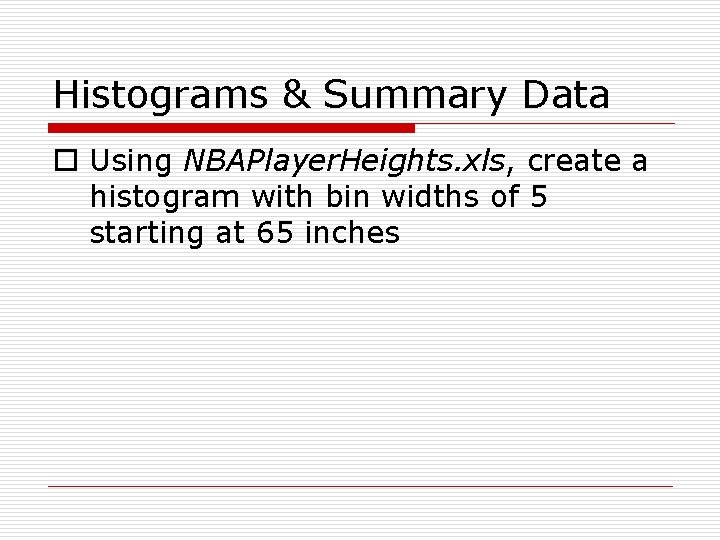
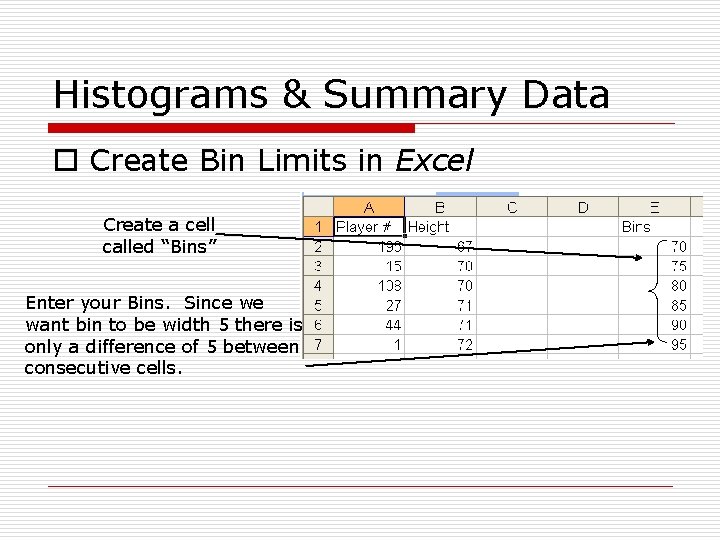
Histograms & Summary Data o Using NBAPlayer. Heights. xls, create a histogram with bin widths of 5 starting at 65 inches
Histograms & Summary Data o Create Bin Limits in Excel Create a cell called “Bins” Enter your Bins. Since we want bin to be width 5 there is only a difference of 5 between consecutive cells.
Histograms & Summary Data o Create Histogram Cell Range of Data Goes Here Bin range you created goes here The cell where you want the frequencies to be displayed
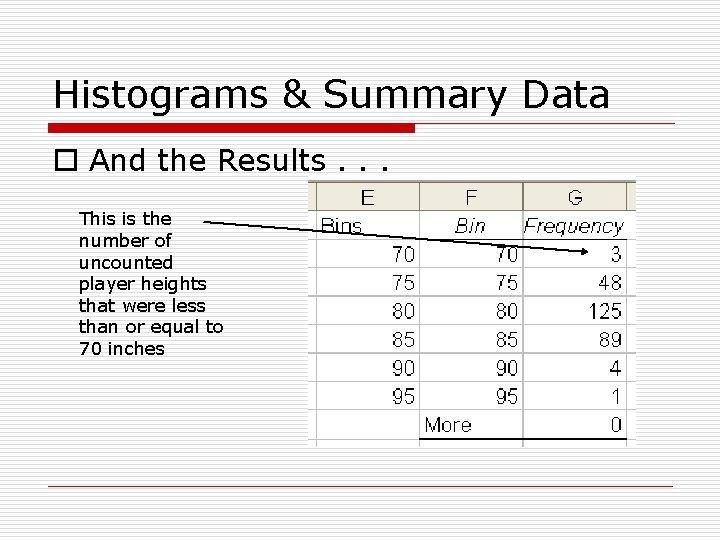
Histograms & Summary Data o And the Results. . . This is the number of uncounted player heights that were less than or equal to 70 inches
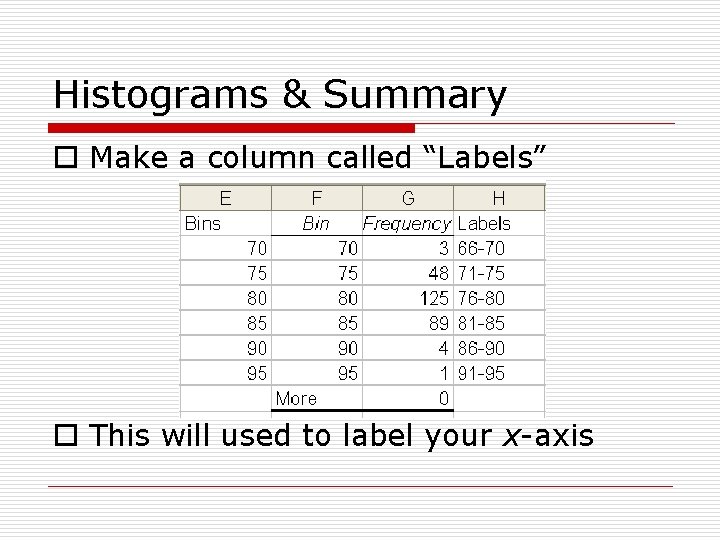
Histograms & Summary o Make a column called “Labels” o This will used to label your x-axis
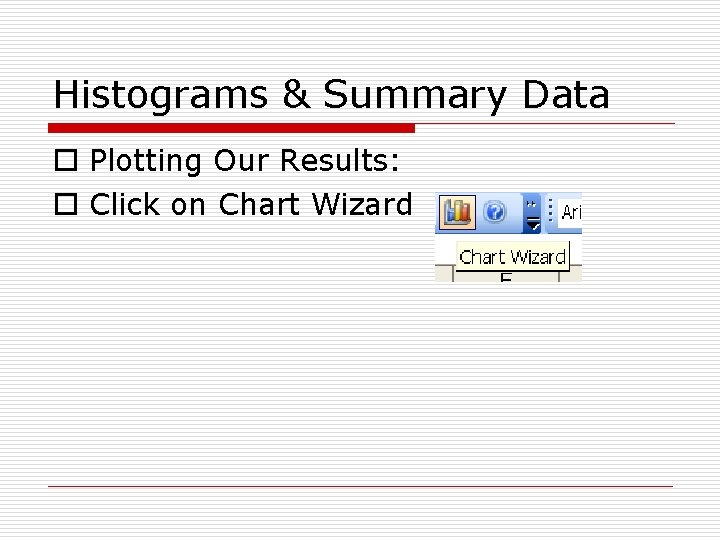
Histograms & Summary Data o Plotting Our Results: o Click on Chart Wizard
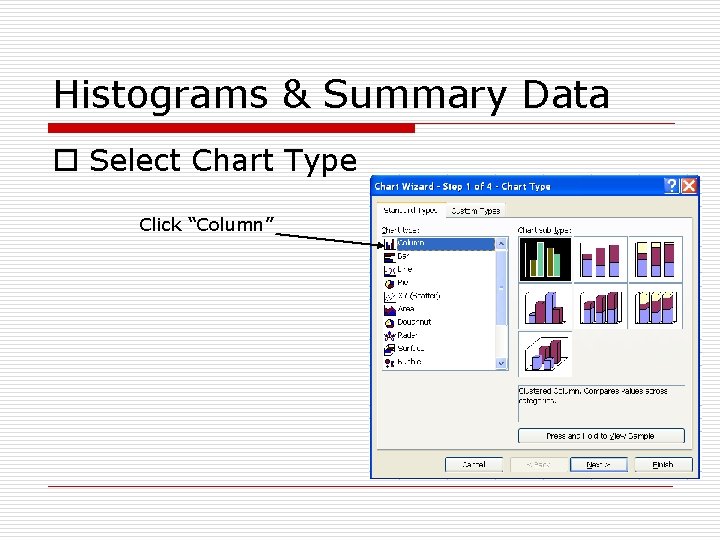
Histograms & Summary Data o Select Chart Type Click “Column”
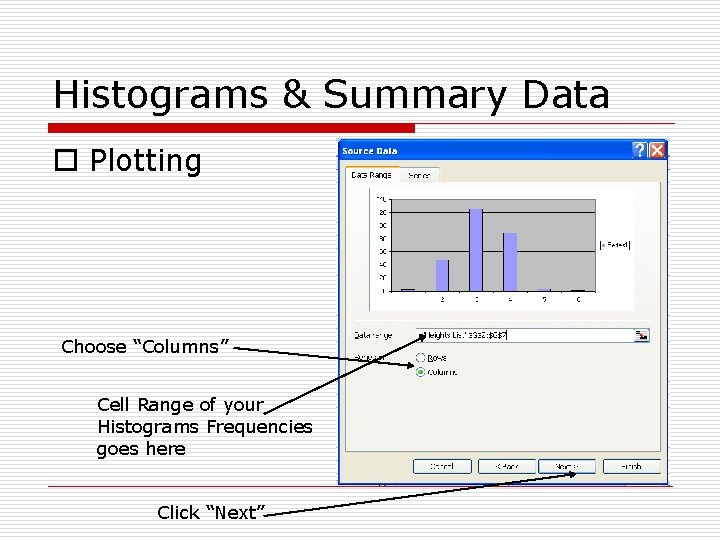
Histograms & Summary Data o Plotting Choose “Columns” Cell Range of your Histograms Frequencies goes here Click “Next”
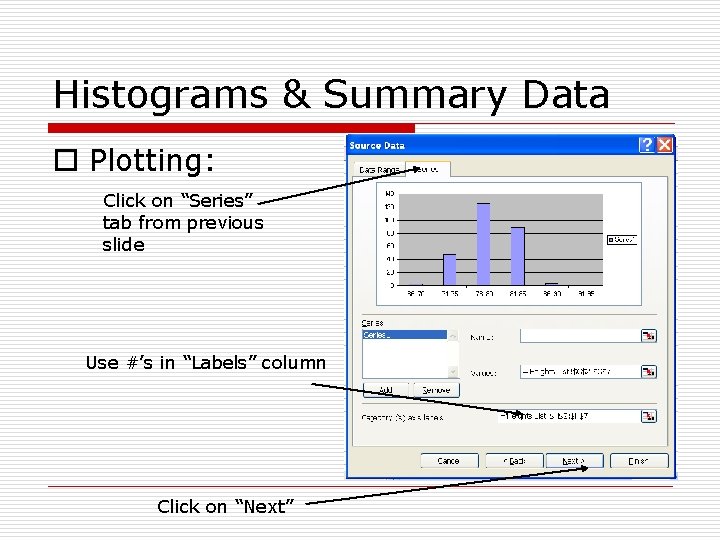
Histograms & Summary Data o Plotting: Click on “Series” tab from previous slide Use #’s in “Labels” column Click on “Next”
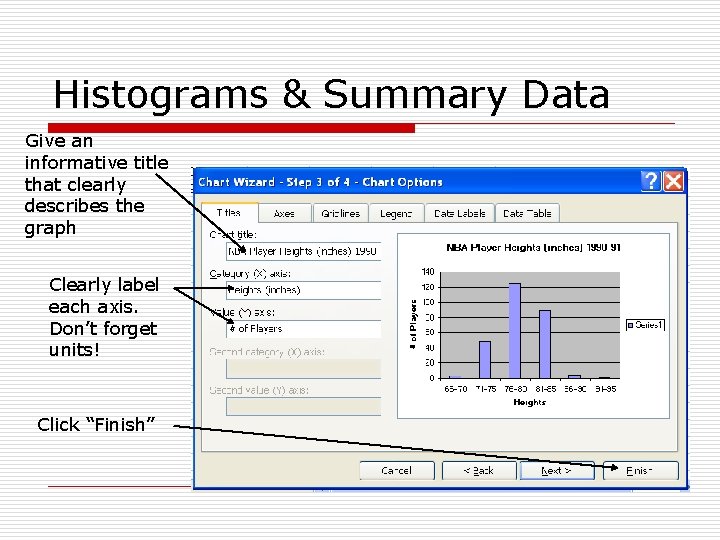
Histograms & Summary Data Give an informative title that clearly describes the graph Clearly label each axis. Don’t forget units! Click “Finish”
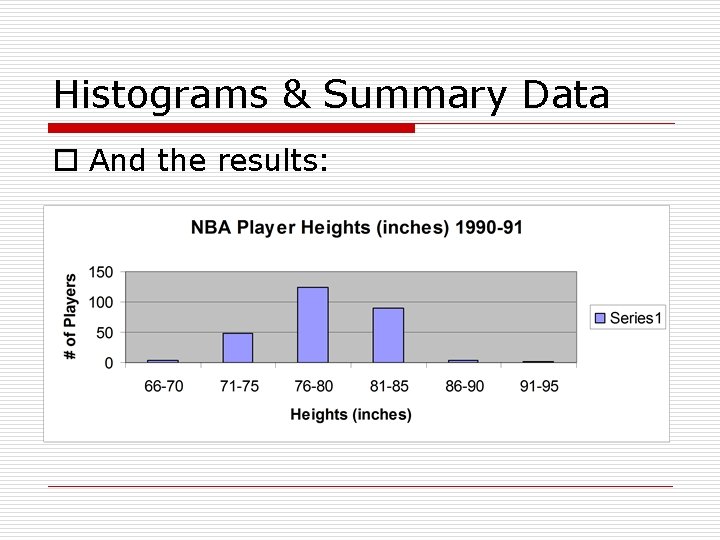
Histograms & Summary Data o And the results:
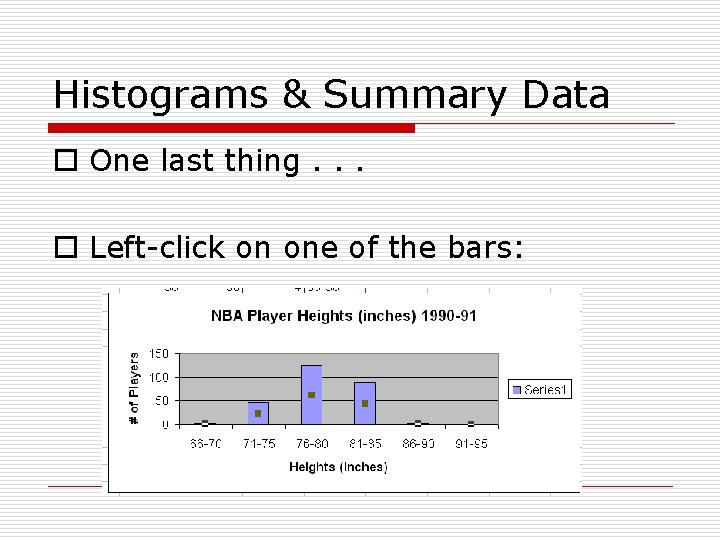
Histograms & Summary Data o One last thing. . . o Left-click on one of the bars:
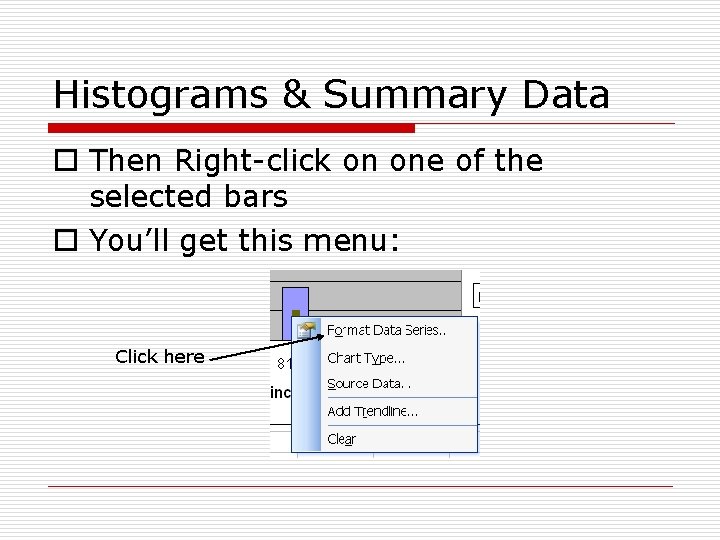
Histograms & Summary Data o Then Right-click on one of the selected bars o You’ll get this menu: Click here
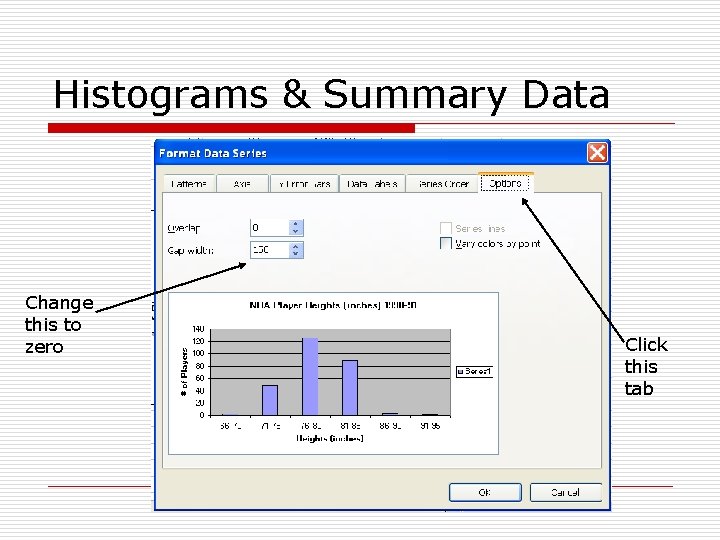
Histograms & Summary Data Change this to zero Click this tab
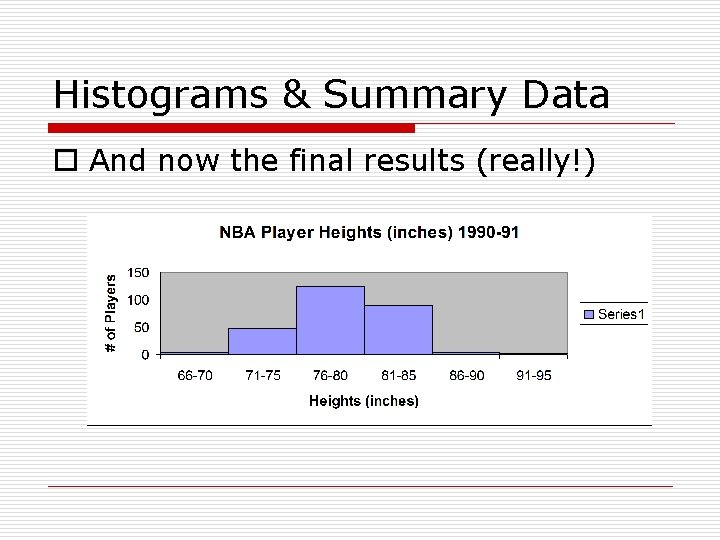
Histograms & Summary Data o And now the final results (really!)