
Highly Recommended by Outdoor Explorers Keep Guard 4
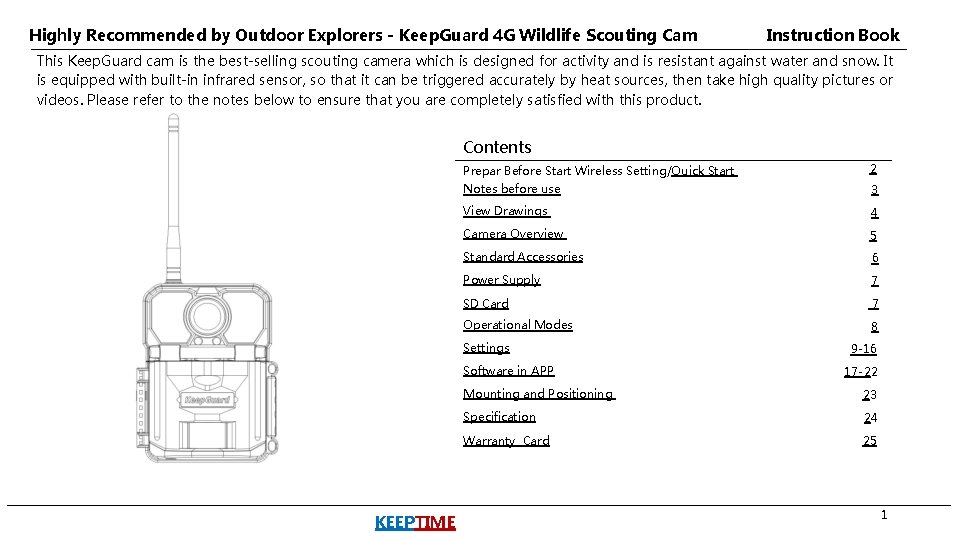
Highly Recommended by Outdoor Explorers - Keep. Guard 4 G Wildlife Scouting Cam Instruction Book This Keep. Guard cam is the best-selling scouting camera which is designed for activity and is resistant against water and snow. It is equipped with built-in infrared sensor, so that it can be triggered accurately by heat sources, then take high quality pictures or videos. Please refer to the notes below to ensure that you are completely satisfied with this product. Contents Prepar Before Start Wireless Setting/Quick Start 2 Notes before use 3 View Drawings 4 Camera Overview 5 Standard Accessories 6 Power Supply 7 SD Card 7 Operational Modes 8 Settings Software in APP KEEPTIME 9 -16 17 -22 Mounting and Positioning 23 Specification 24 Warranty Card 25 1
Prepar Before Start Wireless Setting Quick Start 1. Pen and paper: record relevant information such as APN and ICCID. Move the latch and open the camera case Load 12 lithium AA or alkaline AA batteries 2. Mobile phone: the operator's APN information should be checked in the mobile phone. Set "NETWORK" via APP/PC and copy it to SD card 3. 4 G SIM card 、 large card frame 、 card pin: check the ICCID number on the card and write it down, then install the SIM into the camera. Insert the SIM card 4. Email: for receiving "NETWORK" files. Press " UP " key to select Camera or Video Mode 5. Blank SD card: store "NETWORK" files. Press " MENU " key to setting camera function Insert the SD card Switch to the SETUP Mode, wait about 1 Minute Press " LEFT" key to take a photo and send it to your APP 6. Computer: it is used to edit the "NETWORK" text file and store it on the SD card. Switch to the ON Mode Close the case and position the camera for use KEEPTIME 2
Notes Before Use 1. When setting camera parameters, please put camera in Setup mode. 2. Do not set the camera directly from ON to Setup. 3. To replace the battery, SD card, and SIM card, firstly turn camera to OFF mode. 4. Color of Indicator 1) When camera is updating firmware, indicator light flashes green. 2) The indicator light flashes red when it is turned on or ready for operation. 3) low battery, the indicator light flashes blue. 4) long standby time, the indicator flashes purple. 5. Batteries need to use dry batteries, do not use rechargeable batteries. 6. When the SD card is inserted into camera, make sure that the SD card is not in lock state. 7. When using an external power supply, make sure that voltage is 12 V. 8. Please take out the battery to avoid leakage of the battery if camera is not used for a long time. 9. Camera can not be directly immersed in water, can not be placed in the environment of strong acid and alkali. 10. Don’t use your fingers to press the Fresnel lens. 11. Keep the lens and battery compartment clean. 12. Do not use sharp hard objects to scratch screen. KEEPTIME 3
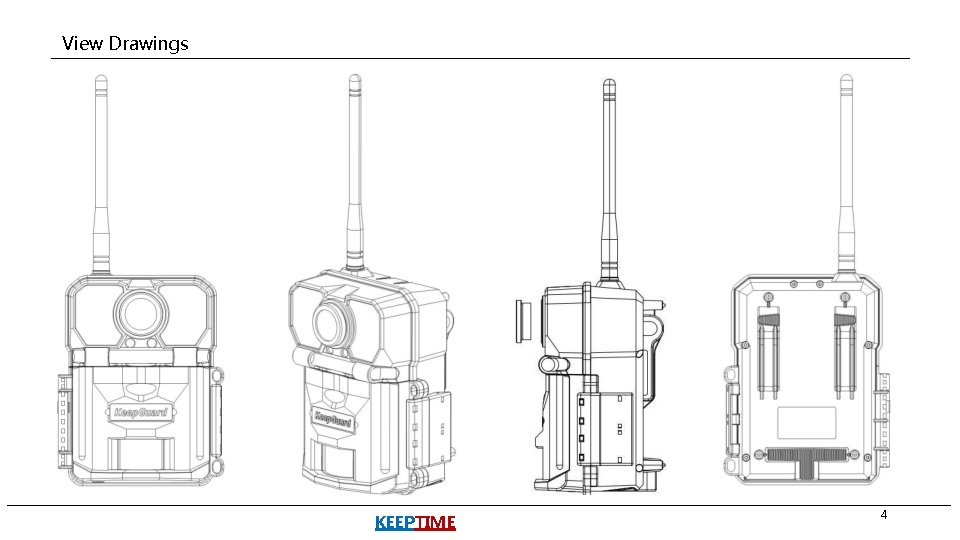
View Drawings KEEPTIME 4
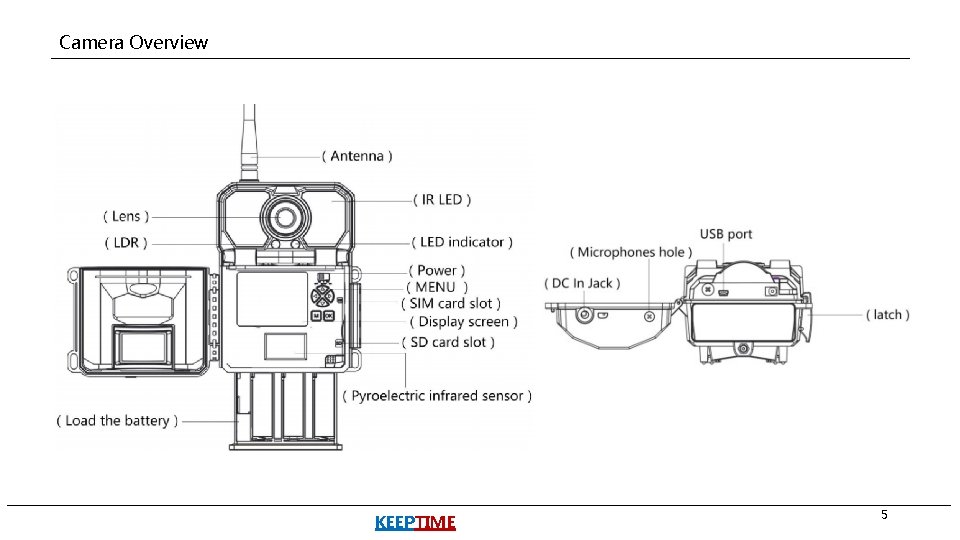
Camera Overview KEEPTIME 5
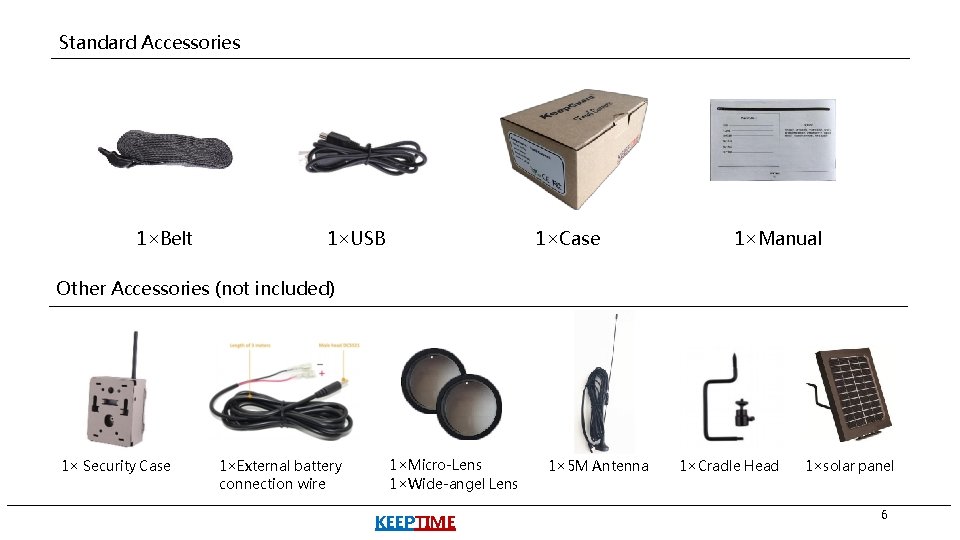
Standard Accessories 1×Belt 1×USB 1×Case 1×Manual Other Accessories (not included) 1× Security Case 1×External battery connection wire 1×Micro-Lens 1×Wide-angel Lens KEEPTIME 1× 5 M Antenna 1×Cradle Head 1×solar panel 6
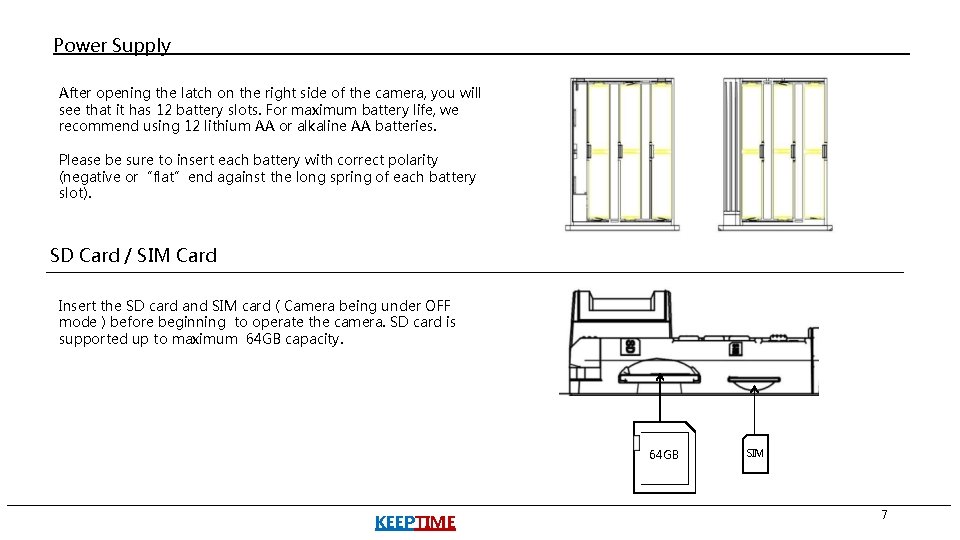
Power Supply After opening the latch on the right side of the camera, you will see that it has 12 battery slots. For maximum battery life, we recommend using 12 lithium AA or alkaline AA batteries. Please be sure to insert each battery with correct polarity (negative or“flat”end against the long spring of each battery slot). SD Card / SIM Card Insert the SD card and SIM card ( Camera being under OFF mode ) before beginning to operate the camera. SD card is supported up to maximum 64 GB capacity. 64 GB KEEPTIME SIM 7
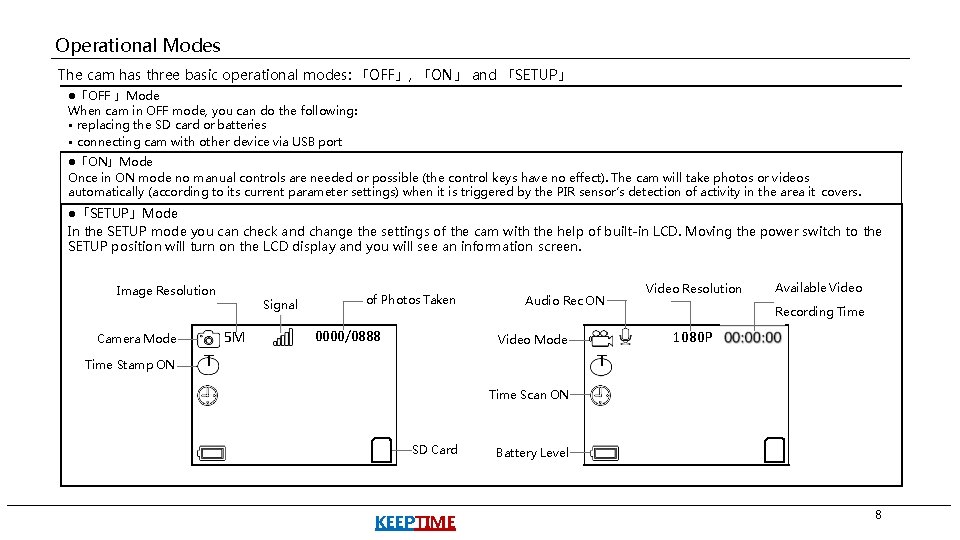
Operational Modes The cam has three basic operational modes: 「OFF」, 「ON」 and 「SETUP」 ● 「OFF 」Mode When cam in OFF mode, you can do the following: • replacing the SD card or batteries • connecting cam with other device via USB port ● 「ON」Mode Once in ON mode no manual controls are needed or possible (the control keys have no effect). The cam will take photos or videos automatically (according to its current parameter settings) when it is triggered by the PIR sensor′s detection of activity in the area it covers. ● 「SETUP」Mode In the SETUP mode you can check and change the settings of the cam with the help of built-in LCD. Moving the power switch to the SETUP position will turn on the LCD display and you will see an information screen. Image Resolution 5 M Camera Mode Time Stamp ON Signal of Photos Taken 0000/0888 Audio Rec ON Available Video Recording Time 1080 P Video Mode T Video Resolution T Time Scan ON SD Card KEEPTIME Battery Level 8
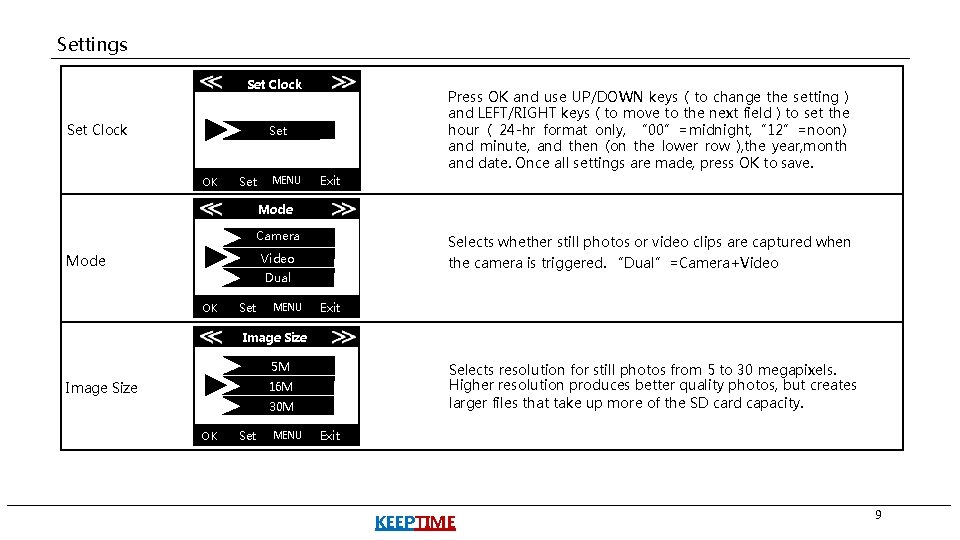
Settings Set Clock Press OK and use UP/DOWN keys ( to change the setting ) and LEFT/RIGHT keys ( to move to the next field ) to set the hour ( 24 -hr format only, “ 00”=midnight, “ 12”=noon) and minute, and then (on the lower row ), the year, month and date. Once all settings are made, press OK to save. Set OK Set MENU Exit Mode Camera Selects whether still photos or video clips are captured when the camera is triggered. “Dual”=Camera+Video Mode Dual OK Set MENU Exit Image Size 5 M Image Size Selects resolution for still photos from 5 to 30 megapixels. Higher resolution produces better quality photos, but creates larger files that take up more of the SD card capacity. 16 M 30 M OK Set MENU Exit KEEPTIME 9
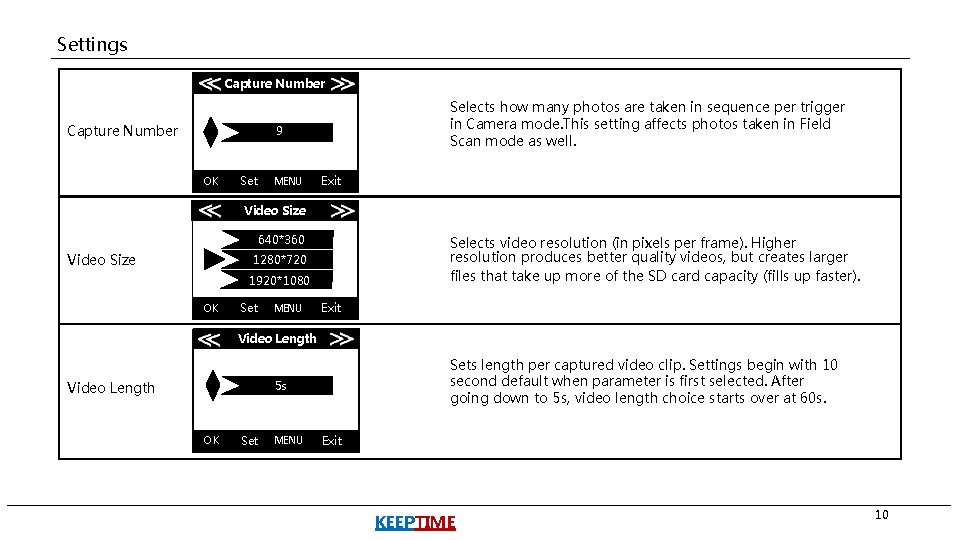
Settings Capture Number Selects how many photos are taken in sequence per trigger in Camera mode. This setting affects photos taken in Field Scan mode as well. 9 OK Set MENU Exit Video Size ze 640*360 Video Size Selects video resolution (in pixels per frame). Higher resolution produces better quality videos, but creates larger files that take up more of the SD card capacity (fills up faster). 1280*720 1920*1080 OK Set MENU Exit Video Length Sets length per captured video clip. Settings begin with 10 second default when parameter is first selected. After going down to 5 s, video length choice starts over at 60 s. 5 s Video Length OK Set MENU Exit KEEPTIME 10
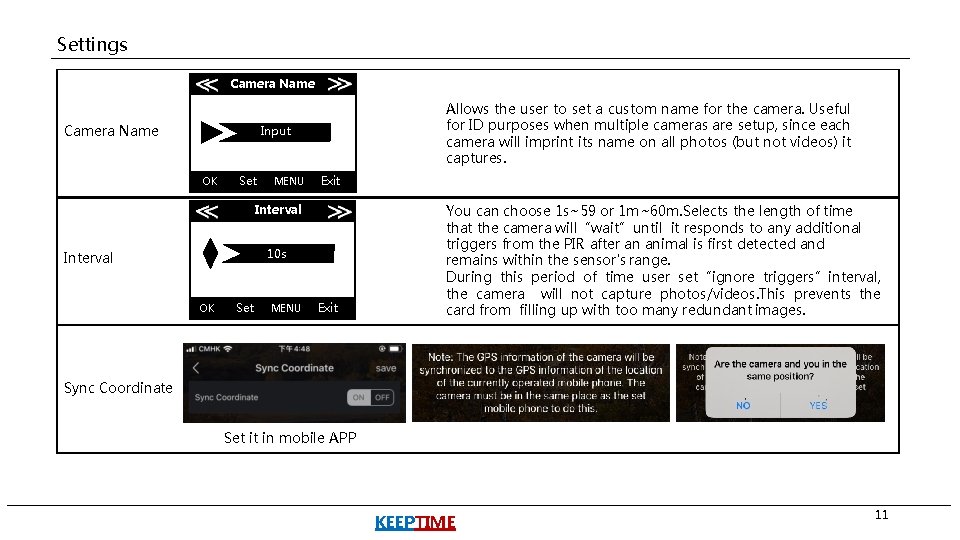
Settings Camera Name Allows the user to set a custom name for the camera. Useful for ID purposes when multiple cameras are setup, since each camera will imprint its name on all photos (but not videos) it captures. Input OK Set MENU Exit Interval 10 s Interval OK Set MENU Exit You can choose 1 s~59 or 1 m~60 m. Selects the length of time that the camera will“wait”until it responds to any additional triggers from the PIR after an animal is first detected and remains within the sensor's range. During this period of time user set“ignore triggers”interval, the camera will not capture photos/videos. This prevents the card from filling up with too many redundant images. Sync Coordinate Set it in mobile APP KEEPTIME 11
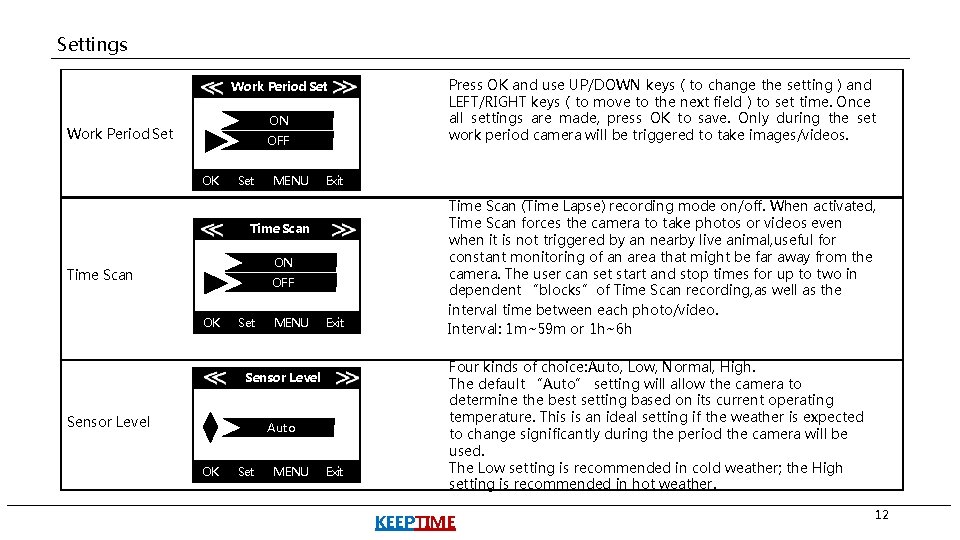
Settings Work Period Set ON Work Period Set OFF OK Set MENU Exit Time Scan ON Time Scan OFF OK Set MENU Exit Sensor Level Auto OK Set MENU Press OK and use UP/DOWN keys ( to change the setting ) and LEFT/RIGHT keys ( to move to the next field ) to set time. Once all settings are made, press OK to save. Only during the set work period camera will be triggered to take images/videos. Exit Time Scan (Time Lapse) recording mode on/off. When activated, Time Scan forces the camera to take photos or videos even when it is not triggered by an nearby live animal, useful for constant monitoring of an area that might be far away from the camera. The user can set start and stop times for up to two in dependent “blocks”of Time Scan recording, as well as the interval time between each photo/video. Interval: 1 m~59 m or 1 h~6 h Four kinds of choice: Auto, Low, Normal, High. The default “Auto” setting will allow the camera to determine the best setting based on its current operating temperature. This is an ideal setting if the weather is expected to change significantly during the period the camera will be used. The Low setting is recommended in cold weather; the High setting is recommended in hot weather. KEEPTIME 12
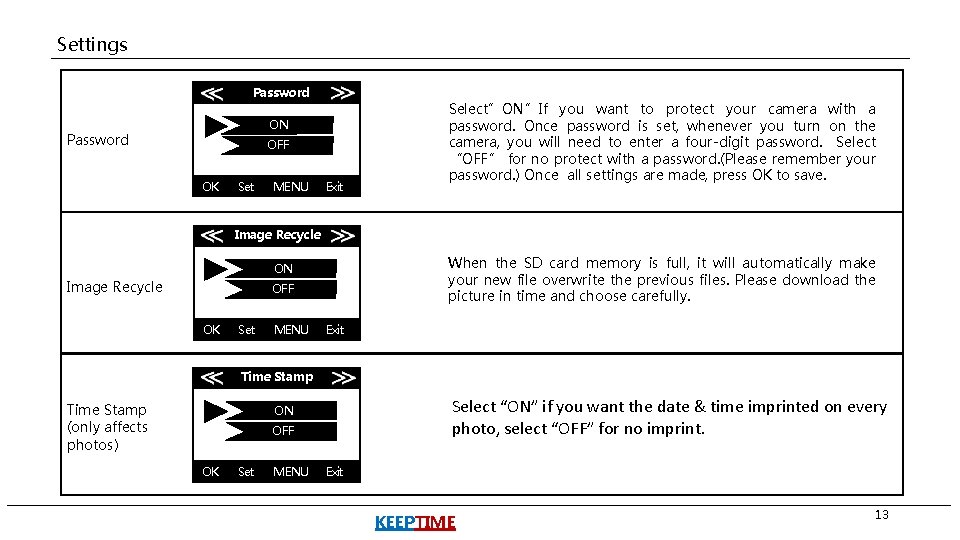
Settings Password ON Password OFF OK Set MENU Exit Select”ON”If you want to protect your camera with a password. Once password is set, whenever you turn on the camera, you will need to enter a four-digit password. Select “OFF” for no protect with a password. (Please remember your password. ) Once all settings are made, press OK to save. Image Recycle When the SD card memory is full, it will automatically make your new file overwrite the previous files. Please download the picture in time and choose carefully. ON Image Recycle OFF OK Set MENU Exit Time Stamp (only affects photos) Select “ON” if you want the date & time imprinted on every photo, select “OFF” for no imprint. ON OFF OK Set MENU Exit KEEPTIME 13
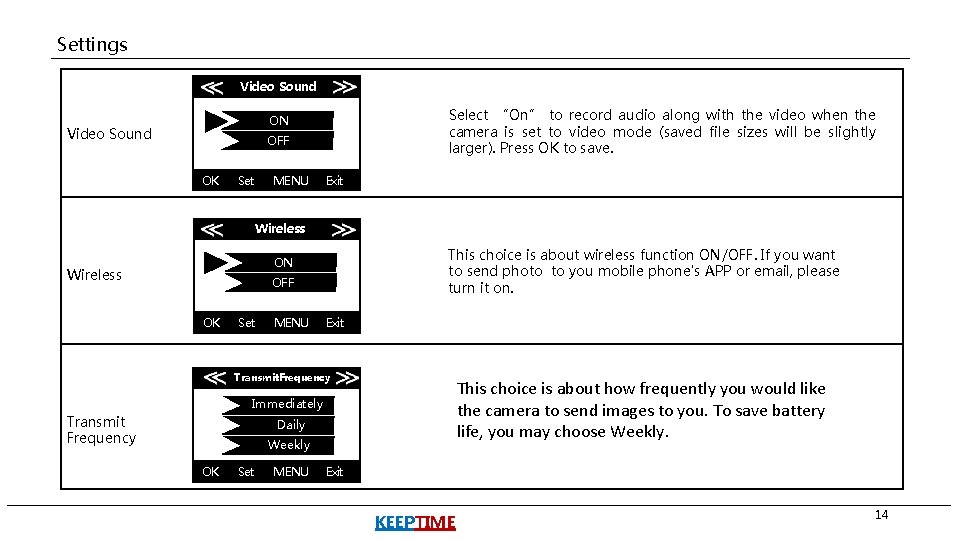
Settings Video Sound Select “On” to record audio along with the video when the camera is set to video mode (saved file sizes will be slightly larger). Press OK to save. ON Video Sound OFF OK Set MENU Exit Wireless This choice is about wireless function ON/OFF. If you want to send photo to you mobile phone's APP or email, please turn it on. ON Wireless OFF OK Set MENU Exit Transmit. Frequency This choice is about how frequently you would like the camera to send images to you. To save battery life, you may choose Weekly. Immediately Transmit Frequency Daily Weekly OK Set MENU Exit KEEPTIME 14
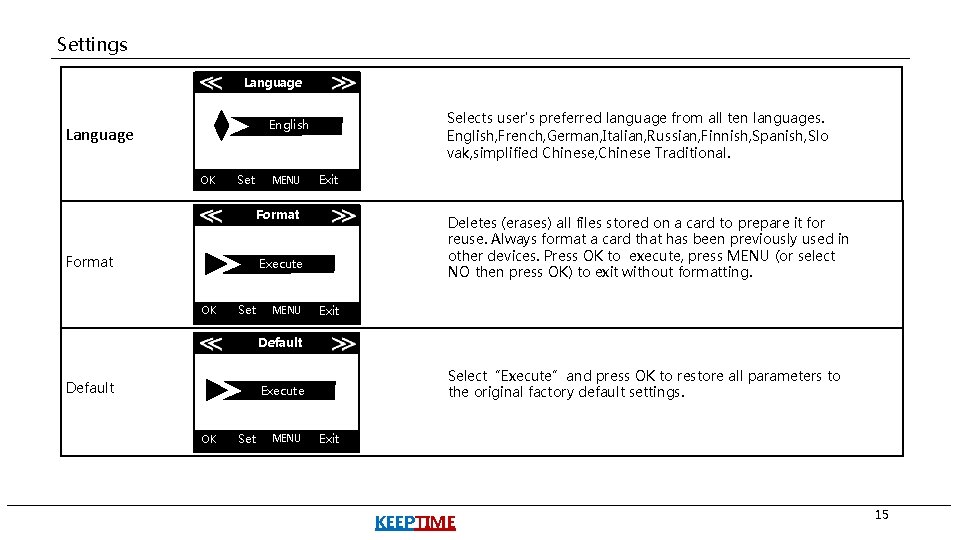
Settings Language Selects user's preferred language from all ten languages. English, French, German, Italian, Russian, Finnish, Spanish, Slo vak, simplified Chinese, Chinese Traditional. English Language OK Set MENU Exit Format Deletes (erases) all files stored on a card to prepare it for reuse. Always format a card that has been previously used in other devices. Press OK to execute, press MENU (or select NO then press OK) to exit without formatting. Execute OK Set MENU Exit Default Select“Execute”and press OK to restore all parameters to the original factory default settings. Execute OK Set MENU Exit KEEPTIME 15
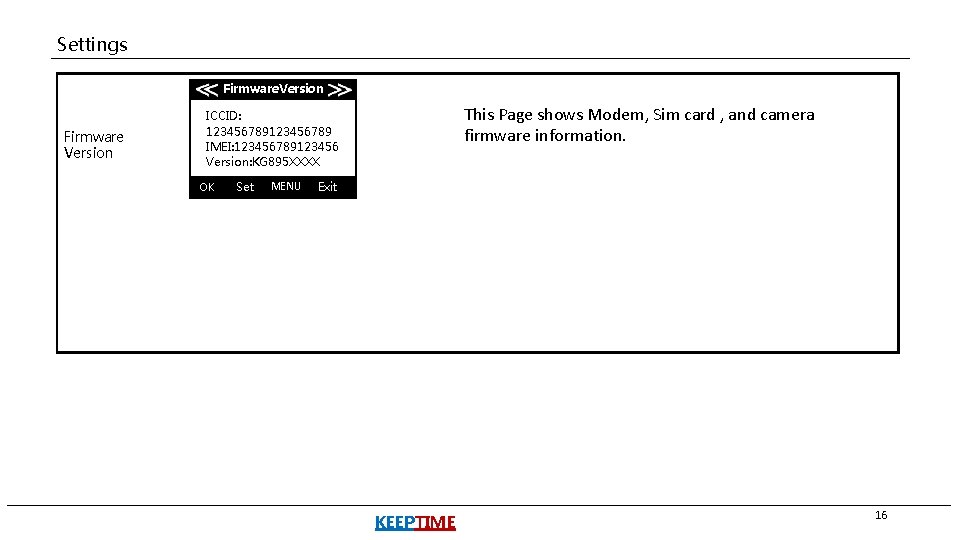
Settings Firmware. Version Firmware Version This Page shows Modem, Sim card , and camera firmware information. ICCID: 123456789 IMEI: 123456789123456 Version: KG 895 XXXX OK Set MENU Exit KEEPTIME 16
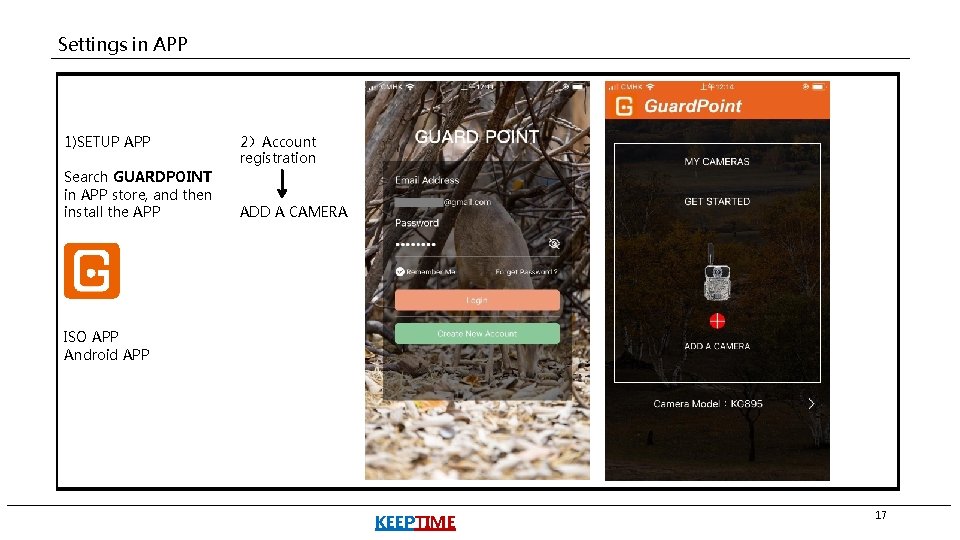
Settings in APP 1)SETUP APP Search GUARDPOINT in APP store, and then install the APP 2)Account registration ADD A CAMERA ISO APP Android APP KEEPTIME 17
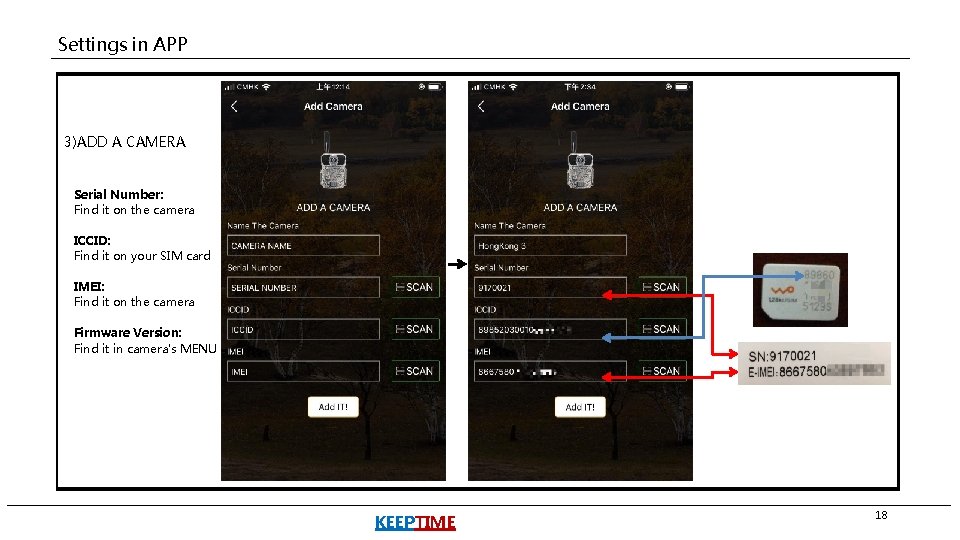
Settings in APP 3)ADD A CAMERA Serial Number: Find it on the camera ICCID: Find it on your SIM card IMEI: Find it on the camera Firmware Version: Find it in camera's MENU KEEPTIME 18
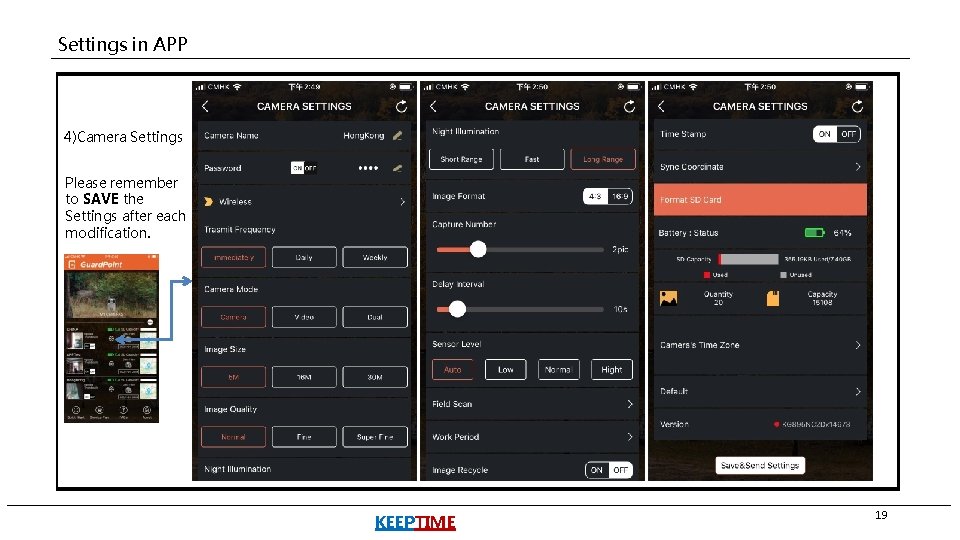
Settings in APP 4)Camera Settings Please remember to SAVE the Settings after each modification. KEEPTIME 19
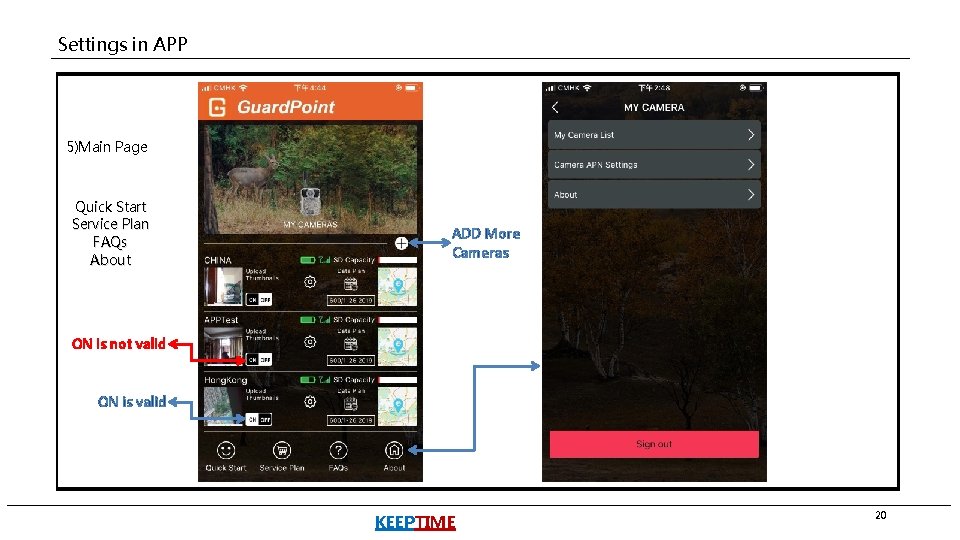
Settings in APP 5)Main Page Quick Start Service Plan FAQs About ADD More Cameras ON is not valid ON is valid KEEPTIME 20
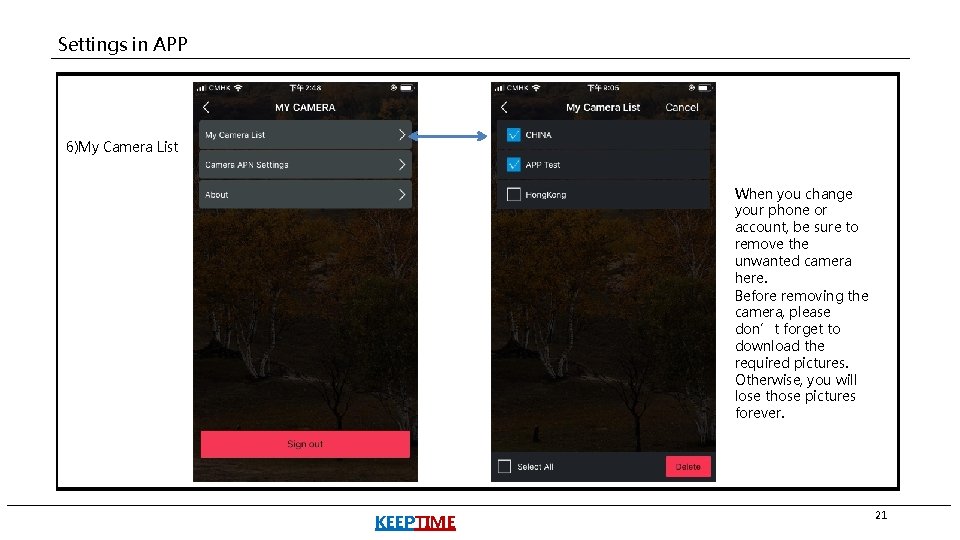
Settings in APP 6)My Camera List When you change your phone or account, be sure to remove the unwanted camera here. Before removing the camera, please don’t forget to download the required pictures. Otherwise, you will lose those pictures forever. KEEPTIME 21
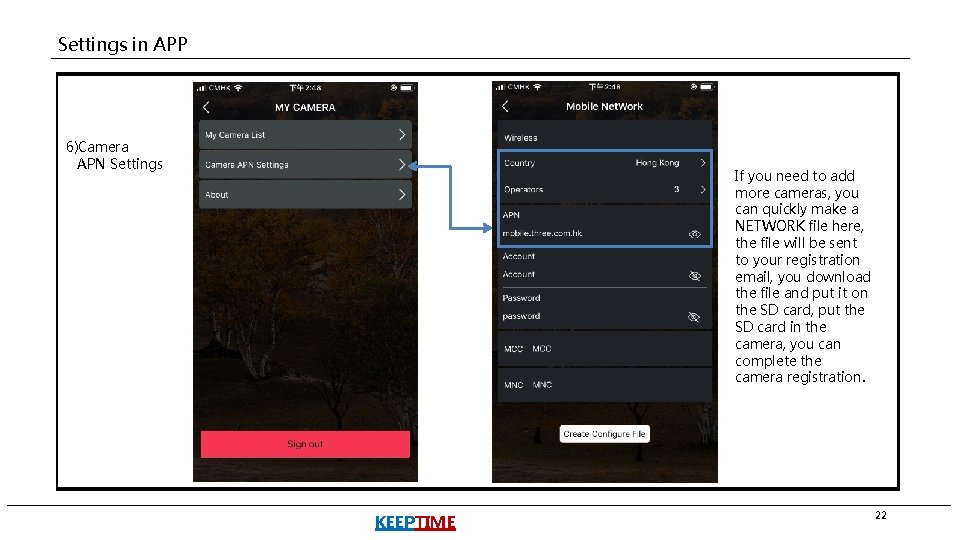
Settings in APP 6)Camera APN Settings If you need to add more cameras, you can quickly make a NETWORK file here, the file will be sent to your registration email, you download the file and put it on the SD card, put the SD card in the camera, you can complete the camera registration. KEEPTIME 22
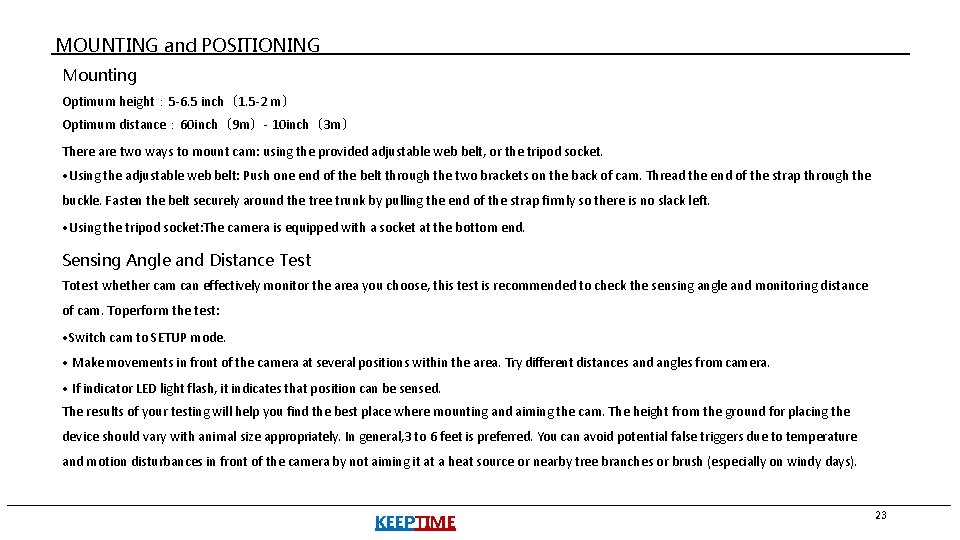
MOUNTING and POSITIONING Mounting Optimum height: 5 -6. 5 inch(1. 5 -2 m) Optimum distance: 60 inch(9 m)- 10 inch(3 m) There are two ways to mount cam: using the provided adjustable web belt, or the tripod socket. • Using the adjustable web belt: Push one end of the belt through the two brackets on the back of cam. Thread the end of the strap through the buckle. Fasten the belt securely around the tree trunk by pulling the end of the strap firmly so there is no slack left. • Using the tripod socket: The camera is equipped with a socket at the bottom end. Sensing Angle and Distance Test Totest whether cam can effectively monitor the area you choose, this test is recommended to check the sensing angle and monitoring distance of cam. Toperform the test: • Switch cam to SETUP mode. • Make movements in front of the camera at several positions within the area. Try different distances and angles from camera. • If indicator LED light flash, it indicates that position can be sensed. The results of your testing will help you find the best place where mounting and aiming the cam. The height from the ground for placing the device should vary with animal size appropriately. In general, 3 to 6 feet is preferred. You can avoid potential false triggers due to temperature and motion disturbances in front of the camera by not aiming it at a heat source or nearby tree branches or brush (especially on windy days). KEEPTIME 23
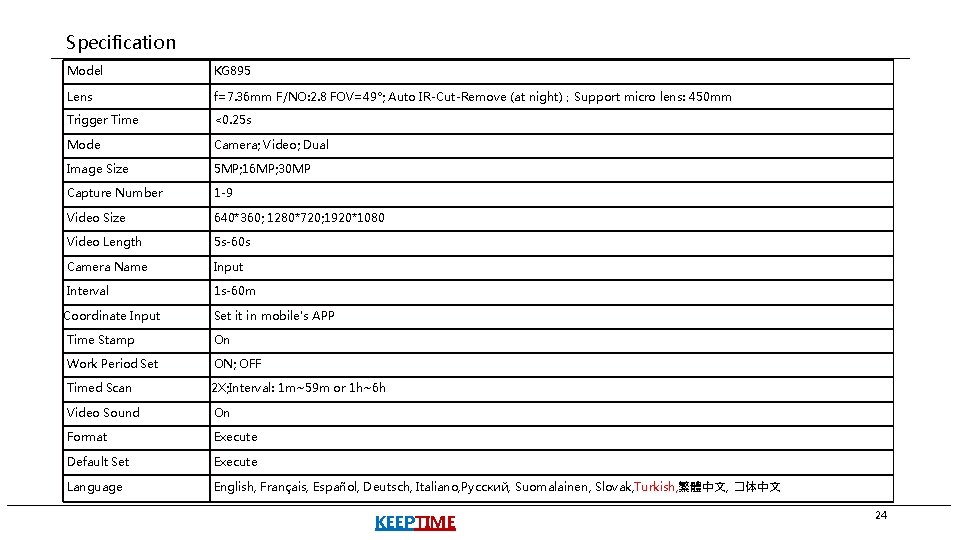
Specification Model KG 895 Lens f=7. 36 mm F/NO: 2. 8 FOV=49°; Auto IR-Cut-Remove (at night);Support micro lens: 450 mm Trigger Time <0. 25 s Mode Camera; Video; Dual Image Size 5 MP; 16 MP; 30 MP Capture Number 1 -9 Video Size 640*360; 1280*720; 1920*1080 Video Length 5 s-60 s Camera Name Input Interval 1 s-60 m Coordinate Input Set it in mobile's APP Time Stamp On Work Period Set ON; OFF Timed Scan 2 X; Interval: 1 m~59 m or 1 h~6 h Video Sound On Format Execute Default Set Execute Language English, Français, Español, Deutsch, Italiano, Pусский, Suomalainen, Slovak, Turkish, 繁體中文, �体中文 KEEPTIME 24
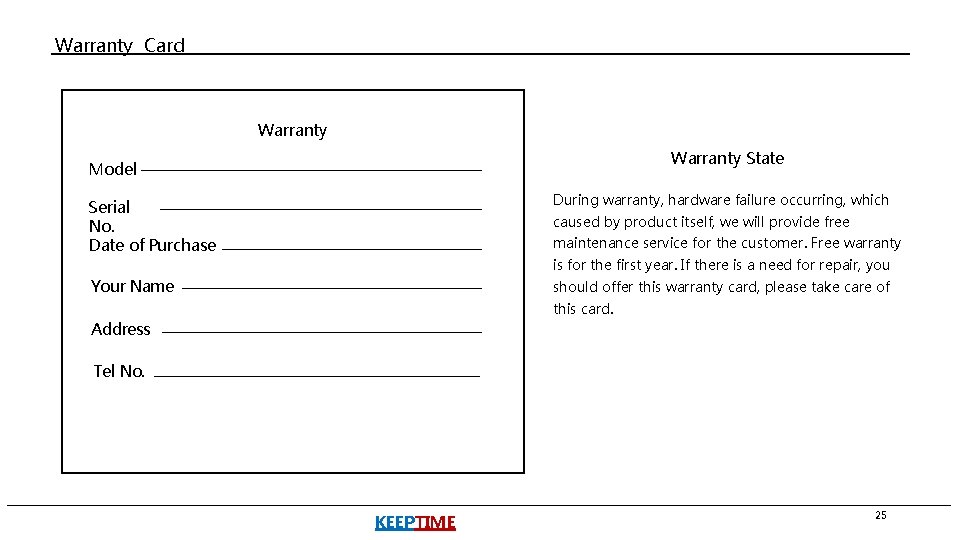
Warranty Card Warranty State Model Serial No. Date of Purchase During warranty, hardware failure occurring, which Your Name should offer this warranty card, please take care of caused by product itself, we will provide free maintenance service for the customer. Free warranty is for the first year. If there is a need for repair, you this card. Address Tel No. KEEPTIME 25
- Slides: 25