
Heuristic Evaluation z Developed by Jakob Nielsen z
Heuristic Evaluation z Developed by Jakob Nielsen z Principles used to “evaluate” a system for usability problems z Becoming very popular xuser involvement not required xcatches many design flaws z Small set (3 -5) of evaluators examine UI y independently check for compliance with usability principles (“heuristics”) y different evaluators will find different problems y evaluators only communicate afterwards xfindings are then aggregated z Can perform on working UI or on sketches 1
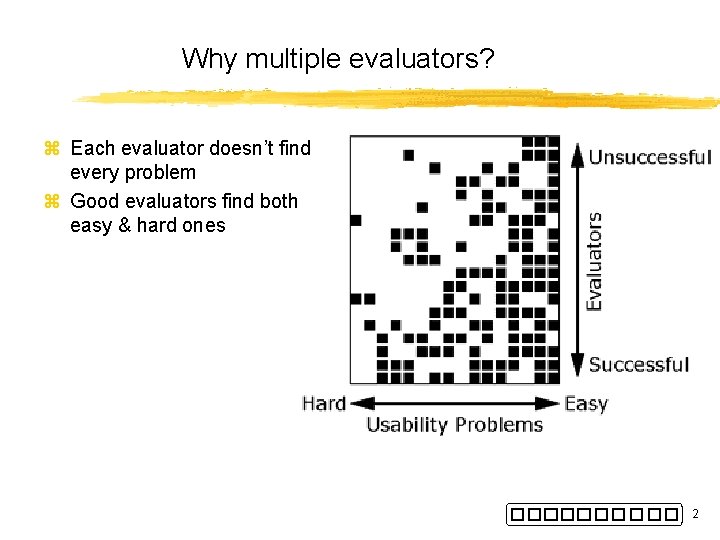
Why multiple evaluators? z Each evaluator doesn’t find every problem z Good evaluators find both easy & hard ones 2
Heuristic Evaluation Process z Evaluators go through UI several times y inspect various dialogue elements y compare with list of usability principles y consider other principles/results that come to mind z Usability principles y Nielsen’s “heuristics” y supplementary list of category-specific heuristics xcompetitive analysis & user testing of existing products z Use violations to redesign/fix problems 3
Neilson’s Heuristics z z z z z H 1 -1: Visibility of system status H 1 -2: Match between system & real world H 1 -3: User control & freedom H 1 -4: Consistency & standards H 1 -5: Error prevention H 1 -6: Recognition rather than recall H 1 -7: Flexibility and efficiency of use H 1 -8: Aesthetic and minimalist design H 1 -9: Help users recognize, diagnose, and recover from errors H 1 -10: Help and documentation 4
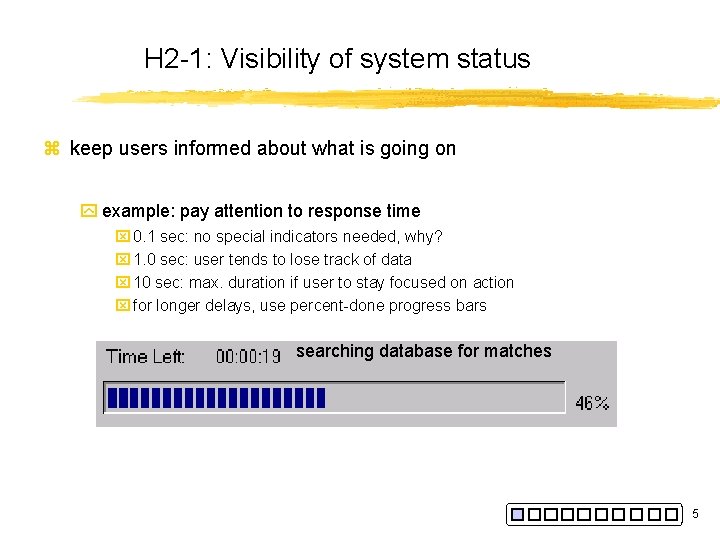
H 2 -1: Visibility of system status z keep users informed about what is going on y example: pay attention to response time x 0. 1 sec: no special indicators needed, why? x 1. 0 sec: user tends to lose track of data x 10 sec: max. duration if user to stay focused on action x for longer delays, use percent-done progress bars searching database for matches 5
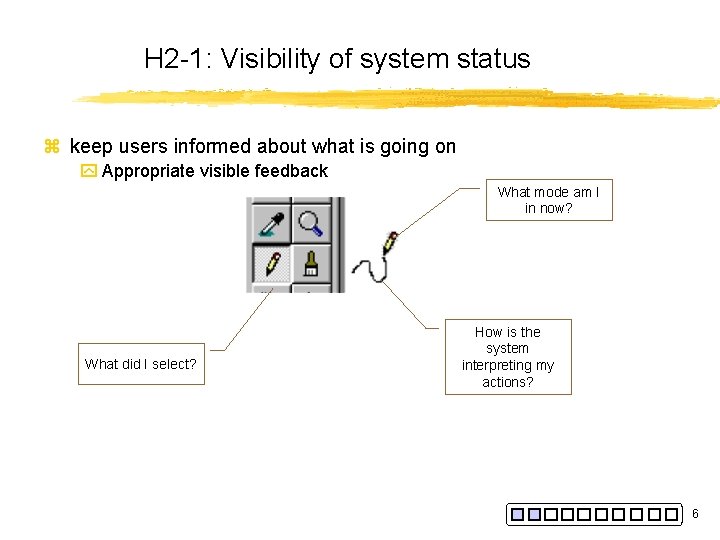
H 2 -1: Visibility of system status z keep users informed about what is going on y Appropriate visible feedback What mode am I in now? What did I select? How is the system interpreting my actions? 6
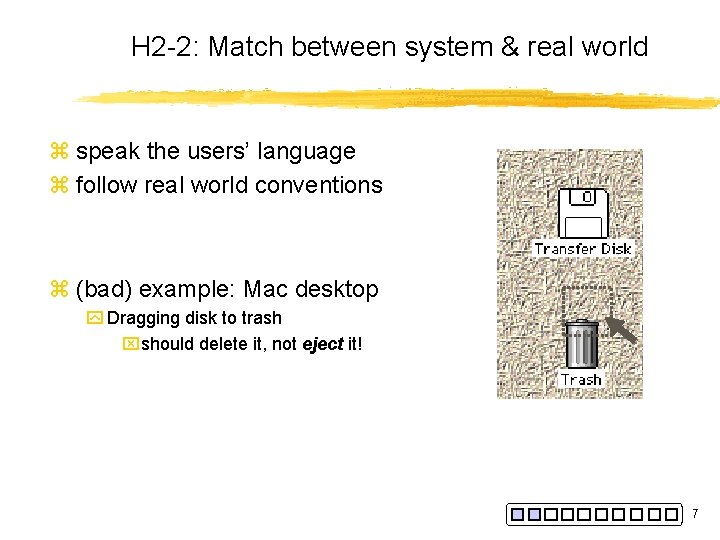
H 2 -2: Match between system & real world z speak the users’ language z follow real world conventions z (bad) example: Mac desktop y Dragging disk to trash xshould delete it, not eject it! 7
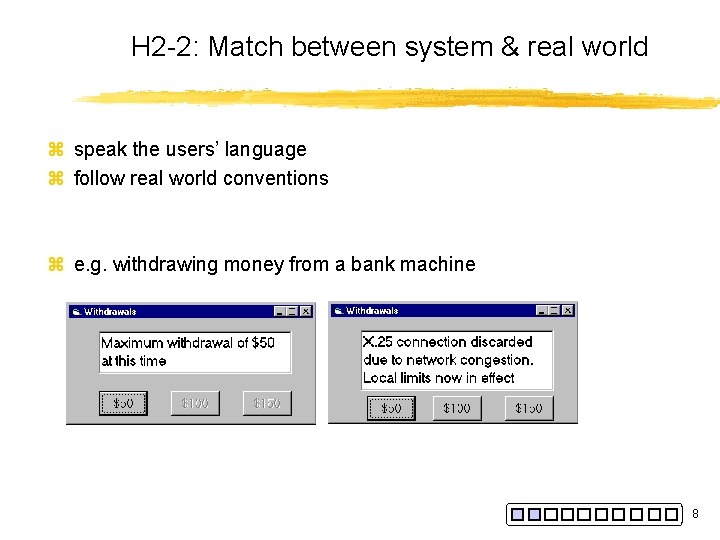
H 2 -2: Match between system & real world z speak the users’ language z follow real world conventions z e. g. withdrawing money from a bank machine 8
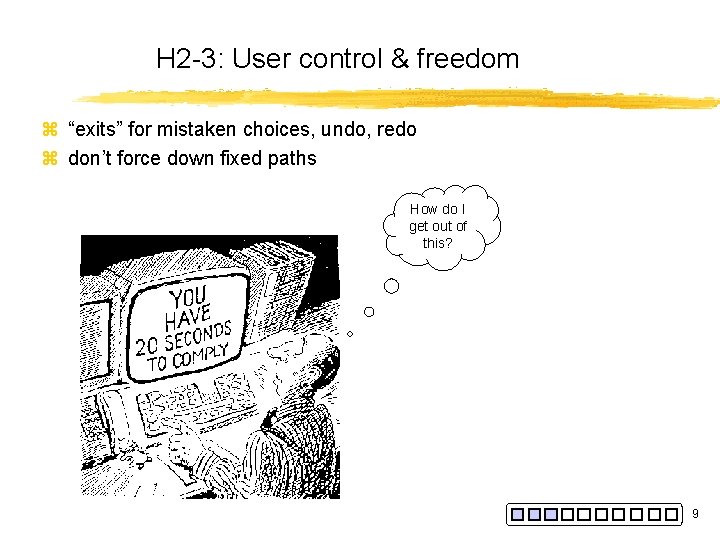
H 2 -3: User control & freedom z “exits” for mistaken choices, undo, redo z don’t force down fixed paths How do I get out of this? 9
H 2 -3: User control & freedom z “exits” for mistaken choices, undo, redo z don’t force down fixed paths z Strategies: y Cancel button (for dialogs waiting for user input) y Universal Undo (can get back to previous state) y Interrupt (especially for lengthy operations) y Quit (for leaving the program at any time) y Defaults (for restoring a property sheet) 10
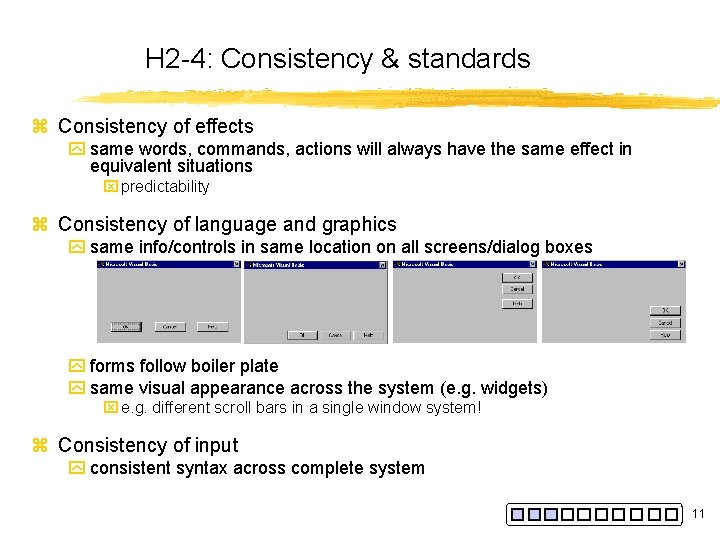
H 2 -4: Consistency & standards z Consistency of effects y same words, commands, actions will always have the same effect in equivalent situations x predictability z Consistency of language and graphics y same info/controls in same location on all screens/dialog boxes y forms follow boiler plate y same visual appearance across the system (e. g. widgets) x e. g. different scroll bars in a single window system! z Consistency of input y consistent syntax across complete system 11
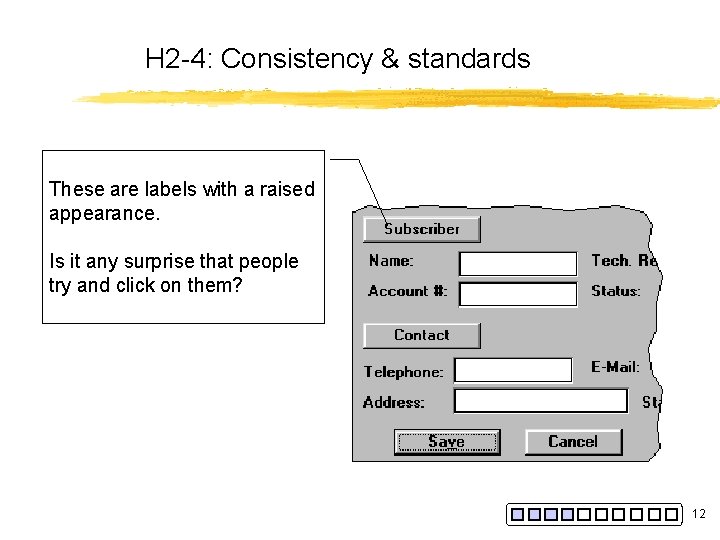
H 2 -4: Consistency & standards These are labels with a raised appearance. Is it any surprise that people try and click on them? 12
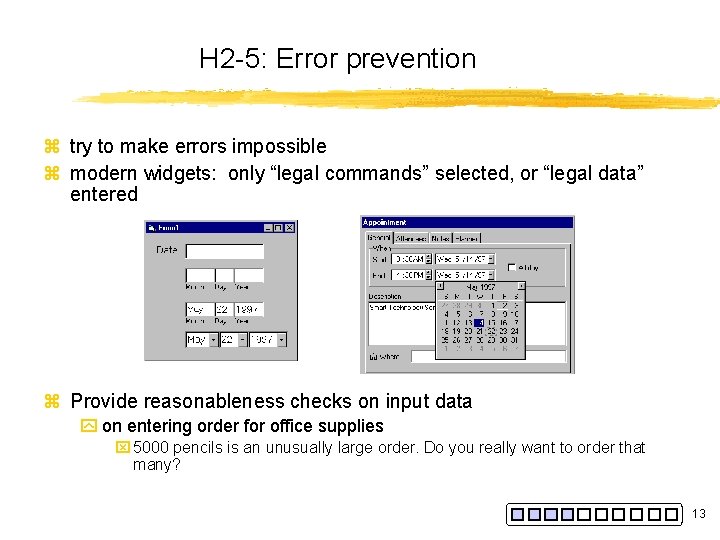
H 2 -5: Error prevention z try to make errors impossible z modern widgets: only “legal commands” selected, or “legal data” entered z Provide reasonableness checks on input data y on entering order for office supplies x 5000 pencils is an unusually large order. Do you really want to order that many? 13
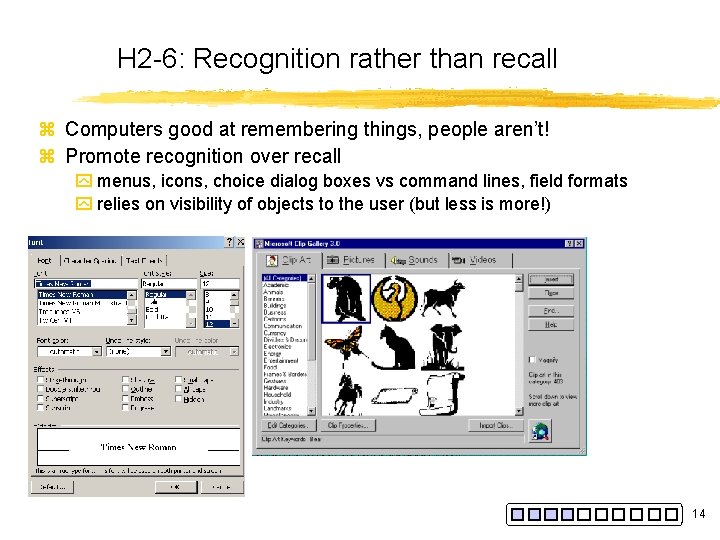
H 2 -6: Recognition rather than recall z Computers good at remembering things, people aren’t! z Promote recognition over recall y menus, icons, choice dialog boxes vs command lines, field formats y relies on visibility of objects to the user (but less is more!) 14
H 2 -7: Flexibility and efficiency of use z Experienced users should be able to perform frequently used operations quickly z Strategies: y keyboard and mouse accelerators x abbreviations x command completion x menu shortcuts x function keys x double clicking vs menu selection y type-ahead (entering input before the system is ready for it) y navigation jumps x e. g. , going to window/location directly, and avoiding intermediate nodes y history systems x WWW: ~60% of pages are revisits 15
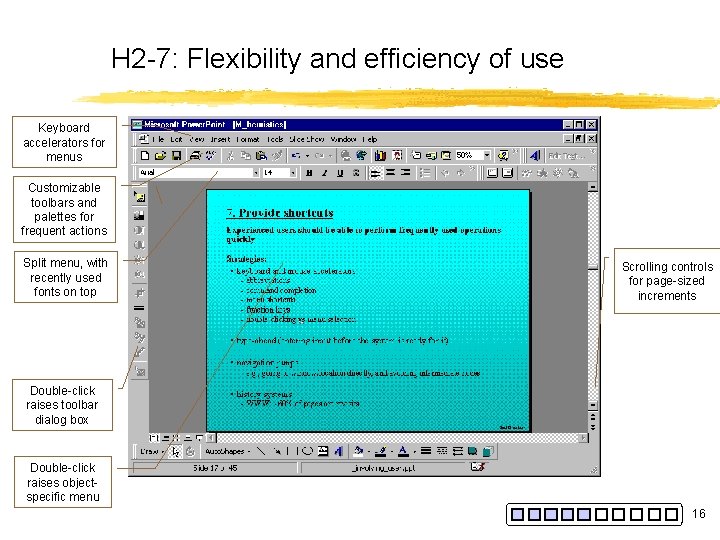
H 2 -7: Flexibility and efficiency of use Keyboard accelerators for menus Customizable toolbars and palettes for frequent actions Split menu, with recently used fonts on top Scrolling controls for page-sized increments Double-click raises toolbar dialog box Double-click raises objectspecific menu 16
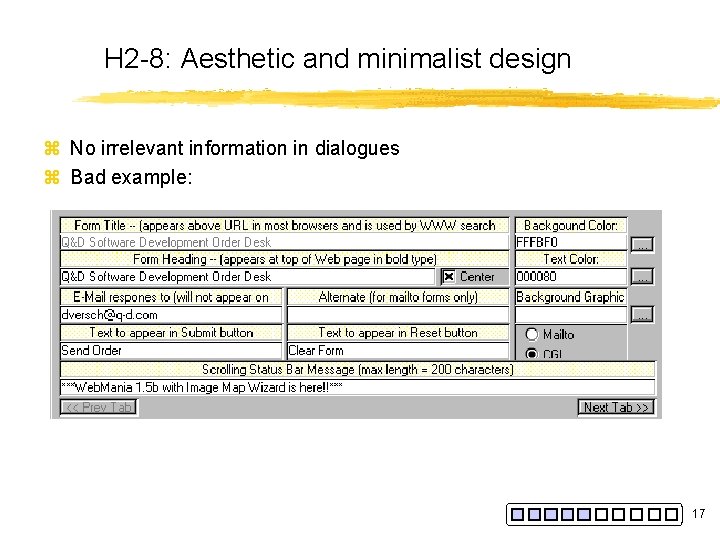
H 2 -8: Aesthetic and minimalist design z No irrelevant information in dialogues z Bad example: 17
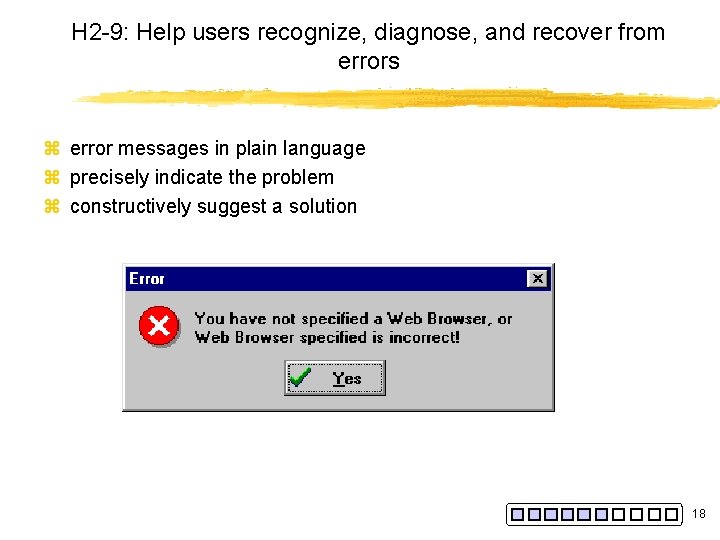
H 2 -9: Help users recognize, diagnose, and recover from errors z error messages in plain language z precisely indicate the problem z constructively suggest a solution 18
Errors we make z Mistakes y arise from conscious deliberations that lead to an error instead of the correct solution z Slips y unconscious behaviour that gets misdirected en route to satisfying goal x e. g. drive to store, end up in the office y shows up frequently in skilled behaviour x usually due to inattention y often arises from similarities of actions 19
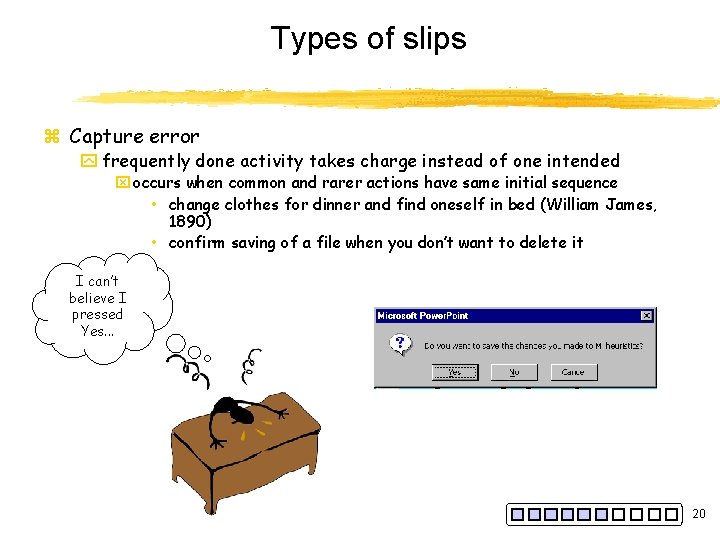
Types of slips z Capture error y frequently done activity takes charge instead of one intended x occurs when common and rarer actions have same initial sequence • change clothes for dinner and find oneself in bed (William James, 1890) • confirm saving of a file when you don’t want to delete it I can’t believe I pressed Yes. . . 20
Types of slips z Description error y intended action has much in common with others that are possible x usually occurs when right and wrong objects physically near each other • pour juice into bowl instead of glass • go jogging, come home, throw sweaty shirt in toilet instead of laundry basket • move file to trash instead of to folder z Loss of activation y forgetting what the goal is while undergoing the sequence of actions x start going to room and forget why you are going there x navigating menus/dialogs and can’t remember what you are looking for x but continue action to remember (or go back to beginning)! z Mode errors y people do actions in one mode thinking they are in another x refer to file that’s in a different directory x look for commands / menu options that are not relevant 21
Designing for slips z General rules y Prevent slips before they occur y Detect and correct slips when they do occur y User correction through feedback and undo z Examples y mode errors x have as few modes as possible (preferably none) x make modes highly visible y capture errors x instead of confirmation, make actions undoable x allows reconsideration of action by user • e. g. Mac trash can be opened and “deleted” file taken back out y loss of activation x if system knows goal, make it explicit x if not, allow person to see path taken y description errors x in icon-based interfaces, make sure icons are not too similar, x check for reasonable input, etc. 22
Generic system responses for errors z General idea: Forcing functions y prevent / mitigate continuation of wrongful action z Gag y deals with errors by preventing the user from continuing x eg cannot get past login screen until correct password entered z Warn y warn people that an unusual situation is occurring y when overused, becomes an irritant x e. g. , • audible bell • alert box z Do nothing y illegal action just doesn’t do anything y user must infer what happened x enter letter into a numeric-only field (key clicks ignored) x put a file icon on top of another file icon (returns it to original position) 23
Generic system responses for errors z Self-correct y system guesses legal action and does it instead y but leads to a problem of trust x spelling corrector z Lets talk about it y system initiates dialog with user to come up with solution to the problem x compile error brings up offending line in source code z Teach me y system asks user what the action was supposed to have meant y action then becomes a legal one 24
H 2 -10: Help and documentation z Help is not a replacement for bad design! z Simple systems: y walk up and use; minimal instructions z Most other systems: y feature rich y some users will want to become “experts” rather than “casual” users y intermediate users need reminding, plus a learning path z Many users do not read manuals y prefer to spend their time pursuing their task z Usually used when users are in some kind of panic, need immediate help y indicates need for online documentation, good search/lookup tools y online help can be specific to current context y paper manuals unavailable in many businesses! x e. g. single copy locked away in system administrator’s office z Sometimes used for quick reference y syntax of actions, possibilities. . . y list of shortcuts. . . 25
Types of help z Tutorial and/or getting started manuals y short guides that people are likely to read when first obtaining their systems x encourages exploration and getting to know the system x tries to get conceptual material across and essential syntax y on-line “tours”, exercises, and demos x demonstrates very basic principles through working examples z Reference manuals y used mostly for detailed lookup by experts x rarely introduces concepts x thematically arranged y on-line hypertext x search / find x table of contents x index x cross-index 26
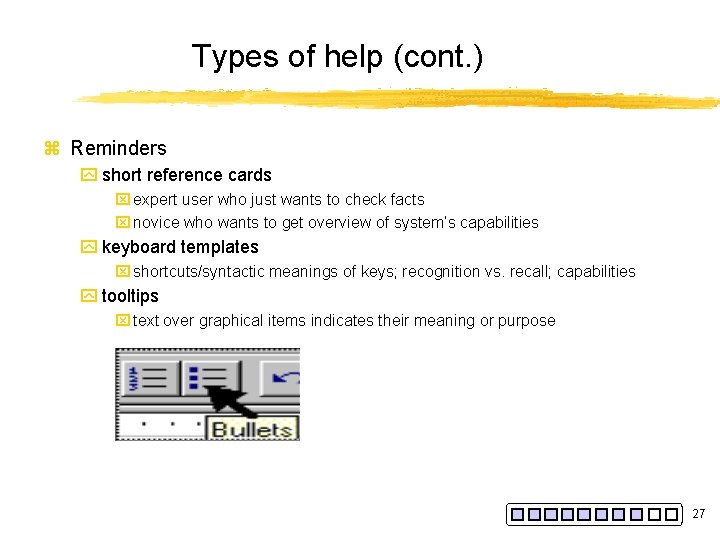
Types of help (cont. ) z Reminders y short reference cards x expert user who just wants to check facts x novice who wants to get overview of system’s capabilities y keyboard templates x shortcuts/syntactic meanings of keys; recognition vs. recall; capabilities y tooltips x text over graphical items indicates their meaning or purpose 27
Types of help (cont. ) z Context-sensitive help y system provides help on the interface component the user is currently working with x Macintosh “balloon help” x Microsoft “What’s this” help • brief help explaining whatever the user is pointing at on the screen z Wizards y walks user through typical tasks y but dangerous if user gets stuck y Remember the MS “paperclip”? 28
How to perform evaluation z At least two passes for each evaluator y first to get feel for flow and scope of system y second to focus on specific elements z If system is walk-up-and-use or evaluators are domain experts, no assistance needed y otherwise might supply evaluators with scenarios z Each evaluator produces list of problems y explain why with reference to heuristic or other information y be specific and list each occurrence of each problem separately 29
How to perform evaluation (cont. ) z Why separate listings for each occurrence? y to catch all repeats y may not be possible to fix all problems z Where problems may be found y single location in UI y two or more locations that need to be compared y problem with overall structure of UI y something that is missing x content, features, etc. x note: sometimes features are implied by design docs and just haven’t been “implemented” – relax on those 30
Severity ratings z Used to allocate resources to fix problems z Estimates of need for more usability efforts z Combination of y frequency y impact y persistence (one time or repeating) z Should be calculated after all evals. are in z Should be done independently by all judges 31
Severity ratings (cont). 0 - don’t agree that this is a usability problem 1 - superficial problem 2 - minor usability problem 3 - major usability problem; important to fix 4 - usability catastrophe; imperative to fix 32
Summary z Advantages y the “minimalist” approach x a few general guidelines can correct for the majority of usability problems x easily remembered, easily applied with modest effort y discount usability engineering x cheap and fast way to inspect a system x can be done by usability experts and end users z Problems: y principles are more or less at the motherhood level x can’t be treated as a simple checklist x subtleties involved in their use 33
- Slides: 33