
HEB Vendor Lane Receiving What is Lane Receiving
H-E-B Vendor Lane Receiving
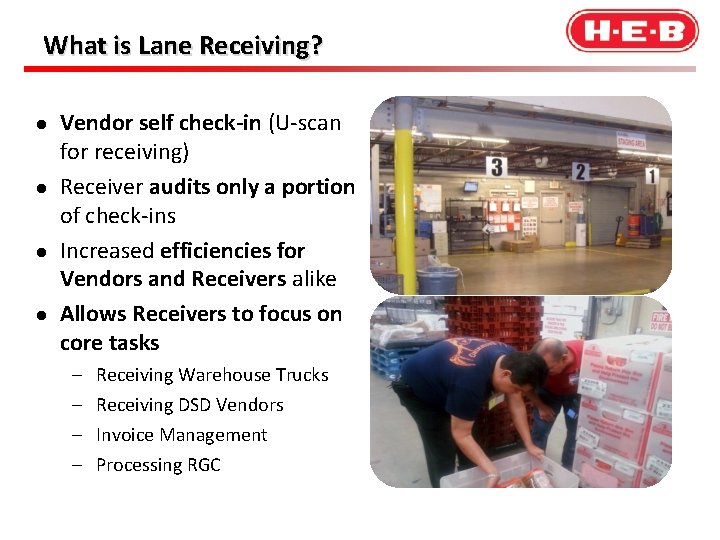
What is Lane Receiving? l l Vendor self check-in (U-scan for receiving) Receiver audits only a portion of check-ins Increased efficiencies for Vendors and Receivers alike Allows Receivers to focus on core tasks – – Receiving Warehouse Trucks Receiving DSD Vendors Invoice Management Processing RGC
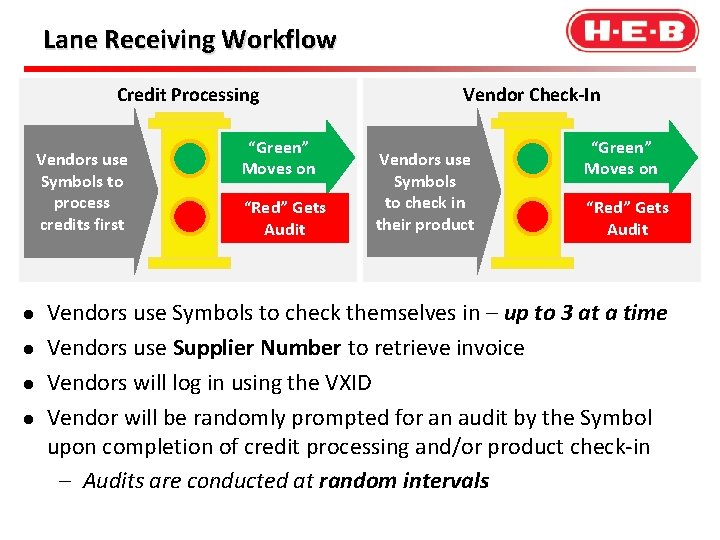
Lane. Workflow Receiving Workflow Lane Receiving Credit Processing Vendors use Symbols to process credits first l l “Green” Moves on “Red” Gets Audit Vendor Check-In Vendors use Symbols to check in their product “Green” Moves on “Red” Gets Audit Vendors use Symbols to check themselves in – up to 3 at a time Vendors use Supplier Number to retrieve invoice Vendors will log in using the VXID Vendor will be randomly prompted for an audit by the Symbol upon completion of credit processing and/or product check-in – Audits are conducted at random intervals
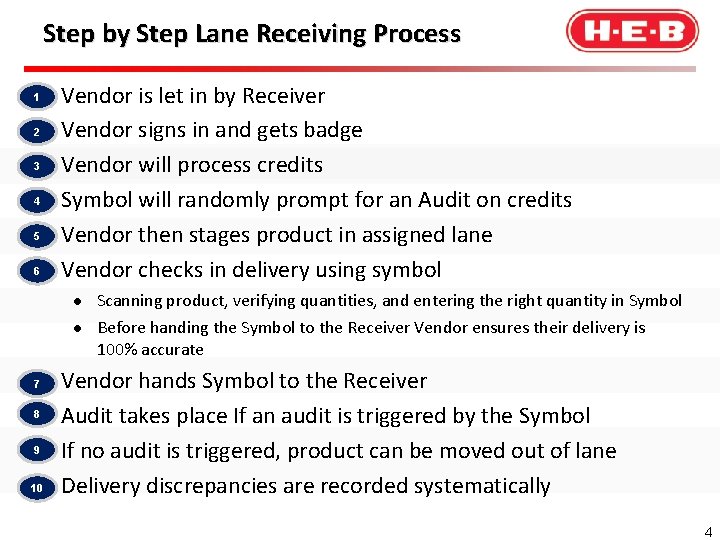
Step by Step Lane Receiving Process 1 l 2 l 3 l 4 l 5 l 6 l Vendor is let in by Receiver Vendor signs in and gets badge Vendor will process credits Symbol will randomly prompt for an Audit on credits Vendor then stages product in assigned lane Vendor checks in delivery using symbol l l 7 l 8 l 9 l 10 l Scanning product, verifying quantities, and entering the right quantity in Symbol Before handing the Symbol to the Receiver Vendor ensures their delivery is 100% accurate Vendor hands Symbol to the Receiver Audit takes place If an audit is triggered by the Symbol If no audit is triggered, product can be moved out of lane Delivery discrepancies are recorded systematically 4
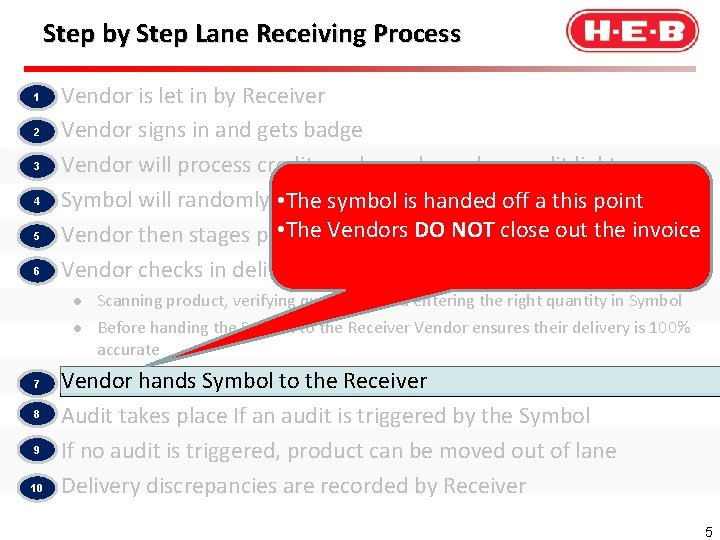
Step by Step Lane Receiving Process 1 l 2 l 3 l 4 l 5 l 6 l Vendor is let in by Receiver Vendor signs in and gets badge Vendor will process credits and punch random audit light Symbol will randomly prompt for anis. Audit on off credits • The symbol handed a this point • The Vendors DO NOT Vendor then stages product in assigned lane close out the invoice Vendor checks in delivery using symbol l l 7 l 8 l 9 l 10 l Scanning product, verifying quantities, and entering the right quantity in Symbol Before handing the Symbol to the Receiver Vendor ensures their delivery is 100% accurate Vendor hands Symbol to the Receiver Audit takes place If an audit is triggered by the Symbol If no audit is triggered, product can be moved out of lane Delivery discrepancies are recorded by Receiver 5
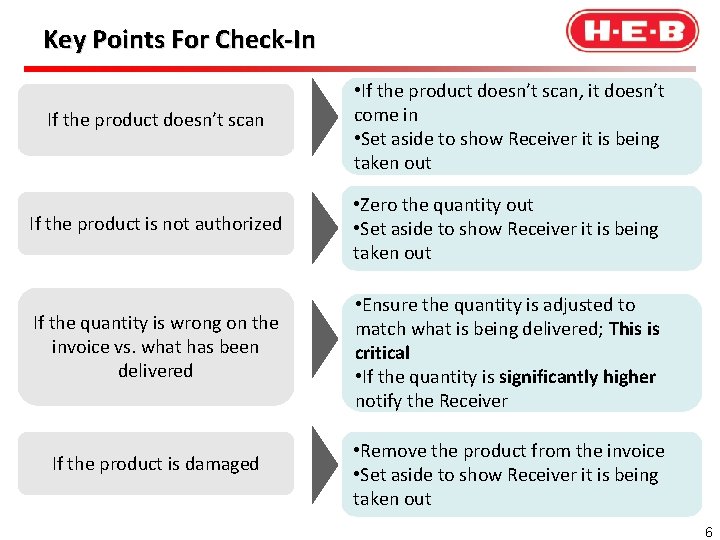
Key Points For Check-In If the product doesn’t scan • If the product doesn’t scan, it doesn’t come in • Set aside to show Receiver it is being taken out If the product is not authorized • Zero the quantity out • Set aside to show Receiver it is being taken out If the quantity is wrong on the invoice vs. what has been delivered • Ensure the quantity is adjusted to match what is being delivered; This is critical • If the quantity is significantly higher notify the Receiver If the product is damaged • Remove the product from the invoice • Set aside to show Receiver it is being taken out 6
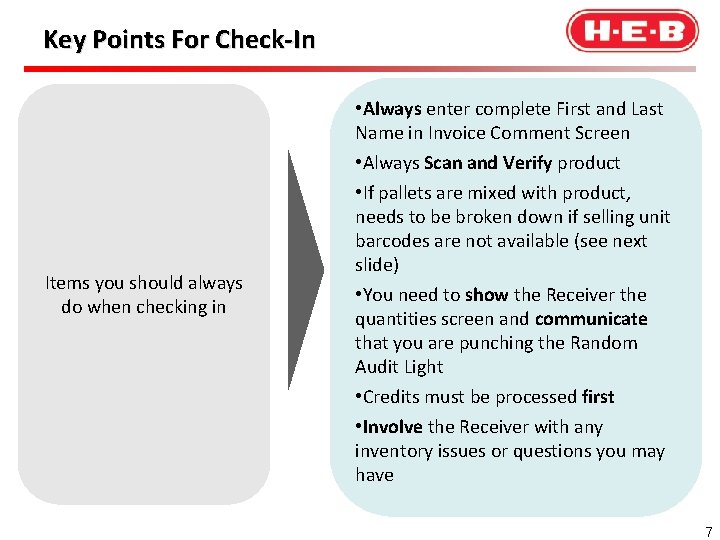
Key Points For Check-In Items you should always do when checking in • Always enter complete First and Last Name in Invoice Comment Screen • Always Scan and Verify product • If pallets are mixed with product, needs to be broken down if selling unit barcodes are not available (see next slide) • You need to show the Receiver the quantities screen and communicate that you are punching the Random Audit Light • Credits must be processed first • Involve the Receiver with any inventory issues or questions you may have 7
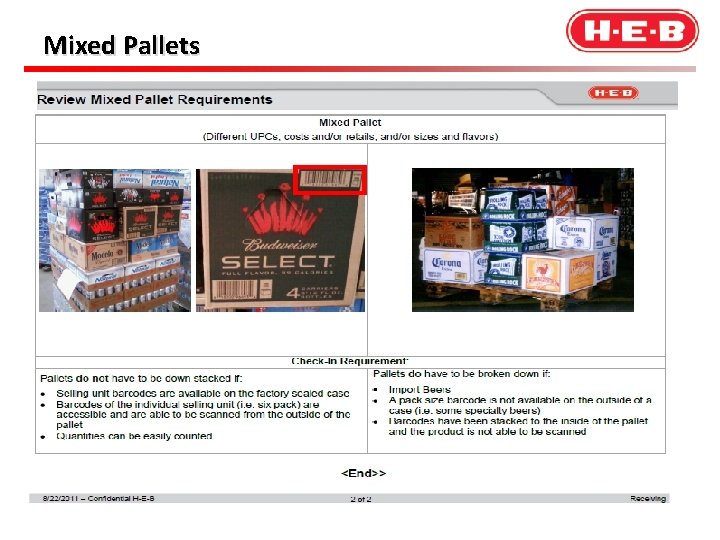
Mixed Pallets
Vendor Penalty Process l Vendors will be held to a Three Strike policy before they are removed from H-E-B; strikes are incurred when: – Quantity errors are found on invoices during audits without communication from the driver regarding the issue – Driver delivers out-of-date product l Errors will be reported on DSD Stop Audit Webform l Loss Prevention will track strikes and monitor trends Willful violations will result in immediate removal from H-E-B l Changing the light intentionally to bypass a red l Bypassing the scan screen using totals shown on invoice without scan verification 9
Role of the Receiver l Giving Vendors access to receiving area l Assigning lanes l Monitoring Vendors while they check in l Answering Vendor questions l Training New Drivers l Verifying quantities screen on Symbol l Conducting audits Sharing their expertise and providing guidance. 10
Miscellaneous Questions l Are all regions on the Lane Receiving Process? – All regions SAFD, HFD, Mi Tienda, and Joe Vs will be in Lane Receiving l • Are any Vendor’s audits handled differently? – Theis is the ONLY Vendor that will be audited differently – 20% of their totes delivered will be randomly audited – Need to check in tote to tote (not into baskets) How are Vendors on ASN going to be audited? – The only time the Vendor audits will be captured on Webform is on credits – The symbol will annotate when an audit happens on the ASN delivery 11
- Slides: 11