
HDCVI Introduction 1 HDCVI Introduction Advantages over SD
- Slides: 22
HDCVI Introduction 1
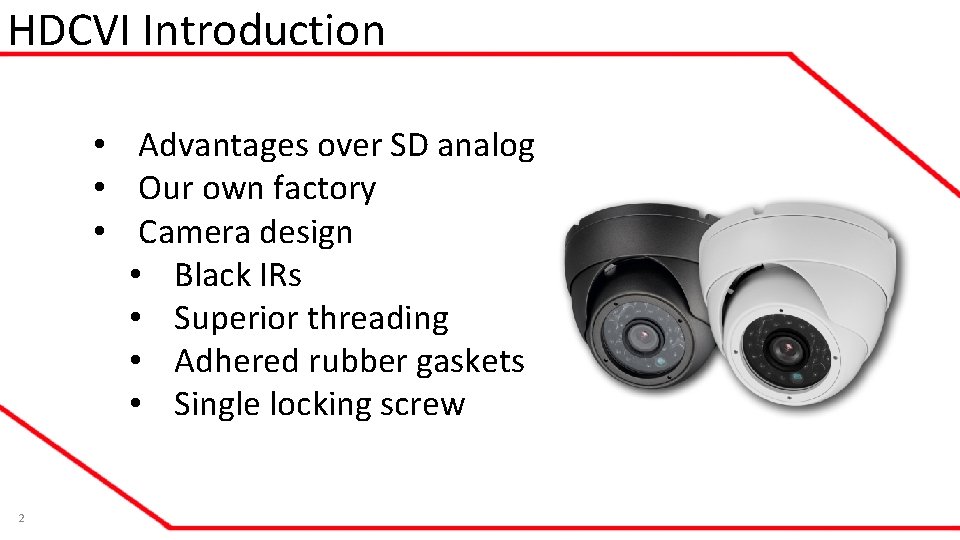
HDCVI Introduction • Advantages over SD analog • Our own factory • Camera design • Black IRs • Superior threading • Adhered rubber gaskets • Single locking screw 2
Video (Cabling) • UTP vs. Coax • UTP is good for shorter ranges (50 feet or less) • Coax is preferred for longer distances (better quality image, less issues) • If premade Siamese cable is used, make sure it is high quality • Maximum distance is ~ 1500 ft (with high grade / low gauge coax) 3
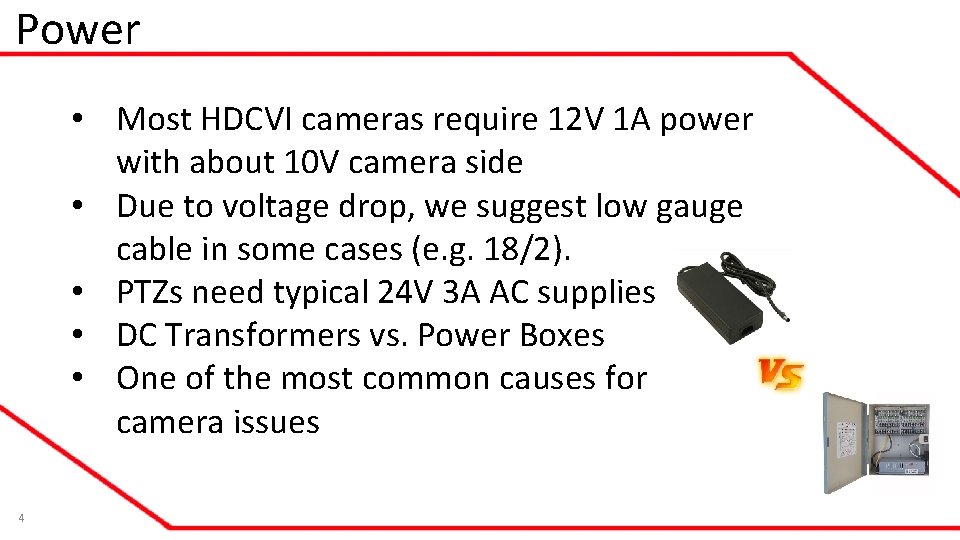
Power • Most HDCVI cameras require 12 V 1 A power with about 10 V camera side • Due to voltage drop, we suggest low gauge cable in some cases (e. g. 18/2). • PTZs need typical 24 V 3 A AC supplies • DC Transformers vs. Power Boxes • One of the most common causes for camera issues 4
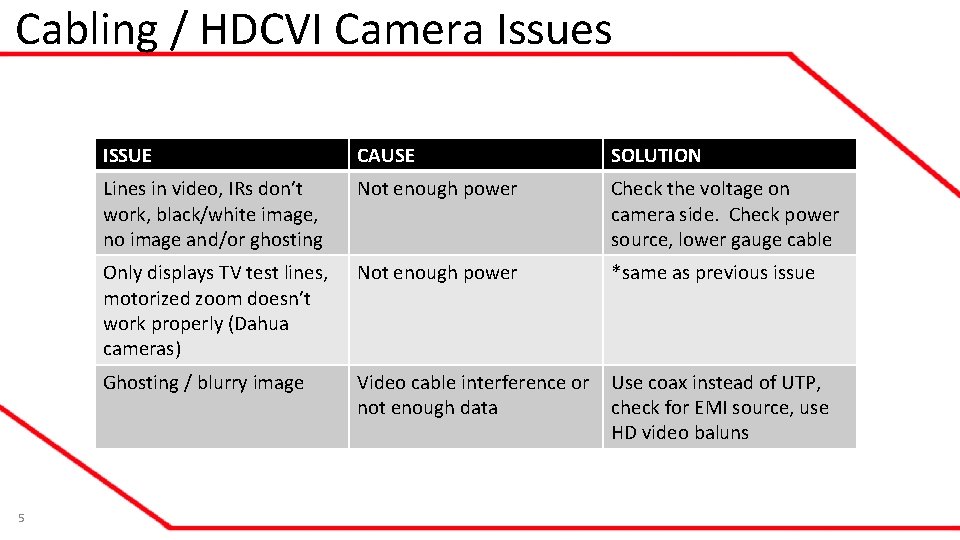
Cabling / HDCVI Camera Issues 5 ISSUE CAUSE SOLUTION Lines in video, IRs don’t work, black/white image, no image and/or ghosting Not enough power Check the voltage on camera side. Check power source, lower gauge cable Only displays TV test lines, motorized zoom doesn’t work properly (Dahua cameras) Not enough power *same as previous issue Ghosting / blurry image Video cable interference or not enough data Use coax instead of UTP, check for EMI source, use HD video baluns
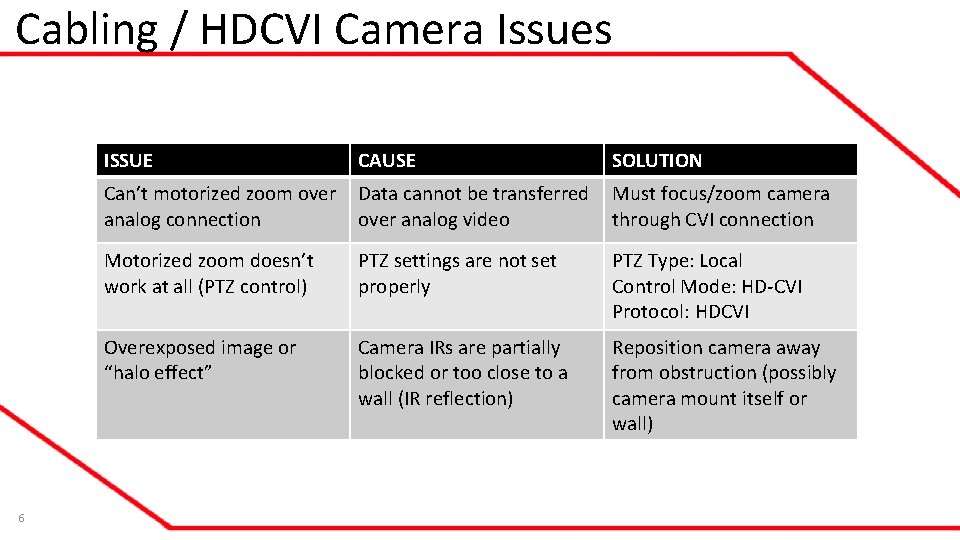
Cabling / HDCVI Camera Issues 6 ISSUE CAUSE SOLUTION Can’t motorized zoom over analog connection Data cannot be transferred over analog video Must focus/zoom camera through CVI connection Motorized zoom doesn’t work at all (PTZ control) PTZ settings are not set properly PTZ Type: Local Control Mode: HD-CVI Protocol: HDCVI Overexposed image or “halo effect” Camera IRs are partially blocked or too close to a wall (IR reflection) Reposition camera away from obstruction (possibly camera mount itself or wall)
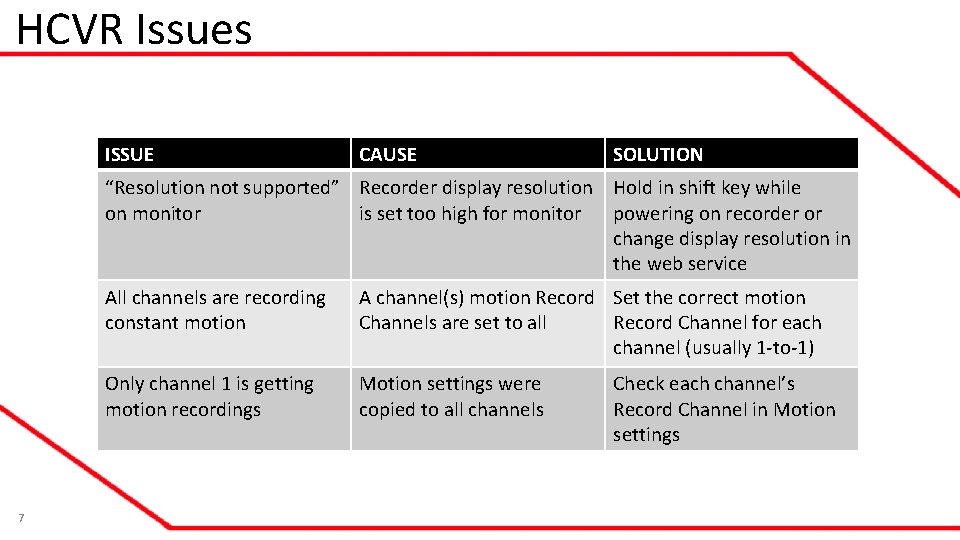
HCVR Issues ISSUE CAUSE SOLUTION “Resolution not supported” Recorder display resolution Hold in shift key while on monitor is set too high for monitor powering on recorder or change display resolution in the web service 7 All channels are recording constant motion A channel(s) motion Record Set the correct motion Channels are set to all Record Channel for each channel (usually 1 -to-1) Only channel 1 is getting motion recordings Motion settings were copied to all channels Check each channel’s Record Channel in Motion settings
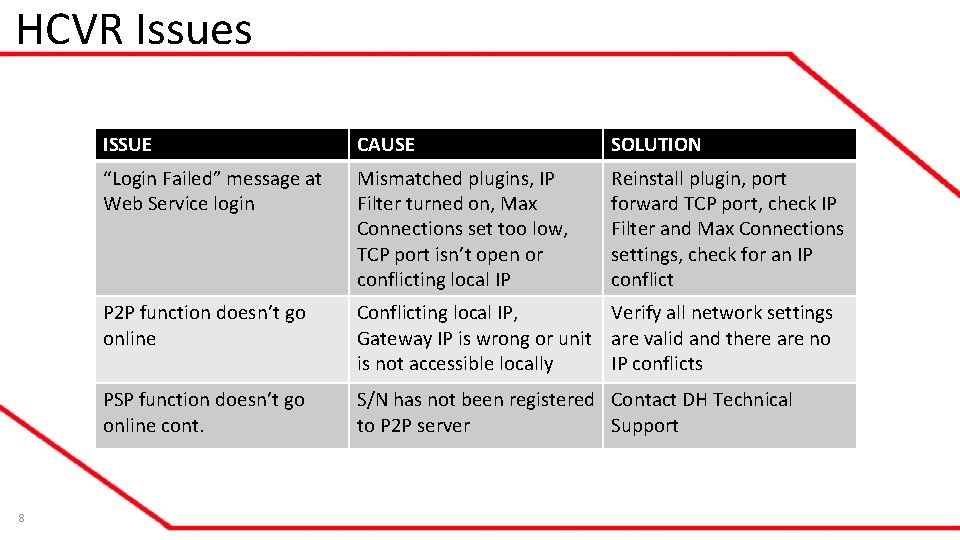
HCVR Issues 8 ISSUE CAUSE SOLUTION “Login Failed” message at Web Service login Mismatched plugins, IP Filter turned on, Max Connections set too low, TCP port isn’t open or conflicting local IP Reinstall plugin, port forward TCP port, check IP Filter and Max Connections settings, check for an IP conflict P 2 P function doesn’t go online Conflicting local IP, Verify all network settings Gateway IP is wrong or unit are valid and there are no is not accessible locally IP conflicts PSP function doesn’t go online cont. S/N has not been registered Contact DH Technical to P 2 P server Support
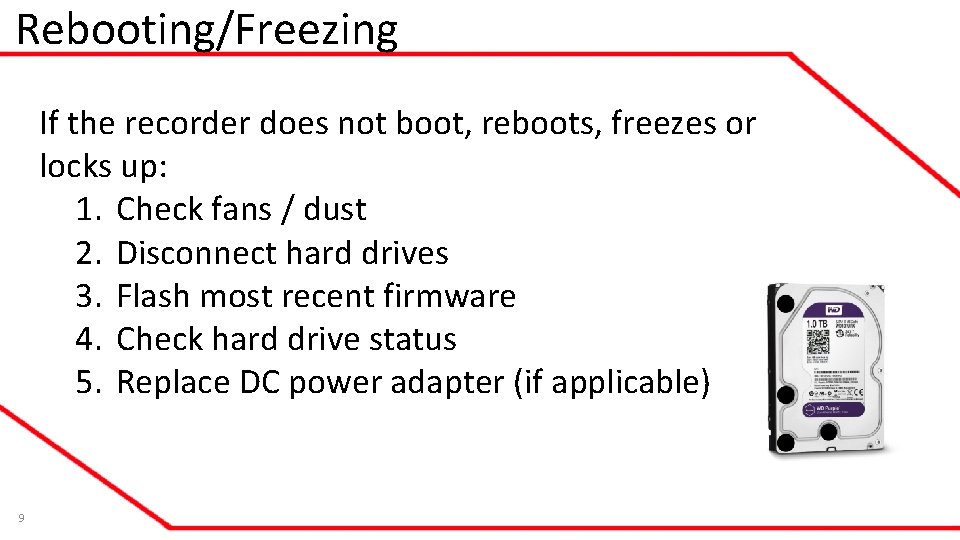
Rebooting/Freezing If the recorder does not boot, reboots, freezes or locks up: 1. Check fans / dust 2. Disconnect hard drives 3. Flash most recent firmware 4. Check hard drive status 5. Replace DC power adapter (if applicable) 9
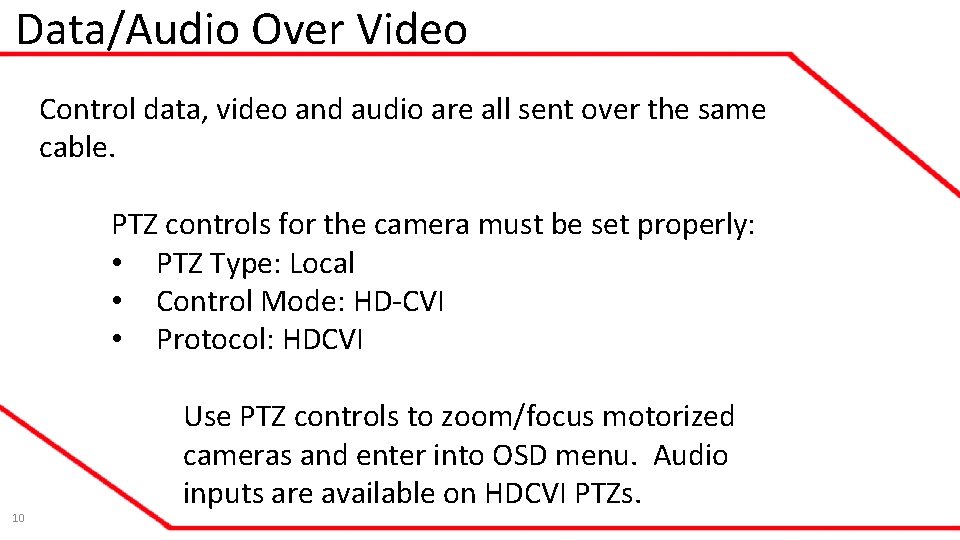
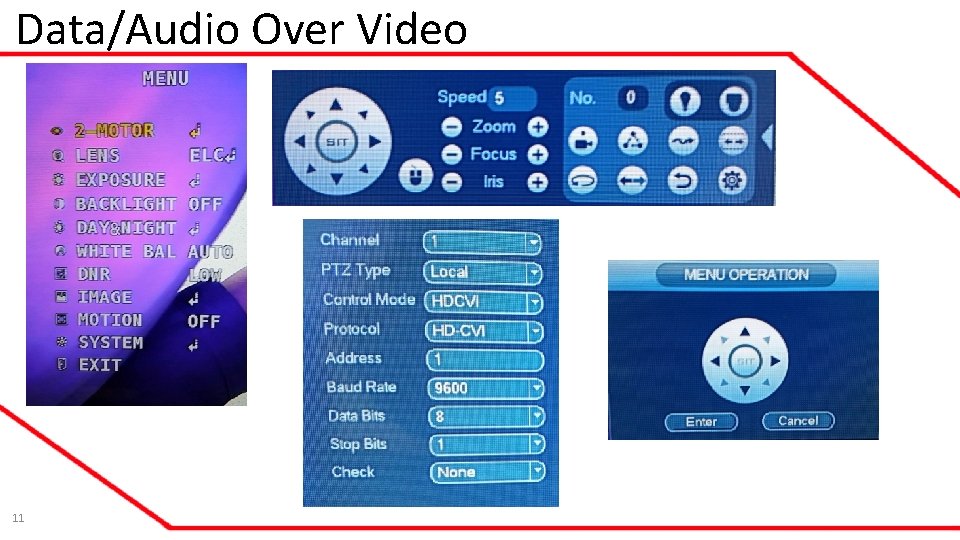
Data/Audio Over Video Control data, video and audio are all sent over the same cable. PTZ controls for the camera must be set properly: • PTZ Type: Local • Control Mode: HD-CVI • Protocol: HDCVI 10 Use PTZ controls to zoom/focus motorized cameras and enter into OSD menu. Audio inputs are available on HDCVI PTZs.
Data/Audio Over Video 11
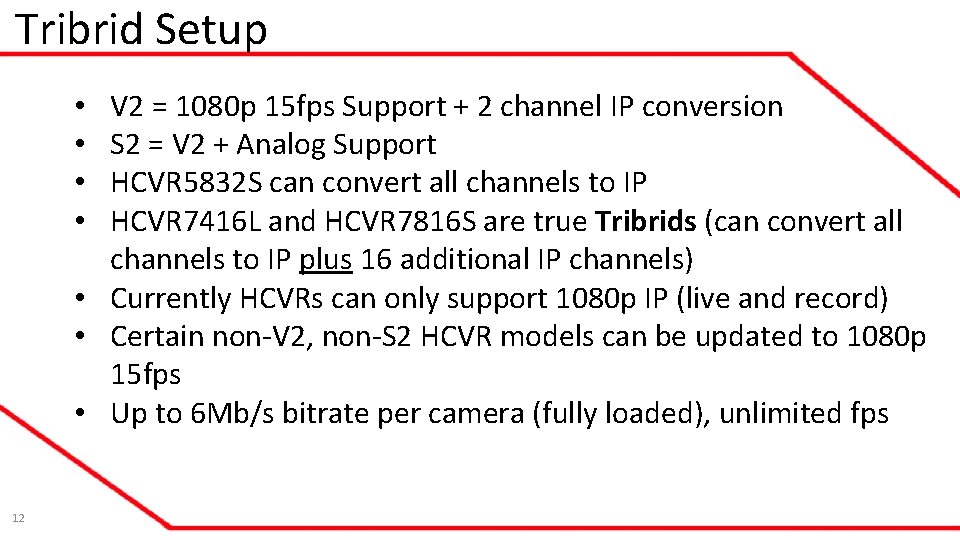
Tribrid Setup V 2 = 1080 p 15 fps Support + 2 channel IP conversion S 2 = V 2 + Analog Support HCVR 5832 S can convert all channels to IP HCVR 7416 L and HCVR 7816 S are true Tribrids (can convert all channels to IP plus 16 additional IP channels) • Currently HCVRs can only support 1080 p IP (live and record) • Certain non-V 2, non-S 2 HCVR models can be updated to 1080 p 15 fps • Up to 6 Mb/s bitrate per camera (fully loaded), unlimited fps • • 12
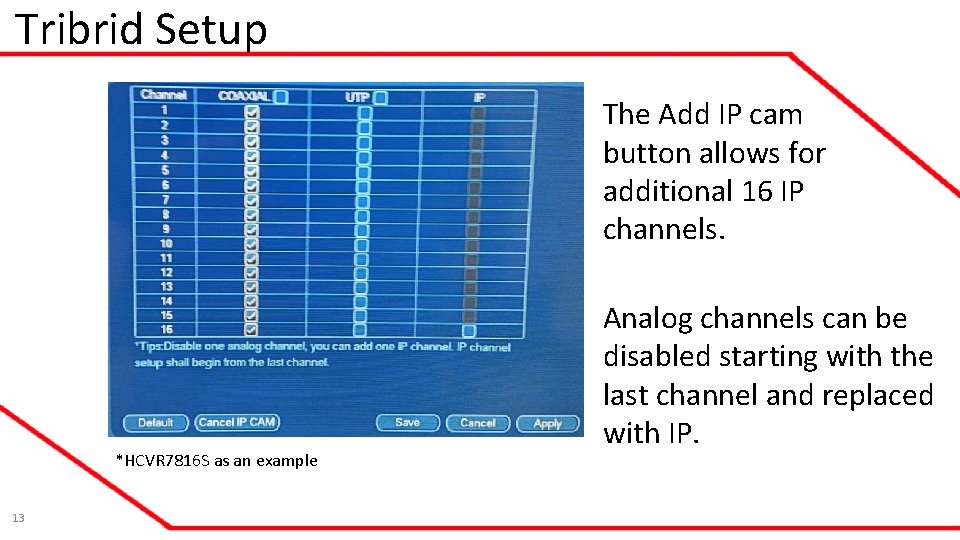
Tribrid Setup The Add IP cam button allows for additional 16 IP channels. *HCVR 7816 S as an example 13 Analog channels can be disabled starting with the last channel and replaced with IP.
Tribrid Setup When adding cameras to a Tribrid, there may be a gap between HDCVI channels and IP channels (blank channels). Workarounds include: • Setting up a Tour • In the case of the 5832 S, 7416 L and 7816 S - enable IP channels up until the last HDCVI channel, then begin adding IP cameras. 14
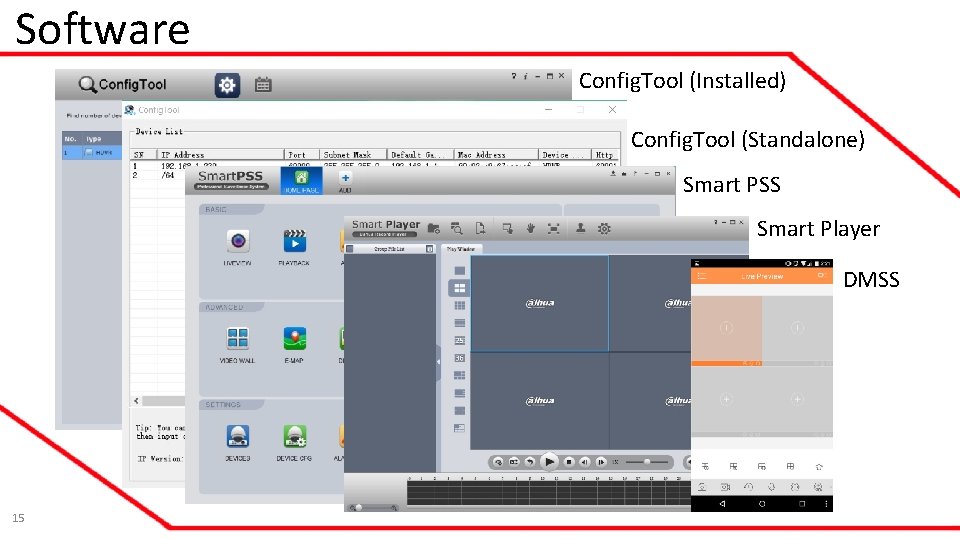
Software Config. Tool (Installed) Config. Tool (Standalone) Smart PSS Smart Player DMSS 15
Camera Model Differences Eyenix vs. ZA image sensor (features) e. g. DH-IBV-780 B vs. DH-IBV-780 B(ZA) Cameras with and without the N (white box) e. g. DH-IDF-480 W vs. DH-IDF-480 WN Cameras with and without the MZ (motorized) e. g. DH-IDV-580 BN vs. DH-IDV-580 BN-MZ White box + ZA = e. g. DH-IBF-680 WN(ZA) 16 V 2 = New design with HDCVI/Analog toggle button e. g. DH-IBF-680 WN(ZA)-V 2
Questions/Answers Q&A 17
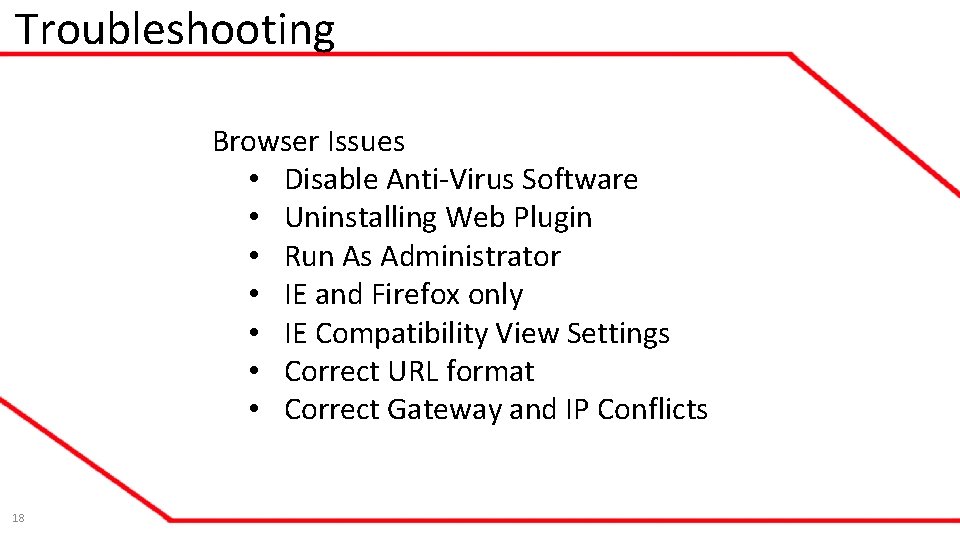
Troubleshooting Browser Issues • Disable Anti-Virus Software • Uninstalling Web Plugin • Run As Administrator • IE and Firefox only • IE Compatibility View Settings • Correct URL format • Correct Gateway and IP Conflicts 18
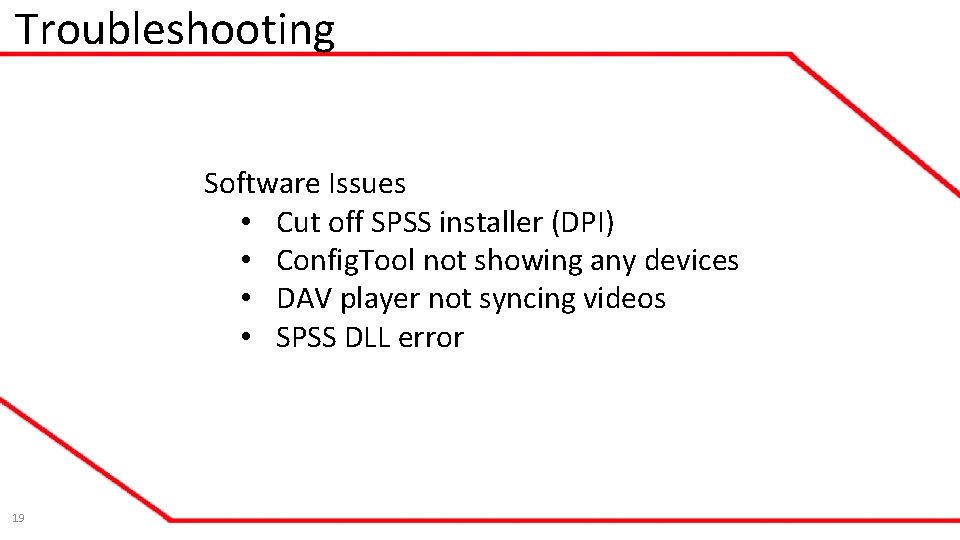
Troubleshooting Software Issues • Cut off SPSS installer (DPI) • Config. Tool not showing any devices • DAV player not syncing videos • SPSS DLL error 19
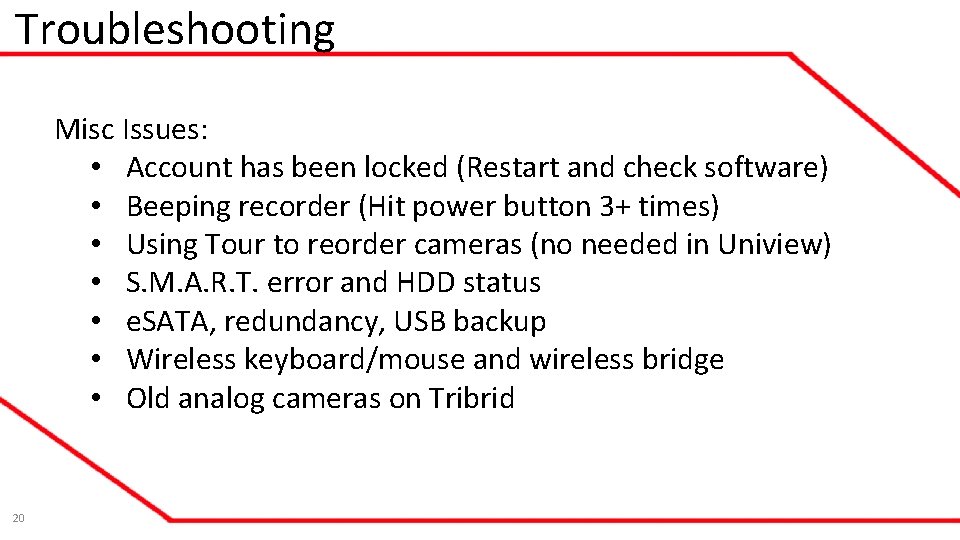
Troubleshooting Misc Issues: • Account has been locked (Restart and check software) • Beeping recorder (Hit power button 3+ times) • Using Tour to reorder cameras (no needed in Uniview) • S. M. A. R. T. error and HDD status • e. SATA, redundancy, USB backup • Wireless keyboard/mouse and wireless bridge • Old analog cameras on Tribrid 20
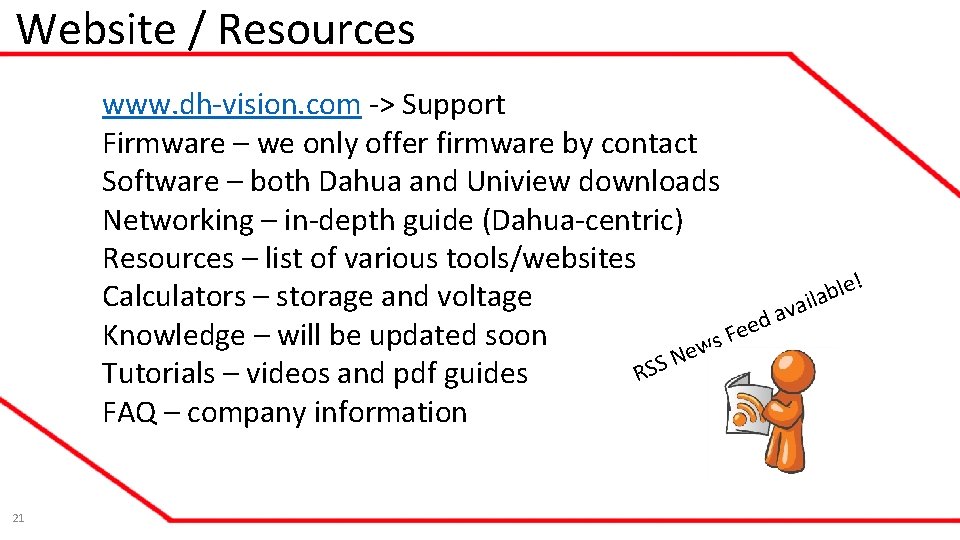
Website / Resources www. dh-vision. com -> Support Firmware – we only offer firmware by contact Software – both Dahua and Uniview downloads Networking – in-depth guide (Dahua-centric) Resources – list of various tools/websites ! e l b Calculators – storage and voltage ila a v a d e Fe Knowledge – will be updated soon s ew N RSS Tutorials – videos and pdf guides FAQ – company information 21
Questions and Answers Q&A 22