
HCM Cloud Absence Management Welcome to the HCM
HCM Cloud Absence Management Welcome to the HCM Cloud Absence Management Tutorial For Employees With Multiple Assignments
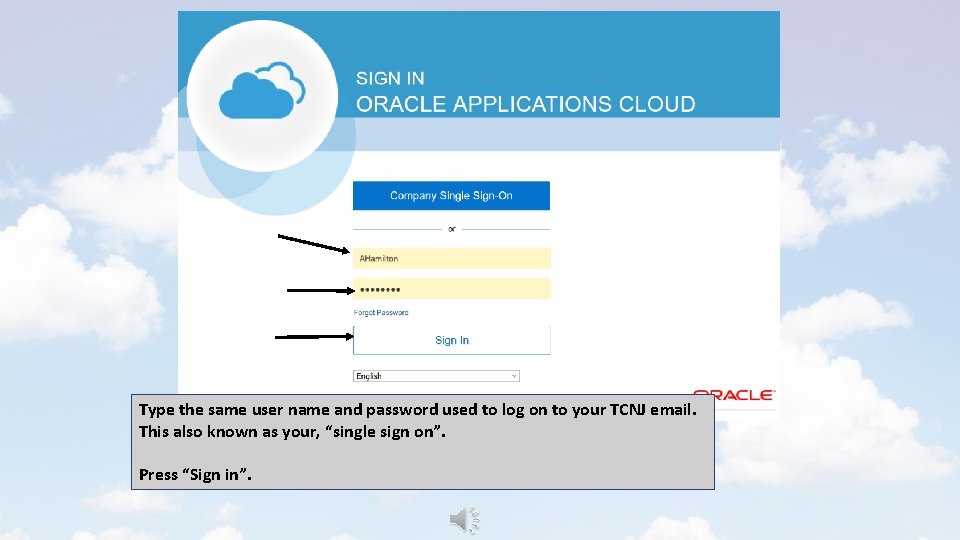
Type the same user name and password used to log on to your TCNJ email. This also known as your, “single sign on”. Press “Sign in”.
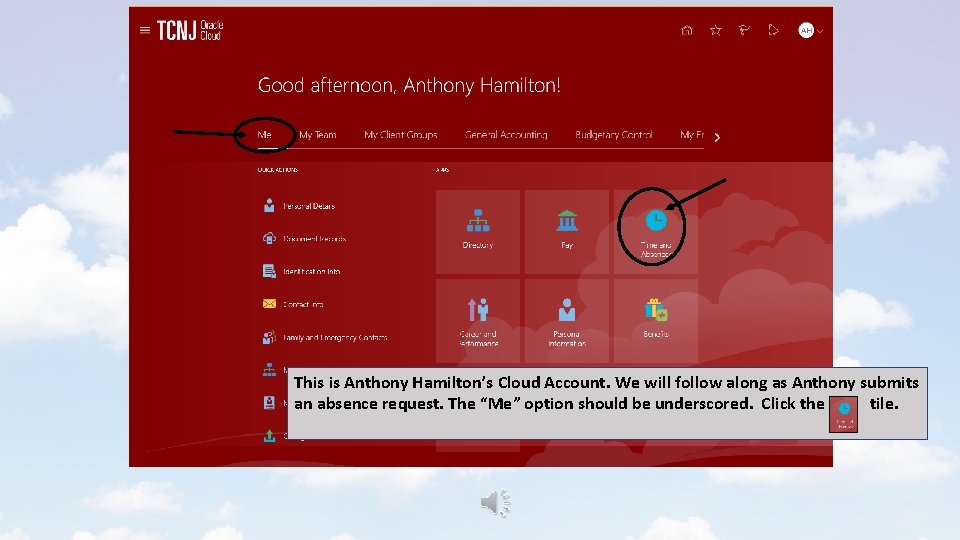
This is Anthony Hamilton’s Cloud Account. We will follow along as Anthony submits an absence request. The “Me” option should be underscored. Click the tile.
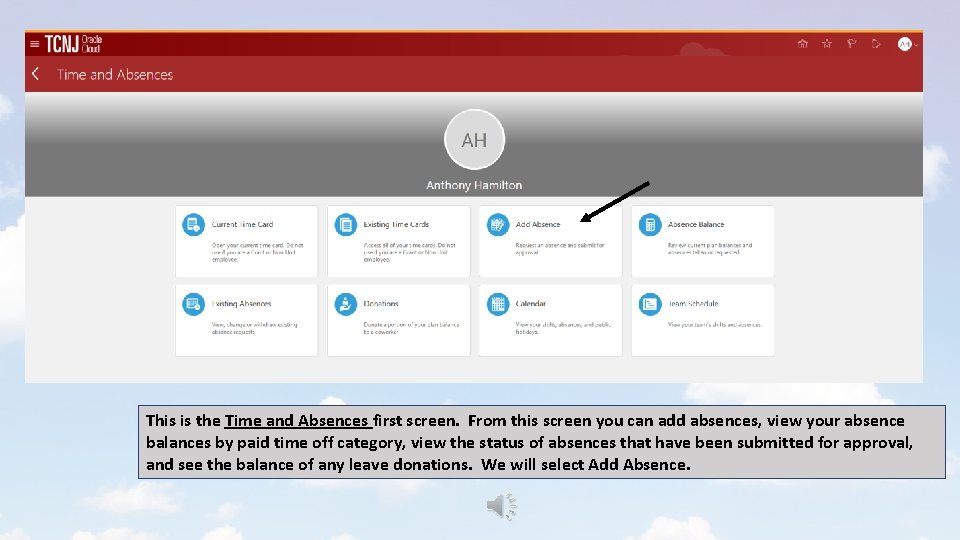
This is the Time and Absences first screen. From this screen you can add absences, view your absence balances by paid time off category, view the status of absences that have been submitted for approval, and see the balance of any leave donations. We will select Add Absence.
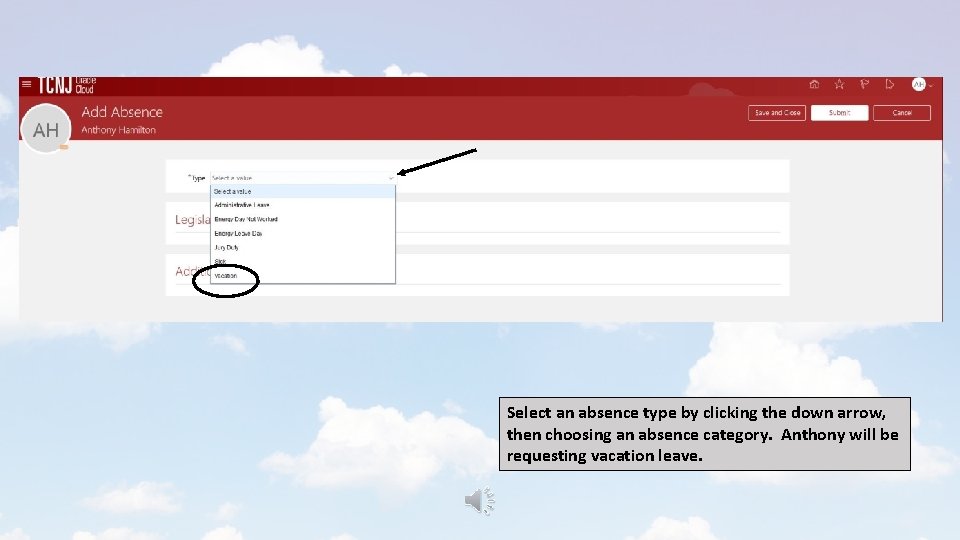
Select an absence type by clicking the down arrow, then choosing an absence category. Anthony will be requesting vacation leave.
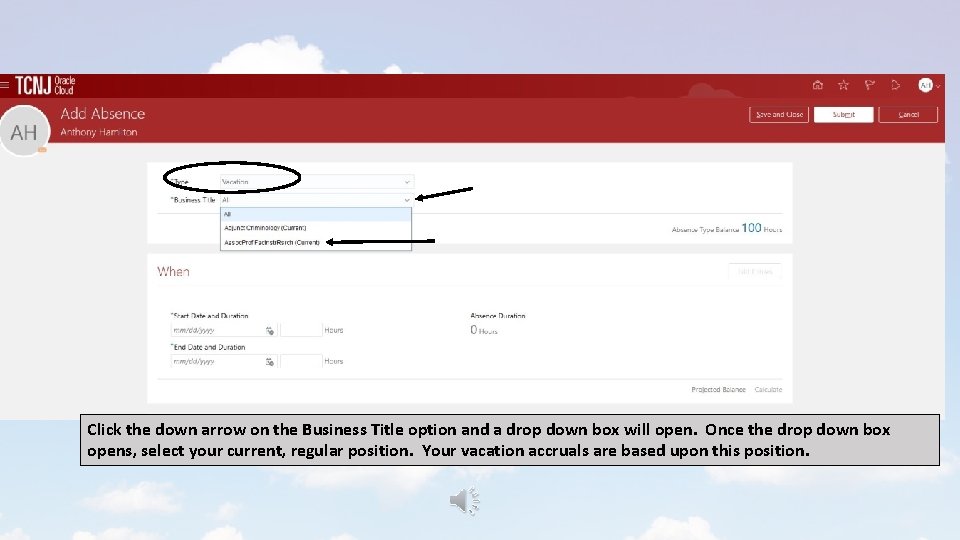
Click the down arrow on the Business Title option and a drop down box will open. Once the drop down box opens, select your current, regular position. Your vacation accruals are based upon this position.
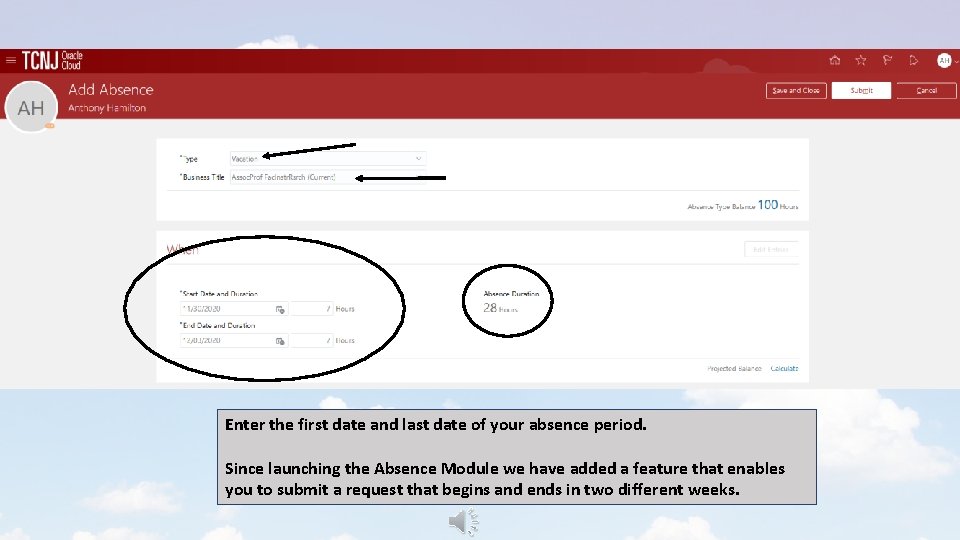
Enter the first date and last date of your absence period. Since launching the Absence Module we have added a feature that enables you to submit a request that begins and ends in two different weeks.
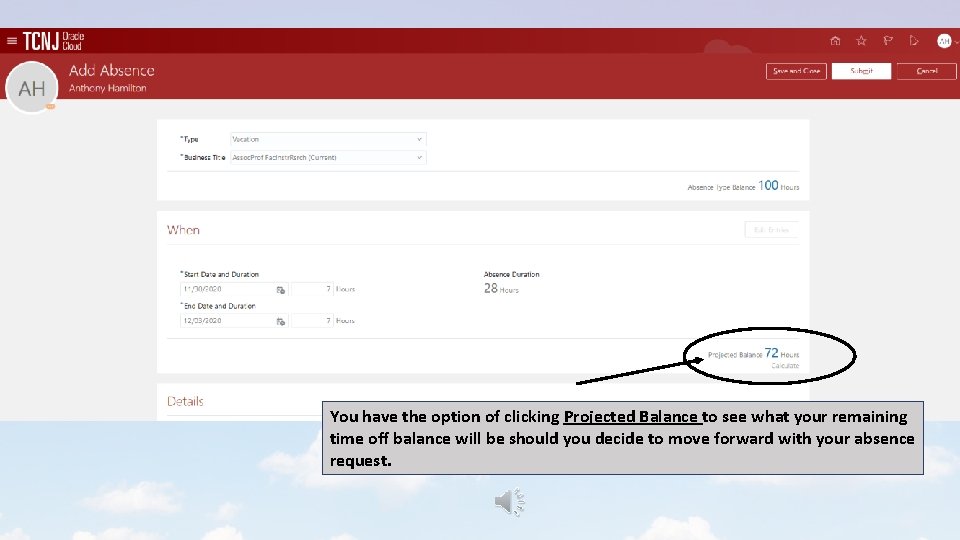
You have the option of clicking Projected Balance to see what your remaining time off balance will be should you decide to move forward with your absence request.
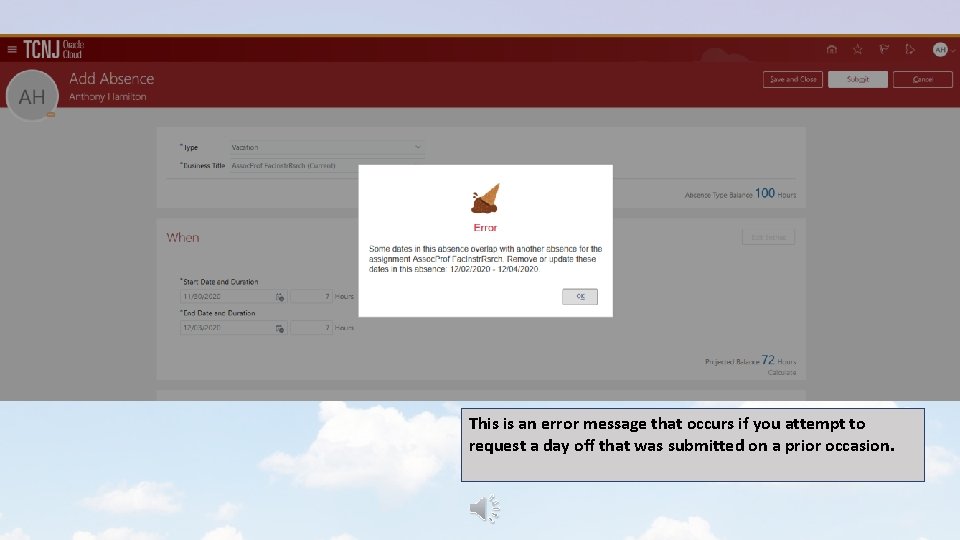
This is an error message that occurs if you attempt to request a day off that was submitted on a prior occasion.
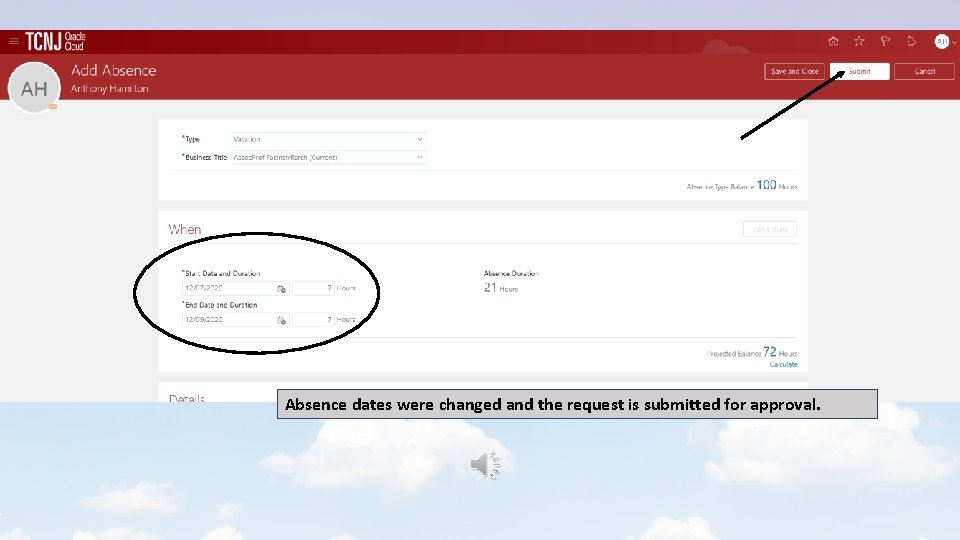
Absence dates were changed and the request is submitted for approval.
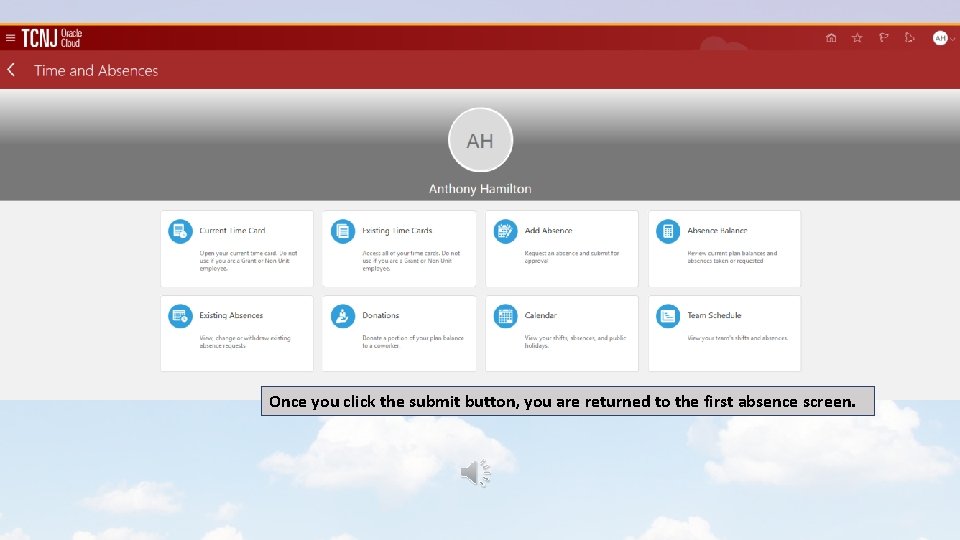
Once you click the submit button, you are returned to the first absence screen.
Questions? Email us at: HCMCloud. Response. Team This brings us to the end of the tutorial. With questions, please contact us via email at: HCMCloud. Response. Team.
- Slides: 12