
Hawaii Administrative Rules Online Processing https hawaiioimt sharepoint
- Slides: 20
Hawaii Administrative Rules Online Processing https: //hawaiioimt. sharepoint. com/sites/gov/adminrules
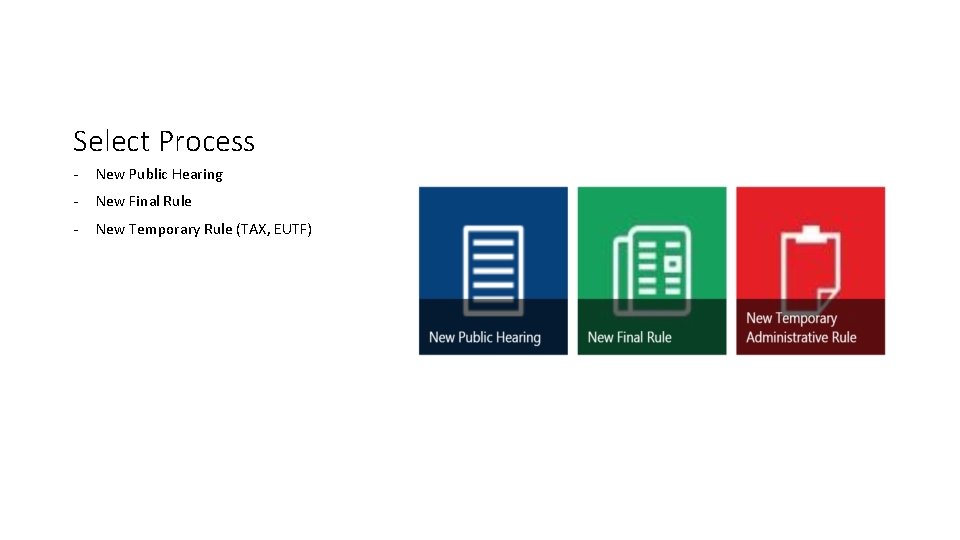
Select Process - New Public Hearing - New Final Rule - New Temporary Rule (TAX, EUTF)
Public Hearing - Click on “New Public Hearing” icon - Documents required: - Proposed Draft Rule in PDF format Ramseyer Format Small Business Impact (If applicable)
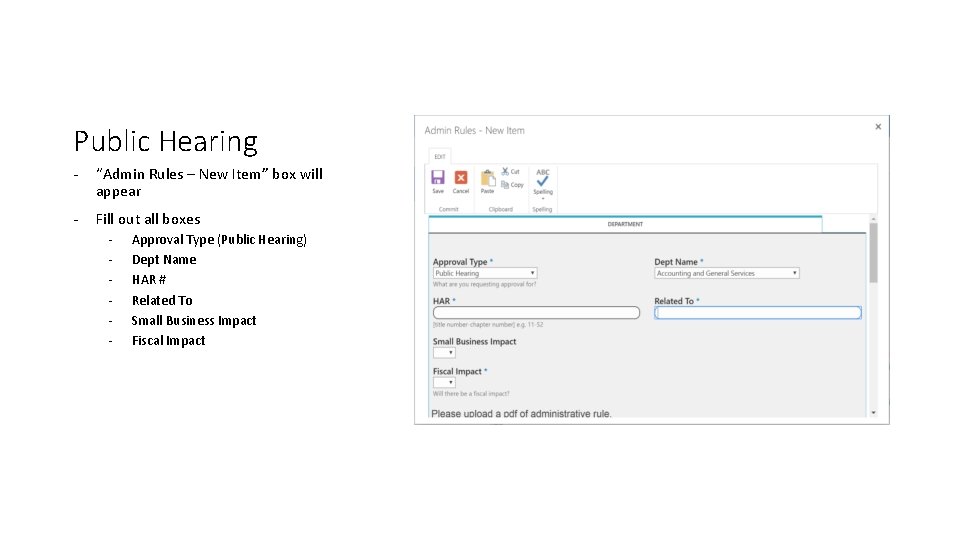
Public Hearing - “Admin Rules – New Item” box will appear - Fill out all boxes - Approval Type (Public Hearing) Dept Name HAR # Related To Small Business Impact Fiscal Impact
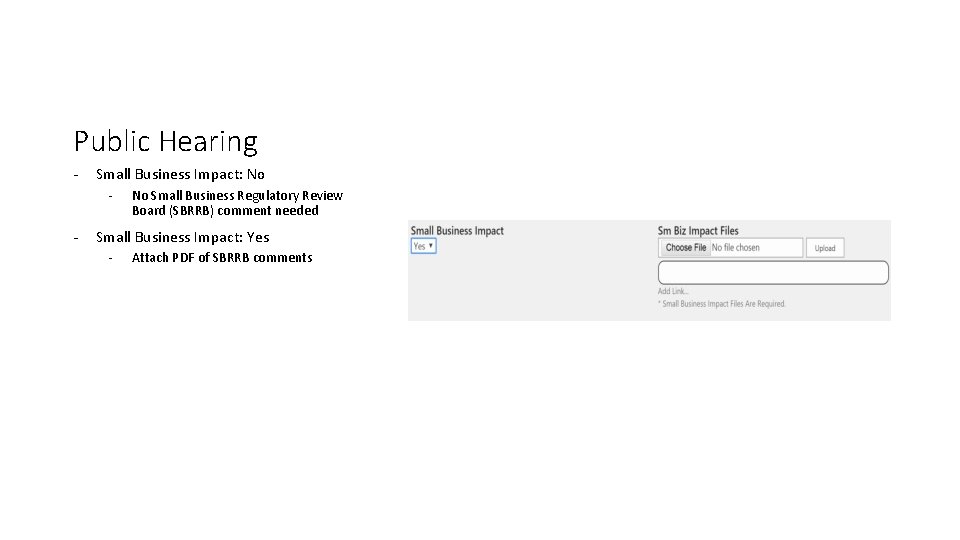
Public Hearing - Small Business Impact: No - - No Small Business Regulatory Review Board (SBRRB) comment needed Small Business Impact: Yes - Attach PDF of SBRRB comments
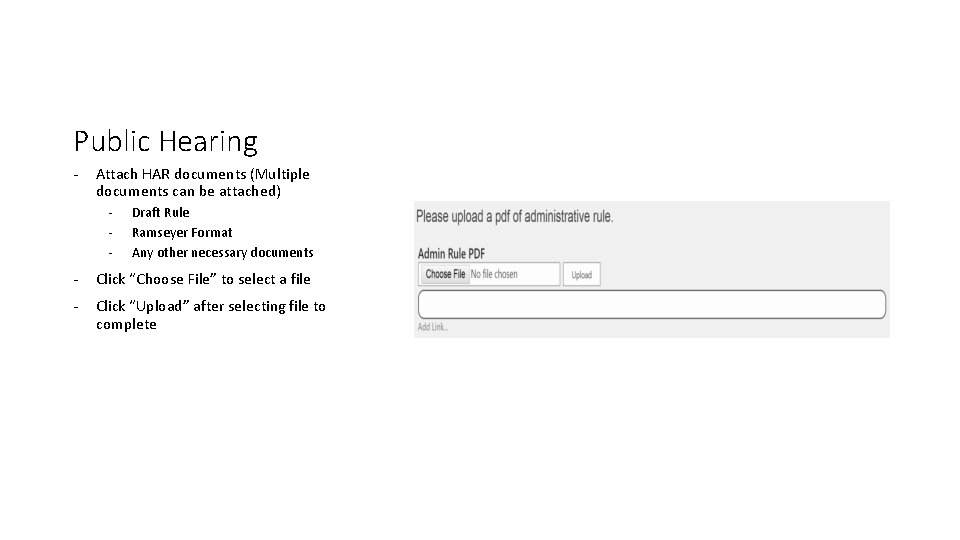
Public Hearing - Attach HAR documents (Multiple documents can be attached) - Draft Rule Ramseyer Format Any other necessary documents - Click “Choose File” to select a file - Click “Upload” after selecting file to complete
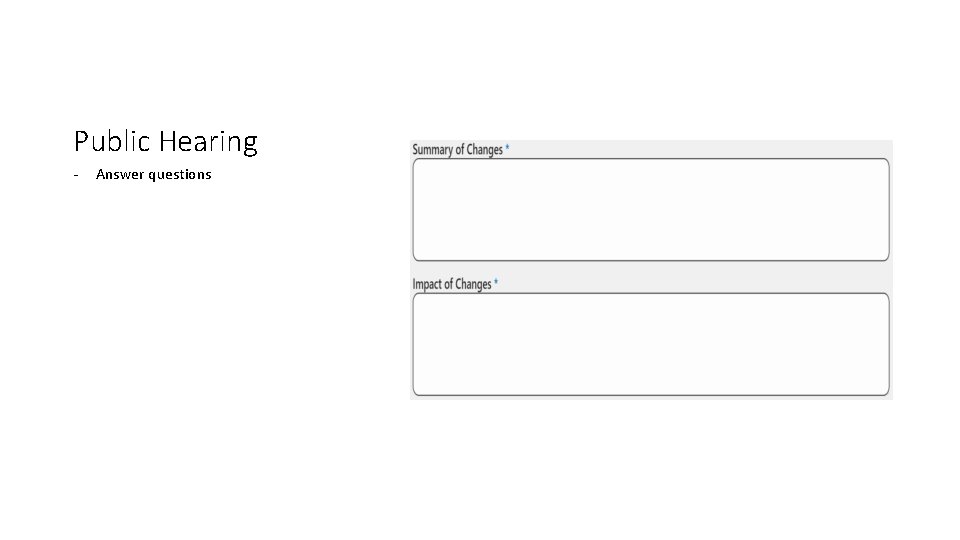
Public Hearing - Answer questions
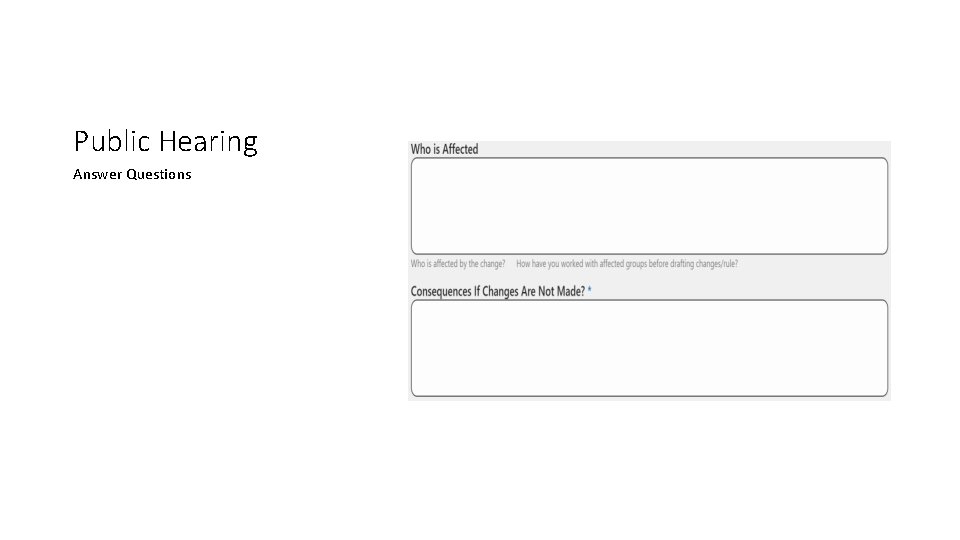
Public Hearing Answer Questions
Public Hearing - Click “Save” to submit request
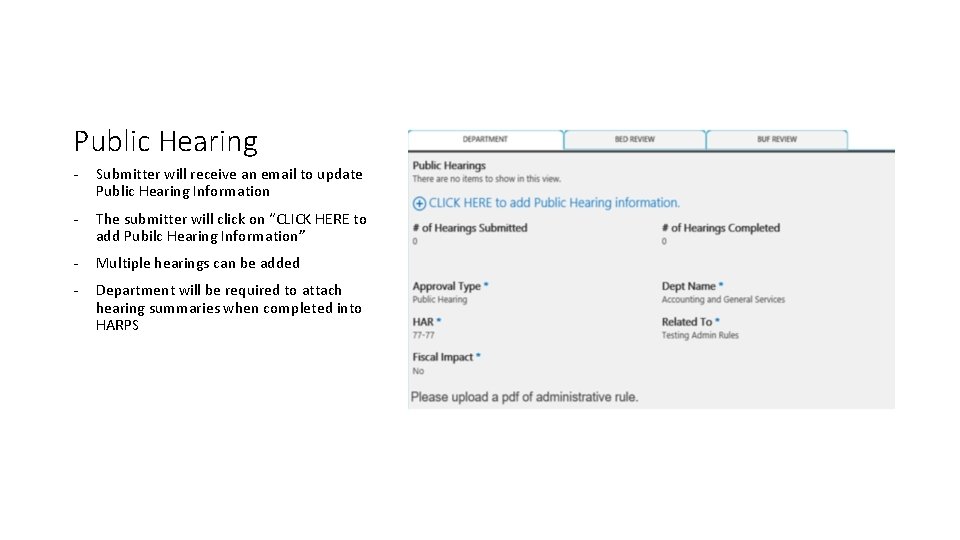
Public Hearing - Submitter will receive an email to update Public Hearing Information - The submitter will click on “CLICK HERE to add Pubilc Hearing Information” - Multiple hearings can be added - Department will be required to attach hearing summaries when completed into HARPS
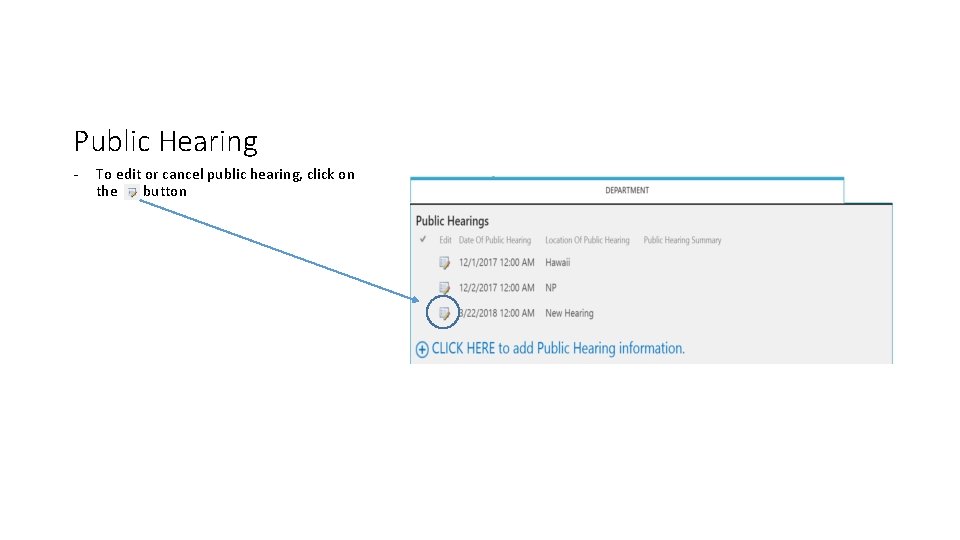
Public Hearing - To edit or cancel public hearing, click on the button
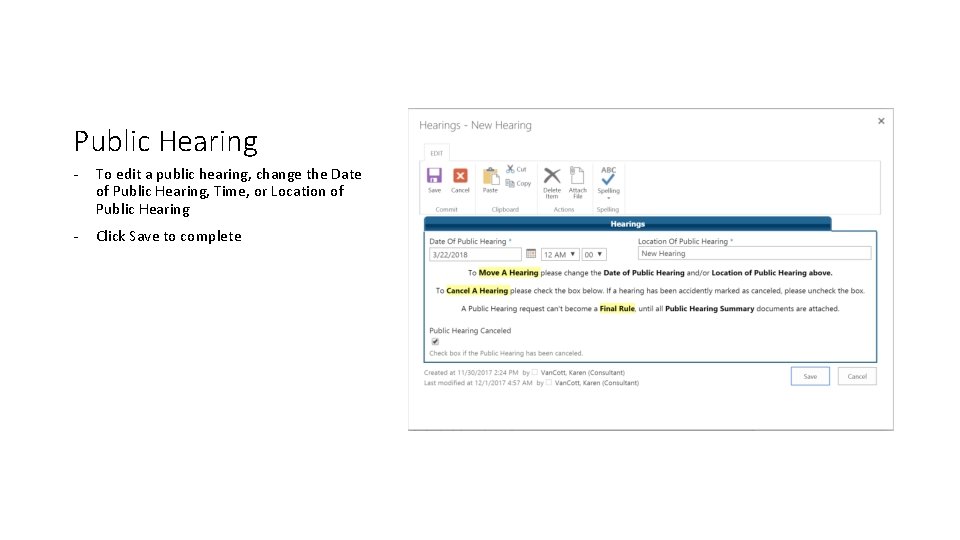
Public Hearing - To edit a public hearing, change the Date of Public Hearing, Time, or Location of Public Hearing - Click Save to complete
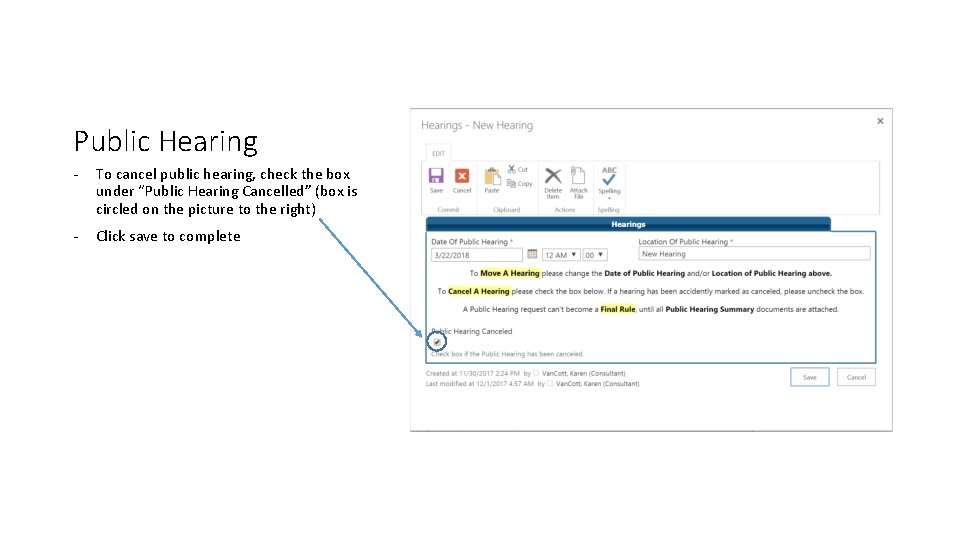
Public Hearing - To cancel public hearing, check the box under “Public Hearing Cancelled” (box is circled on the picture to the right) - Click save to complete
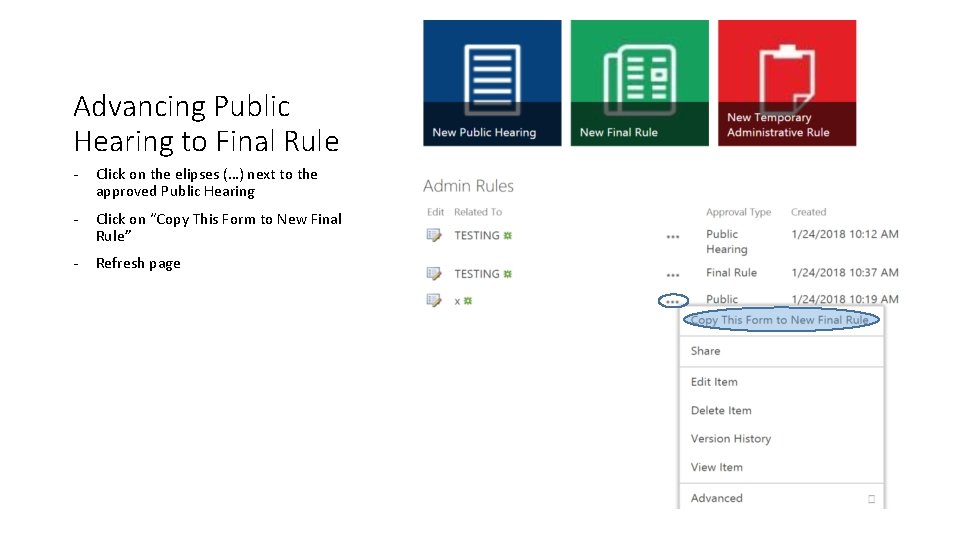
Advancing Public Hearing to Final Rule - Click on the elipses (…) next to the approved Public Hearing - Click on “Copy This Form to New Final Rule” - Refresh page
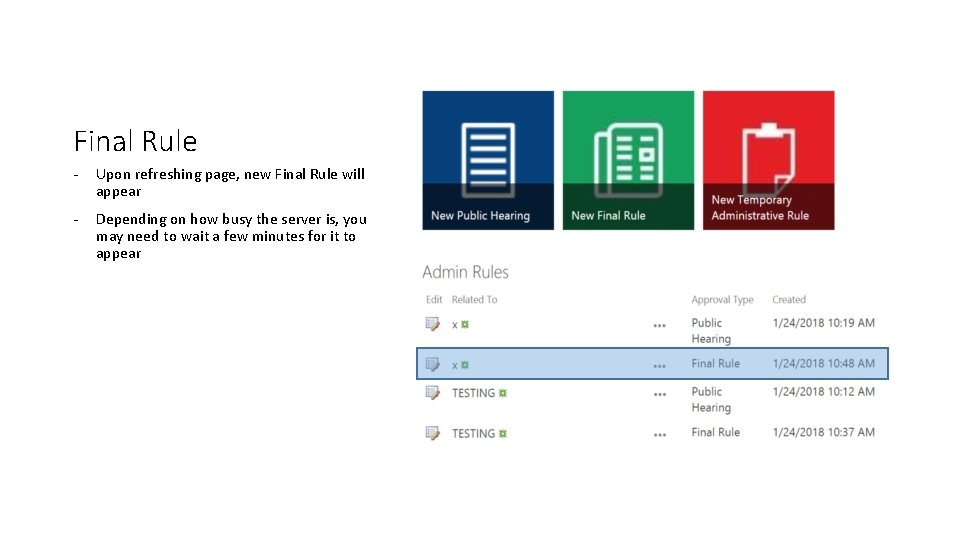
Final Rule - Upon refreshing page, new Final Rule will appear - Depending on how busy the server is, you may need to wait a few minutes for it to appear
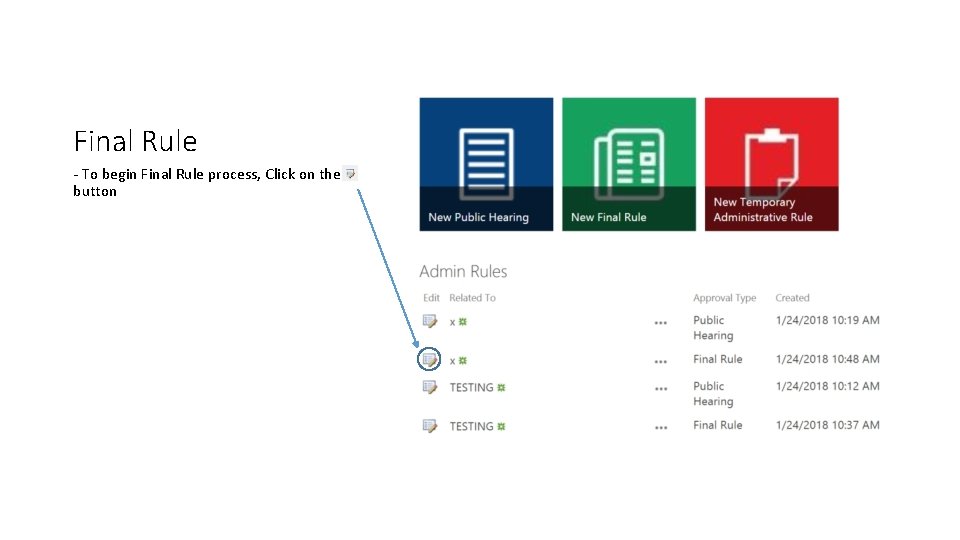
Final Rule - To begin Final Rule process, Click on the button
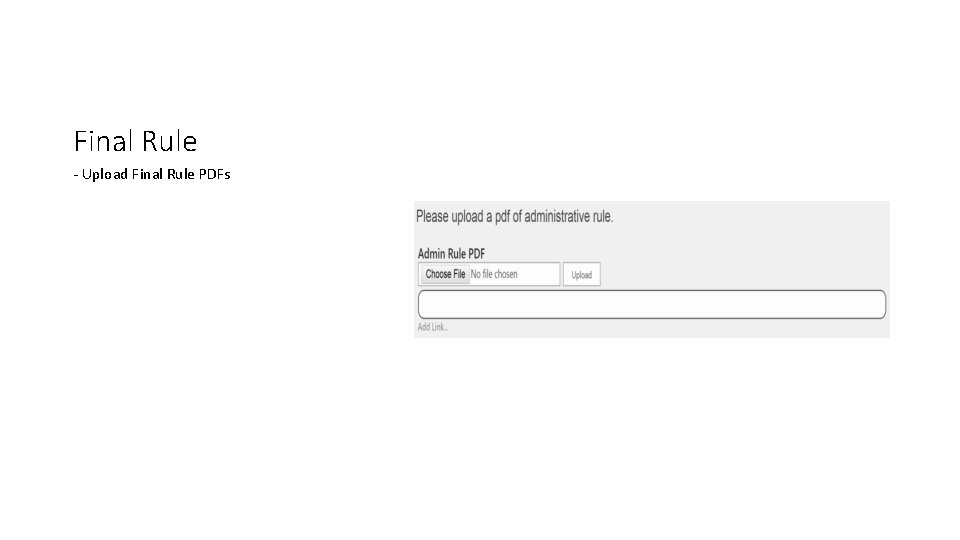
Final Rule - Upload Final Rule PDFs
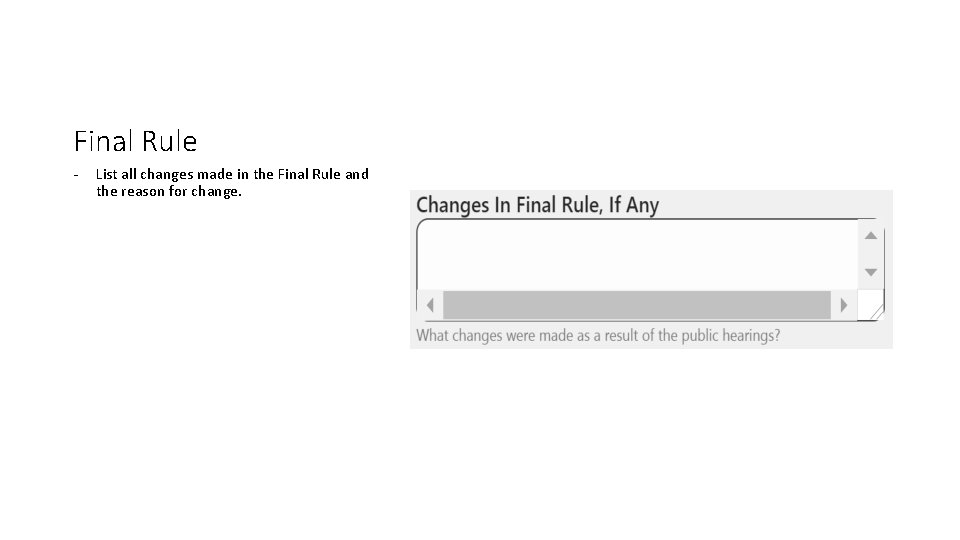
Final Rule - List all changes made in the Final Rule and the reason for change.
Final Rule - Click “Save” to submit Final Rule
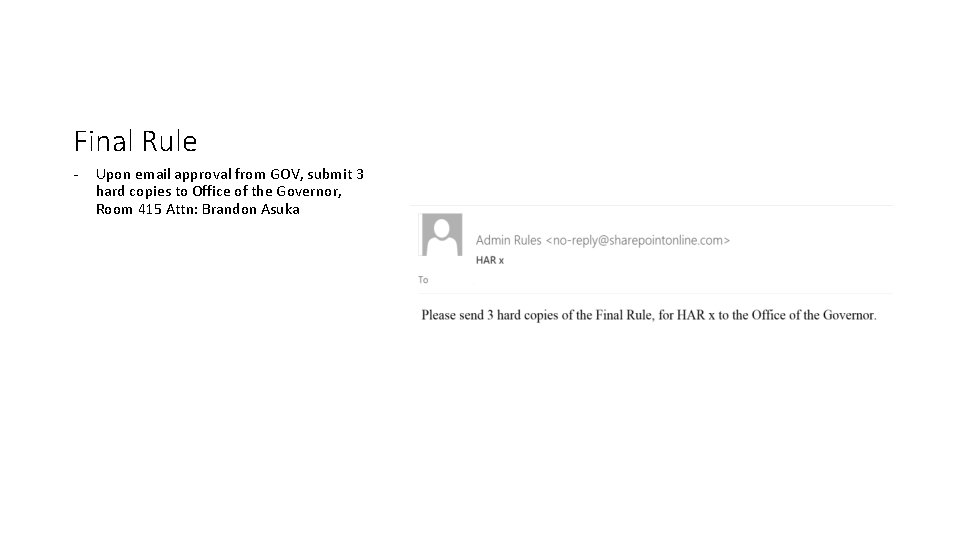
Final Rule - Upon email approval from GOV, submit 3 hard copies to Office of the Governor, Room 415 Attn: Brandon Asuka