
Harvard Phone Account Jabber for Windows Your Harvard
Harvard Phone Account Jabber for Windows

Your Harvard Phone Account Harvard Phone • Web-based end-user portal: – For user initiated feature changes to Harvard Phone Services • Commonly used to: – Reset Voice Messaging PIN – Set Speed Dial Buttons – Configure Simultaneous Ring 2

Accessing your Harvard Phone Account Harvard Phone • Locate the portal: phone. harvard. edu/selfservice – Login: Use your Harvard Key – Click Login button • Available from the Harvard wired network connection or via Wi. Fi. Requires the use of VPN for off-network access: • User Name is case sensitive – Enter your user name using all lower case – Enter your password ‘as is’ do not change cases • For YOUR individual use: – University Security policy: do not share your login credentials 3
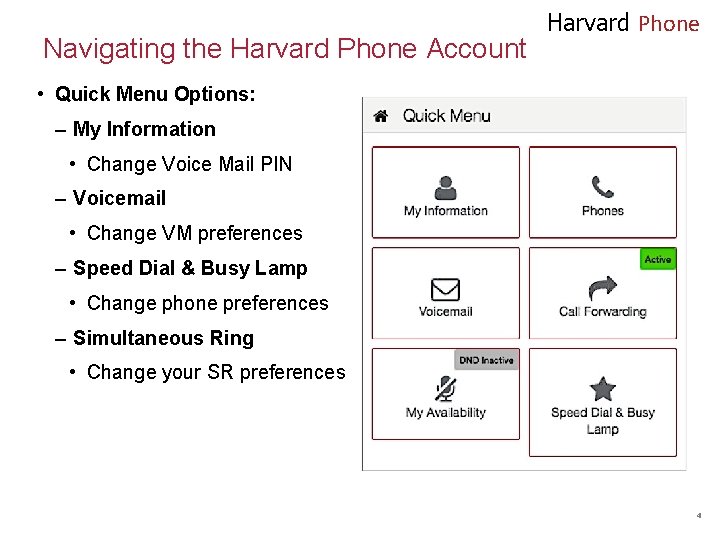
Navigating the Harvard Phone Account Harvard Phone • Quick Menu Options: – My Information • Change Voice Mail PIN – Voicemail • Change VM preferences – Speed Dial & Busy Lamp • Change phone preferences – Simultaneous Ring • Change your SR preferences 4
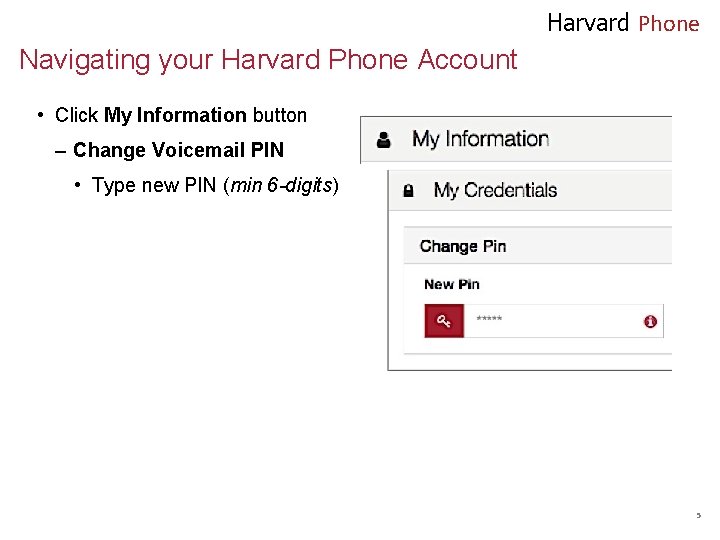
Harvard Phone Navigating your Harvard Phone Account • Click My Information button – Change Voicemail PIN • Type new PIN (min 6 -digits) 5
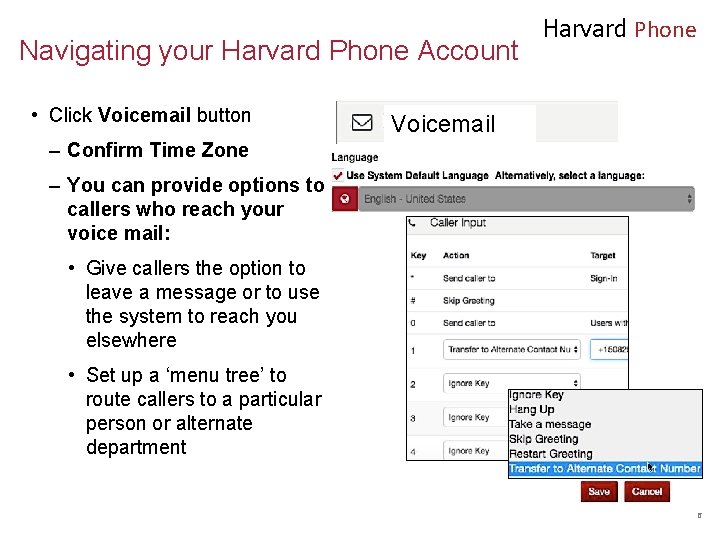
Navigating your Harvard Phone Account • Click Voicemail button Harvard Phone Voicemail – Confirm Time Zone – You can provide options to callers who reach your voice mail: • Give callers the option to leave a message or to use the system to reach you elsewhere • Set up a ‘menu tree’ to route callers to a particular person or alternate department 6
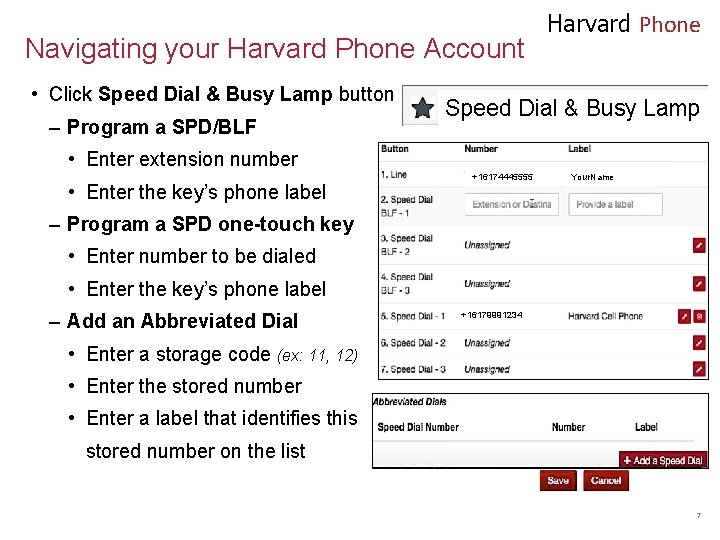
Navigating your Harvard Phone Account • Click Speed Dial & Busy Lamp button – Program a SPD/BLF Harvard Phone Speed Dial & Busy Lamp • Enter extension number • Enter the key’s phone label +16174445555 Your. Name – Program a SPD one-touch key • Enter number to be dialed • Enter the key’s phone label – Add an Abbreviated Dial +16179991234 • Enter a storage code (ex: 11, 12) • Enter the stored number • Enter a label that identifies this stored number on the list 7
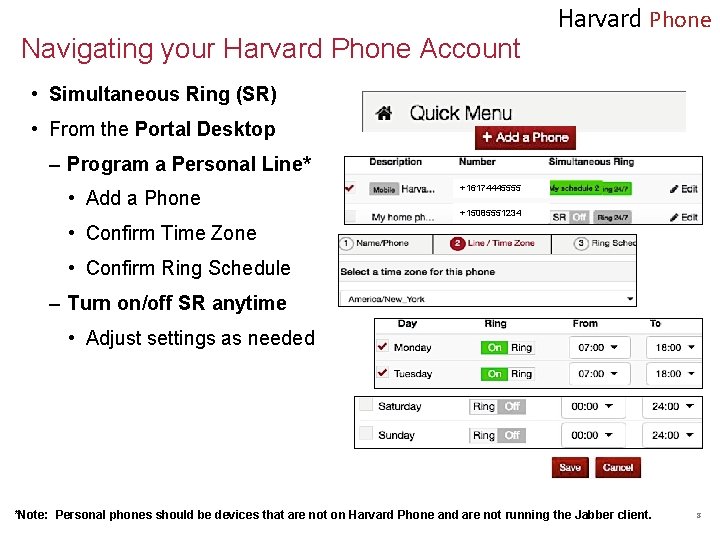
Navigating your Harvard Phone Account Harvard Phone • Simultaneous Ring (SR) • From the Portal Desktop – Program a Personal Line* • Add a Phone +16174445555 +15085551234 • Confirm Time Zone • Confirm Ring Schedule – Turn on/off SR anytime • Adjust settings as needed *Note: Personal phones should be devices that are not on Harvard Phone and are not running the Jabber client. 8
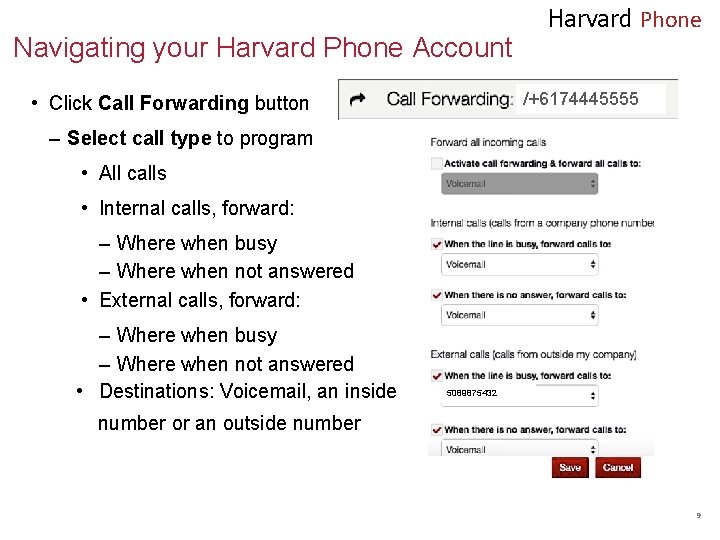
Navigating your Harvard Phone Account Harvard Phone /+6174445555 • Click Call Forwarding button – Select call type to program • All calls • Internal calls, forward: – Where when busy – Where when not answered • External calls, forward: – Where when busy – Where when not answered • Destinations: Voicemail, an inside 5089875432 number or an outside number 9
What is Jabber? Harvard Phone • Jabber is a softphone application – The Client app operates on laptops and desktop machines (Win or mac) and mobile devices (tablets, smartphones) – The softphone can replace - or work with - your desktop telephone instrument. Make and receive calls, program features and access, play and manage voice mail messages – It’s provides telephone, chat, visual and texting communications • Downloadable from i. Tunes and/or Google Play Store • Accessed using secure Harvard. Key credentials • Customizable options allow you to add contacts, personal image and calendar meeting integration (Windows devices only) 10
Jabber Capabilities Harvard Phone The biggest use case for Jabber is to receive incoming and make outgoing calls from your Harvard telephone number. It also uses the Harvard dial plan (dial 5 digits to reach your Harvard colleagues) and you can search for people using the Harvard directory. • Shows your availability to colleagues also using Jabber • Chat and Group Chat: Chat with other Harvard Jabber users • Search contacts by name or by number, and then click to call • Review call history and voice mail messages 11
When you use Jabber Harvard Phone • Do NOT dial 911 from the Jabber client. Jabber does NOT support emergency dialing 911 – Use your cell or a desk phone for dialing an emergency call • Call quality: – In areas of 2 bars or less, move to Wi. Fi to increase quality • Do not use Jabber on your smartphone if you point your Simultaneous Ring destination to that device • Headsets are strongly recommended – particularly for laptops and tablets. A list of tested headsets and accessory devices is available on phone. harvard. edu Special pricing is available through HCOM 12
When you use Jabber Harvard Phone • Jabber operates on the data network: – If used on your smartphone (while on a usage-sensitive data plan), it may increase your data expenses. – Where available, choose a Wi. Fi connection. – Mobile performance will vary according to quality of data (cellular or Wi. Fi) connection. 13
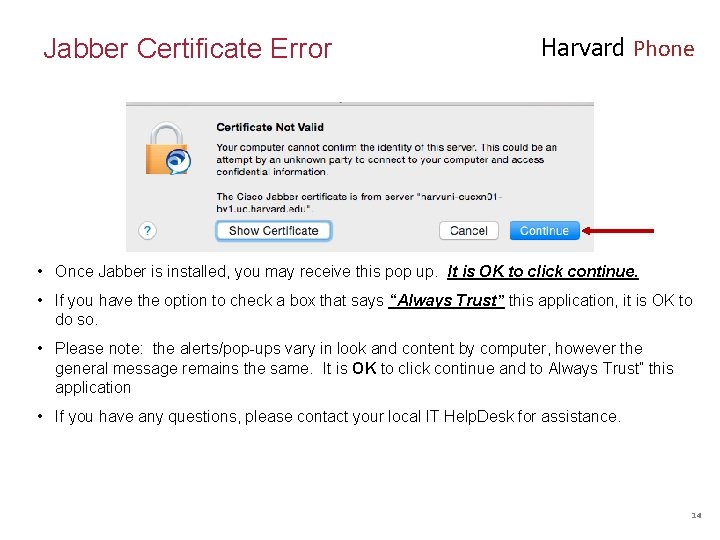
Jabber Certificate Error Harvard Phone • Once Jabber is installed, you may receive this pop up. It is OK to click continue. • If you have the option to check a box that says “Always Trust” this application, it is OK to do so. • Please note: the alerts/pop-ups vary in look and content by computer, however the general message remains the same. It is OK to click continue and to Always Trust” this application • If you have any questions, please contact your local IT Help. Desk for assistance. 14

Harvard Phone Accessing Jabber • Download the Jabber client – Go to phone. harvard. edu for download instructions • Locate Cisco Jabber icon on your desktop or in your program files • Login: Use your Harvard Key • Select Sign me in when Jabber starts john_harvard@harvard. edu • Click Sign in 15
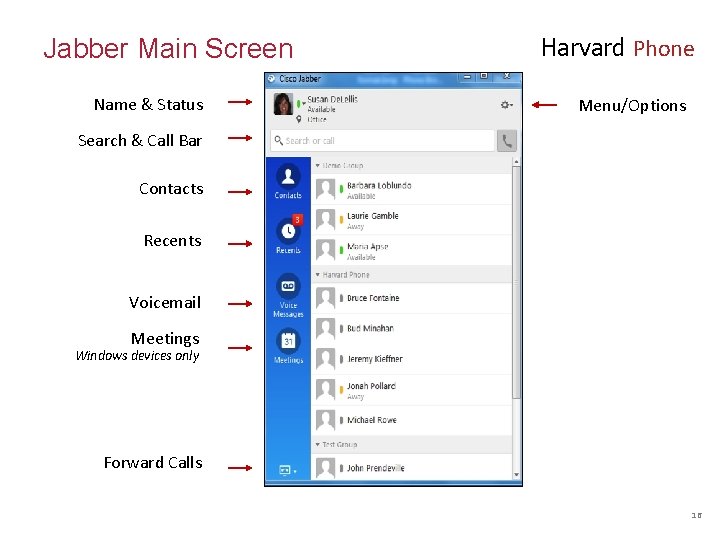
Jabber Main Screen Name & Status Harvard Phone Menu/Options Search & Call Bar Contacts Recents Voicemail Meetings Windows devices only Forward Calls 16
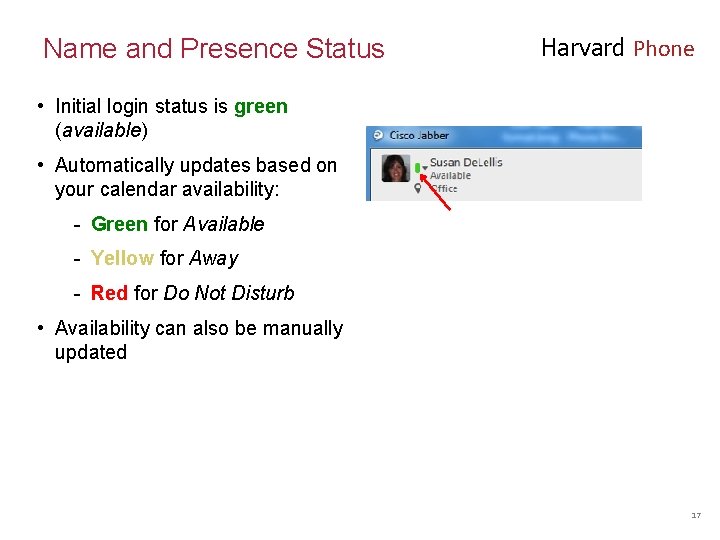
Name and Presence Status Harvard Phone • Initial login status is green (available) • Automatically updates based on your calendar availability: - Green for Available - Yellow for Away - Red for Do Not Disturb • Availability can also be manually updated 17
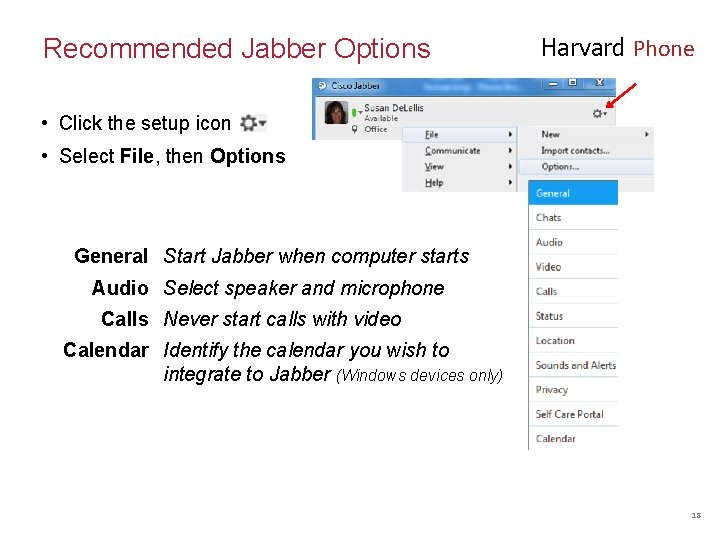
Recommended Jabber Options Harvard Phone • Click the setup icon • Select File, then Options General Start Jabber when computer starts Audio Select speaker and microphone Calls Never start calls with video Calendar Identify the calendar you wish to integrate to Jabber (Windows devices only) 18
Harvard Jabber Dialing Rules Harvard Phone • Internal Dialing, choose: – Any Harvard 5 -digit extension – Area code + Harvard phone number – +1 + area code + Harvard number – 9 + 1 + area code + Harvard phone number • External Dialing, choose: – 9 + 1 + area code + any number outside of Harvard – +1 + area code + any number outside of Harvard • Emergency Dialing, choose: – Use the desk phone at your home or office – Use your mobile phone’s native dialer Important Note: Do NOT use Jabber for 911 calls 19
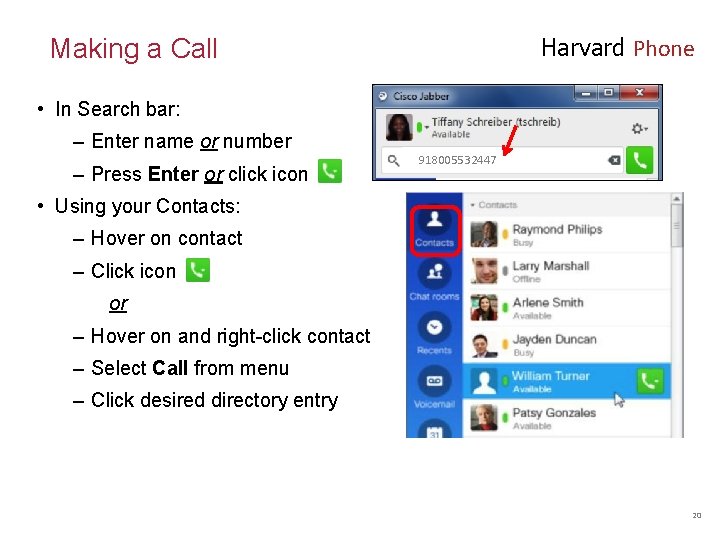
Harvard Phone Making a Call • In Search bar: – Enter name or number – Press Enter or click icon 918005532447 • Using your Contacts: – Hover on contact – Click icon or – Hover on and right-click contact – Select Call from menu – Click desired directory entry 20
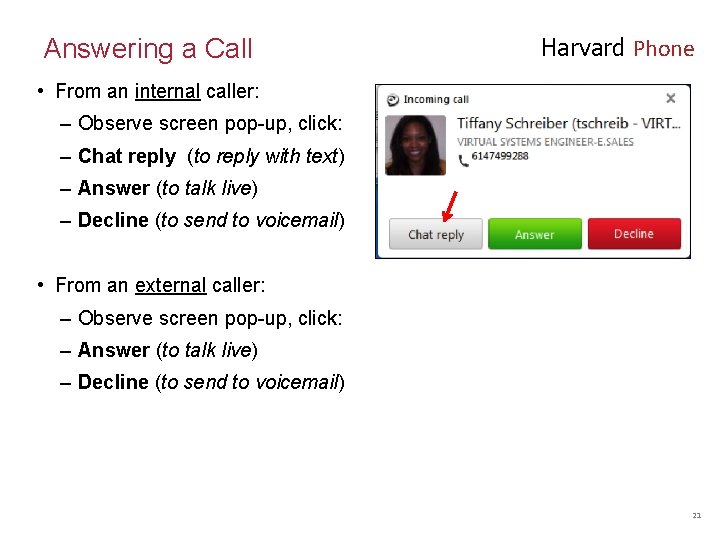
Answering a Call Harvard Phone • From an internal caller: – Observe screen pop-up, click: – Chat reply (to reply with text) – Answer (to talk live) – Decline (to send to voicemail) • From an external caller: – Observe screen pop-up, click: – Answer (to talk live) – Decline (to send to voicemail) 21
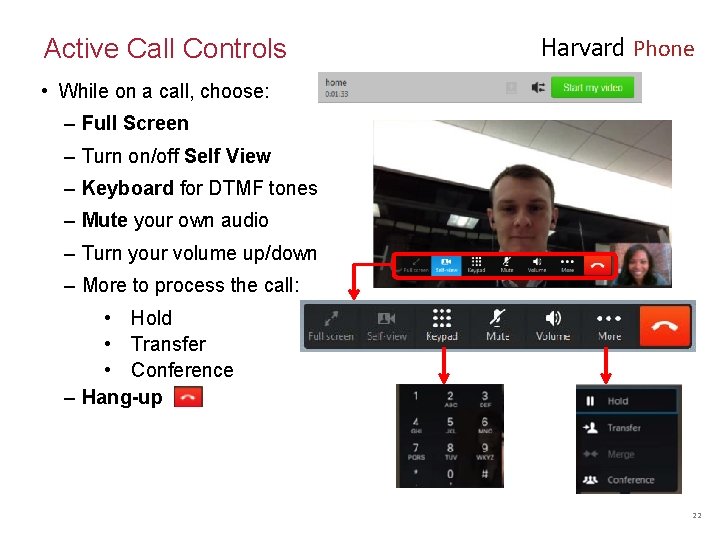
Active Call Controls Harvard Phone • While on a call, choose: – Full Screen – Turn on/off Self View – Keyboard for DTMF tones – Mute your own audio – Turn your volume up/down – More to process the call: • Hold • Transfer • Conference – Hang-up 22
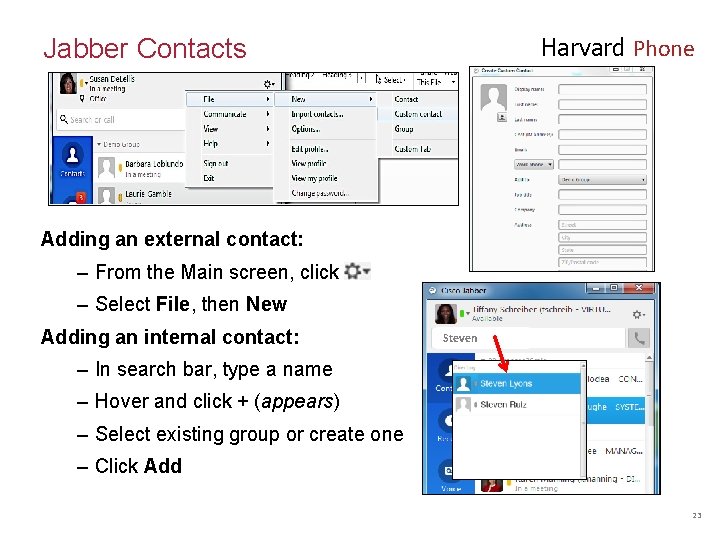
Harvard Phone Jabber Contacts Steven Adding an external contact: – From the Main screen, click – Select File, then New Adding an internal contact: Steven – In search bar, type a name – Hover and click + (appears) – Select existing group or create one – Click Add 23
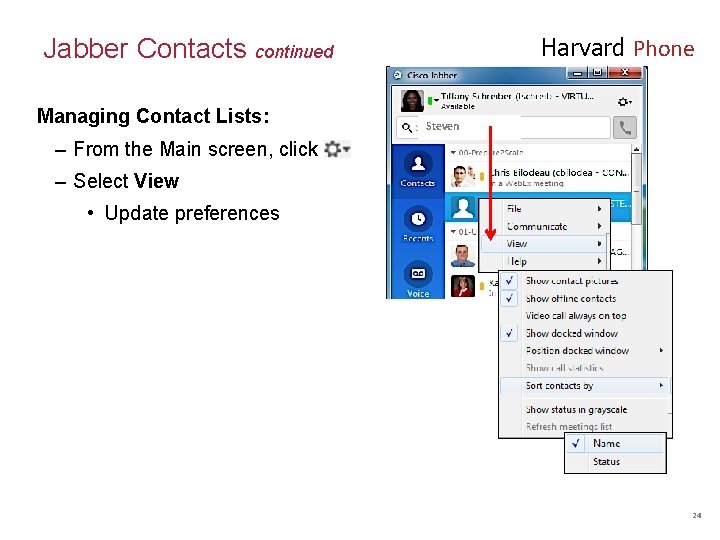
Harvard Phone Jabber Contacts continued Managing Contact Lists: Steven – From the Main screen, click – Select View • Update preferences 24
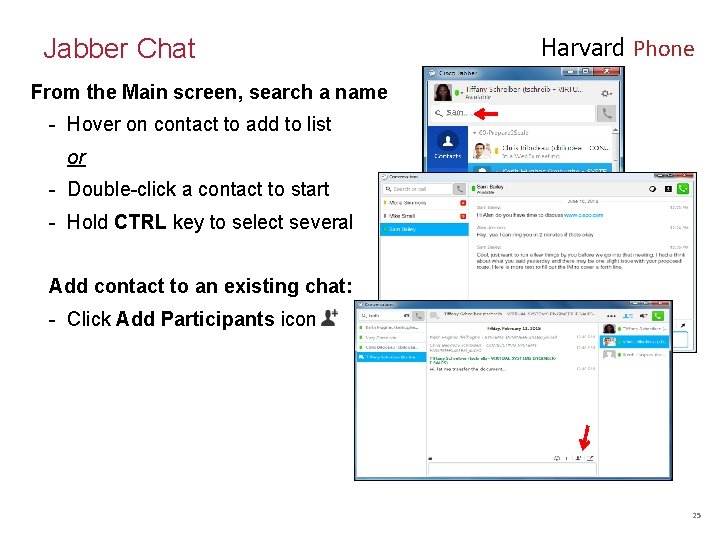
Harvard Phone Jabber Chat From the Main screen, search a name - Hover on contact to add to list Sam or - Double-click a contact to start - Hold CTRL key to select several Add contact to an existing chat: - Click Add Participants icon 25
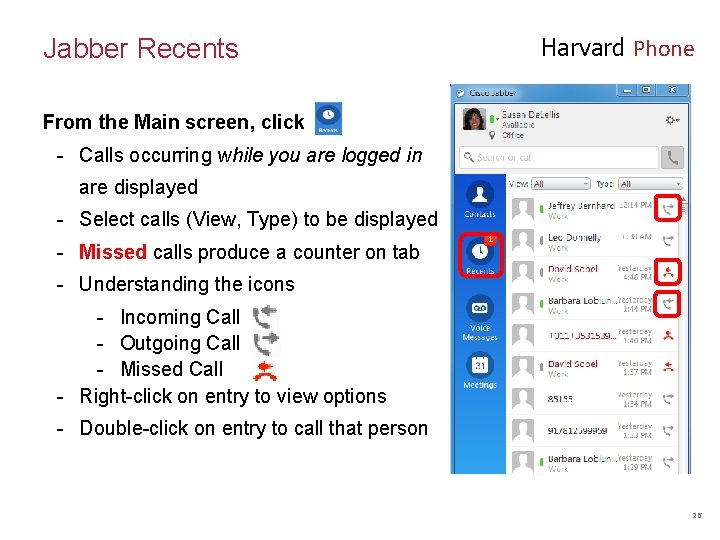
Jabber Recents Harvard Phone From the Main screen, click - Calls occurring while you are logged in are displayed - Select calls (View, Type) to be displayed - Missed calls produce a counter on tab - Understanding the icons - Incoming Call - Outgoing Call - Missed Call - Right-click on entry to view options - Double-click on entry to call that person 26
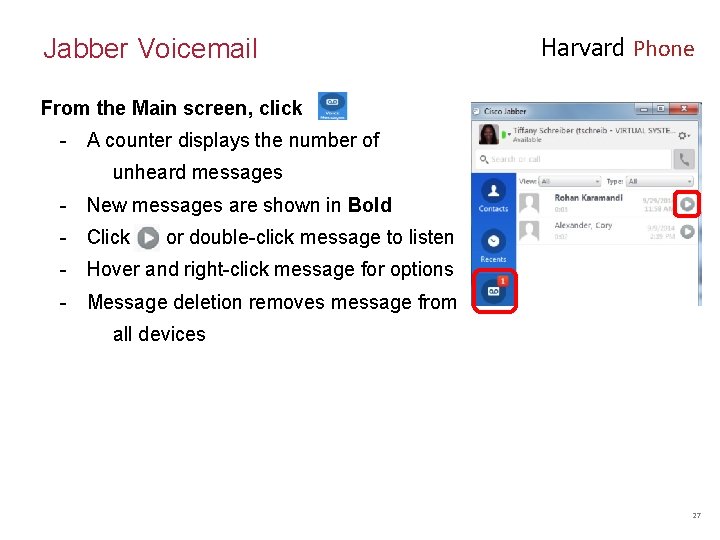
Jabber Voicemail Harvard Phone From the Main screen, click - A counter displays the number of unheard messages - New messages are shown in Bold - Click or double-click message to listen - Hover and right-click message for options - Message deletion removes message from all devices 27
- Slides: 27