
Hardware Devices Webpage creating a webpage using code

Hardware Devices Webpage creating a webpage using code in Kompozer Locate files in hardware_devices
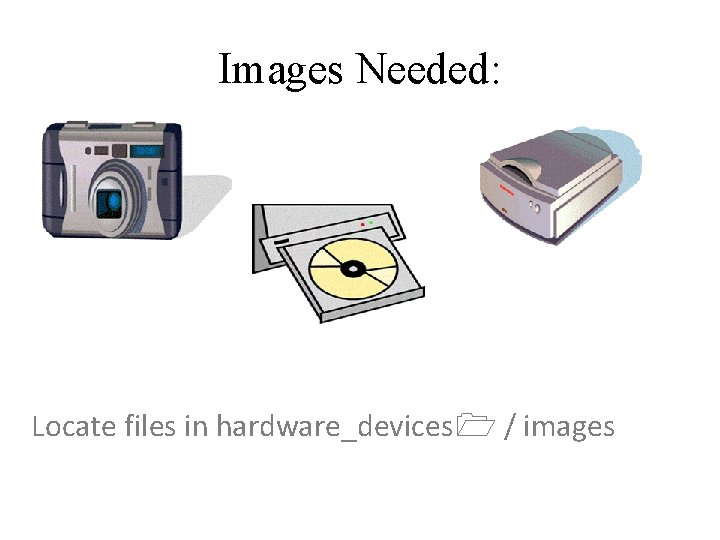
Images Needed: Locate files in hardware_devices / images
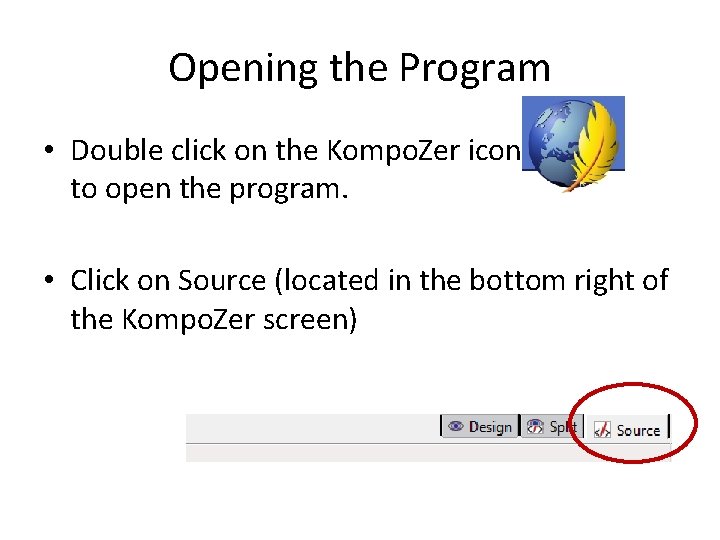
Opening the Program • Double click on the Kompo. Zer icon to open the program. • Click on Source (located in the bottom right of the Kompo. Zer screen)
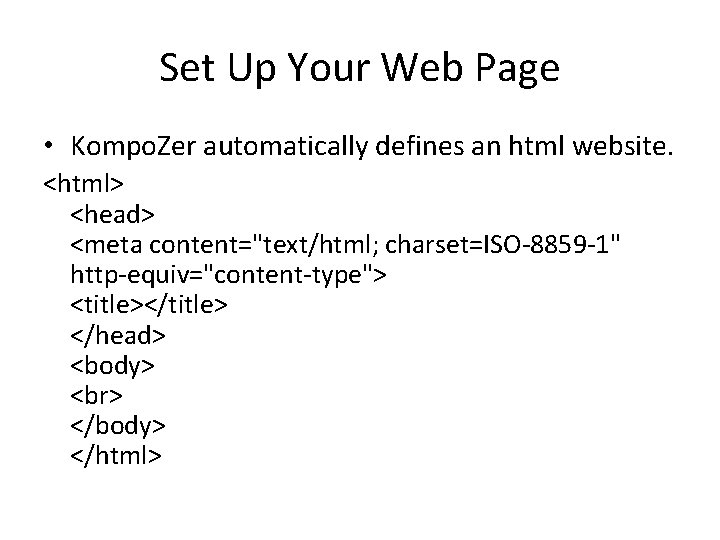
Set Up Your Web Page • Kompo. Zer automatically defines an html website. <html> <head> <meta content="text/html; charset=ISO-8859 -1" http-equiv="content-type"> <title></title> </head> <body> </body> </html>
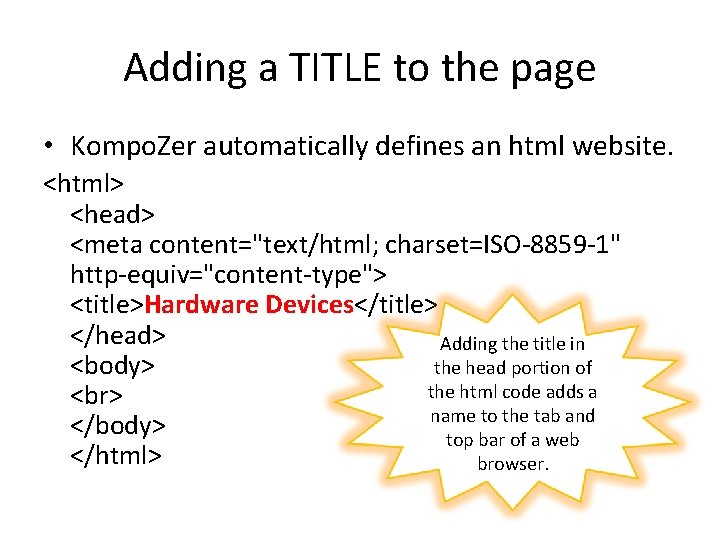
Adding a TITLE to the page • Kompo. Zer automatically defines an html website. <html> <head> <meta content="text/html; charset=ISO-8859 -1" http-equiv="content-type"> <title>Hardware Devices</title> </head> Adding the title in <body> the head portion of the html code adds a name to the tab and </body> top bar of a web </html> browser.

Design View Before After
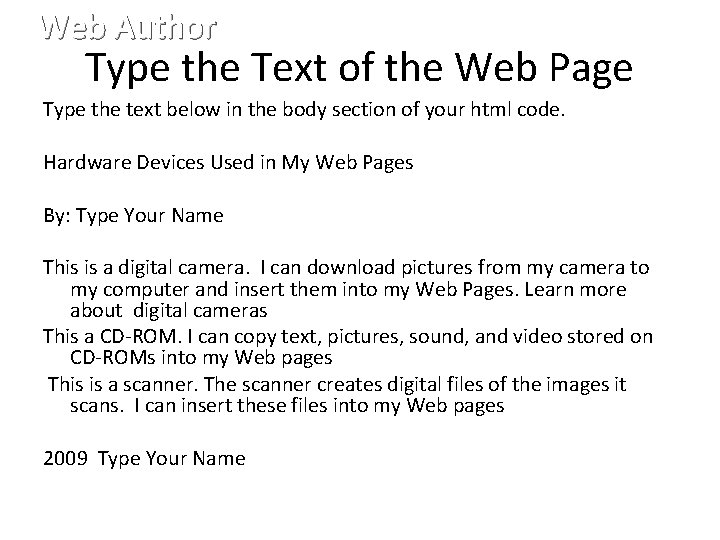
Web Author Type the Text of the Web Page Type the text below in the body section of your html code. Hardware Devices Used in My Web Pages By: Type Your Name This is a digital camera. I can download pictures from my camera to my computer and insert them into my Web Pages. Learn more about digital cameras This a CD-ROM. I can copy text, pictures, sound, and video stored on CD-ROMs into my Web pages This is a scanner. The scanner creates digital files of the images it scans. I can insert these files into my Web pages 2009 Type Your Name

Design View
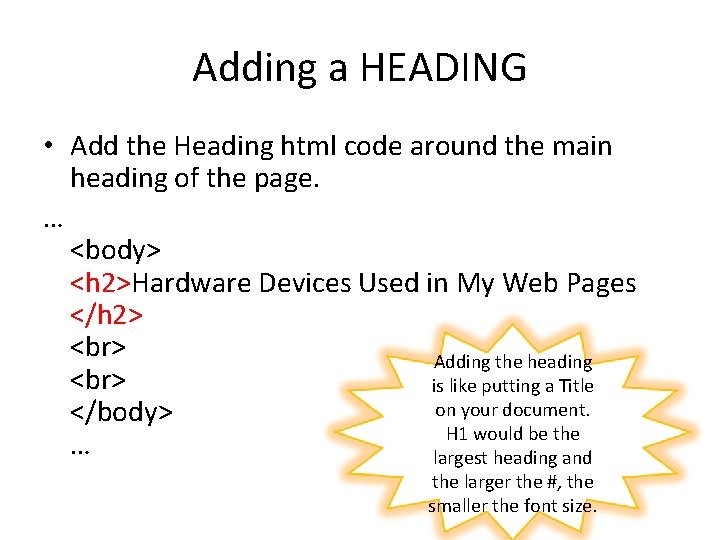
Adding a HEADING • Add the Heading html code around the main heading of the page. … <body> <h 2>Hardware Devices Used in My Web Pages </h 2> Adding the heading is like putting a Title on your document. </body> H 1 would be the … largest heading and the larger the #, the smaller the font size.
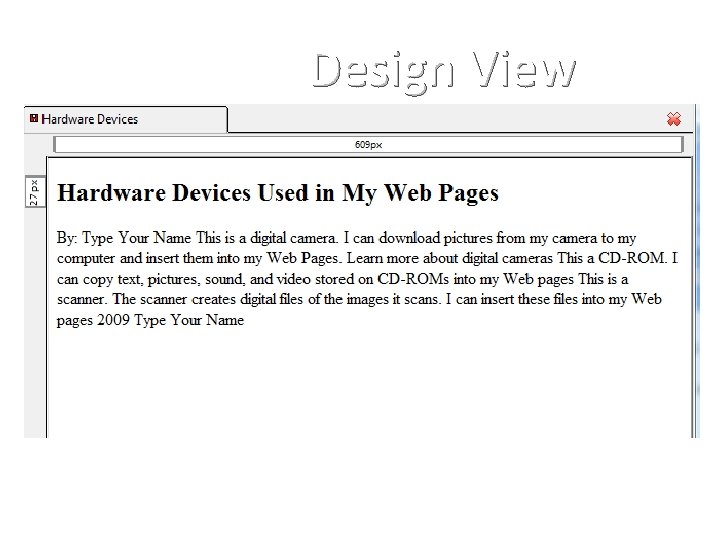
Design View
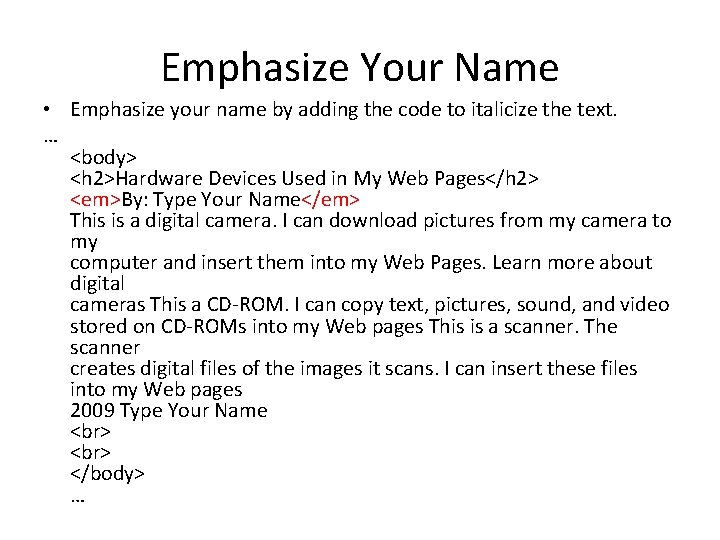
Emphasize Your Name • Emphasize your name by adding the code to italicize the text. … <body> <h 2>Hardware Devices Used in My Web Pages</h 2> <em>By: Type Your Name</em> This is a digital camera. I can download pictures from my camera to my computer and insert them into my Web Pages. Learn more about digital cameras This a CD-ROM. I can copy text, pictures, sound, and video stored on CD-ROMs into my Web pages This is a scanner. The scanner creates digital files of the images it scans. I can insert these files into my Web pages 2009 Type Your Name </body> …

Design View
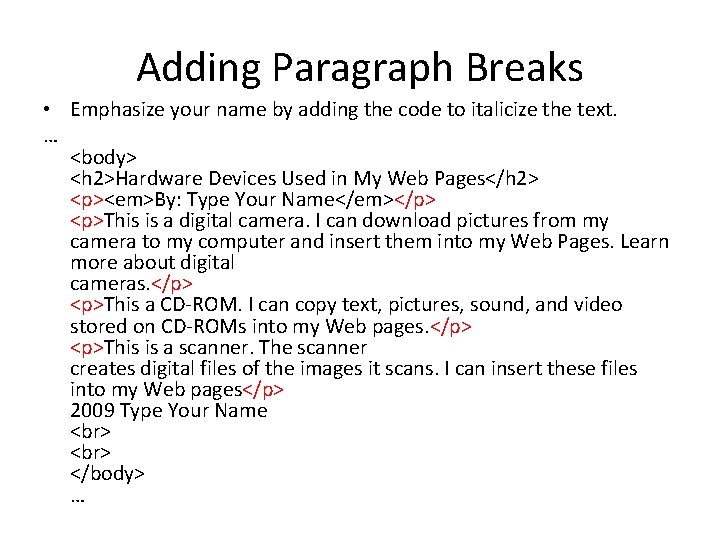
Adding Paragraph Breaks • Emphasize your name by adding the code to italicize the text. … <body> <h 2>Hardware Devices Used in My Web Pages</h 2> <p><em>By: Type Your Name</em></p> <p>This is a digital camera. I can download pictures from my camera to my computer and insert them into my Web Pages. Learn more about digital cameras. </p> <p>This a CD-ROM. I can copy text, pictures, sound, and video stored on CD-ROMs into my Web pages. </p> <p>This is a scanner. The scanner creates digital files of the images it scans. I can insert these files into my Web pages</p> 2009 Type Your Name </body> …

Design View
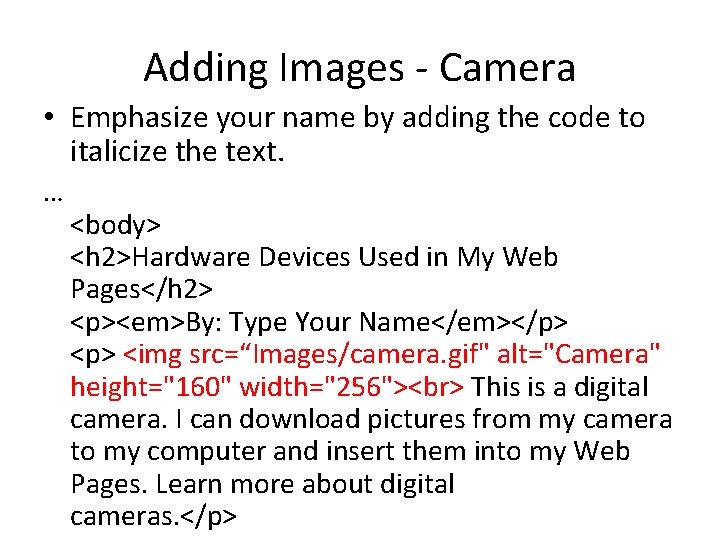
Adding Images - Camera • Emphasize your name by adding the code to italicize the text. … <body> <h 2>Hardware Devices Used in My Web Pages</h 2> <p><em>By: Type Your Name</em></p> <img src=“Images/camera. gif" alt="Camera" height="160" width="256"> This is a digital camera. I can download pictures from my camera to my computer and insert them into my Web Pages. Learn more about digital cameras. </p>
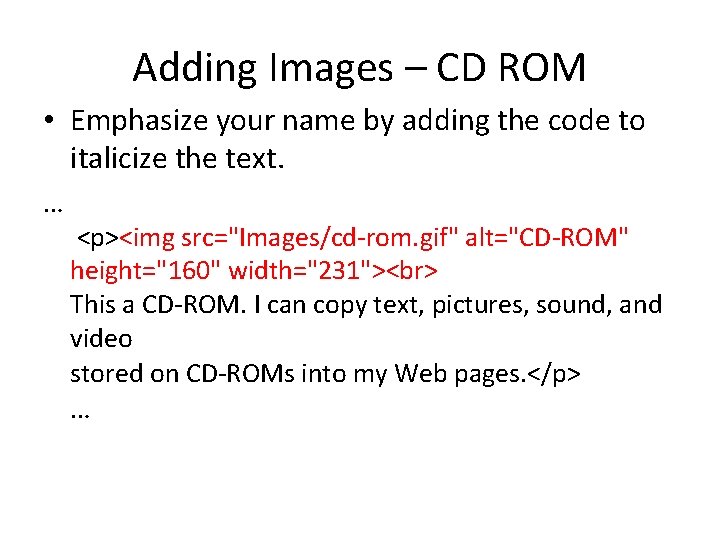
Adding Images – CD ROM • Emphasize your name by adding the code to italicize the text. … <p><img src="Images/cd-rom. gif" alt="CD-ROM" height="160" width="231"> This a CD-ROM. I can copy text, pictures, sound, and video stored on CD-ROMs into my Web pages. </p> …
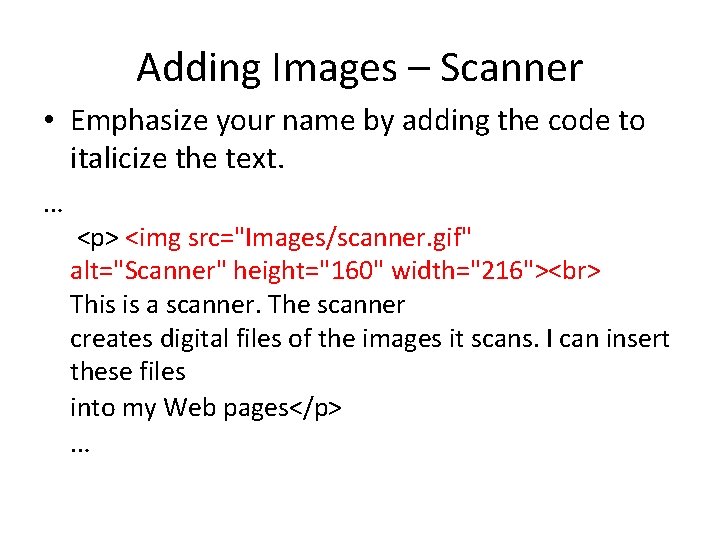
Adding Images – Scanner • Emphasize your name by adding the code to italicize the text. … <p> <img src="Images/scanner. gif" alt="Scanner" height="160" width="216"> This is a scanner. The scanner creates digital files of the images it scans. I can insert these files into my Web pages</p> …
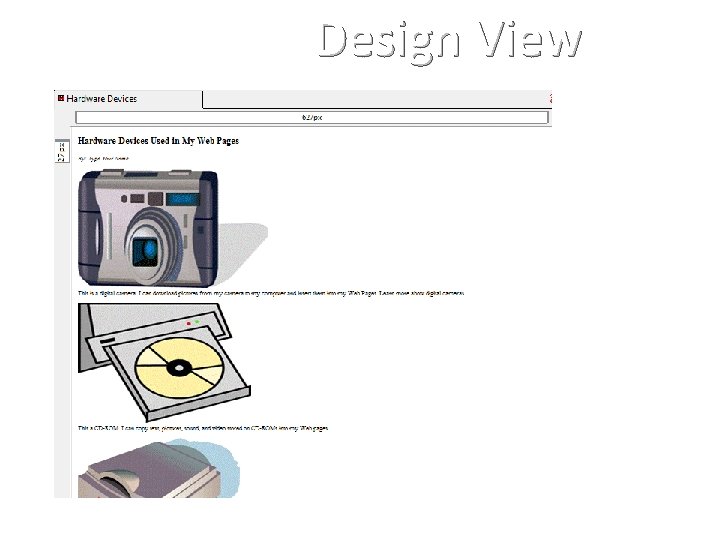
Design View
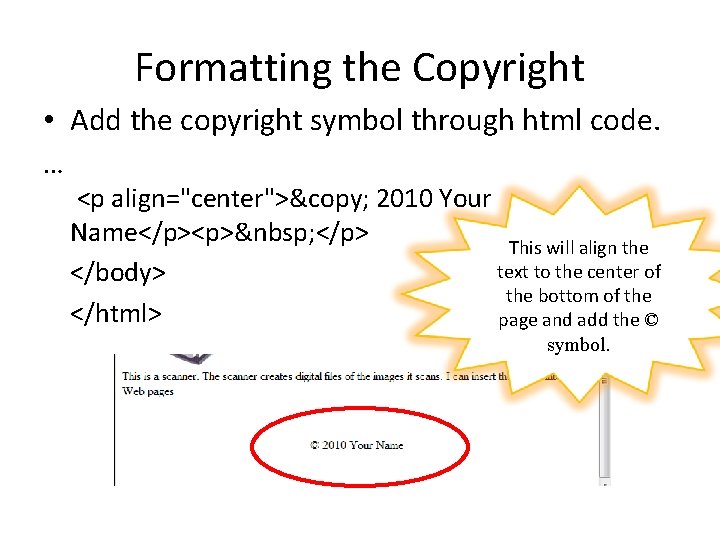
Formatting the Copyright • Add the copyright symbol through html code. … <p align="center">© 2010 Your Name</p><p> </p> This will align the text to the center of </body> the bottom of the </html> page and add the © symbol.
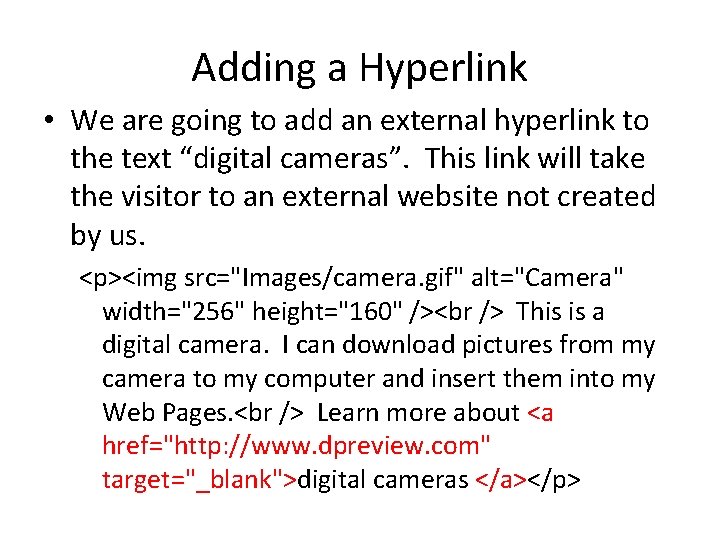
Adding a Hyperlink • We are going to add an external hyperlink to the text “digital cameras”. This link will take the visitor to an external website not created by us. <p><img src="Images/camera. gif" alt="Camera" width="256" height="160" /> This is a digital camera. I can download pictures from my camera to my computer and insert them into my Web Pages. Learn more about <a href="http: //www. dpreview. com" target="_blank">digital cameras </a></p>
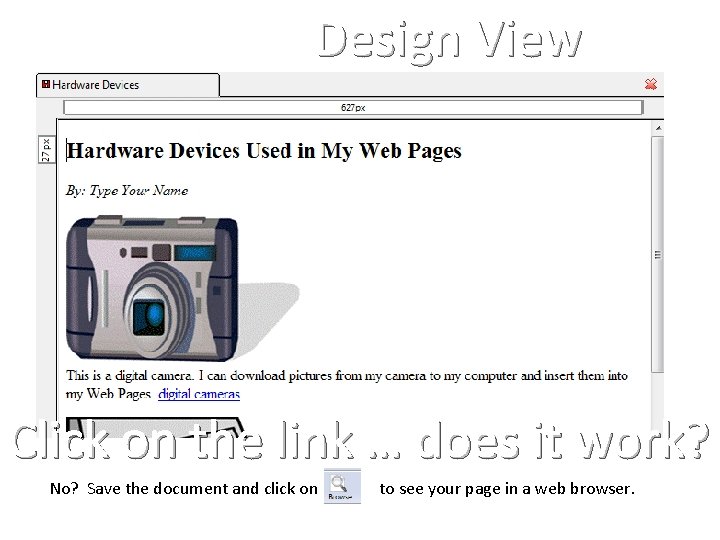
Design View Click on the link … does it work? No? Save the document and click on to see your page in a web browser.
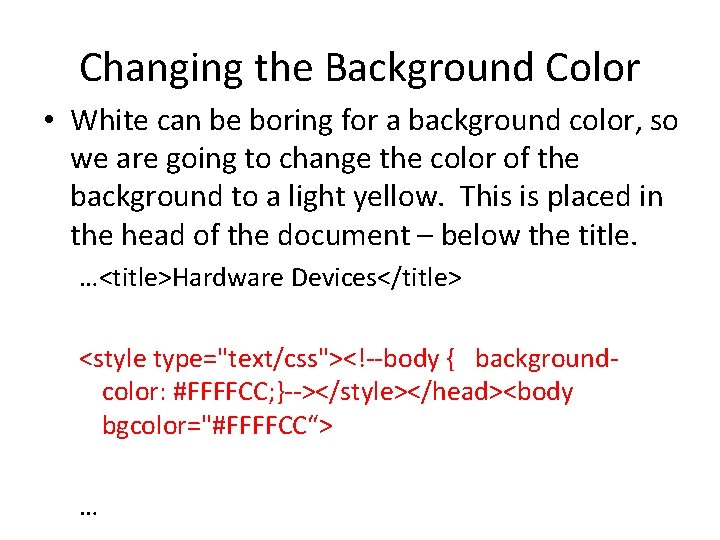
Changing the Background Color • White can be boring for a background color, so we are going to change the color of the background to a light yellow. This is placed in the head of the document – below the title. …<title>Hardware Devices</title> <style type="text/css"><!--body { backgroundcolor: #FFFFCC; }--></style></head><body bgcolor="#FFFFCC“> …
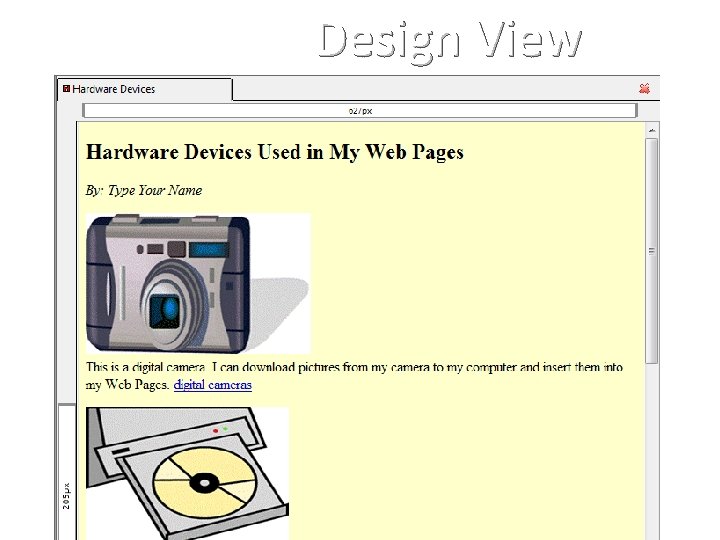
Design View
Challenge / Application Now you can take it further … • Go ahead and create a new page called Software and type about the software that we will be using. – Kompo. Zer, Gimp, Dreamweaver, Photoshop, Flash – Add graphics if you would like • Add a hyperlink from the Hardware Devices page (index. html) to the Software Page.
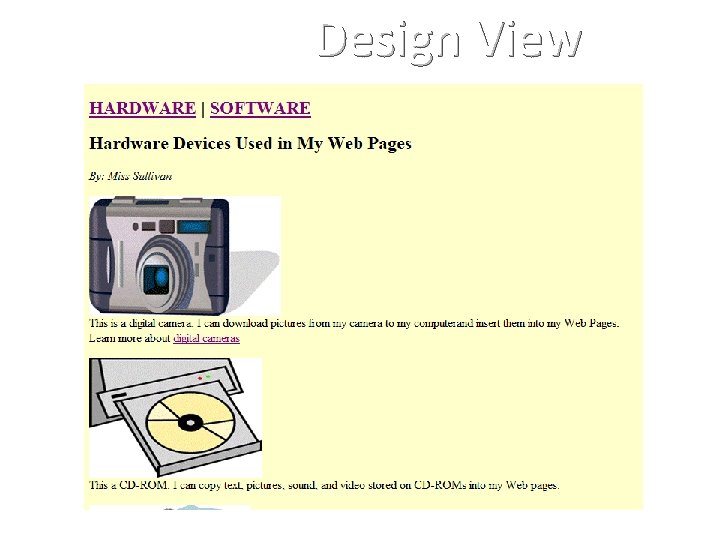
Design View
- Slides: 25