
Ham Radio Projects for Raspberry Pi 1 Decoding
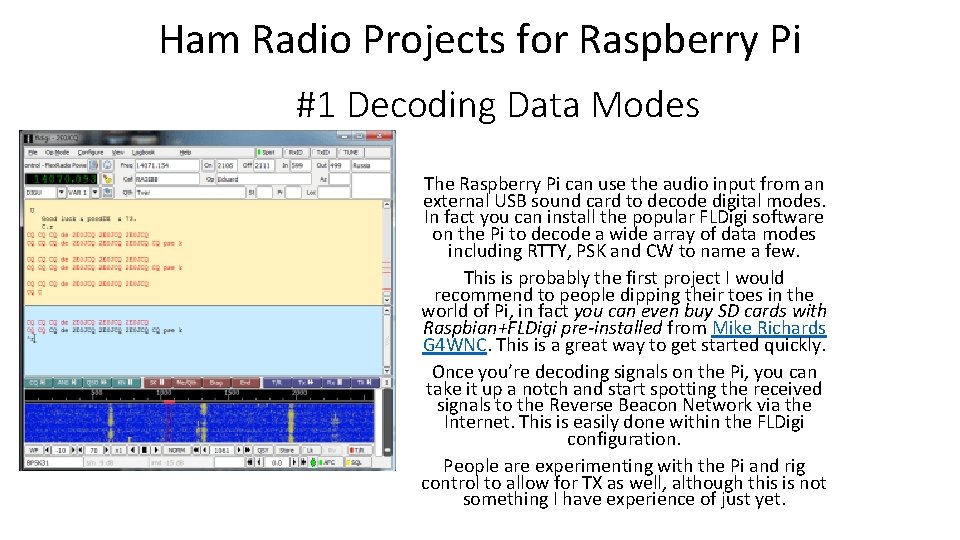
Ham Radio Projects for Raspberry Pi #1 Decoding Data Modes The Raspberry Pi can use the audio input from an external USB sound card to decode digital modes. In fact you can install the popular FLDigi software on the Pi to decode a wide array of data modes including RTTY, PSK and CW to name a few. This is probably the first project I would recommend to people dipping their toes in the world of Pi, in fact you can even buy SD cards with Raspbian+FLDigi pre-installed from Mike Richards G 4 WNC. This is a great way to get started quickly. Once you’re decoding signals on the Pi, you can take it up a notch and start spotting the received signals to the Reverse Beacon Network via the Internet. This is easily done within the FLDigi configuration. People are experimenting with the Pi and rig control to allow for TX as well, although this is not something I have experience of just yet.
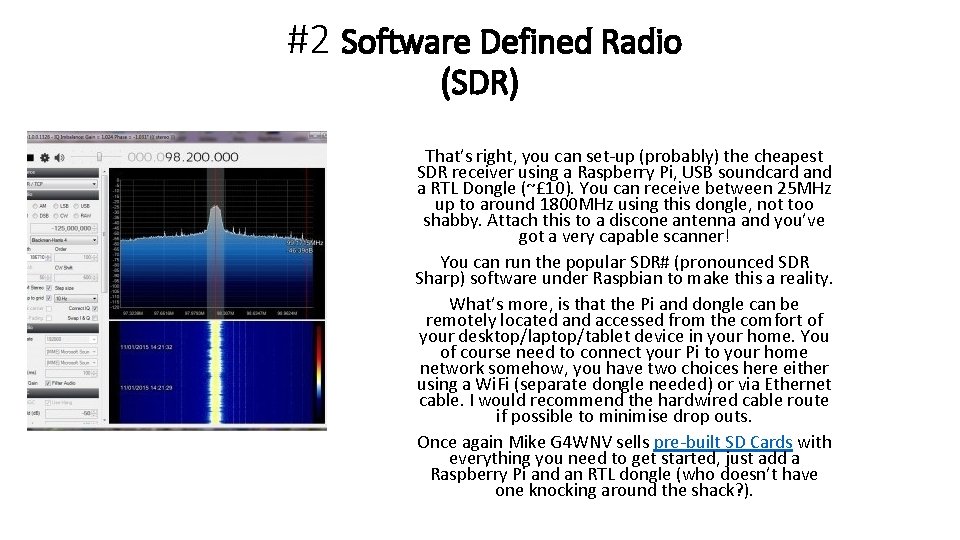
#2 Software Defined Radio (SDR) That’s right, you can set-up (probably) the cheapest SDR receiver using a Raspberry Pi, USB soundcard and a RTL Dongle (~£ 10). You can receive between 25 MHz up to around 1800 MHz using this dongle, not too shabby. Attach this to a discone antenna and you’ve got a very capable scanner! You can run the popular SDR# (pronounced SDR Sharp) software under Raspbian to make this a reality. What’s more, is that the Pi and dongle can be remotely located and accessed from the comfort of your desktop/laptop/tablet device in your home. You of course need to connect your Pi to your home network somehow, you have two choices here either using a Wi. Fi (separate dongle needed) or via Ethernet cable. I would recommend the hardwired cable route if possible to minimise drop outs. Once again Mike G 4 WNV sells pre-built SD Cards with everything you need to get started, just add a Raspberry Pi and an RTL dongle (who doesn’t have one knocking around the shack? ).
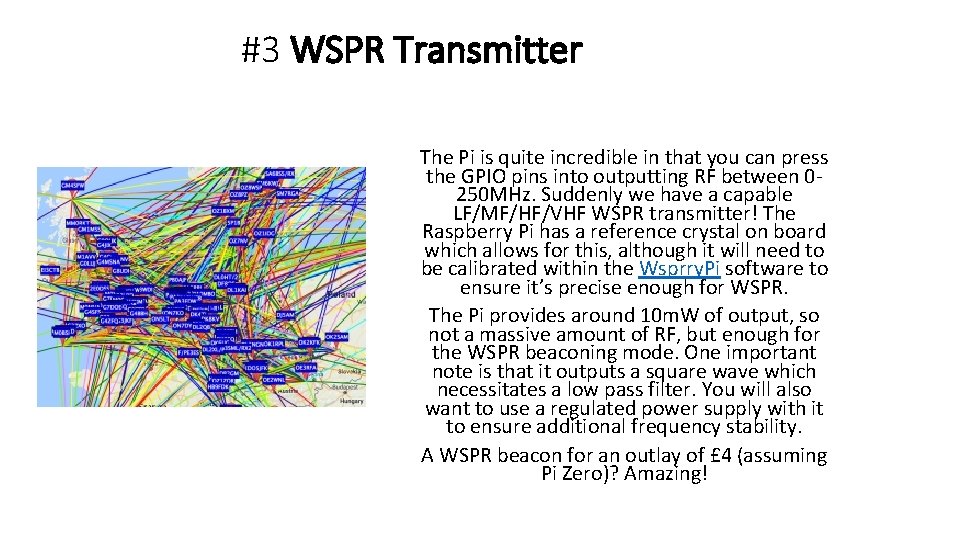
#3 WSPR Transmitter The Pi is quite incredible in that you can press the GPIO pins into outputting RF between 0250 MHz. Suddenly we have a capable LF/MF/HF/VHF WSPR transmitter! The Raspberry Pi has a reference crystal on board which allows for this, although it will need to be calibrated within the Wsprry. Pi software to ensure it’s precise enough for WSPR. The Pi provides around 10 m. W of output, so not a massive amount of RF, but enough for the WSPR beaconing mode. One important note is that it outputs a square wave which necessitates a low pass filter. You will also want to use a regulated power supply with it to ensure additional frequency stability. A WSPR beacon for an outlay of £ 4 (assuming Pi Zero)? Amazing!

Tracking This is probably the easiest Raspberry Pi project you can undertake. Install the GPredict software on your Raspberry Pi and you have a very capable satellite tracker, allowing you to track every conceivable satellite across the world in real time. It allows you to filter the type of satellites you can track, this is where you can just select the amateur radio satellites you’re interested in working and see in real time which of the birds you can work through. Of course the next step is to interface the Raspberry Pi with your antenna controller and start tracking the sats in real time, now there’s a thought!

Ham Radio Projects for Raspberry Pi #1 Decoding Data Modes The Raspberry Pi can use the audio input from an external USB sound card to decode digital modes. In fact you can install the popular FLDigi software on the Pi to decode a wide array of data modes including RTTY, PSK and CW to name a few. This is probably the first project I would recommend to people dipping their toes in the world of Pi, in fact you can even buy SD cards with Raspbian+FLDigi pre-installed from Mike Richards G 4 WNC. This is a great way to get started quickly. Once you’re decoding signals on the Pi, you can take it up a notch and start spotting the received signals to the Reverse Beacon Network via the Internet. This is easily done within the FLDigi configuration. People are experimenting with the Pi and rig control to allow for TX as well, although this is not something I have experience of just yet.
- Slides: 5