
Hadoop and Amazon Web Services Ken Krugler Hadoop
Hadoop and Amazon Web Services Ken Krugler
Hadoop and AWS Overview
Welcome ² I’m Ken Krugler § Using Hadoop since The Dark Ages (2006) § Apache Tika committer § Active developer and trainer ² Using Hadoop with AWS for… § Large scale web crawling § Machine learning/NLP § ETL/Solr indexing
Course Overview ² Assumes you know basics of Hadoop ² Focus is on how to use Elastic Map. Reduce ² From n 00 b to knowledgeable in 10 modules… Getting Started Running Jobs Clusters of Servers Dealing with Data Wikipedia Lab Command Line Tools Debugging Tips Hive and Pig Hive Lab Advanced Topics
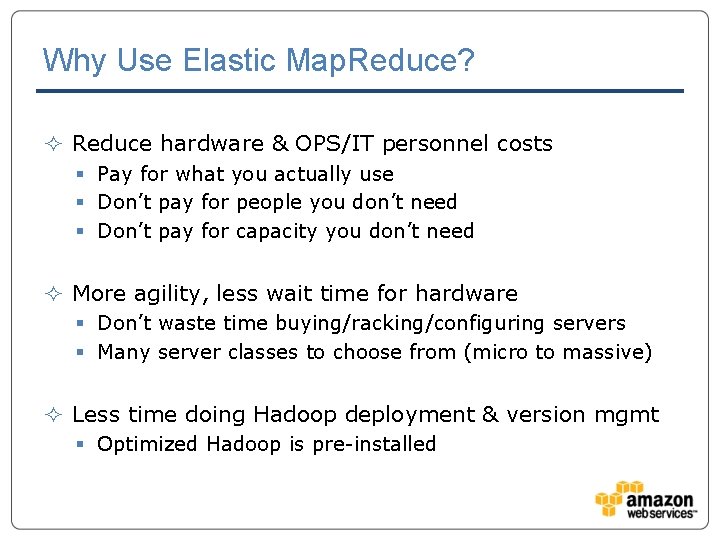
Why Use Elastic Map. Reduce? ² Reduce hardware & OPS/IT personnel costs § Pay for what you actually use § Don’t pay for people you don’t need § Don’t pay for capacity you don’t need ² More agility, less wait time for hardware § Don’t waste time buying/racking/configuring servers § Many server classes to choose from (micro to massive) ² Less time doing Hadoop deployment & version mgmt § Optimized Hadoop is pre-installed
Hadoop and AWS Getting Started
30 Seconds of Terminology ² AWS – Amazon Web Services ² S 3 – Simple Storage Service ² EC 2 – Elastic Compute Cloud ² EMR – Elastic Map. Reduce
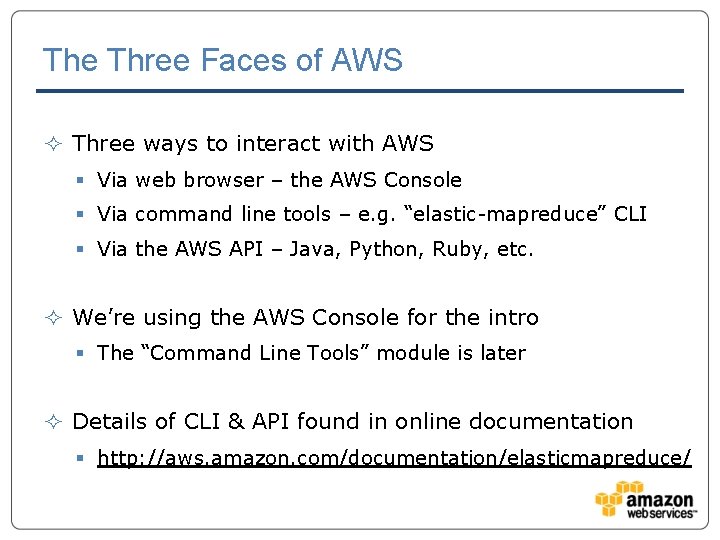
The Three Faces of AWS ² Three ways to interact with AWS § Via web browser – the AWS Console § Via command line tools – e. g. “elastic-mapreduce” CLI § Via the AWS API – Java, Python, Ruby, etc. ² We’re using the AWS Console for the intro § The “Command Line Tools” module is later ² Details of CLI & API found in online documentation § http: //aws. amazon. com/documentation/elasticmapreduce/
Getting an Amazon Account ² All AWS services require an account ² Signing up is simple § Email address/password § Requires credit card, to pay for services § Uses phone number to validate account ² End result is an Amazon account § Has an account ID (looks like xxxx-yyyy-zzzz) ² Let’s go get us an account § Go to http: //aws. amazon. com § Click the “Sign Up Now” button
Credentials ² You have an account with a password ² This account has: § § § An account name (AWS Test) An account id (8310 -5790 -6469) An access key id (AKIAID 4 SOXLXJSFNG 6 SA) A secret access key (j. Xw 5 qhi. Br. F…) A canonical user id (10 d 8 c 2962138…) ² Let’s go look at our account settings… § http: //console. aws. amazon. com § Select “Security Credentials” from account menu
Getting an EC 2 Key Pair ² ² ² Go to https: //console. aws. amazon. com/ec 2 Click on the “Key Pairs” link at the bottom-left Click on the “Create Key Pair” button Enter a simple, short name for the key pair Click the “Create” button Let’s go make us a key pair…
Amazon S 3 Bucket ² EMR saves data to S 3 § Hadoop job results § Hadoop job log files ² S 3 data is organized as paths to files in a “bucket” ² You need to create a bucket before running a job ² Let’s go do that now…
Summary ² At this point we are ready to run Hadoop jobs § We have an AWS account - 8310 -5790 -6469 § We created a key pair – aws-test § We created an S 3 bucket – aws-test-kk ² In the next module we’ll run a custom Hadoop job

Hadoop and AWS Running a Hadoop Job
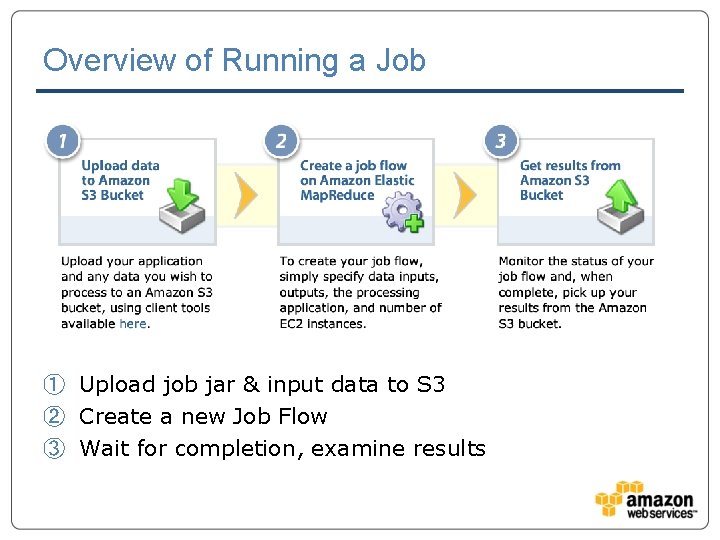
Overview of Running a Job ① Upload job jar & input data to S 3 ② Create a new Job Flow ③ Wait for completion, examine results
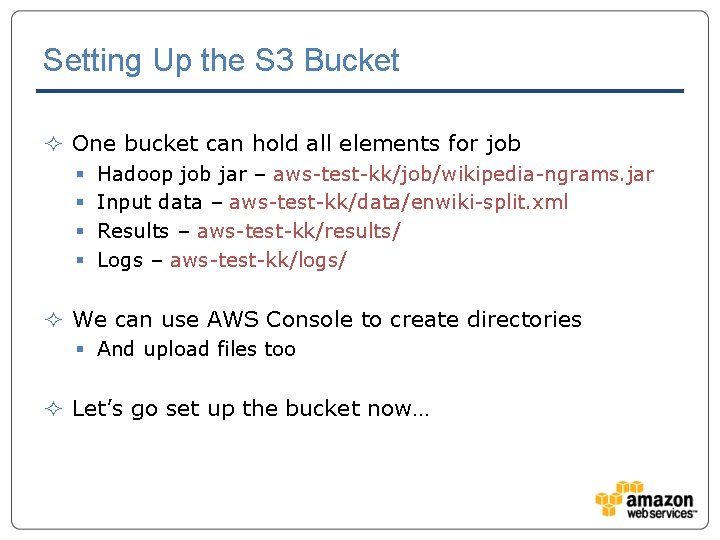
Setting Up the S 3 Bucket ² One bucket can hold all elements for job § § Hadoop job jar – aws-test-kk/job/wikipedia-ngrams. jar Input data – aws-test-kk/data/enwiki-split. xml Results – aws-test-kk/results/ Logs – aws-test-kk/logs/ ² We can use AWS Console to create directories § And upload files too ² Let’s go set up the bucket now…
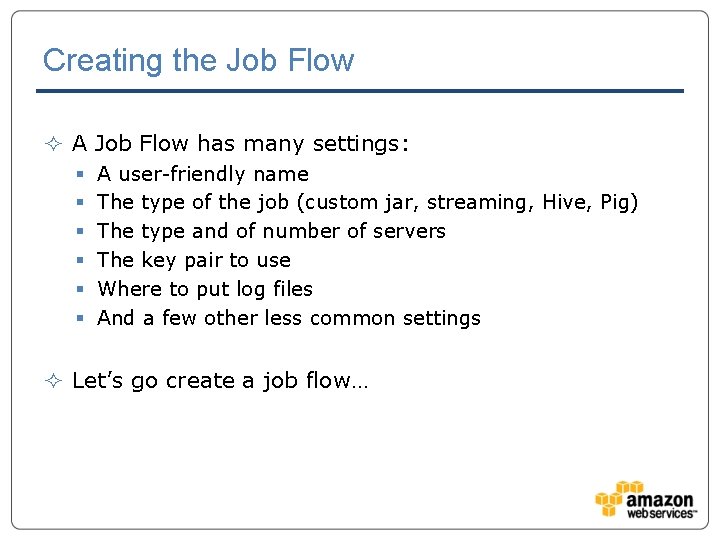
Creating the Job Flow ² A Job Flow has many settings: § § § A user-friendly name The type of the job (custom jar, streaming, Hive, Pig) The type and of number of servers The key pair to use Where to put log files And a few other less common settings ² Let’s go create a job flow…
Monitoring a Job ² AWS Console displays information about the job § State – starting, running, shutting down § Elapsed time – duration § Normalized Instance Hours – cost ² You can also terminate a job ² Let’s go watch our job run…
Viewing Job Results ² My job puts its results into S 3 (-outputdir s 3 n: //xxx) § The Hadoop cluster “goes away” at end of job § So anything in HDFS will be tossed § Persistent Job Flow doesn’t have this issue ² Hadoop writes job log files to S 3 § Using location specified for job (aws-test-kk/logs/) ² Let’s go look at the job results…
Summary ² Jobs can be defined using the AWS Console ² Code and input data are loaded from S 3 ² Results and log files are saved back to S 3 ² In the next module we’ll explore server options
Hadoop and AWS Clusters of Servers
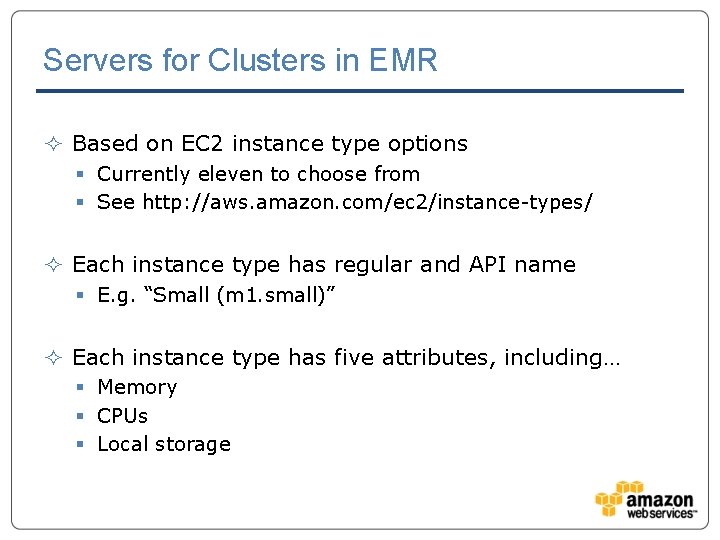
Servers for Clusters in EMR ² Based on EC 2 instance type options § Currently eleven to choose from § See http: //aws. amazon. com/ec 2/instance-types/ ² Each instance type has regular and API name § E. g. “Small (m 1. small)” ² Each instance type has five attributes, including… § Memory § CPUs § Local storage
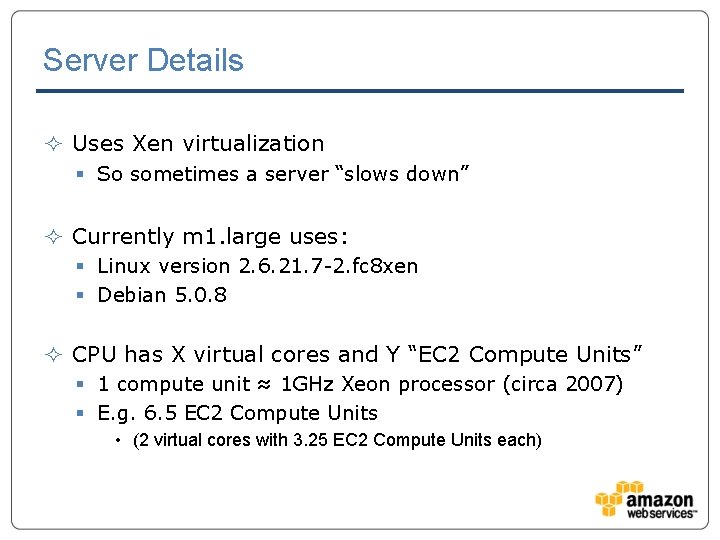
Server Details ² Uses Xen virtualization § So sometimes a server “slows down” ² Currently m 1. large uses: § Linux version 2. 6. 21. 7 -2. fc 8 xen § Debian 5. 0. 8 ² CPU has X virtual cores and Y “EC 2 Compute Units” § 1 compute unit ≈ 1 GHz Xeon processor (circa 2007) § E. g. 6. 5 EC 2 Compute Units • (2 virtual cores with 3. 25 EC 2 Compute Units each)
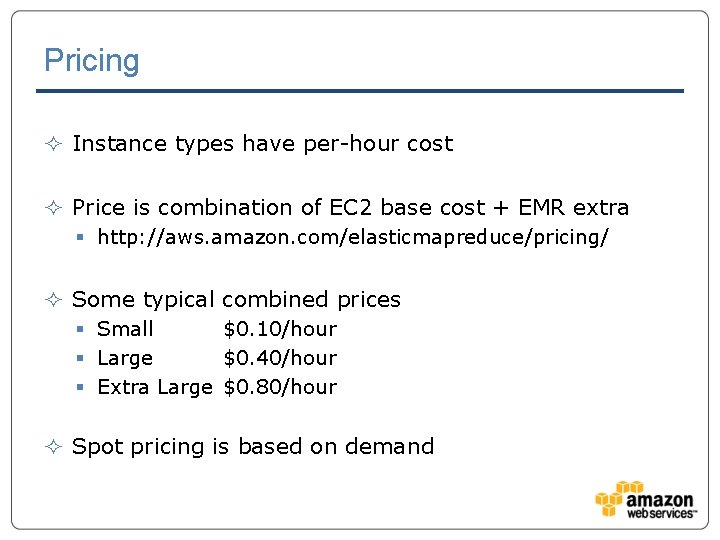
Pricing ² Instance types have per-hour cost ² Price is combination of EC 2 base cost + EMR extra § http: //aws. amazon. com/elasticmapreduce/pricing/ ² Some typical combined prices § Small $0. 10/hour § Large $0. 40/hour § Extra Large $0. 80/hour ² Spot pricing is based on demand
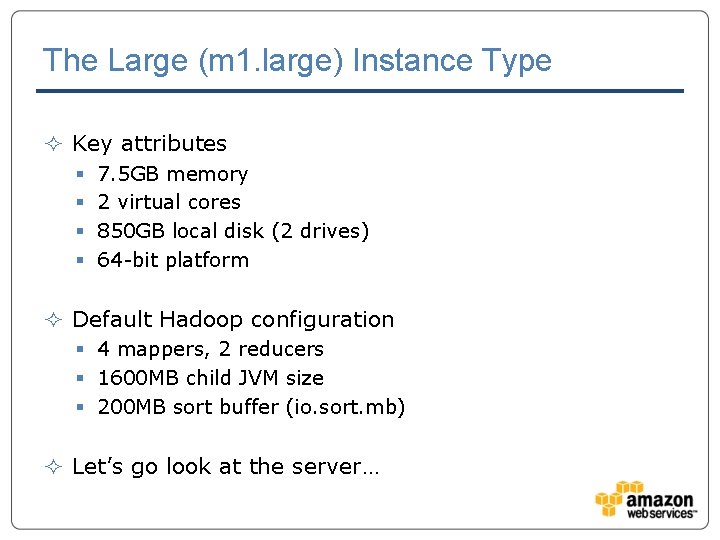
The Large (m 1. large) Instance Type ² Key attributes § § 7. 5 GB memory 2 virtual cores 850 GB local disk (2 drives) 64 -bit platform ² Default Hadoop configuration § 4 mappers, 2 reducers § 1600 MB child JVM size § 200 MB sort buffer (io. sort. mb) ² Let’s go look at the server…
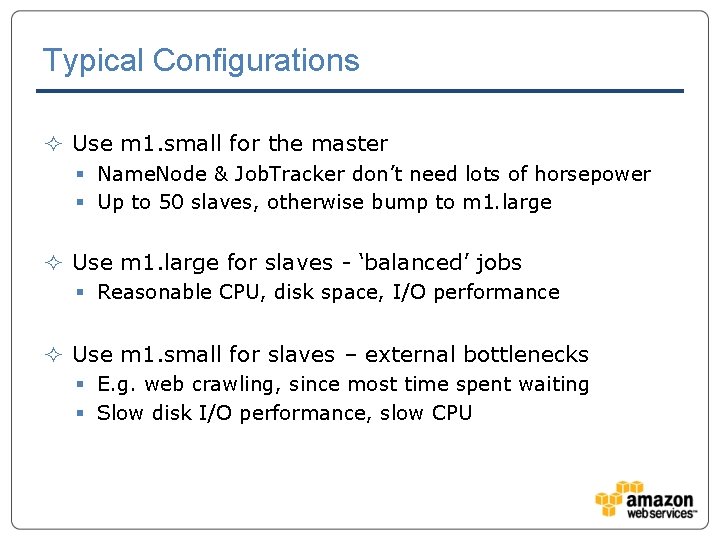
Typical Configurations ² Use m 1. small for the master § Name. Node & Job. Tracker don’t need lots of horsepower § Up to 50 slaves, otherwise bump to m 1. large ² Use m 1. large for slaves - ‘balanced’ jobs § Reasonable CPU, disk space, I/O performance ² Use m 1. small for slaves – external bottlenecks § E. g. web crawling, since most time spent waiting § Slow disk I/O performance, slow CPU
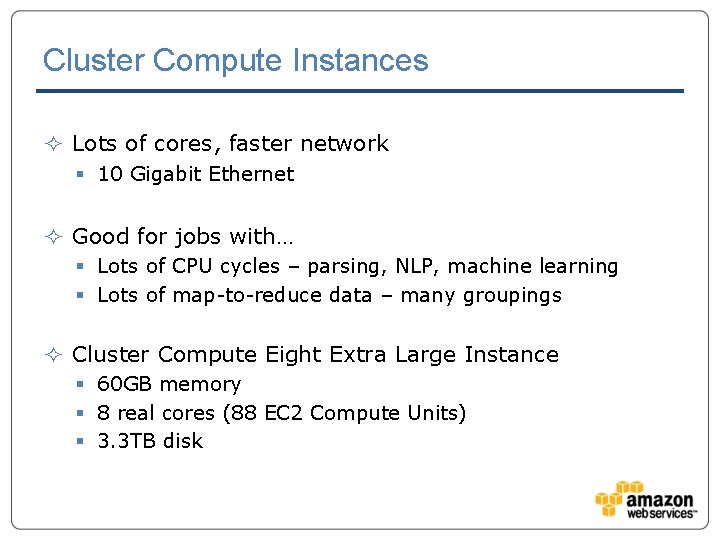
Cluster Compute Instances ² Lots of cores, faster network § 10 Gigabit Ethernet ² Good for jobs with… § Lots of CPU cycles – parsing, NLP, machine learning § Lots of map-to-reduce data – many groupings ² Cluster Compute Eight Extra Large Instance § 60 GB memory § 8 real cores (88 EC 2 Compute Units) § 3. 3 TB disk
Hadoop and AWS Dealing with Data
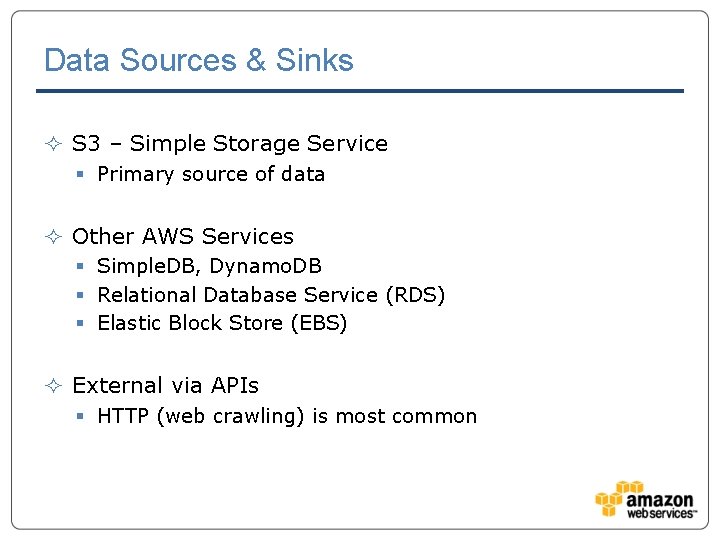
Data Sources & Sinks ² S 3 – Simple Storage Service § Primary source of data ² Other AWS Services § Simple. DB, Dynamo. DB § Relational Database Service (RDS) § Elastic Block Store (EBS) ² External via APIs § HTTP (web crawling) is most common
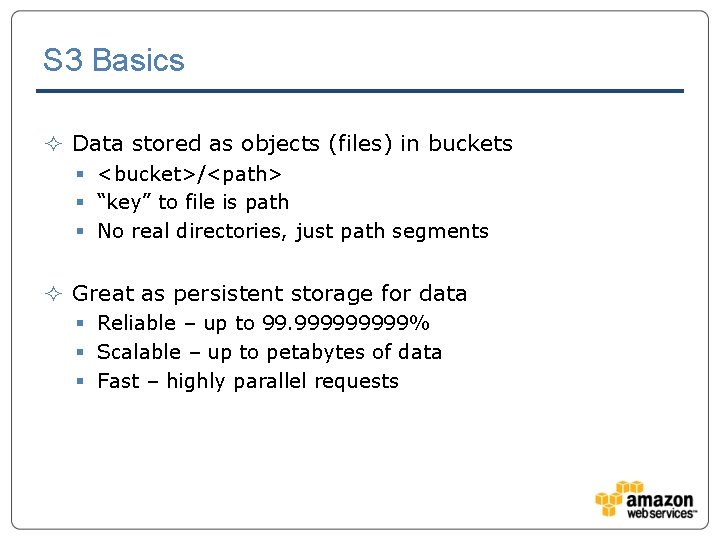
S 3 Basics ² Data stored as objects (files) in buckets § <bucket>/<path> § “key” to file is path § No real directories, just path segments ² Great as persistent storage for data § Reliable – up to 99. 99999% § Scalable – up to petabytes of data § Fast – highly parallel requests
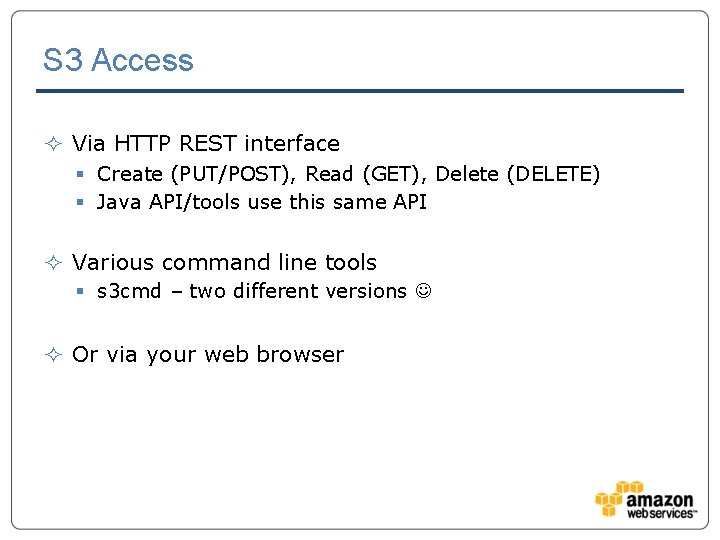
S 3 Access ² Via HTTP REST interface § Create (PUT/POST), Read (GET), Delete (DELETE) § Java API/tools use this same API ² Various command line tools § s 3 cmd – two different versions ² Or via your web browser
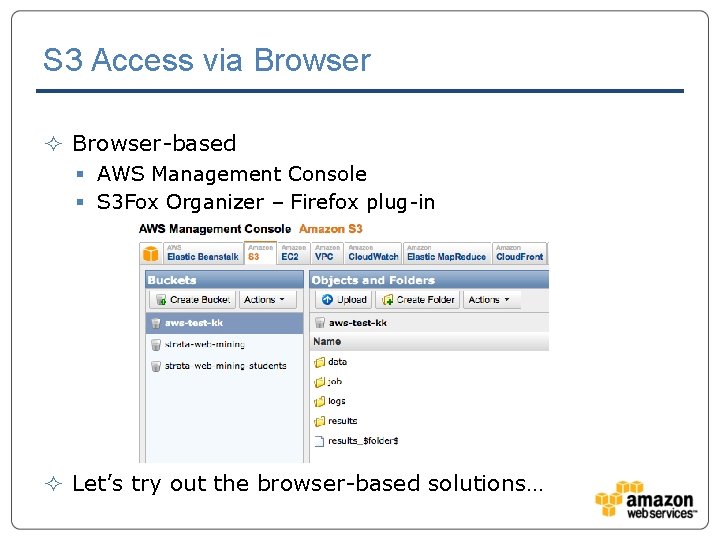
S 3 Access via Browser ² Browser-based § AWS Management Console § S 3 Fox Organizer – Firefox plug-in ² Let’s try out the browser-based solutions…
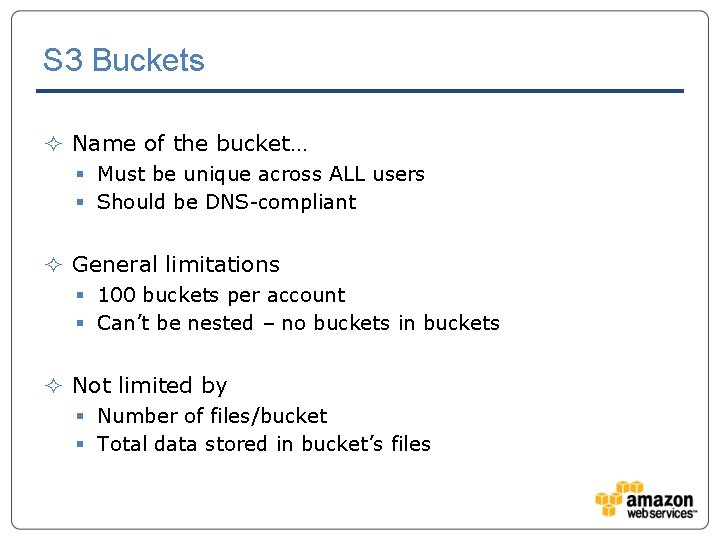
S 3 Buckets ² Name of the bucket… § Must be unique across ALL users § Should be DNS-compliant ² General limitations § 100 buckets per account § Can’t be nested – no buckets in buckets ² Not limited by § Number of files/bucket § Total data stored in bucket’s files
S 3 Files ² Every file (aka object) § Lives in a bucket § Has a path which acts as the file’s “key” § Is identified via bucket + path ² General limitations § Can’t be modified (no random write or append) § Max size of 5 TB (5 GB per upload request)
Fun with S 3 Paths ² AWS Console uses <bucket>/<path> § For specifying location of job jar ² AWS Console uses s 3 n: //<bucket>/<path> § For specifying location of log files ² s 3 cmd tool use s 3: //<bucket>/<path>
S 3 Pricing ² Varies by region – numbers below are “US Standard” ² Data in is (currently) free § Data out is also free within same region § Otherwise starts at $0. 12/GB, drops w/volume ² Per-request cost varies, based on type of request § E. g. $0. 01 per 10 K GET requests ² Storage cost is per GB-month § Starts at $0. 140/GB, drops w/volume
S 3 Access Control List (ACL) ² Read/Write permissions on per-bucket basis § Read == listing objects in bucket § Write == create/overwrite/delete objects in bucket ² Read permissions on per-object (file) basis § Read == read object data & metadata ² Also read/write ACP permissions on bucket/object § Reading & writing ACL for bucket or object ² FULL_CONTROL means all valid permissions
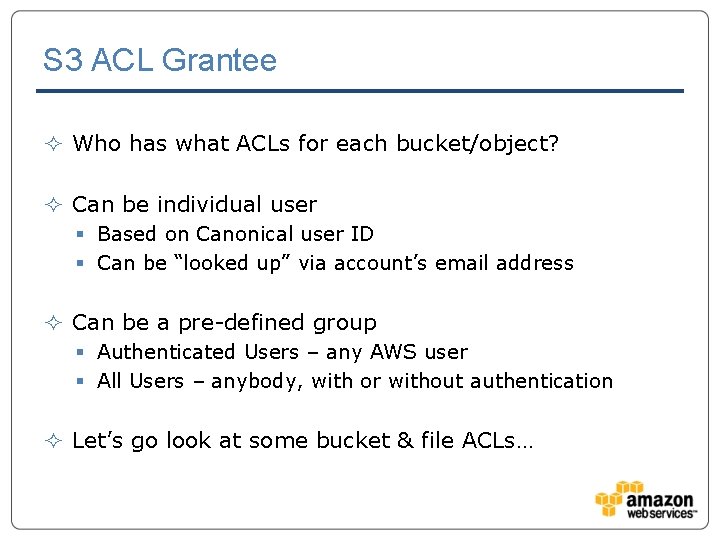
S 3 ACL Grantee ² Who has what ACLs for each bucket/object? ² Can be individual user § Based on Canonical user ID § Can be “looked up” via account’s email address ² Can be a pre-defined group § Authenticated Users – any AWS user § All Users – anybody, with or without authentication ² Let’s go look at some bucket & file ACLs…
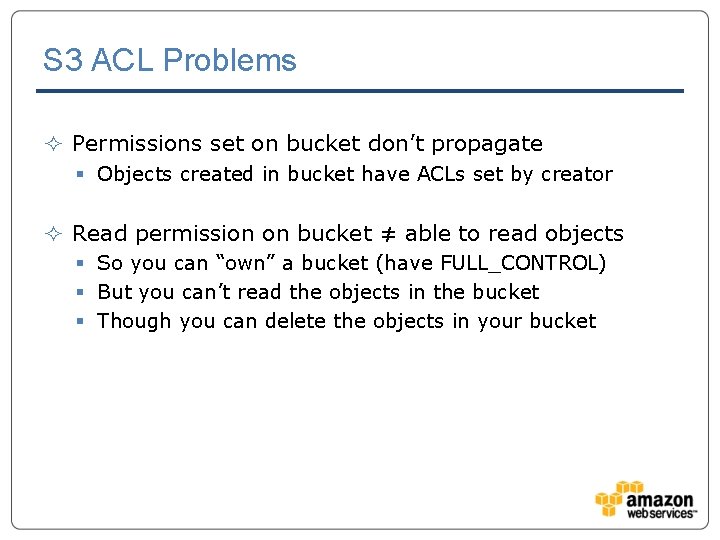
S 3 ACL Problems ² Permissions set on bucket don’t propagate § Objects created in bucket have ACLs set by creator ² Read permission on bucket ≠ able to read objects § So you can “own” a bucket (have FULL_CONTROL) § But you can’t read the objects in the bucket § Though you can delete the objects in your bucket
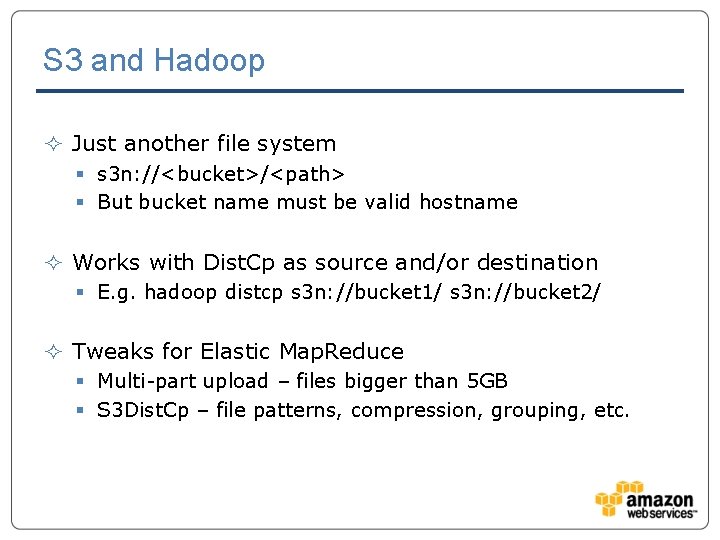
S 3 and Hadoop ² Just another file system § s 3 n: //<bucket>/<path> § But bucket name must be valid hostname ² Works with Dist. Cp as source and/or destination § E. g. hadoop distcp s 3 n: //bucket 1/ s 3 n: //bucket 2/ ² Tweaks for Elastic Map. Reduce § Multi-part upload – files bigger than 5 GB § S 3 Dist. Cp – file patterns, compression, grouping, etc.
Hadoop and AWS Map-Reduce Lab
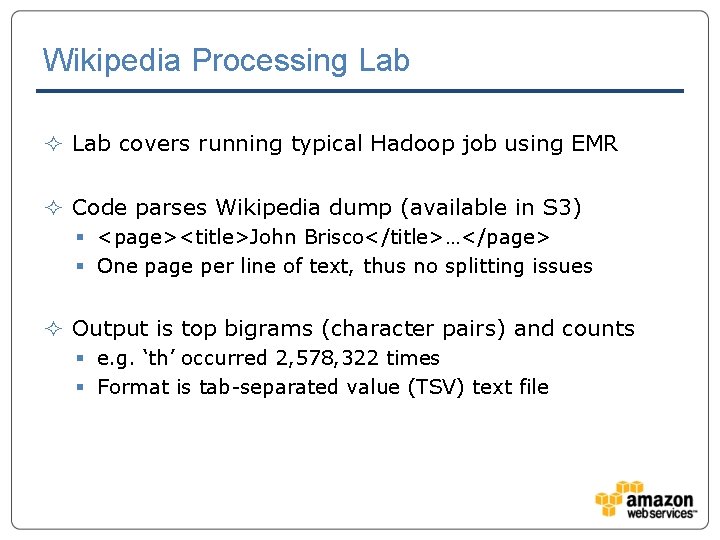
Wikipedia Processing Lab ² Lab covers running typical Hadoop job using EMR ² Code parses Wikipedia dump (available in S 3) § <page><title>John Brisco</title>…</page> § One page per line of text, thus no splitting issues ² Output is top bigrams (character pairs) and counts § e. g. ‘th’ occurred 2, 578, 322 times § Format is tab-separated value (TSV) text file
Wikipedia Processing Lab - Requirements ² You should already have your AWS account ² Download & expand the Wikipedia Lab § http: //elasticmapreduce. s 3. amazonaws. com/training/wik ipedia-lab. tgz ² Follow the instructions in the README file § Located inside of expanded lab directory ² Let’s go do that now…
Hadoop and AWS Command Line Tools
Why Use Command Line Tools? ² Faster in some cases than AWS Console ² Able to automate via shell scripts ² More functionality § E. g. dynamically expanding/shrinking cluster § And have a job flow with more than one step ² Easier to do interactive development § Launching cluster without a step § Hive interactive mode
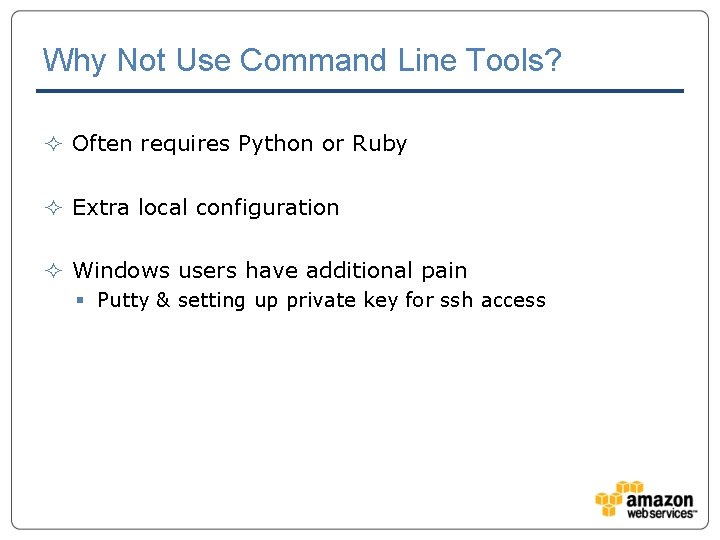
Why Not Use Command Line Tools? ² Often requires Python or Ruby ² Extra local configuration ² Windows users have additional pain § Putty & setting up private key for ssh access
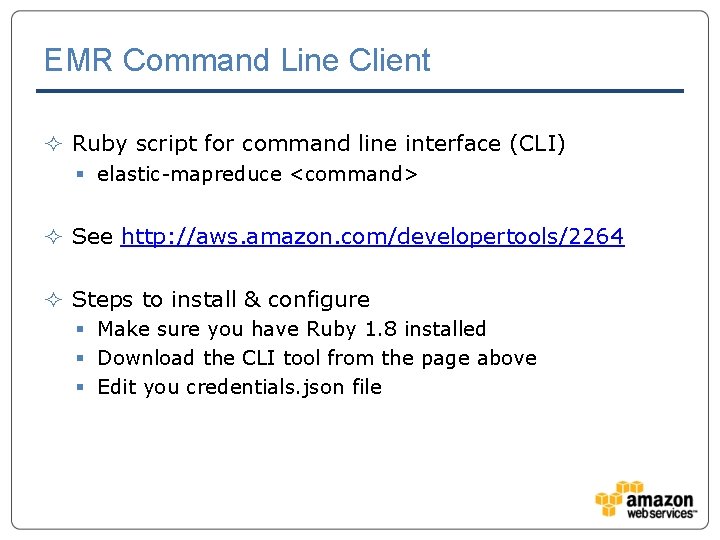
EMR Command Line Client ² Ruby script for command line interface (CLI) § elastic-mapreduce <command> ² See http: //aws. amazon. com/developertools/2264 ² Steps to install & configure § Make sure you have Ruby 1. 8 installed § Download the CLI tool from the page above § Edit you credentials. json file
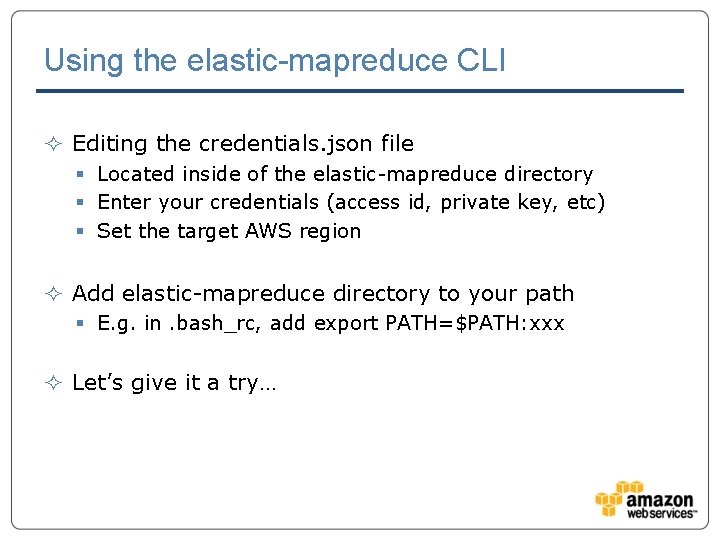
Using the elastic-mapreduce CLI ² Editing the credentials. json file § Located inside of the elastic-mapreduce directory § Enter your credentials (access id, private key, etc) § Set the target AWS region ² Add elastic-mapreduce directory to your path § E. g. in. bash_rc, add export PATH=$PATH: xxx ² Let’s give it a try…
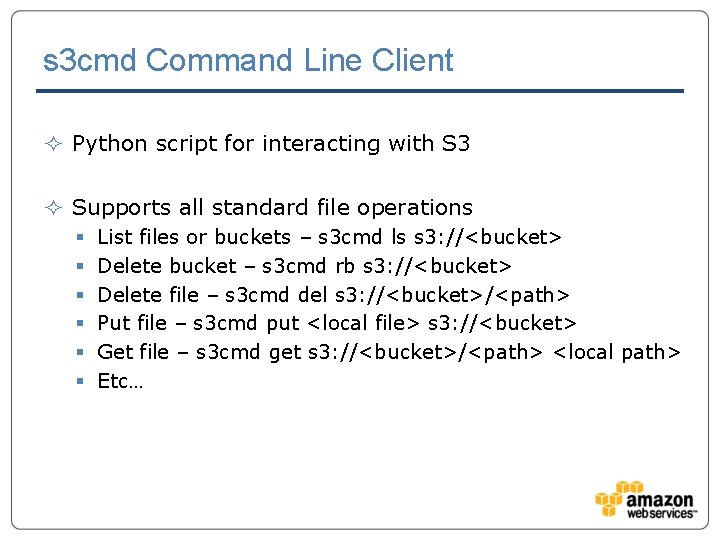
s 3 cmd Command Line Client ² Python script for interacting with S 3 ² Supports all standard file operations § § § List files or buckets – s 3 cmd ls s 3: //<bucket> Delete bucket – s 3 cmd rb s 3: //<bucket> Delete file – s 3 cmd del s 3: //<bucket>/<path> Put file – s 3 cmd put <local file> s 3: //<bucket> Get file – s 3 cmd get s 3: //<bucket>/<path> <local path> Etc…
Using s 3 cmd ² Download it from: § http: //sourceforge. net/projects/s 3 tools/files/latest/downl oad? source=files ² Expand/install it: § Add to your shell path § Run `s 3 cmd --configure` § Enter your credentials ² Let’s go try that…
Hadoop and AWS Debugging Tips
Launching ‘Alive’ Cluster with no Steps ² Lets you iteratively run Hadoop jobs ² Same thing for Hive sessions ² Avoids the dreaded 10 second failure ² Requires the command line tool and/or ssh § ssh onto master for interactive Hive § Use elastic-mapreduce to add steps for jobs
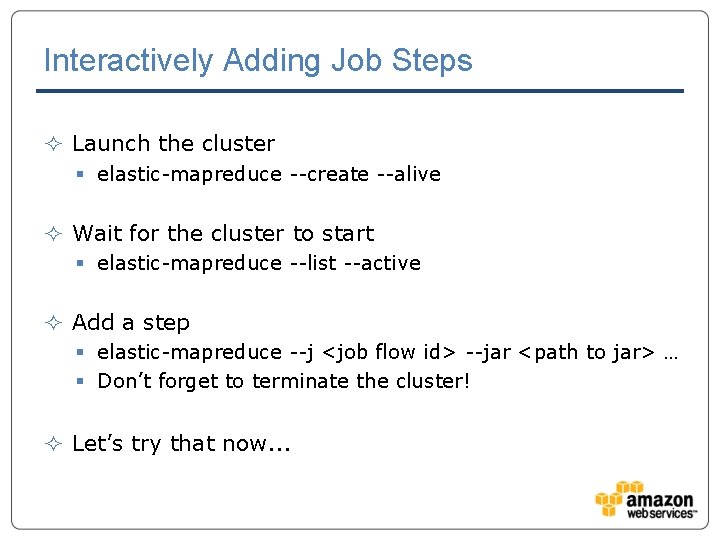
Interactively Adding Job Steps ² Launch the cluster § elastic-mapreduce --create --alive ² Wait for the cluster to start § elastic-mapreduce --list --active ² Add a step § elastic-mapreduce --j <job flow id> --jar <path to jar> … § Don’t forget to terminate the cluster! ² Let’s try that now. . .
Enabling Debugging ² Via AWS Console, during Job Flow § Set “Enable Debugging” option to Yes (Advanced Options) ² Via elastic-mapreduce tools § --enable-debugging parameter ² Stores extra information in Simple. DB § Persistent access to some job/task data ² Accessible via [Debug] button in EMR console ² Let’s take a look…
SSH Fun ² SSHing onto master server in your cluster § Needs the private key (PEM) file you downloaded § Key file privileges must be restricted • chmod 600 <xxx. pem> § Use ssh client in terminal, or Pu. TTY on Windows ² Lets you immediately see log files ² And there’s that sexy Lynx browser ² Time to hop onto the master…
SSHing to Slaves ² Handy way to look at slave log files § And monitor load, active tasks, etc. ² But the master doesn’t have your PEM file ² Copy it to master first § scp –i <pem file> hadoop@<xxx>: ~/ ² Then log into master, get slave name(s), ssh to them § ssh –i <pem file> hadoop@<xxx> § hadoop dfsadmin -report
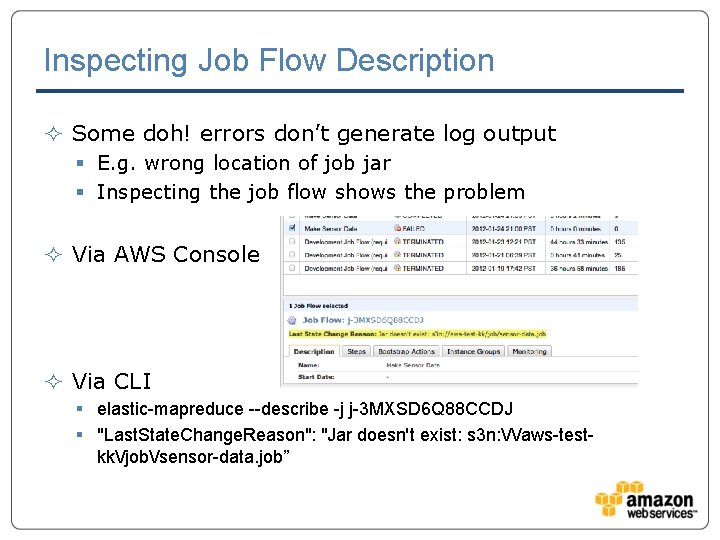
Inspecting Job Flow Description ² Some doh! errors don’t generate log output § E. g. wrong location of job jar § Inspecting the job flow shows the problem ² Via AWS Console ² Via CLI § elastic-mapreduce --describe -j j-3 MXSD 6 Q 88 CCDJ § "Last. State. Change. Reason": "Jar doesn't exist: s 3 n: //aws-testkk/job/sensor-data. job”
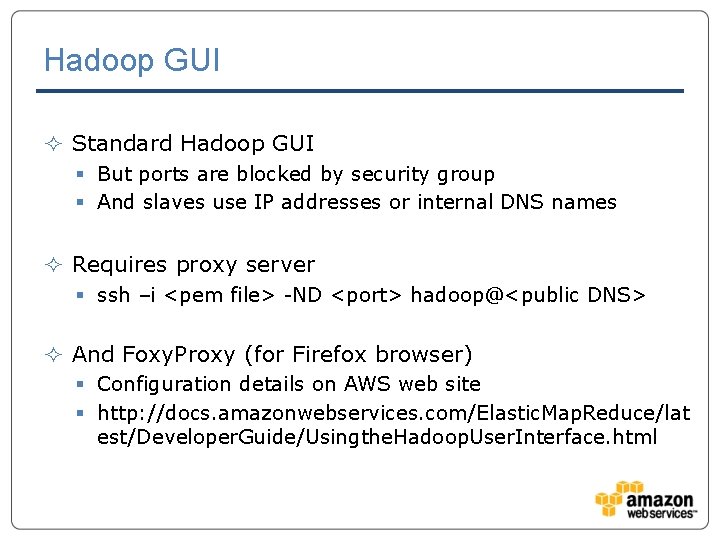
Hadoop GUI ² Standard Hadoop GUI § But ports are blocked by security group § And slaves use IP addresses or internal DNS names ² Requires proxy server § ssh –i <pem file> -ND <port> hadoop@<public DNS> ² And Foxy. Proxy (for Firefox browser) § Configuration details on AWS web site § http: //docs. amazonwebservices. com/Elastic. Map. Reduce/lat est/Developer. Guide/Usingthe. Hadoop. User. Interface. html
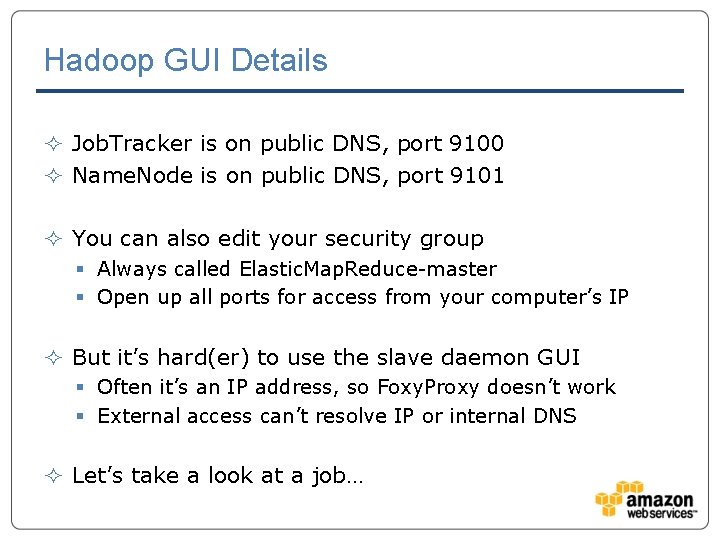
Hadoop GUI Details ² Job. Tracker is on public DNS, port 9100 ² Name. Node is on public DNS, port 9101 ² You can also edit your security group § Always called Elastic. Map. Reduce-master § Open up all ports for access from your computer’s IP ² But it’s hard(er) to use the slave daemon GUI § Often it’s an IP address, so Foxy. Proxy doesn’t work § External access can’t resolve IP or internal DNS ² Let’s take a look at a job…
Hadoop and AWS Hive & Pig
Using Hive & Pig in EMR ² Familiarity with Hive & Pig assumed § Module instead covers using these tools in EMR context ² Advantages of EMR for Hive & Pig jobs § Instances have tools pre-installed & configured § Simplified job submission & control § Amazon-developed extensions like JSON Ser. De
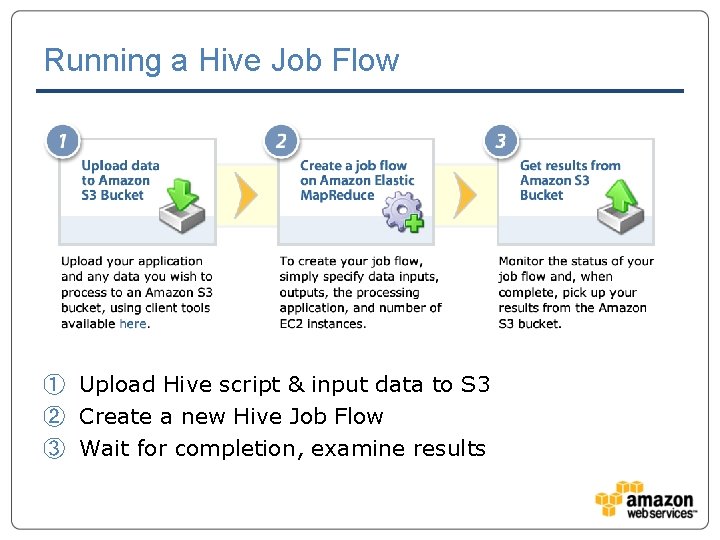
Running a Hive Job Flow ① Upload Hive script & input data to S 3 ② Create a new Hive Job Flow ③ Wait for completion, examine results
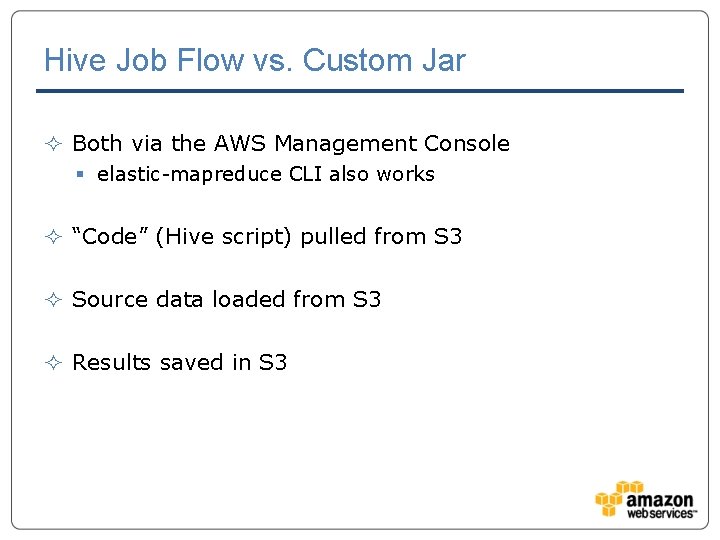
Hive Job Flow vs. Custom Jar ² Both via the AWS Management Console § elastic-mapreduce CLI also works ² “Code” (Hive script) pulled from S 3 ² Source data loaded from S 3 ² Results saved in S 3
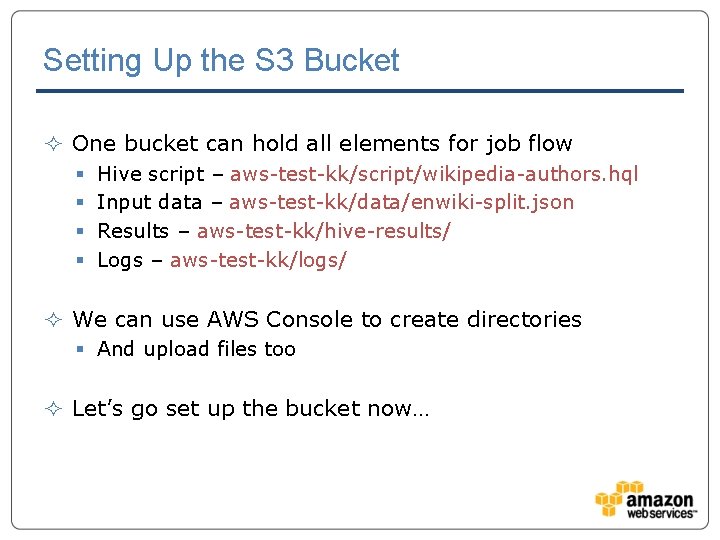
Setting Up the S 3 Bucket ² One bucket can hold all elements for job flow § § Hive script – aws-test-kk/script/wikipedia-authors. hql Input data – aws-test-kk/data/enwiki-split. json Results – aws-test-kk/hive-results/ Logs – aws-test-kk/logs/ ² We can use AWS Console to create directories § And upload files too ² Let’s go set up the bucket now…
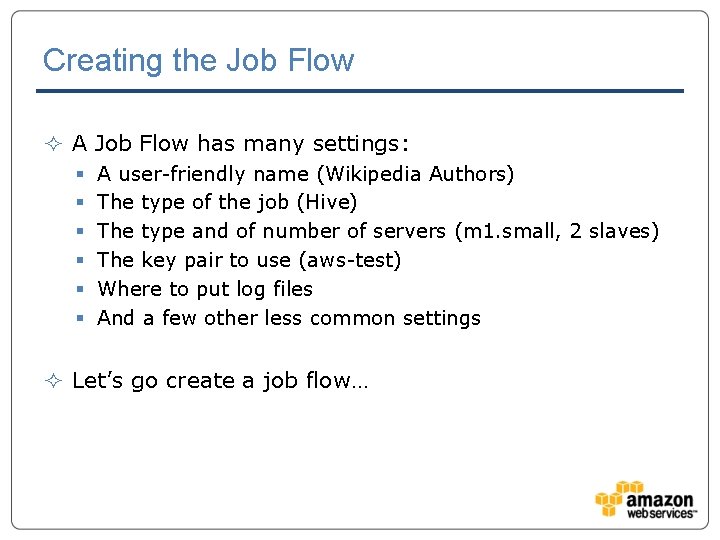
Creating the Job Flow ² A Job Flow has many settings: § § § A user-friendly name (Wikipedia Authors) The type of the job (Hive) The type and of number of servers (m 1. small, 2 slaves) The key pair to use (aws-test) Where to put log files And a few other less common settings ² Let’s go create a job flow…
Monitoring a Job ² AWS Console displays information about the job § State – starting, running, shutting down § Elapsed time – duration § Normalized Instance Hours – cost ² You can also terminate a job ² Let’s go watch our job run…
Viewing Job Results ² My job puts its results into S 3 (-outputdir s 3 n: //xxx) § The Hadoop cluster “goes away” at end of job § So anything in HDFS will be tossed § Persistent Job Flow doesn’t have this issue ² Hadoop writes job log files to S 3 § Using location specified for job (aws-test-kk/logs/) ² Let’s go look at the job results…
Interactive vs. Batch Job Flow ² Batch works well for production ² But developing Hive scripts is often trial & error ² And you don’t want to pay the 10 second penalty § Cluster launches, script fails, cluster terminates § You pay for 1 hour * size of your cluster § And you spend several minutes waiting…
Interacting with Hive via CLI ² Create an EMR cluster that stays “alive” ² SSH into master node ² Use the Hive interpreter § Set up your environment § Interactively execute Hive queries ² Terminate the job flow ² Let’s give that a try…
Pig Job Flows ² Almost identical to Hive Job Flow: § Interactive mode is used to develop the script § Batch mode executes the script, loaded from S 3 ² Differences are: § It’s a Pig Job Flow, not a Hive Job Flow § The script file contains Pig Latin, not Hive QL
Hadoop and AWS Hive Lab
Clicked Impressions Lab ² Lab covers running typical Hive job using EMR ² Read two JSON-format log files from S 3 § Impressions (impression. Id, request. Begin. Time, etc. ) § Clicks (impression. Id, etc. ) ² Join input tables on impression. Id § Output table (Impressions fields plus “clicked” boolean) § Date format conversion § Partitioned by date & hour
Clicked Impressions Lab - Requirements ² You should already have your AWS account ² Download & expand the Clicked Impressions Lab § http: //xxx: ² Follow the instructions in the README file § Located inside of expanded lab directory ² Let’s go do that now…
Hadoop and AWS Advanced Elastic Map. Reduce
Bootstrap Actions ² Scripts that are run before starting Hadoop § Altering the Hadoop configuration § Installing additional software ² Scripts are loaded from S 3 § Using s 3 n: //<bucket>/<path> syntax ² Several built-in scripts § § Configure Daemons Configure Hadoop Install Ganglia Add swap file
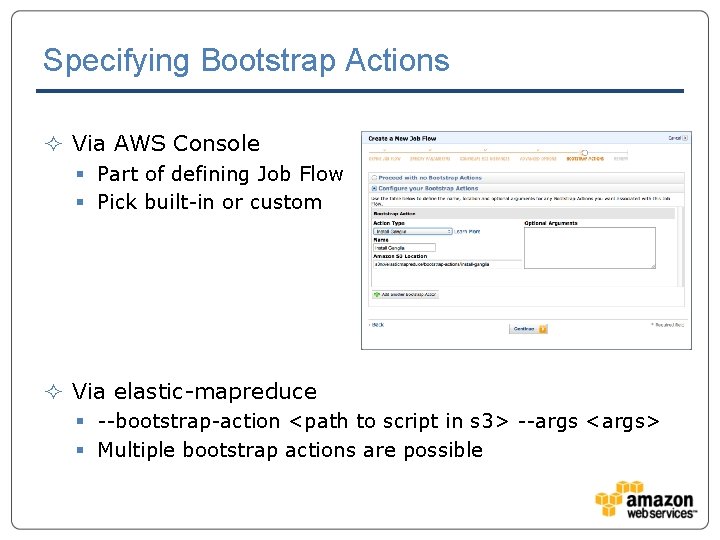
Specifying Bootstrap Actions ² Via AWS Console § Part of defining Job Flow § Pick built-in or custom ² Via elastic-mapreduce § --bootstrap-action <path to script in s 3> --args <args> § Multiple bootstrap actions are possible
configure-hadoop Bootstrap Action ² Most common action to use § Tweak default settings of cluster § E. g. increase io. sort. mb to reduce map task spills ² Can merge in xxx-site. xml file in S 3 § -C <path to core-site. xml file> § -H <path to hdfs-site. xml file> § -M <path to mapred-site. xml file> ² File to be merged must contain appropriate params
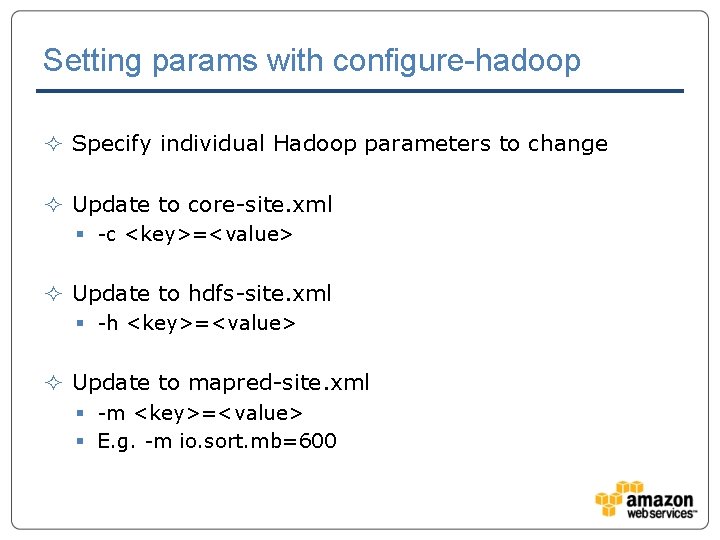
Setting params with configure-hadoop ² Specify individual Hadoop parameters to change ² Update to core-site. xml § -c <key>=<value> ² Update to hdfs-site. xml § -h <key>=<value> ² Update to mapred-site. xml § -m <key>=<value> § E. g. -m io. sort. mb=600
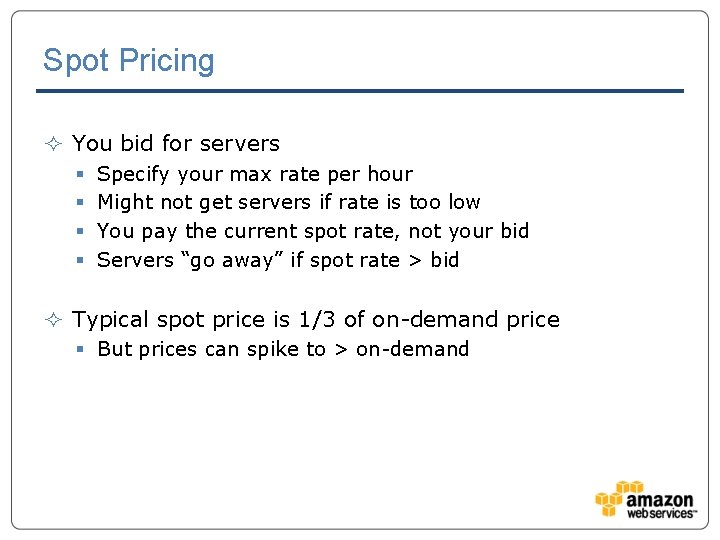
Spot Pricing ² You bid for servers § § Specify your max rate per hour Might not get servers if rate is too low You pay the current spot rate, not your bid Servers “go away” if spot rate > bid ² Typical spot price is 1/3 of on-demand price § But prices can spike to > on-demand
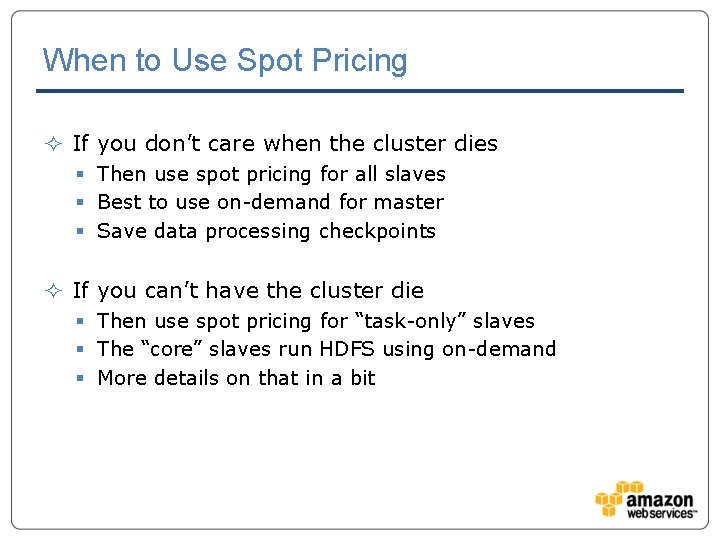
When to Use Spot Pricing ² If you don’t care when the cluster dies § Then use spot pricing for all slaves § Best to use on-demand for master § Save data processing checkpoints ² If you can’t have the cluster die § Then use spot pricing for “task-only” slaves § The “core” slaves run HDFS using on-demand § More details on that in a bit
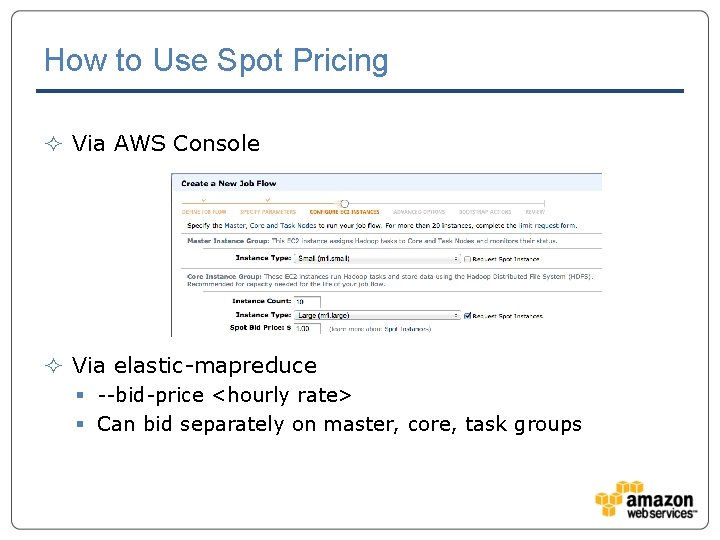
How to Use Spot Pricing ² Via AWS Console ² Via elastic-mapreduce § --bid-price <hourly rate> § Can bid separately on master, core, task groups
The Task Group ² Optional third group, beyond “master” and “core” ² Servers in cluster that only run Task. Tracker § Thus no HDFS data is stored ² Useful with spot pricing § No data lost if they go away § Some impact on efficiency of task-only slaves ² Also useful for dynamic cluster sizing
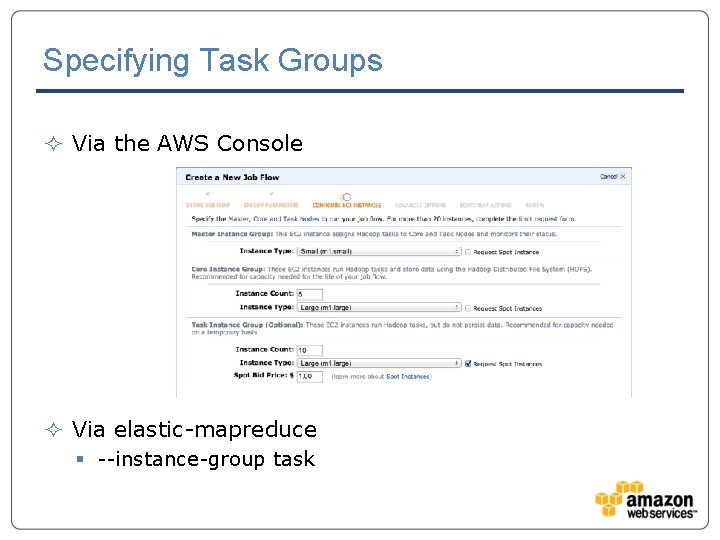
Specifying Task Groups ² Via the AWS Console ² Via elastic-mapreduce § --instance-group task
Resizing Your Cluster ² Can’t be done via AWS Console ² You can add a task group § --add-instance-group task <specify type, count, bid> ² You can change the # of servers § --set-num-core-group-instances <new count> § --set-num-task-group-instances <new count> § But you can’t decrease the core group count
- Slides: 84