
Hack Fest of Android Application Development Md Nazmul
- Slides: 63
Hack. Fest of Android Application Development - Md. Nazmul Hoq Salim
Why called Hack. Fest ? ? ? A hackfest (also known as a hack day, hackathon or codefest) is an event in which computer programmers and others involved in software development and hardware development, including graphic designers, interface designers and project managers, collaborate intensively on software projects. The word "hackathon" is a portmanteau (combination) of the words "hack" and "marathon", where "hack" is used in the sense of exploratory programming, not its alternate meaning as a reference to computer crime. wiki
Objective & Outline This will provides an introduction to developing applications for the Android mobile platform. It is divided into 3 parts - v Introduction to Android v Design in Android v Deployment or Interaction in Android
Google Android Developer Docs: Installing Android Studio Vocabulary Words Google Android Developer Docs: UI Design The Material Design Specification Materials Common Android Views Cheat-sheet Droid. Draw - Visual Index to the Android Widgets Google Android Developer Docs Android API Reference Think. Android - How to Position Views Properly in Layouts Android Developers Blog - Blogspot Oracle's Java documentation Official Oracle Java coding conventions Genymotion, a faster Android emulator BOOKS: Android Programming: The Big Nerd Ranch Guide, by Bill Phillips and Brian Hardy Professional Android Application Development, by Reto Meier
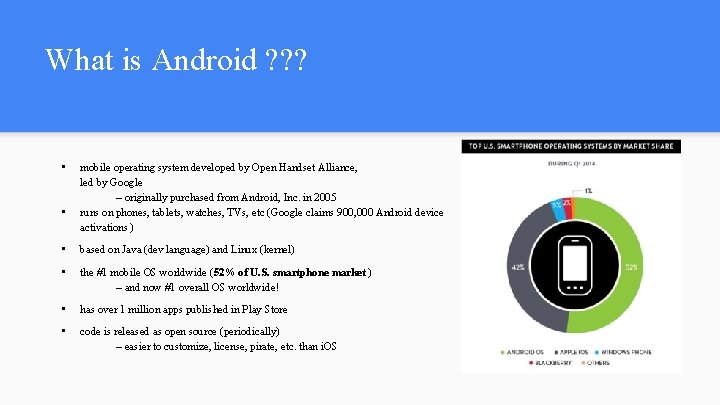
What is Android ? ? ? • • mobile operating system developed by Open Handset Alliance, led by Google – originally purchased from Android, Inc. in 2005 runs on phones, tablets, watches, TVs, etc (Google claims 900, 000 Android device activations ) • based on Java (dev language) and Linux (kernel) • the #1 mobile OS worldwide (52% of U. S. smartphone market ) – and now #1 overall OS worldwide! • has over 1 million apps published in Play Store • code is released as open source (periodically) – easier to customize, license, pirate, etc. than i. OS
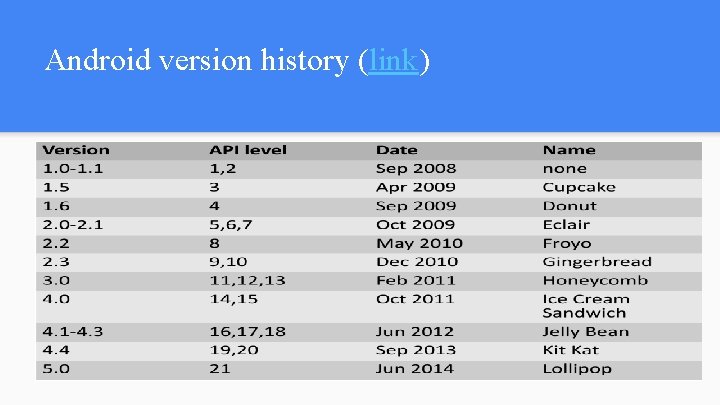
Android version history (link)
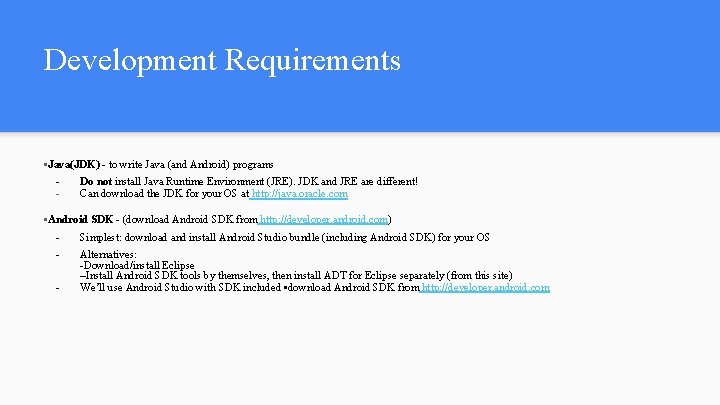
Development Requirements • Java(JDK) - to write Java (and Android) programs - Do not install Java Runtime Environment (JRE). JDK and JRE are different! Can download the JDK for your OS at http: //java. oracle. com • Android SDK - (download Android SDK from http: //developer. android. com) - Simplest: download and install Android Studio bundle (including Android SDK) for your OS - Alternatives: -Download/install Eclipse –Install Android SDK tools by themselves, then install ADT for Eclipse separately (from this site) We’ll use Android Studio with SDK included • download Android SDK from http: //developer. android. com -
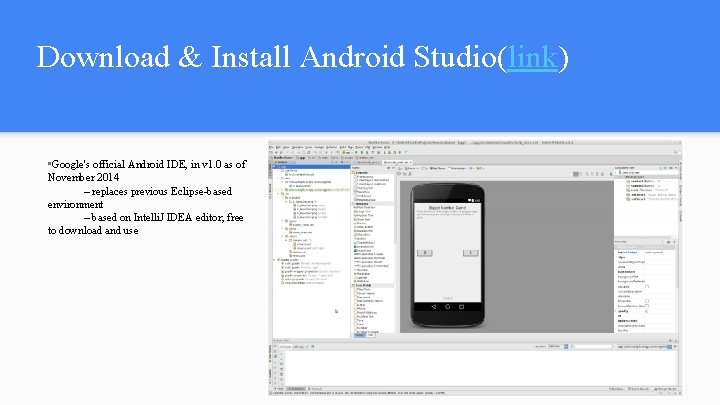
Download & Install Android Studio(link) • Google's official Android IDE, in v 1. 0 as of November 2014 – replaces previous Eclipse-based environment – based on Intelli. J IDEA editor; free to download and use
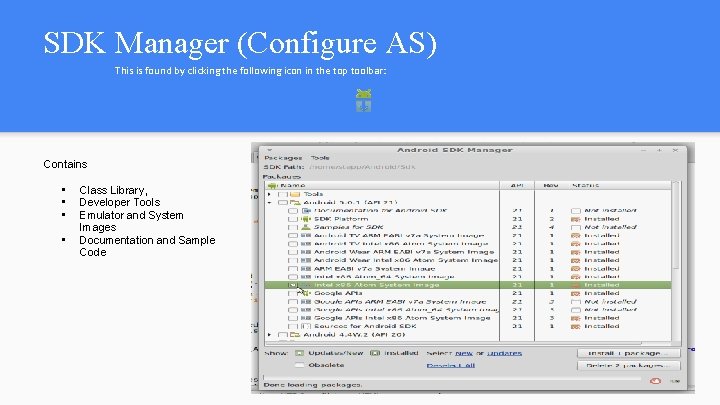
SDK Manager (Configure AS) This is found by clicking the following icon in the top toolbar: Contains • • Class Library, Developer Tools Emulator and System Images Documentation and Sample Code
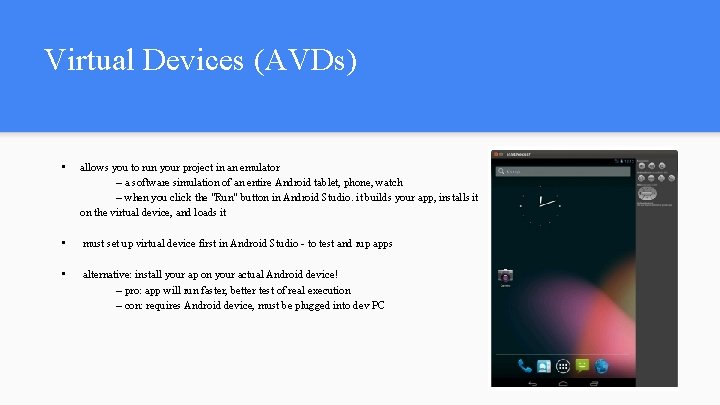
Virtual Devices (AVDs) • allows you to run your project in an emulator – a software simulation of an entire Android tablet, phone, watch – when you click the "Run" button in Android Studio. it builds your app, installs it on the virtual device, and loads it • must set up virtual device first in Android Studio - to test and rup apps • alternative: install your ap on your actual Android device! – pro: app will run faster, better test of real execution – con: requires Android device, must be plugged into dev PC
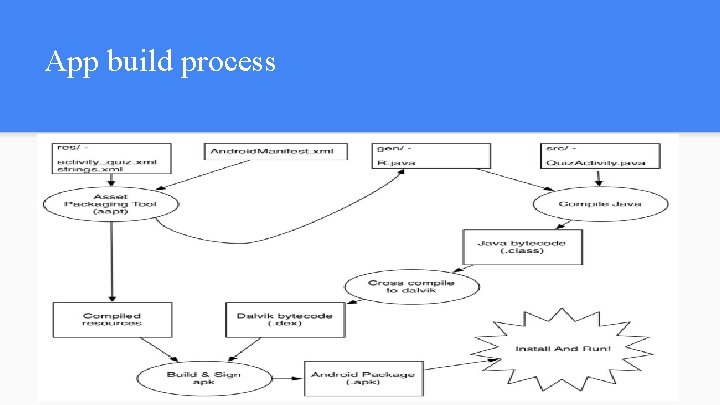
App build process
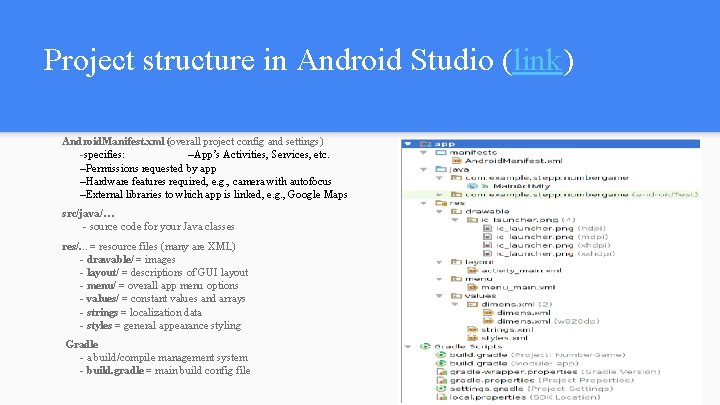
Project structure in Android Studio (link) Android. Manifest. xml (overall project config and settings) -specifies: –App’s Activities, Services, etc. –Permissions requested by app –Hardware features required, e. g. , camera with autofocus –External libraries to which app is linked, e. g. , Google Maps src/java/… - source code for your Java classes res/. . . = resource files (many are XML) - drawable/ = images - layout/ = descriptions of GUI layout - menu/ = overall app menu options - values/ = constant values and arrays - strings = localization data - styles = general appearance styling Gradle - a build/compile management system - build. gradle = main build config file
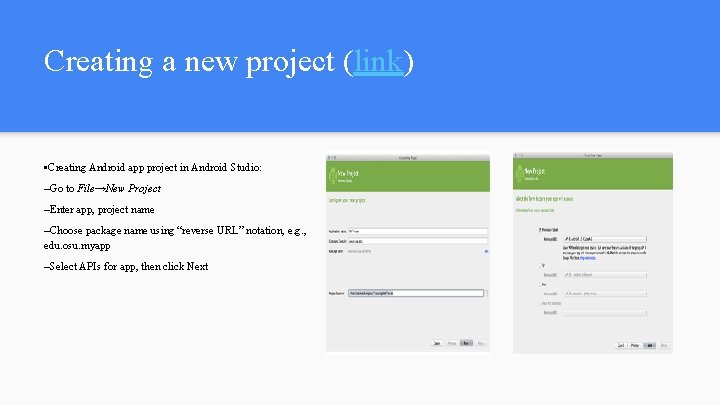
Creating a new project (link) • Creating Android app project in Android Studio: –Go to File→New Project –Enter app, project name –Choose package name using “reverse URL” notation, e. g. , edu. osu. myapp –Select APIs for app, then click Next
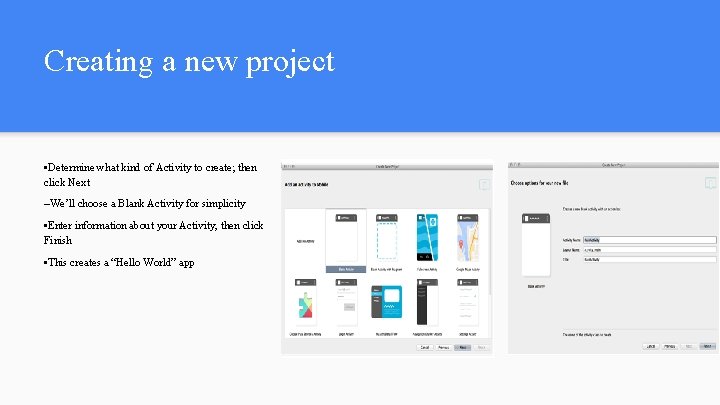
Creating a new project • Determine what kind of Activity to create; then click Next –We’ll choose a Blank Activity for simplicity • Enter information about your Activity, then click Finish • This creates a “Hello World” app
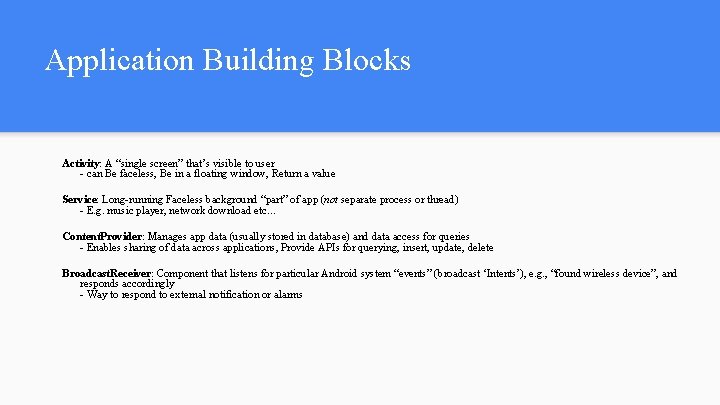
Application Building Blocks Activity: A “single screen” that’s visible to user - can Be faceless, Be in a floating window, Return a value Service: Long-running Faceless background “part” of app (not separate process or thread) - E. g. music player, network download etc… Content. Provider: Manages app data (usually stored in database) and data access for queries - Enables sharing of data across applications, Provide APIs for querying, insert, update, delete Broadcast. Receiver: Component that listens for particular Android system “events” (broadcast ‘Intents’), e. g. , “found wireless device”, and responds accordingly - Way to respond to external notification or alarms
DESIGN ANDROID APPS - Let's start from designing of an app that we want to create and then learn the necessary skills to build that app. We will create a app that will show us JELA BATAYON
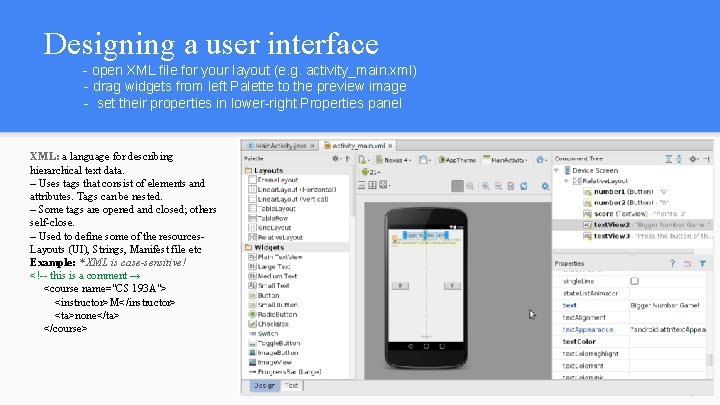
Designing a user interface - open XML file for your layout (e. g. activity_main. xml) - drag widgets from left Palette to the preview image - set their properties in lower-right Properties panel XML: a language for describing hierarchical text data. – Uses tags that consist of elements and attributes. Tags can be nested. – Some tags are opened and closed; others self-close. – Used to define some of the resources. Layouts (UI), Strings, Manifest file etc Example: * XML is case-sensitive! <!-- this is a comment → <course name="CS 193 A"> <instructor>M</instructor> <ta>none</ta> </course>
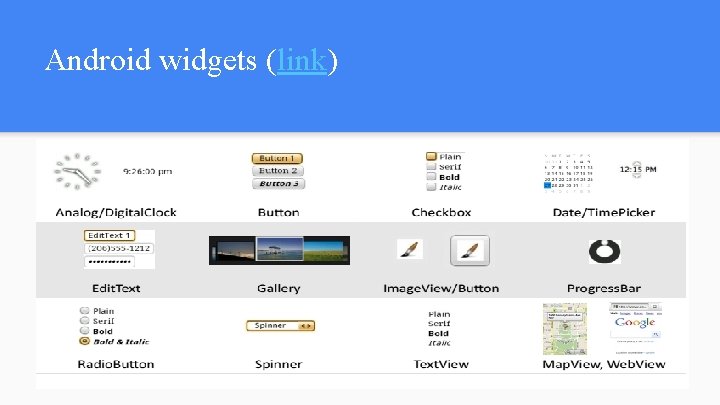
Android widgets (link)
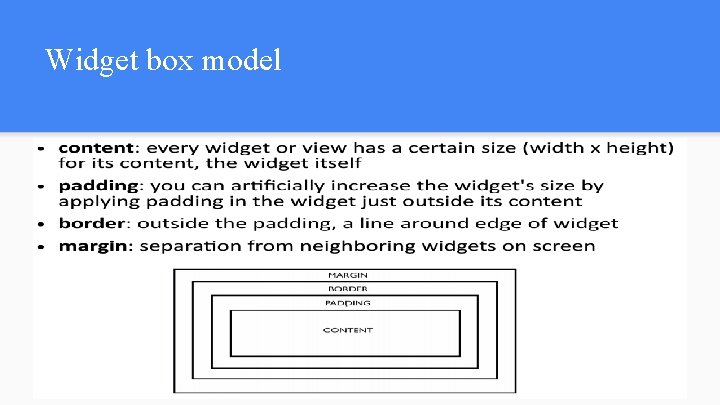
Widget box model
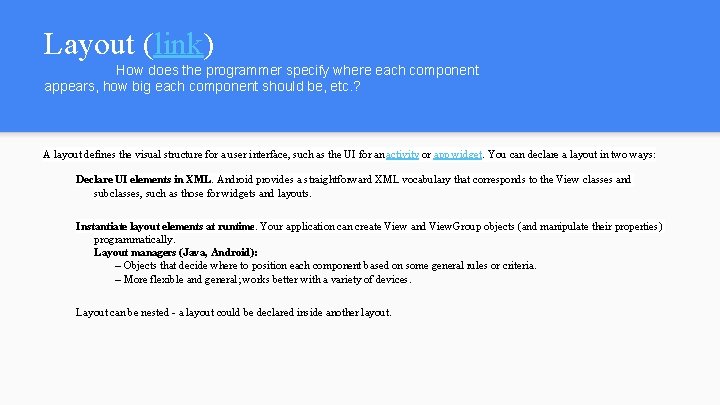
Layout (link) How does the programmer specify where each component appears, how big each component should be, etc. ? A layout defines the visual structure for a user interface, such as the UI for an activity or app widget. You can declare a layout in two ways: Declare UI elements in XML. Android provides a straightforward XML vocabulary that corresponds to the View classes and subclasses, such as those for widgets and layouts. Instantiate layout elements at runtime. Your application can create View and View. Group objects (and manipulate their properties) programmatically. Layout managers (Java, Android): – Objects that decide where to position each component based on some general rules or criteria. – More flexible and general; works better with a variety of devices. Layout can be nested - a layout could be declared inside another layout.
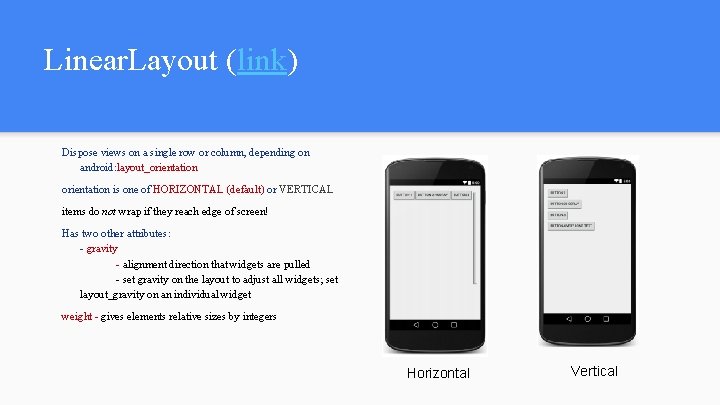
Linear. Layout (link) Dispose views on a single row or column, depending on android: layout_orientation is one of HORIZONTAL (default) or VERTICAL items do not wrap if they reach edge of screen! Has two other attributes: - gravity - alignment direction that widgets are pulled - set gravity on the layout to adjust all widgets; set layout_gravity on an individual widget weight - gives elements relative sizes by integers Horizontal Vertical
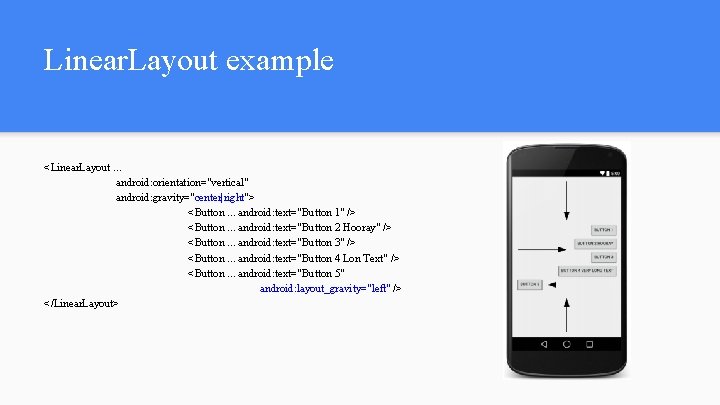
Linear. Layout example <Linear. Layout … android: orientation="vertical" android: gravity="center|right"> <Button. . . android: text="Button 1" /> <Button. . . android: text="Button 2 Hooray" /> <Button. . . android: text="Button 3" /> <Button. . . android: text="Button 4 Lon Text" /> <Button. . . android: text="Button 5" android: layout_gravity="left" /> </Linear. Layout>
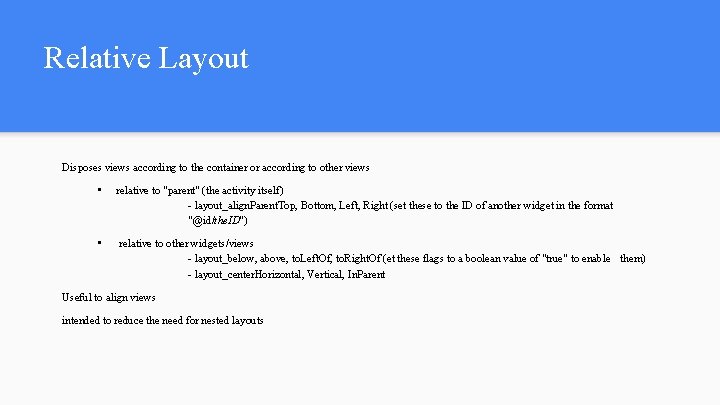
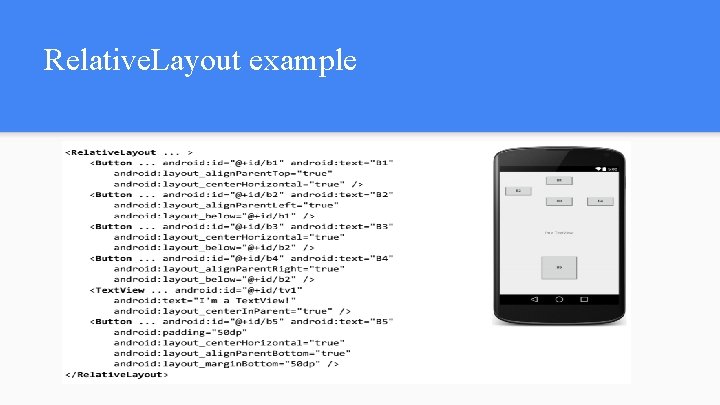
Relative Layout Disposes views according to the container or according to other views • relative to "parent" (the activity itself) - layout_align. Parent. Top, Bottom, Left, Right (set these to the ID of another widget in the format "@id/the. ID") • relative to other widgets/views - layout_below, above, to. Left. Of, to. Right. Of (et these flags to a boolean value of "true" to enable them) - layout_center. Horizontal, Vertical, In. Parent Useful to align views intended to reduce the need for nested layouts
Relative. Layout example
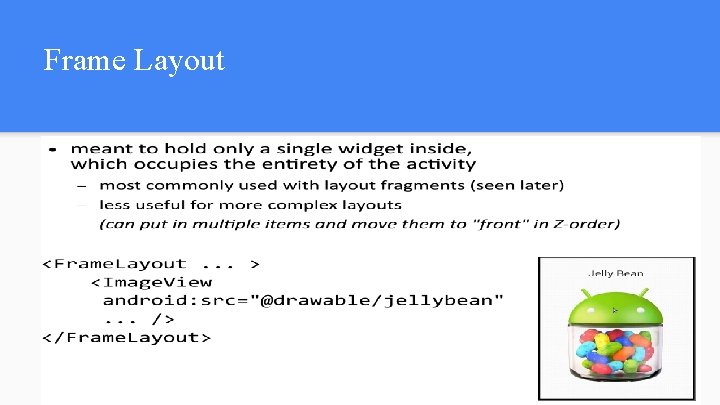
Frame Layout
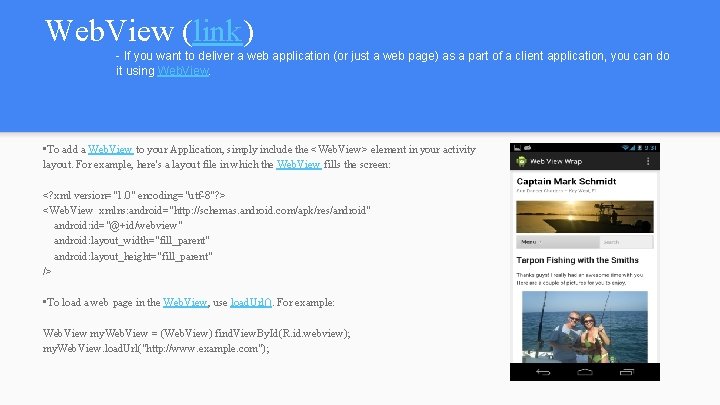
Web. View (link) - If you want to deliver a web application (or just a web page) as a part of a client application, you can do it using Web. View. • To add a Web. View to your Application, simply include the <Web. View> element in your activity layout. For example, here's a layout file in which the Web. View fills the screen: <? xml version="1. 0" encoding="utf-8"? > <Web. View xmlns: android="http: //schemas. android. com/apk/res/android" android: id="@+id/webview" android: layout_width="fill_parent" android: layout_height="fill_parent" /> • To load a web page in the Web. View, use load. Url(). For example: Web. View my. Web. View = (Web. View) find. View. By. Id(R. id. webview); my. Web. View. load. Url("http: //www. example. com");
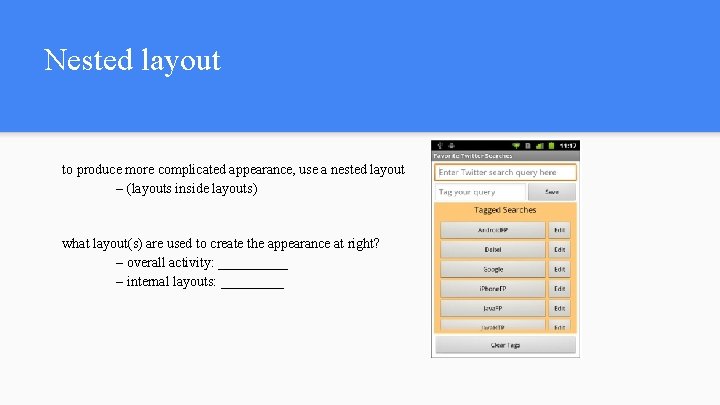
Nested layout to produce more complicated appearance, use a nested layout – (layouts inside layouts) what layout(s) are used to create the appearance at right? – overall activity: _____ – internal layouts: _____
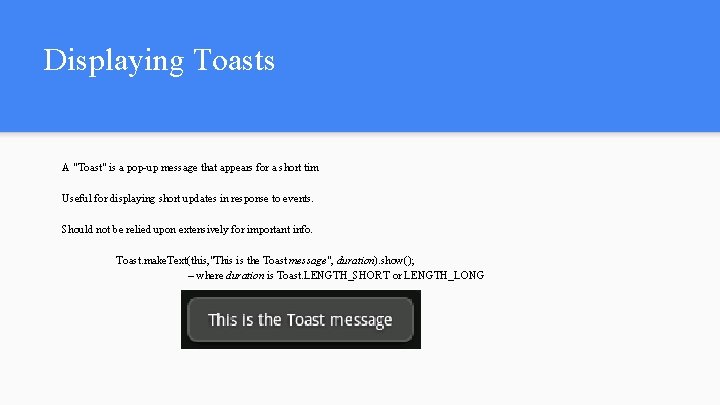
Displaying Toasts A "Toast" is a pop-up message that appears for a short tim Useful for displaying short updates in response to events. Should not be relied upon extensively for important info. Toast. make. Text(this, "This is the Toast message", duration). show(); – where duration is Toast. LENGTH_SHORT or LENGTH_LONG
Deployment
Deployment of Android Application • Android application written in Java • No single entry point: An application can use elements of other applications (should be permitted by the apps). For this to work, an application process can be started when any part of it is needed and instantiate the Java objects for that part. Therefore, Android apps don’t have a single entry point (like main()function). Rather they have essential components that the system can instantiate and run as needed. • Essential components Activities Services Broadcast receivers Content providers Any one of them can be act as an entry point of an Android Application.
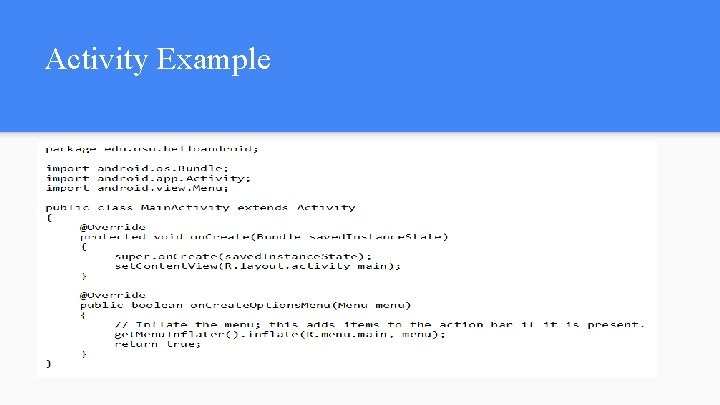
Activity • The basis of android applications • A single Activity defines a single viewable screen - the actions, not the layout • Can have multiple per application -Each is a separate entity • Activities use Views to form GUI. Each view controls a particular rectangular space within the window. Views are where the activity’s interaction with the user takes place. Content. View is the root view object in the hierarchy of views. Activity. set. Content. View() method. • They have a structured life cycle Different events in their life happen either via the user touching buttons or programmatically
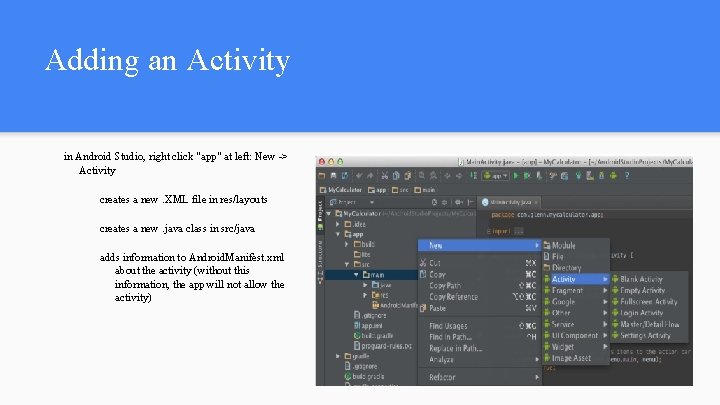
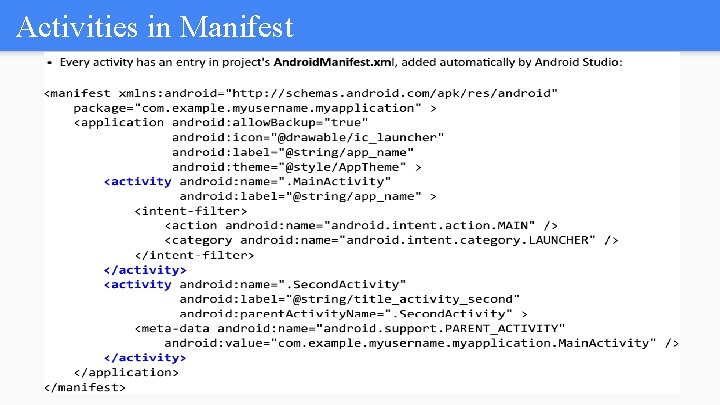
Adding an Activity in Android Studio, right click "app" at left: New -> Activity creates a new. XML file in res/layouts creates a new. java class in src/java adds information to Android. Manifest. xml about the activity (without this information, the app will not allow the activity)
Activity Example
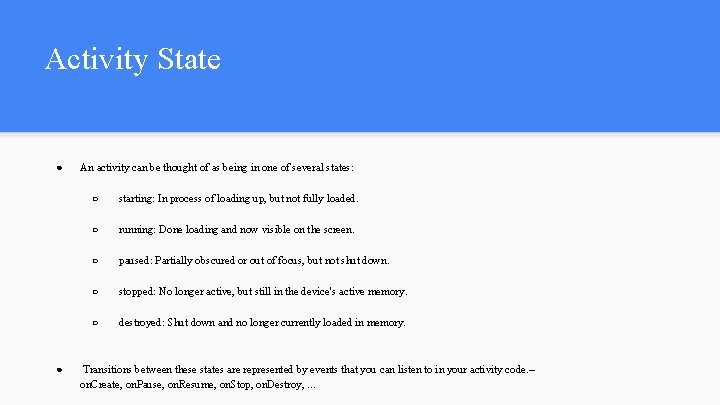
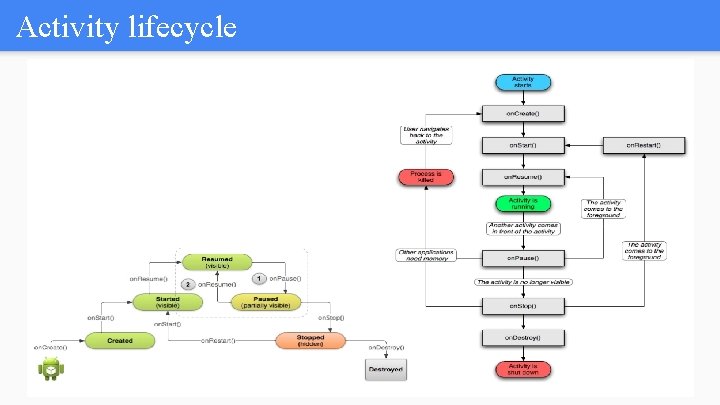
Activity State ● ● An activity can be thought of as being in one of several states: ○ starting: In process of loading up, but not fully loaded. ○ running: Done loading and now visible on the screen. ○ paused: Partially obscured or out of focus, but not shut down. ○ stopped: No longer active, but still in the device's active memory. ○ destroyed: Shut down and no longer currently loaded in memory. Transitions between these states are represented by events that you can listen to in your activity code. – on. Create, on. Pause, on. Resume, on. Stop, on. Destroy, . . .
Activity lifecycle
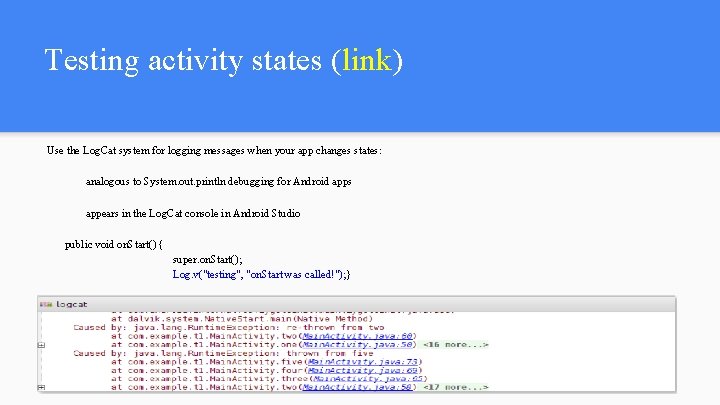
Testing activity states (link) Use the Log. Cat system for logging messages when your app changes states: analogous to System. out. println debugging for Android apps appears in the Log. Cat console in Android Studio public void on. Start() { super. on. Start(); Log. v("testing", "on. Start was called!"); }
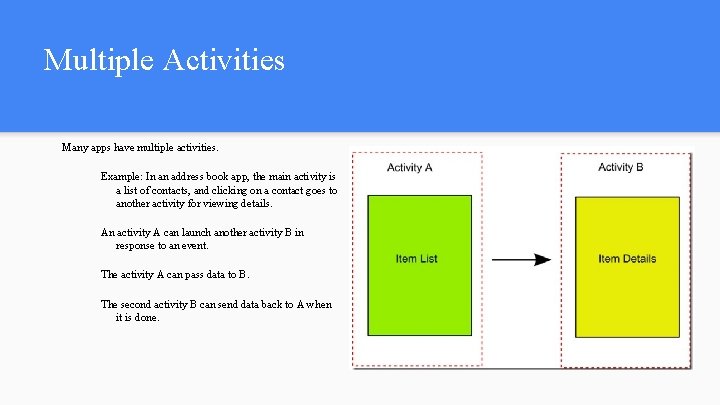
Multiple Activities Many apps have multiple activities. Example: In an address book app, the main activity is a list of contacts, and clicking on a contact goes to another activity for viewing details. An activity A can launch another activity B in response to an event. The activity A can pass data to B. The second activity B can send data back to A when it is done.
Activities in Manifest
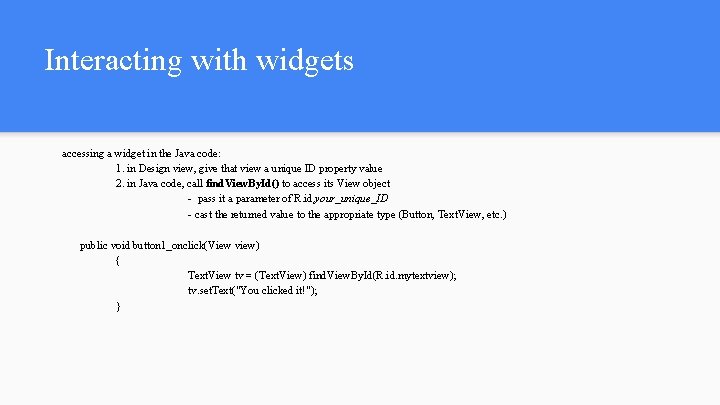
Interacting with widgets accessing a widget in the Java code: 1. in Design view, give that view a unique ID property value 2. in Java code, call find. View. By. Id() to access its View object - pass it a parameter of R. id. your_unique_ID - cast the returned value to the appropriate type (Button, Text. View, etc. ) public void button 1_onclick(View view) { Text. View tv = (Text. View) find. View. By. Id(R. id. mytextview); tv. set. Text("You clicked it!"); }
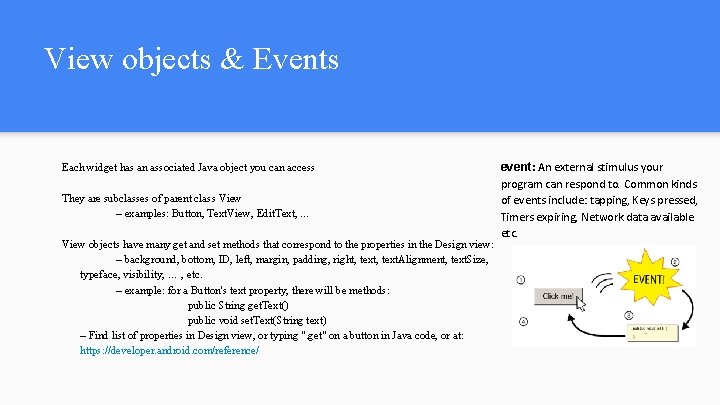
View objects & Events Each widget has an associated Java object you can access They are subclasses of parent class View – examples: Button, Text. View, Edit. Text, … View objects have many get and set methods that correspond to the properties in the Design view: – background, bottom, ID, left, margin, padding, right, text. Alignment, text. Size, typeface, visibility, … , etc. – example: for a Button's text property, there will be methods: public String get. Text() public void set. Text(String text) – Find list of properties in Design view, or typing ". get" on a button in Java code, or at: https: //developer. android. com/reference/ event: An external stimulus your program can respond to. Common kinds of events include: tapping, Keys pressed, Timers expiring, Network data available etc.
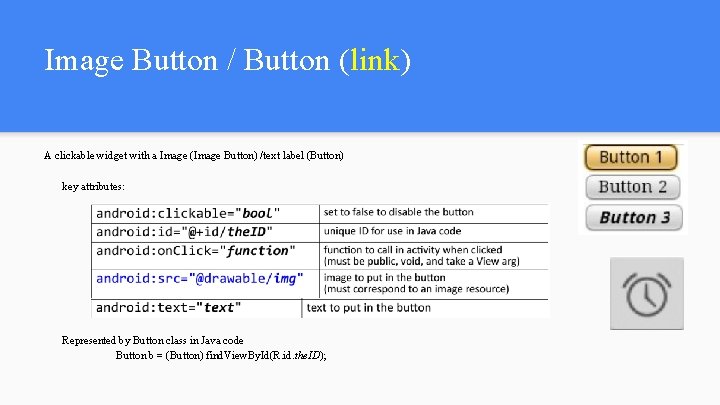
Image Button / Button (link) A clickable widget with a Image (Image Button) /text label (Button) key attributes: Represented by Button class in Java code Button b = (Button) find. View. By. Id(R. id. the. ID);
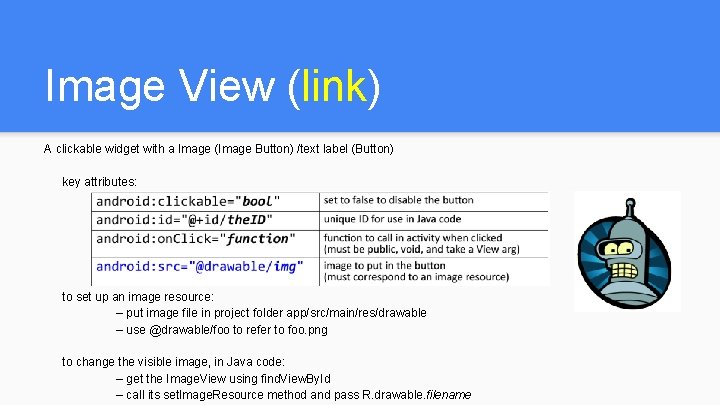
Image View (link) A clickable widget with a Image (Image Button) /text label (Button) key attributes: to set up an image resource: – put image file in project folder app/src/main/res/drawable – use @drawable/foo to refer to foo. png to change the visible image, in Java code: – get the Image. View using find. View. By. Id – call its set. Image. Resource method and pass R. drawable. filename
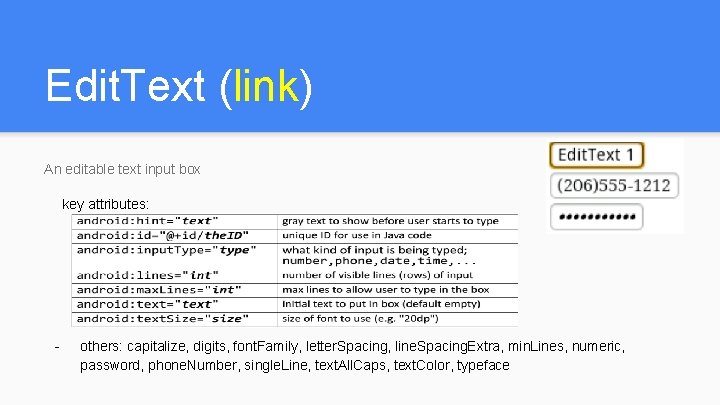
Edit. Text (link) An editable text input box key attributes: - others: capitalize, digits, font. Family, letter. Spacing, line. Spacing. Extra, min. Lines, numeric, password, phone. Number, single. Line, text. All. Caps, text. Color, typeface
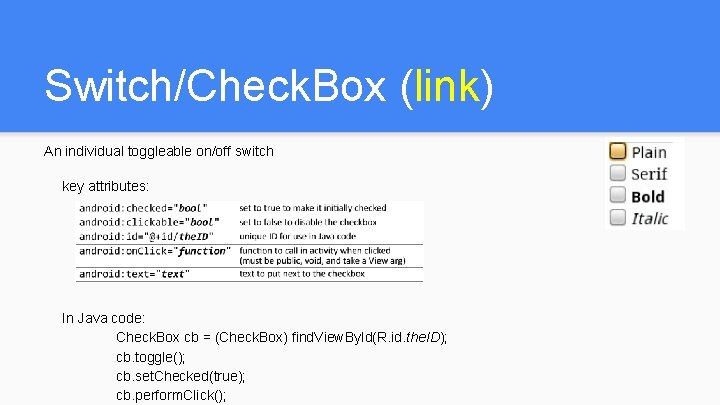
Switch/Check. Box (link) An individual toggleable on/off switch key attributes: In Java code: Check. Box cb = (Check. Box) find. View. By. Id(R. id. the. ID); cb. toggle(); cb. set. Checked(true); cb. perform. Click();
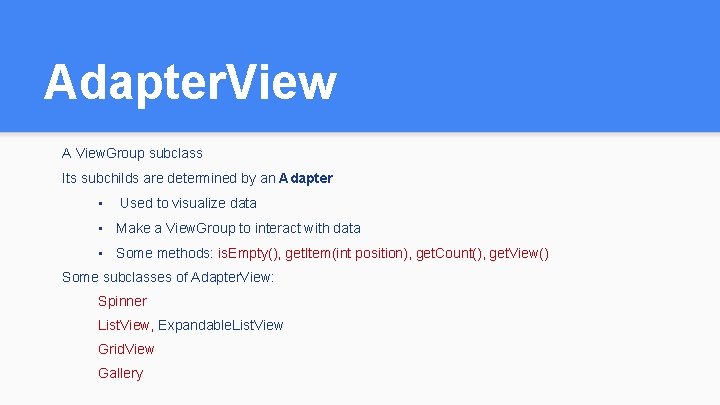
Adapter. View A View. Group subclass Its subchilds are determined by an Adapter • Used to visualize data • Make a View. Group to interact with data • Some methods: is. Empty(), get. Item(int position), get. Count(), get. View() Some subclasses of Adapter. View: Spinner List. View, Expandable. List. View Grid. View Gallery
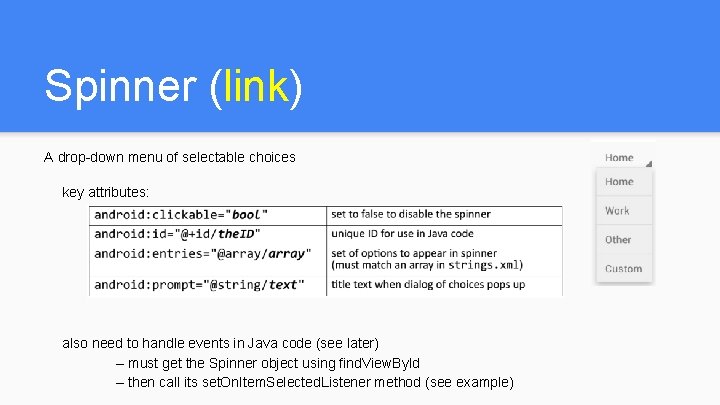
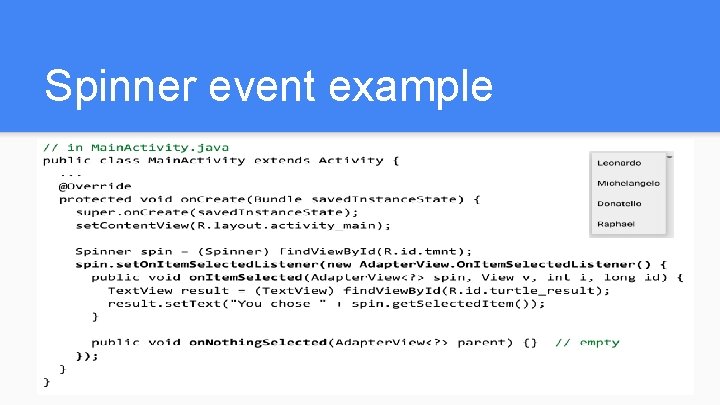
Spinner (link) A drop-down menu of selectable choices key attributes: also need to handle events in Java code (see later) – must get the Spinner object using find. View. By. Id – then call its set. On. Item. Selected. Listener method (see example)
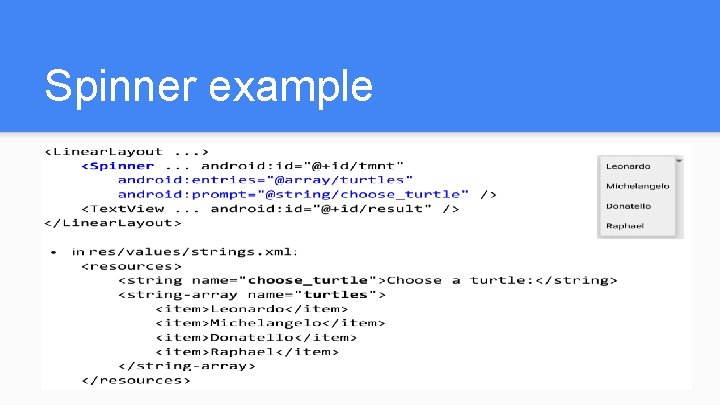
Spinner example
Spinner event example
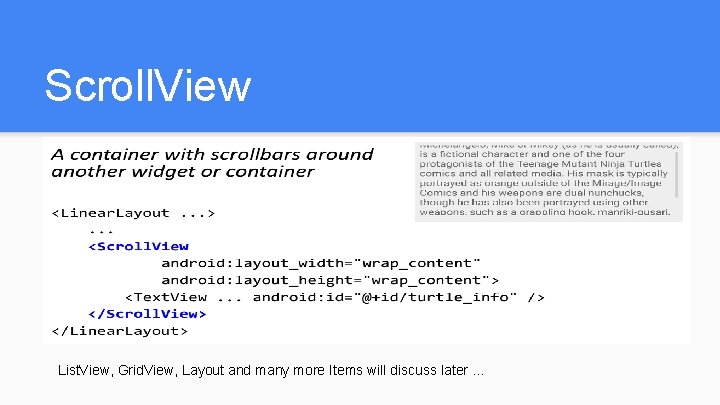
Scroll. View List. View, Grid. View, Layout and many more Items will discuss later …
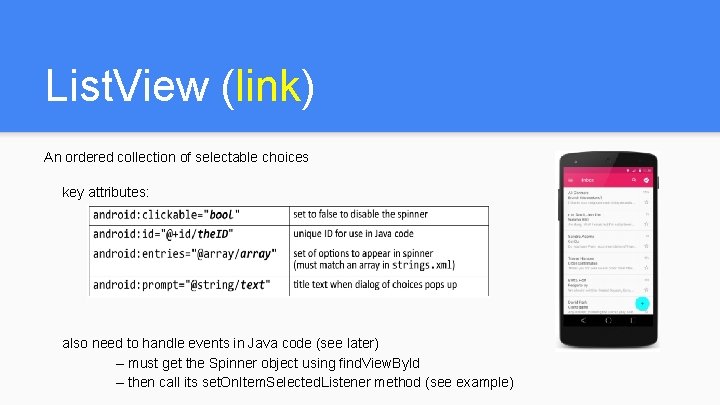
List. View (link) An ordered collection of selectable choices key attributes: also need to handle events in Java code (see later) – must get the Spinner object using find. View. By. Id – then call its set. On. Item. Selected. Listener method (see example)
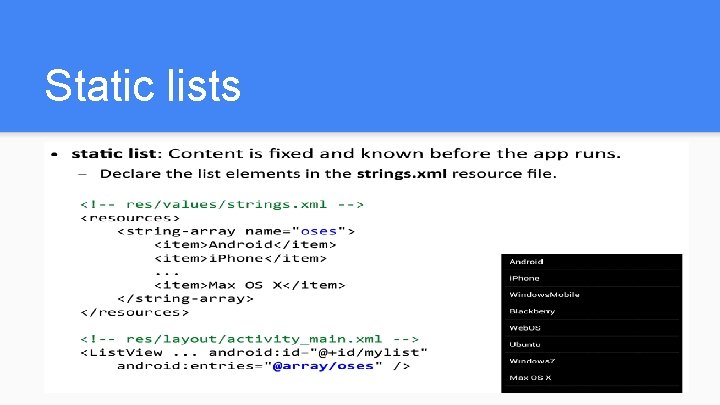
Static lists
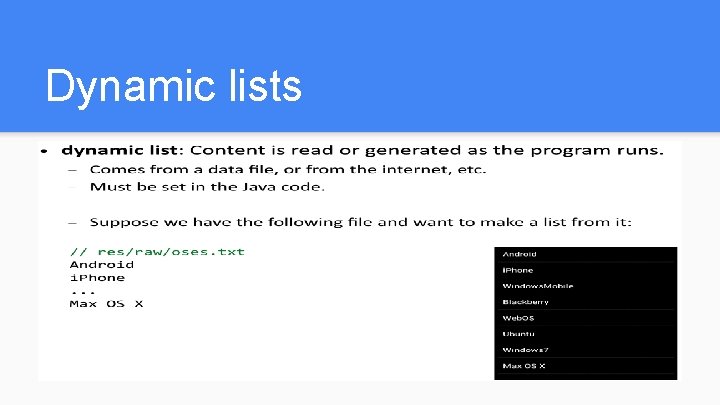
Dynamic lists
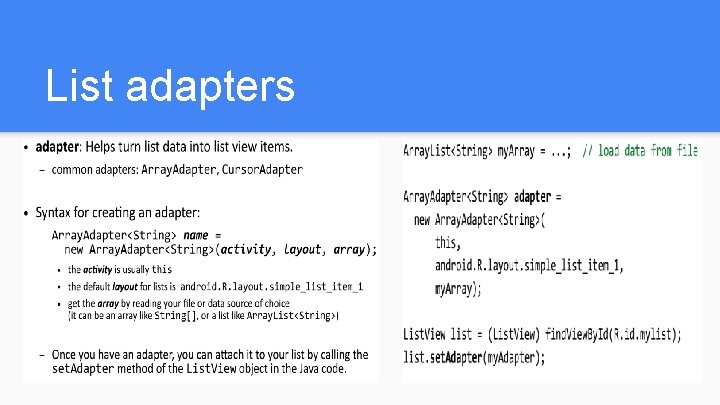
List adapters
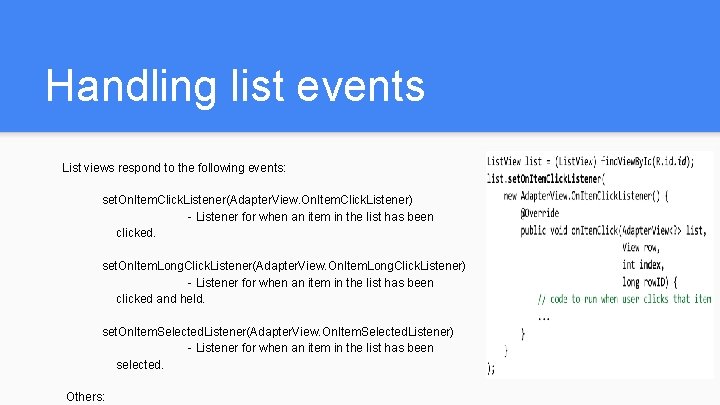
Handling list events List views respond to the following events: set. On. Item. Click. Listener(Adapter. View. On. Item. Click. Listener) - Listener for when an item in the list has been clicked. set. On. Item. Long. Click. Listener(Adapter. View. On. Item. Long. Click. Listener) - Listener for when an item in the list has been clicked and held. set. On. Item. Selected. Listener(Adapter. View. On. Item. Selected. Listener) - Listener for when an item in the list has been selected. Others:
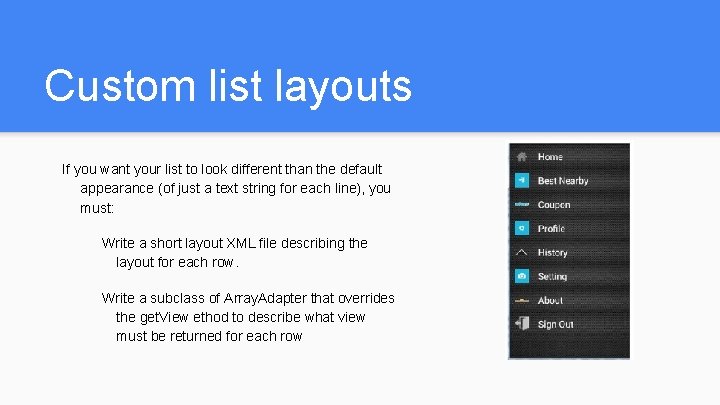
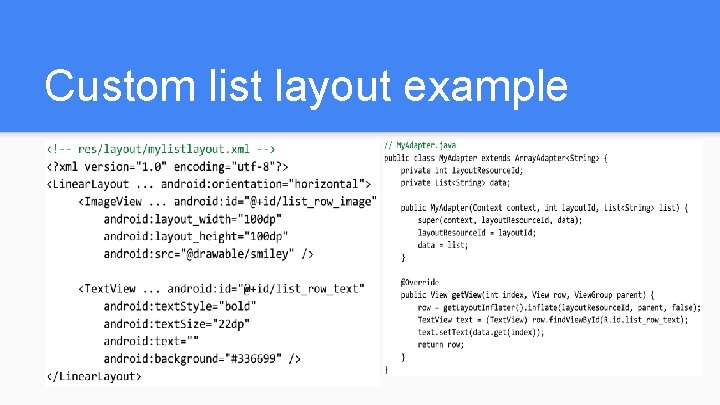
Custom list layouts If you want your list to look different than the default appearance (of just a text string for each line), you must: Write a short layout XML file describing the layout for each row. Write a subclass of Array. Adapter that overrides the get. View ethod to describe what view must be returned for each row
Custom list layout example
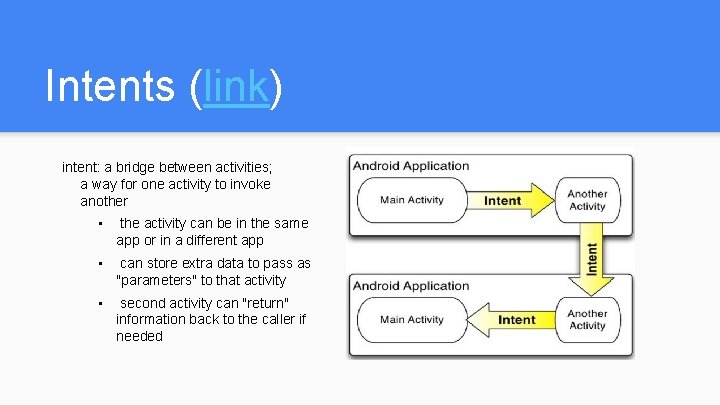
Intents (link) intent: a bridge between activities; a way for one activity to invoke another • the activity can be in the same app or in a different app • can store extra data to pass as "parameters" to that activity • second activity can "return" information back to the caller if needed
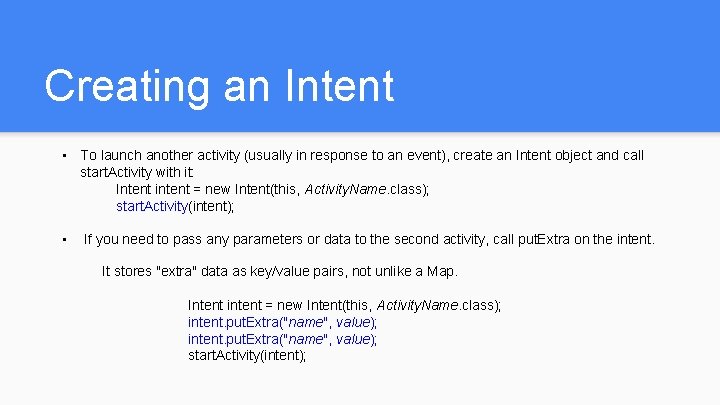
Creating an Intent • To launch another activity (usually in response to an event), create an Intent object and call start. Activity with it: Intent intent = new Intent(this, Activity. Name. class); start. Activity(intent); • If you need to pass any parameters or data to the second activity, call put. Extra on the intent. It stores "extra" data as key/value pairs, not unlike a Map. Intent intent = new Intent(this, Activity. Name. class); intent. put. Extra("name", value); start. Activity(intent);
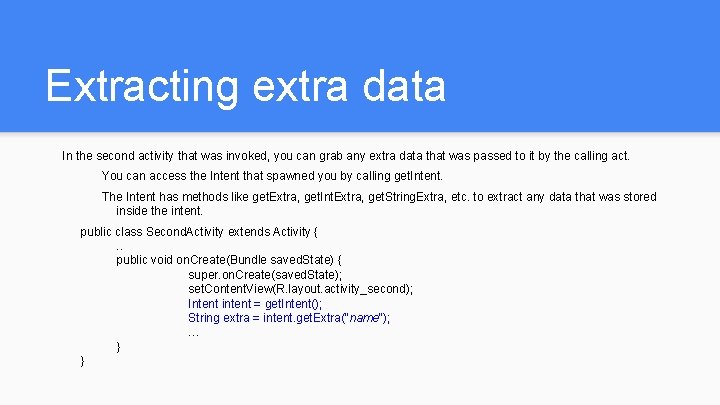
Extracting extra data In the second activity that was invoked, you can grab any extra data that was passed to it by the calling act. You can access the Intent that spawned you by calling get. Intent. The Intent has methods like get. Extra, get. Int. Extra, get. String. Extra, etc. to extract any data that was stored inside the intent. public class Second. Activity extends Activity {. . public void on. Create(Bundle saved. State) { super. on. Create(saved. State); set. Content. View(R. layout. activity_second); Intent intent = get. Intent(); String extra = intent. get. Extra("name"); … } }
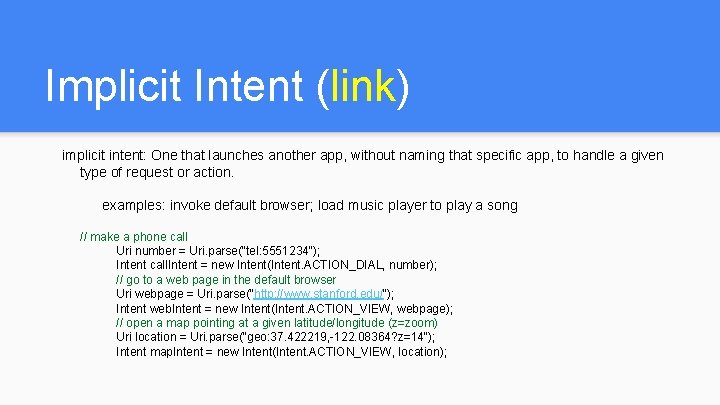
Implicit Intent (link) implicit intent: One that launches another app, without naming that specific app, to handle a given type of request or action. examples: invoke default browser; load music player to play a song // make a phone call Uri number = Uri. parse("tel: 5551234"); Intent call. Intent = new Intent(Intent. ACTION_DIAL, number); // go to a web page in the default browser Uri webpage = Uri. parse("http: //www. stanford. edu/"); Intent web. Intent = new Intent(Intent. ACTION_VIEW, webpage); // open a map pointing at a given latitude/longitude (z=zoom) Uri location = Uri. parse("geo: 37. 422219, -122. 08364? z=14"); Intent map. Intent = new Intent(Intent. ACTION_VIEW, location);
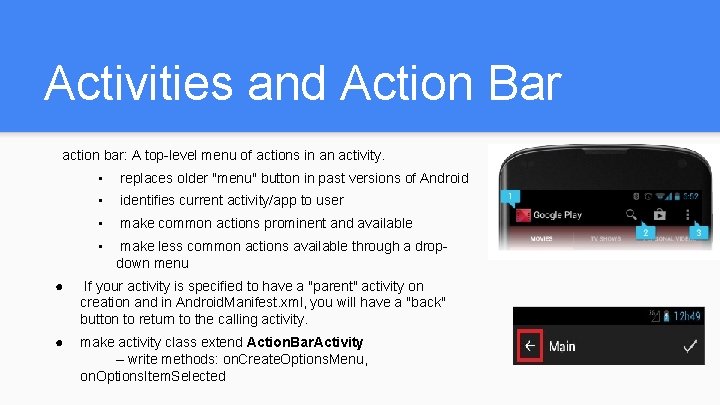
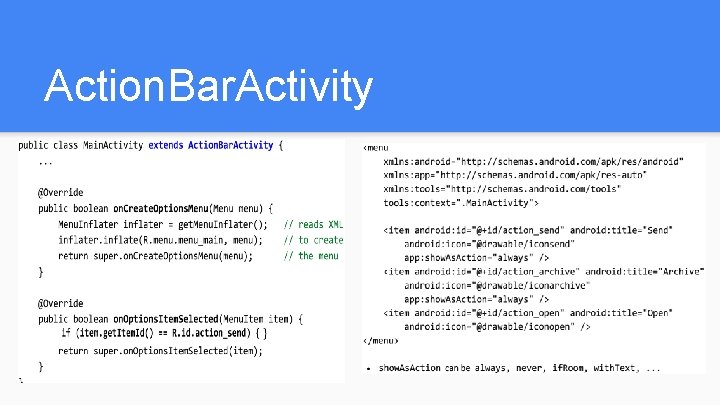
Activities and Action Bar action bar: A top-level menu of actions in an activity. • replaces older "menu" button in past versions of Android • identifies current activity/app to user • make common actions prominent and available • make less common actions available through a dropdown menu ● If your activity is specified to have a "parent" activity on creation and in Android. Manifest. xml, you will have a "back" button to return to the calling activity. ● make activity class extend Action. Bar. Activity – write methods: on. Create. Options. Menu, on. Options. Item. Selected
Action. Bar. Activity
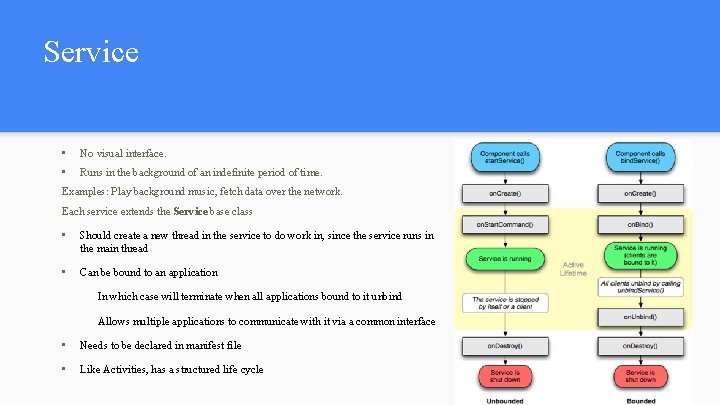
Service • No visual interface. • Runs in the background of an indefinite period of time. Examples: Play background music, fetch data over the network. Each service extends the Service base class • Should create a new thread in the service to do work in, since the service runs in the main thread • Can be bound to an application In which case will terminate when all applications bound to it unbind Allows multiple applications to communicate with it via a common interface • Needs to be declared in manifest file • Like Activities, has a structured life cycle