
Guided BUying QRG Quick Reference Guide Invoice Exception
Guided BUying QRG Quick Reference Guide Invoice Exception Manually Match PO
Invoice Exception Manually Match PO
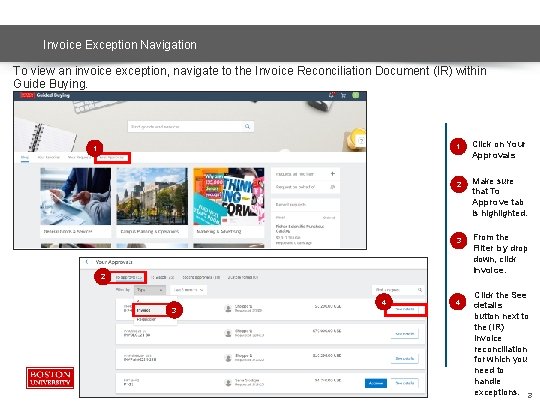
Invoice Exception Navigation To view an invoice exception, navigate to the Invoice Reconciliation Document (IR) within Guide Buying. 1 1 2 3 4 4 Click on Your Approvals Make sure that To Approve tab is highlighted. From the Filter by drop down, click Invoice. Click the See details button next to the (IR) invoice reconciliation for which you need to handle exceptions. 3
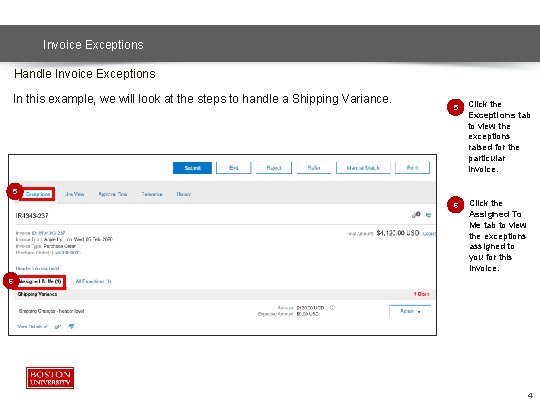
Invoice Exceptions Handle Invoice Exceptions In this example, we will look at the steps to handle a Shipping Variance. 5 Click the Exceptions tab to view the exceptions raised for the particular invoice. 5 6 Click the Assigned To Me tab to view the exceptions assigned to you for this invoice. 6 4

Invoice Exceptions Handle Invoice Exceptions (Manual Match – 1 of 6) Supplier submits Invoice against some other PO. In such a case, you need to Manually match the correct PO number against the invoice by following the below procedure: 1 2 Click the Action dropdown button next to the exception. Select the Manual Match option from the drop-down menu. 1 2 5

Invoice Exceptions Handle Invoice Exceptions (Manual Match – 2 of 6) Select Line Items You can manually match the invoice line item with the PO line item. 3 4 5 5 Click the radio button next to Show PO. Enter the correct PO number and click search Click Select. 6
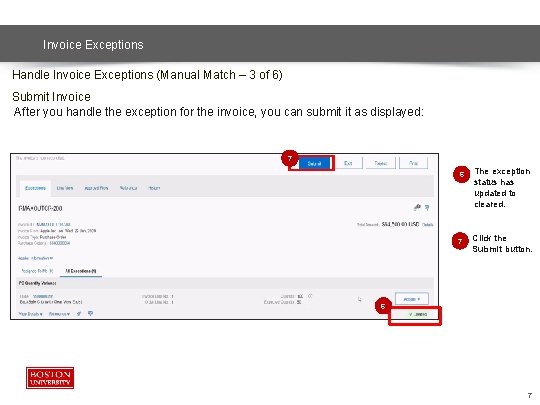
Invoice Exceptions Handle Invoice Exceptions (Manual Match – 3 of 6) Submit Invoice After you handle the exception for the invoice, you can submit it as displayed: 7 6 7 The exception status has updated to cleared. Click the Submit button. 6 7
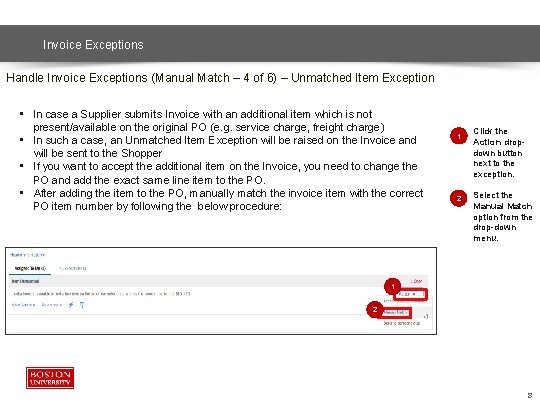
Invoice Exceptions Handle Invoice Exceptions (Manual Match – 4 of 6) – Unmatched Item Exception • In case a Supplier submits Invoice with an additional item which is not present/available on the original PO (e. g. service charge, freight charge) • In such a case, an Unmatched Item Exception will be raised on the Invoice and will be sent to the Shopper • If you want to accept the additional item on the Invoice, you need to change the PO and add the exact same line item to the PO. • After adding the item to the PO, manually match the invoice item with the correct PO item number by following the below procedure: 1 2 Click the Action dropdown button next to the exception. Select the Manual Match option from the drop-down menu. 1 2 8
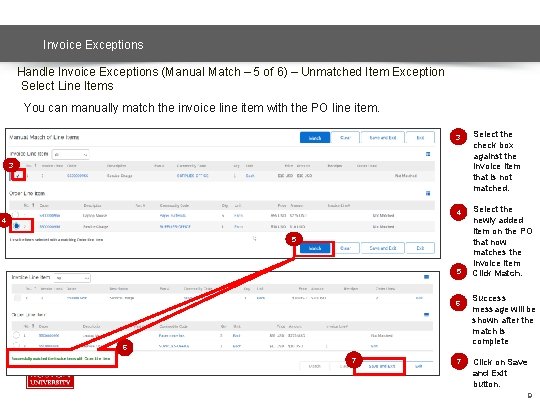
Invoice Exceptions Handle Invoice Exceptions (Manual Match – 5 of 6) – Unmatched Item Exception Select Line Items You can manually match the invoice line item with the PO line item. 3 3 4 4 5 5 6 6 7 7 Select the check box against the Invoice item that is not matched. Select the newly added item on the PO that now matches the invoice item Click Match. Success message will be shown after the match is complete Click on Save and Exit button. 9
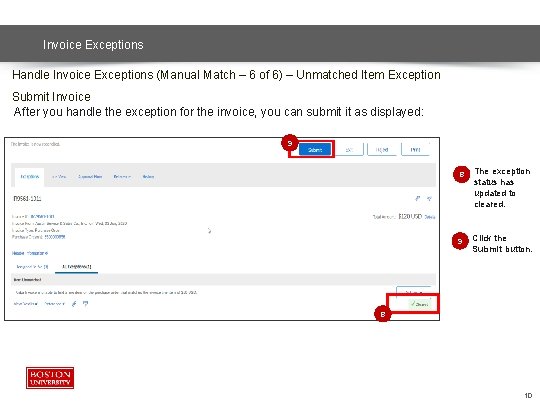
Invoice Exceptions Handle Invoice Exceptions (Manual Match – 6 of 6) – Unmatched Item Exception Submit Invoice After you handle the exception for the invoice, you can submit it as displayed: 9 8 9 The exception status has updated to cleared. Click the Submit button. 8 10
Additional Resources: Guides, FAQ, and Assistance Guides & FAQs § How to Place Orders § FAQs § Invoice Guides and FAQ Contact Us § Ordering Information: Submit a ticket to Sourcing & Procurement via the Financial Affairs Customer Service Portal. § Invoice & Payment Information: Submit a ticket to Accounts Payable via the Financial Affairs Customer Service Portal. 11
- Slides: 11