
Guide to Logging for Monitor Solution Monitor Logs
- Slides: 4
Guide to Logging for Monitor Solution Monitor Logs 2 of 8 Morgan Neill Technical Support Analyst for Monitor Solution Agent and Server logs (Standard and Verbose) 2 of 8 1
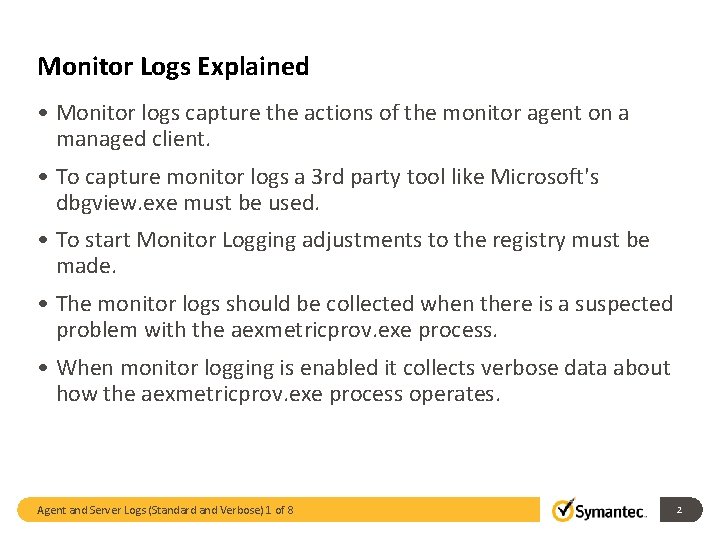
Monitor Logs Explained • Monitor logs capture the actions of the monitor agent on a managed client. • To capture monitor logs a 3 rd party tool like Microsoft's dbgview. exe must be used. • To start Monitor Logging adjustments to the registry must be made. • The monitor logs should be collected when there is a suspected problem with the aexmetricprov. exe process. • When monitor logging is enabled it collects verbose data about how the aexmetricprov. exe process operates. Agent and Server Logs (Standard and Verbose) 1 of 8 2
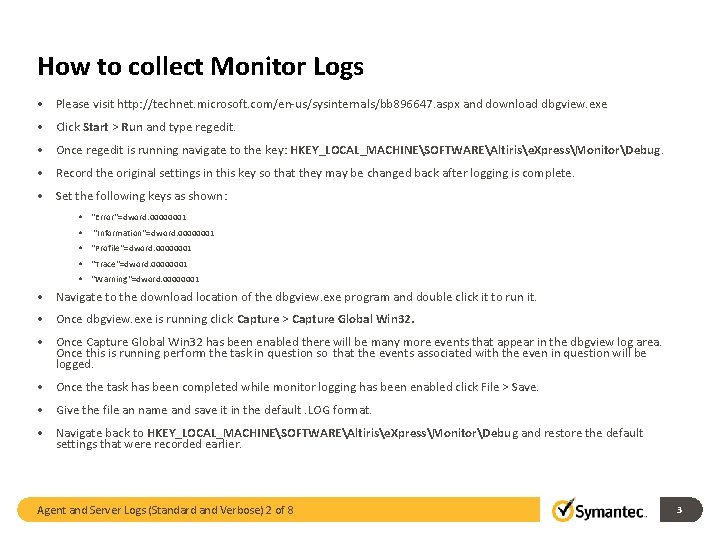
How to collect Monitor Logs • Please visit http: //technet. microsoft. com/en-us/sysinternals/bb 896647. aspx and download dbgview. exe • Click Start > Run and type regedit. • Once regedit is running navigate to the key: HKEY_LOCAL_MACHINESOFTWAREAltirise. XpressMonitorDebug. • Record the original settings in this key so that they may be changed back after logging is complete. • Set the following keys as shown: • "Error"=dword: 00000001 • "Information"=dword: 00000001 • "Profile"=dword: 00000001 • "Trace"=dword: 00000001 • "Warning"=dword: 00000001 • Navigate to the download location of the dbgview. exe program and double click it to run it. • Once dbgview. exe is running click Capture > Capture Global Win 32. • Once Capture Global Win 32 has been enabled there will be many more events that appear in the dbgview log area. Once this is running perform the task in question so that the events associated with the even in question will be logged. • Once the task has been completed while monitor logging has been enabled click File > Save. • Give the file an name and save it in the default. LOG format. • Navigate back to HKEY_LOCAL_MACHINESOFTWAREAltirise. XpressMonitorDebug and restore the default settings that were recorded earlier. Agent and Server Logs (Standard and Verbose) 2 of 8 3
Thank you! Morgan Neill Morgan_Neill@Symantec. com 541 -335 -3508 Copyright © 2013 Symantec Corporation. All rights reserved. Symantec and the Symantec Logo are trademarks or registered trademarks of Symantec Corporation or its affiliates in the U. S. and other countries. Other names may be trademarks of their respective owners. This document is provided for informational purposes only and is not intended as advertising. All warranties relating to the information in this document, either express or implied, are disclaimed to the maximum extent allowed by law. The information in this document is subject to change without notice. Presentation Identifier Goes Here 4