
Guide to Computer Forensics and Investigations Fifth Edition
- Slides: 63
Guide to Computer Forensics and Investigations Fifth Edition Chapter 3 Data Acquisition
Objectives • List digital evidence storage formats • Explain ways to determine the best acquisition method • Describe contingency planning for data acquisitions • Explain how to use acquisition tools Guide to Computer Forensics and Investigations Fifth Edition © Cengage Learning 2015 2
Objectives • • Explain how to validate data acquisitions Describe RAID acquisition methods Explain how to use remote network acquisition tools List other forensic tools available for data acquisitions Guide to Computer Forensics and Investigations Fifth Edition © Cengage Learning 2015 3
Understanding Storage Formats for Digital Evidence • Data in a forensics acquisition tool is stored as an image file • Three formats – Raw format – Proprietary formats – Advanced Forensics Format (AFF) Guide to Computer Forensics and Investigations Fifth Edition © Cengage Learning 2015 4
Raw Format • Makes it possible to write bit-stream data to files • Advantages – Fast data transfers – Ignores minor data read errors on source drive – Most computer forensics tools can read raw format • Disadvantages – Requires as much storage as original disk or data – Tools might not collect marginal (bad) sectors Guide to Computer Forensics and Investigations Fifth Edition © Cengage Learning 2015 5
Proprietary Formats • Most forensics tools have their own formats • Features offered – Option to compress or not compress image files – Can split an image into smaller segmented files – Can integrate metadata into the image file • Disadvantages – Inability to share an image between different tools – File size limitation for each segmented volume • The Expert Witness format is unofficial standard Guide to Computer Forensics and Investigations Fifth Edition © Cengage Learning 2015 6
Advanced Forensics Format • Developed by Dr. Simson L. Garfinkel as an opensource acquisition format • Design goals – Provide compressed or uncompressed image files – No size restriction for disk-to-image files – Provide space in the image file or segmented files for metadata – Simple design with extensibility – Open source for multiple platforms and OSs Guide to Computer Forensics and Investigations Fifth Edition © Cengage Learning 2015 7
Advanced Forensics Format • Design goals (cont’d) – Internal consistency checks for self-authentication • File extensions include. afd for segmented image files and. afm for AFF metadata • AFF is open source Guide to Computer Forensics and Investigations Fifth Edition © Cengage Learning 2015 8
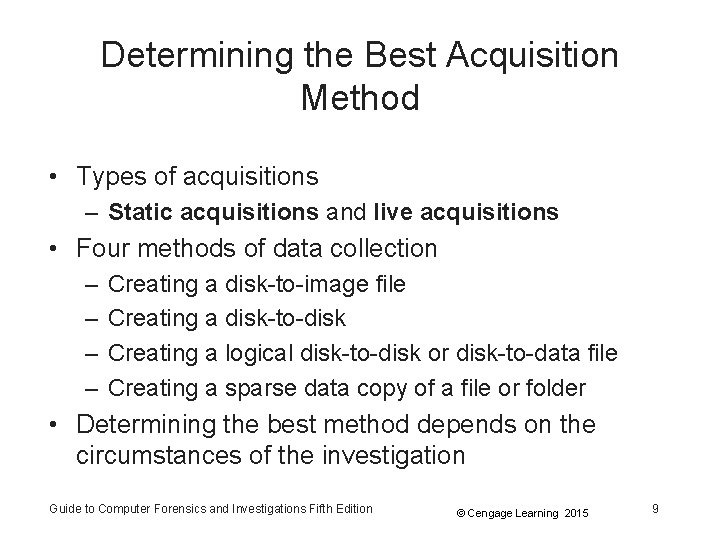
Determining the Best Acquisition Method • Types of acquisitions – Static acquisitions and live acquisitions • Four methods of data collection – – Creating a disk-to-image file Creating a disk-to-disk Creating a logical disk-to-disk or disk-to-data file Creating a sparse data copy of a file or folder • Determining the best method depends on the circumstances of the investigation Guide to Computer Forensics and Investigations Fifth Edition © Cengage Learning 2015 9
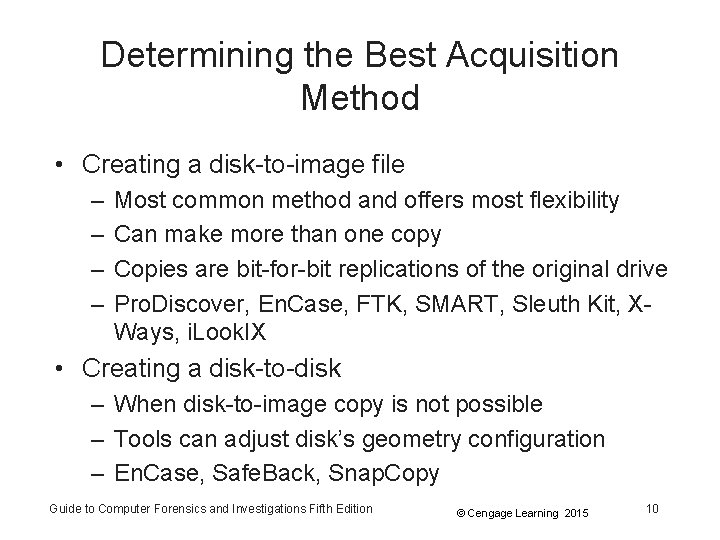
Determining the Best Acquisition Method • Creating a disk-to-image file – – Most common method and offers most flexibility Can make more than one copy Copies are bit-for-bit replications of the original drive Pro. Discover, En. Case, FTK, SMART, Sleuth Kit, XWays, i. Look. IX • Creating a disk-to-disk – When disk-to-image copy is not possible – Tools can adjust disk’s geometry configuration – En. Case, Safe. Back, Snap. Copy Guide to Computer Forensics and Investigations Fifth Edition © Cengage Learning 2015 10
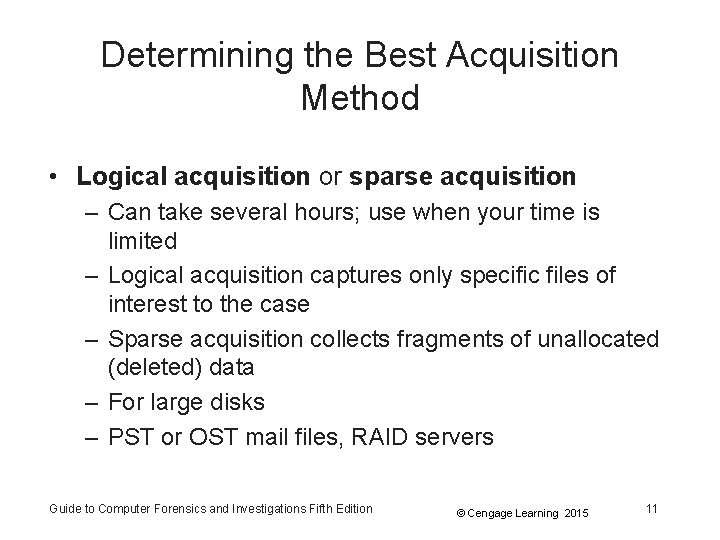
Determining the Best Acquisition Method • Logical acquisition or sparse acquisition – Can take several hours; use when your time is limited – Logical acquisition captures only specific files of interest to the case – Sparse acquisition collects fragments of unallocated (deleted) data – For large disks – PST or OST mail files, RAID servers Guide to Computer Forensics and Investigations Fifth Edition © Cengage Learning 2015 11
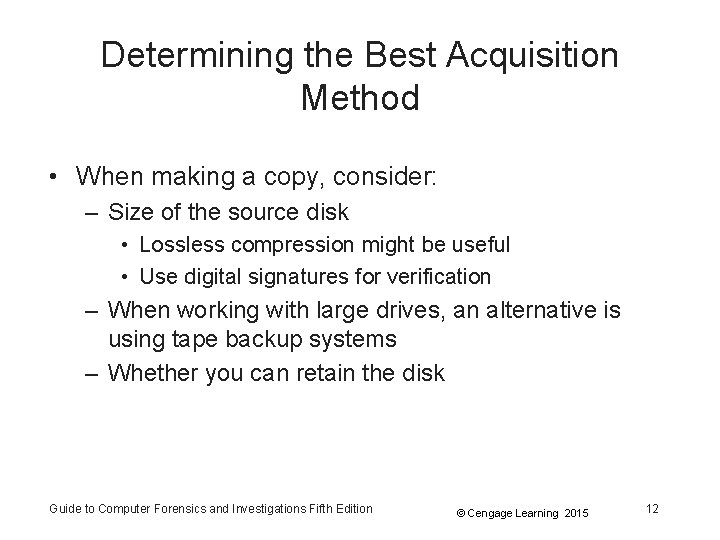
Determining the Best Acquisition Method • When making a copy, consider: – Size of the source disk • Lossless compression might be useful • Use digital signatures for verification – When working with large drives, an alternative is using tape backup systems – Whether you can retain the disk Guide to Computer Forensics and Investigations Fifth Edition © Cengage Learning 2015 12
Contingency Planning for Image Acquisitions • Create a duplicate copy of your evidence image file • Make at least two images of digital evidence – Use different tools or techniques • Copy host protected area of a disk drive as well – Consider using a hardware acquisition tool that can access the drive at the BIOS level • Be prepared to deal with encrypted drives – Whole disk encryption feature in Windows called Bit. Locker makes static acquisitions more difficult – May require user to provide decryption key Guide to Computer Forensics and Investigations Fifth Edition © Cengage Learning 2015 13
Using Acquisition Tools • Acquisition tools for Windows – Advantages • Make acquiring evidence from a suspect drive more convenient – Especially when used with hot-swappable devices – Disadvantages • Must protect acquired data with a well-tested writeblocking hardware device • Tools can’t acquire data from a disk’s host protected area • Some countries haven’t accepted the use of writeblocking devices for data acquisitions Guide to Computer Forensics and Investigations Fifth Edition © Cengage Learning 2015 14
Mini-Win. FE Boot CDs and USB Drives • Mini-Win. FE – Enables you to build a Windows forensic boot CD/DVD or USB drive so that connected drives are mounted as read-only • Before booting a suspect’s computer: – Connect your target drive, such as a USB drive • After Mini-Win. FE is booted: – You can list all connected drives and alter your target USB drive to read-write mode so you can run an acquisition program Guide to Computer Forensics and Investigations Fifth Edition © Cengage Learning 2015 15
Acquiring Data with a Linux Boot CD • Linux can access a drive that isn’t mounted • Windows OSs and newer Linux automatically mount and access a drive • Forensic Linux Live CDs don’t access media automatically – Which eliminates the need for a write-blocker • Using Linux Live CD Distributions – Forensic Linux Live CDs • Contain additionally utilities Guide to Computer Forensics and Investigations Fifth Edition © Cengage Learning 2015 16
Acquiring Data with a Linux Boot CD • Using Linux Live CD Distributions (cont’d) – Forensic Linux Live CDs (cont’d) • Configured not to mount, or to mount as read-only, any connected storage media • Well-designed Linux Live CDs for computer forensics – – – – Penguin Sleuth F. I. R. E CAINE Deft Kali Linux Knoppix SANS Investigative Toolkit Guide to Computer Forensics and Investigations Fifth Edition © Cengage Learning 2015 17
Acquiring Data with a Linux Boot CD • Preparing a target drive for acquisition in Linux – Current Linux distributions can create Microsoft FAT and NTFS partition tables – fdisk command lists, creates, deletes, and verifies partitions in Linux – mkfs. msdos command formats a FAT file system from Linux – If you have a functioning Linux computer, follow steps starting on page 99 to learn how to prepare a target drive for acquisition Guide to Computer Forensics and Investigations Fifth Edition © Cengage Learning 2015 18
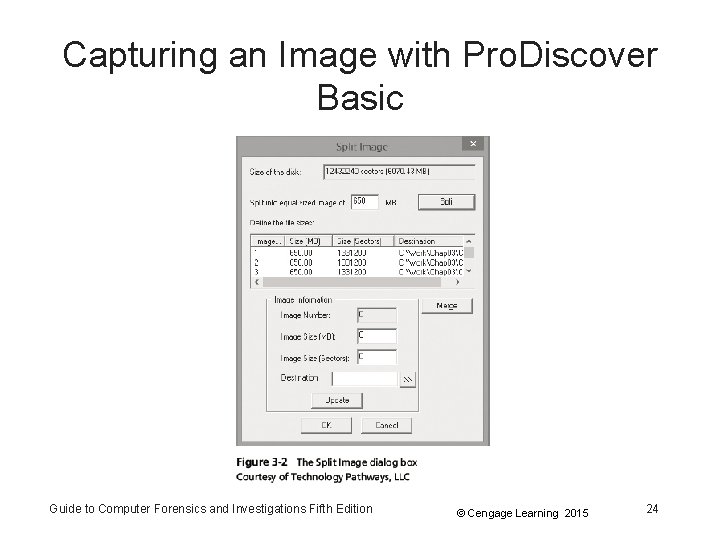
Acquiring Data with a Linux Boot CD • Acquiring data with dd in Linux – dd (“data dump”) command • Can read and write from media device and data file • Creates raw format file that most computer forensics analysis tools can read – Shortcomings of dd command • Requires more advanced skills than average user • Does not compress data – dd command combined with the split command • Segments output into separate volumes Guide to Computer Forensics and Investigations Fifth Edition © Cengage Learning 2015 19
Acquiring Data with a Linux Boot CD • Acquiring data with dd in Linux (cont’d) – Follow the step starting on page 104 in the text to make an image of an NTFS disk on a FAT 32 disk • Acquiring data with dcfldd in Linux – The dd command is intended as a data management tool • Not designed forensics acquisitions Guide to Computer Forensics and Investigations Fifth Edition © Cengage Learning 2015 20
Acquiring Data with a Linux Boot CD • Acquiring data with dcfldd in Linux (cont’d) – dcfldd additional functions • • Specify hex patterns or text for clearing disk space Log errors to an output file for analysis and review Use several hashing options Refer to a status display indicating the progress of the acquisition in bytes • Split data acquisitions into segmented volumes with numeric extensions • Verify acquired data with original disk or media data Guide to Computer Forensics and Investigations Fifth Edition © Cengage Learning 2015 21
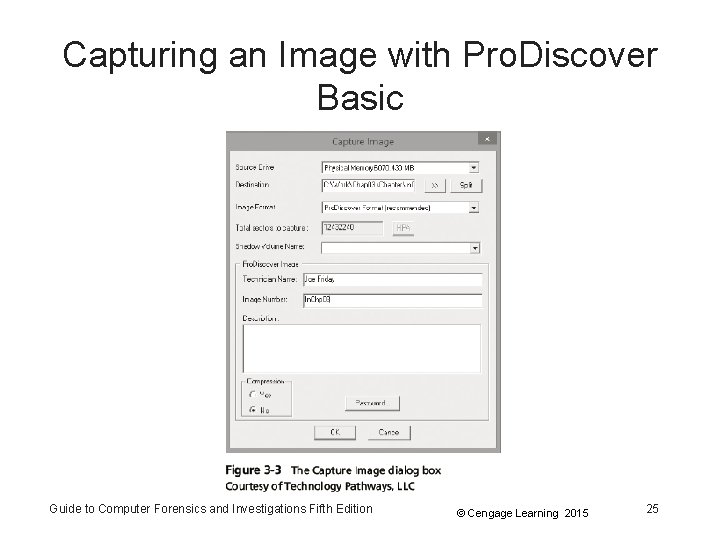
Capturing an Image with Pro. Discover Basic • Connecting the suspect’s drive to your workstation – – – Document the chain of evidence for the drive Remove the drive from the suspect’s computer Configure the suspect drive’s jumpers as needed Connect the suspect drive to write-blocker device Create a storage folder on the target drive • Using Pro. Discover’s Proprietary Acquisition Format – Follow the steps starting on page 108 to start Pro. Discover Basic and configure settings for acquisition Guide to Computer Forensics and Investigations Fifth Edition © Cengage Learning 2015 22
Capturing an Image with Pro. Discover Basic • Using Pro. Discover’s Proprietary Acquisition Format (con’t) – Pro. Discover creates image files with an. eve extension, a log file (. log extension), and a special inventory file (. pds extension) – If the compression option was selected, Pro. Discover uses a. cmp rather than an. eve extension on all segmented volumes Guide to Computer Forensics and Investigations Fifth Edition © Cengage Learning 2015 23
Capturing an Image with Pro. Discover Basic Guide to Computer Forensics and Investigations Fifth Edition © Cengage Learning 2015 24
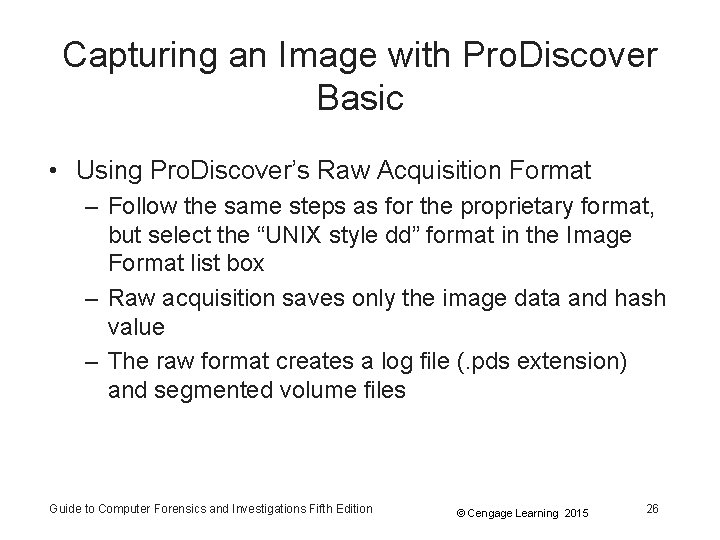
Capturing an Image with Pro. Discover Basic Guide to Computer Forensics and Investigations Fifth Edition © Cengage Learning 2015 25
Capturing an Image with Pro. Discover Basic • Using Pro. Discover’s Raw Acquisition Format – Follow the same steps as for the proprietary format, but select the “UNIX style dd” format in the Image Format list box – Raw acquisition saves only the image data and hash value – The raw format creates a log file (. pds extension) and segmented volume files Guide to Computer Forensics and Investigations Fifth Edition © Cengage Learning 2015 26
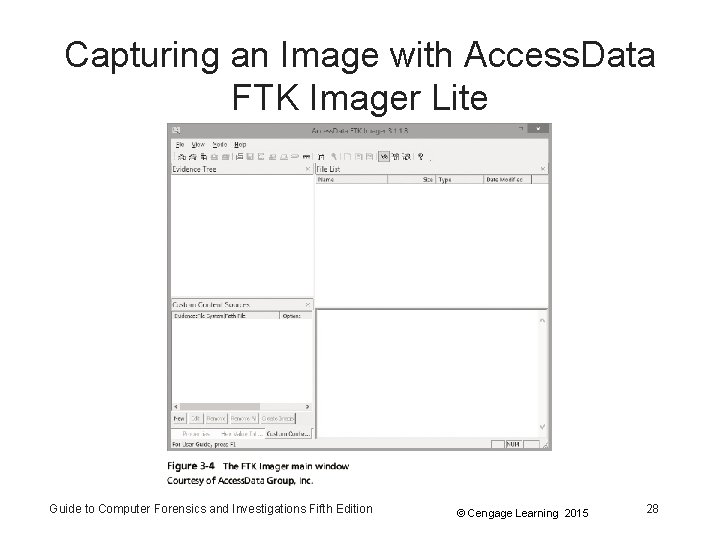
Capturing an Image with Access. Data FTK Imager Lite • Included with Access. Data Forensic Toolkit • Designed for viewing evidence disks and disk-toimage files • Makes disk-to-image copies of evidence drives – At logical partition and physical drive level – Can segment the image file • Evidence drive must have a hardware writeblocking device – Or run from a Live CD, such as Mini-Win. FE Guide to Computer Forensics and Investigations Fifth Edition © Cengage Learning 2015 27
Capturing an Image with Access. Data FTK Imager Lite Guide to Computer Forensics and Investigations Fifth Edition © Cengage Learning 2015 28
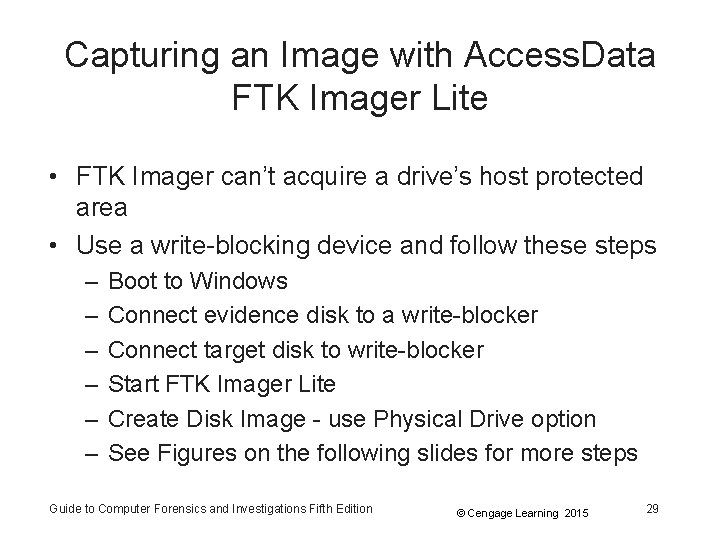
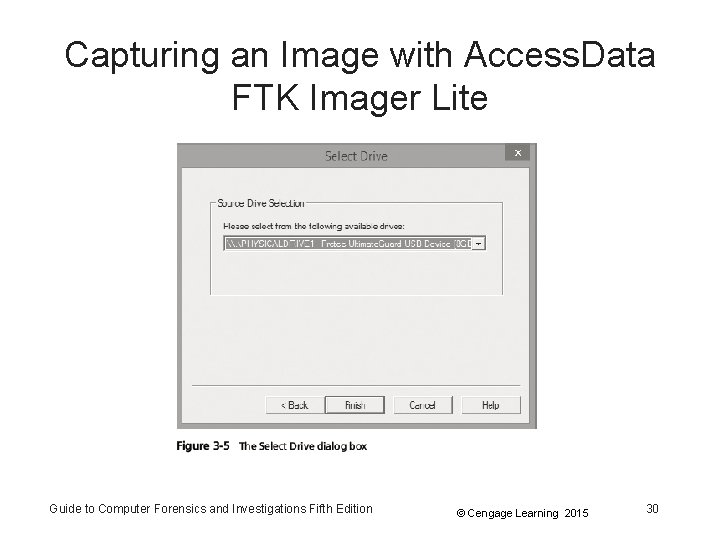
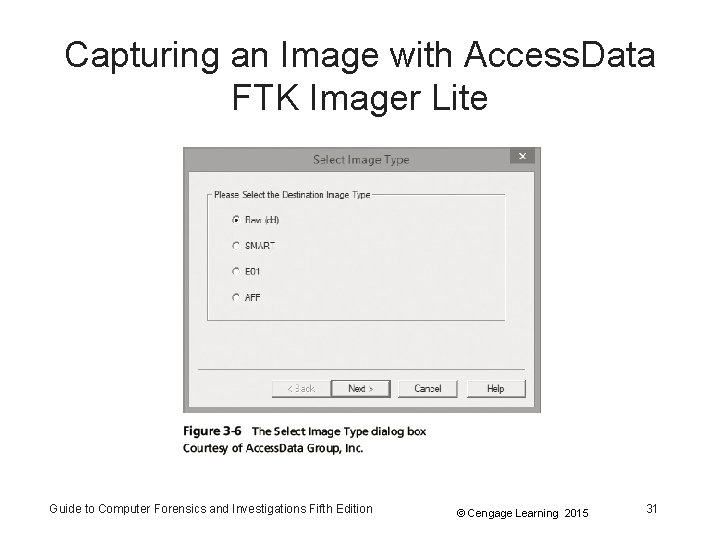
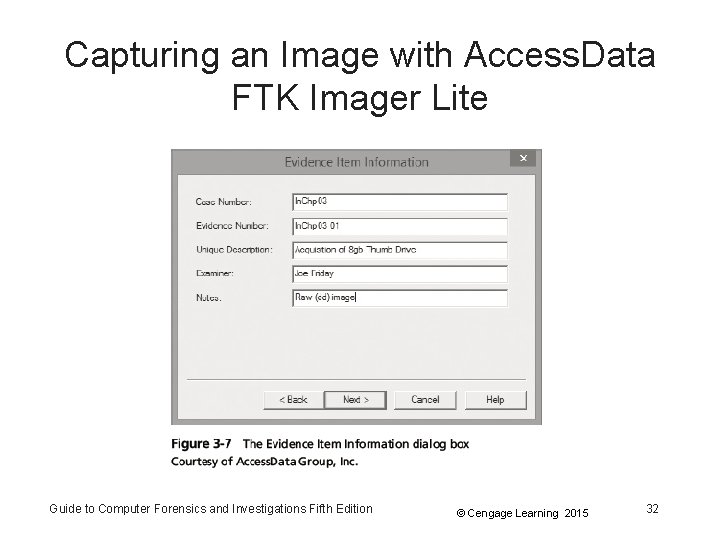
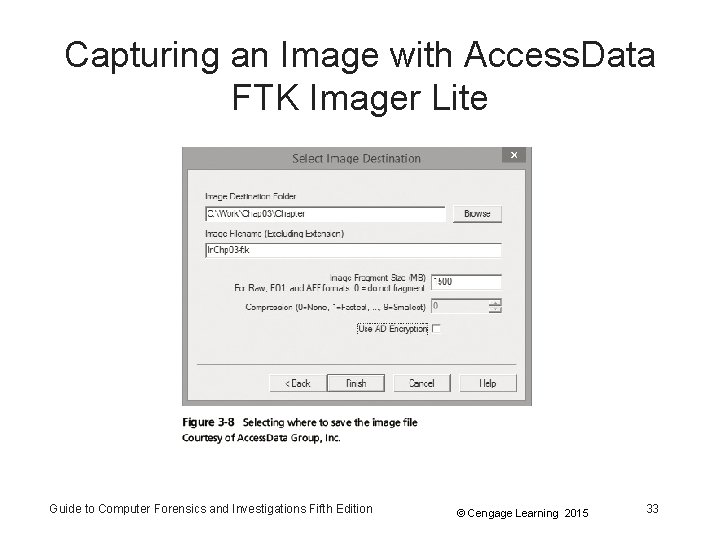
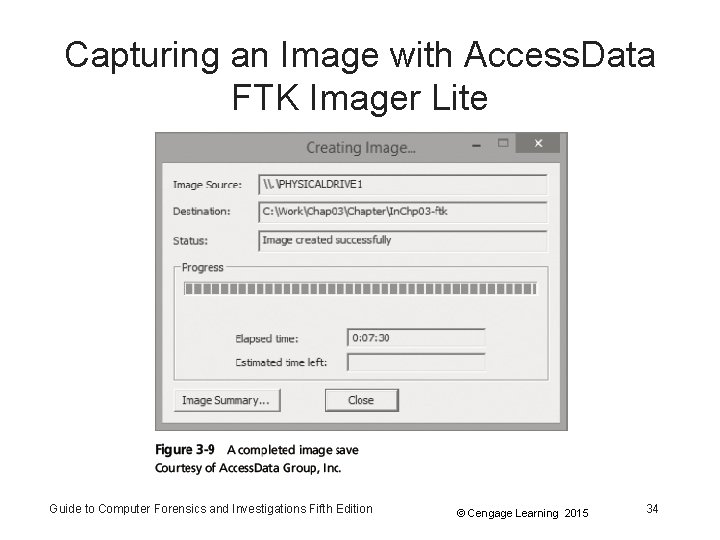
Capturing an Image with Access. Data FTK Imager Lite • FTK Imager can’t acquire a drive’s host protected area • Use a write-blocking device and follow these steps – – – Boot to Windows Connect evidence disk to a write-blocker Connect target disk to write-blocker Start FTK Imager Lite Create Disk Image - use Physical Drive option See Figures on the following slides for more steps Guide to Computer Forensics and Investigations Fifth Edition © Cengage Learning 2015 29
Capturing an Image with Access. Data FTK Imager Lite Guide to Computer Forensics and Investigations Fifth Edition © Cengage Learning 2015 30
Capturing an Image with Access. Data FTK Imager Lite Guide to Computer Forensics and Investigations Fifth Edition © Cengage Learning 2015 31
Capturing an Image with Access. Data FTK Imager Lite Guide to Computer Forensics and Investigations Fifth Edition © Cengage Learning 2015 32
Capturing an Image with Access. Data FTK Imager Lite Guide to Computer Forensics and Investigations Fifth Edition © Cengage Learning 2015 33
Capturing an Image with Access. Data FTK Imager Lite Guide to Computer Forensics and Investigations Fifth Edition © Cengage Learning 2015 34
Validating Data Acquisitions • Validating evidence may be the most critical aspect of computer forensics • Requires using a hashing algorithm utility • Validation techniques – CRC-32, MD 5, and SHA-1 to SHA-512 Guide to Computer Forensics and Investigations Fifth Edition © Cengage Learning 2015 35
Linux Validation Methods • Validating dd acquired data – You can use md 5 sum or sha 1 sum utilities – md 5 sum or sha 1 sum utilities should be run on all suspect disks and volumes or segmented volumes • Validating dcfldd acquired data – Use the hash option to designate a hashing algorithm of md 5, sha 1, sha 256, sha 384, or sha 512 – hashlog option outputs hash results to a text file that can be stored with the image files – vf (verify file) option compares the image file to the original medium Guide to Computer Forensics and Investigations Fifth Edition © Cengage Learning 2015 36
Windows Validation Methods • Windows has no built-in hashing algorithm tools for computer forensics – Third-party utilities can be used • Commercial computer forensics programs also have built-in validation features – Each program has its own validation technique • Raw format image files don’t contain metadata – Separate manual validation is recommended for all raw acquisitions Guide to Computer Forensics and Investigations Fifth Edition © Cengage Learning 2015 37
Performing RAID Data Acquisitions • Acquisition of RAID drives can be challenging and frustrating because of how RAID systems are – Designed – Configured – Sized • Size is the biggest concern – Many RAID systems now have terabytes of data Guide to Computer Forensics and Investigations Fifth Edition © Cengage Learning 2015 38
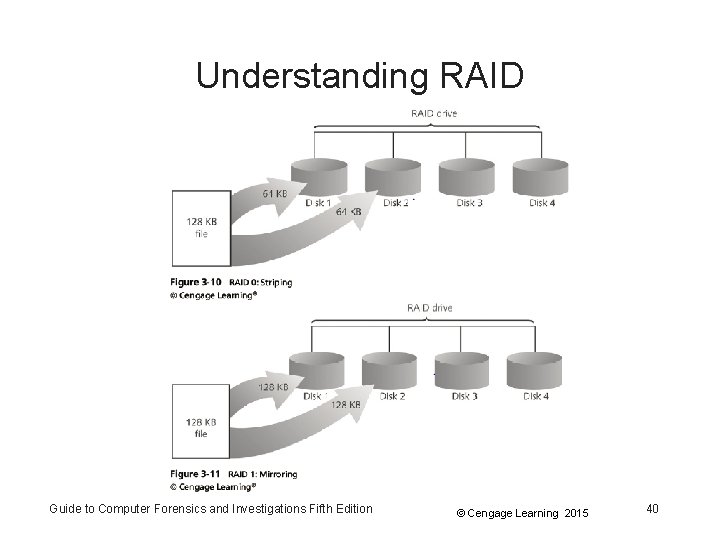
Understanding RAID • Redundant array of independent (formerly “inexpensive”) disks (RAID) – Computer configuration involving two or more disks – Originally developed as a data-redundancy measure • RAID 0 – Provides rapid access and increased storage – Biggest disadvantage is lack of redundancy • RAID 1 – Designed for data recovery – More expensive than RAID 0 Guide to Computer Forensics and Investigations Fifth Edition © Cengage Learning 2015 39
Understanding RAID Guide to Computer Forensics and Investigations Fifth Edition © Cengage Learning 2015 40
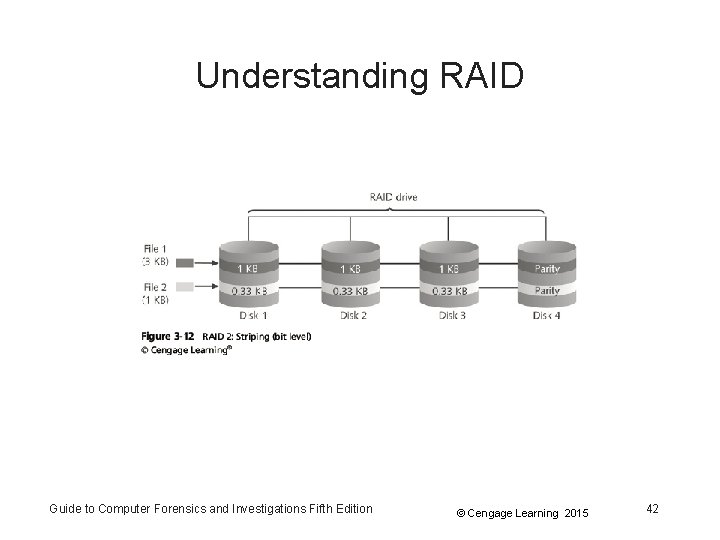
Understanding RAID • RAID 2 – – Similar to RAID 1 Data is written to a disk on a bit level Has better data integrity checking than RAID 0 Slower than RAID 0 • RAID 3 – Uses data stripping and dedicated parity • RAID 4 – Data is written in blocks Guide to Computer Forensics and Investigations Fifth Edition © Cengage Learning 2015 41
Understanding RAID Guide to Computer Forensics and Investigations Fifth Edition © Cengage Learning 2015 42
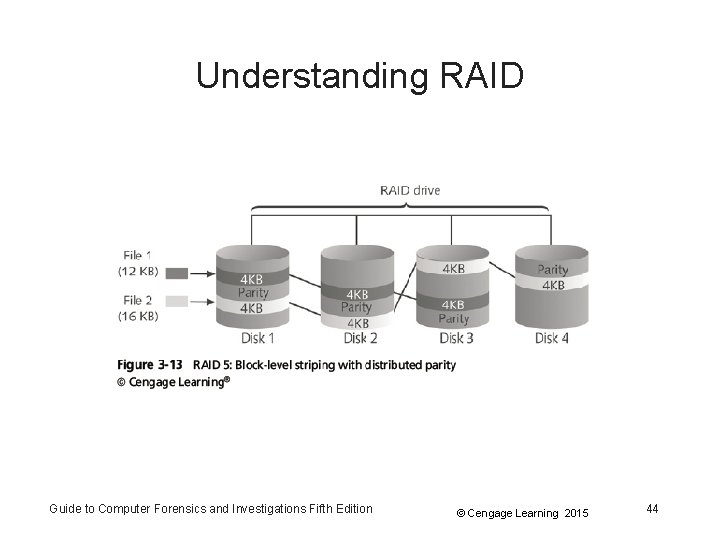
Understanding RAID • RAID 5 – Similar to RAIDs 0 and 3 – Places parity recovery data on each disk • RAID 6 – Redundant parity on each disk • RAID 10, or mirrored striping – Also known as RAID 1+0 – Combination of RAID 1 and RAID 0 Guide to Computer Forensics and Investigations Fifth Edition © Cengage Learning 2015 43
Understanding RAID Guide to Computer Forensics and Investigations Fifth Edition © Cengage Learning 2015 44
Acquiring RAID Disks • Address the following concerns – – – How much data storage is needed? What type of RAID is used? Do you have the right acquisition tool? Can the tool read a forensically copied RAID image? Can the tool read split data saves of each RAID disk? • Copying small RAID systems to one large disk is possible Guide to Computer Forensics and Investigations Fifth Edition © Cengage Learning 2015 45
Acquiring RAID Disks • Vendors offering RAID acquisition functions – – – Technology Pathways Pro. Discover Guidance Software En. Case X-Ways Forensics Access. Data FTK Runtime Software R-Tools Technologies • Occasionally, a RAID system is too large for a static acquisition – Retrieve only the data relevant to the investigation with the sparse or logical acquisition method Guide to Computer Forensics and Investigations Fifth Edition © Cengage Learning 2015 46
Using Remote Network Acquisition Tools • You can remotely connect to a suspect computer via a network connection and copy data from it • Remote acquisition tools vary in configurations and capabilities • Drawbacks – Antivirus, antispyware, and firewall tools can be configured to ignore remote access programs – Suspects could easily install their own security tools that trigger an alarm to notify them of remote access intrusions Guide to Computer Forensics and Investigations Fifth Edition © Cengage Learning 2015 47
Remote Acquisition with Pro. Discover • Pro. Discover Incident Response additional functions – – – Capture volatile system state information Analyze current running processes Locate unseen files and processes Remotely view and listen to IP ports Run hash comparisons Create a hash inventory of all files remotely Guide to Computer Forensics and Investigations Fifth Edition © Cengage Learning 2015 48
Remote Acquisition with Pro. Discover • PDServer remote agent – Pro. Discover utility for remote access – Needs to be loaded on the suspect • PDServer installation modes – Trusted CD – Preinstallation – Pushing out and running remotely • PDServer can run in a stealth mode – Can change process name to appear as OS function Guide to Computer Forensics and Investigations Fifth Edition © Cengage Learning 2015 49
Remote Acquisition with Pro. Discover • Remote connection security features – – – Password Protection Encryption Secure Communication Protocol Write Protected Trusted Binaries Digital Signatures Guide to Computer Forensics and Investigations Fifth Edition © Cengage Learning 2015 50
Remote Acquisition with En. Case Enterprise • Remote acquisition features – Remote data acquisition of a computer’s media and RAM data – Integration with intrusion detection system (IDS) tools – Options to create an image of data from one or more systems – Preview of systems – A wide range of file system formats – RAID support for both hardware and software Guide to Computer Forensics and Investigations Fifth Edition © Cengage Learning 2015 51
Remote Acquisition with R-Tools RStudio • R-Tools suite of software is designed for data recovery • Remote connection uses Triple Data Encryption Standard (3 DES) encryption • Creates raw format acquisitions • Supports various file systems Guide to Computer Forensics and Investigations Fifth Edition © Cengage Learning 2015 52
Remote Acquisition with Wet. Stone USLATT PRO • US-LATT PRO – Part of a suite of tools developed by Wet. Stone – Can connect to a networked computer remotely and perform a live acquisition of all drives connected to it Guide to Computer Forensics and Investigations Fifth Edition © Cengage Learning 2015 53
Remote Acquisition with F-Response • F-Response – A vendor-neutral remote access utility – Designed to work with any digital forensics program – Sets up a security read-only connection • Allows forensics examiners to access it • Four different version of F-Response – Enterprise Edition, Consultant + Convert Edition, Consultant Edition, and TACTICAL Edition Guide to Computer Forensics and Investigations Fifth Edition © Cengage Learning 2015 54
Using Other Forensics-Acquisition Tools • Other commercial acquisition tools – – – Pass. Mark Software Image. USB ASRData SMART Runtime Software ILook. IX Investigator IXimager Source. Forge Guide to Computer Forensics and Investigations Fifth Edition © Cengage Learning 2015 55
Pass. Mark Software Image. USB • Pass. Mark Software has an acquisition tool called Image. USB for its OSForensics analysis product • To create a bootable flash drive, you need: – Windows XP or later – Image. USB downloaded from the OSForensics Web site Guide to Computer Forensics and Investigations Fifth Edition © Cengage Learning 2015 56
ASRData SMART • ASRData SMART – A Linux forensics analysis tool that can make image files of a suspect drive – Can produce proprietary or raw format images • Capabilities: – – Data reading of bad sectors Can mount drives in write-protected mode Can mount target drives in read/write mode Compression schemes to speed up acquisition or reduce amount of storage needed Guide to Computer Forensics and Investigations Fifth Edition © Cengage Learning 2015 57
Runtime Software • Runtime Software offers shareware programs for data acquisition and recovery: – Disk. Explorer for FAT and NTFS • Features: – Create a raw format image file – Segment the raw format or compressed image for archiving purposes – Access network computers’ drives Guide to Computer Forensics and Investigations Fifth Edition © Cengage Learning 2015 58
ILook Investigator IXimager • IXimager – – Runs from a bootable floppy or CD Designed to work only with ILook Investigator Can acquire single drives and RAID drives Supports: • • IDE (PATA) SCSI USB Fire. Wire Guide to Computer Forensics and Investigations Fifth Edition © Cengage Learning 2015 59
Source. Forge • Source. Forge provides several applications for security, analysis, and investigations • For a list of current tools, see: – http: //sourceforge. net/directory/securityutilities/storage/archiving/os: windows/freshness: rece ntly-updated Guide to Computer Forensics and Investigations Fifth Edition © Cengage Learning 2015 60
Summary • Forensics data acquisitions are stored in three different formats: – Raw, proprietary, and AFF • Data acquisition methods – – Disk-to-image file Disk-to-disk copy Logical disk-to-disk or disk-to-data file Sparse data copy Guide to Computer Forensics and Investigations Fifth Edition © Cengage Learning 2015 61
Summary • Several tools available – Lossless compression is acceptable • Plan your digital evidence contingencies – Make a copy of each acquisition • Write-blocking devices or utilities must be used with GUI acquisition tools • Always validate acquisition • A Linux Live CD, such as SIFT, Kali Linux, or Deft, provides many useful tools for digital forensics acquisitions Guide to Computer Forensics and Investigations Fifth Edition © Cengage Learning 2015 62
Summary • Preferred Linux acquisition tool is dcfldd (not dd) • Use a physical write-blocker device for acquisitions • To acquire RAID disks, determine the type of RAID – And then which acquisition tool to use • Remote network acquisition tools require installing a remote agent on the suspect computer Guide to Computer Forensics and Investigations Fifth Edition © Cengage Learning 2015 63