
GUI PROGRAMMING USING TKINTER to celebrate Translation Week
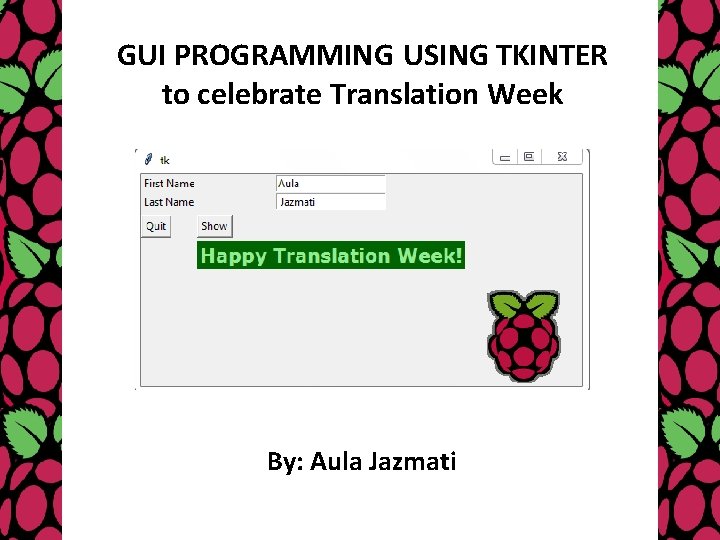
GUI PROGRAMMING USING TKINTER to celebrate Translation Week By: Aula Jazmati

Using Labels and Entry Widgets in Python Tkinter to celebrate Raspberry Pi Translation Week
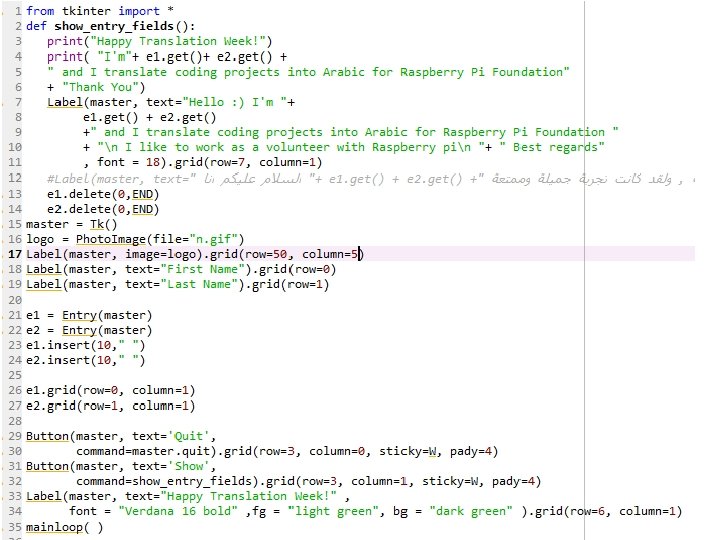
GUI PROGRAMMING USING TKINTER Introduction • The primary GUI toolkit we will be using is Tk, Python’s default GUI. We’ll access Tk from its Python interface called Tkinter (short for “Tk interface”). • Tk is not the latest and greatest, nor does it have the most robust set of GUI building blocks, but it is fairly simple to use, and with it, you can build GUIs that run on most platforms. • This object is created by the Tk class in Tkinter and is instantiated as follows: >>> import tkinter >>> top = tkinter. Tk() • you just need to use the following to install the tkinter for python 3: sudo apt-get install python 3 -tk
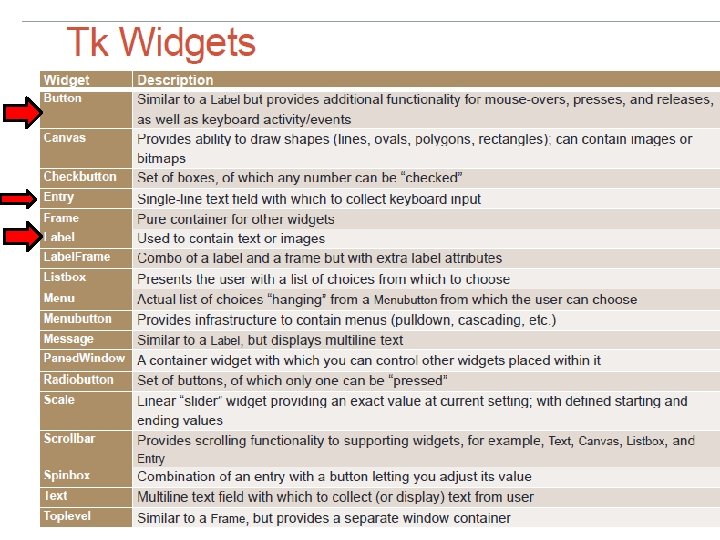
1
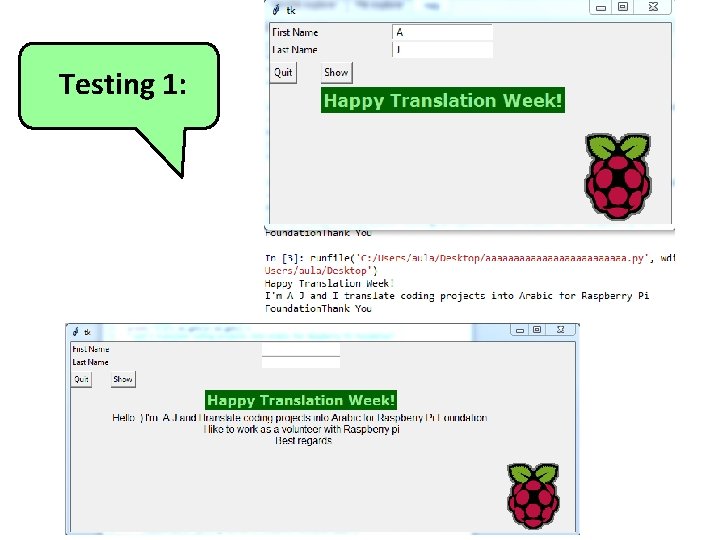
Testing 1:

Testing 2:
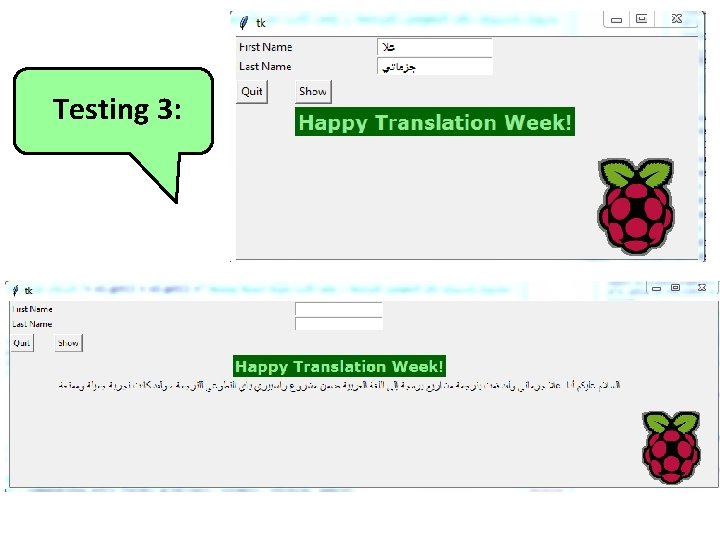
Testing 3:
Raspberry Pi Translation Week 2
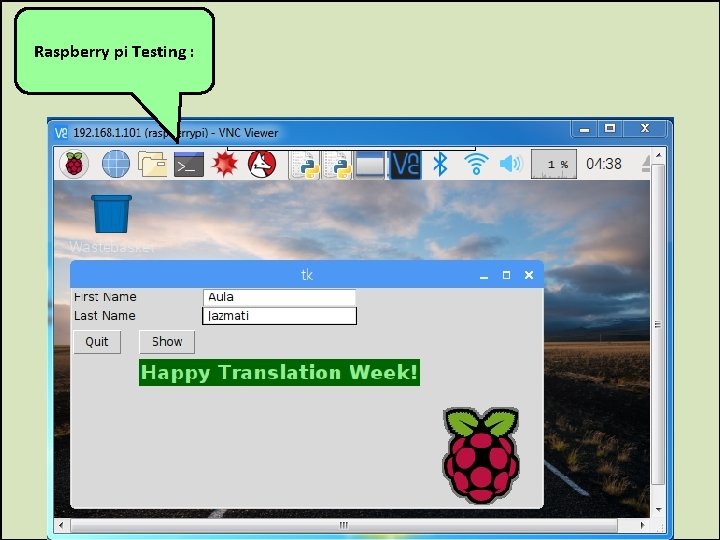
Raspberry pi Testing :
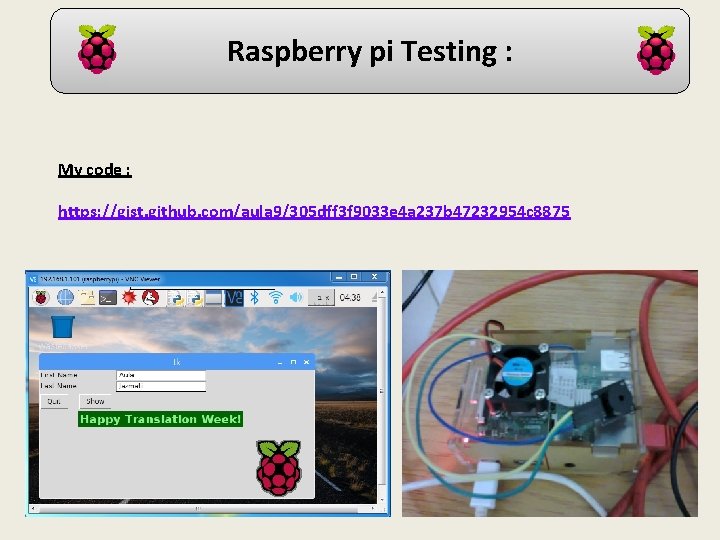
Raspberry pi Testing : My code : https: //gist. github. com/aula 9/305 dff 3 f 9033 e 4 a 237 b 47232954 c 8875
Reference: 1. https: //www. python-course. eu/tkinter_entry_widgets. php 2. https: //www. python-course. eu/tkinter_labels. php 3. https: //www. sunfounder. com/learn/sensor-kit-v 2 -0 -for-raspberry-pib-plus/lesson-10 -buzzer-module-sensor-kit-v 2 -0 -for-b-plus. html 4. https: //github. com/gumslone/raspi_buzzer_player/blob/master/buzz er_player. py 5. https: //www. 14 core. com/wiring-the-passive-active-buzzer-withraspberry-pi/ 6. https: //gist. github. com/mandy. Rae/459 ae 289 cdfcf 6 d 98 a 6 b My Codes: 1. https: //gist. github. com/aula 9/2 a 0 f 60 bffde 758371 f 3958 a c 0 a 20 eff 3 2. https: //gist. github. com/aula 9/5789 efd 4 fa 4438 f 3168 c 336 50852 baac 3. https: //gist. github. com/aula 9/305 dff 3 f 9033 e 4 a 237 b 472 32954 c 8875
Raspberry Pi Translation ((Translation week celebrations)) Many Thanks to : Raspberry Pi Foundation Translation Community Manager: Nina Szymor And all the team https: //www. raspberrypi. org/translate/
Thank you
- Slides: 15