
Great Plains Integration INTEGRATING JOURNAL ENTRIES AND INVOICES


- Slides: 29
Great Plains Integration INTEGRATING JOURNAL ENTRIES AND INVOICES INTO GP CARMEN WOOLEY
First things first! Create integration - make an appointment with your GP Partner or create yourself Integration Files will need to be created for Journal Entries and A/R Invoices
Let’s Get Started! Integration Spreadsheets Create an excel spreadsheet for Journal Entries Create an excel spreadsheet for Invoices
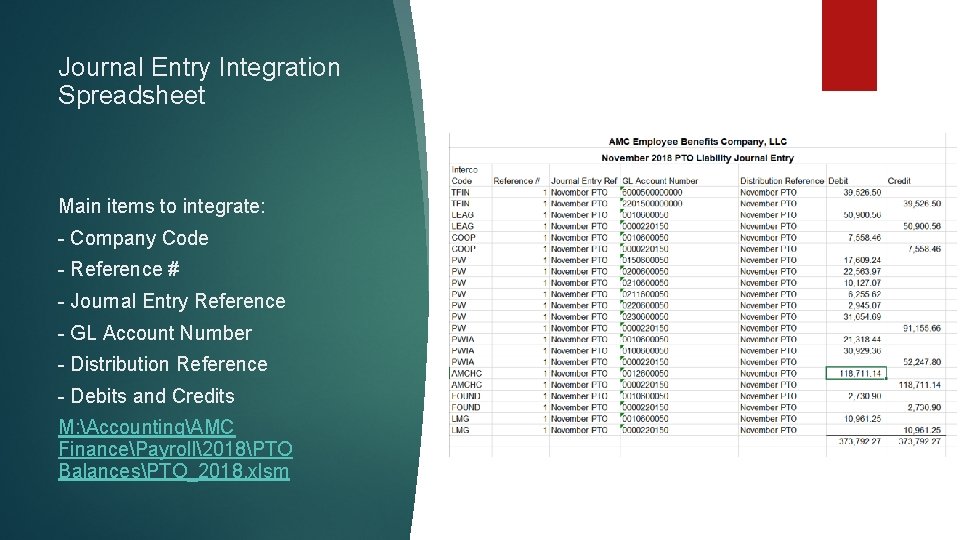
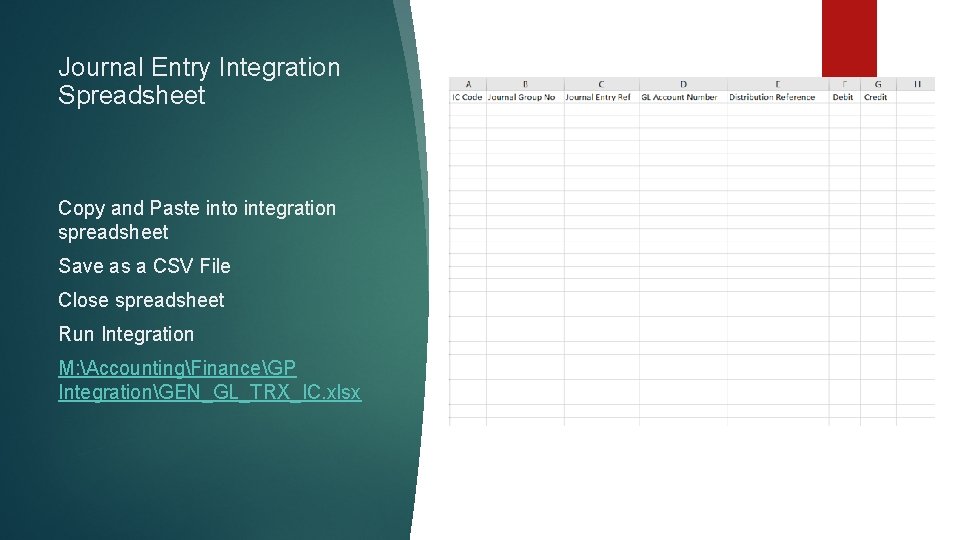
Journal Entry Integration Spreadsheet Main items to integrate: - Company Code - Reference # - Journal Entry Reference - GL Account Number - Distribution Reference - Debits and Credits M: AccountingAMC FinancePayroll2018PTO BalancesPTO_2018. xlsm
Journal Entry Integration Spreadsheet Copy and Paste into integration spreadsheet Save as a CSV File Close spreadsheet Run Integration M: AccountingFinanceGP IntegrationGEN_GL_TRX_IC. xlsx
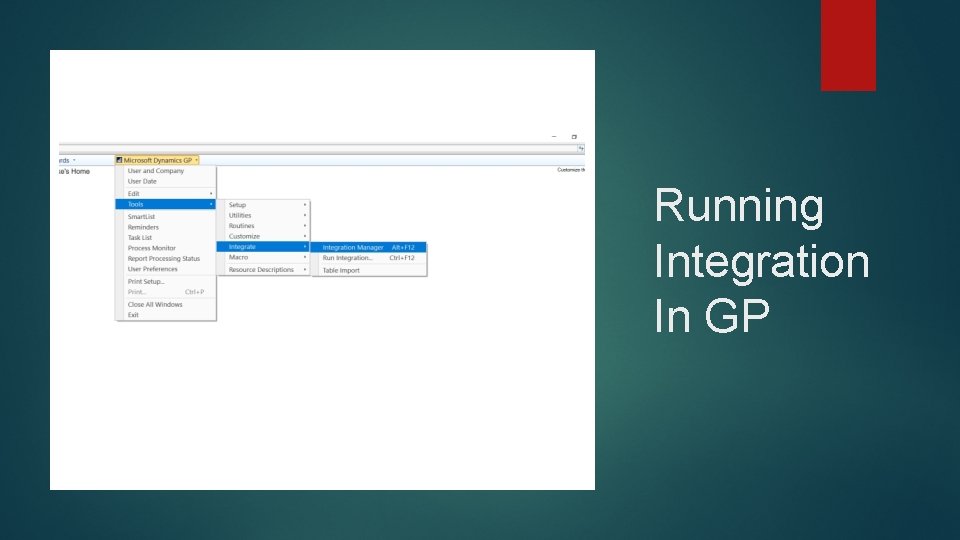
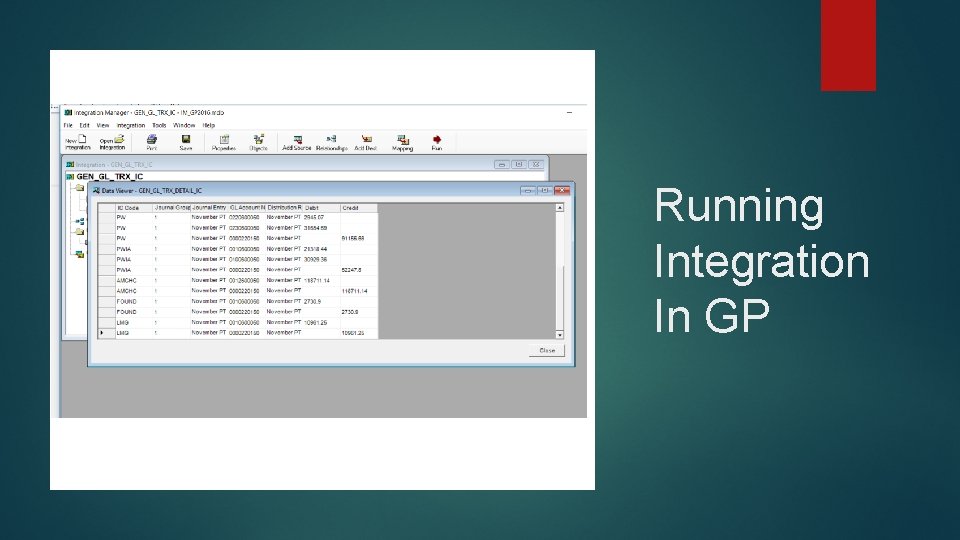
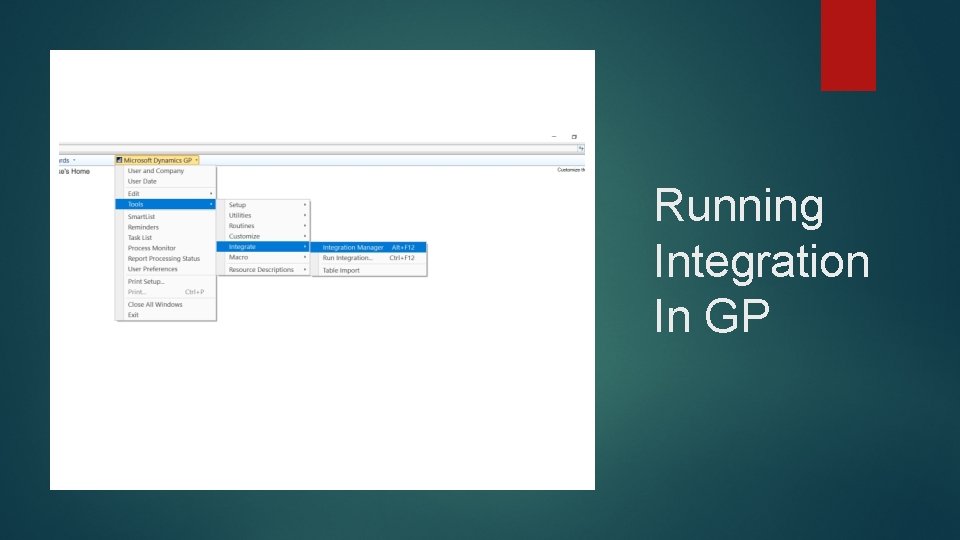
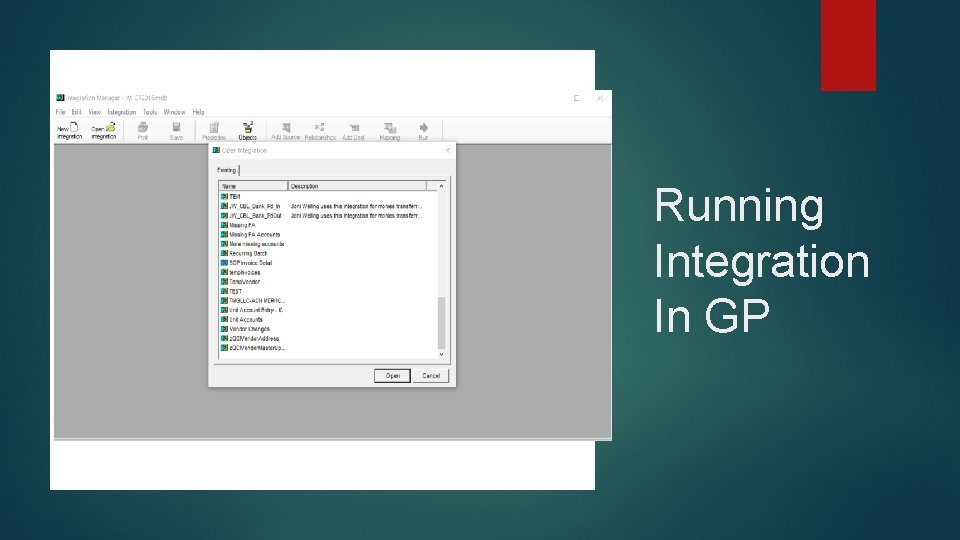
Running Integration In GP
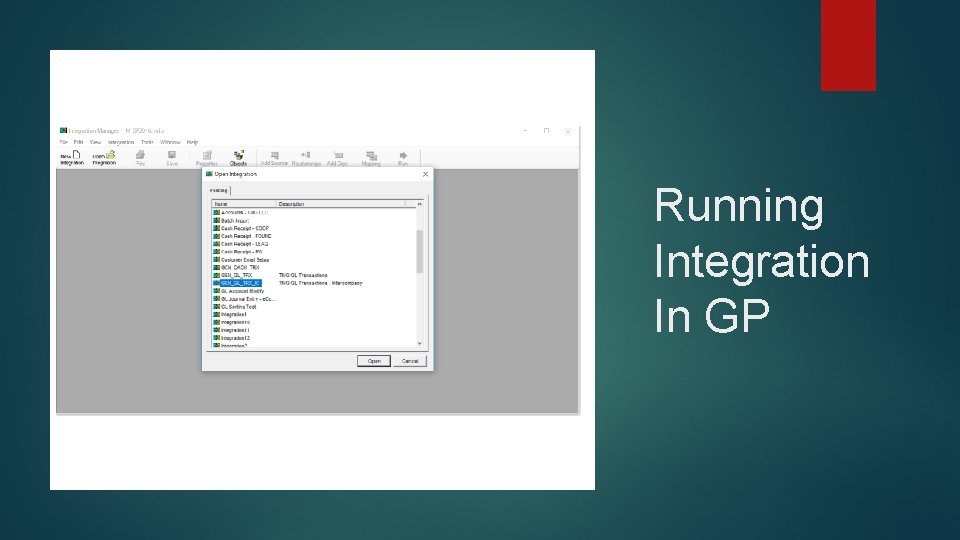
Running Integration In GP
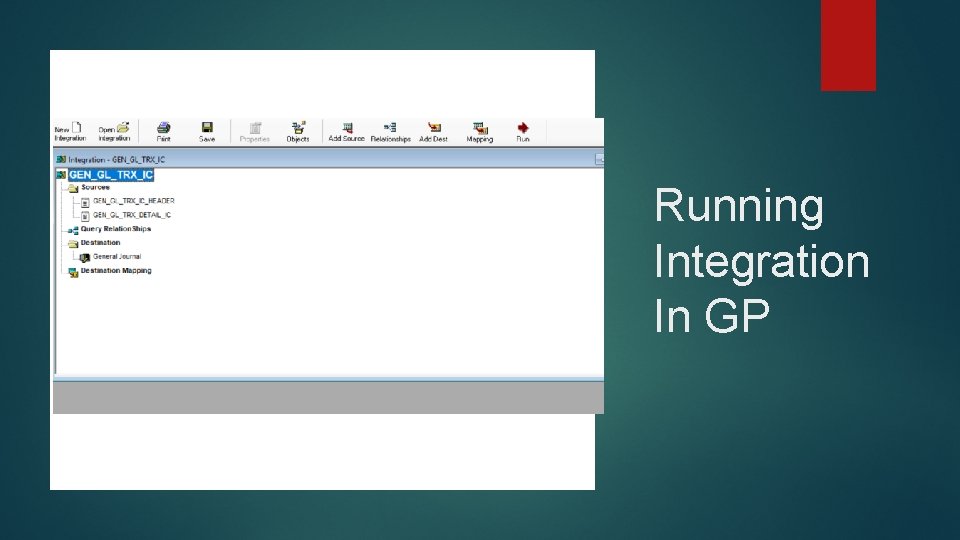
Running Integration In GP
Running Integration In GP
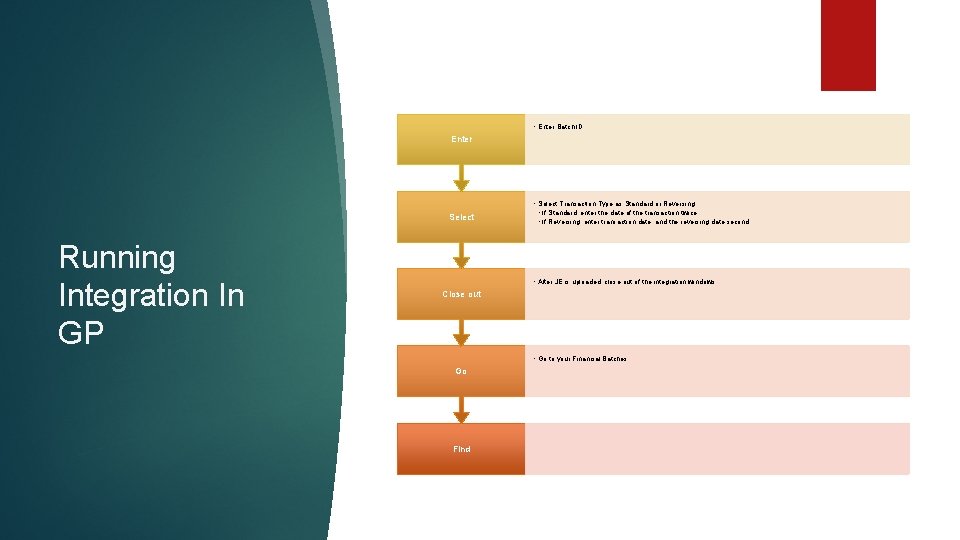
• Enter Batch ID Enter Select Running Integration In GP • Select Transaction Type as Standard or Reversing • If Standard, enter the date of the transaction twice. • If Reversing, enter transaction date, and the reversing date second. • After JE is uploaded, close out of the integration windows. Close out • Go to your Financial Batches Go Find
A/R Invoices INTEGRATING INVOICES INTO GP
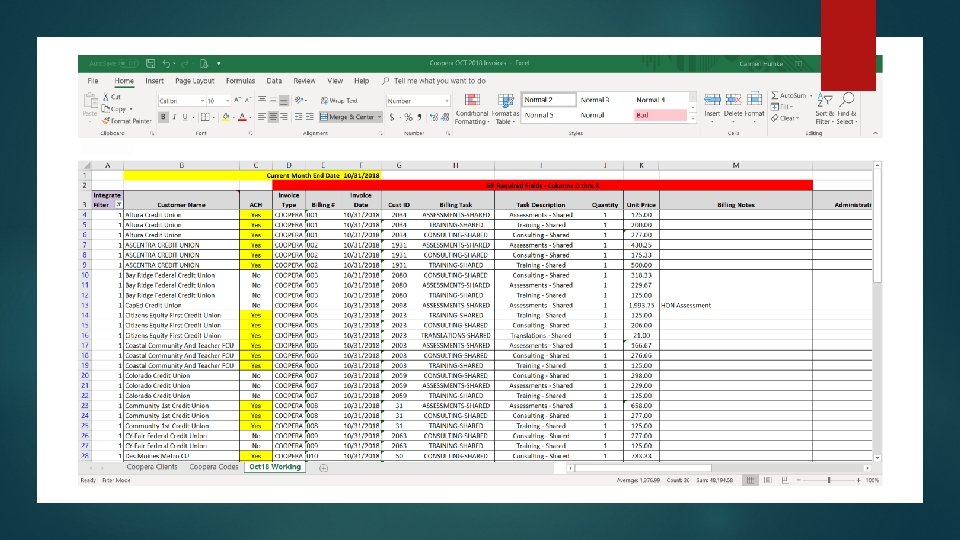
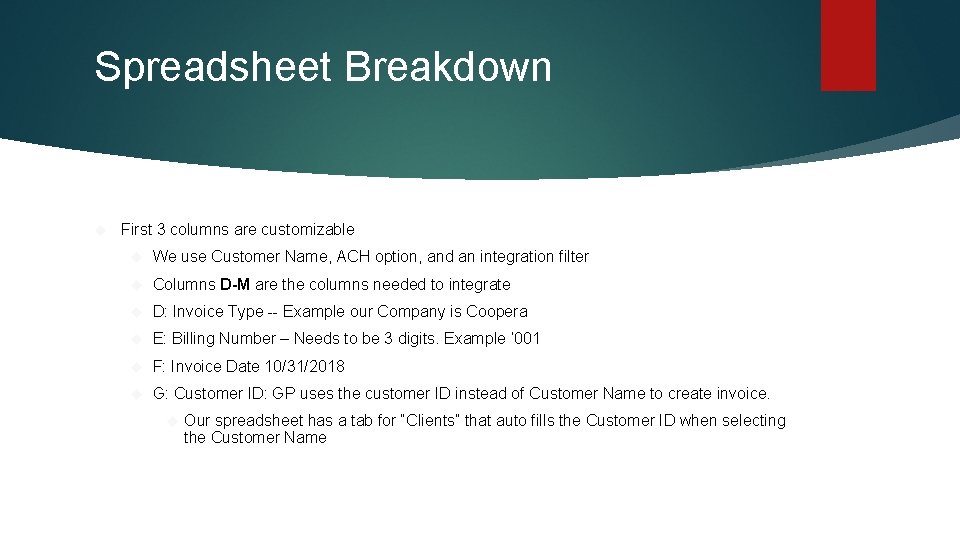
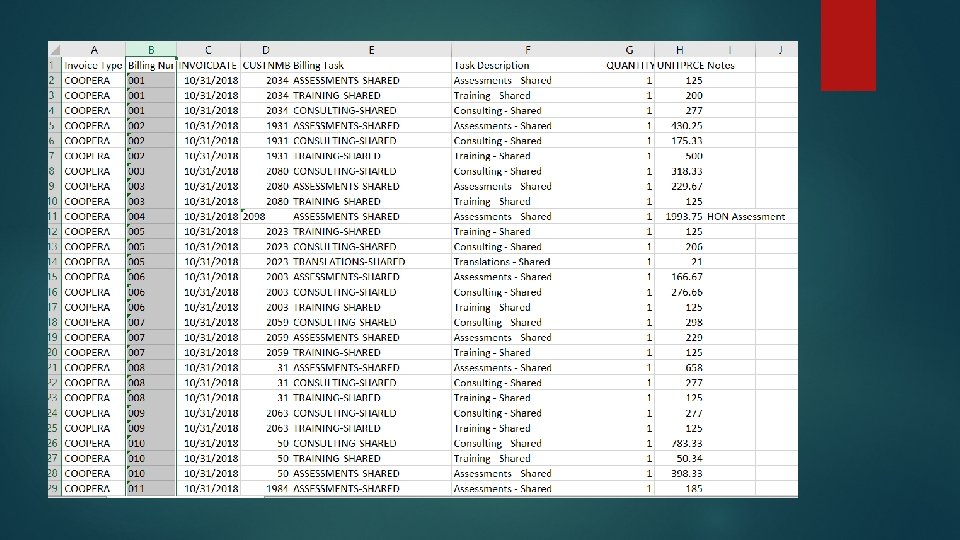
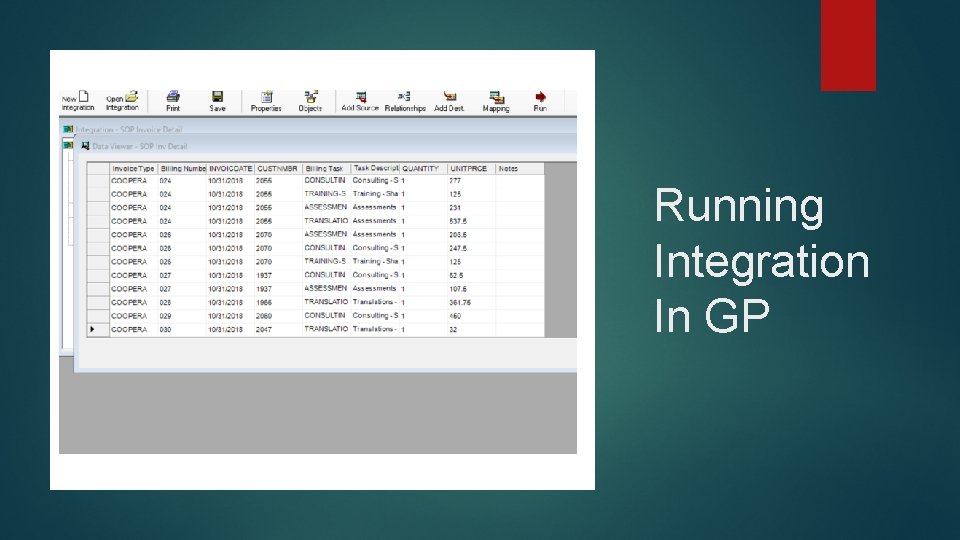
Spreadsheet Breakdown First 3 columns are customizable We use Customer Name, ACH option, and an integration filter Columns D-M are the columns needed to integrate D: Invoice Type -- Example our Company is Coopera E: Billing Number – Needs to be 3 digits. Example ‘ 001 F: Invoice Date 10/31/2018 G: Customer ID: GP uses the customer ID instead of Customer Name to create invoice. Our spreadsheet has a tab for “Clients” that auto fills the Customer ID when selecting the Customer Name
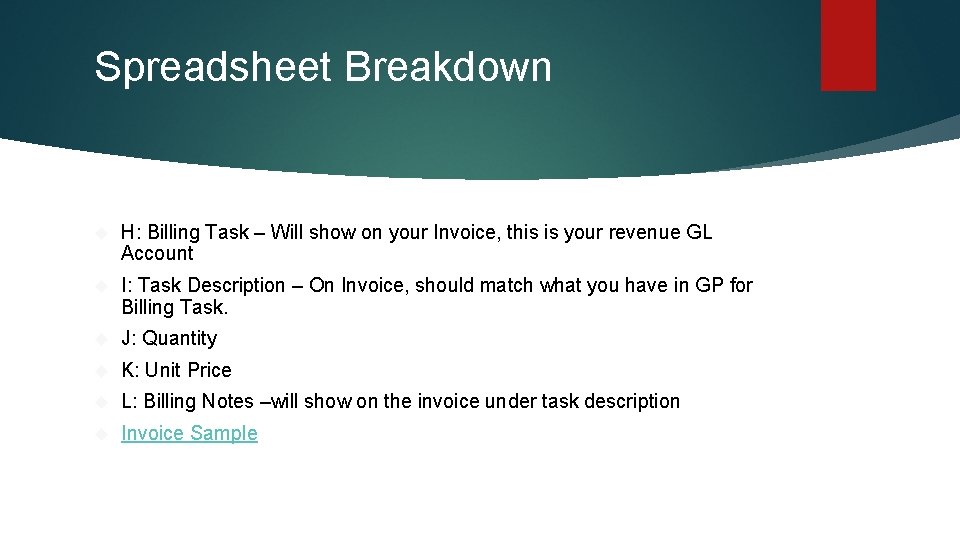
Spreadsheet Breakdown H: Billing Task – Will show on your Invoice, this is your revenue GL Account I: Task Description – On Invoice, should match what you have in GP for Billing Task. J: Quantity K: Unit Price L: Billing Notes –will show on the invoice under task description Invoice Sample
Running Integration In GP
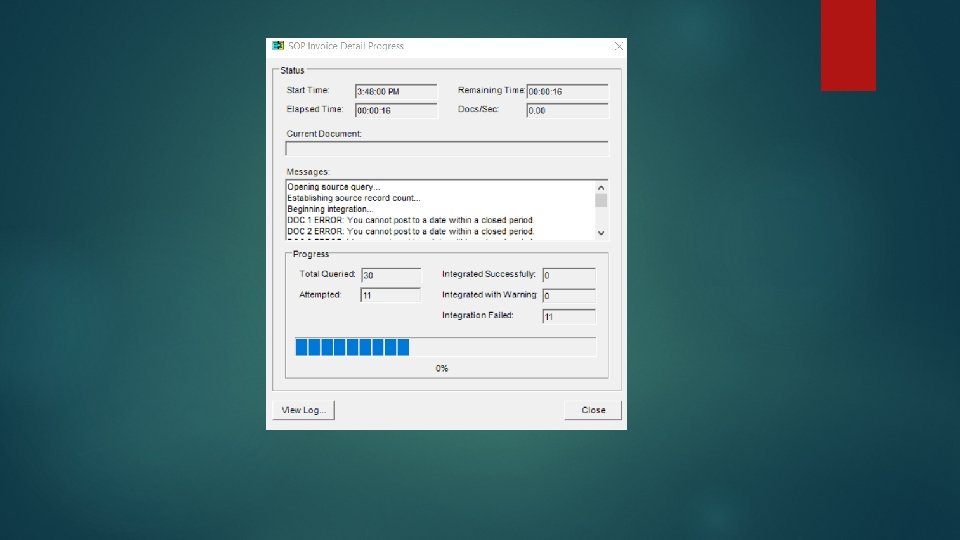
Running Integration In GP
Running Integration In GP
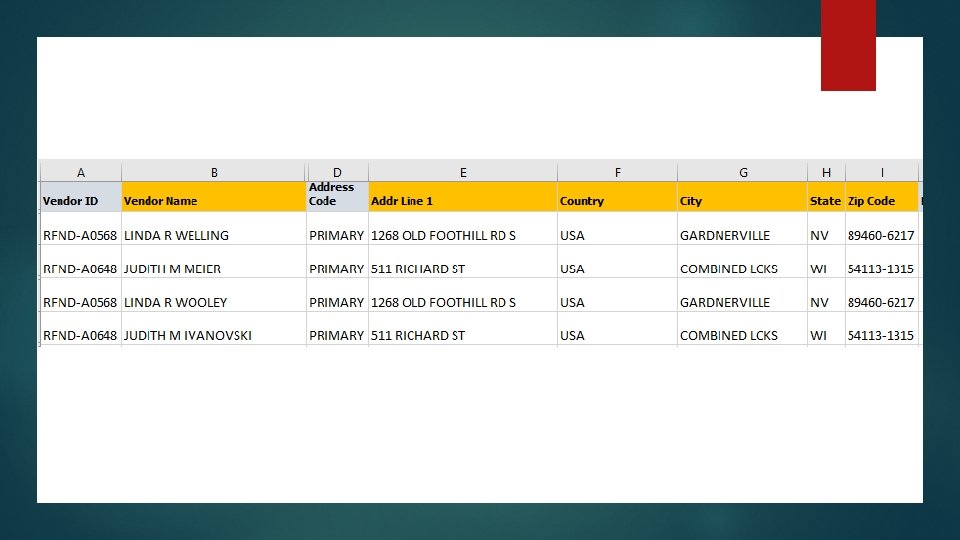
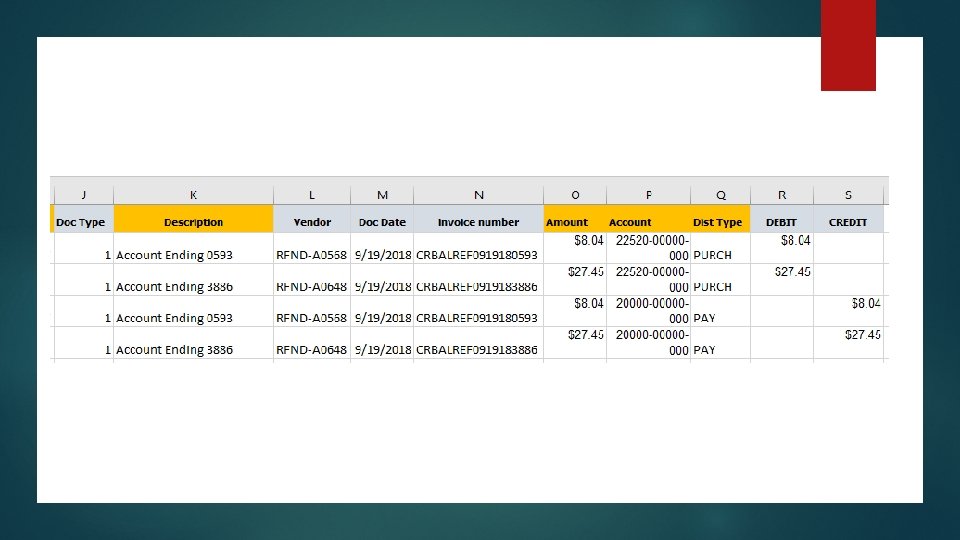
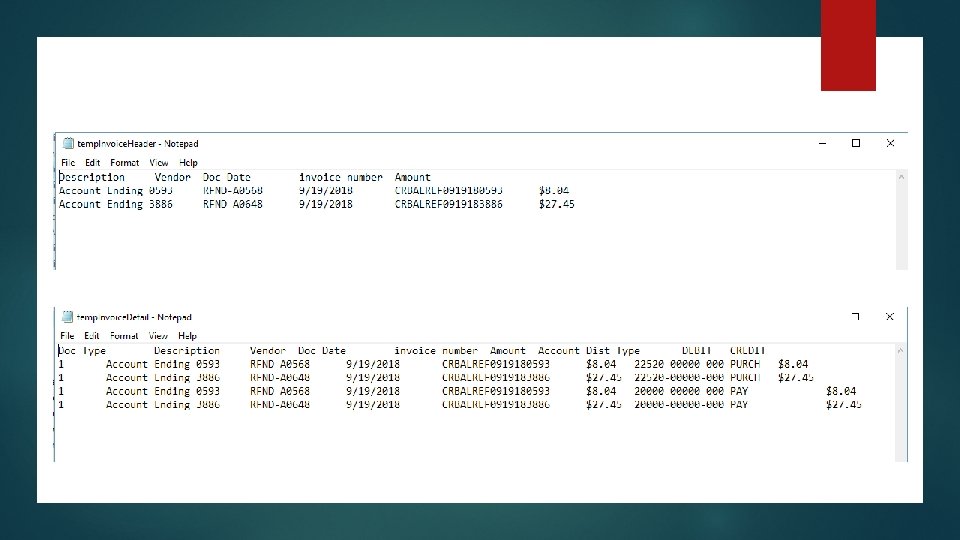
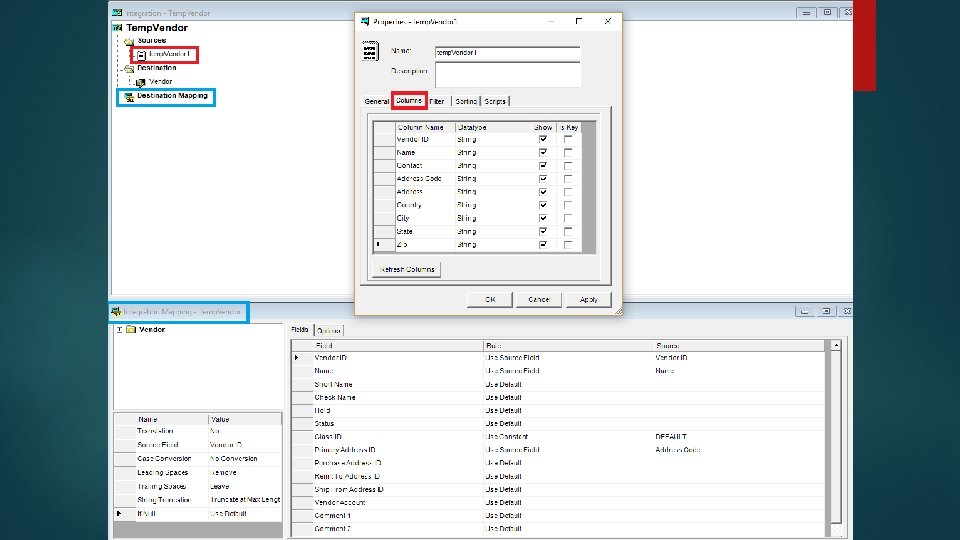
Other Uses INTEGRATION TO CREATE MASS VENDORS INTEGRATE PAYABLE INVOICES
Tips & Tricks WHEN THINGS GO WRONG
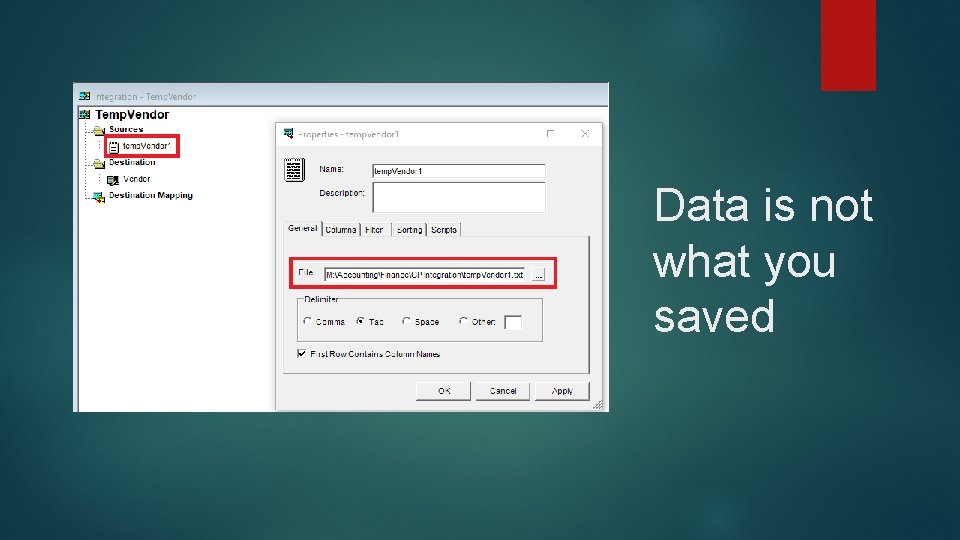
Data is not what you saved
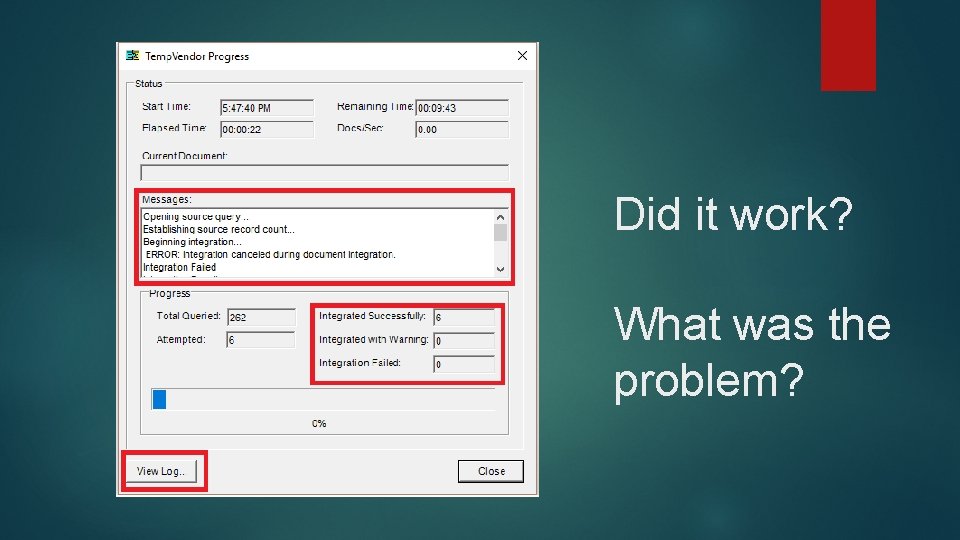
Did it work? What was the problem?
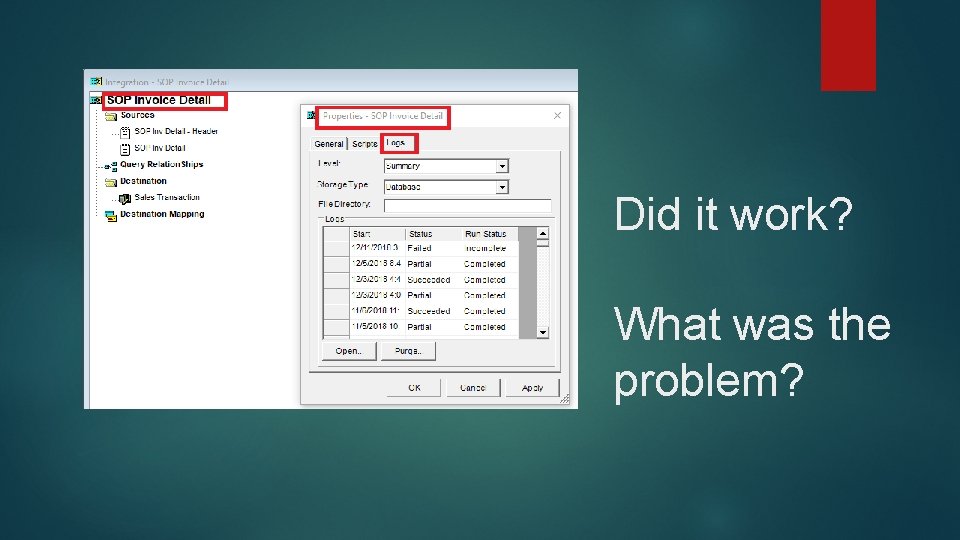
Did it work? What was the problem?
Questions? Carmen Wooley Joni Welling 515 -612 -7277 515 -612 -7316 Carmen. Wooley@affiliatesmgt. com Joni. Welling@affiliatesmgt. com