
Grauer and Barber Series Microsoft Excel Chapter Four
Grauer and Barber Series Microsoft Excel Chapter Four 10/21/2021 Microsoft Excel
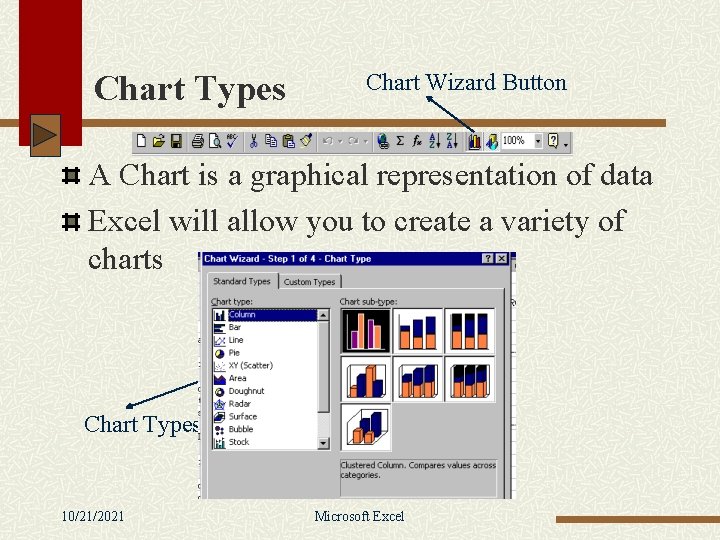
Chart Types Chart Wizard Button A Chart is a graphical representation of data Excel will allow you to create a variety of charts Chart Types 10/21/2021 Microsoft Excel
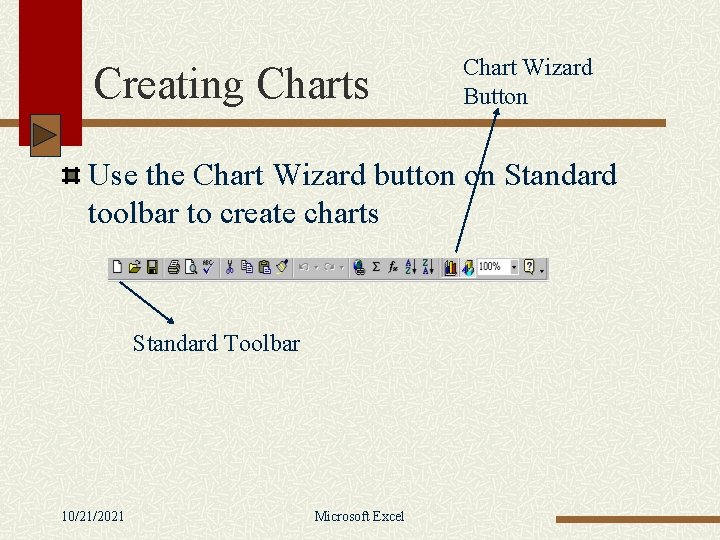
Creating Charts Chart Wizard Button Use the Chart Wizard button on Standard toolbar to create charts Standard Toolbar 10/21/2021 Microsoft Excel
Chart Wizard Steps Highlight data to chart Click the Chart Wizard button from standard toolbar n Follow 4 easy steps: n Select Chart Type n Select Chart Source Data n Indicate Chart Options n Indicate Chart Location (embedded or as new sheet) 10/21/2021 Microsoft Excel
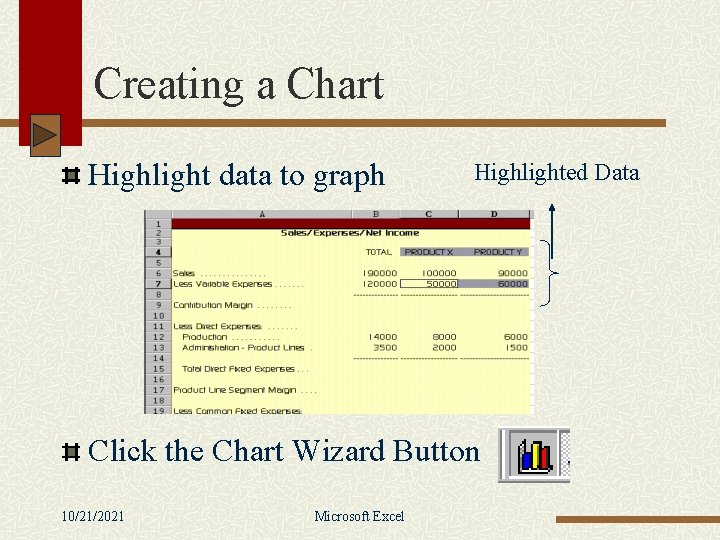
Creating a Chart Highlight data to graph Highlighted Data Click the Chart Wizard Button 10/21/2021 Microsoft Excel
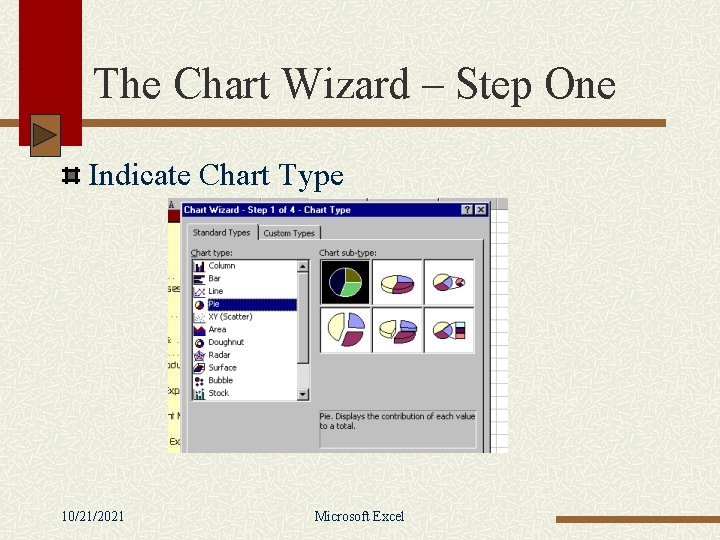
The Chart Wizard – Step One Indicate Chart Type 10/21/2021 Microsoft Excel
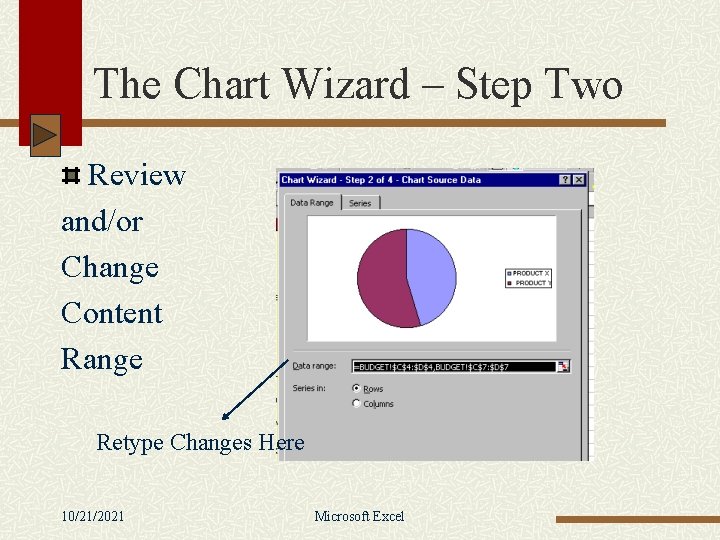
The Chart Wizard – Step Two Review and/or Change Content Range Retype Changes Here 10/21/2021 Microsoft Excel
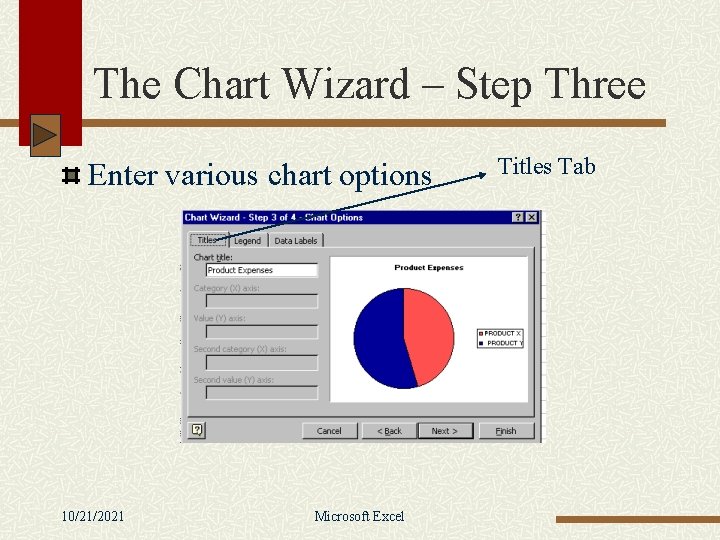
The Chart Wizard – Step Three Enter various chart options 10/21/2021 Microsoft Excel Titles Tab
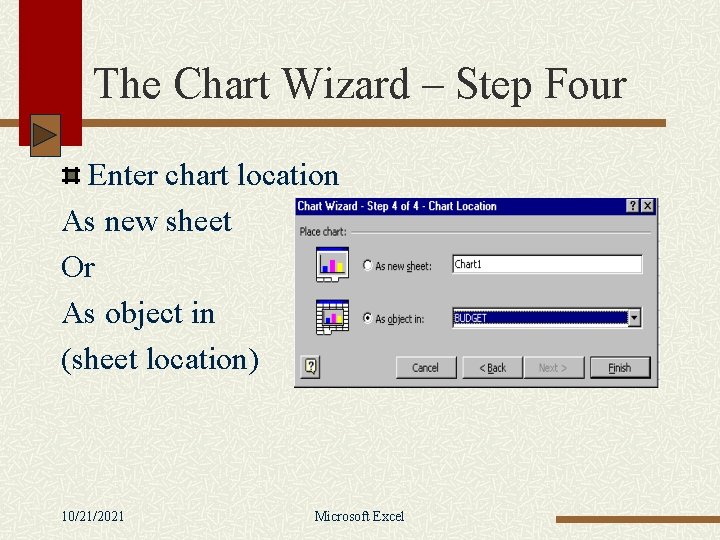
The Chart Wizard – Step Four Enter chart location As new sheet Or As object in (sheet location) 10/21/2021 Microsoft Excel
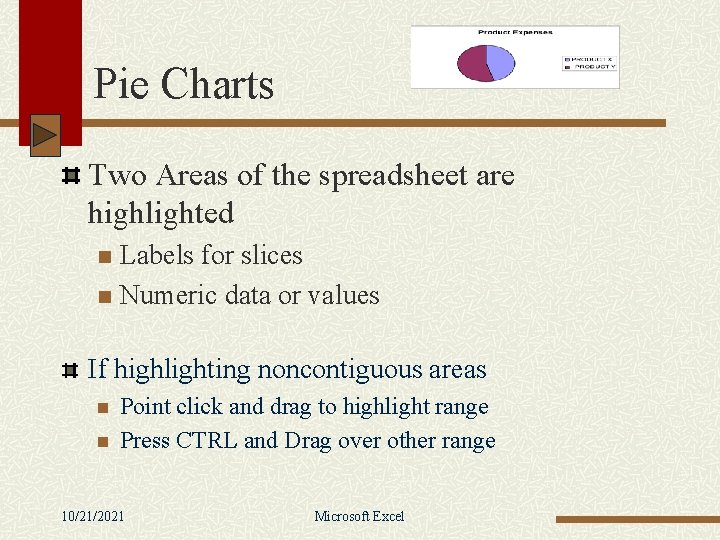
Pie Charts Two Areas of the spreadsheet are highlighted Labels for slices n Numeric data or values n If highlighting noncontiguous areas n n Point click and drag to highlight range Press CTRL and Drag over other range 10/21/2021 Microsoft Excel
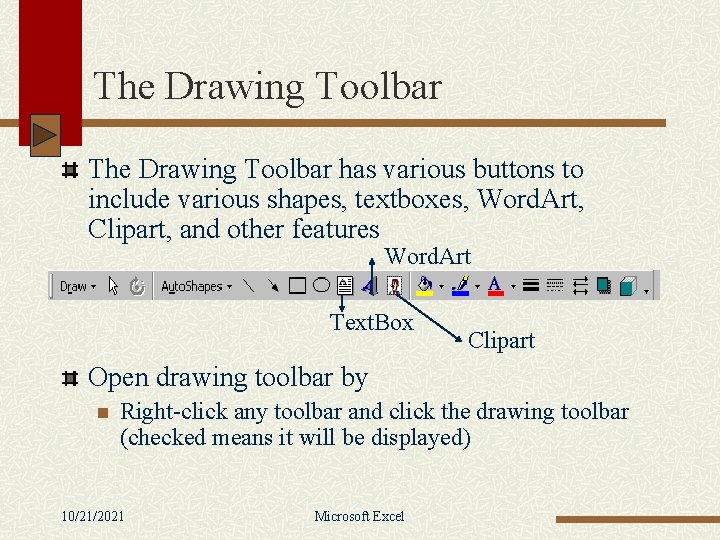
The Drawing Toolbar has various buttons to include various shapes, textboxes, Word. Art, Clipart, and other features Word. Art Text. Box Clipart Open drawing toolbar by n Right-click any toolbar and click the drawing toolbar (checked means it will be displayed) 10/21/2021 Microsoft Excel
Hands-On Exercise One Open a previously saved spreadsheet Use File, Save to save the worksheet Enter the Auto. Sum command to summarize amounts Use the chart wizard to create a column chart Move and size chart Make changes to worksheet and review changes to spreadsheet 10/21/2021 Microsoft Excel
Hands-On Exercise One Click the chart and use chart type button to change type of chart Right-click chart area and make changes to the chart Create a clustered chart with 3 -D visual effect subtype Right-click a toolbar and click the drawing toolbar (checkmark indicates on) 10/21/2021 Microsoft Excel
Hands-On Exercise One Use the Drawing toolbar buttons and create a textbox Use the Autoshapes button to insert other shapes from the drawing toolbar 10/21/2021 Microsoft Excel
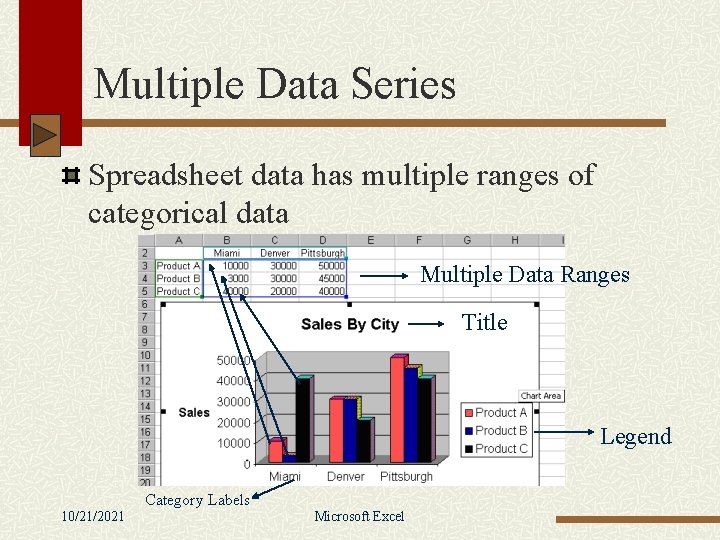
Multiple Data Series Spreadsheet data has multiple ranges of categorical data Multiple Data Ranges Title Legend Category Labels 10/21/2021 Microsoft Excel
Hands-On Exercise Two Open a spreadsheet and change the name of the sheet by Right-clicking on the sheet name, typing in another name, and pressing enter n Double-clicking on the sheet name will allow for renaming n 10/21/2021 Microsoft Excel
Hands-On Exercise Two Highlight data ranges by pointing and dragging over range to graph Click the Chart Wizard button to create graph n Follow steps one through four to complete chart Right-click sheet tab and choose create a copy to create duplicate sheet Rename the duplicate sheet by double-clicking on it and typing in another name and press enter 10/21/2021 Microsoft Excel
Hands-On Exercise Two Right-click the chart area and choose chart type and change the type of chart Use File, Print entire workbook to print entire content of file 10/21/2021 Microsoft Excel
Object linking and Embedding (OLE) Objects (like spreadsheets & graphs) can be embedded or linked into other areas or files Embedding inserts the object but does create a pointer back to original location n One-way communication to source document Linking inserts the object and creates a pointer (link) back to original location n n Two-way communication to source document (Changes are always shown in target document 10/21/2021 Microsoft Excel
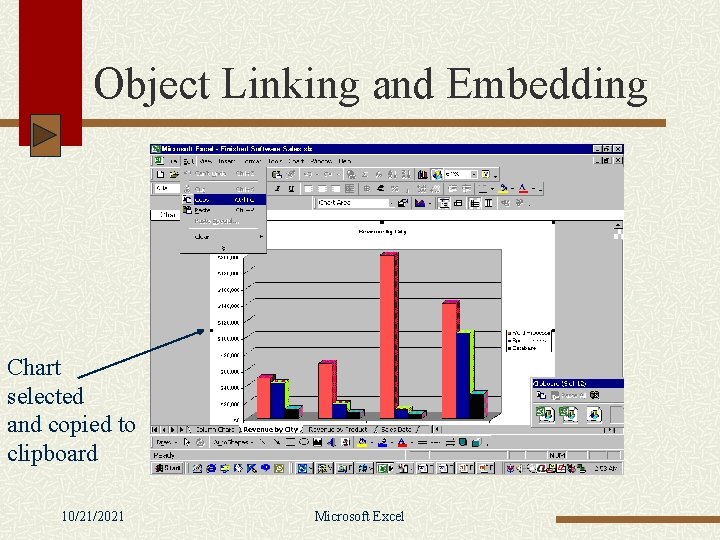
Object Linking and Embedding Chart selected and copied to clipboard 10/21/2021 Microsoft Excel
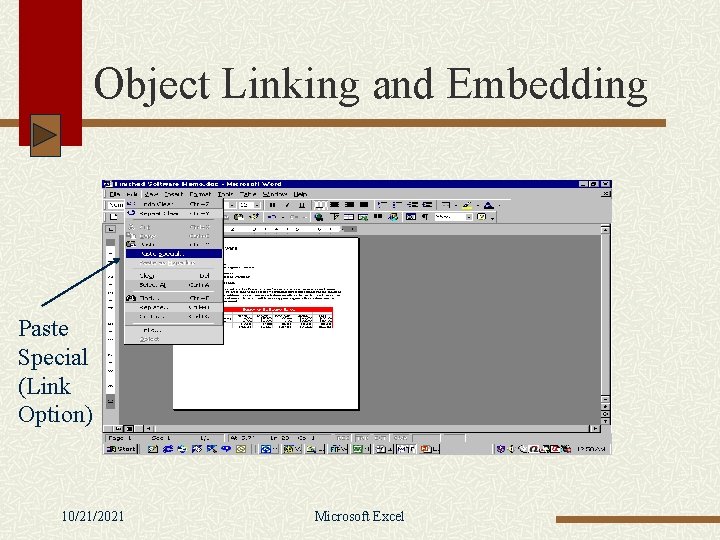
Object Linking and Embedding Paste Special (Link Option) 10/21/2021 Microsoft Excel
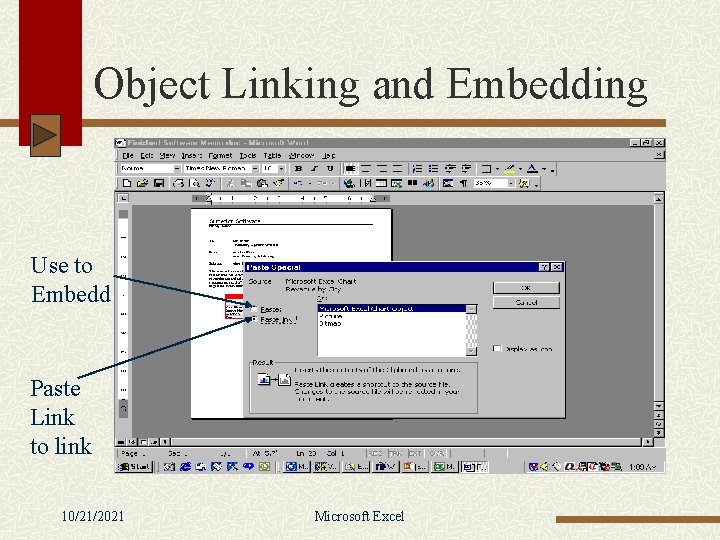
Object Linking and Embedding Use to Embedd Paste Link to link 10/21/2021 Microsoft Excel
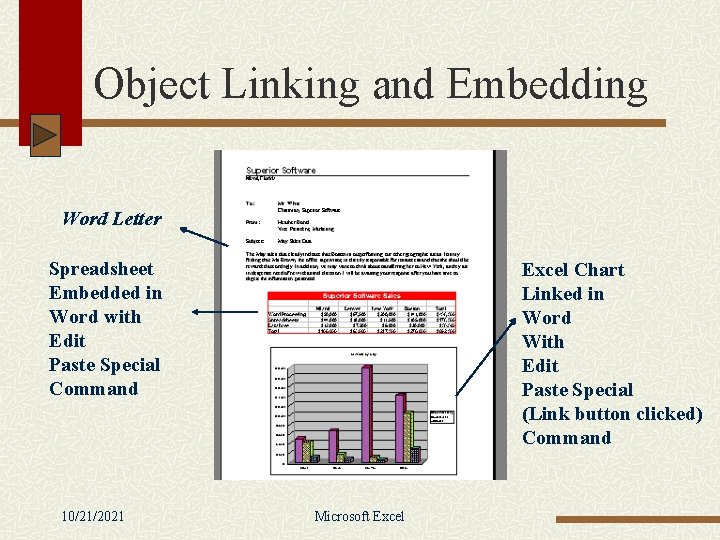
Object Linking and Embedding Word Letter Spreadsheet Embedded in Word with Edit Paste Special Command 10/21/2021 Excel Chart Linked in Word With Edit Paste Special (Link button clicked) Command Microsoft Excel
Hands-On Exercise Three Enter Microsoft Word using Start, Programs, Microsoft Word Use File, Open to open a Word document Enter Microsoft Excel using Start, Programs, Microsoft Excel Use File, Open to open an Excel spreadsheet Highlight what you want to copy 10/21/2021 Microsoft Excel
Hands-On Exercise Three Use the edit, copy command to copy object to clipboard You can also right-click the object and choose copy Switch to other product to copy to (click on application on taskbar) Use Edit, Paste Special command to insert object n Options include embedding and linking (paste link radio button) Use Edit, Links to show changes made to linked files 10/21/2021 Microsoft Excel
- Slides: 25