
Graphing Histograms on the Calculator Histograms on the
- Slides: 10
Graphing Histograms on the Calculator
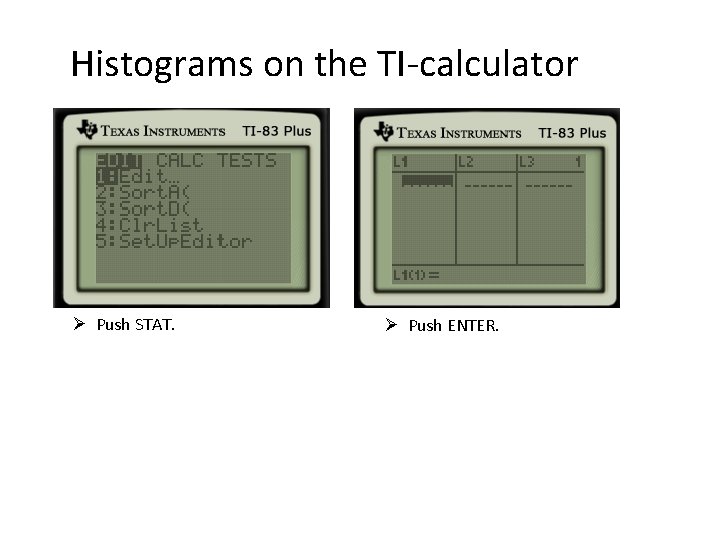
Histograms on the TI-calculator Ø Push STAT. Ø Push ENTER.
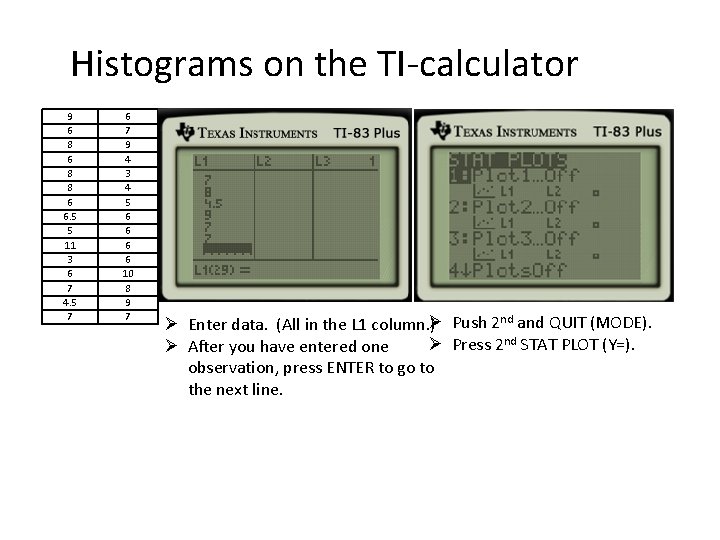
Histograms on the TI-calculator 9 6 8 8 6 6. 5 5 11 3 6 7 4. 5 7 6 7 9 4 3 4 5 6 6 10 8 9 7 Ø Enter data. (All in the L 1 column. )Ø Push 2 nd and QUIT (MODE). Ø Press 2 nd STAT PLOT (Y=). Ø After you have entered one observation, press ENTER to go to the next line.
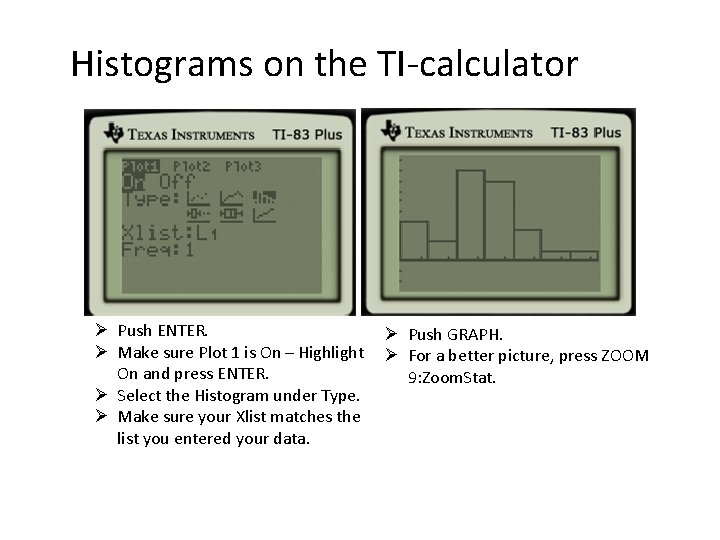
Histograms on the TI-calculator Ø Push ENTER. Ø Make sure Plot 1 is On – Highlight On and press ENTER. Ø Select the Histogram under Type. Ø Make sure your Xlist matches the list you entered your data. Ø Push GRAPH. Ø For a better picture, press ZOOM 9: Zoom. Stat.
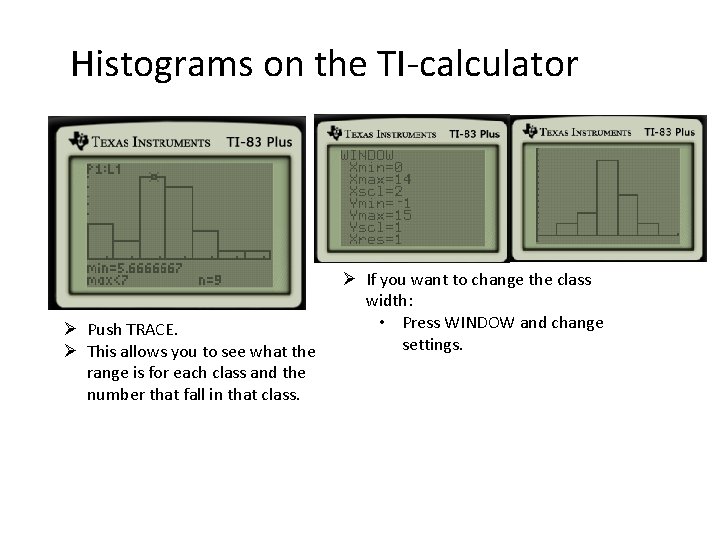
Histograms on the TI-calculator Ø Push TRACE. Ø This allows you to see what the range is for each class and the number that fall in that class. Ø If you want to change the class width: • Press WINDOW and change settings.
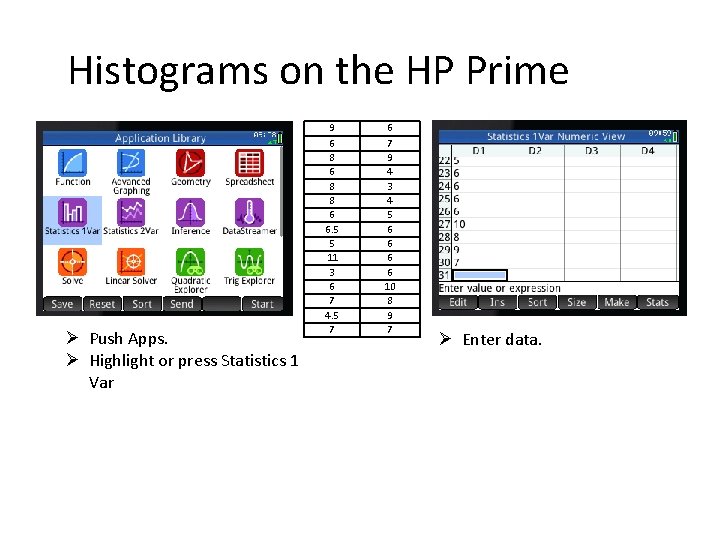
Histograms on the HP Prime Ø Push Apps. Ø Highlight or press Statistics 1 Var 9 6 8 8 6 6. 5 5 11 3 6 7 4. 5 7 6 7 9 4 3 4 5 6 6 10 8 9 7 Ø Enter data.
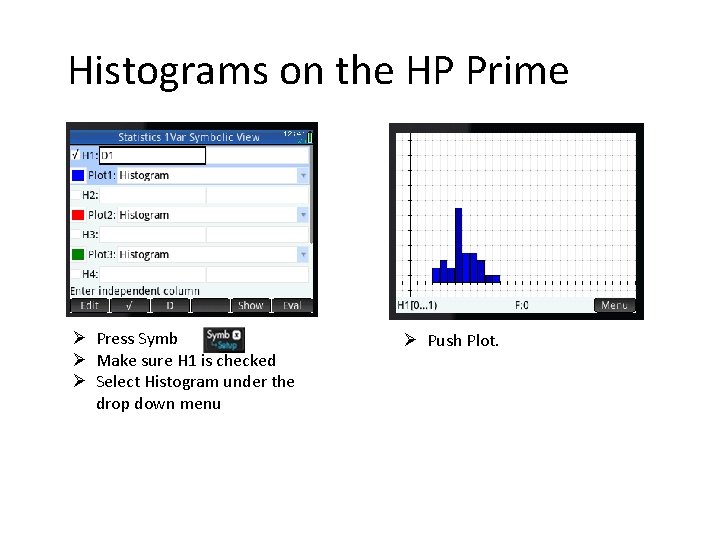
Histograms on the HP Prime Ø Press Symb Ø Make sure H 1 is checked Ø Select Histogram under the drop down menu Ø Push Plot.
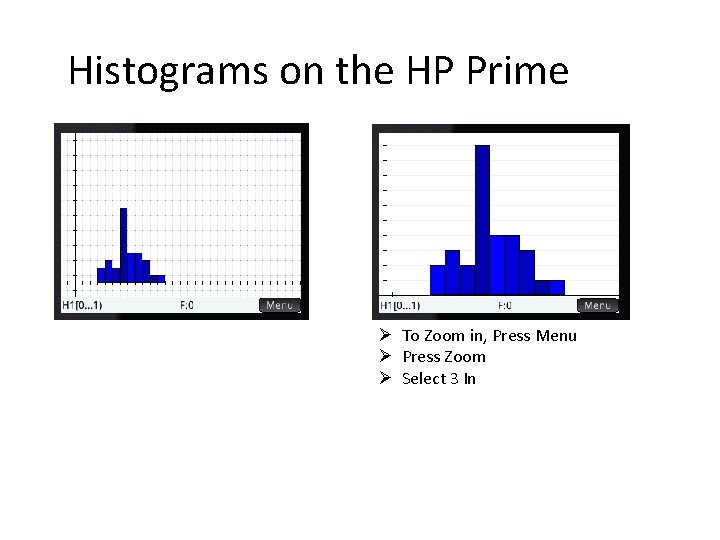
Histograms on the HP Prime Ø To Zoom in, Press Menu Ø Press Zoom Ø Select 3 In
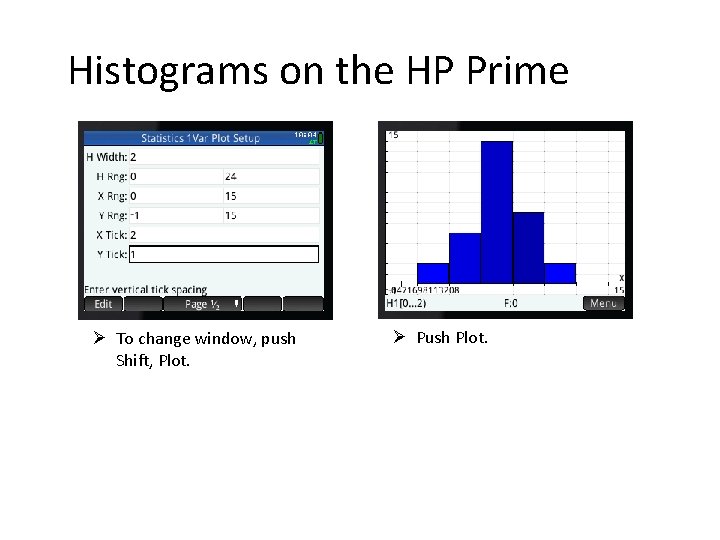
Histograms on the HP Prime Ø To change window, push Shift, Plot. Ø Push Plot.
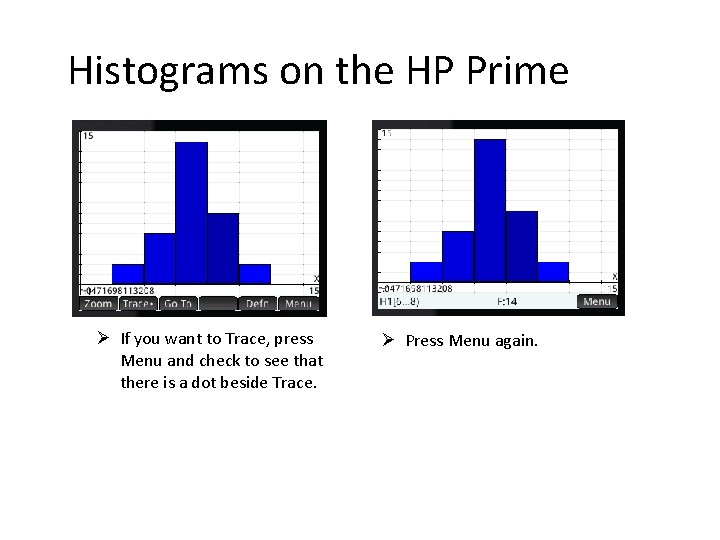
Histograms on the HP Prime Ø If you want to Trace, press Menu and check to see that there is a dot beside Trace. Ø Press Menu again.