
Graphics Procedure IDrawable 1 Basic Procedure For Drawing
Graphics Procedure (IDrawable) 1

Basic Procedure For Drawing Create Objects. Add Them to From Classes Things. To. Draw Use the Paint Event to draw them on the Picture. Box 2
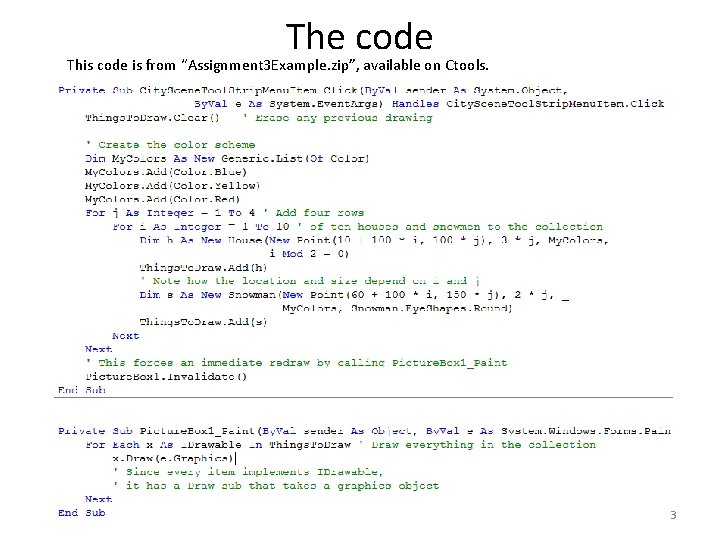
The code This code is from “Assignment 3 Example. zip”, available on Ctools. 3
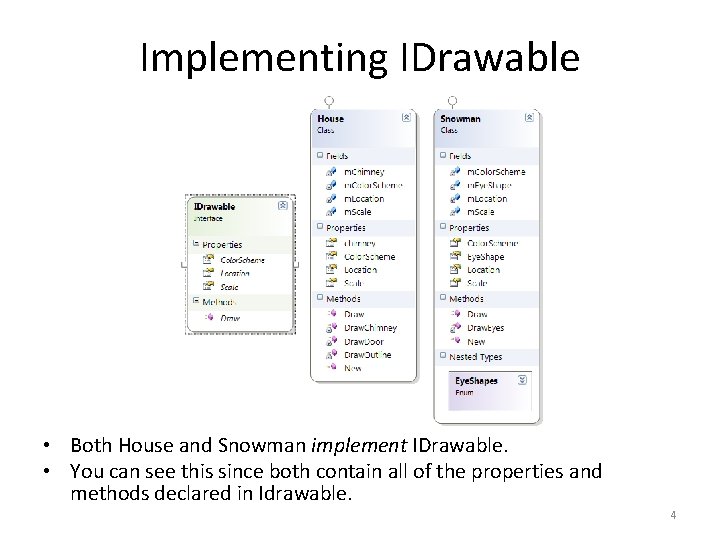
Implementing IDrawable • Both House and Snowman implement IDrawable. • You can see this since both contain all of the properties and methods declared in Idrawable. 4
The Classes • In addition to implementing everything in IDrawable, your classes should: – Have additional properties to allow the class’s “user” (the programmer of the picture) to customize the features of each object. – Have one or more constructors which allow the customization to occur in one line of code; that is, the constructor should assign values to all of the properties. 5
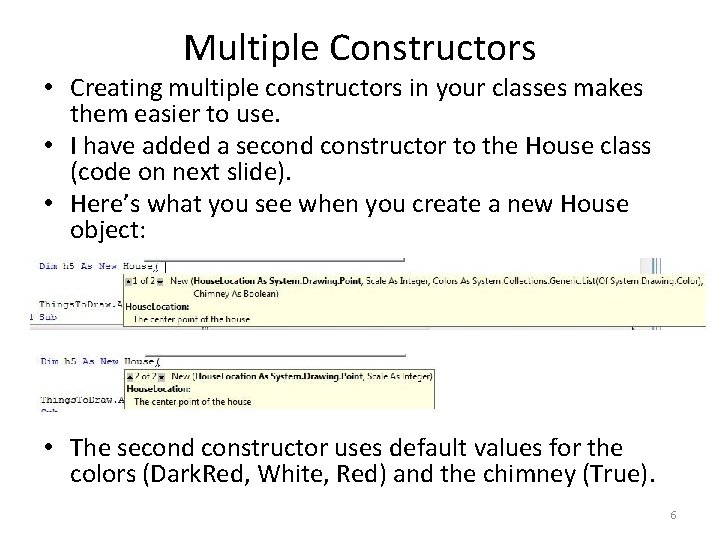
Multiple Constructors • Creating multiple constructors in your classes makes them easier to use. • I have added a second constructor to the House class (code on next slide). • Here’s what you see when you create a new House object: • The second constructor uses default values for the colors (Dark. Red, White, Red) and the chimney (True). 6

Multiple Constructor Code 7
How Many Constructors? • You can create as many constructors as you want for a class. • No two constructors can have exactly the same type of parameter list; for VB to tell them apart, parameter lists will have to vary in type, number, or order. • You will see lots of overloaded constructors in the built -in. NET classes. • In many cases, you may not know what all of the parameters are for; Microsoft has picked default values of these parameters for you which should work in most cases. • However, in cases where you need to set these values to something besides the default, there will be a lengthier constructor which should do the trick. 8
Use some cool effects! • Chapters 30, 31, and 32 describe many graphics procedures available to you. • Within your group’s classes, try to incorporate as many of these procedures as possible. • Don’t make every class out of rectangles and ellipses! • Explore gradients, textures, pens, paths, text, transformations, etc. • Note that we have posted a compilation of forum questions about graphics from last semester in both Resources and forums. • Please read through these before posting a new question on Forums. 9
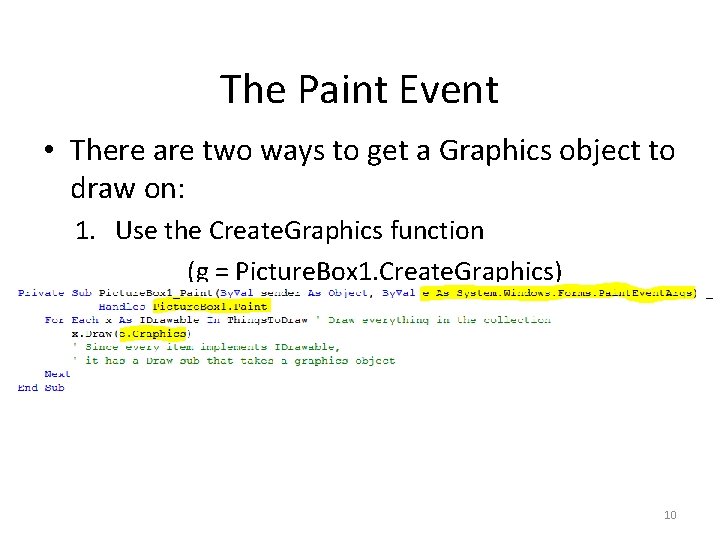
The Paint Event • There are two ways to get a Graphics object to draw on: 1. Use the Create. Graphics function (g = Picture. Box 1. Create. Graphics) 2. Use e. Graphics from the Paint event 10
- Slides: 10