
Graphics Displaying and including images on your web
Graphics - Displaying and including images on your web page comes standard these days. Two of the common images types are: - -. GIF - -. JPEG 1
GIF - Standard format that can display within a web page is GIF or Graphics Interchange Format. -GIF compresses the picture information and translates it to binary code. 2
JPEG • JPEG (named after the Joint Photographic Expert Group that designed this format). • Most web browsers these days support JPEG images to be displayed right in the web page too. 3
JPEG • JPEG compression is very effective for photographic images where the colors can vary spatially over short distances ("grainy" images). • JPEG offers some dramatic compression in filesize, sometimes by a factor of 10 (e. g. a 1500 kb file reduced to 150 kb), which may be at a trade-off for some image quality. 4
Things to consider when selecting graphics 1. Large and numerous images may look great on a high-end computer, but they will frustrate users who must wait for images to be sent over the network. As a suggestion, keep the total file size of all images on a web less than 100 k. 5
Things to consider when selecting graphics 2. Not all of us have a 21 -inch computer monitor! Keep graphic images no wider than 480 pixels and no higher than 300 pixels to avoid forcing users to scroll or resize their web browser window. 6
Things to consider when selecting graphics 3. Most importantly, make sure that the images are ones that add meaning to your HTML documents. 4. You may design a beautiful web page, loaded with large pictures, that may load nicely from your computer, but may be excruciatingly slow by a viewer using a slow modem over a busy network. The 'net is a busy place and getting busier every second. 7
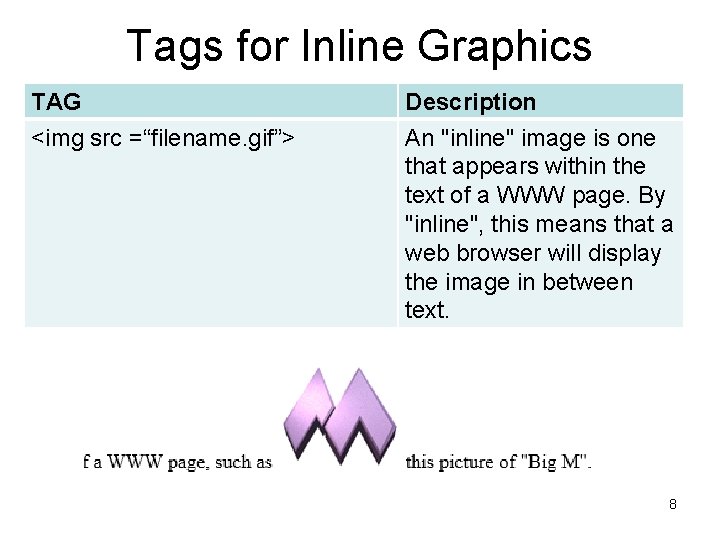
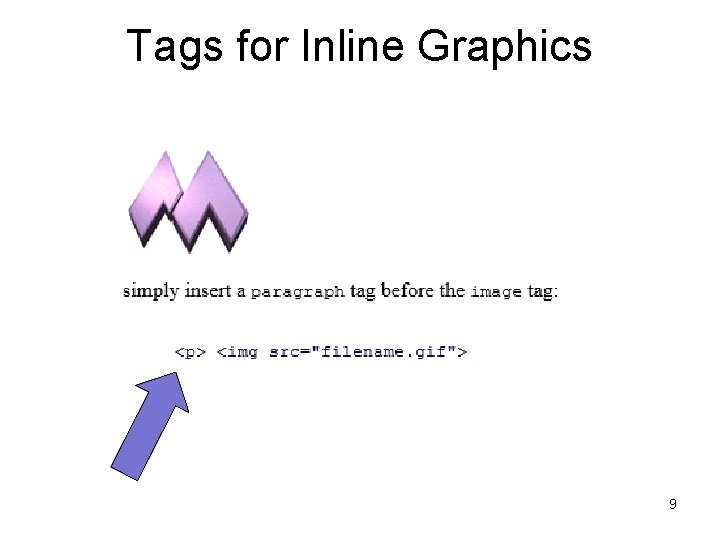
Tags for Inline Graphics TAG <img src =“filename. gif”> Description An "inline" image is one that appears within the text of a WWW page. By "inline", this means that a web browser will display the image in between text. 8
Tags for Inline Graphics 9
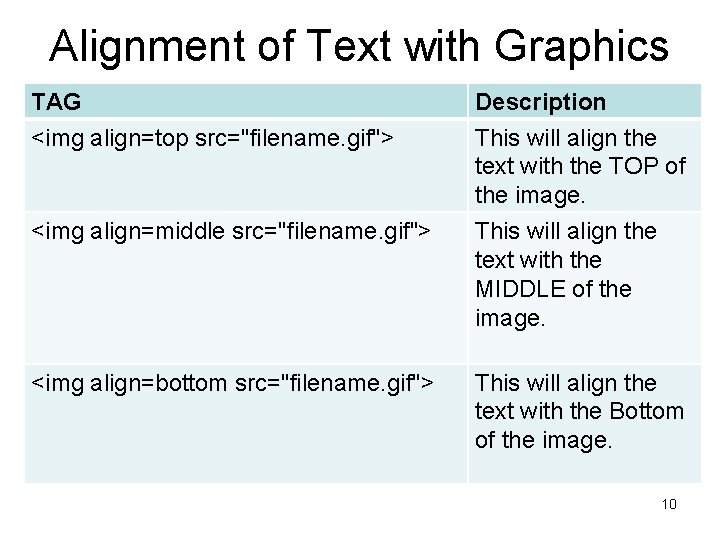
Alignment of Text with Graphics TAG Description <img align=top src="filename. gif"> This will align the text with the TOP of the image. <img align=middle src="filename. gif"> This will align the text with the MIDDLE of the image. <img align=bottom src="filename. gif"> This will align the text with the Bottom of the image. 10
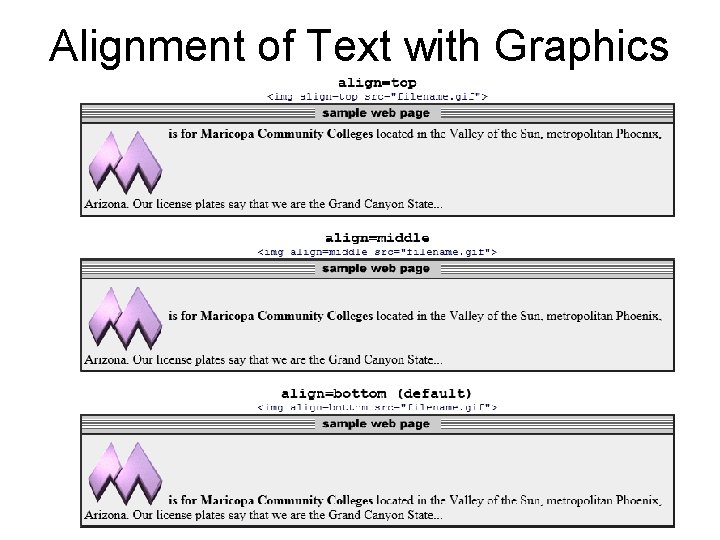
Alignment of Text with Graphics 11
Height and Width of Image TAG Description <img src="filename. gif" width=X height=Y > x = width Y = height *Note: be careful when changing the dimensions of your image. It can warp the image sacrificing the quality of your website. 12
URL • - Power the web pages is creating hypertext link to related information. - -URL (Uniform Resource Locators) - -usually underlined in blue - -The term for these is “anchors” 13
Linking to Local Files • -****** IMPORTANT: When creating local links the files must reside in the same folder!!!! 14
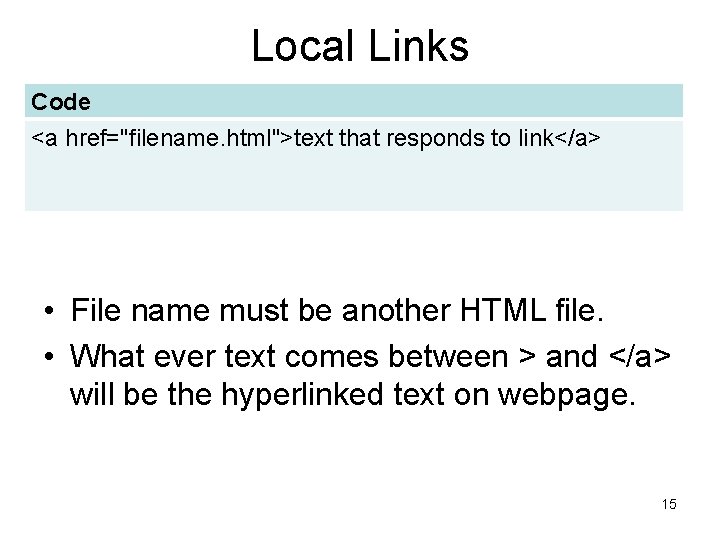
Local Links Code <a href="filename. html">text that responds to link</a> • File name must be another HTML file. • What ever text comes between > and </a> will be the hyperlinked text on webpage. 15
Links to other Directories • - You can also create a link to a file in another folder on your computer. • - Creating an ORGANIZED filing system is crucial to time management when working with web development. 16
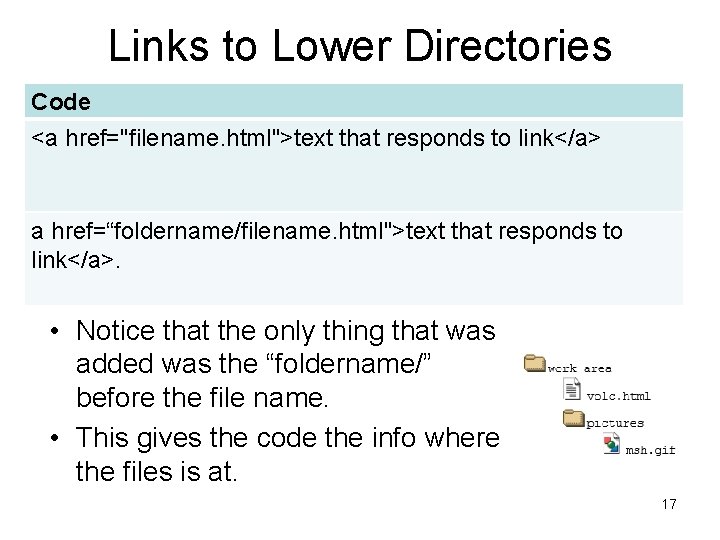
Links to Lower Directories Code <a href="filename. html">text that responds to link</a> a href=“foldername/filename. html">text that responds to link</a>. • Notice that the only thing that was added was the “foldername/” before the file name. • This gives the code the info where the files is at. 17
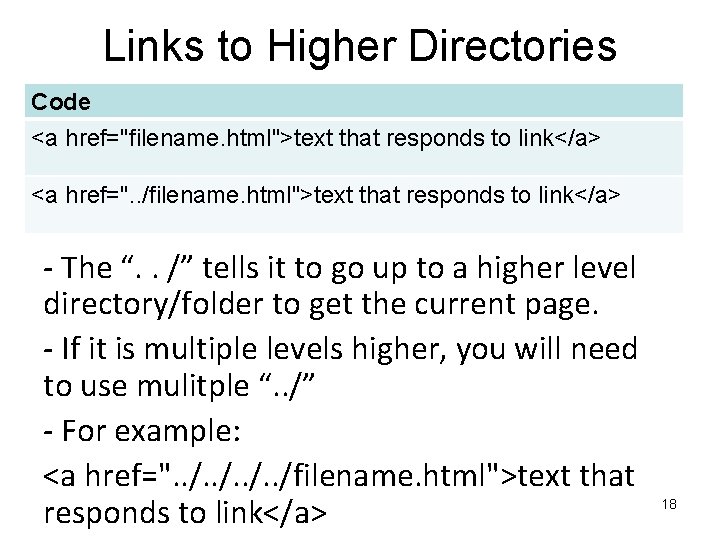
Links to Higher Directories Code <a href="filename. html">text that responds to link</a> <a href=". . /filename. html">text that responds to link</a> - The “. . /” tells it to go up to a higher level directory/folder to get the current page. - If it is multiple levels higher, you will need to use mulitple “. . /” - For example: <a href=". . /filename. html">text that responds to link</a> 18
Links to Higher Directories “. . /” is also used when inserting images or other items. * Again being organized with your files is so important. 19
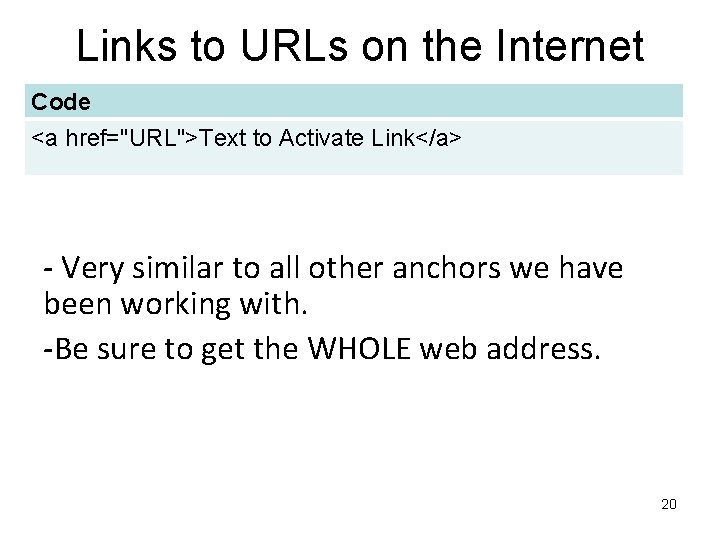
Links to URLs on the Internet Code <a href="URL">Text to Activate Link</a> - Very similar to all other anchors we have been working with. -Be sure to get the WHOLE web address. 20
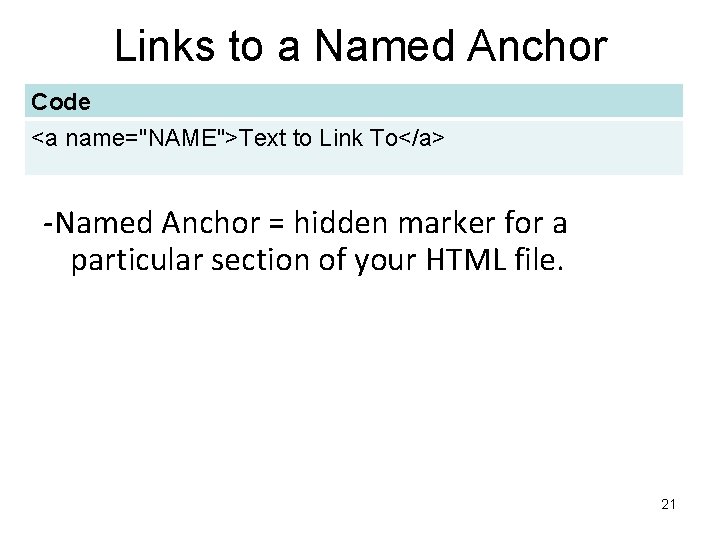
Links to a Named Anchor Code <a name="NAME">Text to Link To</a> -Named Anchor = hidden marker for a particular section of your HTML file. 21
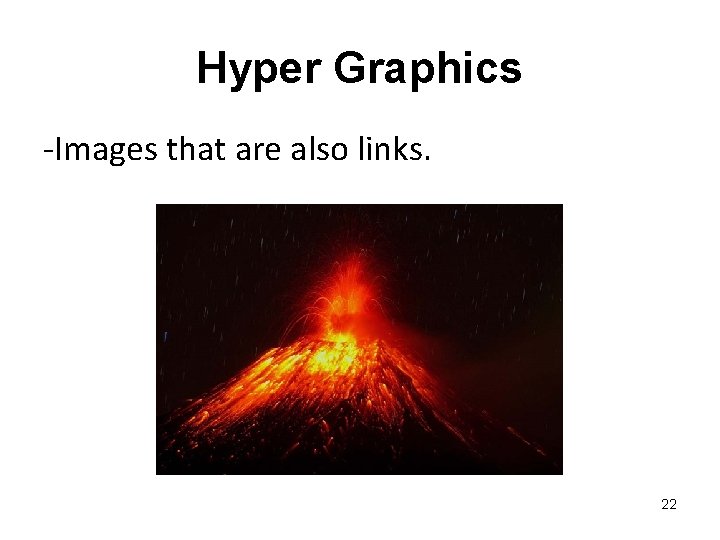
Hyper Graphics -Images that are also links. 22
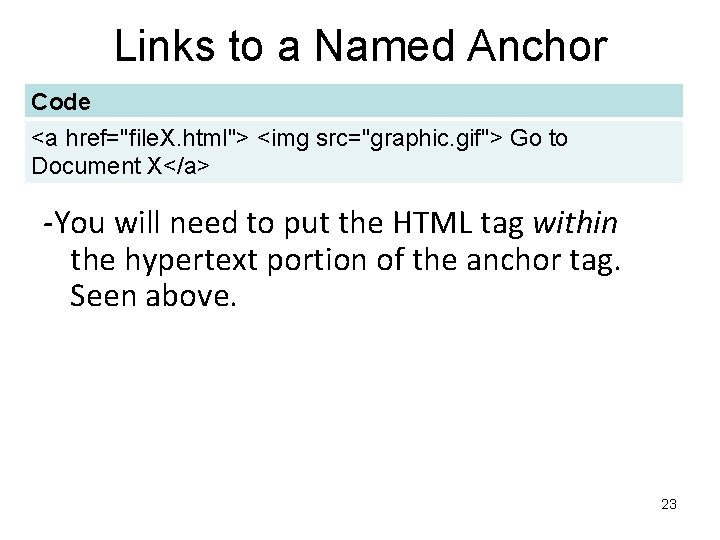
Links to a Named Anchor Code <a href="file. X. html"> <img src="graphic. gif"> Go to Document X</a> -You will need to put the HTML tag within the hypertext portion of the anchor tag. Seen above. 23
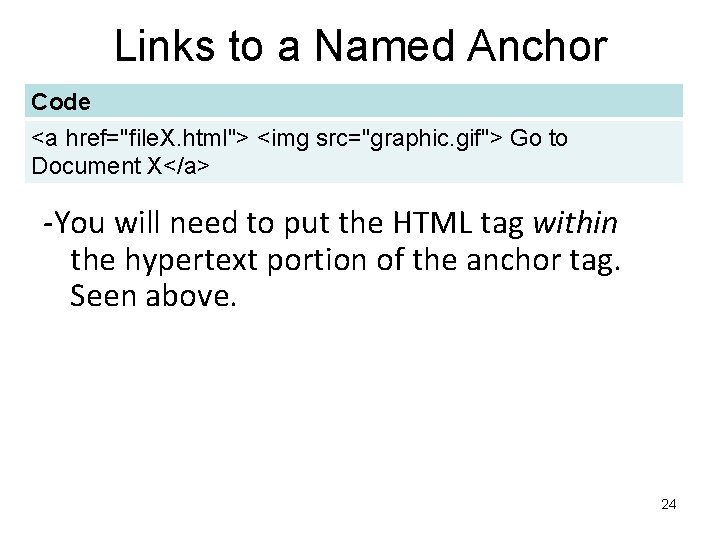
Links to a Named Anchor Code <a href="file. X. html"> <img src="graphic. gif"> Go to Document X</a> -You will need to put the HTML tag within the hypertext portion of the anchor tag. Seen above. 24
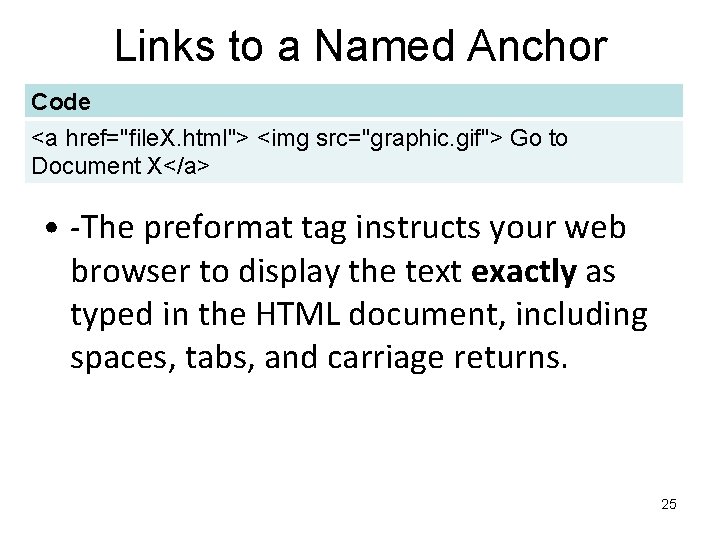
Links to a Named Anchor Code <a href="file. X. html"> <img src="graphic. gif"> Go to Document X</a> • -The preformat tag instructs your web browser to display the text exactly as typed in the HTML document, including spaces, tabs, and carriage returns. 25
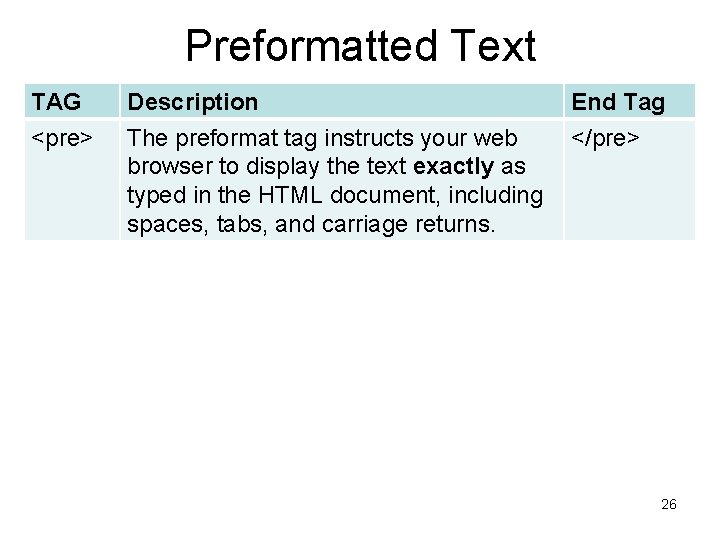
Preformatted Text TAG <pre> Description The preformat tag instructs your web browser to display the text exactly as typed in the HTML document, including spaces, tabs, and carriage returns. End Tag </pre> 26
Continue Working on Volcano Tutorial 27
- Slides: 27