
Graphical User Interfaces Barb Ericson ericsoncc gatech edu
Graphical User Interfaces Barb Ericson ericson@cc. gatech. edu April 2006
Learning Goals • Understand at a conceptual and practical level – – How to create a main frame window. How to create graphical components. How to use layout managers. How to handle user interface events.
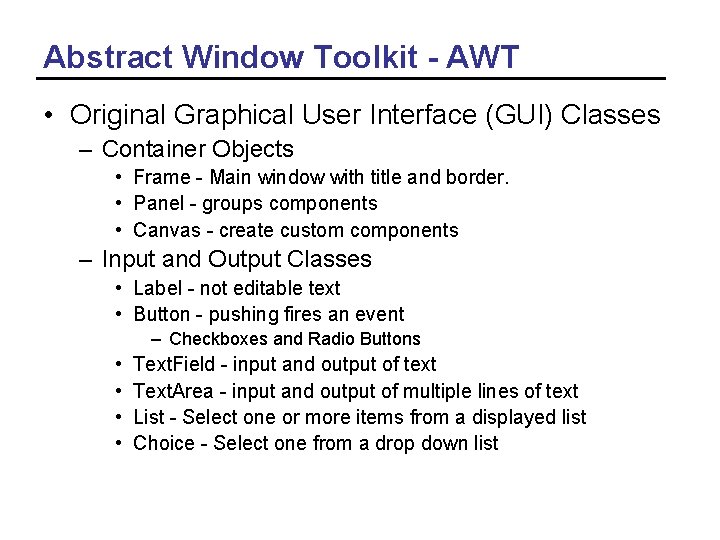
Abstract Window Toolkit - AWT • Original Graphical User Interface (GUI) Classes – Container Objects • Frame - Main window with title and border. • Panel - groups components • Canvas - create custom components – Input and Output Classes • Label - not editable text • Button - pushing fires an event – Checkboxes and Radio Buttons • • Text. Field - input and output of text Text. Area - input and output of multiple lines of text List - Select one or more items from a displayed list Choice - Select one from a drop down list
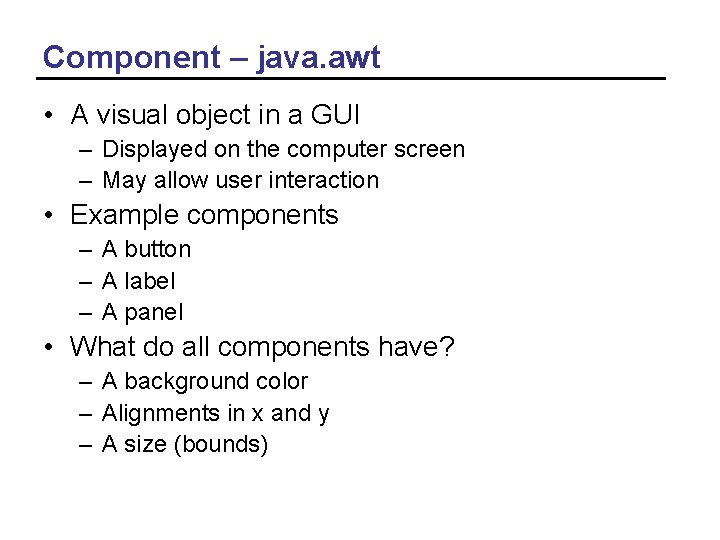
Component – java. awt • A visual object in a GUI – Displayed on the computer screen – May allow user interaction • Example components – A button – A label – A panel • What do all components have? – A background color – Alignments in x and y – A size (bounds)
Container – java. awt • Containers hold components – You can add components – You can remove components – You can set the preferred size of the container – You can get the component at a location – You can get the number of components in the container
Swing - javax. swing • Replacements for most AWT components – JButton - Button (images and text) – JFrame - Frame (main window) – JPanel – Panel (container) • New GUI components – Trees - JTree – Split pane - JSplit. Pane – Table - JTable • Supports multiple looks and feels – Java - also called metal, Windows, Mac, Motif
Swing versus AWT • With Java 1. 1+ use Swing instead of AWT components. – Pure java - no native code • consistent across platforms – More and better GUI components • Images can be used in buttons and labels • Components can have borders • Tool tips (pop-up information about components) • Avoid mixing Swing and AWT components!
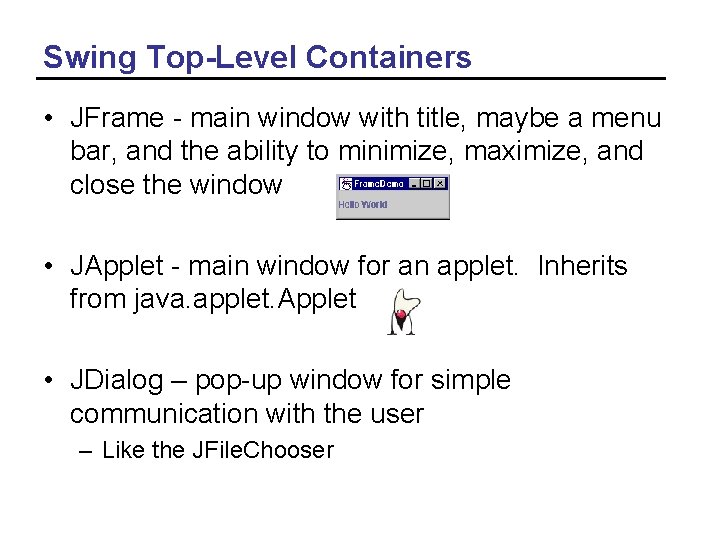
Swing Top-Level Containers • JFrame - main window with title, maybe a menu bar, and the ability to minimize, maximize, and close the window • JApplet - main window for an applet. Inherits from java. applet. Applet • JDialog – pop-up window for simple communication with the user – Like the JFile. Chooser
Working with a JFrame • Pass the title when you create it JFrame frame = new JFrame("Frame. Demo"); • Add components to the content pane JLabel label = new JLabel("Hello World"); frame. get. Content. Pane(). add(label, Border. Layout. CENTER); • Set the size of the JFrame frame. pack(); // as big as needs to be to display contents • Display the JFrame frame. set. Visible(true); // display the frame

JFrame Options • When creating a GUI application – Have your main class inherit from JFrame • So it is a JFrame • See Photo. Album. java in the Photo. Album directory – Or have your main class inherit from JPanel • • And create a JFrame in the main method Create the main class object Add the main class object to the content pane of the JFrame See Picture. Panel. java in the Photo. Album directory • If your class inherits from JPanel – It can be reused in another application • Even an applet
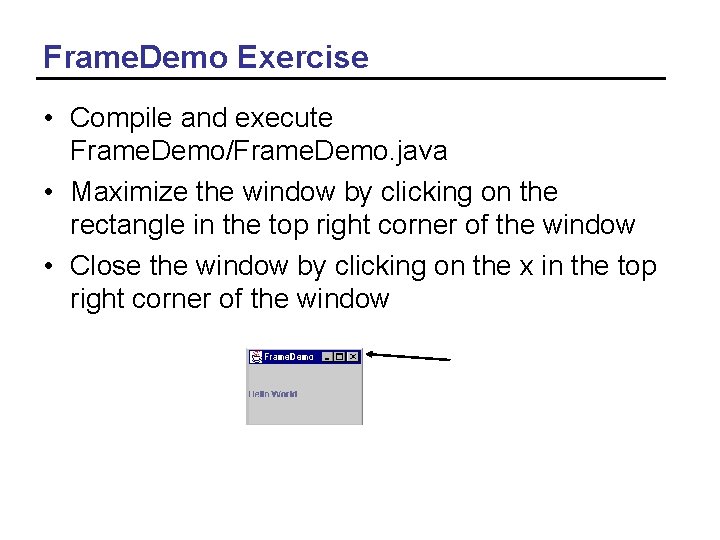
Frame. Demo Exercise • Compile and execute Frame. Demo/Frame. Demo. java • Maximize the window by clicking on the rectangle in the top right corner of the window • Close the window by clicking on the x in the top right corner of the window
Layout Managers • How are the components assigned a position and size? – set. Layout(null) - the programmer must give all components a size and position • set. Bounds(top. Left. X, top. Left. Y, width, height); – Use a Layout Manager • Arranges the components in a container and sets their size as well • Handles when the main window is resized – Some components may get more space • The programmer just adds the components to the container
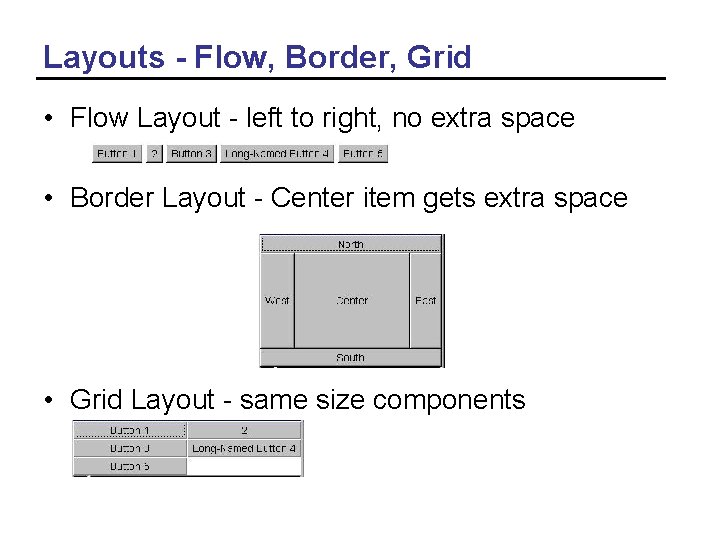
Layouts - Flow, Border, Grid • Flow Layout - left to right, no extra space • Border Layout - Center item gets extra space • Grid Layout - same size components
Layout. Demo Exercise • Run the main method in the Layout. Demo – What layout manager does it use? – Are the buttons all the same size? • Change the layout manager to be a Grid. Layout this. set. Layout(new Grid. Layout(3, 2)); – Run the main method – Are the buttons all the same size? • Change the layout manager to be Border. Layout – Change the add to a location this. add(button 1, Border. Layout. WEST);

Layouts - None, Grid. Bag, Card • None (null) - programmer specified • Grid. Bag - flexible grid • Card - one card shown at a time

Box. Layout –javax. swing • Two types – Horizontal - Box. Layout. X_AXIS – Vertical - Box. Layout. Y_AXIS • Can use rigid. Areas to leave a set amount of space between components – Box. create. Rigid. Area(new Dimension(0, 5))); • Can use horizontal and/or vertical glue to take up extra space – Box. create. Horizontal. Glue());
Box. Demo Exercise • Run Box. Demo – Resize the window larger • What happens to the buttons? • Change Box. Demo to center the buttons button 1. set. Alignment. X(Component. CENTER_ALIGNMENT); button 2. set. Alignment. X(Component. CENTER_ALIGNMENT); … • Change Box. Demo to use a horizontal box – Change the code to Box box = new Box(Box. Layout. Y_AXIS); – Run Box. Demo – Resize the window larger • What happens to the buttons?
Which Layout to Use? • An applet or application can have multiple panels (JPanel) and have a different layout in each panel. – Panels can be inside of other panels. • If you want components to not use extra space and stay centered then use Flow. Layout() • Or use Border. Layout and put one component that uses all extra space in the center. • Use a Box and line up components vertically or horizontally • For the most control use null layout.
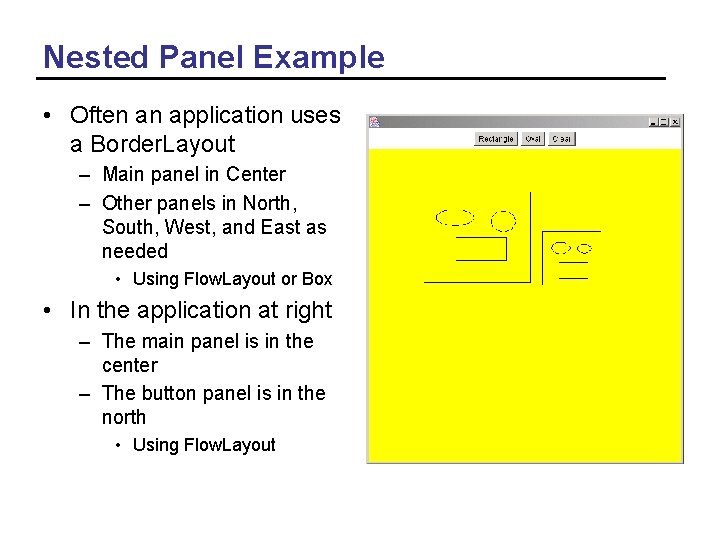
Nested Panel Example • Often an application uses a Border. Layout – Main panel in Center – Other panels in North, South, West, and East as needed • Using Flow. Layout or Box • In the application at right – The main panel is in the center – The button panel is in the north • Using Flow. Layout
Events • An event is an object that represents an action: – user clicks the mouse – user presses a key on the keyboard – user closes a window • Event handling changed between 1. 0 and 1. 1 – In 1. 0 objects handle events and return true to show that the event was handled or false to let other objects handle the event. – In 1. 1+ objects add or implement listeners for events. Listeners are interfaces.
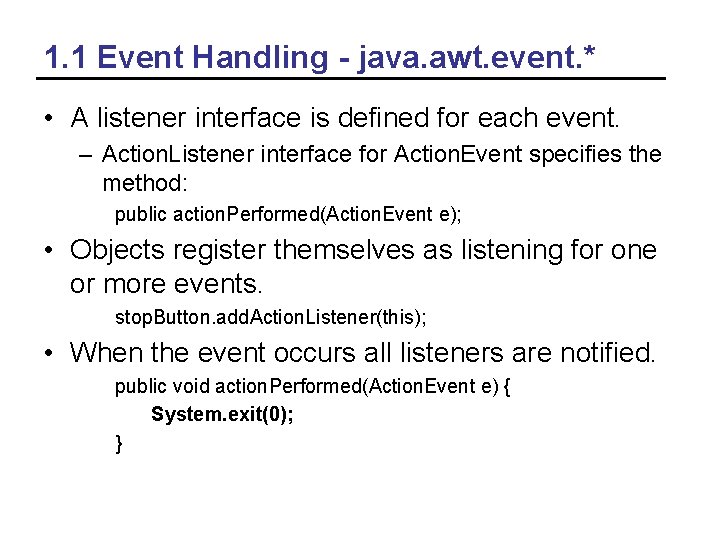
1. 1 Event Handling - java. awt. event. * • A listener interface is defined for each event. – Action. Listener interface for Action. Event specifies the method: public action. Performed(Action. Event e); • Objects register themselves as listening for one or more events. stop. Button. add. Action. Listener(this); • When the event occurs all listeners are notified. public void action. Performed(Action. Event e) { System. exit(0); }
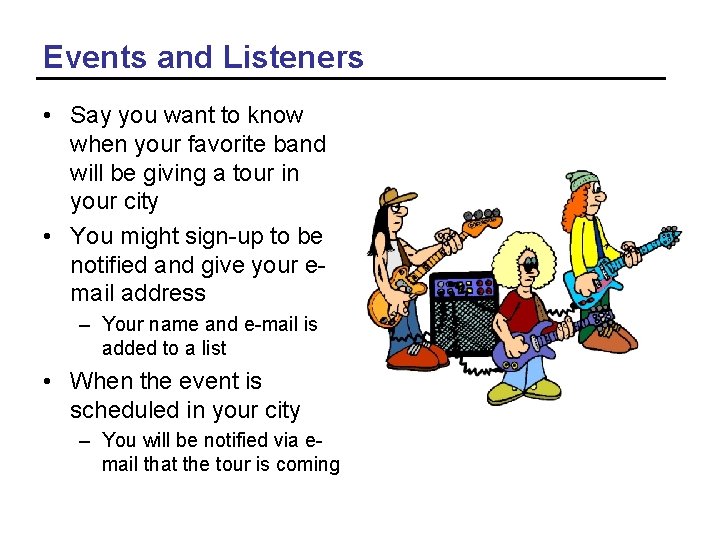
Events and Listeners • Say you want to know when your favorite band will be giving a tour in your city • You might sign-up to be notified and give your email address – Your name and e-mail is added to a list • When the event is scheduled in your city – You will be notified via email that the tour is coming
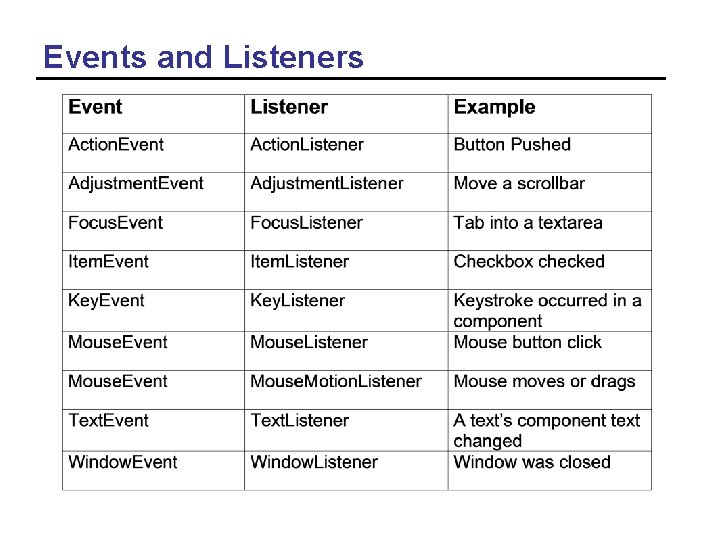
Events and Listeners
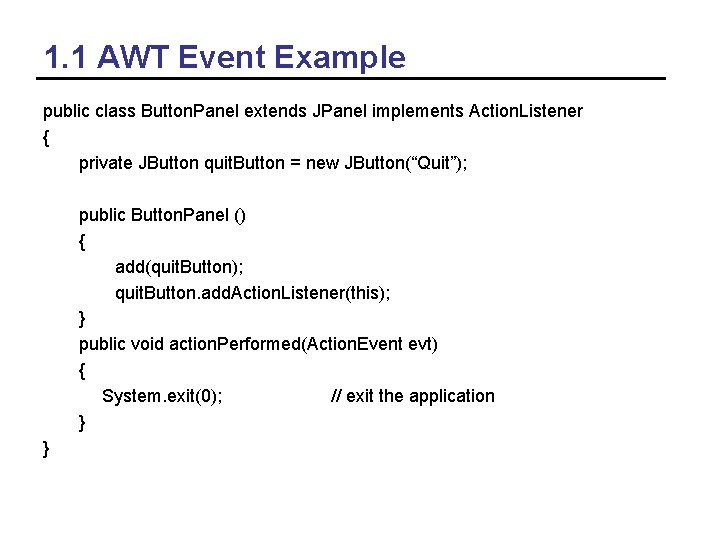
1. 1 AWT Event Example public class Button. Panel extends JPanel implements Action. Listener { private JButton quit. Button = new JButton(“Quit”); public Button. Panel () { add(quit. Button); quit. Button. add. Action. Listener(this); } public void action. Performed(Action. Event evt) { System. exit(0); // exit the application } }
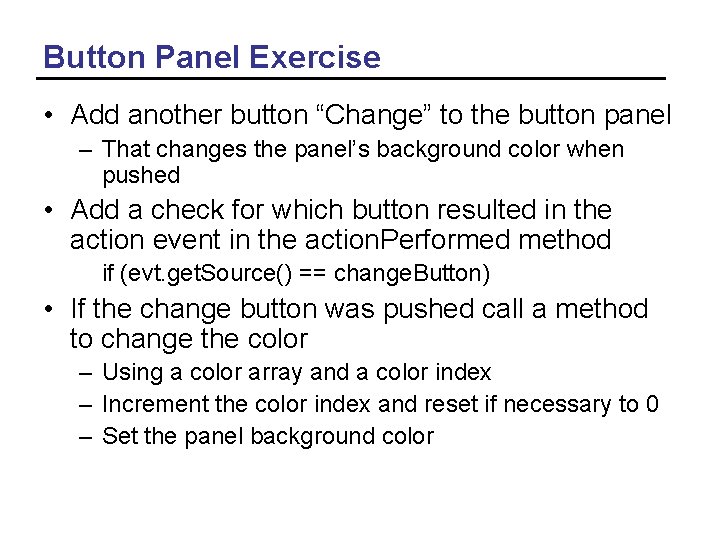
Button Panel Exercise • Add another button “Change” to the button panel – That changes the panel’s background color when pushed • Add a check for which button resulted in the action event in the action. Performed method if (evt. get. Source() == change. Button) • If the change button was pushed call a method to change the color – Using a color array and a color index – Increment the color index and reset if necessary to 0 – Set the panel background color
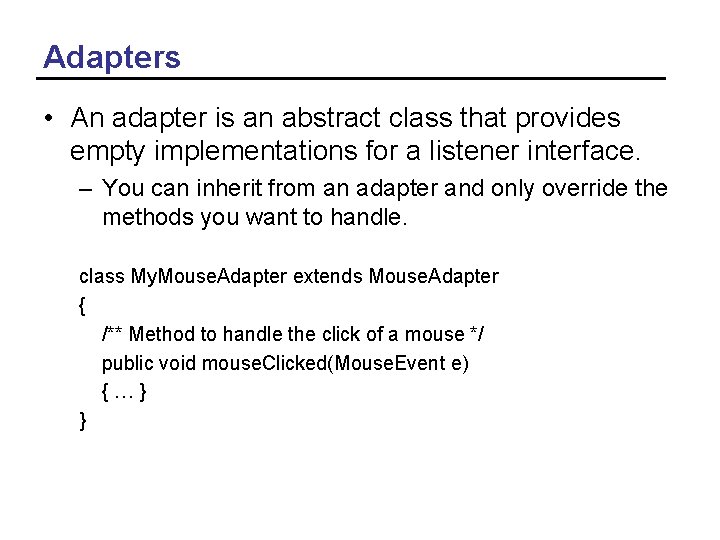
Adapters • An adapter is an abstract class that provides empty implementations for a listener interface. – You can inherit from an adapter and only override the methods you want to handle. class My. Mouse. Adapter extends Mouse. Adapter { /** Method to handle the click of a mouse */ public void mouse. Clicked(Mouse. Event e) {…} }
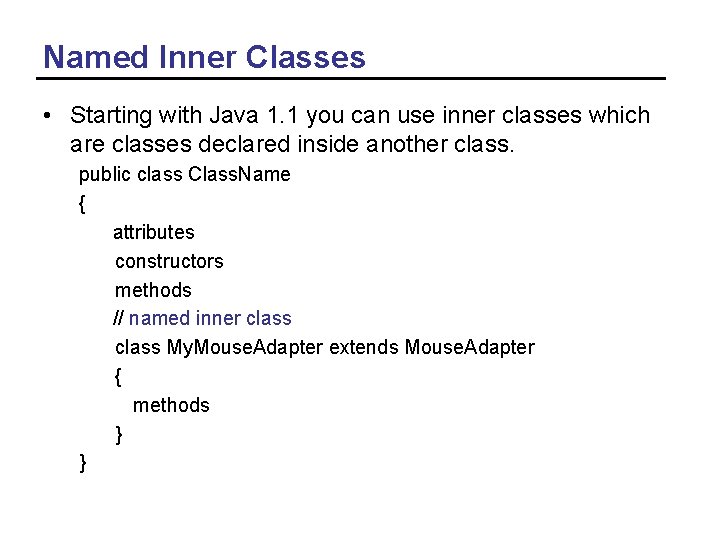
Named Inner Classes • Starting with Java 1. 1 you can use inner classes which are classes declared inside another class. public class Class. Name { attributes constructors methods // named inner class My. Mouse. Adapter extends Mouse. Adapter { methods } }
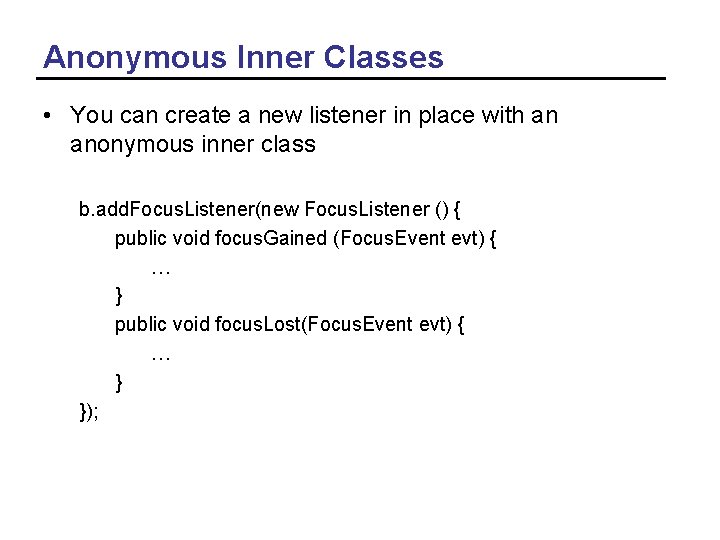
Anonymous Inner Classes • You can create a new listener in place with an anonymous inner class b. add. Focus. Listener(new Focus. Listener () { public void focus. Gained (Focus. Event evt) { … } public void focus. Lost(Focus. Event evt) { … } });
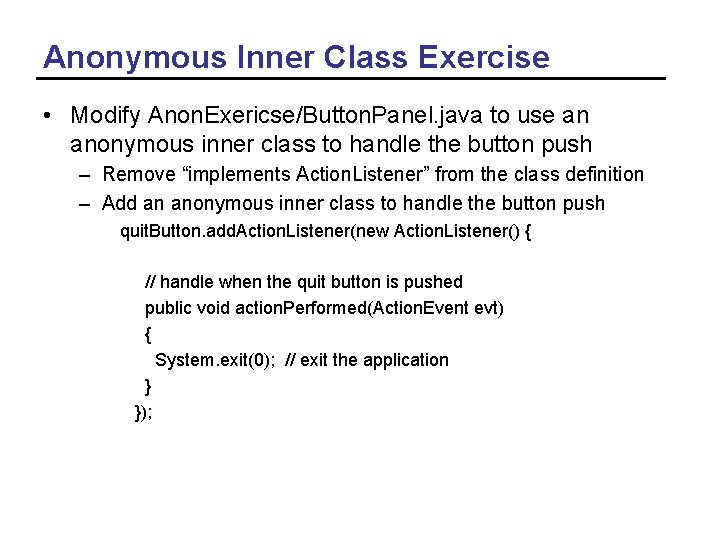
Anonymous Inner Class Exercise • Modify Anon. Exericse/Button. Panel. java to use an anonymous inner class to handle the button push – Remove “implements Action. Listener” from the class definition – Add an anonymous inner class to handle the button push quit. Button. add. Action. Listener(new Action. Listener() { // handle when the quit button is pushed public void action. Performed(Action. Event evt) { System. exit(0); // exit the application } });
How to Handle Events? • The recommended way is to use anonymous inner classes • Create a new anonymous inner class for each component and event type that you wish to handle – You can create private methods that the anonymous inner class methods call
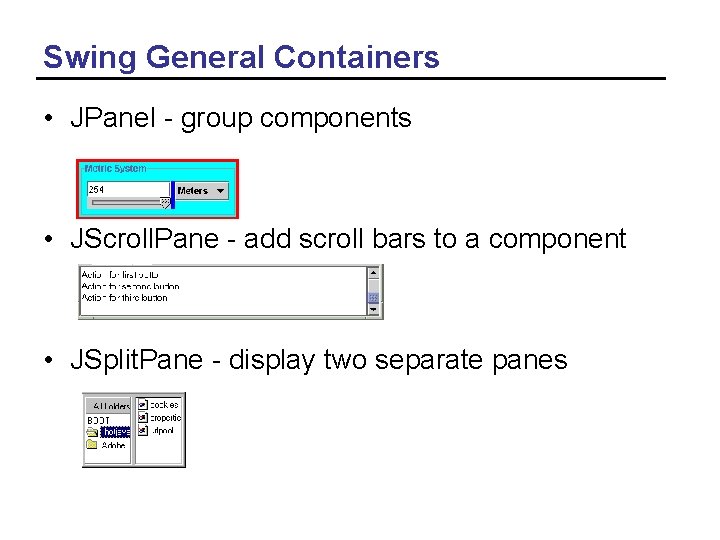
Swing General Containers • JPanel - group components • JScroll. Pane - add scroll bars to a component • JSplit. Pane - display two separate panes
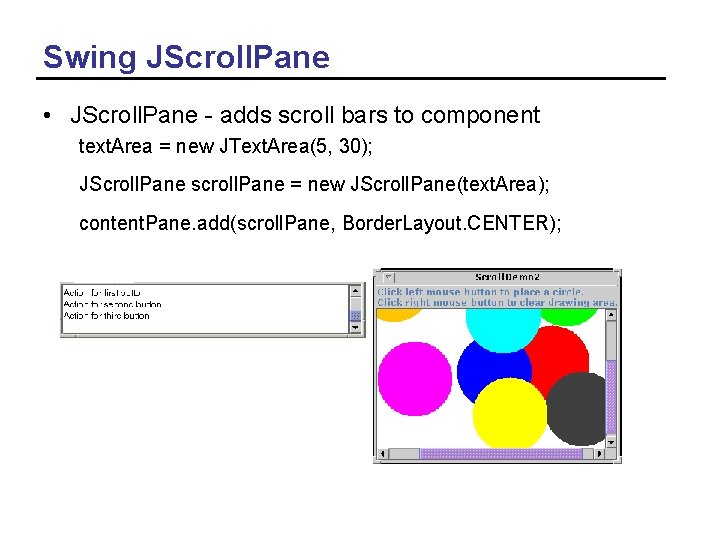
Swing JScroll. Pane • JScroll. Pane - adds scroll bars to component text. Area = new JText. Area(5, 30); JScroll. Pane scroll. Pane = new JScroll. Pane(text. Area); content. Pane. add(scroll. Pane, Border. Layout. CENTER);
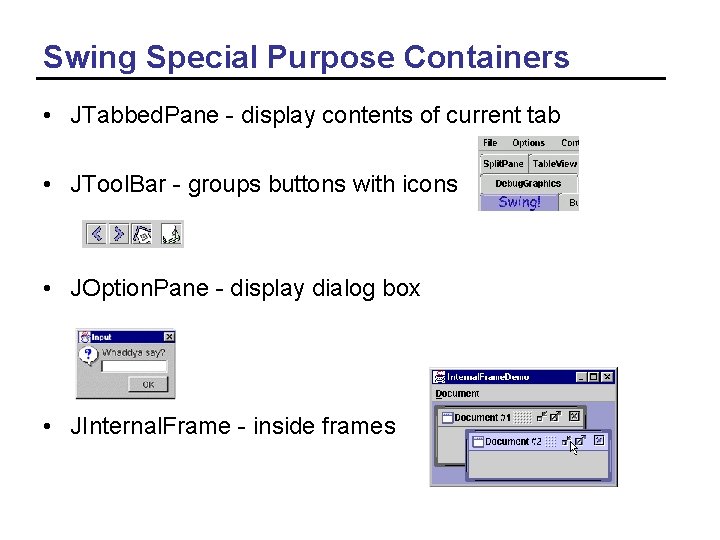
Swing Special Purpose Containers • JTabbed. Pane - display contents of current tab • JTool. Bar - groups buttons with icons • JOption. Pane - display dialog box • JInternal. Frame - inside frames
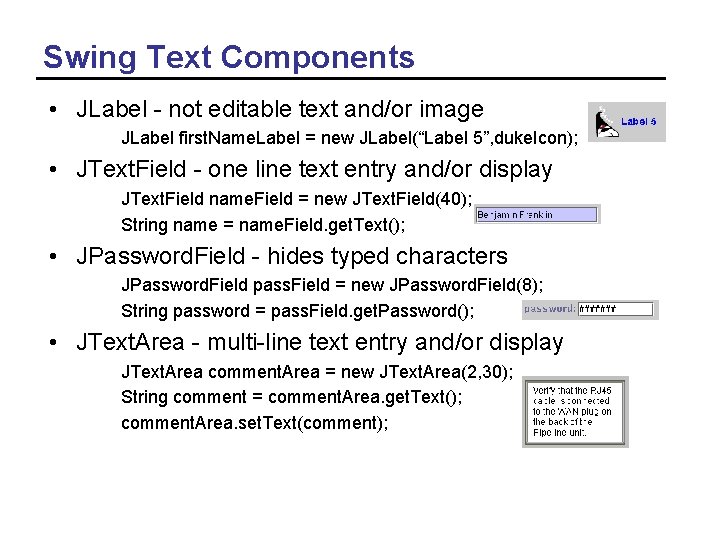
Swing Text Components • JLabel - not editable text and/or image JLabel first. Name. Label = new JLabel(“Label 5”, duke. Icon); • JText. Field - one line text entry and/or display JText. Field name. Field = new JText. Field(40); String name = name. Field. get. Text(); • JPassword. Field - hides typed characters JPassword. Field pass. Field = new JPassword. Field(8); String password = pass. Field. get. Password(); • JText. Area - multi-line text entry and/or display JText. Area comment. Area = new JText. Area(2, 30); String comment = comment. Area. get. Text(); comment. Area. set. Text(comment);
Fortune Teller Exercise • Add a JLabel and JText. Field to the fortune. Panel – In initialize() – Use the label to display • Your fortune is: – Use the text field to display a random fortune • Get from the get. Random. Fortune() method • Finish the code for handling the button push – Set the text for the text field to a random fortune from the array
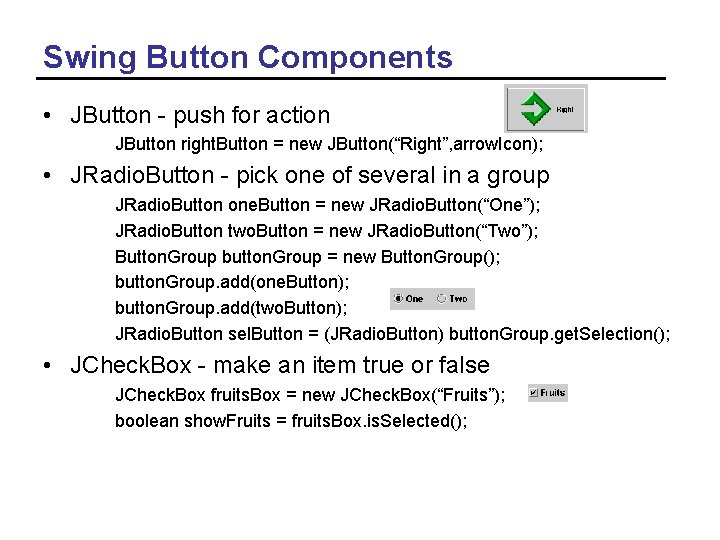
Swing Button Components • JButton - push for action JButton right. Button = new JButton(“Right”, arrow. Icon); • JRadio. Button - pick one of several in a group JRadio. Button one. Button = new JRadio. Button(“One”); JRadio. Button two. Button = new JRadio. Button(“Two”); Button. Group button. Group = new Button. Group(); button. Group. add(one. Button); button. Group. add(two. Button); JRadio. Button sel. Button = (JRadio. Button) button. Group. get. Selection(); • JCheck. Box - make an item true or false JCheck. Box fruits. Box = new JCheck. Box(“Fruits”); boolean show. Fruits = fruits. Box. is. Selected();
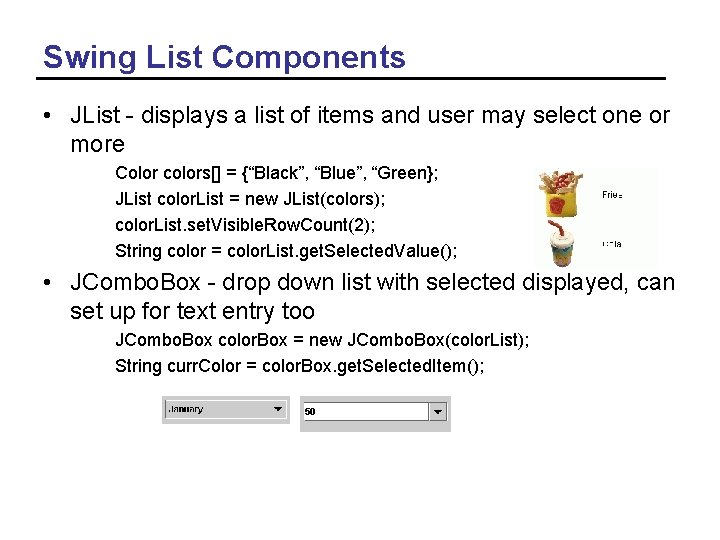
Swing List Components • JList - displays a list of items and user may select one or more Color colors[] = {“Black”, “Blue”, “Green}; JList color. List = new JList(colors); color. List. set. Visible. Row. Count(2); String color = color. List. get. Selected. Value(); • JCombo. Box - drop down list with selected displayed, can set up for text entry too JCombo. Box color. Box = new JCombo. Box(color. List); String curr. Color = color. Box. get. Selected. Item();
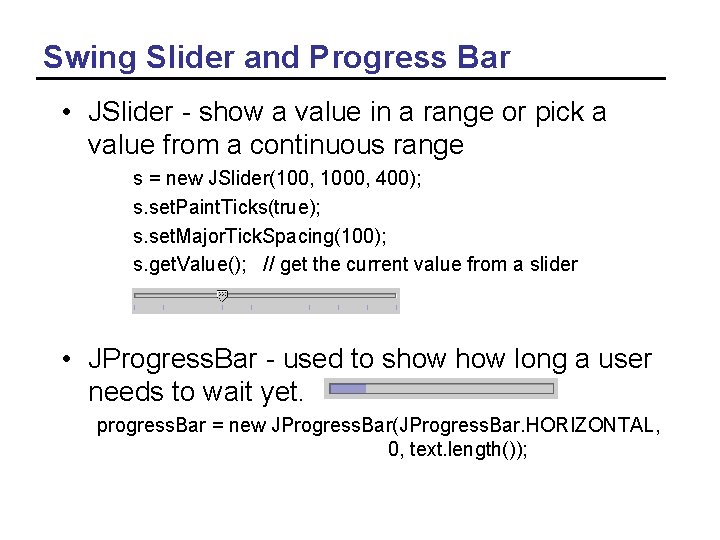
Swing Slider and Progress Bar • JSlider - show a value in a range or pick a value from a continuous range s = new JSlider(100, 1000, 400); s. set. Paint. Ticks(true); s. set. Major. Tick. Spacing(100); s. get. Value(); // get the current value from a slider • JProgress. Bar - used to show long a user needs to wait yet. progress. Bar = new JProgress. Bar(JProgress. Bar. HORIZONTAL, 0, text. length());
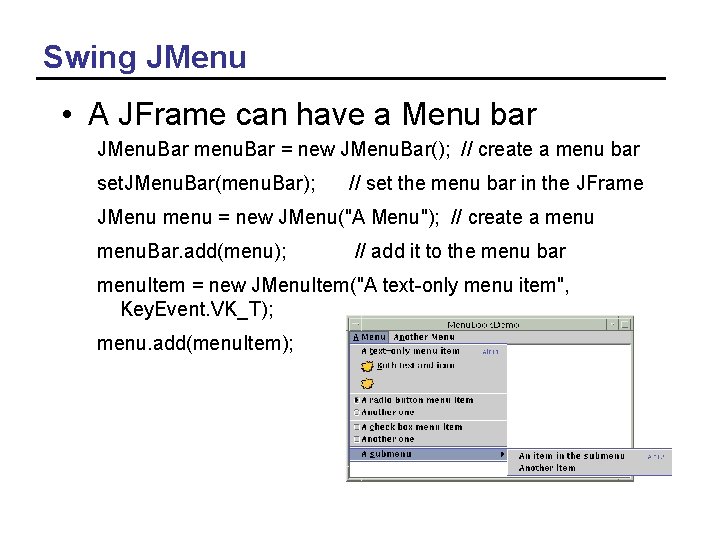
Swing JMenu • A JFrame can have a Menu bar JMenu. Bar menu. Bar = new JMenu. Bar(); // create a menu bar set. JMenu. Bar(menu. Bar); // set the menu bar in the JFrame JMenu menu = new JMenu("A Menu"); // create a menu. Bar. add(menu); // add it to the menu bar menu. Item = new JMenu. Item("A text-only menu item", Key. Event. VK_T); menu. add(menu. Item);
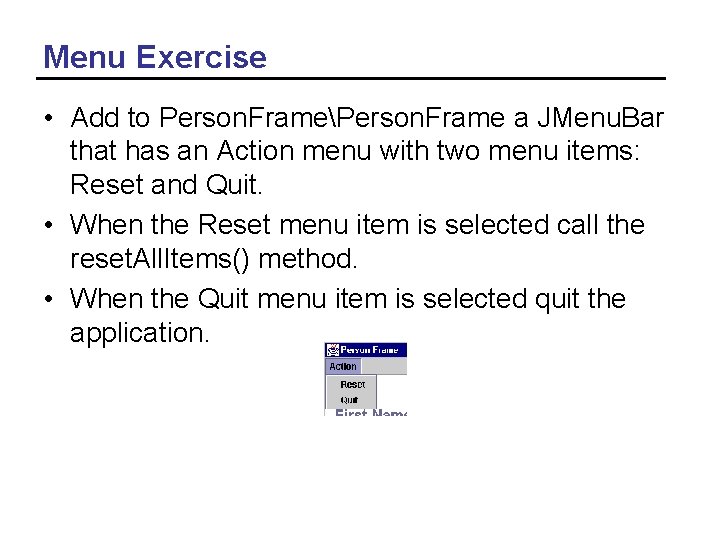
Menu Exercise • Add to Person. FramePerson. Frame a JMenu. Bar that has an Action menu with two menu items: Reset and Quit. • When the Reset menu item is selected call the reset. All. Items() method. • When the Quit menu item is selected quit the application.
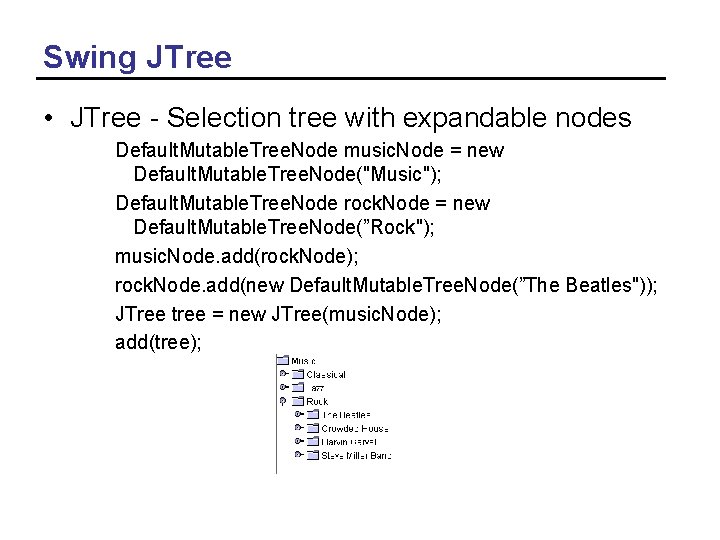
Swing JTree • JTree - Selection tree with expandable nodes Default. Mutable. Tree. Node music. Node = new Default. Mutable. Tree. Node("Music"); Default. Mutable. Tree. Node rock. Node = new Default. Mutable. Tree. Node(”Rock"); music. Node. add(rock. Node); rock. Node. add(new Default. Mutable. Tree. Node(”The Beatles")); JTree tree = new JTree(music. Node); add(tree);
![Swing JTable • JTable - displays a table of same height data Object[][] data](http://slidetodoc.com/presentation_image_h2/3ce0a15b7ff8a7dac47fe56c477d3d90/image-42.jpg "Swing JTable • JTable - displays a table of same height data Object[][] data")
Swing JTable • JTable - displays a table of same height data Object[][] data = {{“Wilma”, ”Flintstone”, new Integer(1), new Boolean(true)}, {”Betty", ”Rubble", new Integer(2), new Boolean(true)}, {“Gazo”, ”Gizmo”, new Integer(5), new Boolean(false)}, {“Fred”, “Flintstone”, new Integer(1), new Boolean(true)}}; String[] column. Names = {"First Name", "Last Name”, ” # Children”, ”US Citizen”}; final JTable table = new JTable(data, column. Names); table. set. Preferred. Scrollable. Viewport. Size(new Dimension(500, 70)); JScroll. Pane scroll. Pane = new JScroll. Pane(table); set. Content. Pane(scroll. Pane);
Table. Model • The JTable constructor that takes the data and column names as arrays is easy but – all cells are editable – all data is displayed as a string – all data must be in an array • Use a table model for more control over a JTable by subclassing Abstract. Table. Model. You must override the following methods: – public int get. Row. Count(); – public int get. Column. Count(); – public Object get. Value. At(int row, int column);
Table. Model - Continued • You can also override: – public String get. Column. Name(int col); – public boolean is. Cell. Editable(int row, int col); – public void set. Value. At(Object value, int row, int col); – public Object get. Value. At(int row, int col); – public Class get. Column. Class(int c);
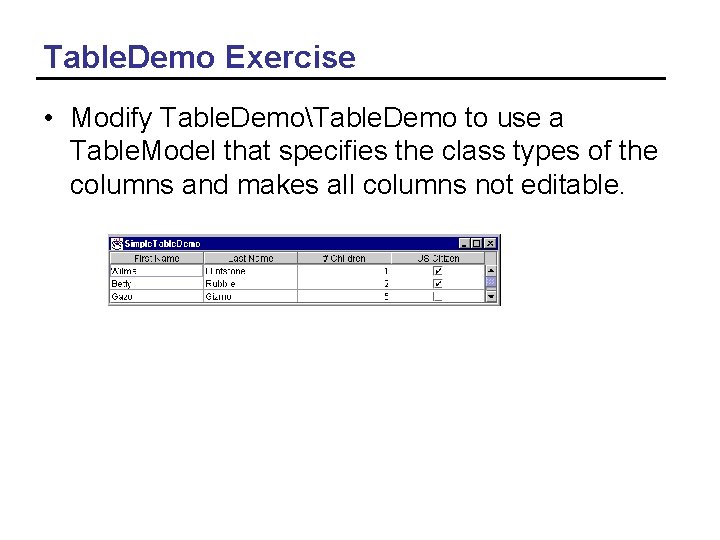
Table. Demo Exercise • Modify Table. DemoTable. Demo to use a Table. Model that specifies the class types of the columns and makes all columns not editable.
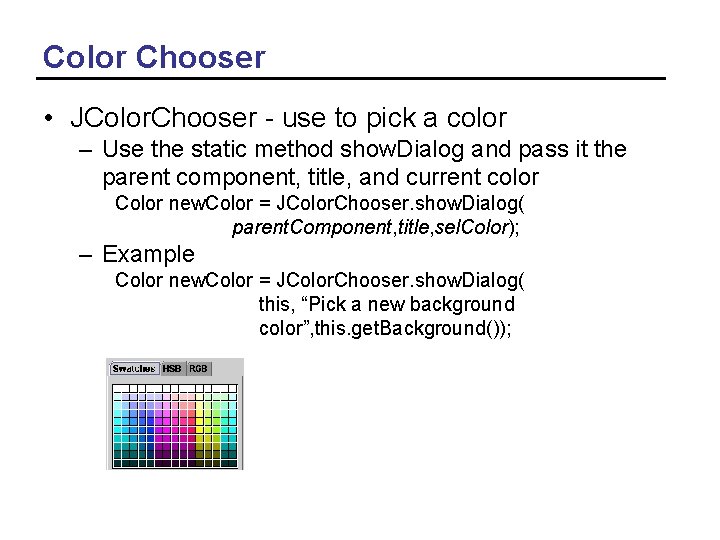
Color Chooser • JColor. Chooser - use to pick a color – Use the static method show. Dialog and pass it the parent component, title, and current color Color new. Color = JColor. Chooser. show. Dialog( parent. Component, title, sel. Color); – Example Color new. Color = JColor. Chooser. show. Dialog( this, “Pick a new background color”, this. get. Background());

File Chooser • JFile. Chooser - use to pick a file // create the file chooser final JFile. Chooser fc = new JFile. Chooser(); // display the chooser as a dialog and get the return value int return. Val = fc. show. Open. Dialog(frame); // if the return value shows that the user selected a file if (return. Val == JFile. Chooser. APPROVE_OPTION) { File file = fc. get. Selected. File(); }
Images in Swing • Swing creates an Image. Icon from an Image, file name, or URL Image. Icon icon = new Image. Icon(curr. Image); Image. Icon icon = new Image. Icon(file. Name); Image. Icon icon = new Image. Icon(curr. URL); • Image. Icons can be used in labels, menus, lists, tables, and buttons JLabel image. Label = new JLabel(icon); JButton next. Button = new JButton(“Next”, next. Icon); JButton prev. Button = new JButton(“Prev”); prev. Button. set. Icon(prev. Icon);
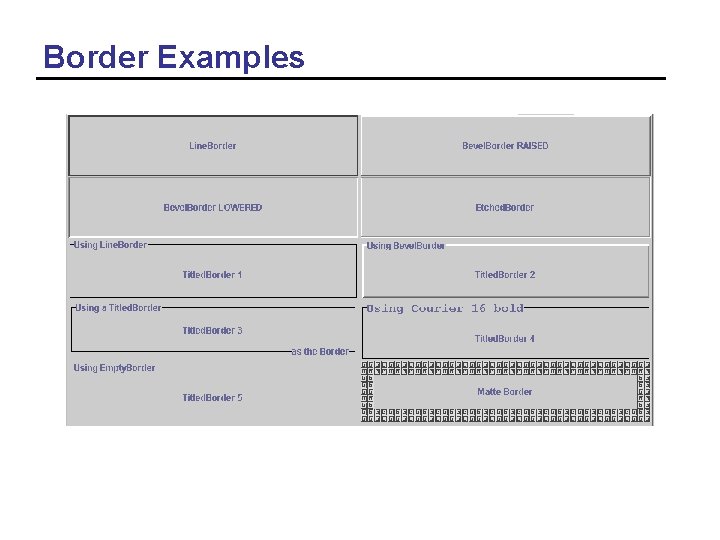
Borders • Any object that is a subclass of JComponent can have a border • The Border. Factory creates borders – Border my. Border = Border. Factory. create. Bevel. Border(Bevel. Border. RAIS ED); – Border space. Border = Border. Factory. create. Empty. Border(3, 3, 3, 3); • Use set. Border to set the components border – set. Border(my. Border);
Types of Borders • • Bevel. Border - raised or lowered Compound. Border - consists of several borders Empty. Border - space around component Etched. Border - etched with highlight and shadow colors Line. Border - box around component Matte. Border - a color or image border Soft. Bevel. Border - beveled border with softened corners Titled. Border - component is boxed with a title
Border Examples
Tool Tips • A tool tip is a popup text box that is displayed when the user holds a cursor over a component. • Any object that is a subclass of JComponent can have a tool tip • Set a tool tip using – component. Name. set. Tool. Tip. Text(“enter first name here”);
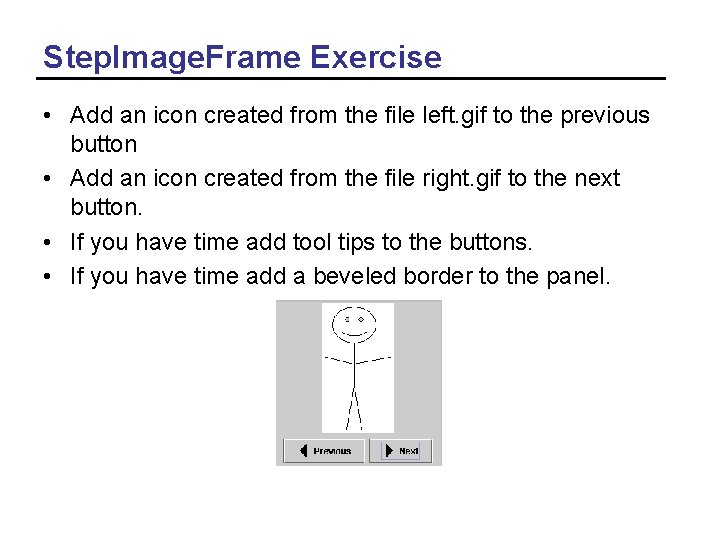
Step. Image. Frame Exercise • Add an icon created from the file left. gif to the previous button • Add an icon created from the file right. gif to the next button. • If you have time add tool tips to the buttons. • If you have time add a beveled border to the panel.

Summary • Use Swing components instead of AWT components whenever possible • Use the Swing. Set for examples of working with Swing components • Use the Sun tutorial for examples – http: //java. sun. com/docs/books/tutorial/uiswing/index. html • In 1. 1+ style event handling – objects register themselves as interested in events – when an event happens all objects that are registered as listening for that event are notified • Use anonymous inner classes to handle events
- Slides: 54