
Graphical Output BASIC IMAGES Introduction This topic will
Graphical Output BASIC IMAGES
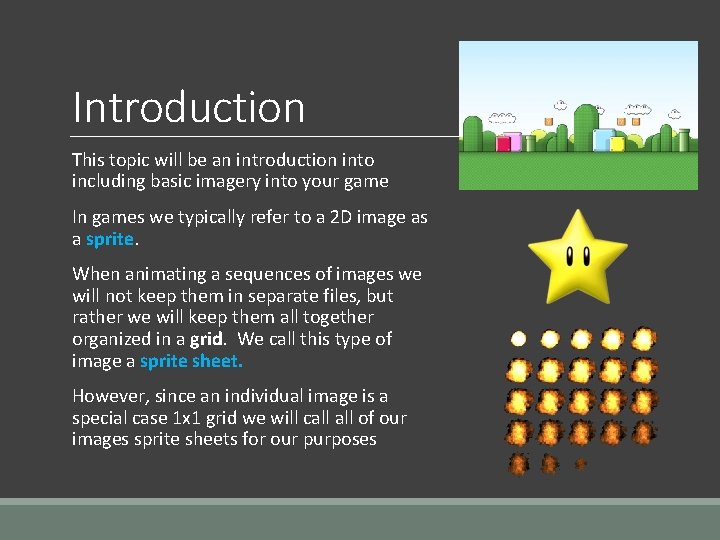
Introduction This topic will be an introduction into including basic imagery into your game In games we typically refer to a 2 D image as a sprite. When animating a sequences of images we will not keep them in separate files, but rather we will keep them all together organized in a grid. We call this type of image a sprite sheet. However, since an individual image is a special case 1 x 1 grid we will call of our images sprite sheets for our purposes
Project Setup Find your project in the project explorer and browse until you find the res folder, short for resources Inside this folder is an images folder which contains a backgrounds folder and a sprites folder. ◦ This is where all of your images will be stored and organized To do this, simply use Windows as normal and find that res folder. ◦ Copy all of your images in the appropriate folders ◦ Back in Eclipse, right-click on your project and choose Refresh ◦ All of your images should now show up and be usable This same strategy is used for other resources like sounds later on.
Game. Engine: Sprite. Sheet The Game Engine given to you already has sprite logic built in. It allows you to have an image on the screen in only 4 simple steps: 1. 2. 3. 4. Define a variable to hold the sprite sheet (Global variable) Load the sprite sheet into memory (In Load Content) Set the location and size of where to draw the sprite sheet (In Load Content) Draw the sprite sheet (In Draw) 1. Define the Global Variable ◦ The data type is Sprite. Sheet and it needs a descriptive identifier ◦ E. g. Sprite. Sheet background. Img; ◦ E. g. Sprite. Sheet star. Img;

Game. Engine: Sprite. Sheet 2. Load the Sprite Sheet ◦ Inside Load. Content you need to load the sprite sheet into your variable ◦ To do this we need a new command Load. Image. From. File(file location) ◦ Example: Assuming an image named background. png in the backgrounds folder ◦ background. Img = new Sprite. Sheet(Load. Image. From. File(“/images/background. png”); ◦ What we can see here, is that the project assumes you are looking for the image in the res folder, you simply need to fill in the rest.
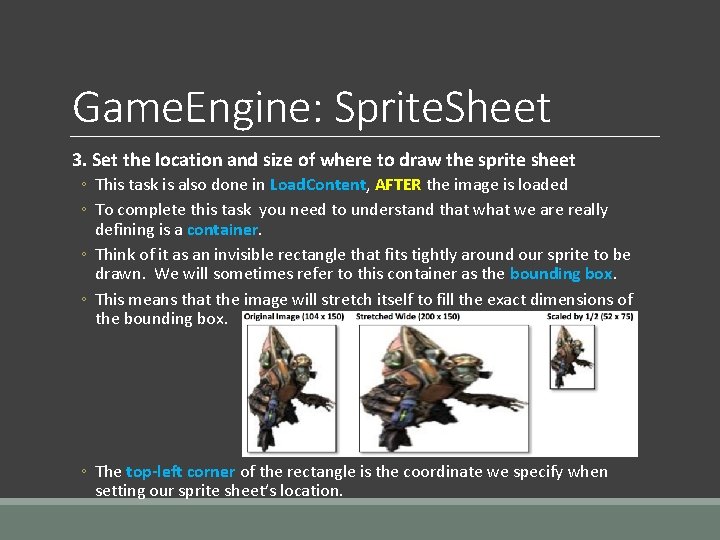
Game. Engine: Sprite. Sheet 3. Set the location and size of where to draw the sprite sheet ◦ This task is also done in Load. Content, AFTER the image is loaded ◦ To complete this task you need to understand that we are really defining is a container. ◦ Think of it as an invisible rectangle that fits tightly around our sprite to be drawn. We will sometimes refer to this container as the bounding box. ◦ This means that the image will stretch itself to fill the exact dimensions of the bounding box. ◦ The top-left corner of the rectangle is the coordinate we specify when setting our sprite sheet’s location.
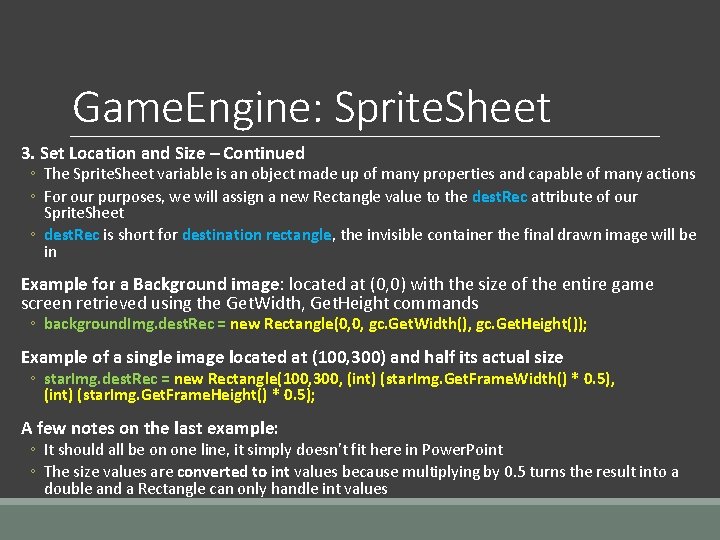
Game. Engine: Sprite. Sheet 3. Set Location and Size – Continued ◦ The Sprite. Sheet variable is an object made up of many properties and capable of many actions ◦ For our purposes, we will assign a new Rectangle value to the dest. Rec attribute of our Sprite. Sheet ◦ dest. Rec is short for destination rectangle, the invisible container the final drawn image will be in Example for a Background image: located at (0, 0) with the size of the entire game screen retrieved using the Get. Width, Get. Height commands ◦ background. Img. dest. Rec = new Rectangle(0, 0, gc. Get. Width(), gc. Get. Height()); Example of a single image located at (100, 300) and half its actual size ◦ star. Img. dest. Rec = new Rectangle(100, 300, (int) (star. Img. Get. Frame. Width() * 0. 5), (int) (star. Img. Get. Frame. Height() * 0. 5); A few notes on the last example: ◦ It should all be on one line, it simply doesn’t fit here in Power. Point ◦ The size values are converted to int values because multiplying by 0. 5 turns the result into a double and a Rectangle can only handle int values
Game. Engine: Sprite. Sheet 4. Draw the sprite sheet ◦ This is done in Draw and the easiest step ◦ Simply call the command: Draw. Sprite(gfx, sprite. Sheet. Variable. Name); Example: ◦ Draw. Sprite(gfx, background. Img); ◦ Draw. Sprite(gfx, star. Img); Remember that order matters, all drawn items are layered with the first command being the bottom layer
Game. Engine: Sprite. Sheet As the Sprite. Sheet variable is an object, it is capable of a number of actions: These actions should be done in Update or Load. Content Assuming your Sprite. Sheet variable is named star. Img: ◦ ◦ ◦ star. Img. Rotate(5); Rotates the image by 5 degrees from current angle star. Img. Rotate. To(180); Rotates the image to 180 degrees star. Img. Flip. Horizontally(); Flips the image horizontally star. Img. Flip. Vertically(); Flips the image vertically start. Img. Set. Transparency(0. 3 f); Sets transparency to 30% opaque ◦ And MANY more that will be used in animation
- Slides: 9