
Graphic Interfaces in Java Before Java 1 2
Graphic Interfaces in Java • Before Java 1. 2 (or Java 2) the library of graphic component was AWT. Now is Swing • Swing should be preferred (AWT objects can still be used, but they consume more resources) • The behavior of the graphic objects may still be slightly different in different platforms (this was a major problem with awt) • The objects (like buttons, menus, text fields, etc) are all subclasses of the Component class. • The basic Component are the JFrame and the JWindow, which are the only visible one. Others must be put inside a JFrame or a JWindow to be visible
Creating Frames and Windows • Frames are windows with a Frame which allows users to resize and relocate them. They also may contain menu bars • Windows have no Frame so it cannot be resized or relocated. It cannot contain any menu bar • A JFrame can be created: – JFrame f = new JFrame() – JFrame f = new JFrame(“Hello”); • A JWindow can be created: – JWindow w = new JWindow();
Showing Frames and Windows • In order to see the window or frame it is necessary to set a size and to make it visible – f. set. Size(200, 300); – f. set. Visible(true); // width, height • The following are some methods valid for all Components – – – void set. Location(int x, int y) void. Set. Bounds(x, y, w, h); void set. Background(Color c) void set. Cursor(Cursor c) void set. Foreground(Color c)
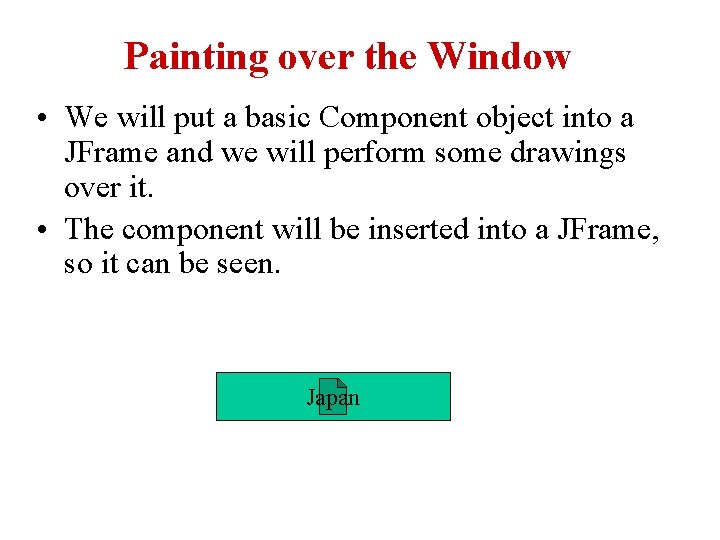
Painting over the Window • We will put a basic Component object into a JFrame and we will perform some drawings over it. • The component will be inserted into a JFrame, so it can be seen. Japan
Painting over the Window • It is necessary to get the graphic context of the component on which we want to draw • The graphic contents has all the necessary information where to draw and how to draw • The drawing methods are applied to the graphic context of the component, not to the component itself • What you draw last will be painted over what you have already painted
Painting over the Window • In most situations you will have the graphic context from the paint method • The paint method is called from the windows environment when the application’s windows should be painted (again) • Every time the window of the application is covered by other objects (windows) the drawn content disappears (it is erased), it is necessary to draw it again.

The Drawing Methods • draw. Line(x 1, y 1, x 2, y 2) • draw. Rect(x, y, w, h) x 1, y 1 x, y x 2, y 2 w h • fill. Rect(x, y, w, h) w • draw. Oval(x, y, w, h) • fill. Oval(x, y, w, h) x, y h
![The Drawing Methods x[0], y[0] • draw. Polygon(x[], y[], n) • fill. Polygon(x[], y[],](http://slidetodoc.com/presentation_image_h2/9108576b7fa9e654b427bec4b2521bad/image-8.jpg "The Drawing Methods x[0], y[0] • draw. Polygon(x[], y[], n) • fill. Polygon(x[], y[],")
The Drawing Methods x[0], y[0] • draw. Polygon(x[], y[], n) • fill. Polygon(x[], y[], n) x[1], y[1] x[4], y[4] n=5 x[3], y[3] • set. Color(colorname) colorname = black, blue, cyan, dark. Gray, gray, orange, white, red, pink, yellow • set. Color(new Color(red, green, blue)) x[2], y[2]
Changing the letters (font) • draw. String(x, y, str) x • We can change the standard Font by creating a new one This is the string y Font afont = new font(“Arial”, font. Bold, 20) All the graphic methods are applied to the graphic context of the window. Not to the window.
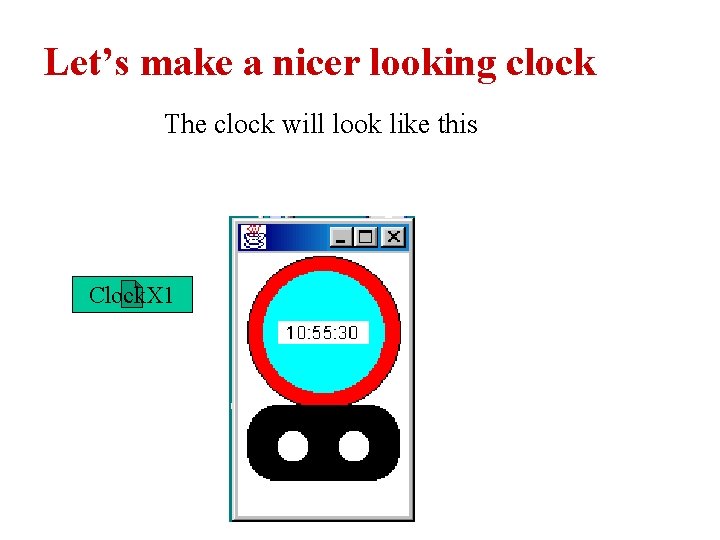
Let’s make a nicer looking clock The clock will look like this Clock. X 1
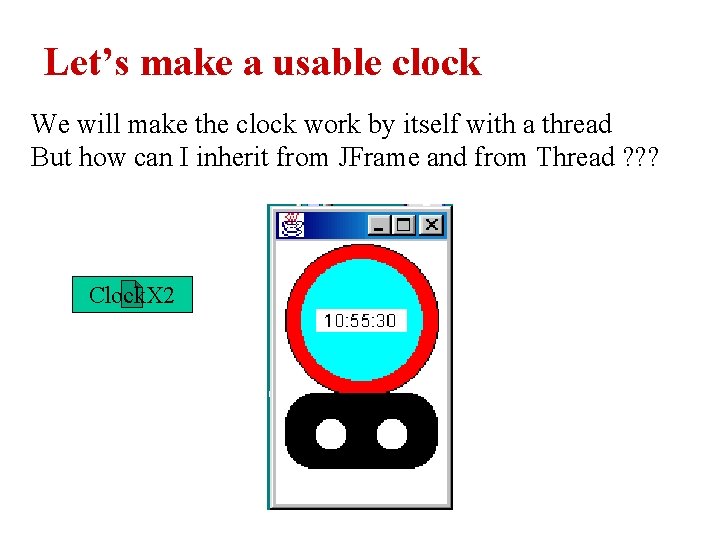
Let’s make a usable clock We will make the clock work by itself with a thread But how can I inherit from JFrame and from Thread ? ? ? Clock. X 2
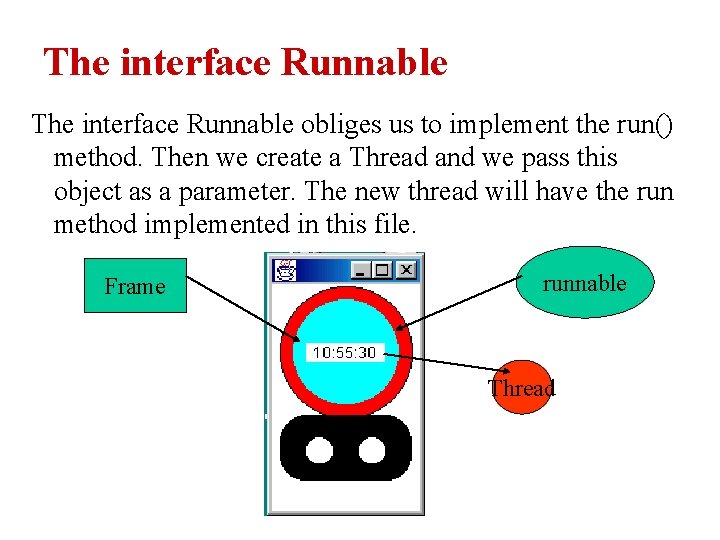
The interface Runnable obliges us to implement the run() method. Then we create a Thread and we pass this object as a parameter. The new thread will have the run method implemented in this file. Frame runnable Thread
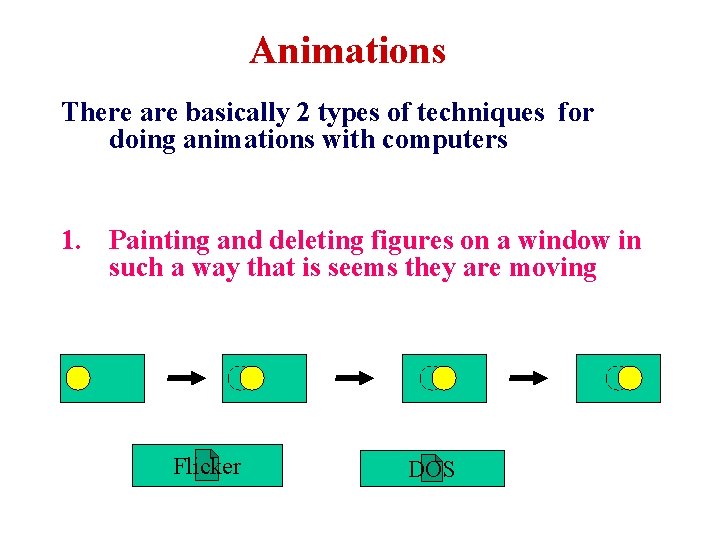
Animations There are basically 2 types of techniques for doing animations with computers 1. Painting and deleting figures on a window in such a way that is seems they are moving Flicker DOS
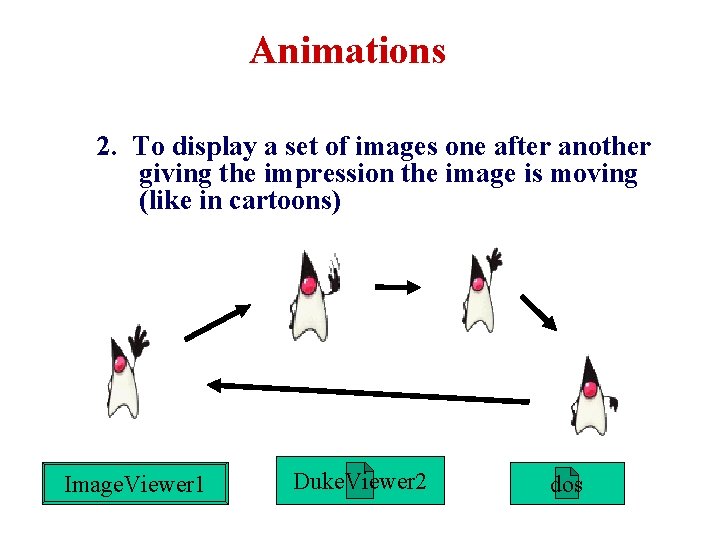
Animations 2. To display a set of images one after another giving the impression the image is moving (like in cartoons) Image. Viewer 1 Duke. Viewer 2 dos
Why can’t I kill the Window ? ? ? Try to terminate the program by pressing the x but… Frames (and any other components) are deaf to external events We must put them ears so they can hear what is happening with mouse, keyboard & any other external event produced by the (windows) system on them Then we must program the way we want them to react to the event clockx 3 x dos
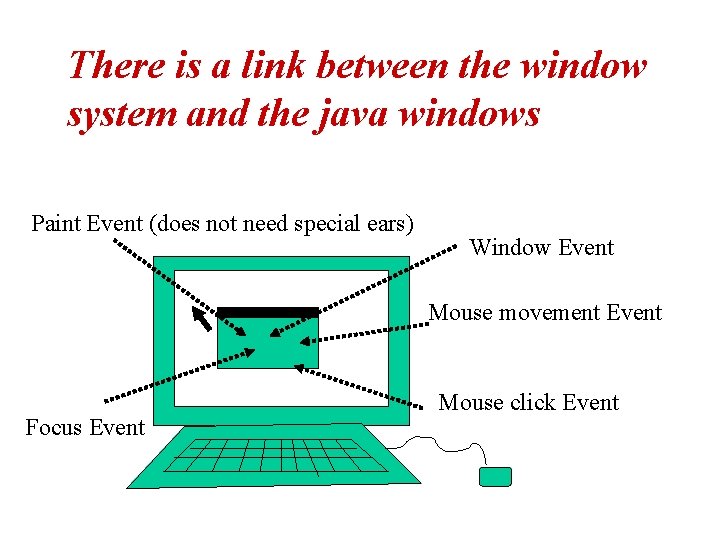
There is a link between the window system and the java windows Paint Event (does not need special ears) Window Event Mouse movement Event Focus Event Mouse click Event
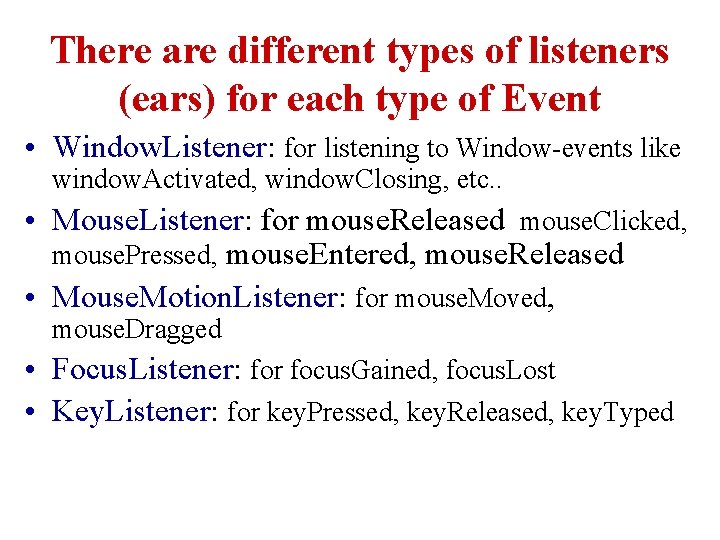
There are different types of listeners (ears) for each type of Event • Window. Listener: for listening to Window-events like window. Activated, window. Closing, etc. . • Mouse. Listener: for mouse. Released mouse. Clicked, mouse. Pressed, mouse. Entered, mouse. Released • Mouse. Motion. Listener: for mouse. Moved, mouse. Dragged • Focus. Listener: for focus. Gained, focus. Lost • Key. Listener: for key. Pressed, key. Released, key. Typed
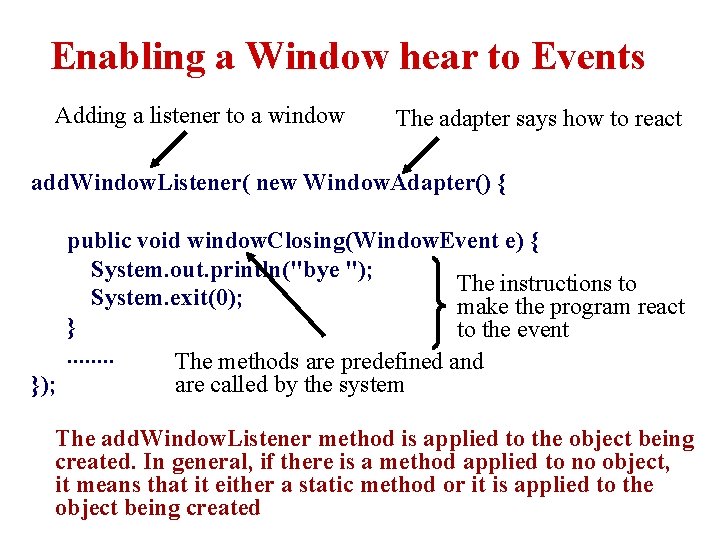
Enabling a Window hear to Events Adding a listener to a window The adapter says how to react add. Window. Listener( new Window. Adapter() { public void window. Closing(Window. Event e) { System. out. println("bye "); The instructions to System. exit(0); make the program react } to the event. . . . The methods are predefined and }); are called by the system The add. Window. Listener method is applied to the object being created. In general, if there is a method applied to no object, it means that it either a static method or it is applied to the object being created
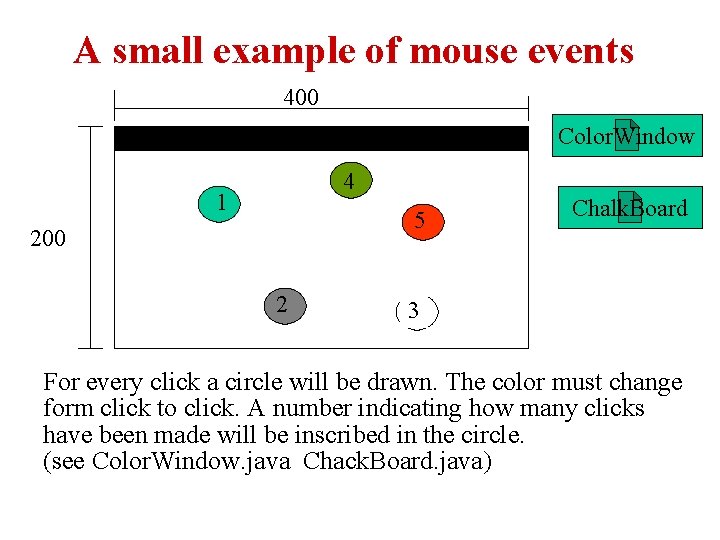
A small example of mouse events 400 Color. Window 4 1 5 200 2 Chalk. Board 3 For every click a circle will be drawn. The color must change form click to click. A number indicating how many clicks have been made will be inscribed in the circle. (see Color. Window. java Chack. Board. java)
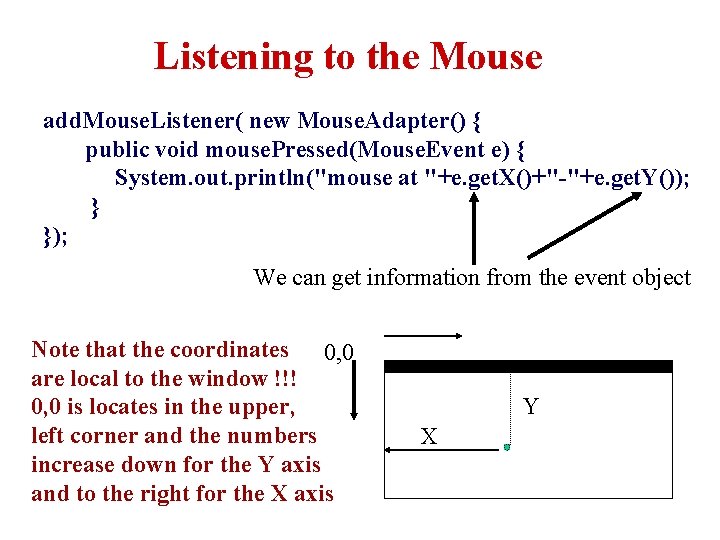
Listening to the Mouse add. Mouse. Listener( new Mouse. Adapter() { public void mouse. Pressed(Mouse. Event e) { System. out. println("mouse at "+e. get. X()+"-"+e. get. Y()); } }); We can get information from the event object Note that the coordinates 0, 0 are local to the window !!! 0, 0 is locates in the upper, left corner and the numbers increase down for the Y axis and to the right for the X axis Y X
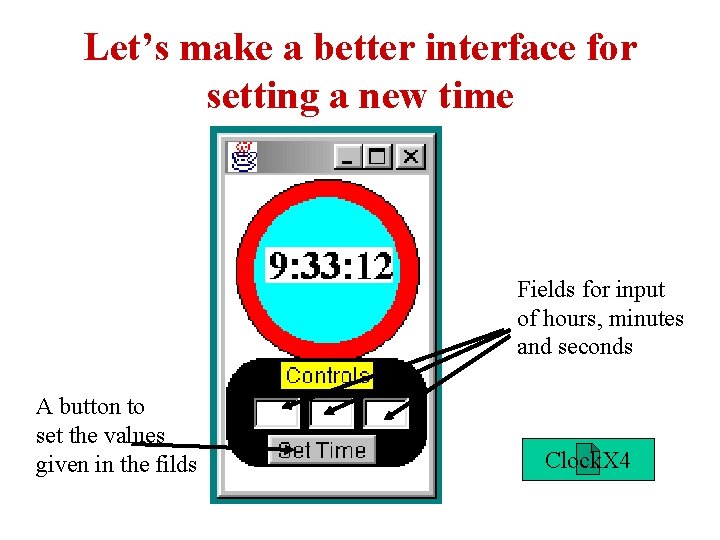
Let’s make a better interface for setting a new time Fields for input of hours, minutes and seconds A button to set the values given in the filds Clock. X 4
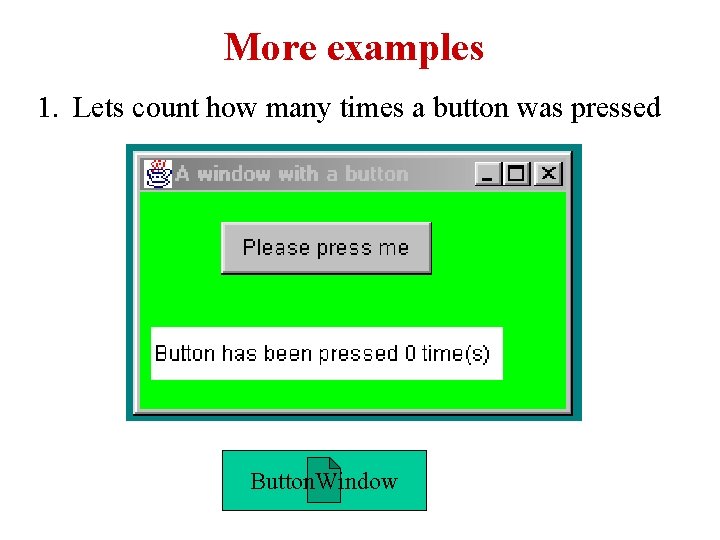
More examples 1. Lets count how many times a button was pressed Button. Window
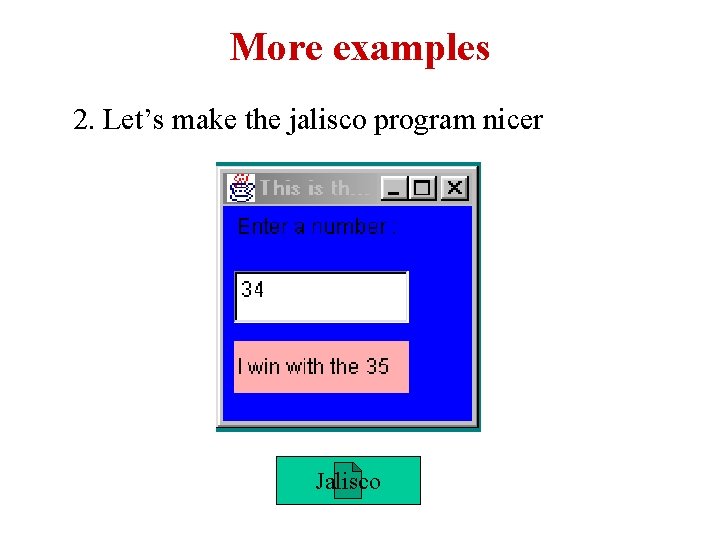
More examples 2. Let’s make the jalisco program nicer Jalisco
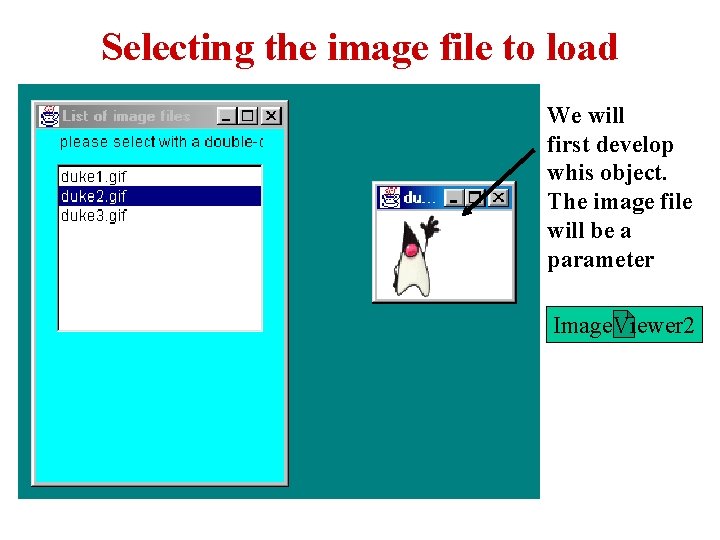
Selecting the image file to load We will first develop whis object. The image file will be a parameter Image. Viewer 2
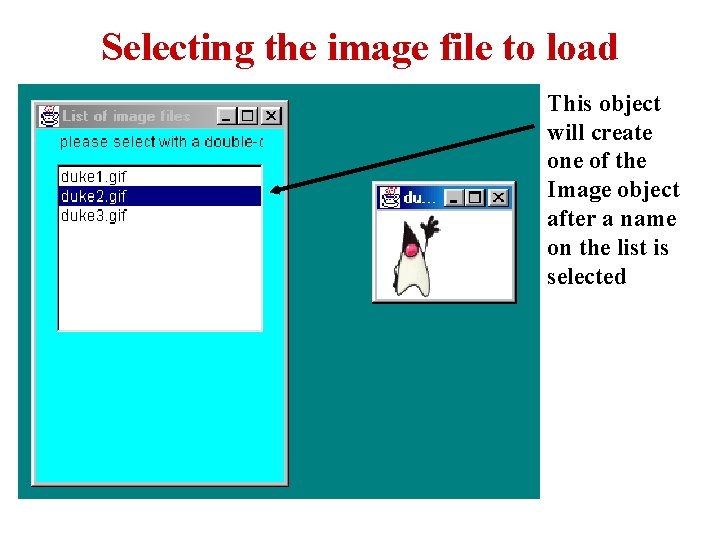
Selecting the image file to load This object will create one of the Image object after a name on the list is selected
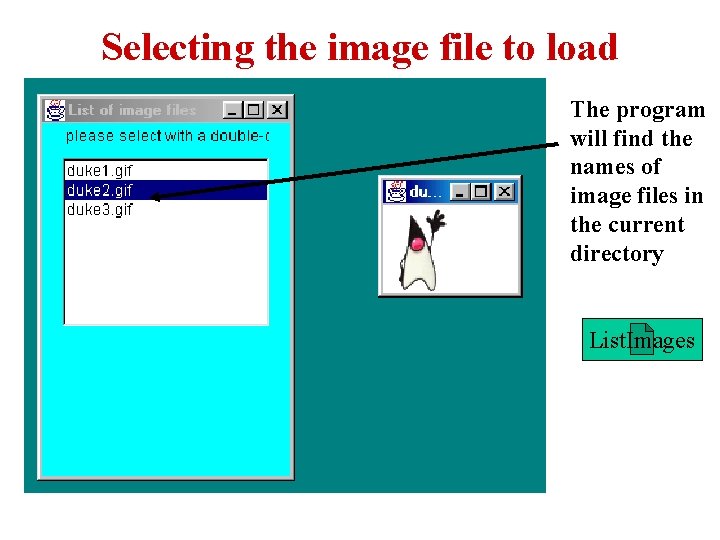
Selecting the image file to load The program will find the names of image files in the current directory List. Images
- Slides: 26