
Grants Online Performance Progress Report PPR Federal Financial
- Slides: 6
Grants Online Performance Progress Report (PPR) & Federal Financial Report (FFR) Process Maps Version 2. 5 1
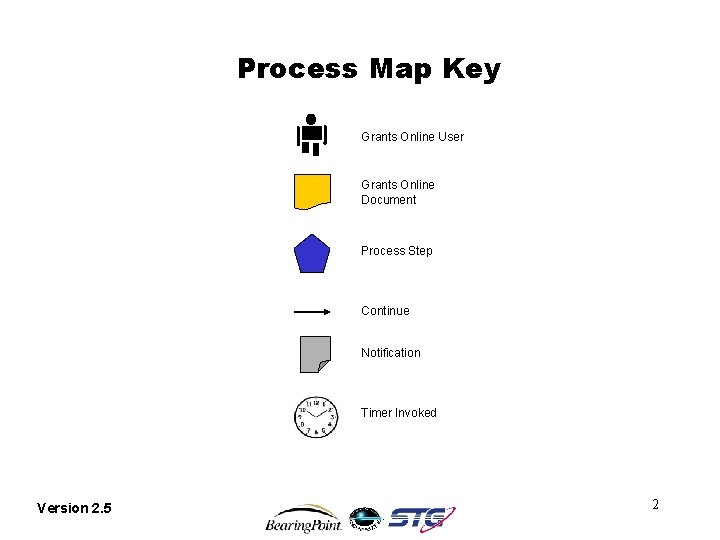
Process Map Key Grants Online User Grants Online Document Process Step Continue Notification Timer Invoked Version 2. 5 2
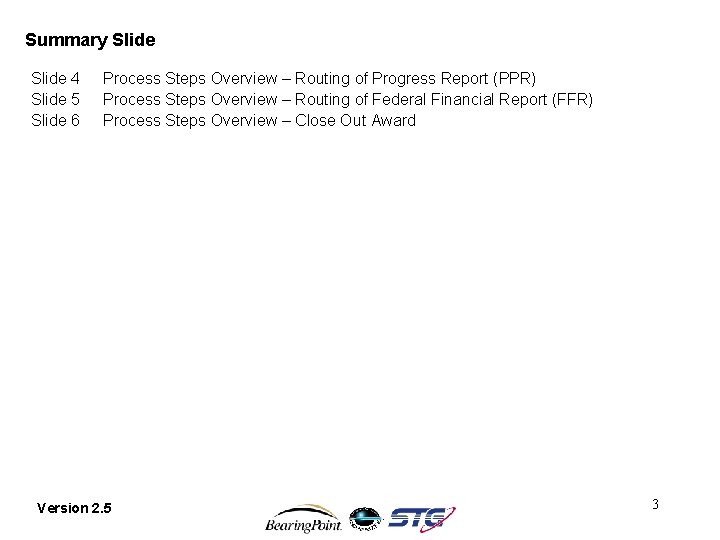
Summary Slide 4 Slide 5 Slide 6 Process Steps Overview – Routing of Progress Report (PPR) Process Steps Overview – Routing of Federal Financial Report (FFR) Process Steps Overview – Close Out Award Version 2. 5 3
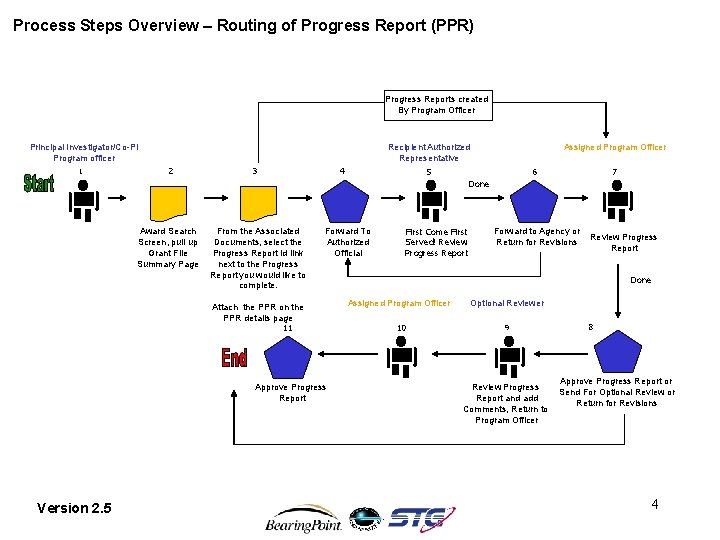
Process Steps Overview – Routing of Progress Report (PPR) Progress Reports created By Program Officer Principal Investigator/Co-PI Program officer 1 2 Award Search Screen, pull up Grant File Summary Page 3 From the Associated Documents, select the Progress Report id link next to the Progress Report you would like to complete. 4 Forward To Authorized Official Attach the PPR on the PPR details page 11 Approve Progress Report Version 2. 5 Recipient Authorized Representative 5 Done First Come First Served! Review Progress Report Assigned Program Officer 6 7 Forward to Agency or Return for Revisions Review Progress Report Done Assigned Program Officer 10 Optional Reviewer 9 Review Progress Report and add Comments, Return to Program Officer 8 Approve Progress Report or Send For Optional Review or Return for Revisions 4
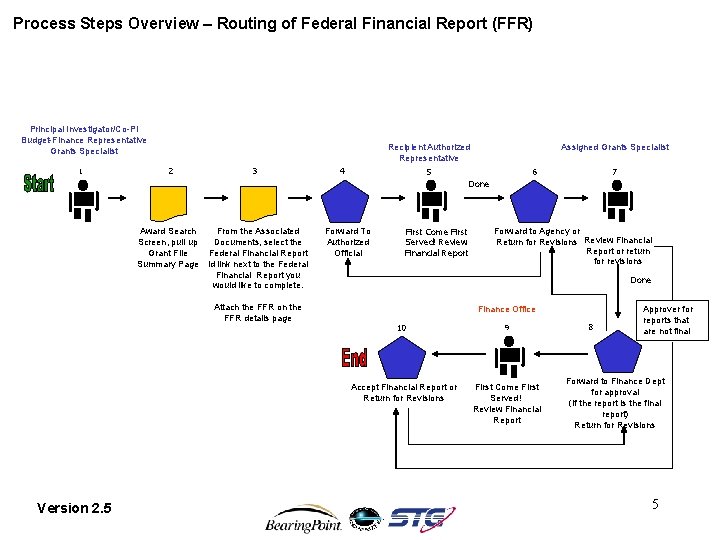
Process Steps Overview – Routing of Federal Financial Report (FFR) Principal Investigator/Co-PI Budget-Finance Representative Grants Specialist 1 2 3 Award Search From the Associated Screen, pull up Documents, select the Grant File Federal Financial Report Summary Page id link next to the Federal Financial Report you would like to complete. Attach the FFR on the FFR details page Version 2. 5 Recipient Authorized Representative 5 Done 4 Forward To Authorized Official First Come First Served! Review Financial Report Assigned Grants Specialist 6 7 Forward to Agency or Return for Revisions Review Financial Report or return for revisions Done Finance Office 10 9 Accept Financial Report or Return for Revisions First Come First Served! Review Financial Report 8 Approver for reports that are not final Forward to Finance Dept for approval (if the report is the final report) Return for Revisions 5
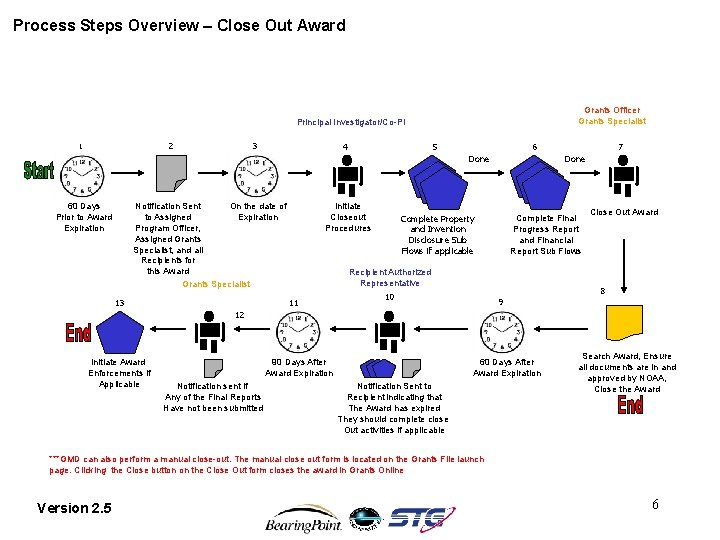
Process Steps Overview – Close Out Award Grants Officer Grants Specialist Principal Investigator/Co-PI 2 1 3 4 5 6 Done 60 Days Prior to Award Expiration Notification Sent On the date of to Assigned Expiration Program Officer, Assigned Grants Specialist, and all Recipients for this Award Grants Specialist 13 Initiate Closeout Procedures 11 Complete Property and Invention Disclosure Sub Flows if applicable Recipient Authorized Representative 10 7 Done Complete Final Progress Report and Financial Report Sub Flows Close Out Award 8 9 12 Initiate Award Enforcements if Applicable 90 Days After Award Expiration Notification sent if Any of the Final Reports Have not been submitted 60 Days After Award Expiration Notification Sent to Recipient indicating that The Award has expired They should complete close Out activities if applicable Search Award, Ensure all documents are in and approved by NOAA, Close the Award ***GMD can also perform a manual close-out. The manual close out form is located on the Grants File launch page. Clicking the Close button on the Close Out form closes the award in Grants Online Version 2. 5 6