
GPS GIS and the Science Classroom Ella Bowling
GPS, GIS, and the Science Classroom Ella Bowling Mason County Middle School ella. bowling@mason. kyschools. us 606 -782 -0192 (cell) 606 -564 -6748 (school)

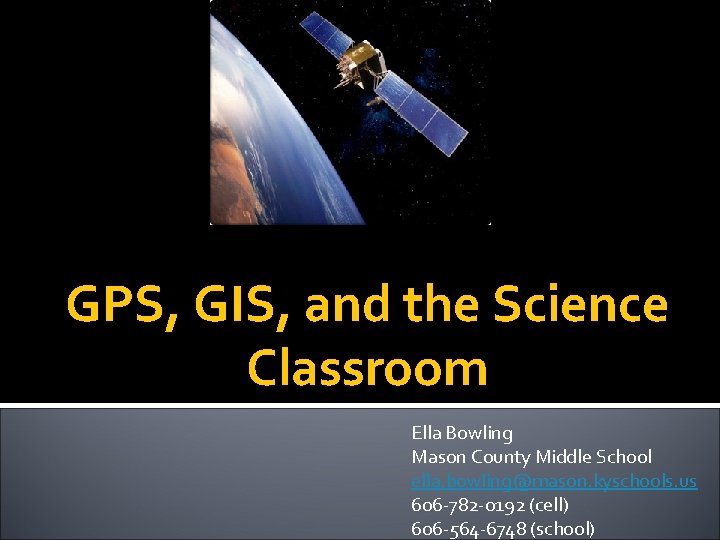
What is GPS? GPS is funded by and controlled by the US Department of Defense (DOD). While there are many thousands of civil users of GPS world-wide, the system was designed for and is operated by the U. S. military. GPS provides specially coded satellite signals that can be processed in a GPS receiver, enabling the receiver to compute position, velocity, and time. Four GPS satellite signals are used to compute positions in three dimensions and the time offset in the receiver clock.

How is GPS used? Besides being used by the military, GPS is used in forestry, biology, fishing, hunting, boating, racing, nursing, and many other fields. GPS technology can be effectively used in your classroom as well.

How does GPS work? A GPS device receives signals from satellites orbiting the earth to triangulate your location, which will be given as a global address. Or, the GPS device can lead you to a previously marked location, much like a compass.
How do I get a GPS receiver? They range in price from about $100 to well over $1, 000. Consider writing a mini-grant to get 4 or 5 to be used at your school. I used http: //www. donorschoose. org and obtained 3 this year in addition to 3 others that I received from a past workshop.
What is Geocaching? One of the fastest growing “new” sports. Has participants in many countries outside of the US and Canada. Is a modern day active treasure hunting activity that allows you to use GPS – and therefore a “global address” – to locate a cache.
Are there rules for Geocaching? Yes, there are: 1. Take something from the cache 2. Leave something in the cache 3. Write about it in the logbook 4. Do not move the cache
Versions of Geocaching to use in the Classroom Scavenger Hunt – students take a sealed clue from each cache and bring back to a predetermined location to open and solve a riddle or mystery Content Specific Caches – each cache has an activity that deals with one particular subject area (ex. – each cache has a math problem that students must solve)
1. Problem Solving Caches • Students find a cache with a problem inside & solve together 2. Puzzle Caches • Solve a Math or Logic (Sudoku) Puzzle to get the coordinates to find the cache 3. On Average • Each cache has a different object of the same type (all pencils). Students record each length and find the average of all of the caches 4. Play Money Caches • Each cache has a math puzzle on the lid and they have to find the answer and bring back the correct amount of change
5. Find the Clues • Each cache has a clue to an ultimate problem. Students collect clues to solve a mystery 6. Kickball Challenge • Students waypoint a series of kicks and then graph them to see who kicked the farthest. Great for distance and measurement 7. Perimeter • Waypoint the corners of a space or structure and record the distance between each waypoint to find the perimeter 8. Possible Outcomes • Have three caches, one with three shirts, one with three pairs of pants, one with three accessories and they have to create a tree diagram of all of the possible outcomes
9. Dinosaurs of Waterhouse Hawkins • A story about the first man to try and piece together dinosaur fossils. After reading the book, in each cache would be "dinosaur bones" to put together in strange and interesting ways 10. Name that Triangle • Mark waypoints and have students stake out different shapes of triangles and have them identify the geometric shape 11. work with community Firefighters to mark fire hydrants 12. Town Tours 13. Historic Sites 14. Follow the Railroad 15. Trackables -- Flat Stanley Type Project 16. Design a themed cache
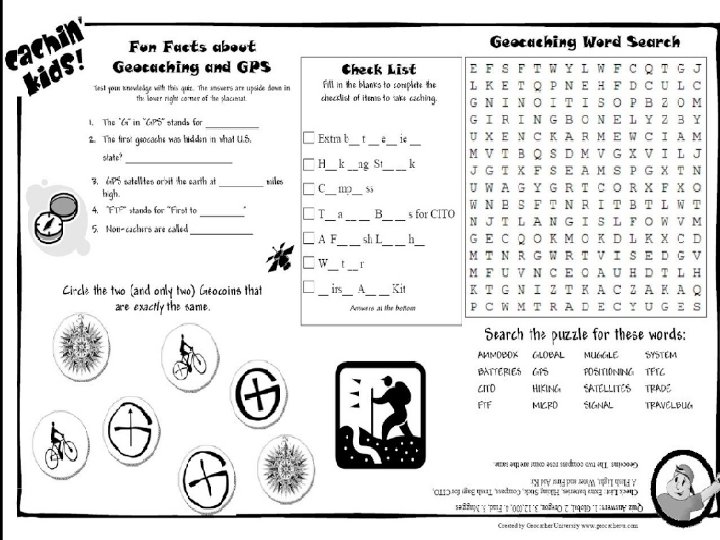
Classroom, cont. • Interdisciplinary Cache – each cache has information or an activity from a different subject area • Holiday Themed Cache – find Easter Eggs or Halloween candy! • Science/Social Studies Cache – each “cache” is actually a tree, plant species (or something similar), or landmark that students must identify
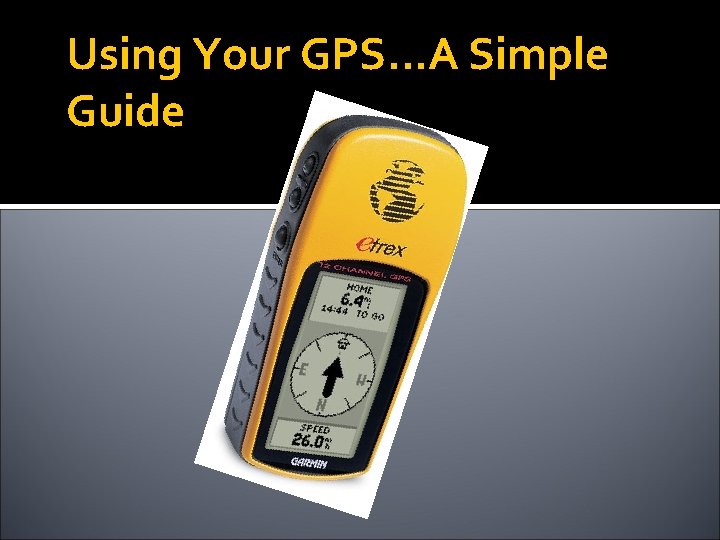
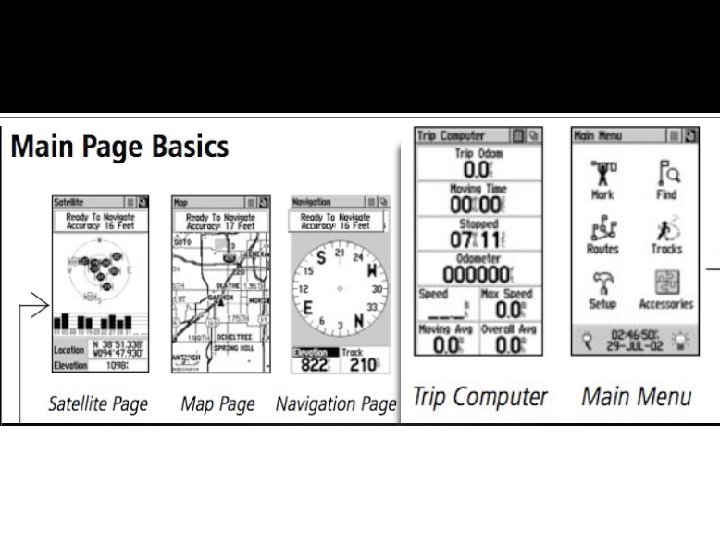
Using Your GPS…A Simple Guide
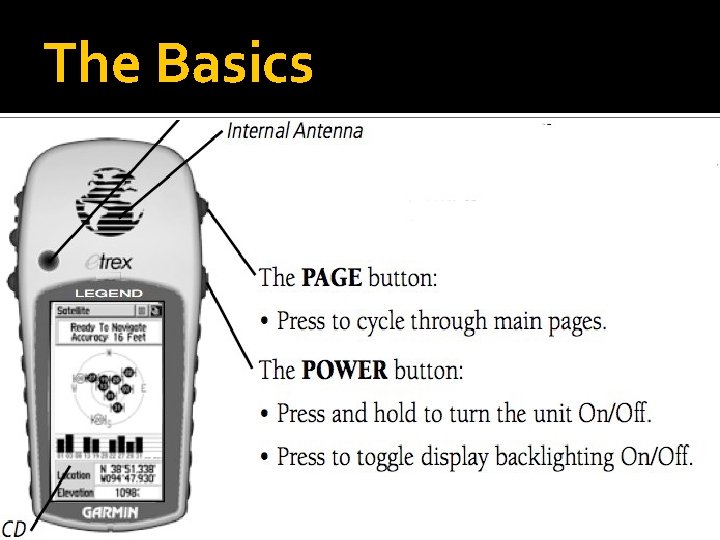
The Basics
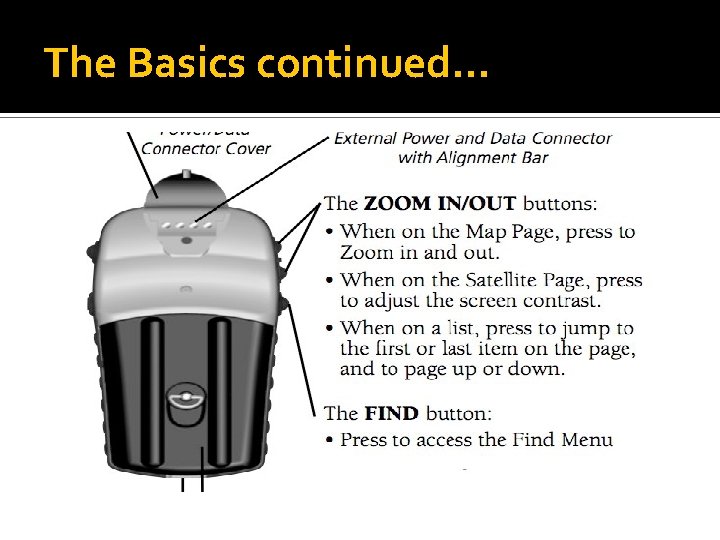
The Basics continued…
Google Earth and GIS in the Classroom
What is Google Earth? Google Earth is free program which allows users to: Explore geographic locations both on Earth and in space. View Buildings in 3 D View Featured Content Create interactive projects which include, images, text, video and sound.
Exploring Google Earth When Google Earth launches, it automatically loads a folder and places it into “temporary places” section. In order to save locations you will need to move folders under “My Places” and save. A plus sign + indicates there are sub menus under the “sightseeing” heading. To access one of the locations, double click on the location. To move through the list of locations, click on the . To view a location or placemark in detail, double click on the link, in the left sidebar.
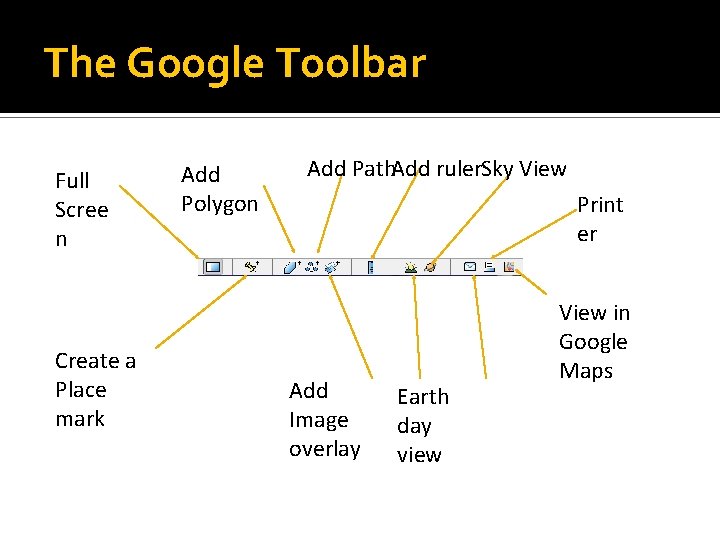
The Google Toolbar Full Scree n Create a Place mark Add Polygon Add Path. Add ruler. Sky View Print er Add Image overlay Earth day view View in Google Maps
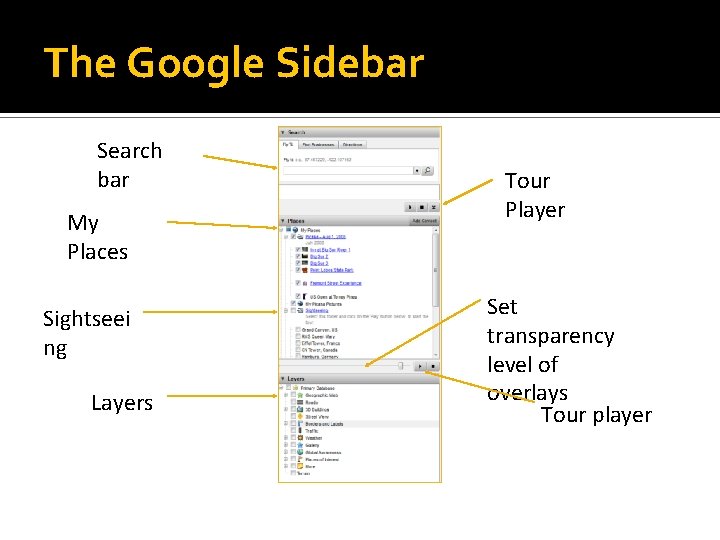
The Google Sidebar Search bar My Places Sightseei ng Layers Tour Player Set transparency level of overlays Tour player
Setting up Google Earth You can set a default start location each time you launch Google Earth, by navigating to the location, then in the toolbar, click on view, then make this my start location. You can also set options in by going to Tools in the menu bar and selecting options.
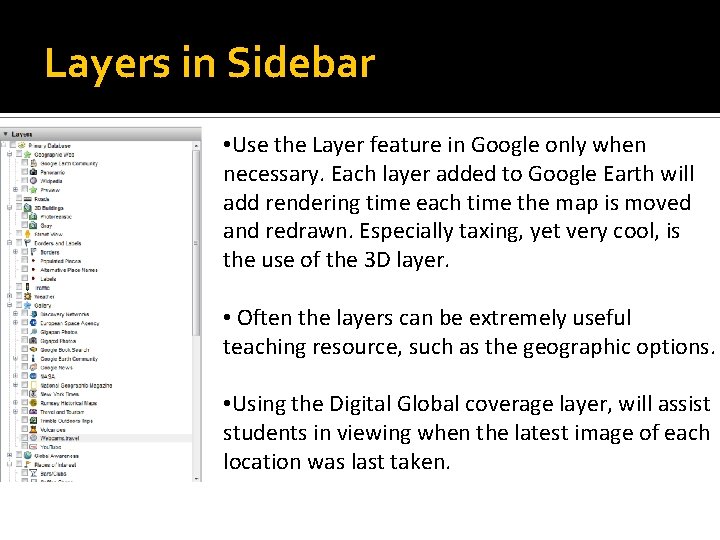
Layers in Sidebar • Use the Layer feature in Google only when necessary. Each layer added to Google Earth will add rendering time each time the map is moved and redrawn. Especially taxing, yet very cool, is the use of the 3 D layer. • Often the layers can be extremely useful teaching resource, such as the geographic options. • Using the Digital Global coverage layer, will assist students in viewing when the latest image of each location was last taken.
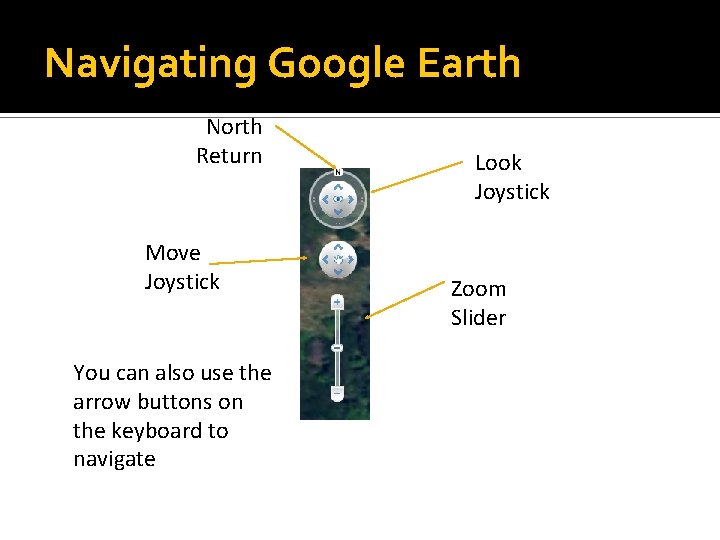
Navigating Google Earth North Return Move Joystick You can also use the arrow buttons on the keyboard to navigate Look Joystick Zoom Slider
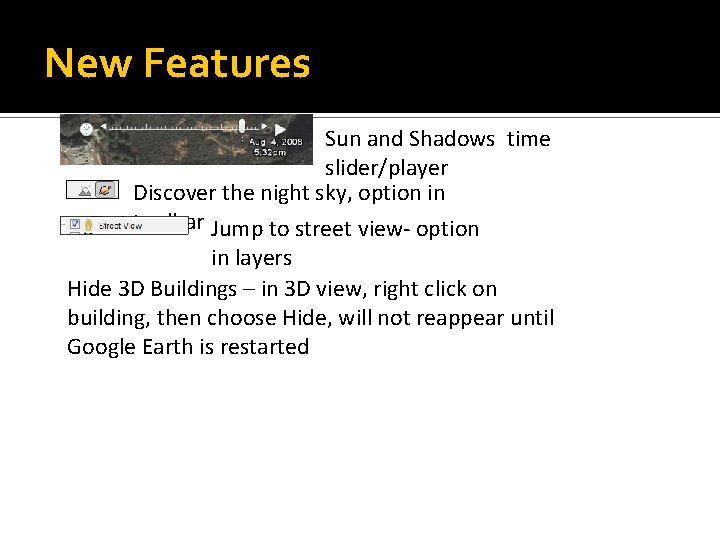
New Features Sun and Shadows time slider/player Discover the night sky, option in toolbar Jump to street view- option in layers Hide 3 D Buildings – in 3 D view, right click on building, then choose Hide, will not reappear until Google Earth is restarted
Searching a location the “Fly To” Using Google Earth, you can search by: Street Address General name or location Name Coordinates Click on the Magnifying Glass (search button)
Using “Directions” in Google Earth The Directions Tab allows users to view travel from one location to another. Key the address or location site in the first text box, then tab to the second add the destination address or location. Use the navigation options to view or the press the play button on the tour bar. The File, Print option to print the directions.
Find Businesses You can use the “Find Businesses” tab to locate a specific type of business in a designated area on the map. Navigate to the location you are interested in, key the “type” of business you are looking for. Google Earth marks the businesses in balloons and provides additional information if available.
New Project To begin a new project using Google Earth it is very helpful to keep all the information in one folder. To create a new folder, click on Add in the menu bar, then folder or use the short cut combination Ctrl+Shift+N Once created this folder will appear in the My Places area of the search panel.
Tips for Projects Have students design a storyboard prior to beginning their project. The storyboard should contain the locations they are going to select, and the images, sounds or video, they will be adding to the location. Keep all images in a single folder, keep image names as short as possible. Make sure images are resized to less than 3” for a better fit and reduce the resolution. 72 dpi is perfect for web viewing.
Adding Place Marks are like pushpins which help identify a specific location. Key the location address in the “what you are looking for” text box and click the magnifying glass. You can use the navigation controls to zoom in, out or change direction. Click on the add placemark icon to add a placemark. You can change the icon for the placemark by clicking on the icon button in the dialogue box. You can add text information to this placemark by keying the information in the description area. This is also the location you will additional multimedia.
Adding an image to the placemark You can add an image to a placemark. Google earth supports the following: JPG, BMP, GIF, TIFF, TGA, and PNG formats. The most common issue when inserting and image overlay is the size of the image. It is important to keep this in mind when designing your project or edit graphics in a graphics editor prior to adding to the project. Larger images can also be memory intensive. Images less than 3” in size and saved at 72 dpi is prefect. All objects added into the placemark, must be added using hypertext markup language (HTML). I have prepared a cheat sheet to assist you with the basics. In the preplanning we saved the images in a folder, and gave them a short name. To insert the image in the placemark you will need to know the location path to the image. To get this path, you will right click on the image and go to properties. Highlight this path, right click and choose copy. You will need to start the line by keying <img src=“ paste path addname of image. format”>
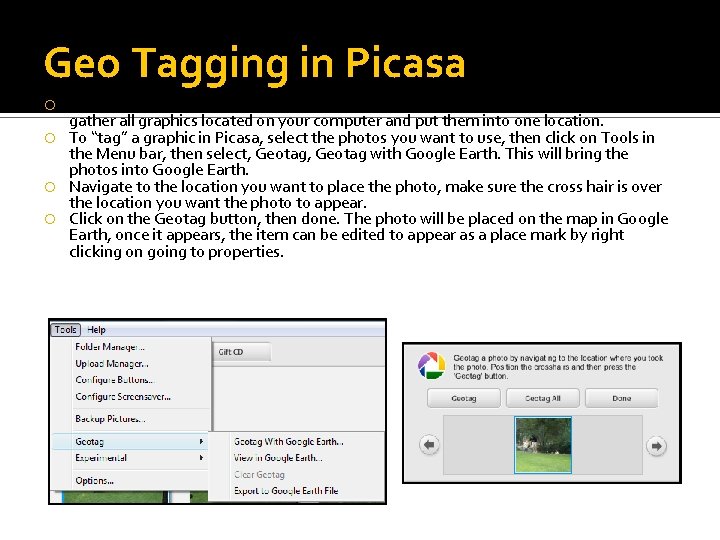
Geo Tagging in Picasa is another program owned by Google. Picasa is a graphics organizer which will gather all graphics located on your computer and put them into one location. To “tag” a graphic in Picasa, select the photos you want to use, then click on Tools in the Menu bar, then select, Geotag with Google Earth. This will bring the photos into Google Earth. Navigate to the location you want to place the photo, make sure the cross hair is over the location you want the photo to appear. Click on the Geotag button, then done. The photo will be placed on the map in Google Earth, once it appears, the item can be edited to appear as a place mark by right clicking on going to properties.
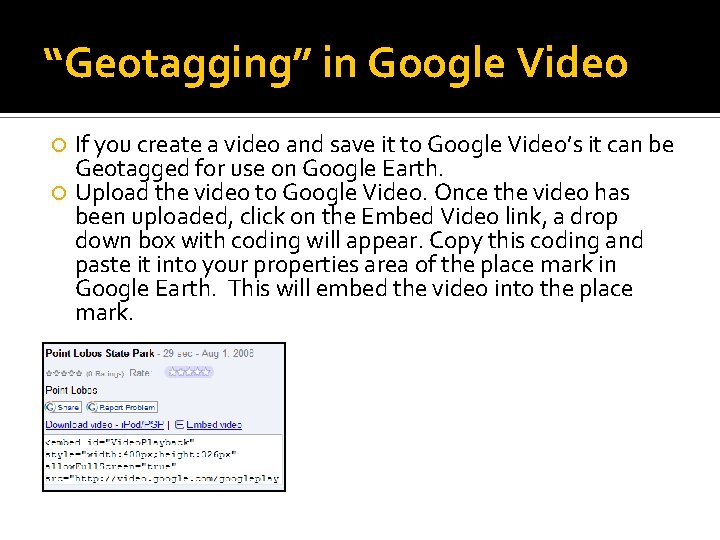
“Geotagging” in Google Video If you create a video and save it to Google Video’s it can be Geotagged for use on Google Earth. Upload the video to Google Video. Once the video has been uploaded, click on the Embed Video link, a drop down box with coding will appear. Copy this coding and paste it into your properties area of the place mark in Google Earth. This will embed the video into the place mark.
Graphic Overlays can be in one of the following formats BMP, GIF, JPG or TIFF The graphic overlay lays directly over the map image.
Saving a Project The file format for Google Earth is. KMZ this extension format must be reopened in Google Earth. Once the project is completed, be sure you have the project selected, a check mark in all boxes, then click File, Save, in “My Places”.
Resources Google Earth Users Guide Google Earth tutorials Google Earth for teachers
Cool Things to Do with Google Earth
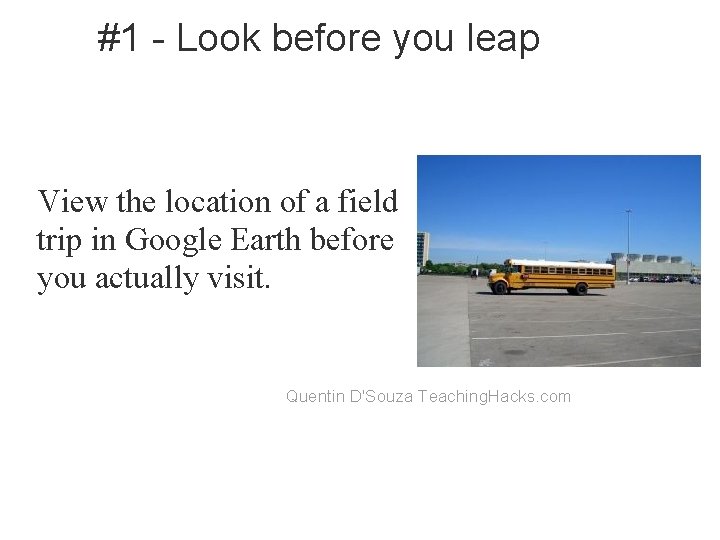
#1 - Look before you leap View the location of a field trip in Google Earth before you actually visit. Quentin D'Souza Teaching. Hacks. com
#2 - Embed Media Embed media in Google Earth from web sites like Youtube, Voicethread and Slideshare by cutting and pasting the "embed code" into thedescription area of Placemarks, Paths, Polygons and Models. Quentin D'Souza Teaching. Hacks. com
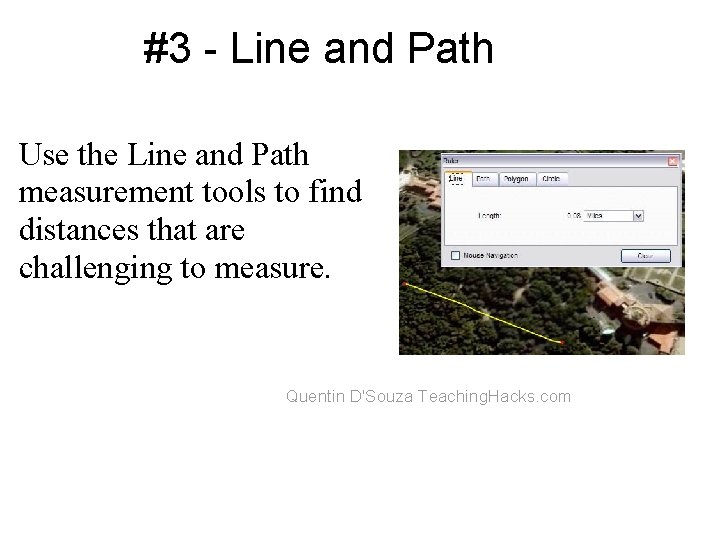
#3 - Line and Path Use the Line and Path measurement tools to find distances that are challenging to measure. Quentin D'Souza Teaching. Hacks. com
#4 - Take it Slow, Enjoy the view! Google Earth is fantastically visual and the kids love it when we quickly zoom back to Earth from afar. But we are missing so much! I decided to slow things down. I basically changed the Fly-To speed settings, from the Tools menu>Options>Touring. I reduced the speed as much as I could using the slider. Now with a much slower zoom you have the ability as a teacher to reflect on what you see - so if we are zooming in from space I am able to talk about the continents we can see and then countries and regions. It just gives you and the kids much more time to take in the view!
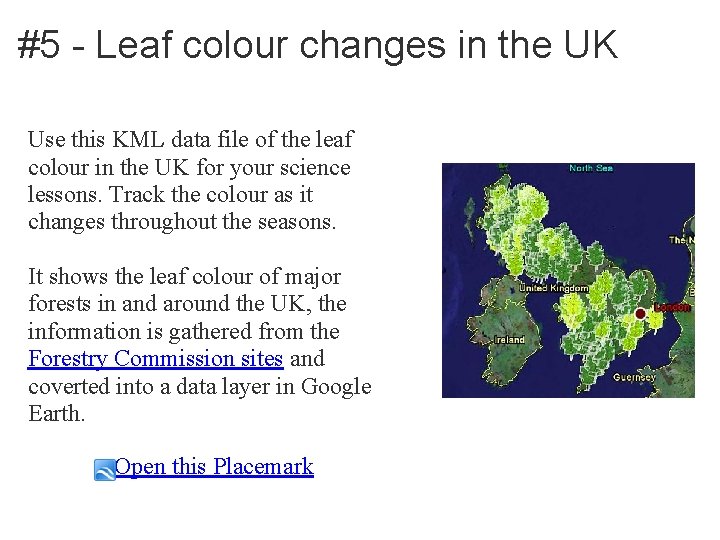
#5 - Leaf colour changes in the UK Use this KML data file of the leaf colour in the UK for your science lessons. Track the colour as it changes throughout the seasons. It shows the leaf colour of major forests in and around the UK, the information is gathered from the Forestry Commission sites and coverted into a data layer in Google Earth. Open this Placemark
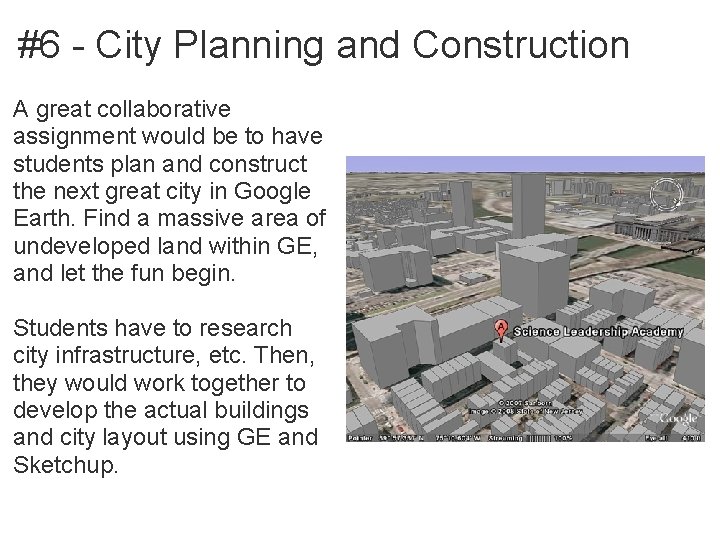
#6 - City Planning and Construction A great collaborative assignment would be to have students plan and construct the next great city in Google Earth. Find a massive area of undeveloped land within GE, and let the fun begin. Students have to research city infrastructure, etc. Then, they would work together to develop the actual buildings and city layout using GE and Sketchup.
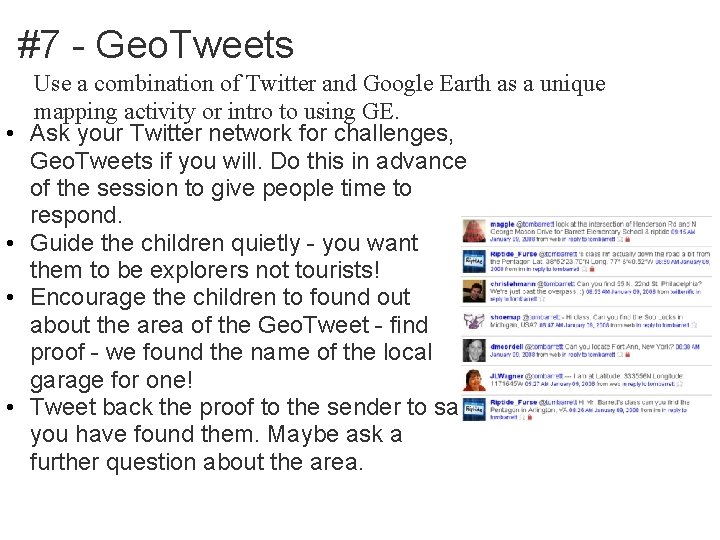
#7 - Geo. Tweets • • Use a combination of Twitter and Google Earth as a unique mapping activity or intro to using GE. Ask your Twitter network for challenges, Geo. Tweets if you will. Do this in advance of the session to give people time to respond. Guide the children quietly - you want them to be explorers not tourists! Encourage the children to found out about the area of the Geo. Tweet - find proof - we found the name of the local garage for one! Tweet back the proof to the sender to say you have found them. Maybe ask a further question about the area.
#8 - Take a Virtual Drive • Plan a trip with the class to any destination in the world • Get driving directions, then click play • Everyone gets to take the virtual drive, watching the scenery and interesting stops along the way.
#9 - This is My Life • Have students create a virtual autobiography • They make placemarks at any location of significance then edit the placemarks to add stories, photos, videos, or URLs • This can also be used to present research on a famous person
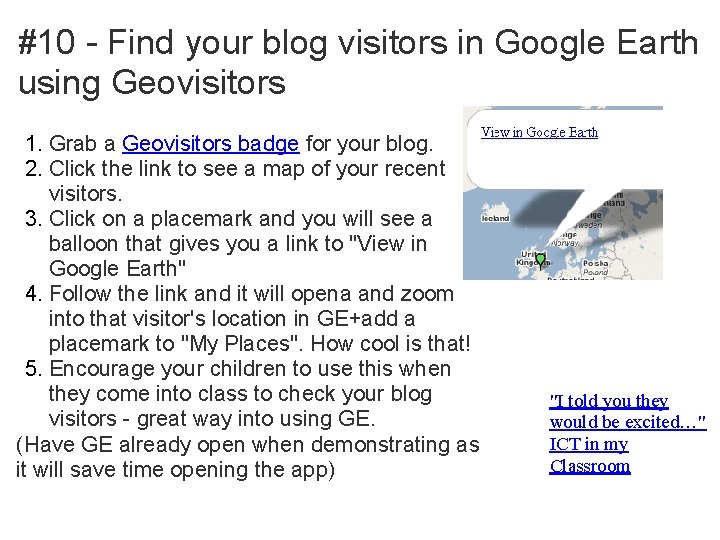
#10 - Find your blog visitors in Google Earth using Geovisitors 1. Grab a Geovisitors badge for your blog. 2. Click the link to see a map of your recent visitors. 3. Click on a placemark and you will see a balloon that gives you a link to "View in Google Earth" 4. Follow the link and it will opena and zoom into that visitor's location in GE+add a placemark to "My Places". How cool is that! 5. Encourage your children to use this when they come into class to check your blog visitors - great way into using GE. (Have GE already open when demonstrating as it will save time opening the app) "I told you they would be excited…" ICT in my Classroom
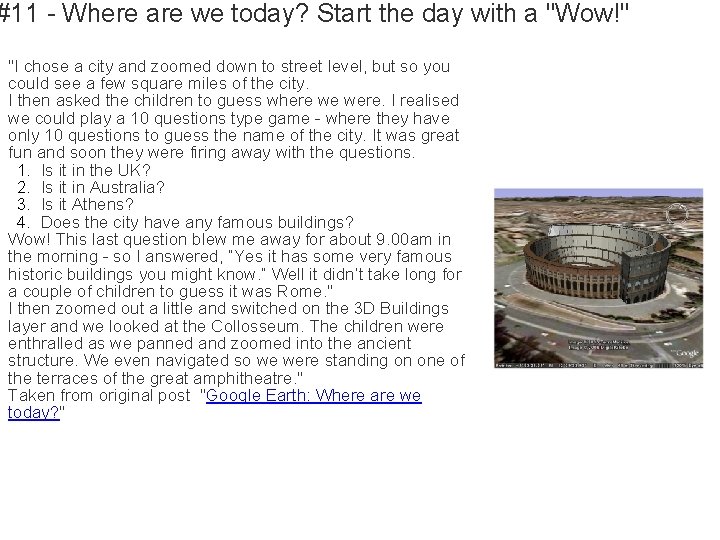
#11 - Where are we today? Start the day with a "Wow!" "I chose a city and zoomed down to street level, but so you could see a few square miles of the city. I then asked the children to guess where we were. I realised we could play a 10 questions type game - where they have only 10 questions to guess the name of the city. It was great fun and soon they were firing away with the questions. 1. Is it in the UK? 2. Is it in Australia? 3. Is it Athens? 4. Does the city have any famous buildings? Wow! This last question blew me away for about 9. 00 am in the morning - so I answered, “Yes it has some very famous historic buildings you might know. ” Well it didn’t take long for a couple of children to guess it was Rome. " I then zoomed out a little and switched on the 3 D Buildings layer and we looked at the Collosseum. The children were enthralled as we panned and zoomed into the ancient structure. We even navigated so we were standing on one of the terraces of the great amphitheatre. " Taken from original post "Google Earth: Where are we today? "
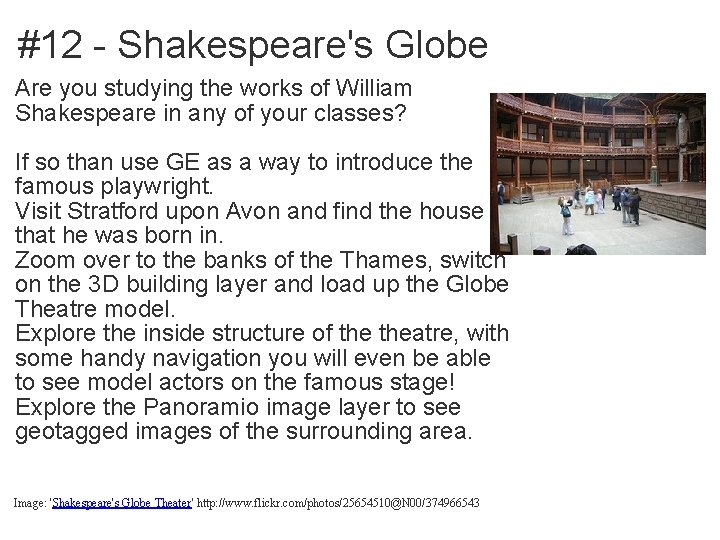
#12 - Shakespeare's Globe Are you studying the works of William Shakespeare in any of your classes? If so than use GE as a way to introduce the famous playwright. Visit Stratford upon Avon and find the house that he was born in. Zoom over to the banks of the Thames, switch on the 3 D building layer and load up the Globe Theatre model. Explore the inside structure of theatre, with some handy navigation you will even be able to see model actors on the famous stage! Explore the Panoramio image layer to see geotagged images of the surrounding area. Image: 'Shakespeare's Globe Theater' http: //www. flickr. com/photos/25654510@N 00/374966543
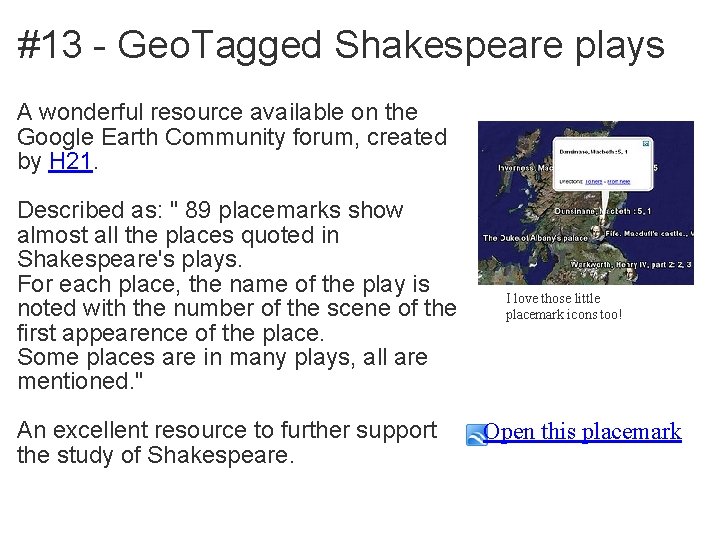
#13 - Geo. Tagged Shakespeare plays A wonderful resource available on the Google Earth Community forum, created by H 21. Described as: " 89 placemarks show almost all the places quoted in Shakespeare's plays. For each place, the name of the play is noted with the number of the scene of the first appearence of the place. Some places are in many plays, all are mentioned. " An excellent resource to further support the study of Shakespeare. I love those little placemark icons too! Open this placemark
#14 - Easiest Way to Find KMZs for Google Earth Go to www. google. com, click on ADVANCED SEARCH and under File Format choose KMZ before searching. KMZ=Keyhole Markup Zipped, this is the "language" that GE accepts. After you find a KMZ, double-click and it will open in GE under Temporary Files. When you close GE, you will be asked if you would like to keep your "Temporary FIle", if you click yes, that KMZ will forever be in your GE unless you delete it. ~~Cindy Lane, USA
#15 - New Way to Show Spelling Words www. geogreeting. com After you show the spelling word, you can quiz the students on geography. For example, "Are there more placemark / letters in North America or Europe"? You can also click on a specific letter and dive deeper into the location.
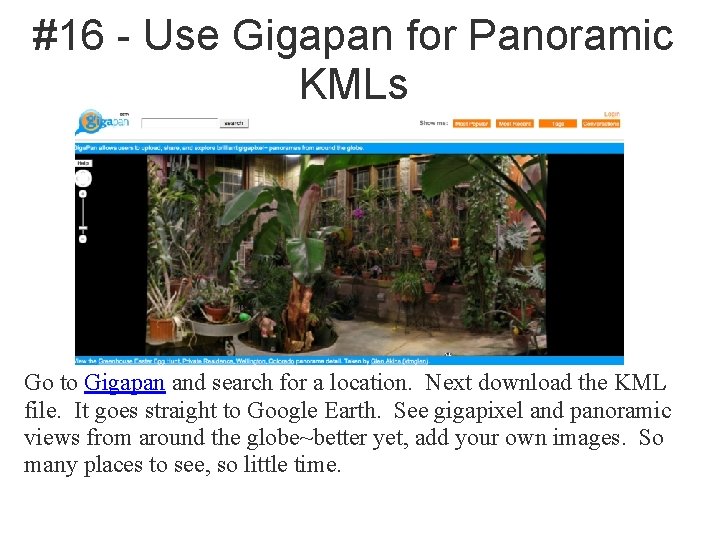
#16 - Use Gigapan for Panoramic KMLs Go to Gigapan and search for a location. Next download the KML file. It goes straight to Google Earth. See gigapixel and panoramic views from around the globe~better yet, add your own images. So many places to see, so little time.
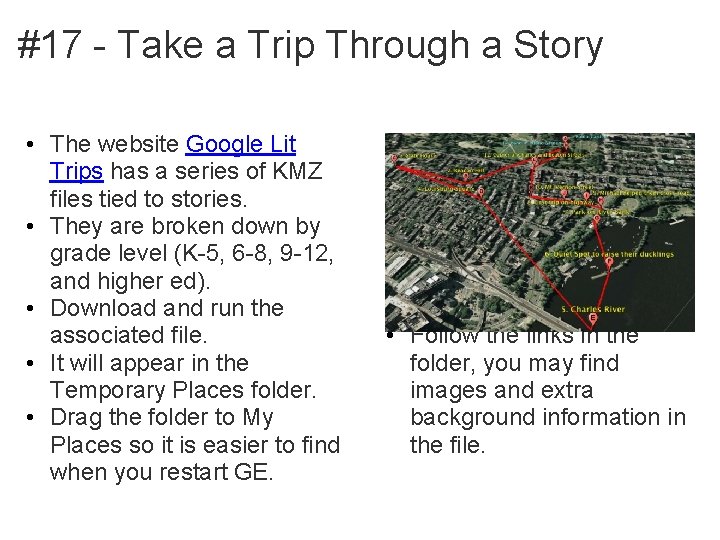
#17 - Take a Trip Through a Story • The website Google Lit Trips has a series of KMZ files tied to stories. • They are broken down by grade level (K-5, 6 -8, 9 -12, and higher ed). • Download and run the associated file. • It will appear in the Temporary Places folder. • Drag the folder to My Places so it is easier to find when you restart GE. • Follow the links in the folder, you may find images and extra background information in the file.
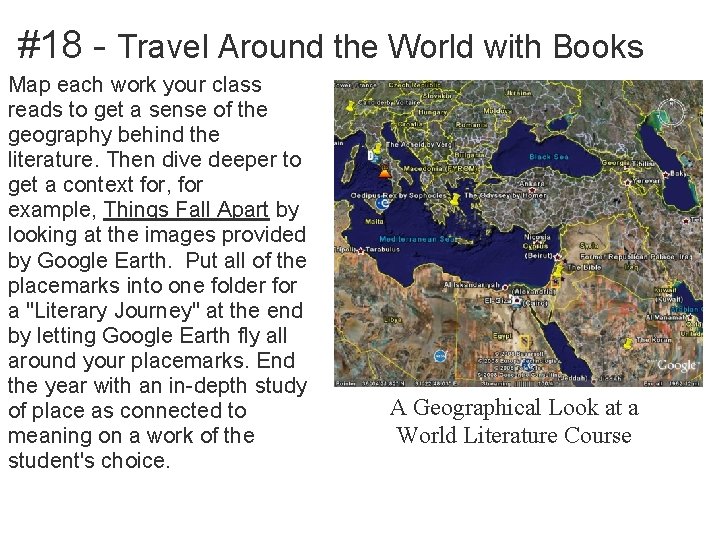
#18 - Travel Around the World with Books Map each work your class reads to get a sense of the geography behind the literature. Then dive deeper to get a context for, for example, Things Fall Apart by looking at the images provided by Google Earth. Put all of the placemarks into one folder for a "Literary Journey" at the end by letting Google Earth fly all around your placemarks. End the year with an in-depth study of place as connected to meaning on a work of the student's choice. A Geographical Look at a World Literature Course
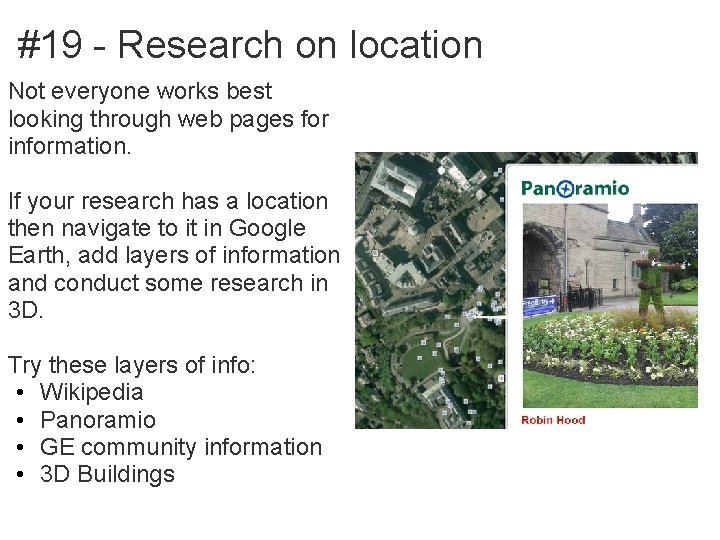
#19 - Research on location Not everyone works best looking through web pages for information. If your research has a location then navigate to it in Google Earth, add layers of information and conduct some research in 3 D. Try these layers of info: • Wikipedia • Panoramio • GE community information • 3 D Buildings
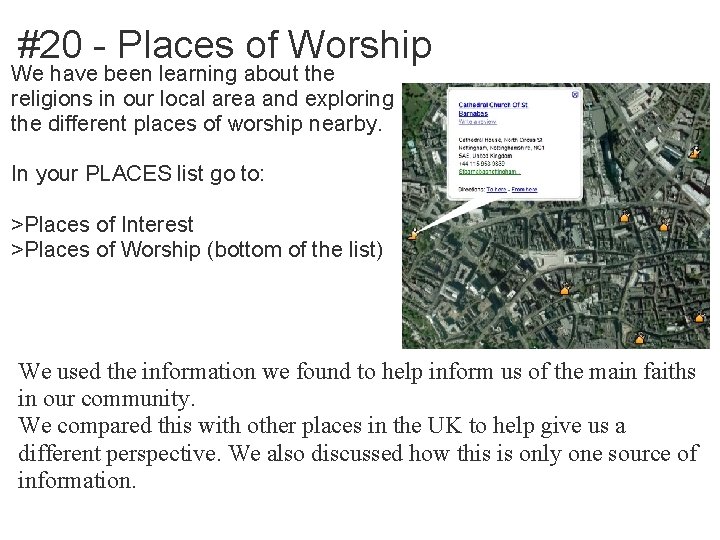
#20 - Places of Worship We have been learning about the religions in our local area and exploring the different places of worship nearby. In your PLACES list go to: >Places of Interest >Places of Worship (bottom of the list) We used the information we found to help inform us of the main faiths in our community. We compared this with other places in the UK to help give us a different perspective. We also discussed how this is only one source of information.
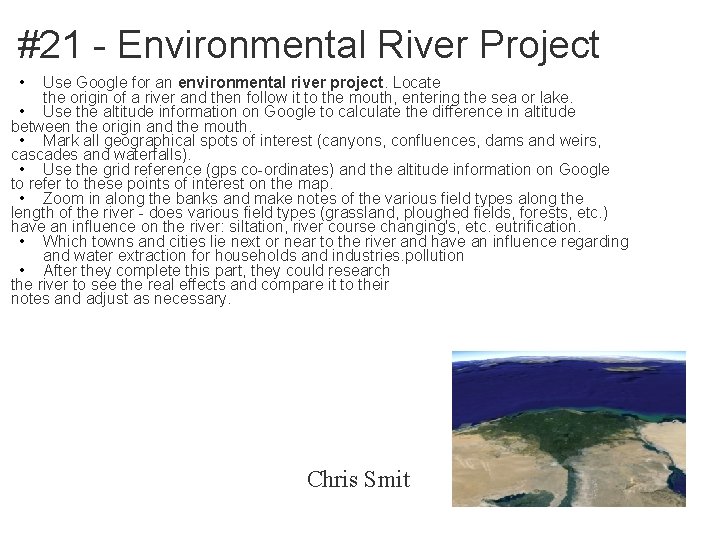
#21 - Environmental River Project • Use Google for an environmental river project. Locate the origin of a river and then follow it to the mouth, entering the sea or lake. • Use the altitude information on Google to calculate the difference in altitude between the origin and the mouth. • Mark all geographical spots of interest (canyons, confluences, dams and weirs, cascades and waterfalls). • Use the grid reference (gps co-ordinates) and the altitude information on Google to refer to these points of interest on the map. • Zoom in along the banks and make notes of the various field types along the length of the river - does various field types (grassland, ploughed fields, forests, etc. ) have an influence on the river: siltation, river course changing's, etc. eutrification. • Which towns and cities lie next or near to the river and have an influence regarding and water extraction for households and industries. pollution • After they complete this part, they could research the river to see the real effects and compare it to their notes and adjust as necessary. Chris Smit
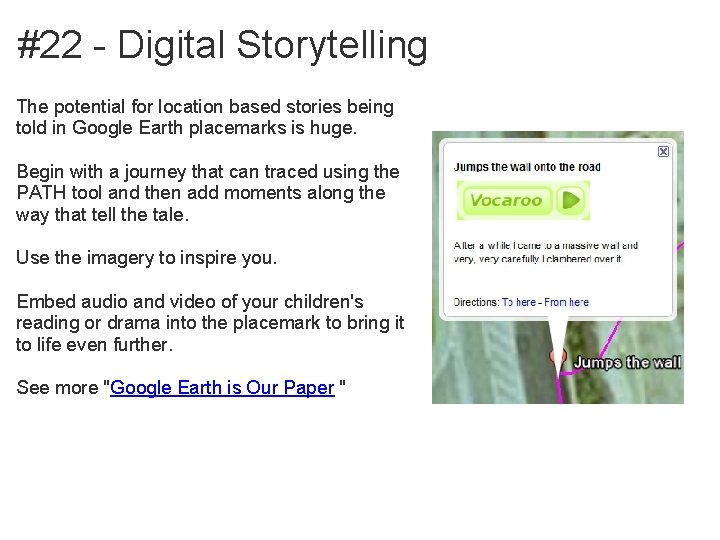
#22 - Digital Storytelling The potential for location based stories being told in Google Earth placemarks is huge. Begin with a journey that can traced using the PATH tool and then add moments along the way that tell the tale. Use the imagery to inspire you. Embed audio and video of your children's reading or drama into the placemark to bring it to life even further. See more "Google Earth is Our Paper "
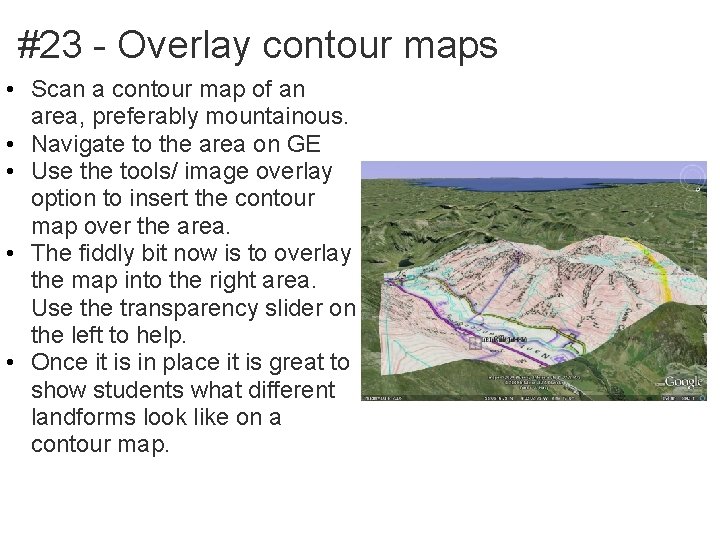
#23 - Overlay contour maps • Scan a contour map of an area, preferably mountainous. • Navigate to the area on GE • Use the tools/ image overlay option to insert the contour map over the area. • The fiddly bit now is to overlay the map into the right area. Use the transparency slider on the left to help. • Once it is in place it is great to show students what different landforms look like on a contour map.
Secrets of Google Earth Really Cool Video Highlighting Google Earth Images 1: Indian in the mountain (shaped like it) 2: Nazi building 3: Hidden Donut store 4: Cat in a bottle (looks like it) 5: Google in a bathtub 6: Big F**k 7: Crop circle 8: Dutch sunbather 9: Weird black line and a fire on ice 10: Giant Firefox symbol
Atlantis Found with Google. Earth Was Atlantis Really Discovered with Google. Earth? http: //www. youtube. com/watch? v=gc. BE 19 K or 4 w
Presenter Contact Info: th Ella Bowling, 7 Grade Science Teacher Mason County Middle School 420 Chenault Drive, Maysville, KY 41056 606 -564 -6748 (school) 606 -782 -0192 (cell)
- Slides: 65