
GPF Migration 2010 Wipro Ltd Confidential Purpose The


- Slides: 40
GPF Migration © 2010 Wipro Ltd - Confidential
Purpose: The purpose of this Presentation is to train the user for doing GPF Migration 2 © 2010 Wipro Ltd - Confidential
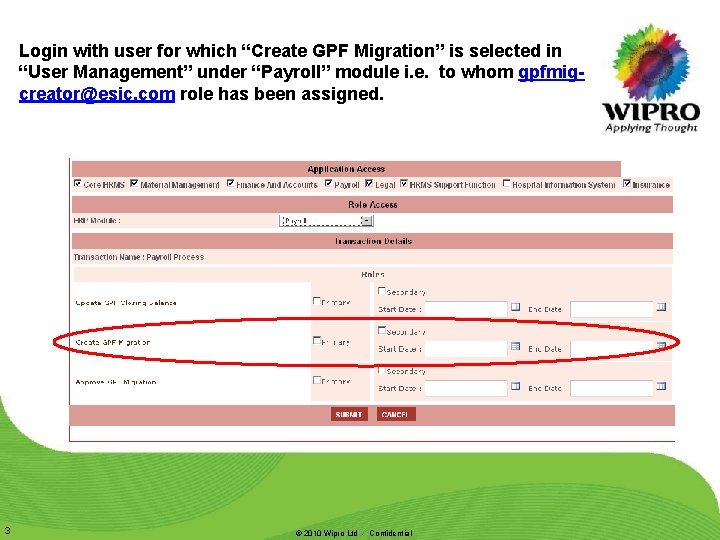
Login with user for which “Create GPF Migration” is selected in “User Management” under “Payroll” module i. e. to whom gpfmigcreator@esic. com role has been assigned. 3 © 2010 Wipro Ltd - Confidential
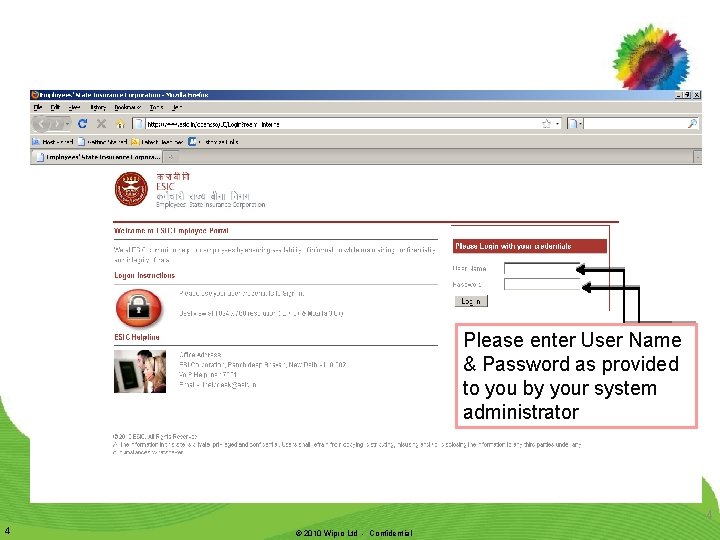
Please enter User Name & Password as provided to you by your system administrator 4 4 © 2010 Wipro Ltd - Confidential
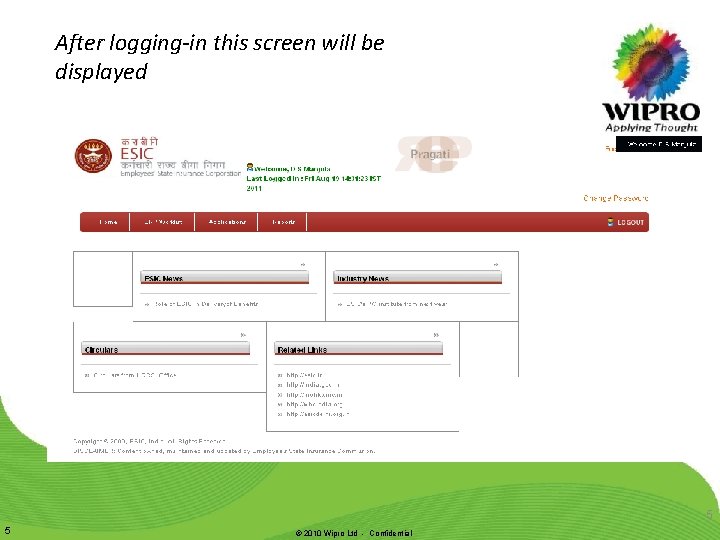
After logging-in this screen will be displayed 5 5 © 2010 Wipro Ltd - Confidential
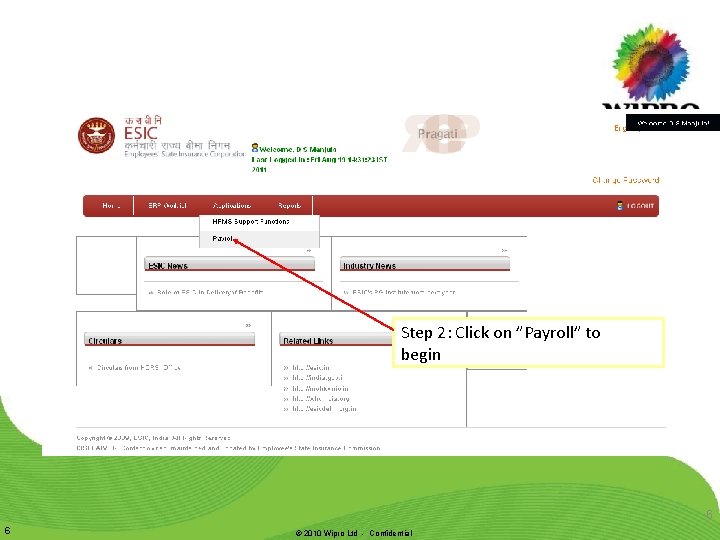
Step 2: Click on ”Payroll” to begin 6 6 © 2010 Wipro Ltd - Confidential
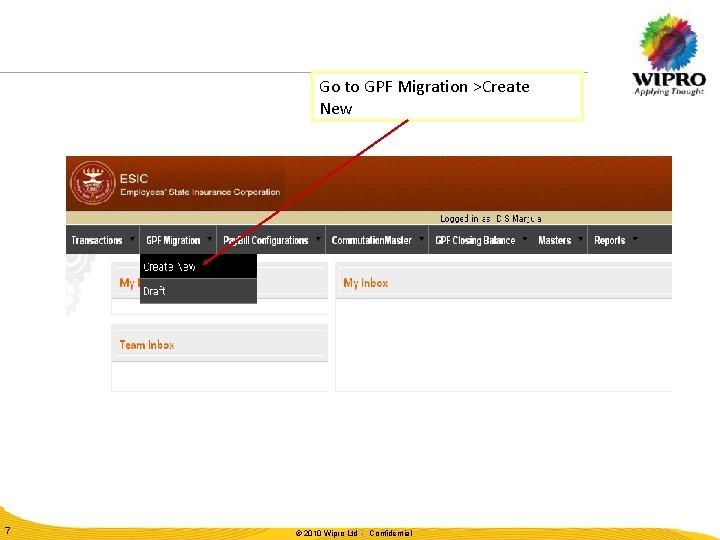
Go to GPF Migration >Create New 7 © © 2010 2009 Wipro Ltd -- Confidential
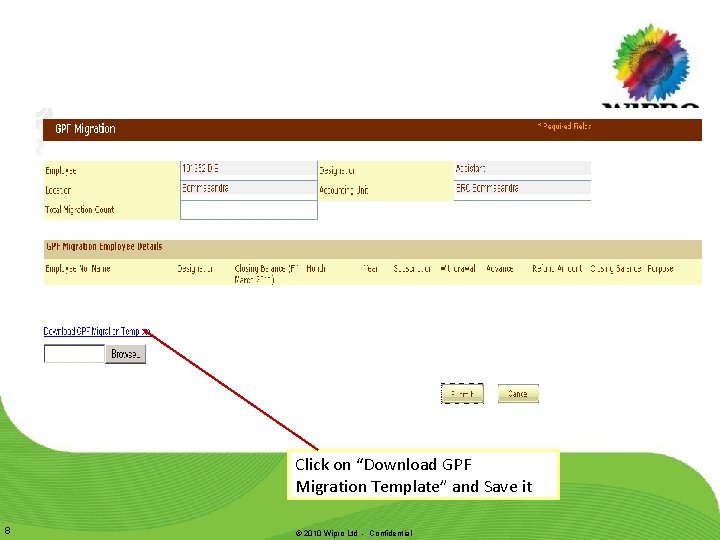
Click on “Download GPF Migration Template” and Save it 8 © 2010 Wipro Ltd - Confidential
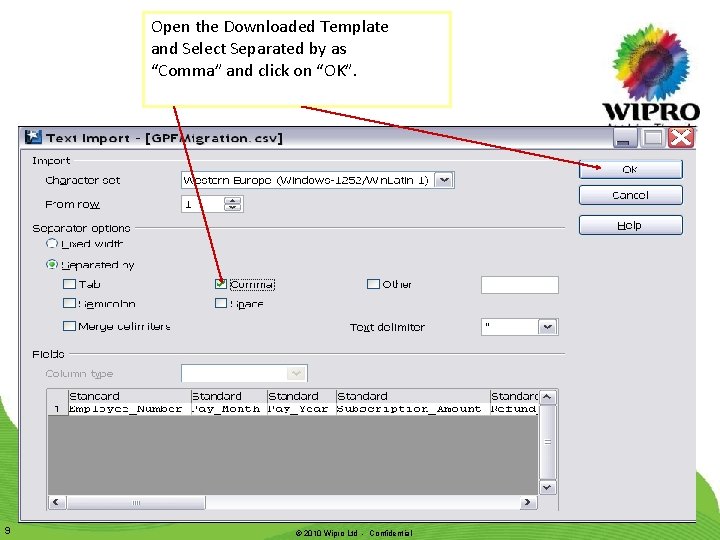
Open the Downloaded Template and Select Separated by as “Comma” and click on “OK”. 9 © 2010 Wipro Ltd - Confidential
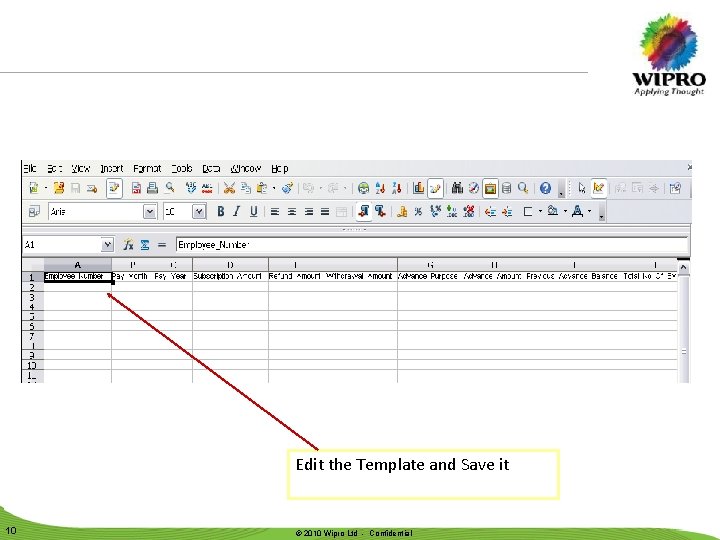
Edit the Template and Save it 10 © © 2010 2009 Wipro Ltd -- Confidential
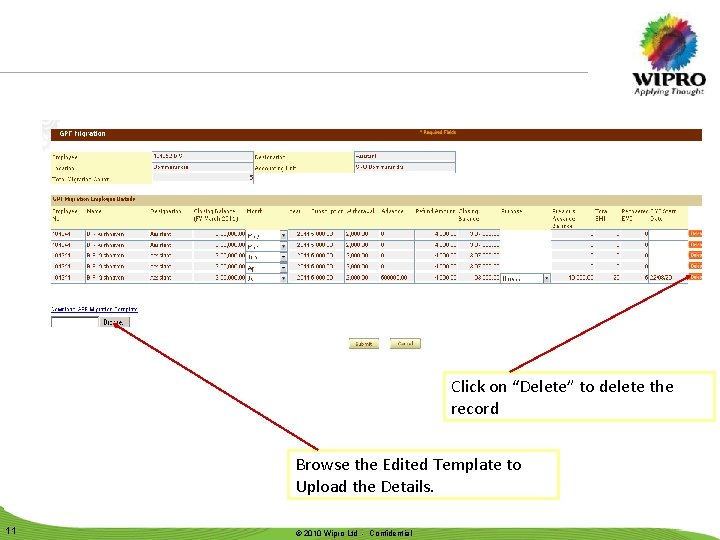
Click on “Delete” to delete the record Browse the Edited Template to Upload the Details. 11 © © 2010 2009 Wipro Ltd -- Confidential
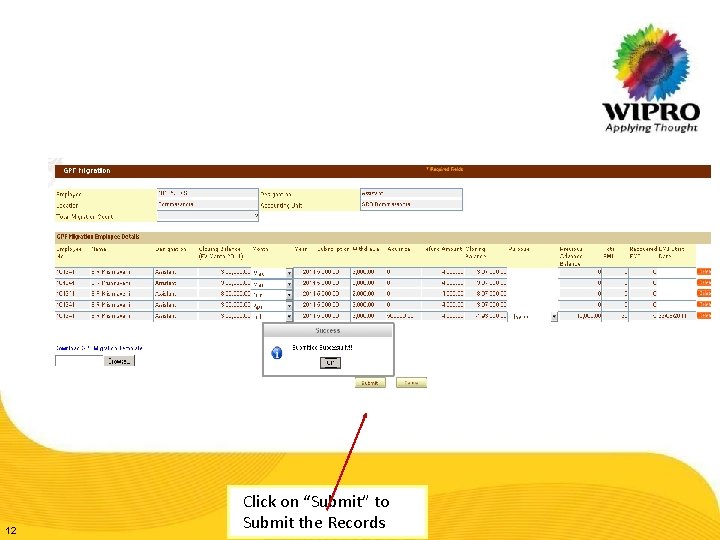
12 Click on “Submit” to Submit ©the Records 2010 Wipro Ltd - Confidential
GPF Migration Approval 13 © 2010 Wipro Ltd - Confidential
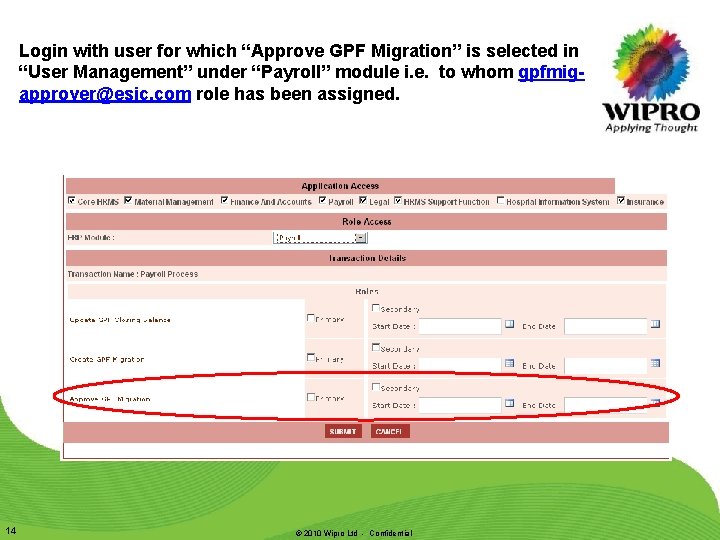
Login with user for which “Approve GPF Migration” is selected in “User Management” under “Payroll” module i. e. to whom gpfmigapprover@esic. com role has been assigned. 14 © 2010 Wipro Ltd - Confidential
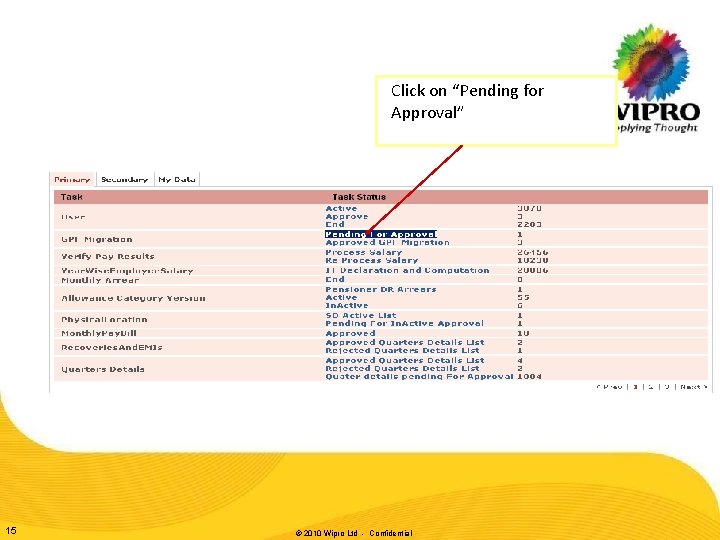
Click on “Pending for Approval” 15 © 2010 Wipro Ltd - Confidential
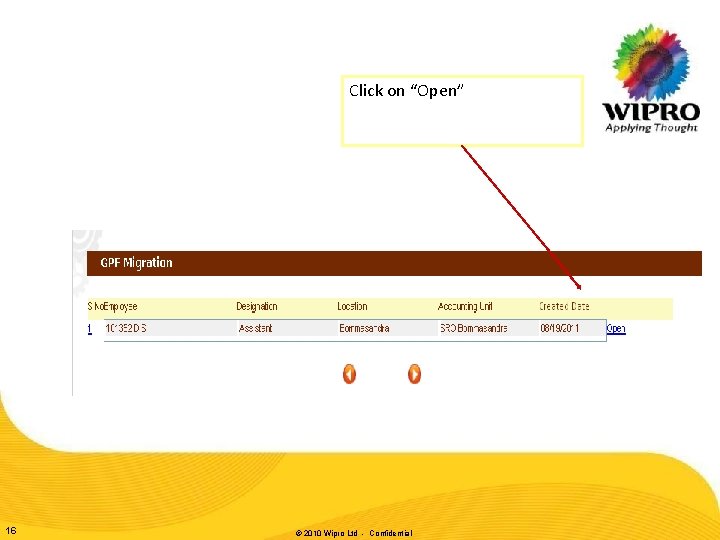
Click on “Open” 16 © 2010 Wipro Ltd - Confidential
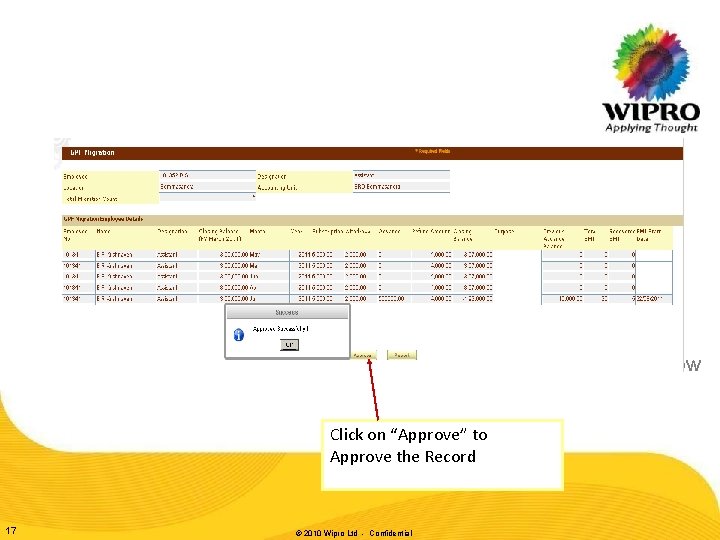
When > Where >How Click on “Approve” to Approve the Record 17 © 2010 Wipro Ltd - Confidential
Approved GPF Migration 18 © 2010 Wipro Ltd - Confidential
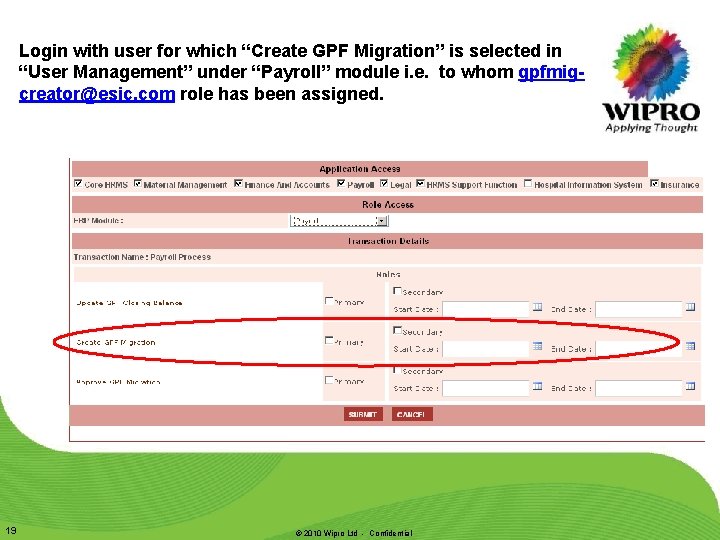
Login with user for which “Create GPF Migration” is selected in “User Management” under “Payroll” module i. e. to whom gpfmigcreator@esic. com role has been assigned. 19 © 2010 Wipro Ltd - Confidential
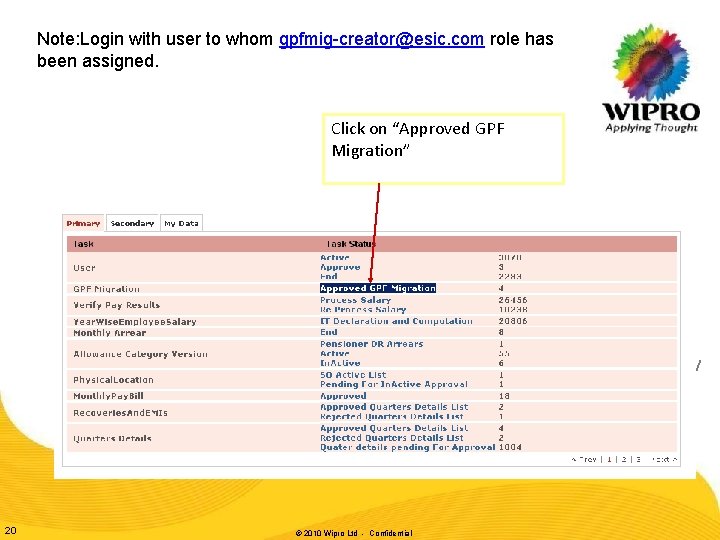
Note: Login with user to whom gpfmig-creator@esic. com role has been assigned. Click on “Approved GPF Migration” When > Where >How 20 © 2010 Wipro Ltd - Confidential
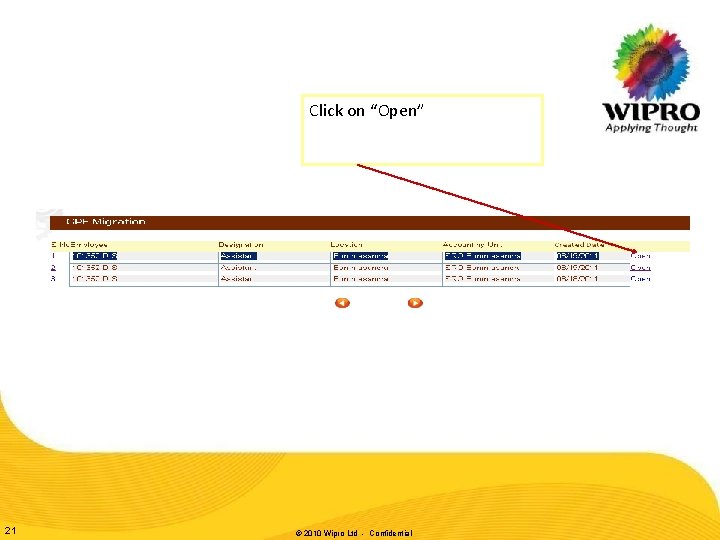
Click on “Open” 21 © 2010 Wipro Ltd - Confidential
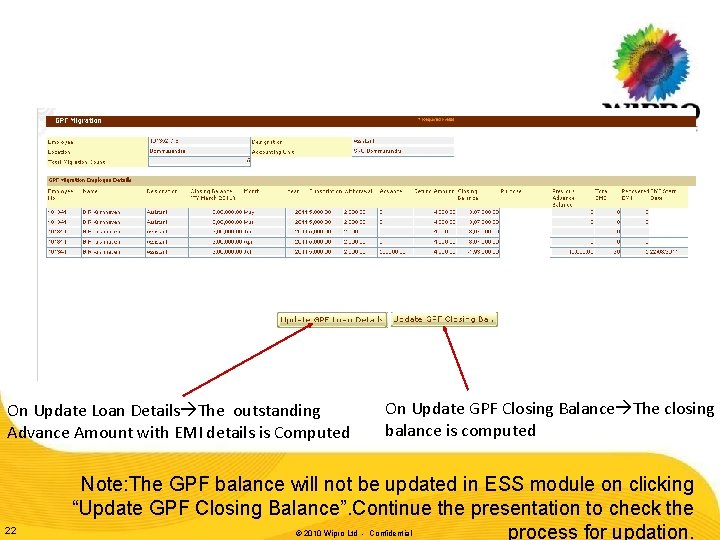
On Update Loan Details The outstanding Advance Amount with EMI details is Computed 22 On Update GPF Closing Balance The closing balance is computed Note: The GPF balance will not be updated in ESS module on clicking “Update GPF Closing Balance”. Continue the presentation to check the process for updation. © 2010 Wipro Ltd - Confidential
GPF Balance Updation to ESS 23 © 2010 Wipro Ltd - Confidential
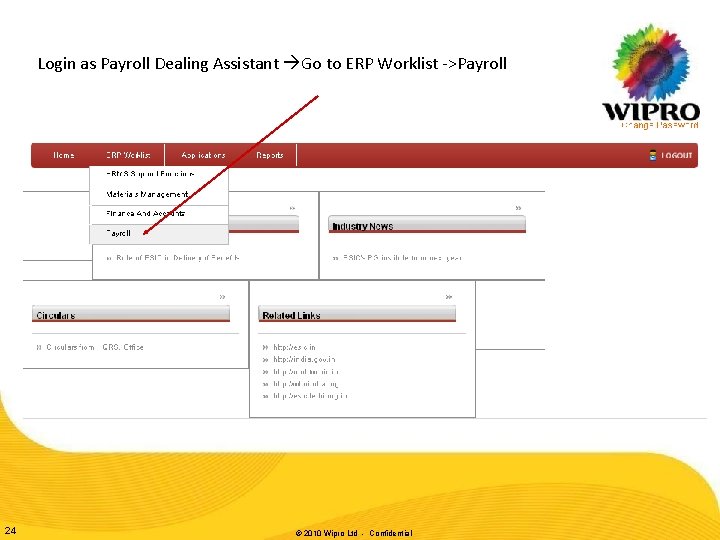
Login as Payroll Dealing Assistant Go to ERP Worklist ->Payroll 24 © 2010 Wipro Ltd - Confidential
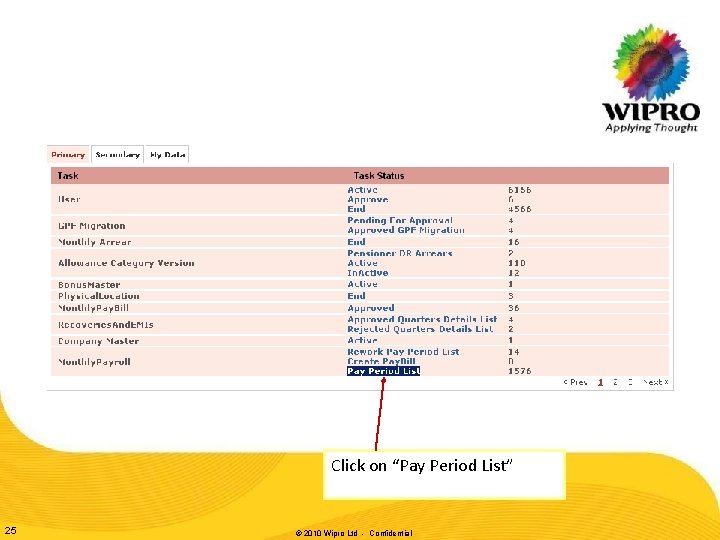
Click on “Pay Period List” 25 © 2010 Wipro Ltd - Confidential
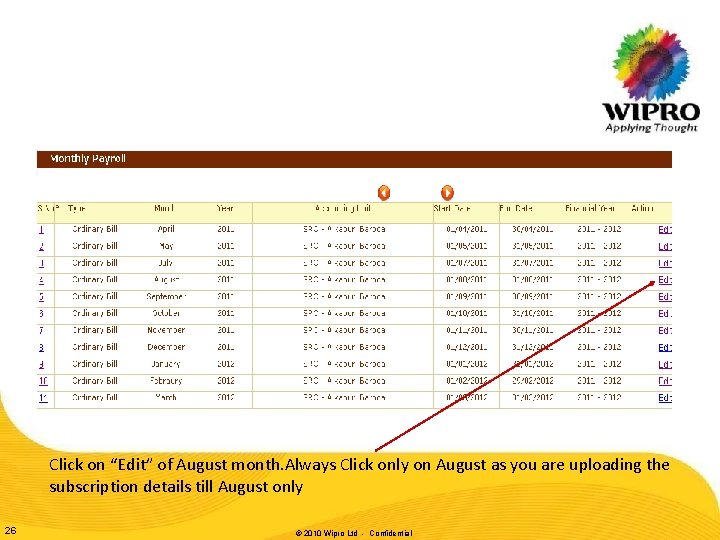
Click on “Edit” of August month. Always Click only on August as you are uploading the subscription details till August only 26 © 2010 Wipro Ltd - Confidential
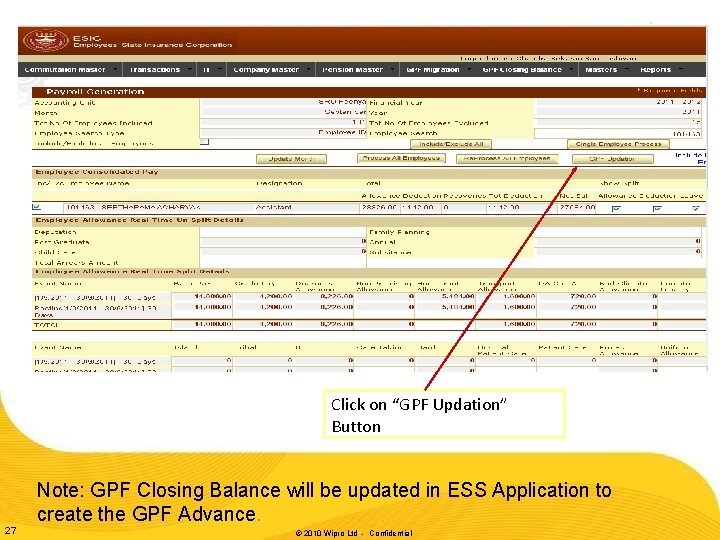
Click on “GPF Updation” Button 27 Note: GPF Closing Balance will be updated in ESS Application to create the GPF Advance. © 2010 Wipro Ltd - Confidential
GPF EMI Migration in ESS 28 © 2010 Wipro Ltd - Confidential
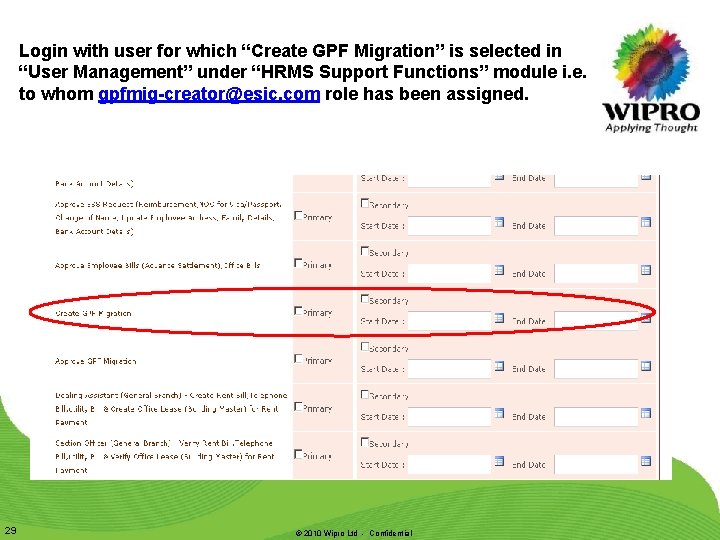
Login with user for which “Create GPF Migration” is selected in “User Management” under “HRMS Support Functions” module i. e. to whom gpfmig-creator@esic. com role has been assigned. 29 © 2010 Wipro Ltd - Confidential
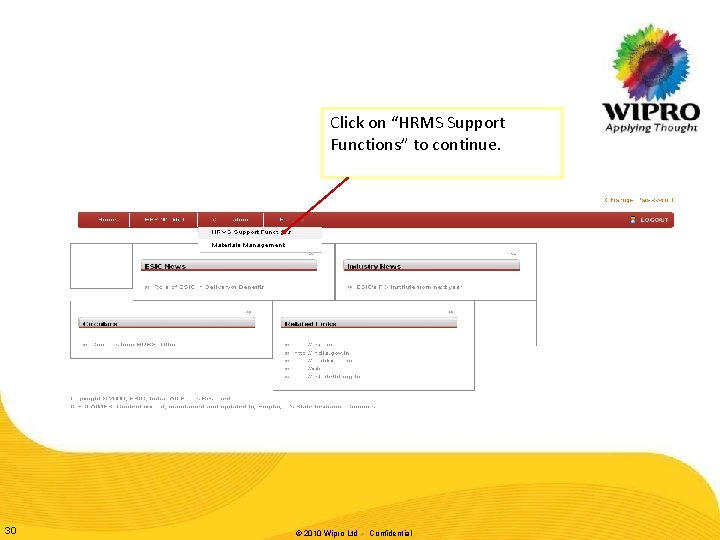
Click on “HRMS Support Functions” to continue. 30 © 2010 Wipro Ltd - Confidential
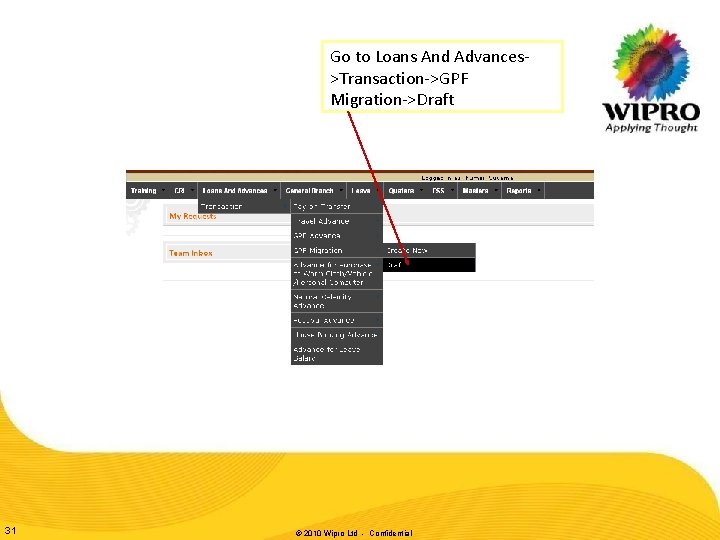
Go to Loans And Advances>Transaction->GPF Migration->Draft 31 © 2010 Wipro Ltd - Confidential
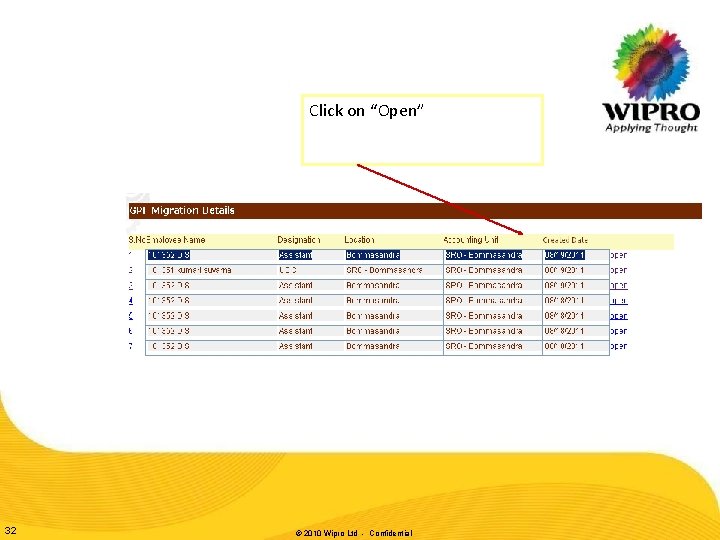
Click on “Open” 32 © 2010 Wipro Ltd - Confidential
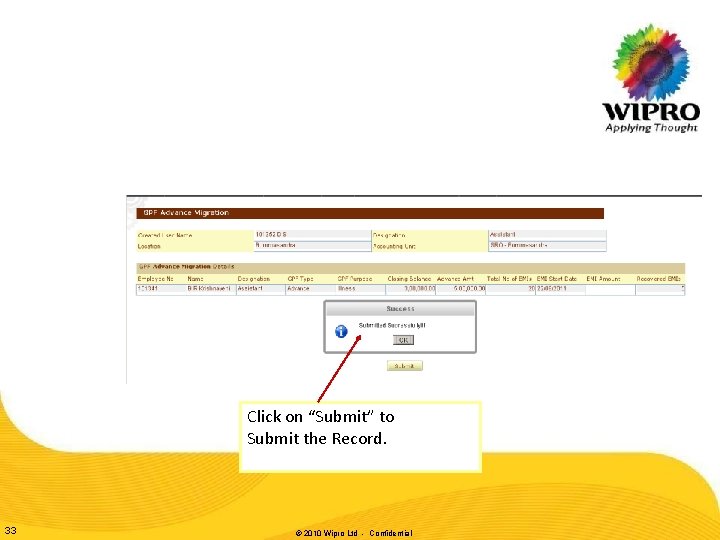
Click on “Submit” to Submit the Record. 33 © 2010 Wipro Ltd - Confidential
GPF Advance Migration Approval 34 © 2010 Wipro Ltd - Confidential
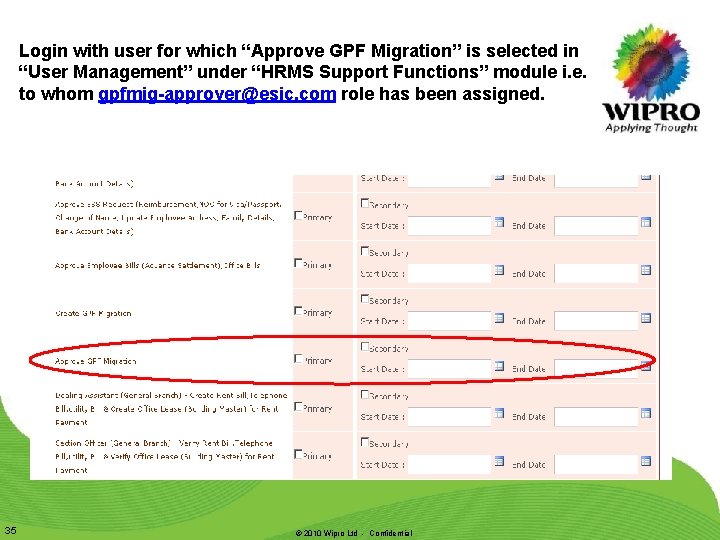
Login with user for which “Approve GPF Migration” is selected in “User Management” under “HRMS Support Functions” module i. e. to whom gpfmig-approver@esic. com role has been assigned. 35 © 2010 Wipro Ltd - Confidential
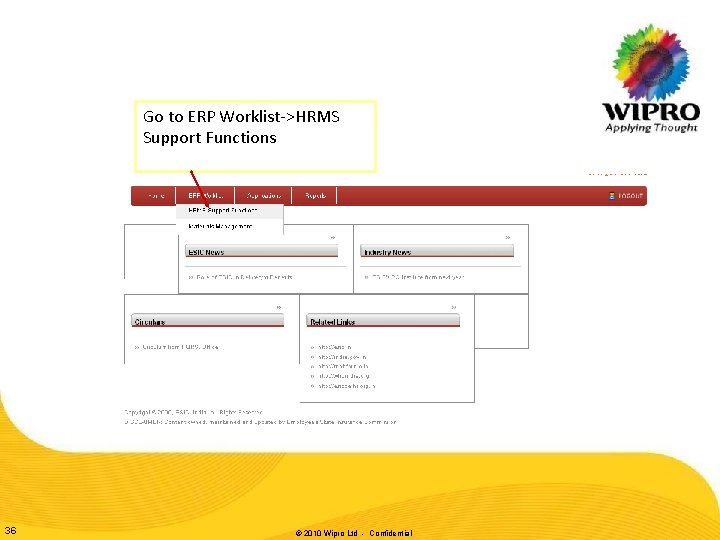
Go to ERP Worklist->HRMS Support Functions 36 © 2010 Wipro Ltd - Confidential
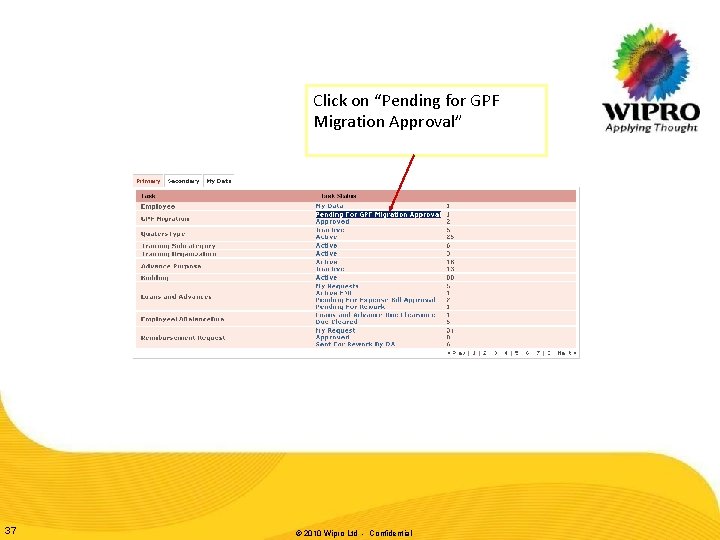
Click on “Pending for GPF Migration Approval” 37 © 2010 Wipro Ltd - Confidential
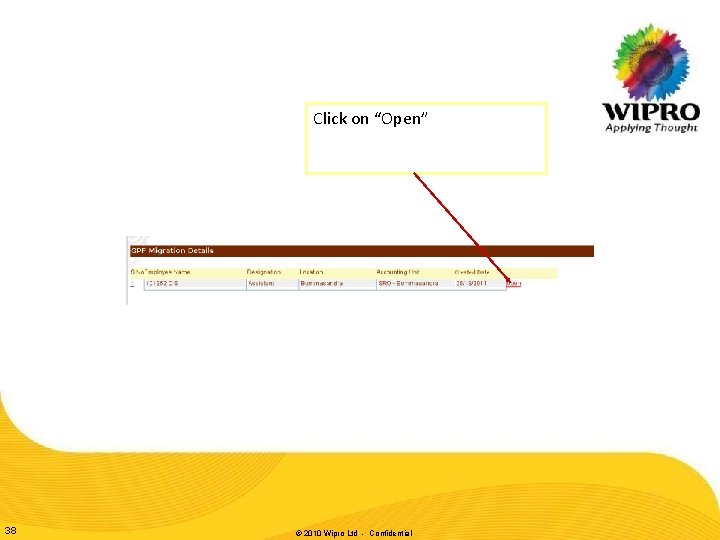
Click on “Open” 38 © 2010 Wipro Ltd - Confidential
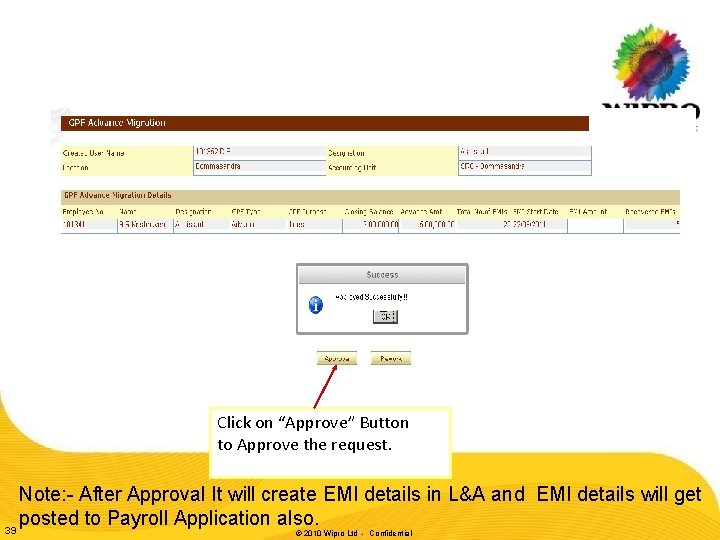
Click on “Approve” Button to Approve the request. Note: - After Approval It will create EMI details in L&A and EMI details will get posted to Payroll Application also. 39 © 2010 Wipro Ltd - Confidential
Thank You © 2010 Wipro Ltd - Confidential