
GPAs Weighted Grades Transcripts GPAs How are GPAs



- Slides: 55
GPA’s Weighted Grades Transcripts
GPA’s
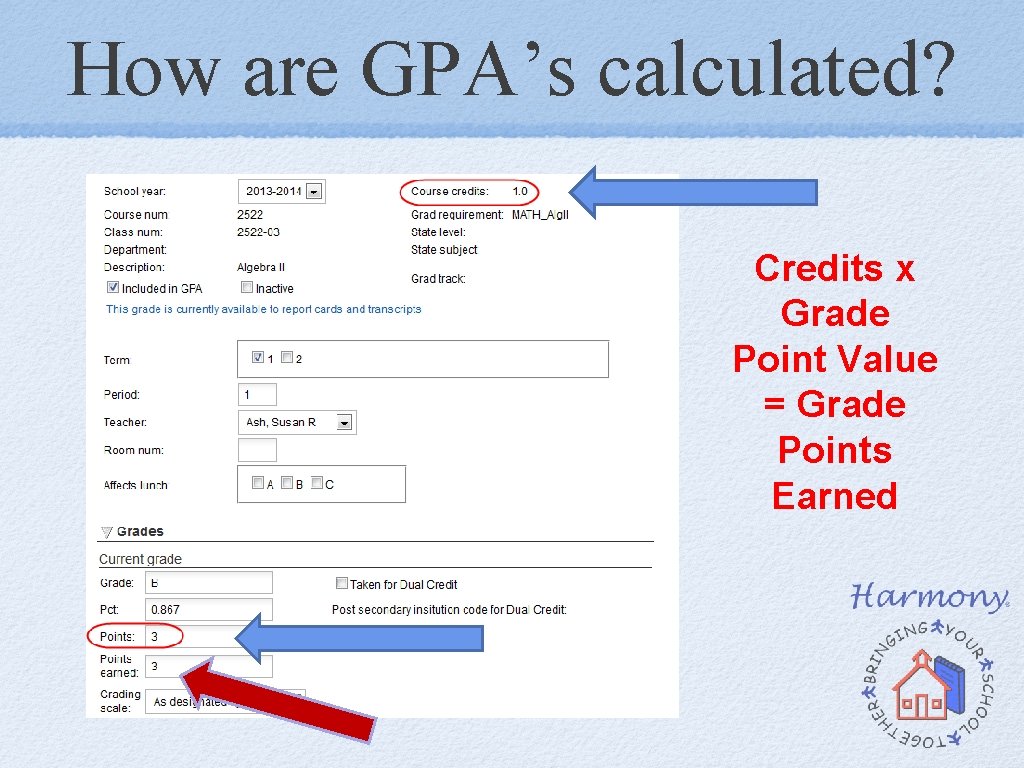
How are GPA’s calculated? Credits x Grade Point Value = Grade Points Earned
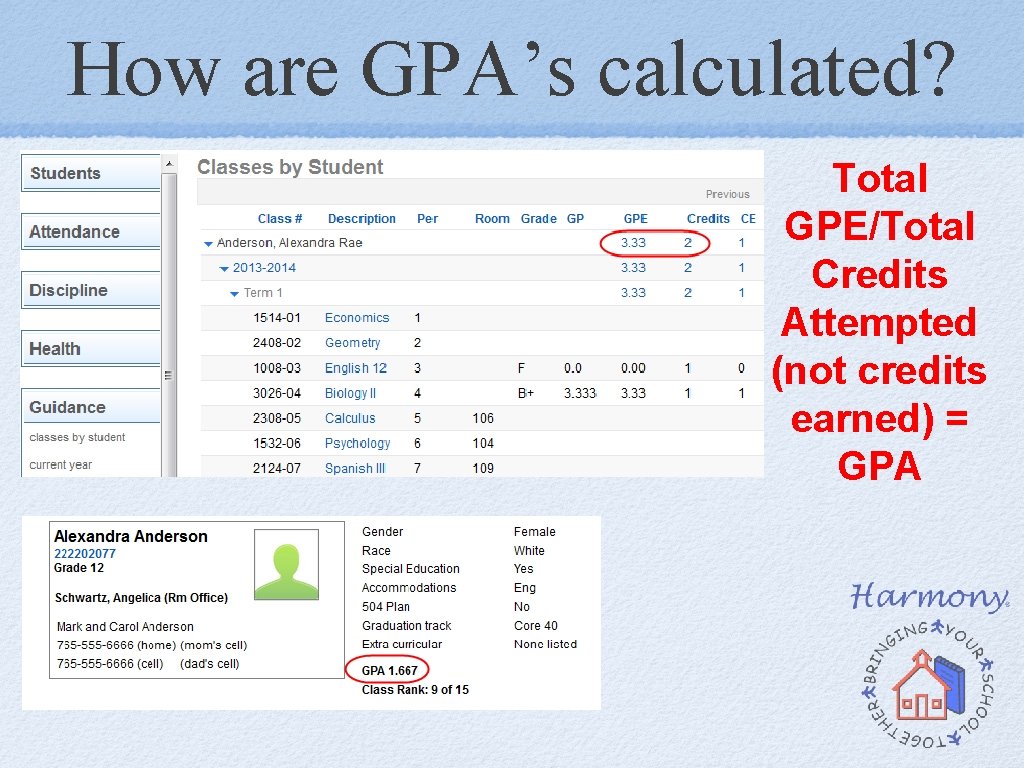
How are GPA’s calculated? Total GPE/Total Credits Attempted (not credits earned) = GPA
What about GPA for Middle School? Enter Course Credits on the Middle School Master Courses This is run the same way as High School This will NOT count towards High School GPA Student class documents marked as grades 6, 7, or 8 will not count towards High School GPA
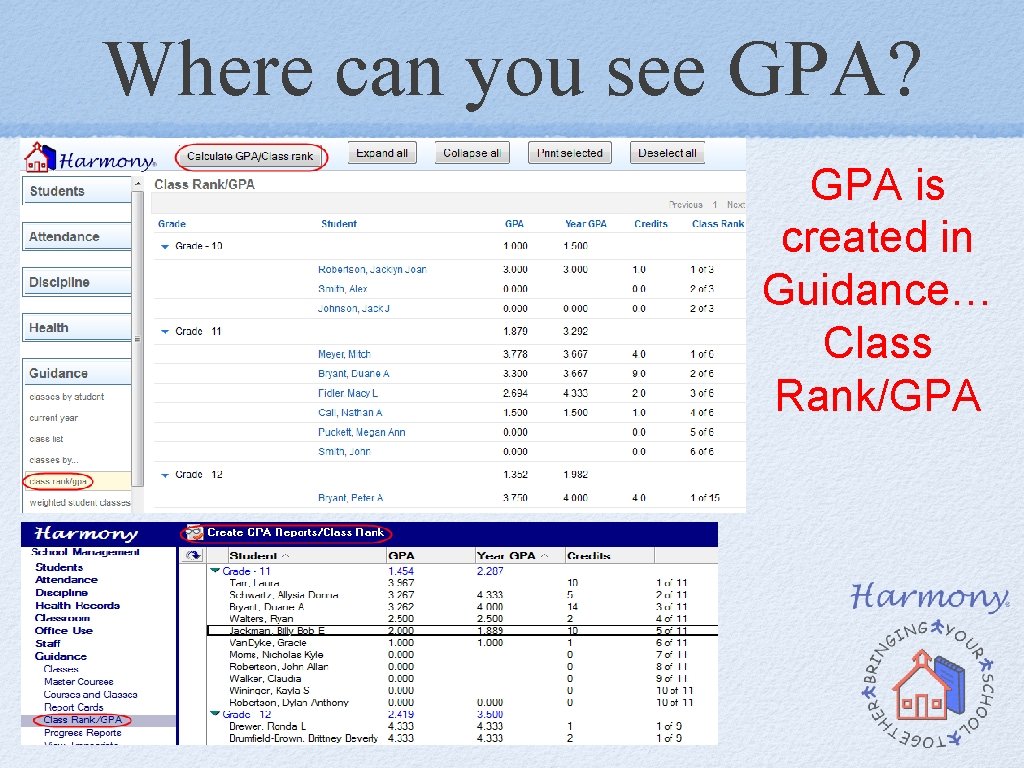
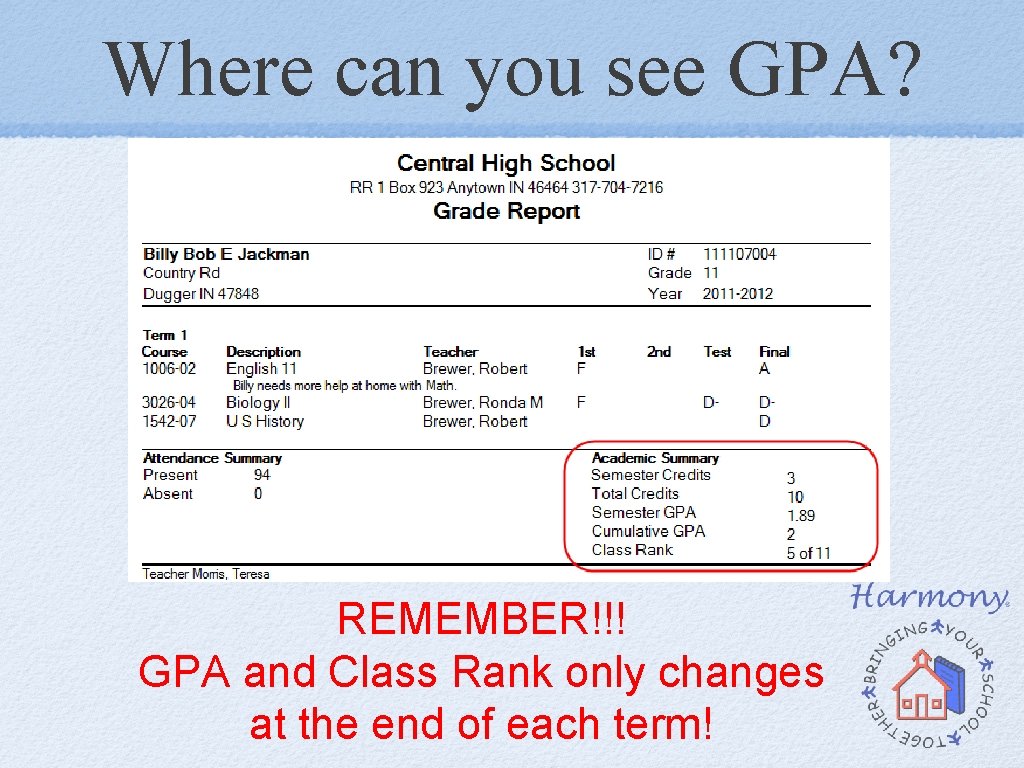
Where can you see GPA? GPA is created in Guidance… Class Rank/GPA
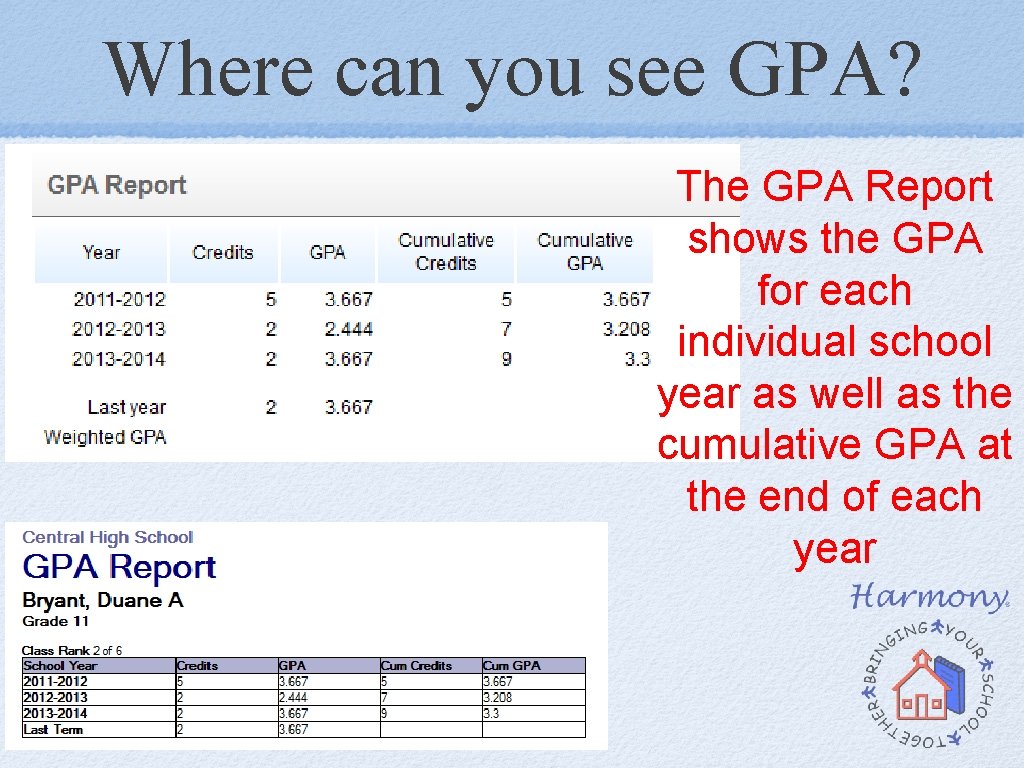
Where can you see GPA? The GPA Report shows the GPA for each individual school year as well as the cumulative GPA at the end of each year
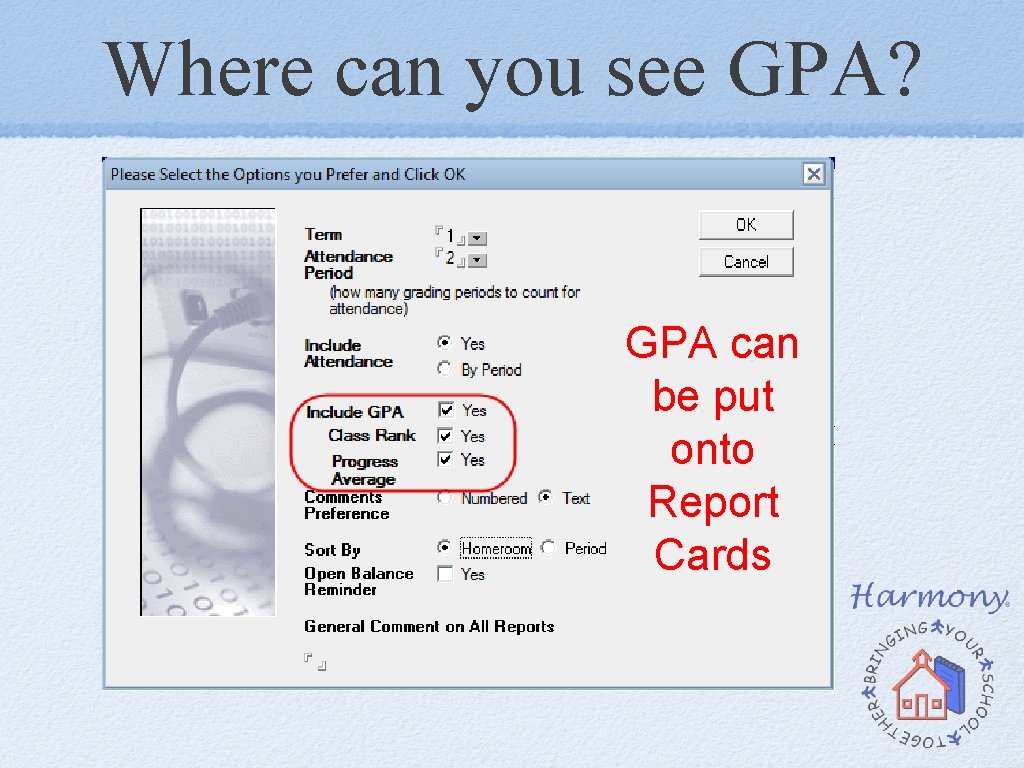
Where can you see GPA? GPA can be put onto Report Cards
Where can you see GPA? REMEMBER!!! GPA and Class Rank only changes at the end of each term!
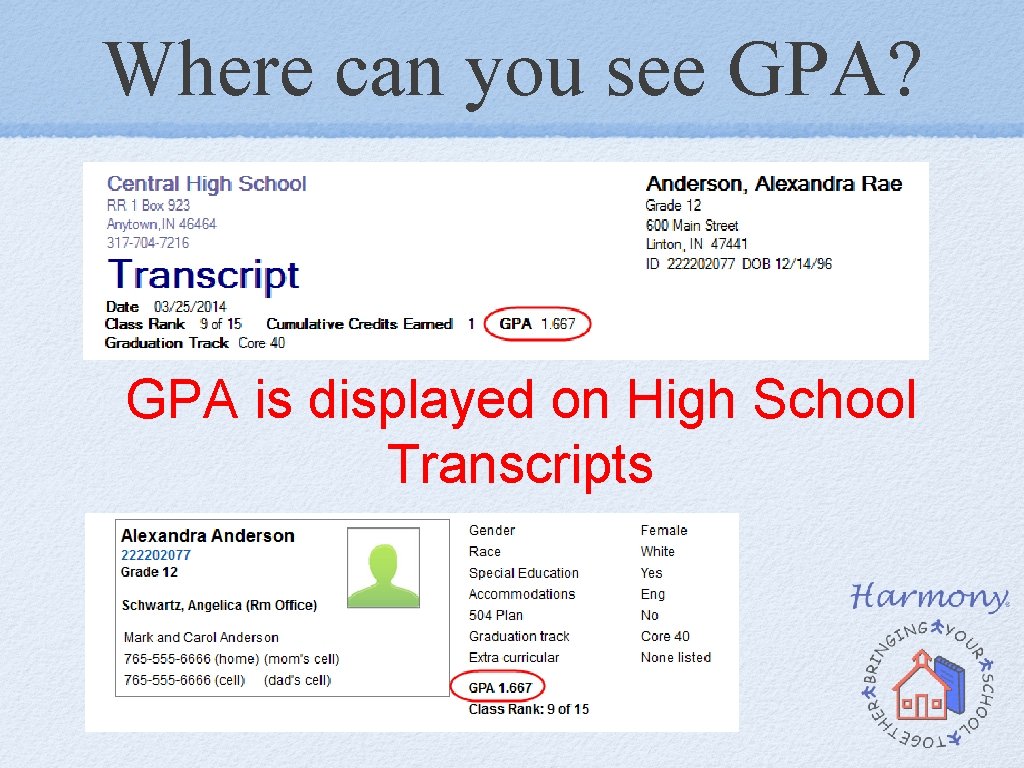
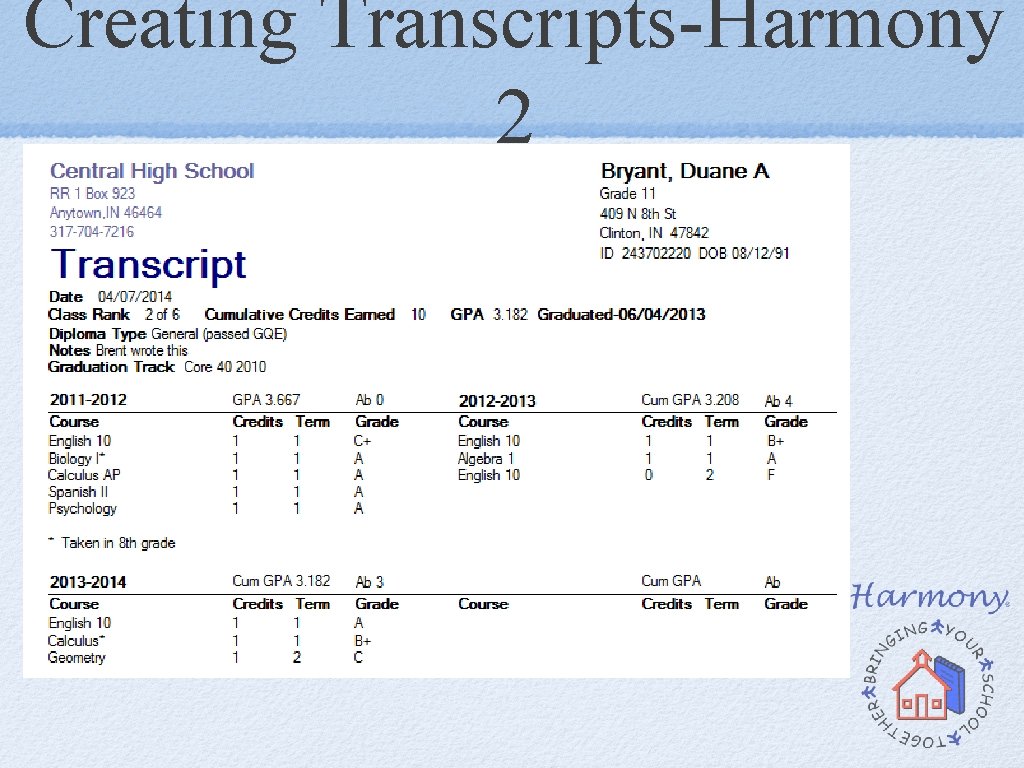
Where can you see GPA? GPA is displayed on High School Transcripts
Transcripts
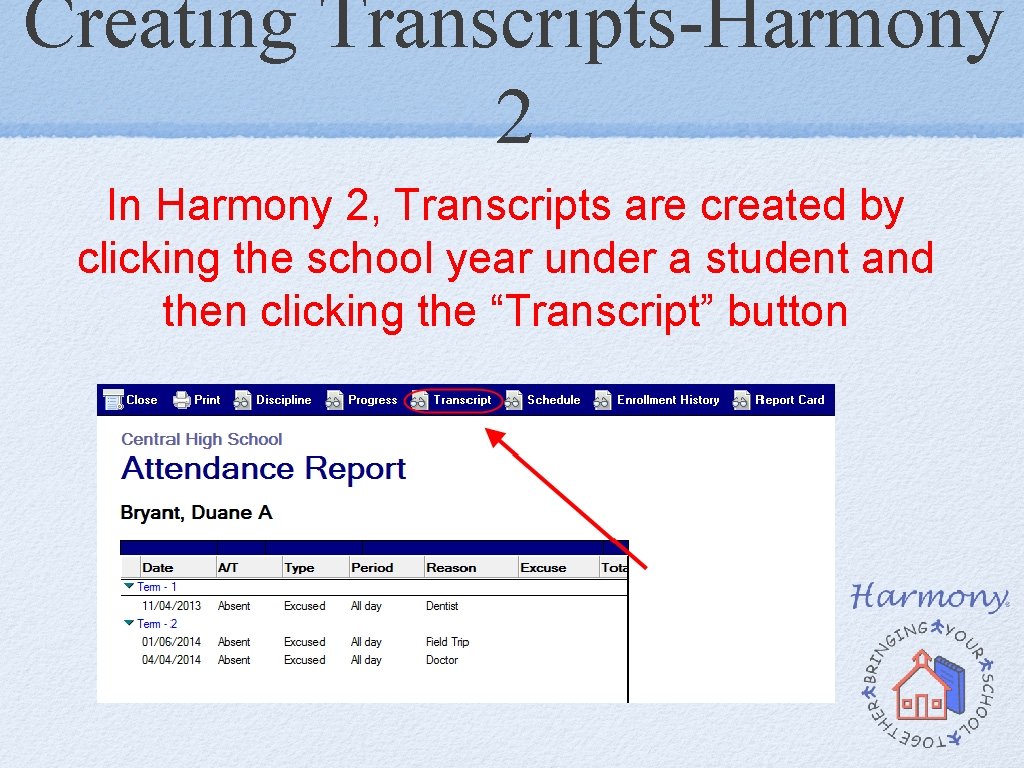
Creating Transcripts-Harmony 2 In Harmony 2, Transcripts are created by clicking the school year under a student and then clicking the “Transcript” button
Creating Transcripts-Harmony 2
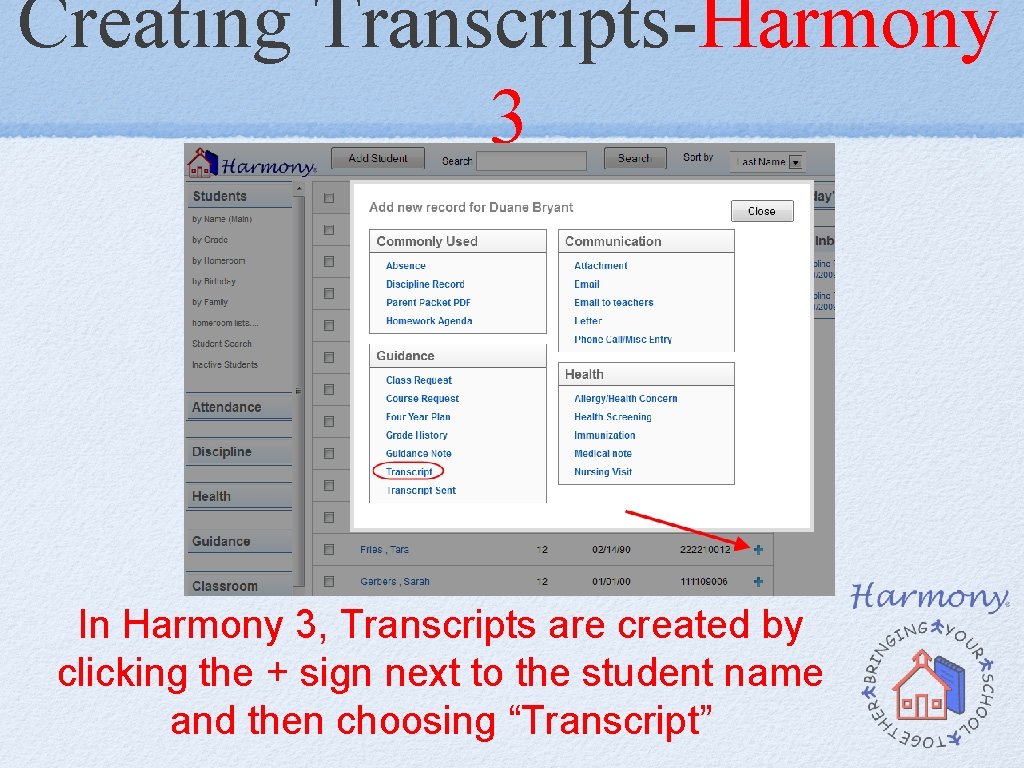
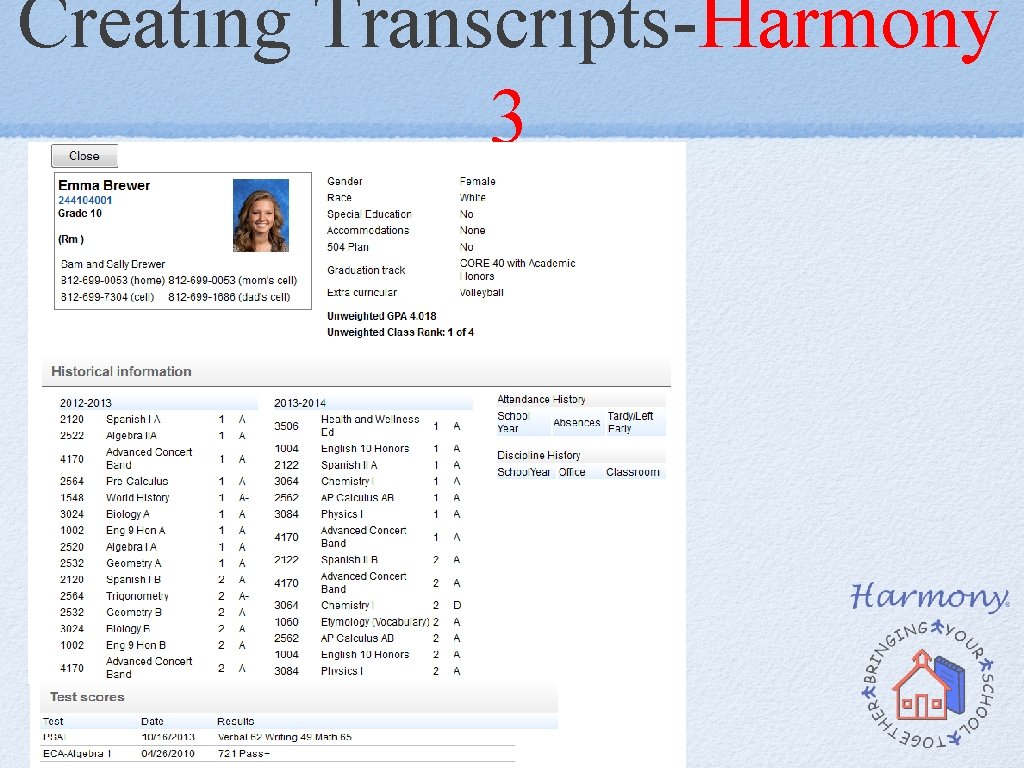
Creating Transcripts-Harmony 3 In Harmony 3, Transcripts are created by clicking the + sign next to the student name and then choosing “Transcript”
Creating Transcripts-Harmony 3
Can the transcript template be customized?
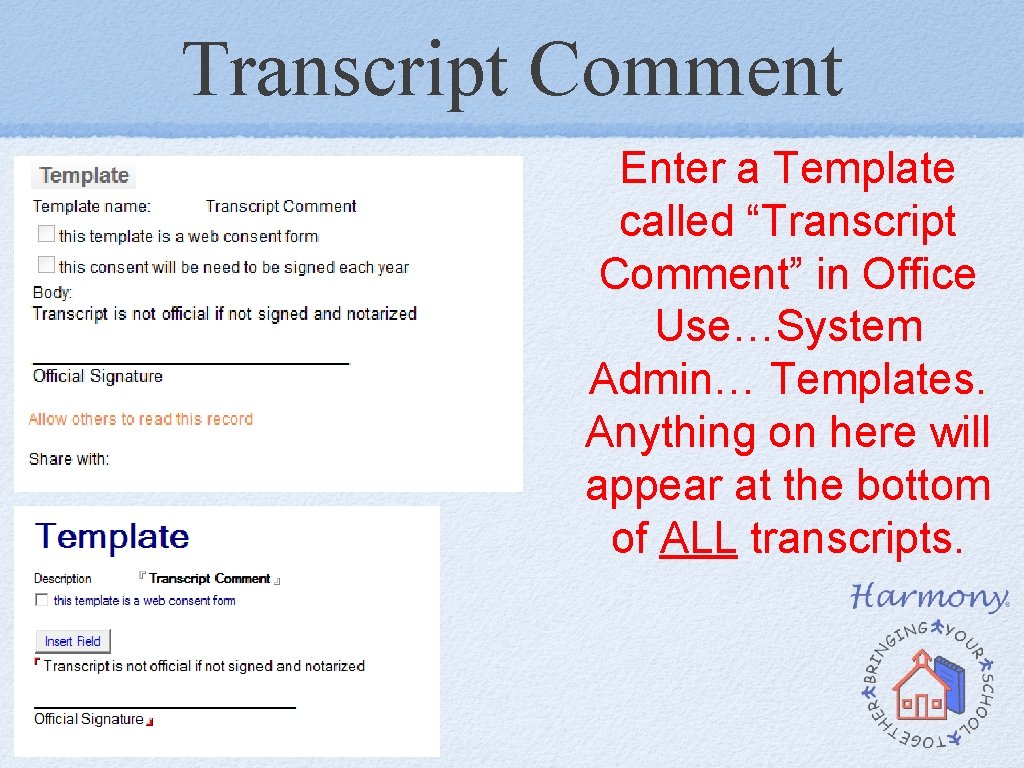
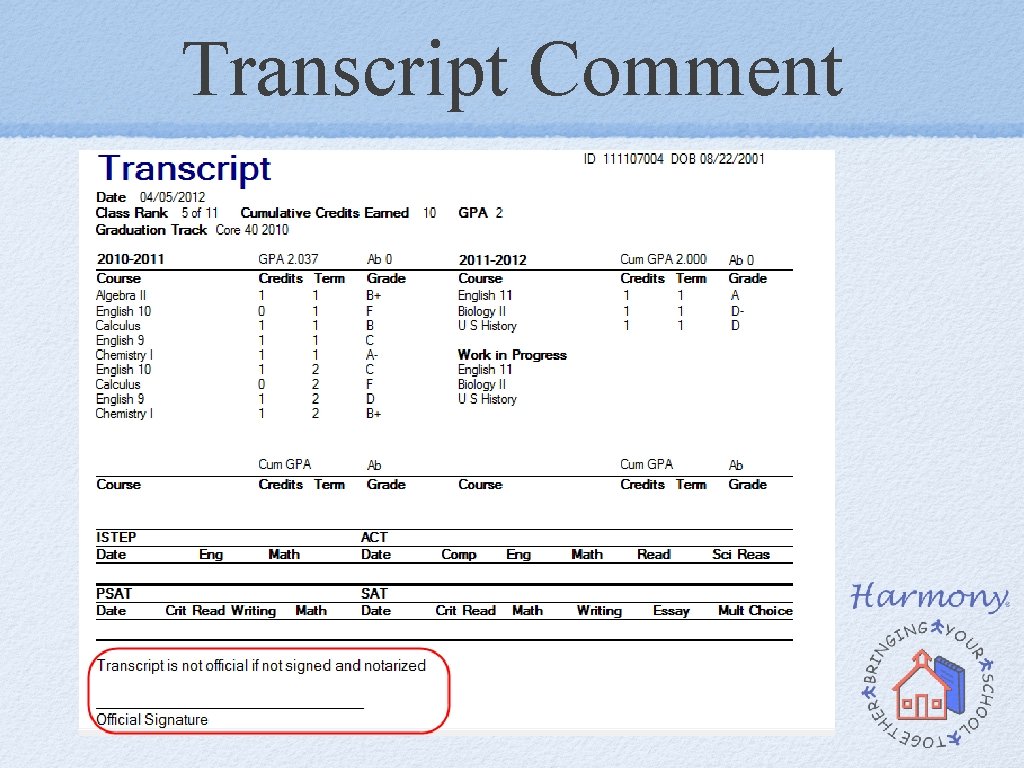
Transcript Comment Enter a Template called “Transcript Comment” in Office Use…System Admin… Templates. Anything on here will appear at the bottom of ALL transcripts.
Transcript Comment
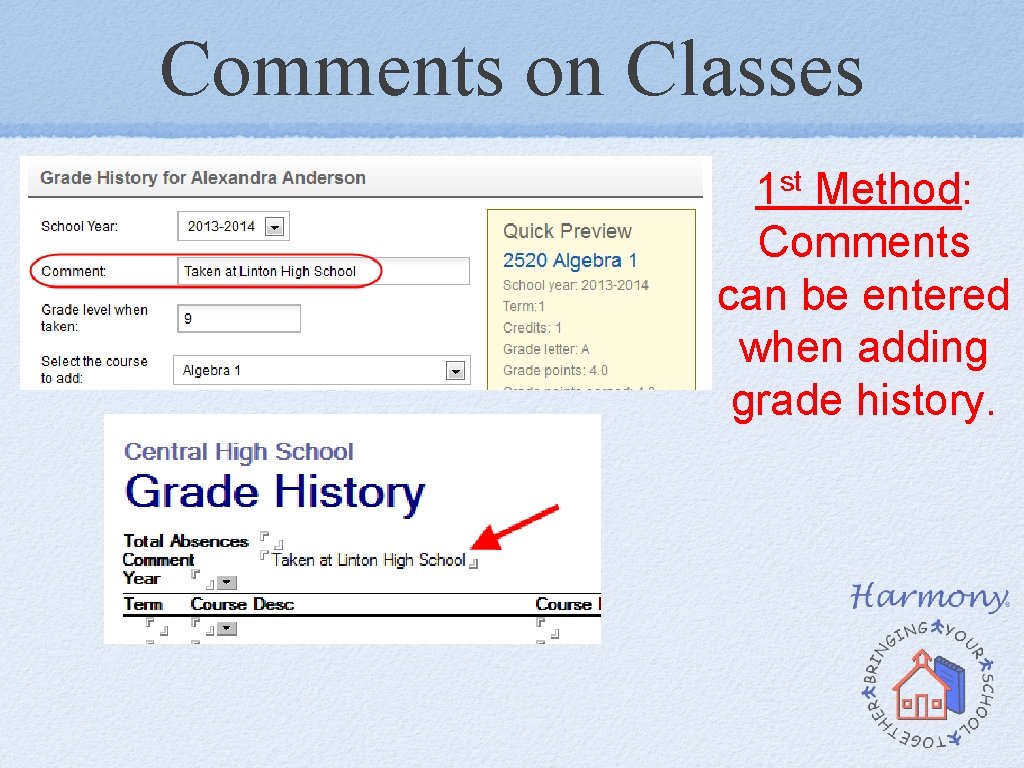
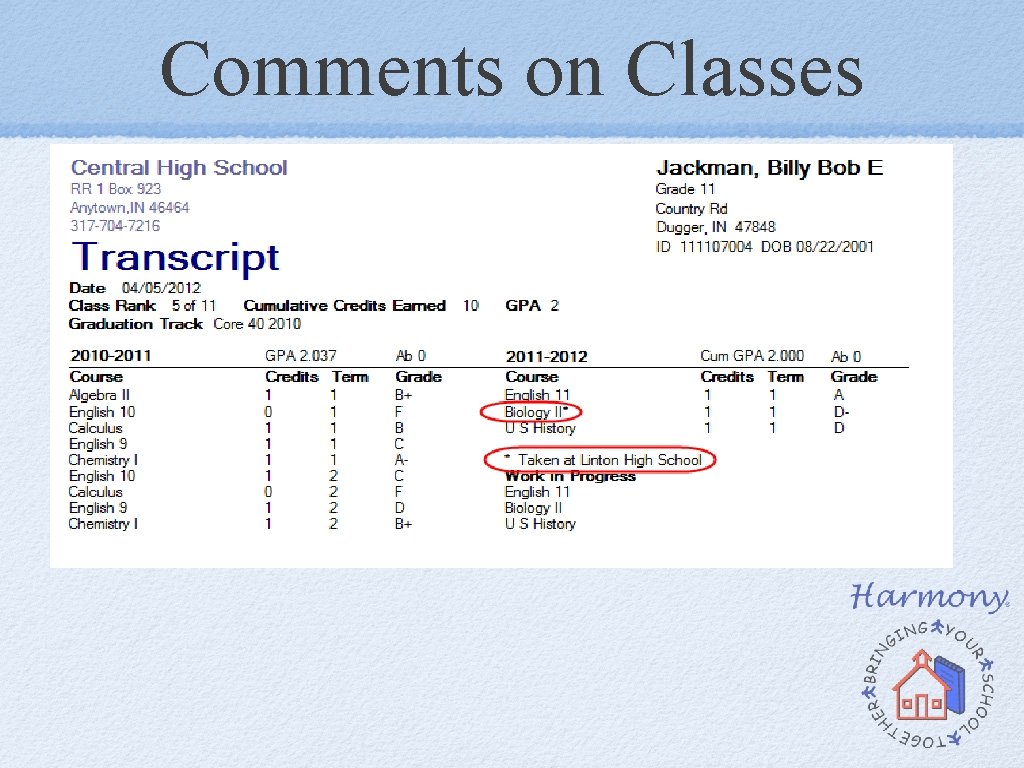
Comments on Classes st 1 Method: Comments can be entered when adding grade history.
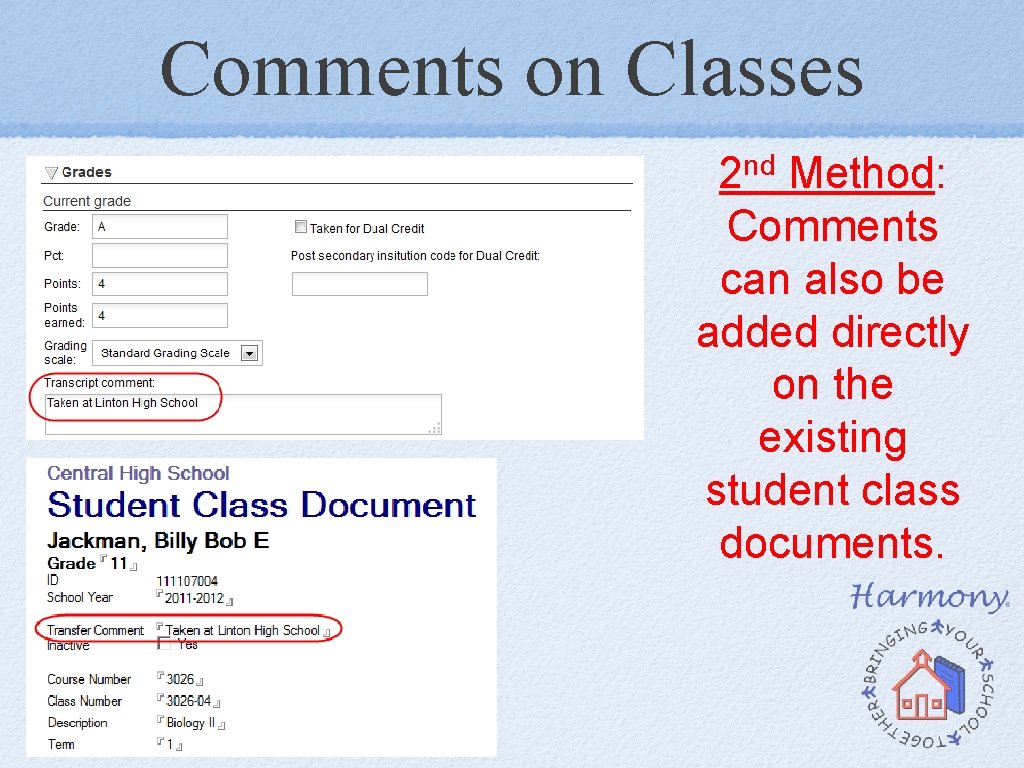
Comments on Classes nd 2 Method: Comments can also be added directly on the existing student class documents.
Comments on Classes
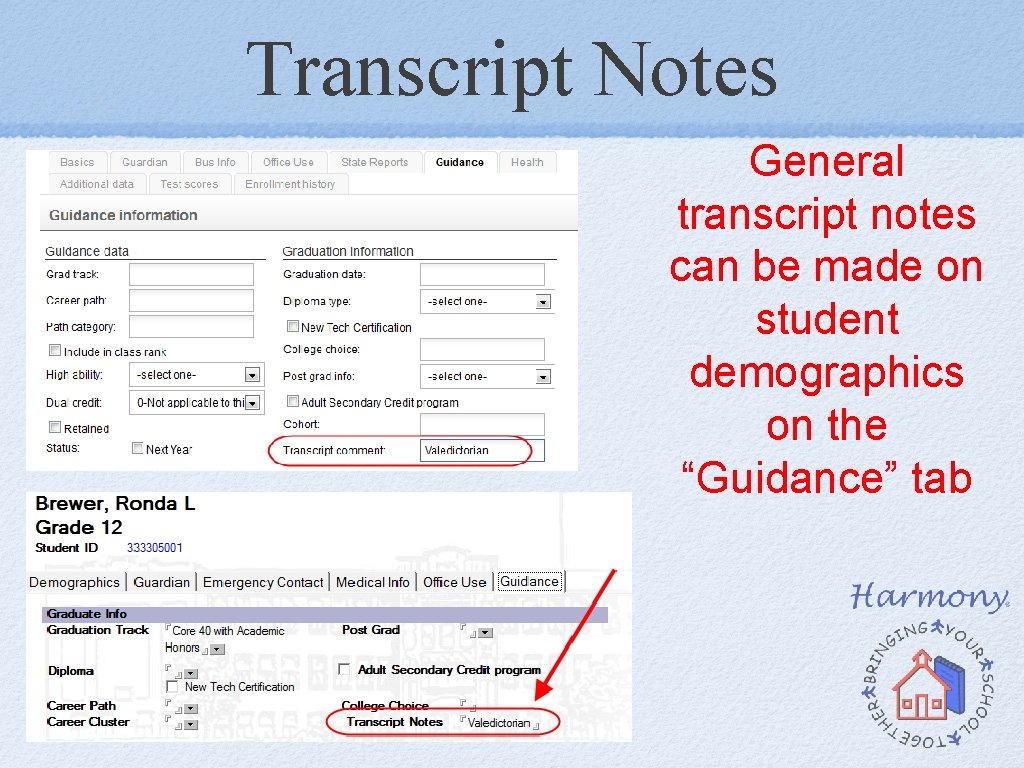
Transcript Notes General transcript notes can be made on student demographics on the “Guidance” tab
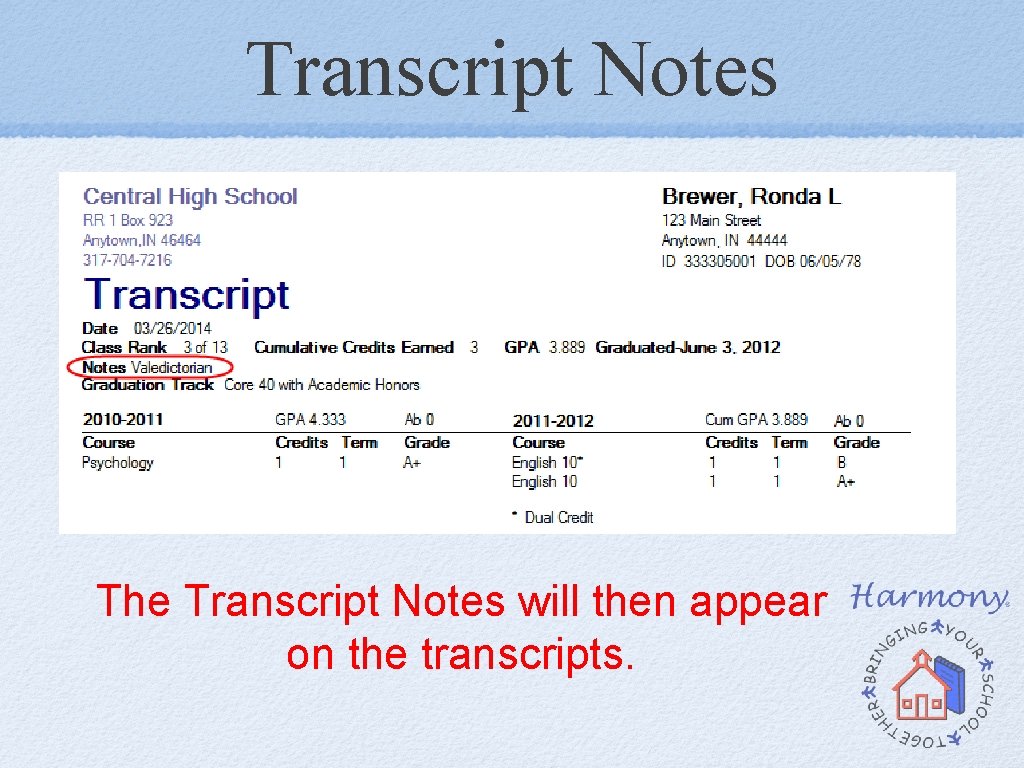
Transcript Notes The Transcript Notes will then appear on the transcripts.
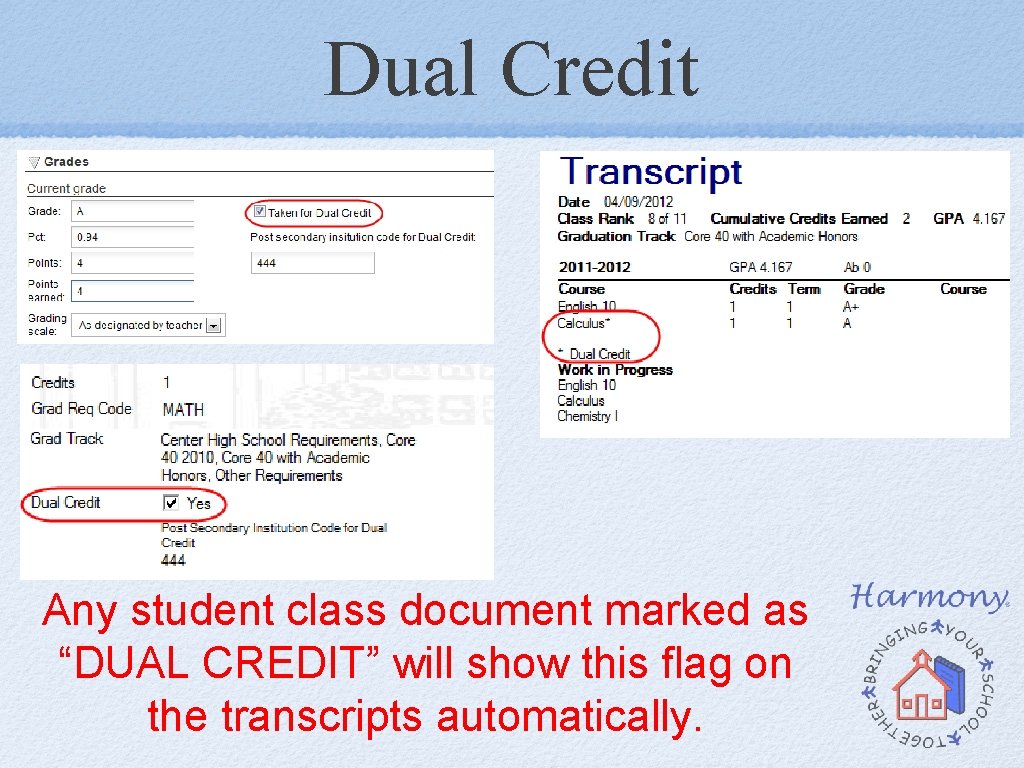
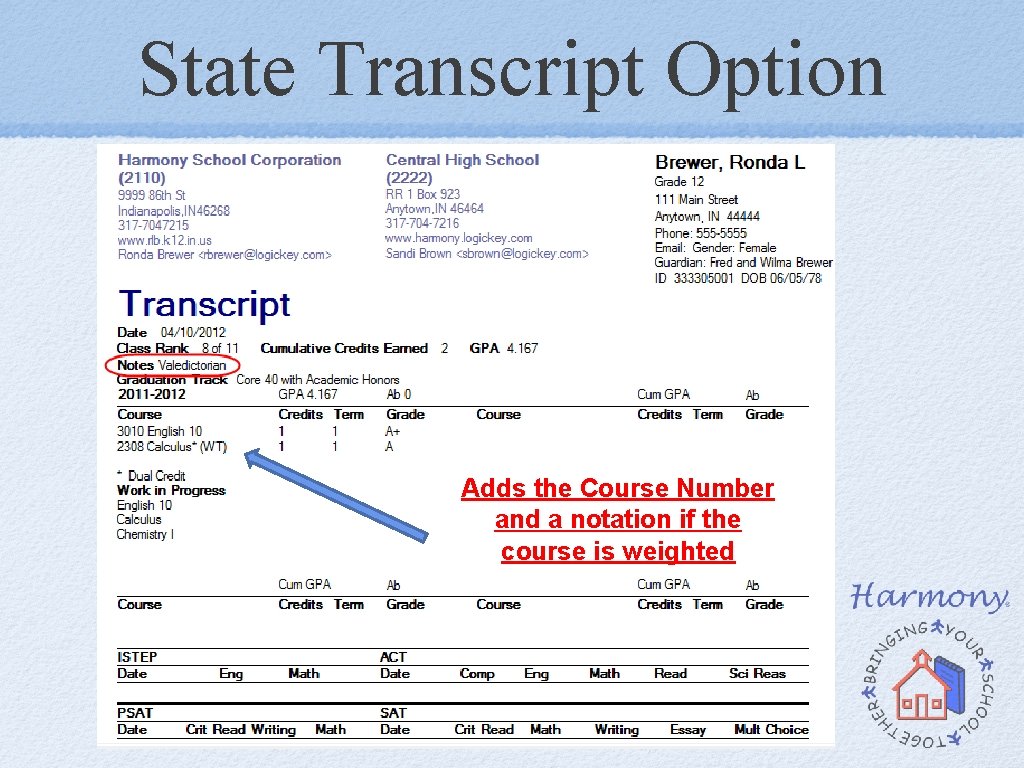
Dual Credit Any student class document marked as “DUAL CREDIT” will show this flag on the transcripts automatically.
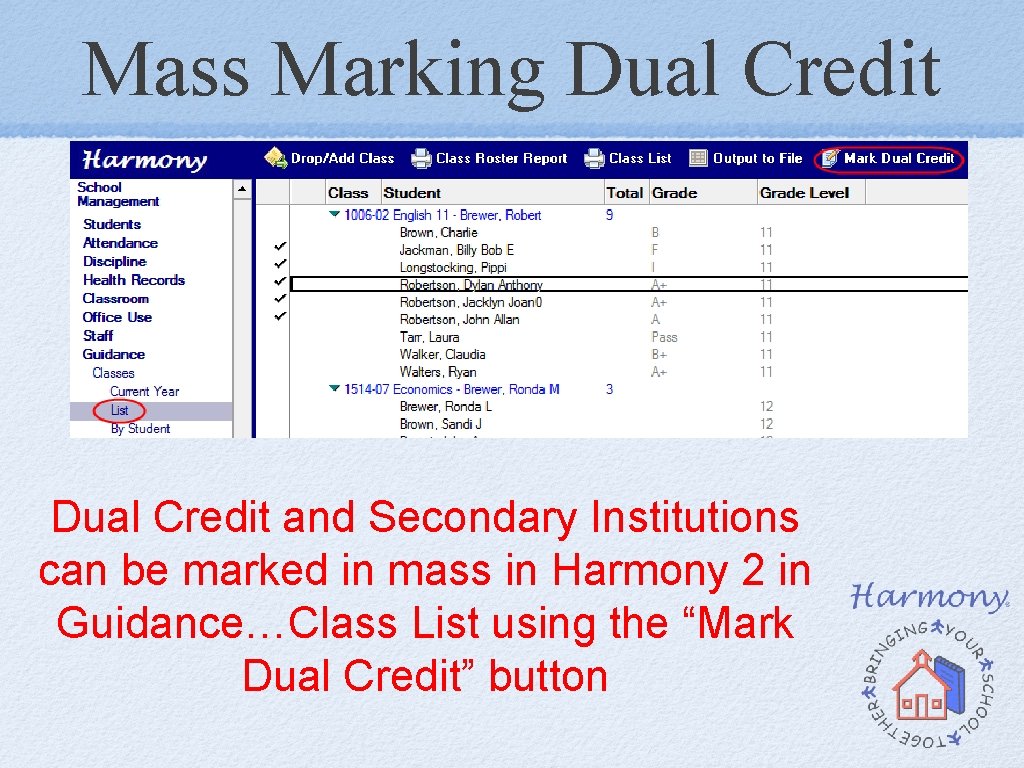
Mass Marking Dual Credit and Secondary Institutions can be marked in mass in Harmony 2 in Guidance…Class List using the “Mark Dual Credit” button
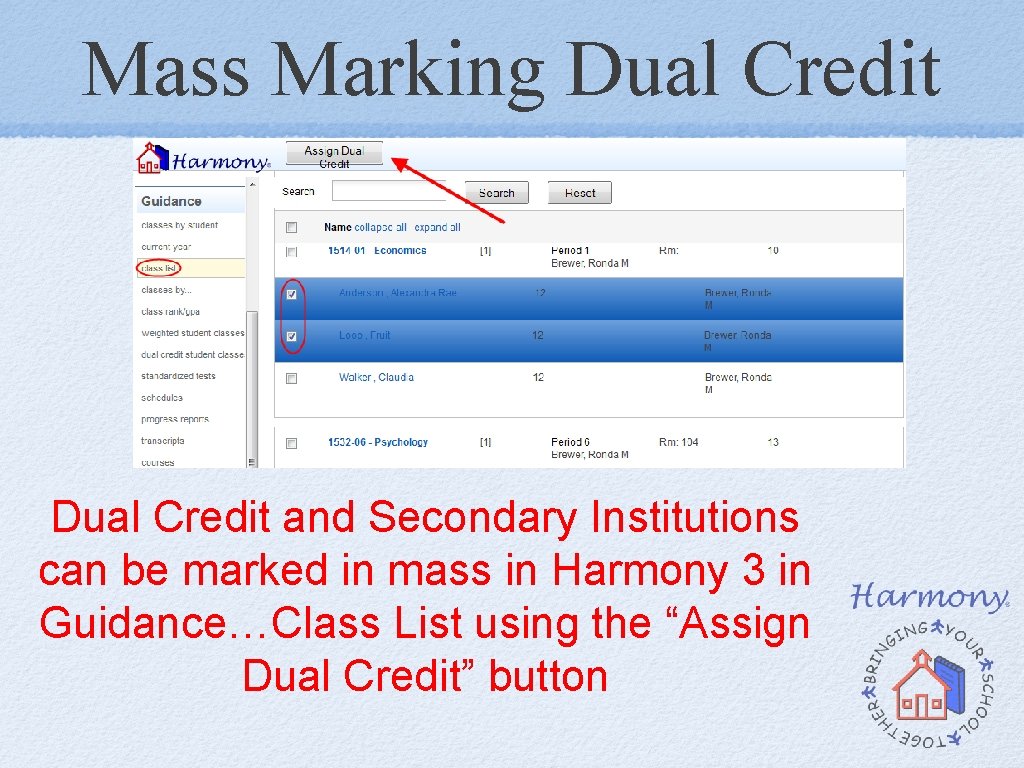
Mass Marking Dual Credit and Secondary Institutions can be marked in mass in Harmony 3 in Guidance…Class List using the “Assign Dual Credit” button
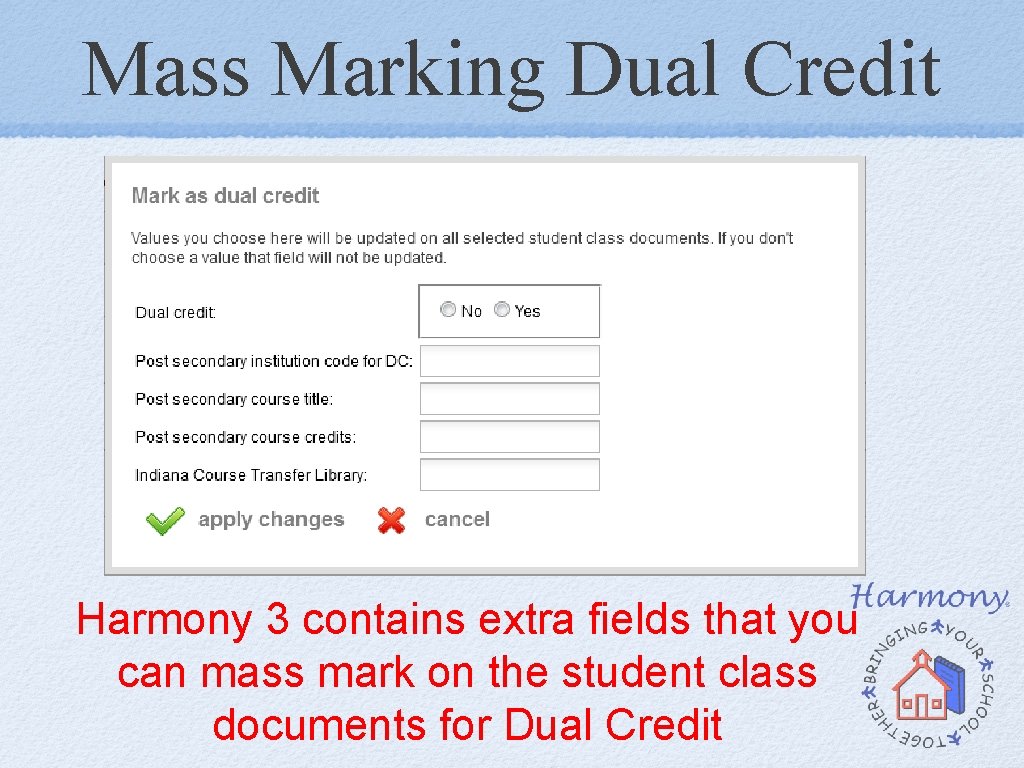
Mass Marking Dual Credit Harmony 3 contains extra fields that you can mass mark on the student class documents for Dual Credit
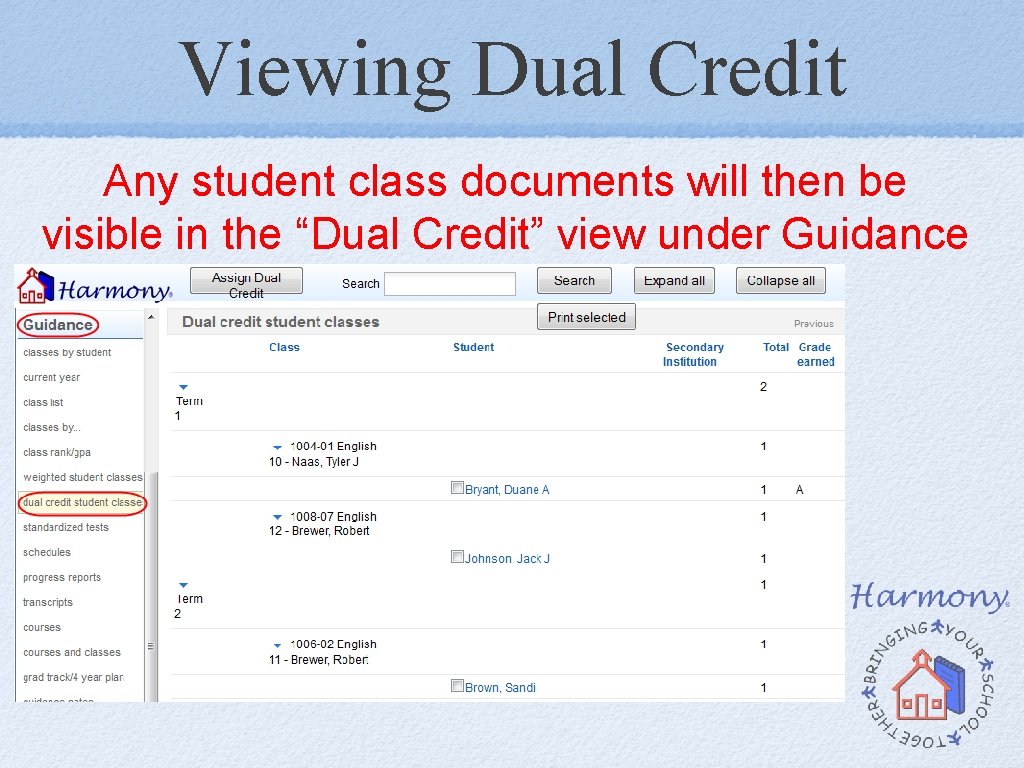
Viewing Dual Credit Any student class documents will then be visible in the “Dual Credit” view under Guidance
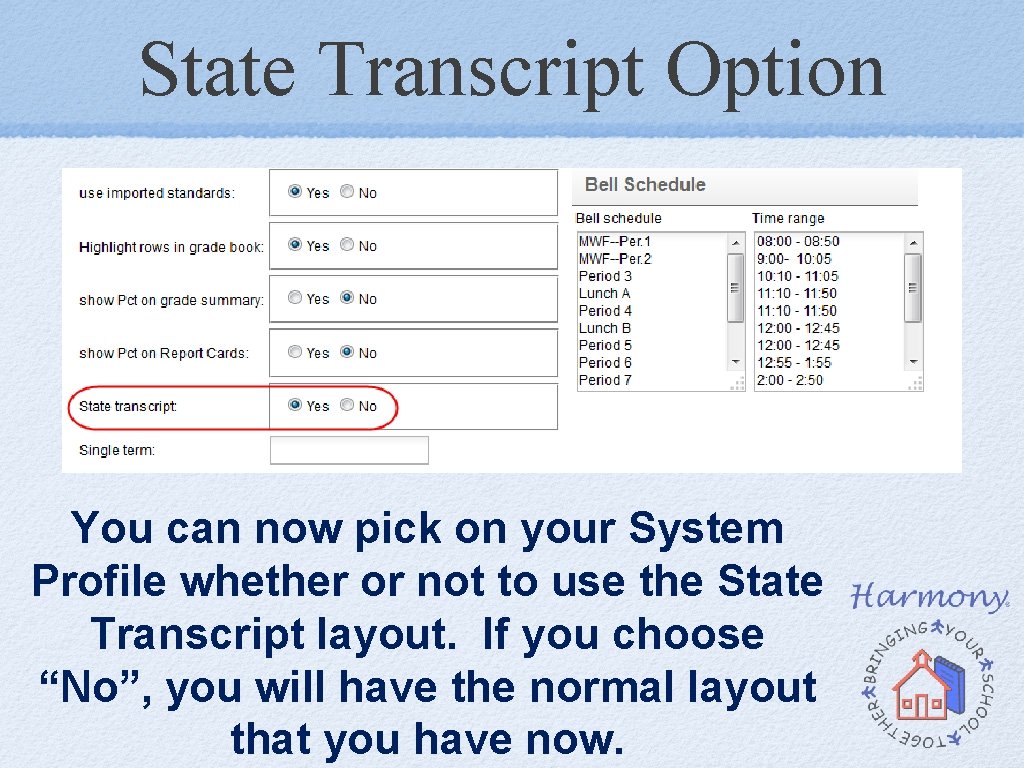
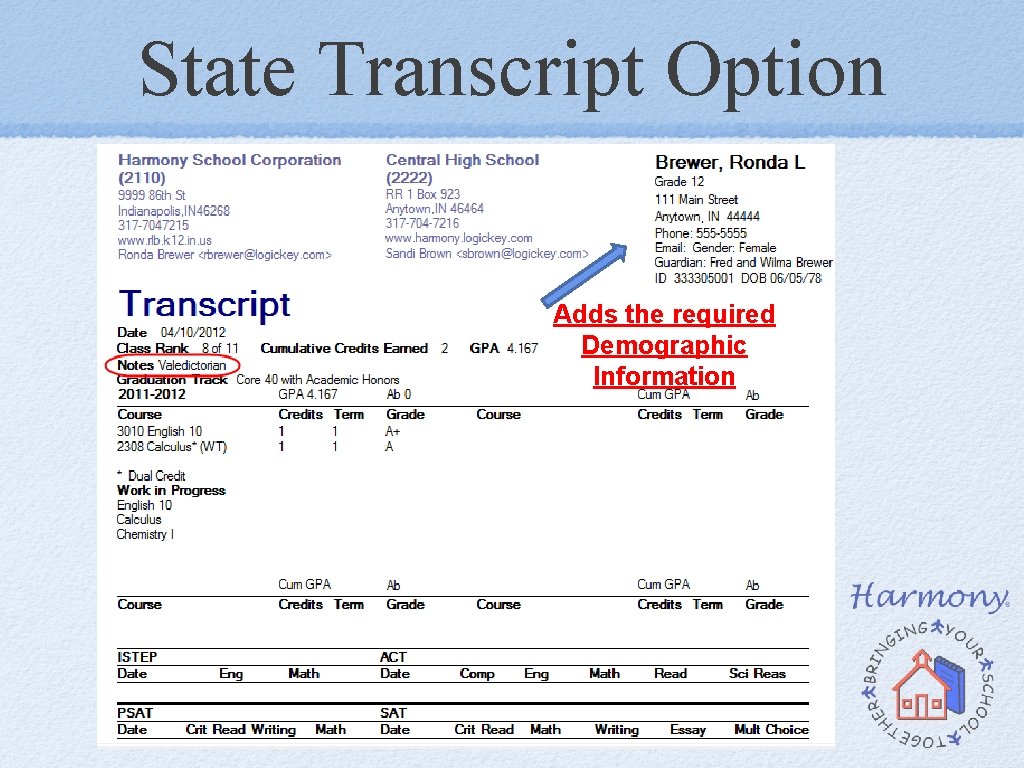
State Transcript Option You can now pick on your System Profile whether or not to use the State Transcript layout. If you choose “No”, you will have the normal layout that you have now.
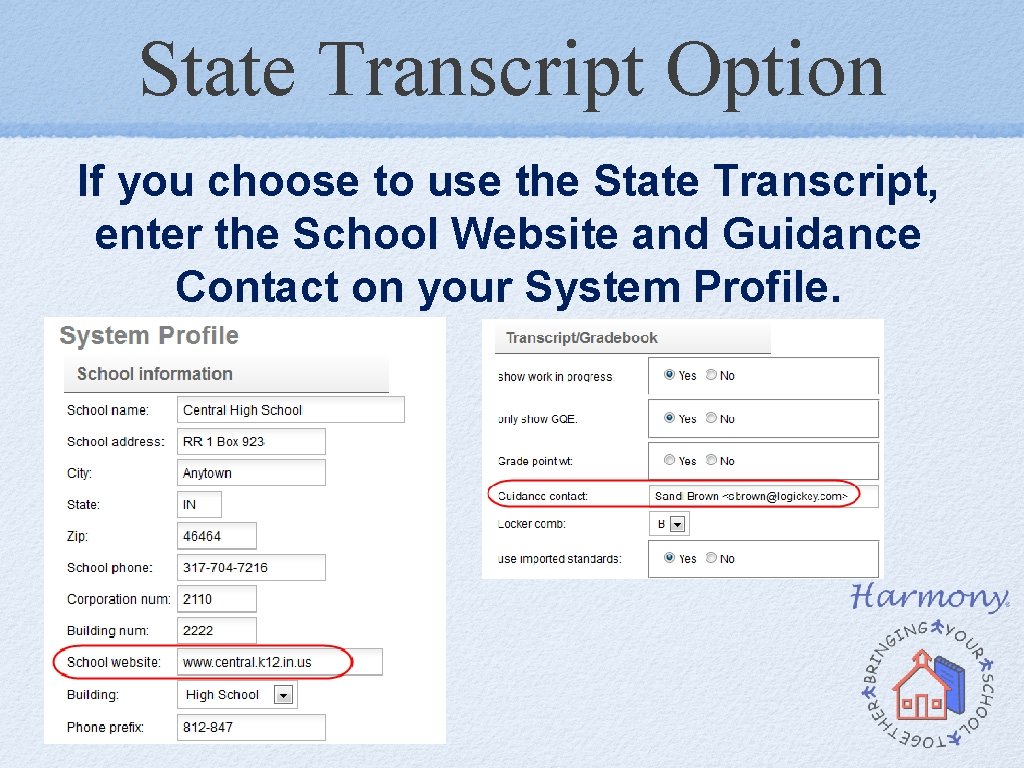
State Transcript Option If you choose to use the State Transcript, enter the School Website and Guidance Contact on your System Profile.
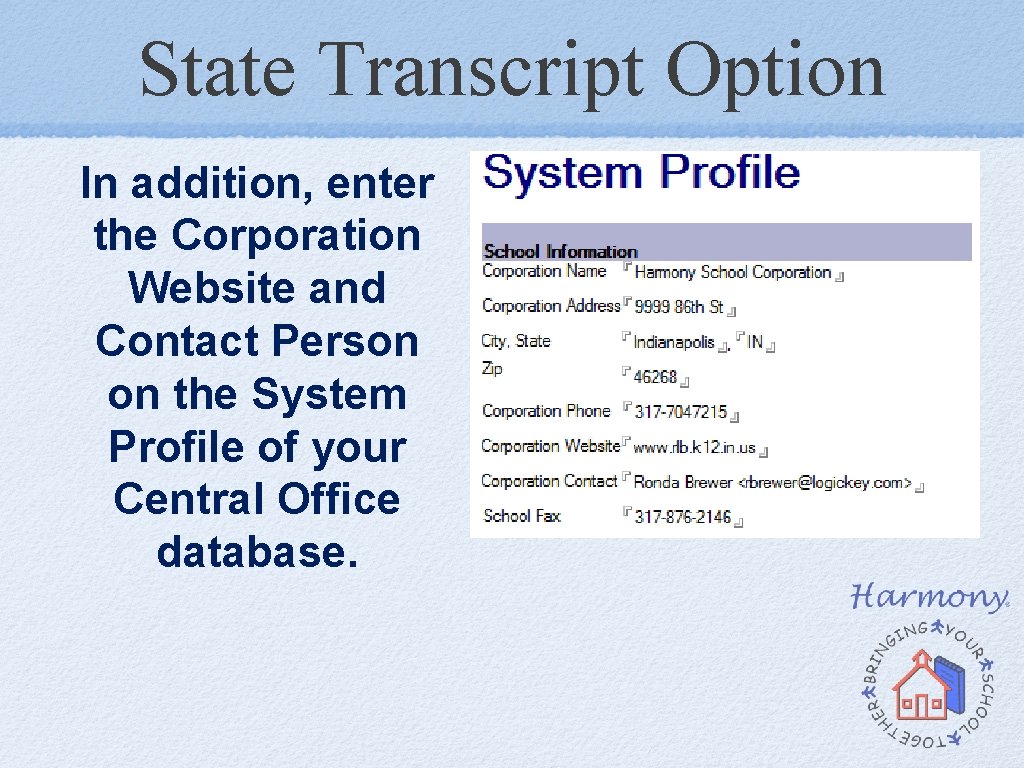
State Transcript Option In addition, enter the Corporation Website and Contact Person on the System Profile of your Central Office database.
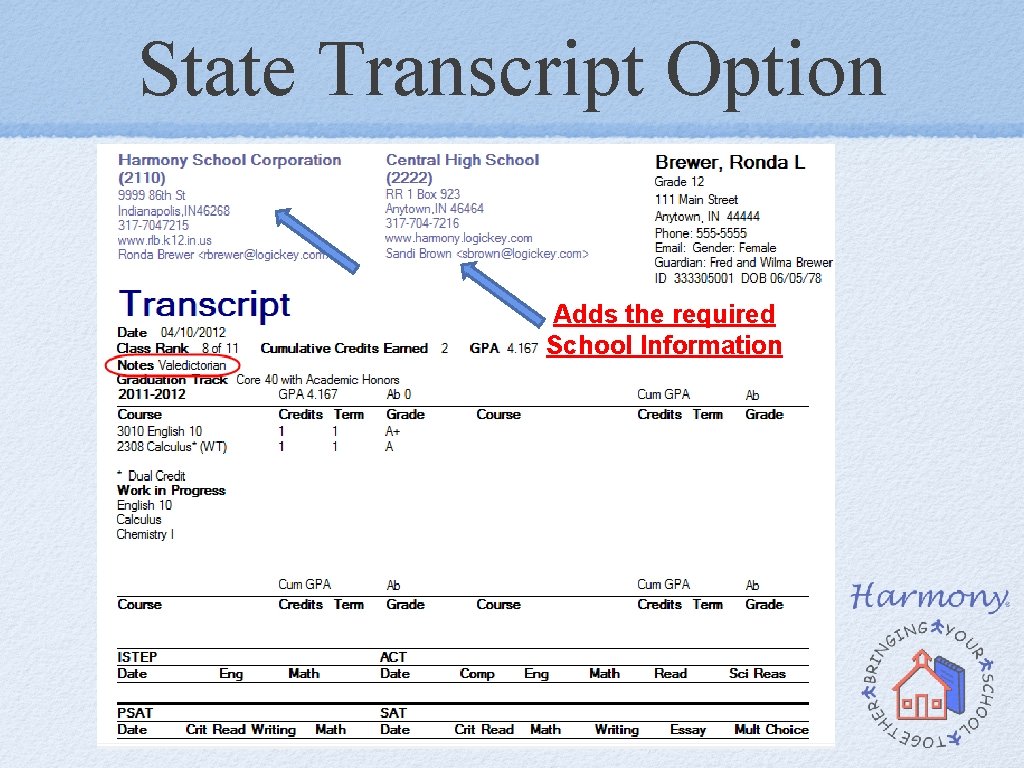
State Transcript Option Adds the required School Information
State Transcript Option Adds the required Demographic Information
State Transcript Option Adds the Course Number and a notation if the course is weighted
Transcript Profile (Harmony 3 Only!)
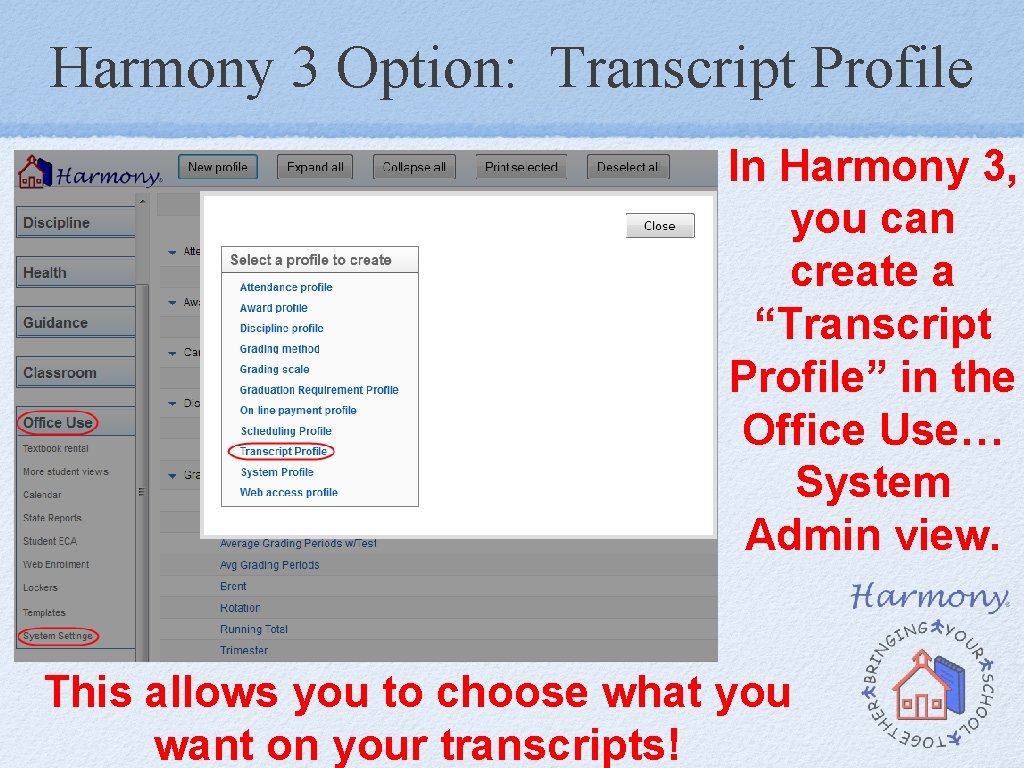
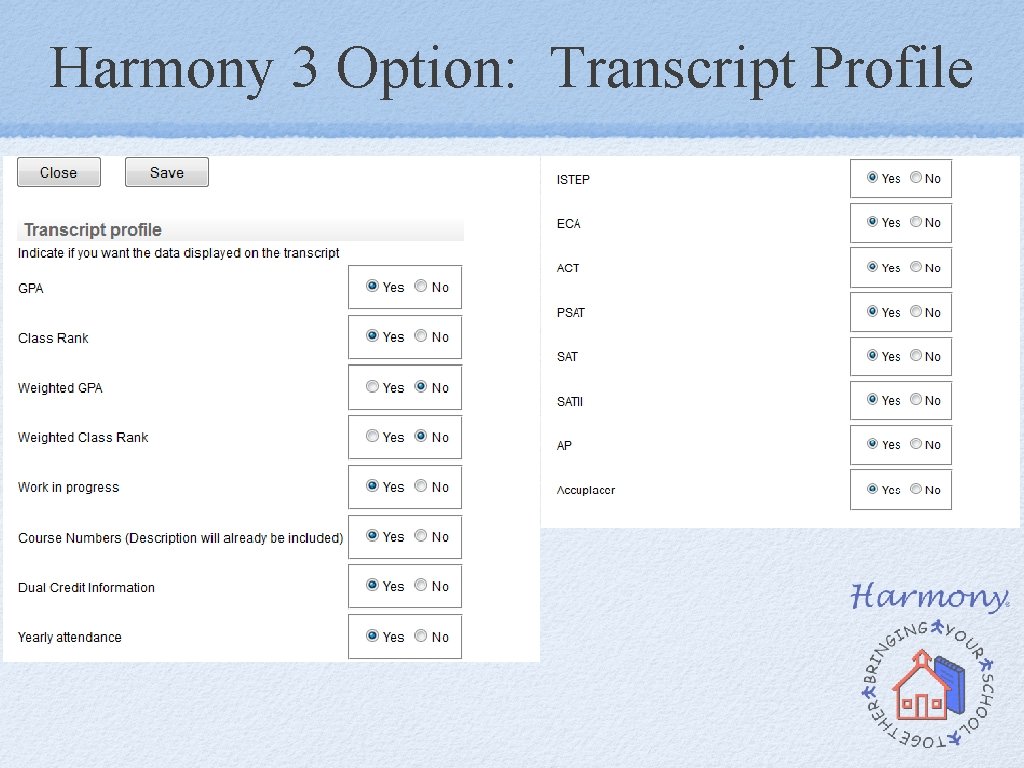
Harmony 3 Option: Transcript Profile In Harmony 3, you can create a “Transcript Profile” in the Office Use… System Admin view. This allows you to choose what you want on your transcripts!
Harmony 3 Option: Transcript Profile
Weighted Grades
Option 1: One GPA that includes weighted points
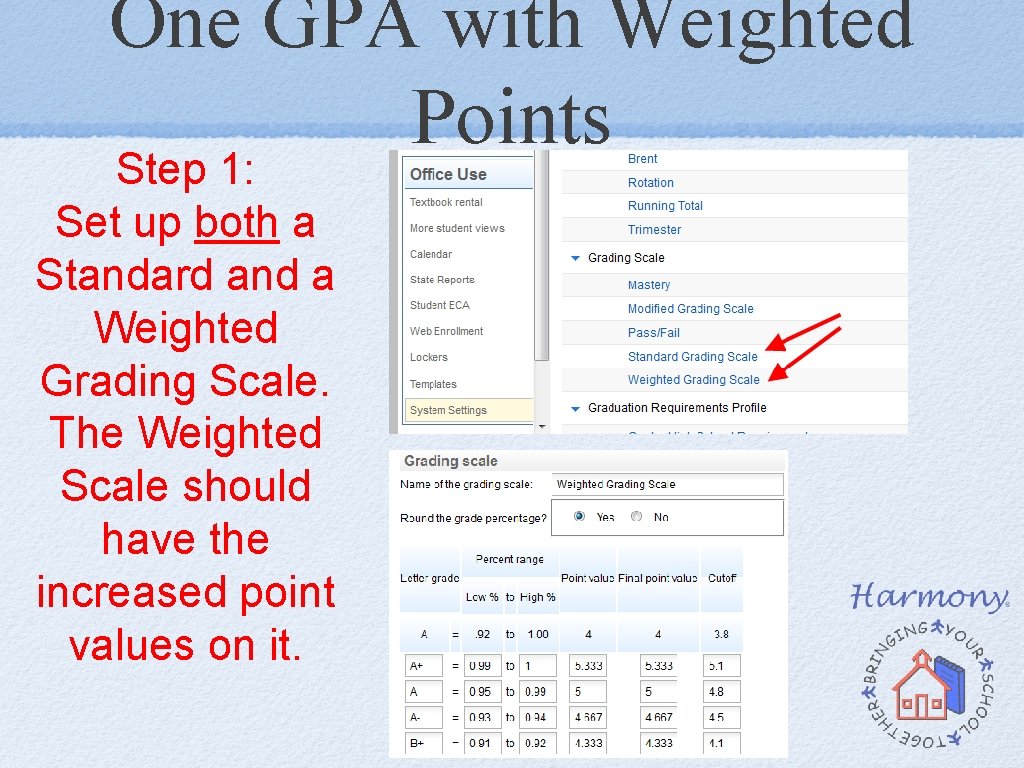
One GPA with Weighted Points Step 1: Set up both a Standard and a Weighted Grading Scale. The Weighted Scale should have the increased point values on it.
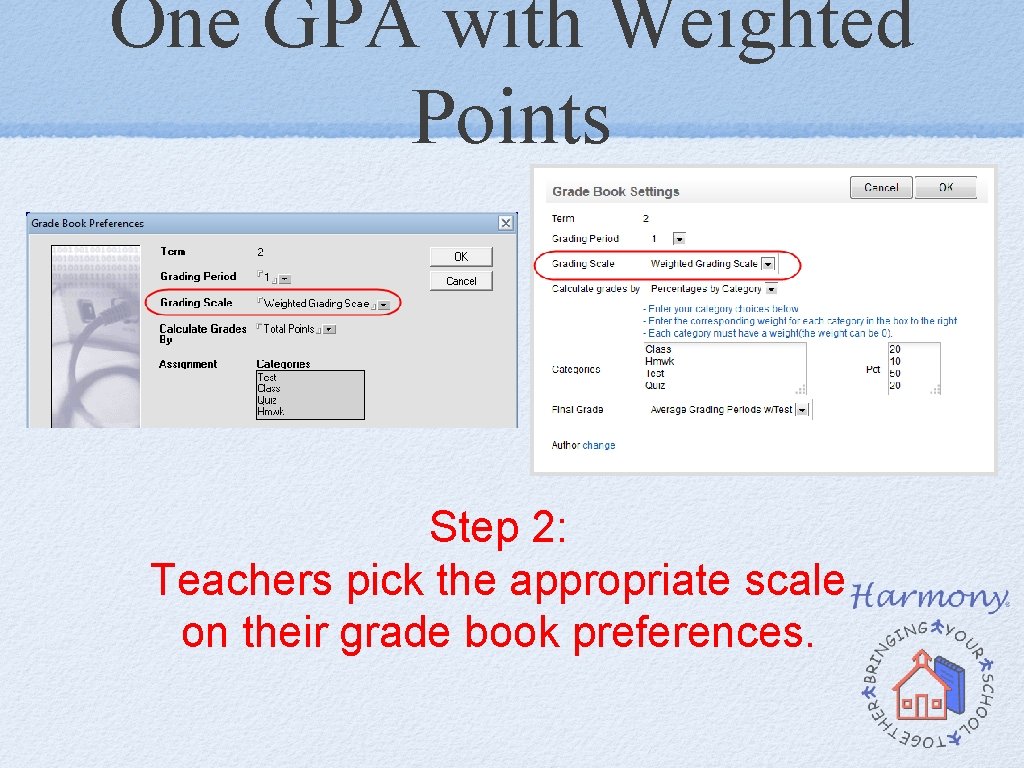
One GPA with Weighted Points Step 2: Teachers pick the appropriate scale on their grade book preferences.
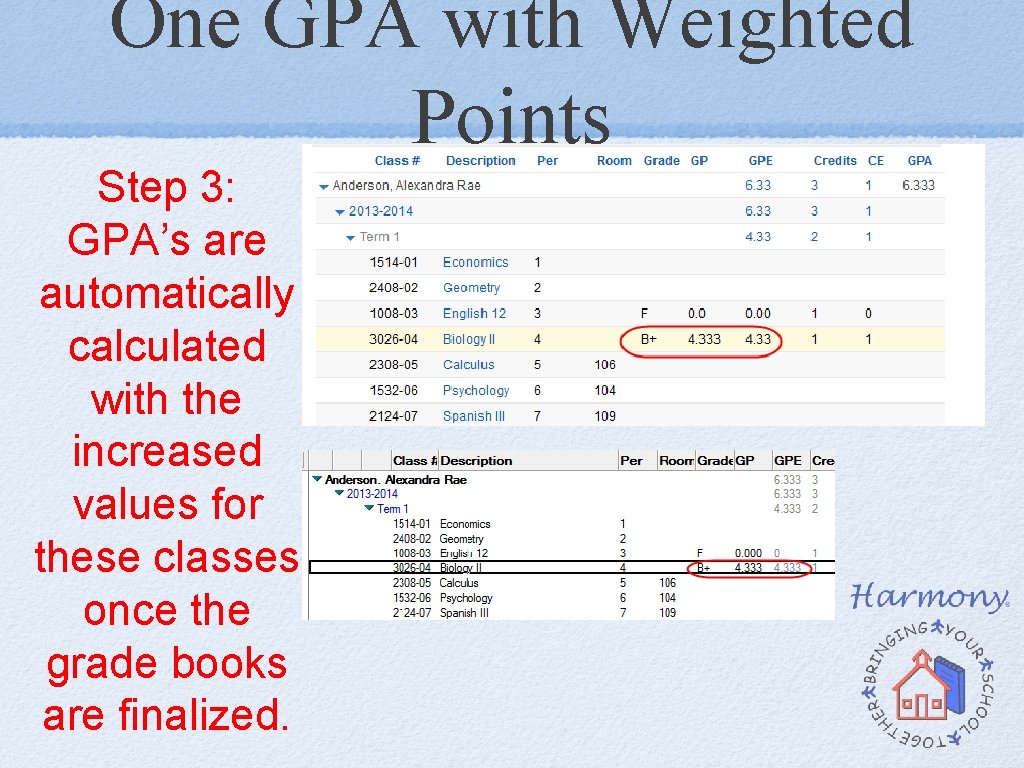
One GPA with Weighted Points Step 3: GPA’s are automatically calculated with the increased values for these classes once the grade books are finalized.
One GPA with Weighted Points This is dependent on teachers picking the right grading scale for their grade books!
Option 2: Unweighted and Weighted GPA
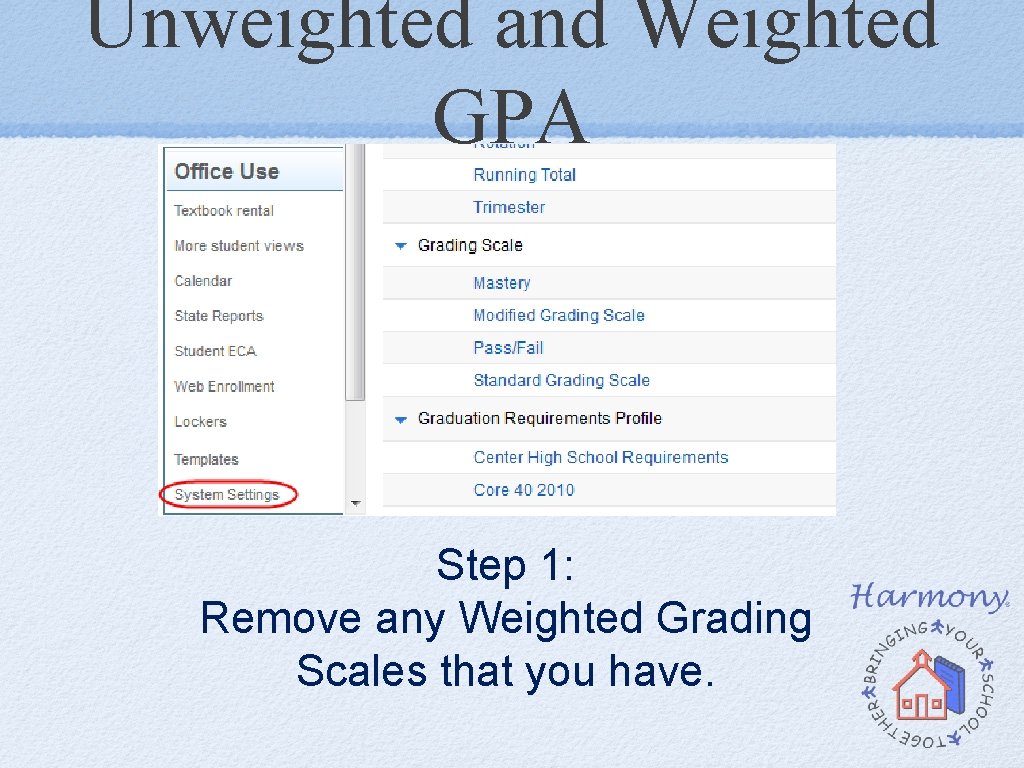
Unweighted and Weighted GPA Step 1: Remove any Weighted Grading Scales that you have.
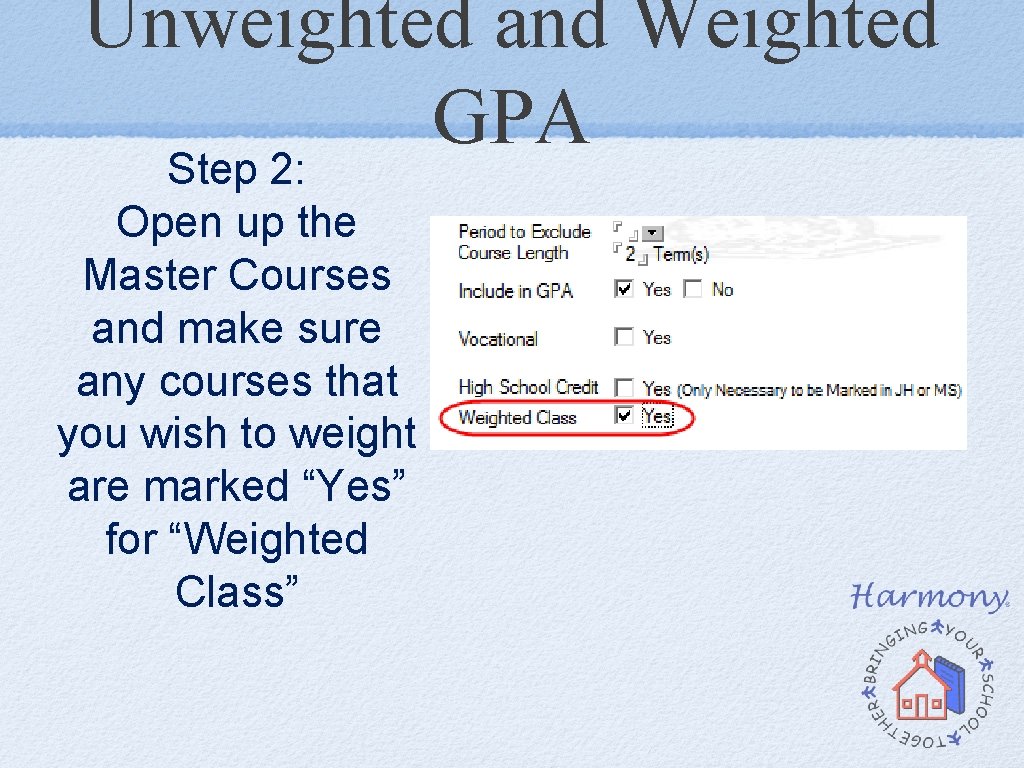
Unweighted and Weighted GPA Step 2: Open up the Master Courses and make sure any courses that you wish to weight are marked “Yes” for “Weighted Class”
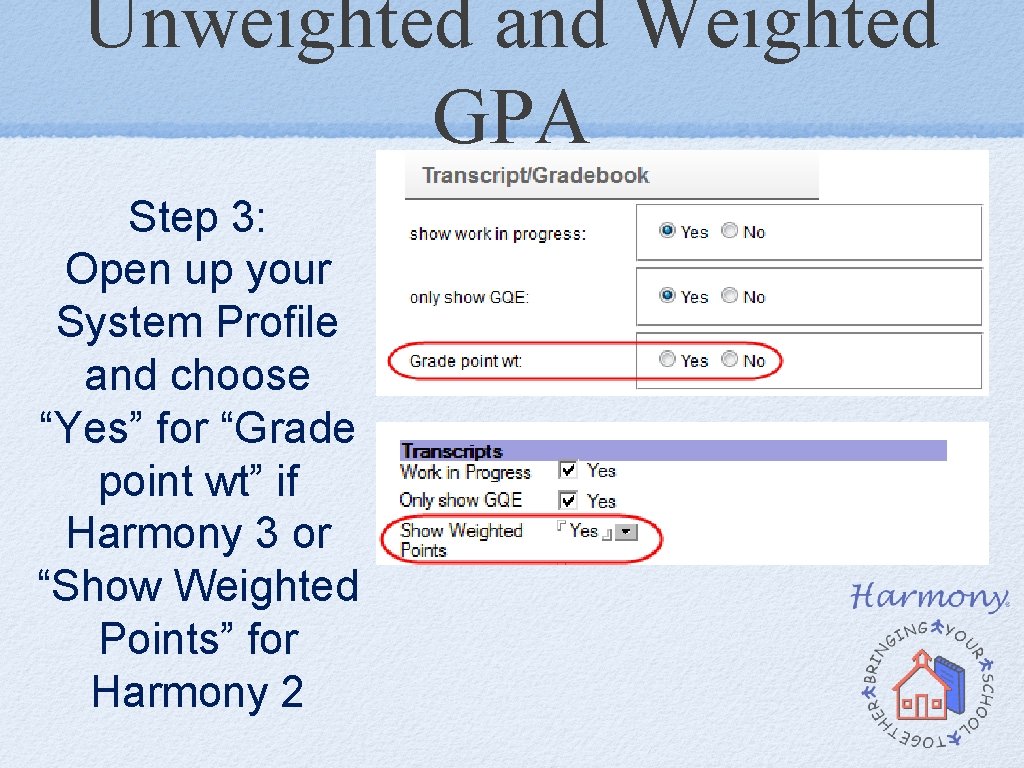
Unweighted and Weighted GPA Step 3: Open up your System Profile and choose “Yes” for “Grade point wt” if Harmony 3 or “Show Weighted Points” for Harmony 2
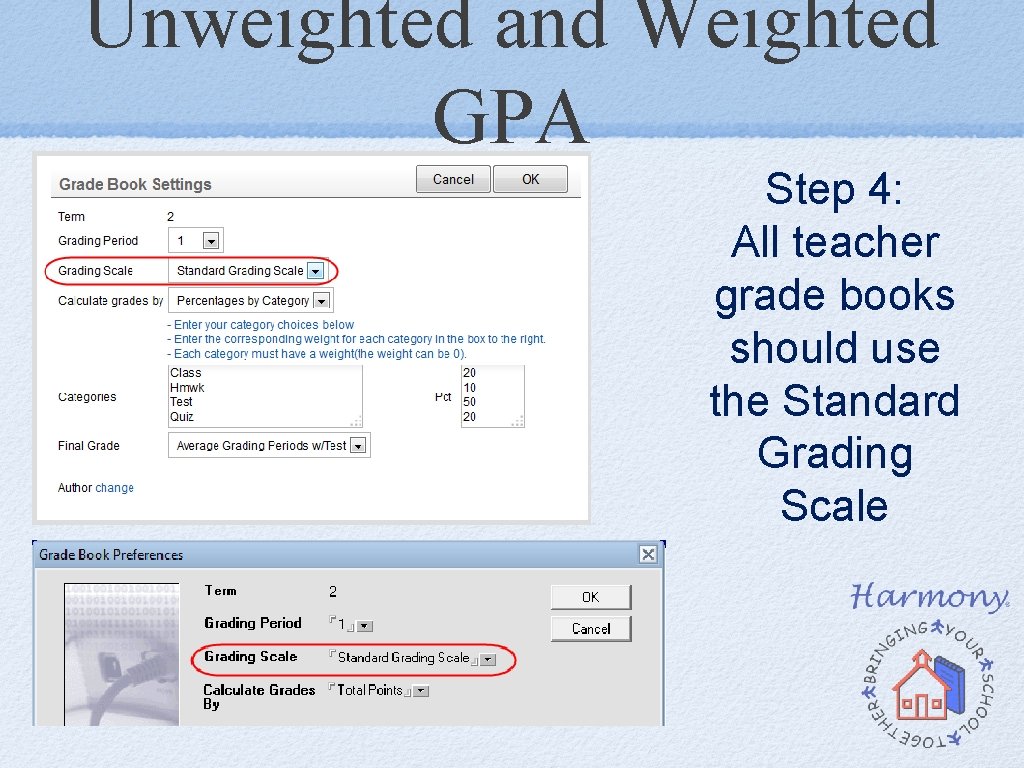
Unweighted and Weighted GPA Step 4: All teacher grade books should use the Standard Grading Scale
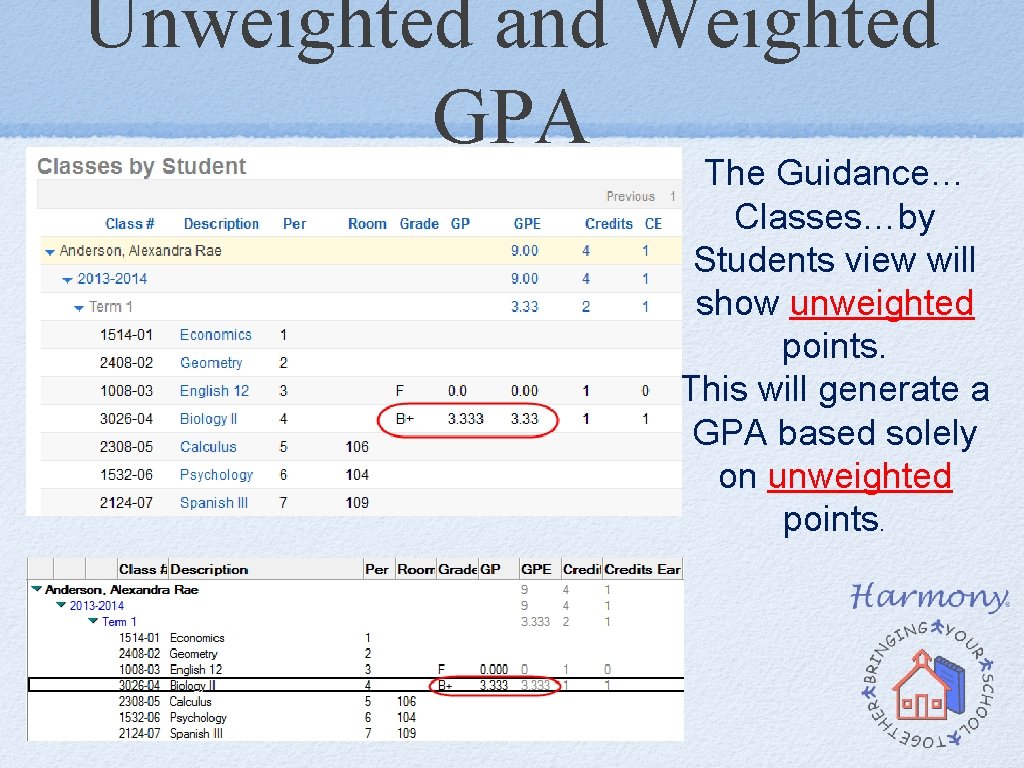
Unweighted and Weighted GPA The Guidance… Classes…by Students view will show unweighted points. This will generate a GPA based solely on unweighted points.
Unweighted and Weighted GPA Step 5: IF USING HARMONY 2 Contact Harmony and let us know you wish to use two GPA’s. We will need to know what point value amount is added to each weighted class at the end of each term. We can update your grade history to have the same weighted point values.
Unweighted and Weighted GPA Step 5: IF USING HARMONY 3 Select what GPA’s and Ranks you want on transcripts on the Transcript Profile At the end of each term, you will be able to mass add the weight to your student class documents. Contact Harmony if you have prior year grade history that will need the points added
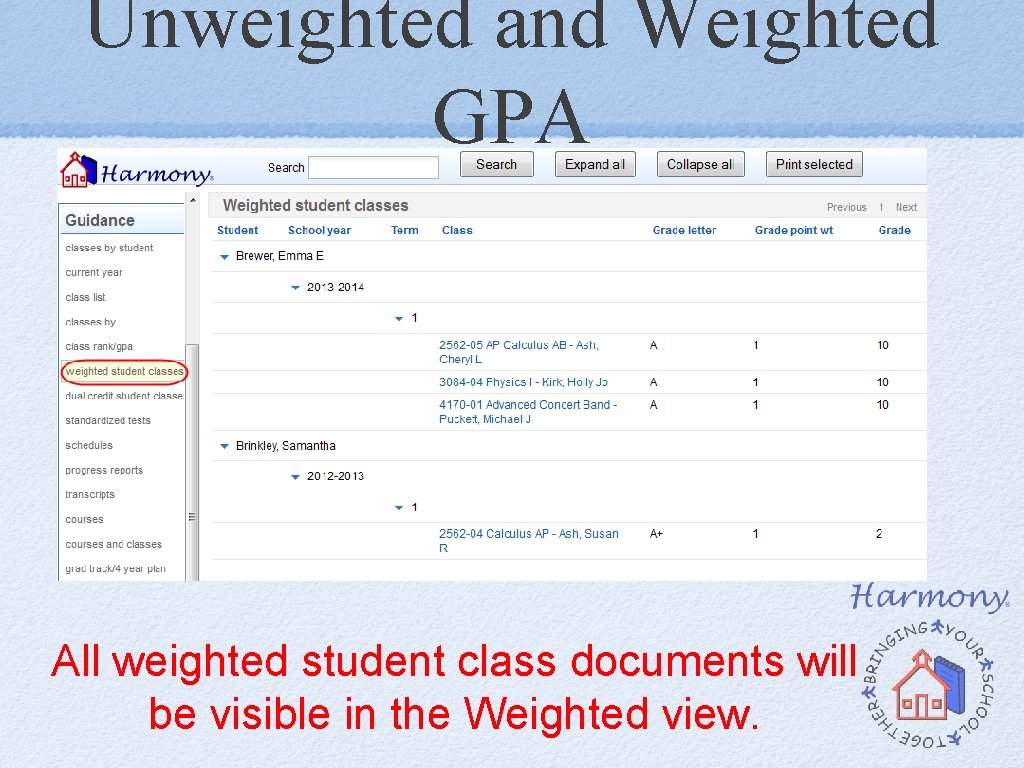
Unweighted and Weighted GPA All weighted student class documents will be visible in the Weighted view.
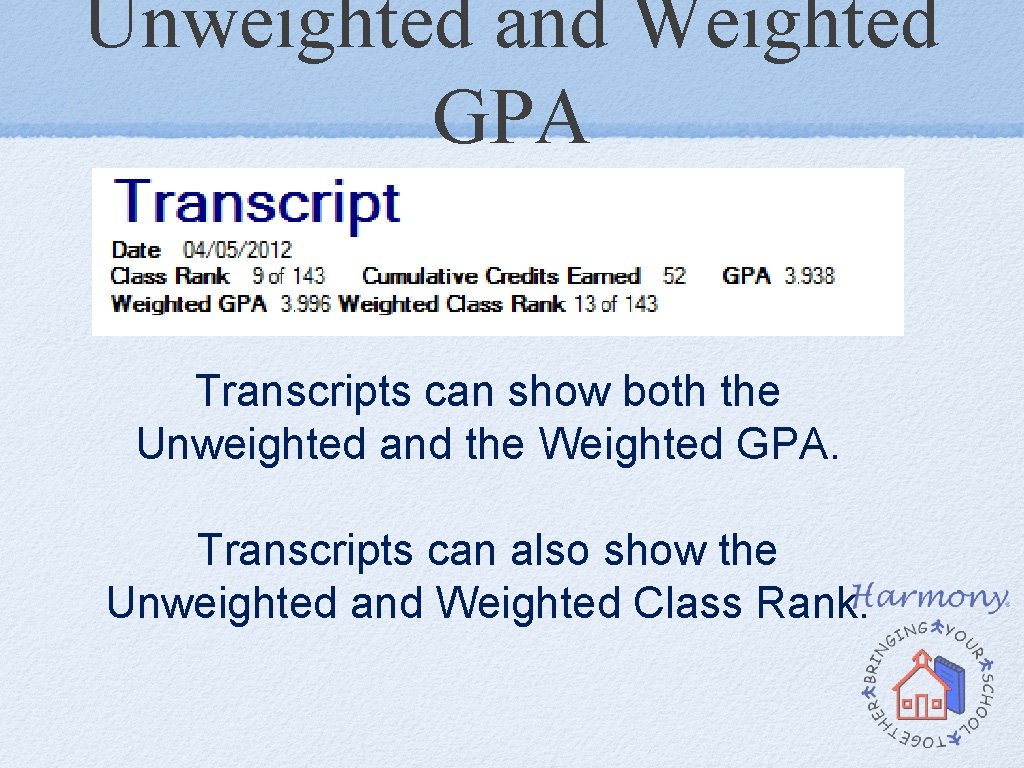
Unweighted and Weighted GPA Transcripts can show both the Unweighted and the Weighted GPA. Transcripts can also show the Unweighted and Weighted Class Rank.
Other Questions/Comments?
Help Document Website http: //harmony. logickey. com/support