
Government Electronic Tenders Service GETS ETCO Training Course

![Awarded RFx by Contract Value Report Parameters • [Mandatory] Report start and end award](https://slidetodoc.com/presentation_image/2ab7171c5296934cd93839c2e1a11ac2/image-18.jpg "Awarded RFx by Contract Value Report Parameters • [Mandatory] Report start and end award")


- Slides: 50
Government Electronic Tenders Service (GETS) ETCO Training Course
Intended Participants ETCOs who have: • Completed the GETS e. Learning module • Understanding of the role of an electronic tender box in supporting procurement • Completed relevant NZ Government procurement training (CIPS) • Appropriate IT Systems training 2
Course Outline • Revision • GETS Supplier interface • Reports • ETCO Configurations 3
Revision • The Home Screen • Search for and Display the Details of an RFx • RFx Types & Controls 4
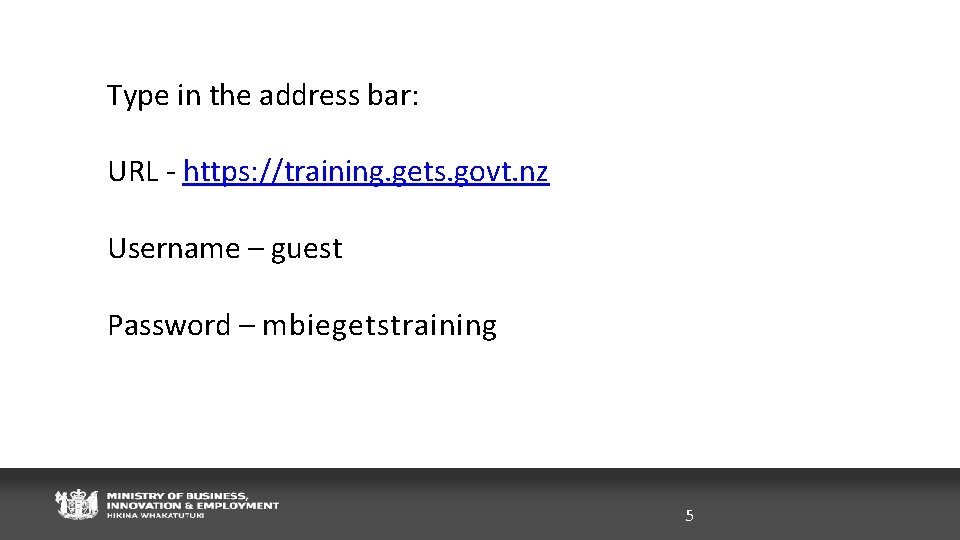
Type in the address bar: URL - https: //training. gets. govt. nz Username – guest Password – mbiegetstraining 5
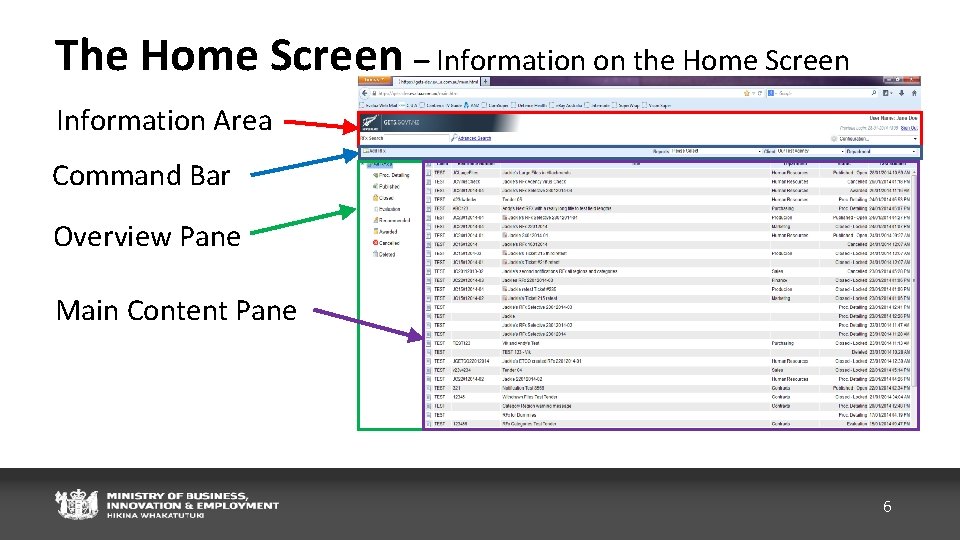
The Home Screen – Information on the Home Screen Information Area Command Bar Overview Pane Main Content Pane 6
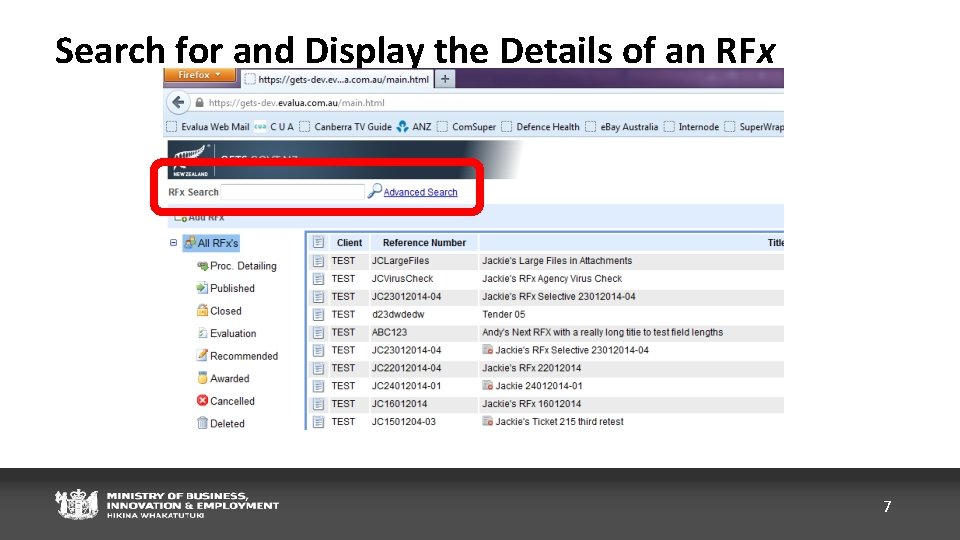
Search for and Display the Details of an RFx 7
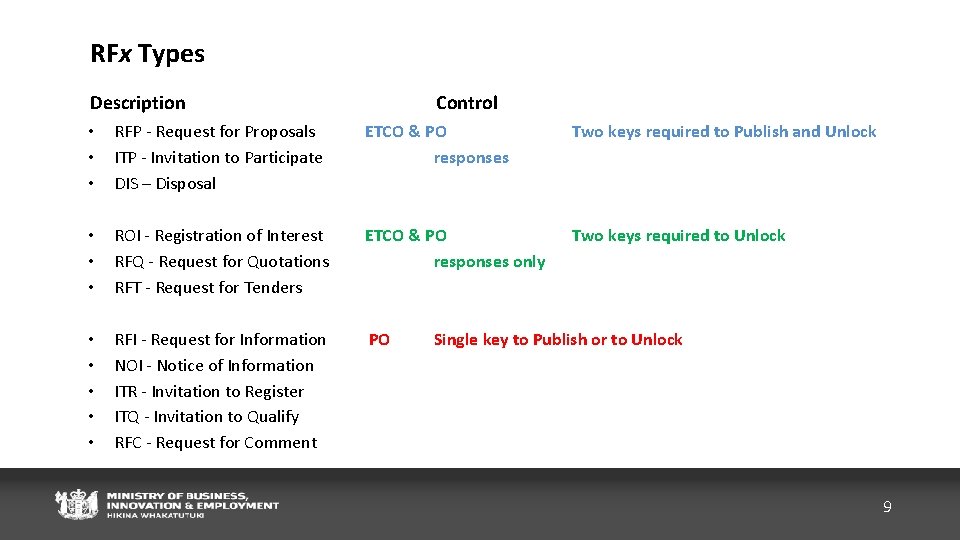
RFx Types Description Control • • • RFP - Request for Proposals ITP - Invitation to Participate DIS – Disposal ETCO & PO responses Two keys required to Publish and Unlock • • • ROI - Registration of Interest RFQ - Request for Quotations RFT - Request for Tenders ETCO & PO responses only Two keys required to Unlock • • • RFI - Request for Information NOI - Notice of Information ITR - Invitation to Register ITQ - Invitation to Qualify RFC - Request for Comment PO Single key to Publish or to Unlock 9
10
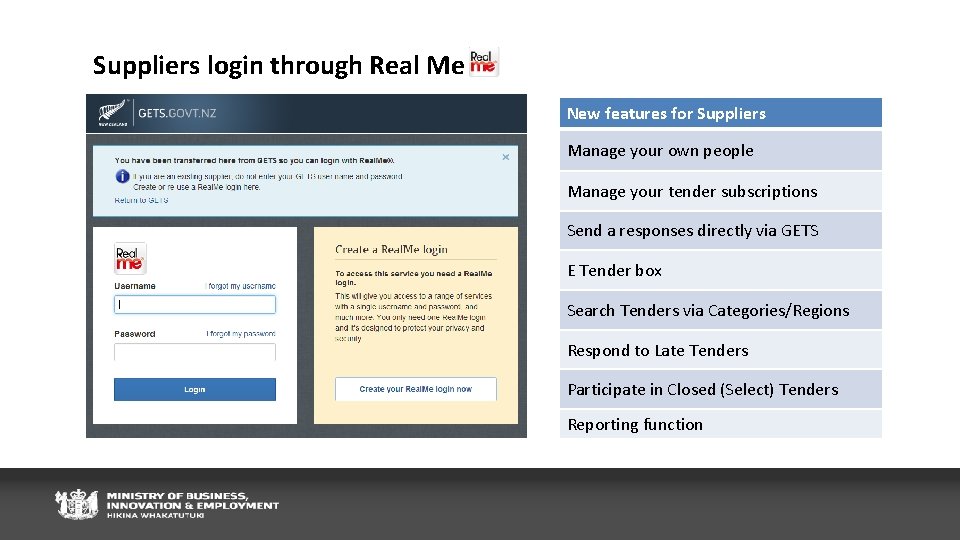
Suppliers login through Real Me New features for Suppliers Manage your own people Manage your tender subscriptions Send a responses directly via GETS E Tender box Search Tenders via Categories/Regions Respond to Late Tenders Participate in Closed (Select) Tenders Reporting function
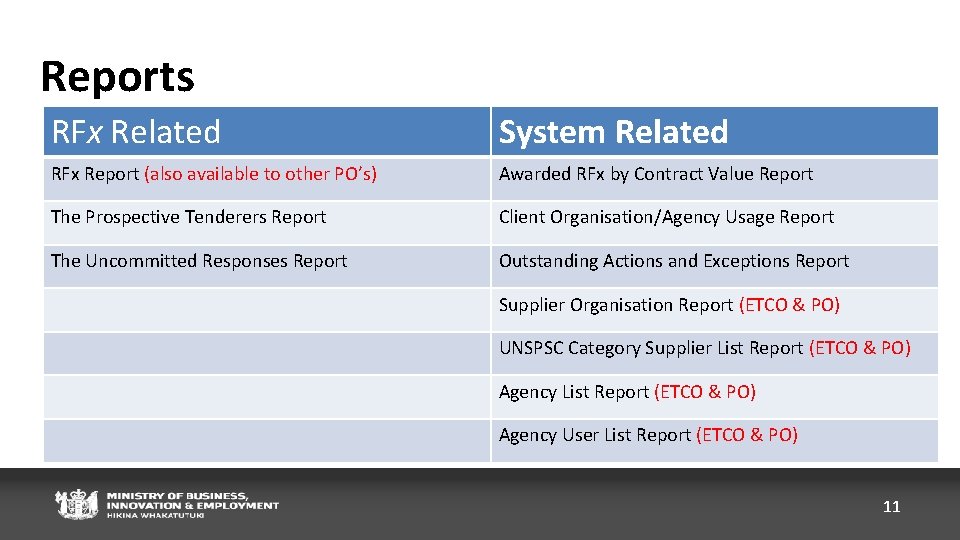
Reports RFx Related System Related RFx Report (also available to other PO’s) Awarded RFx by Contract Value Report The Prospective Tenderers Report Client Organisation/Agency Usage Report The Uncommitted Responses Report Outstanding Actions and Exceptions Report Supplier Organisation Report (ETCO & PO) UNSPSC Category Supplier List Report (ETCO & PO) Agency User List Report (ETCO & PO) 11
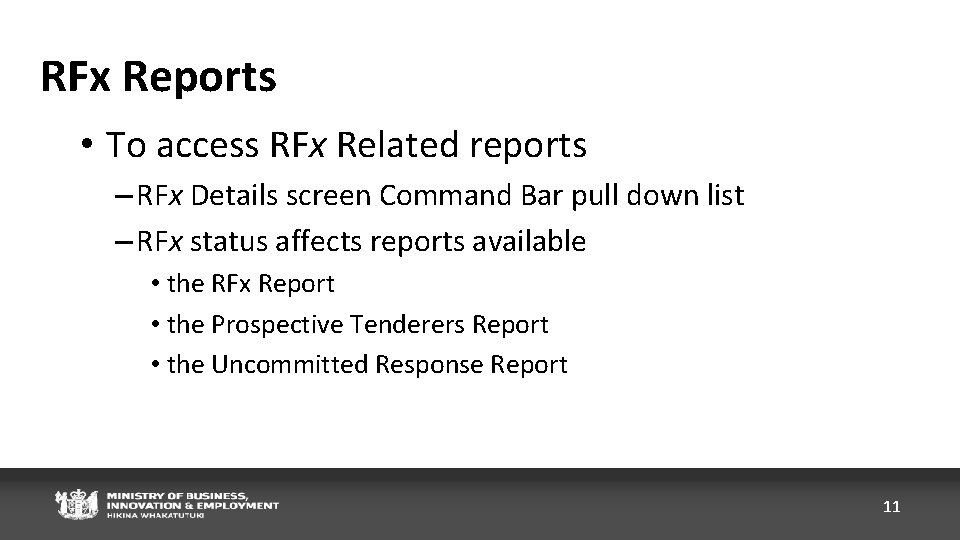
RFx Reports • To access RFx Related reports – RFx Details screen Command Bar pull down list – RFx status affects reports available • the RFx Report • the Prospective Tenderers Report • the Uncommitted Response Report 11
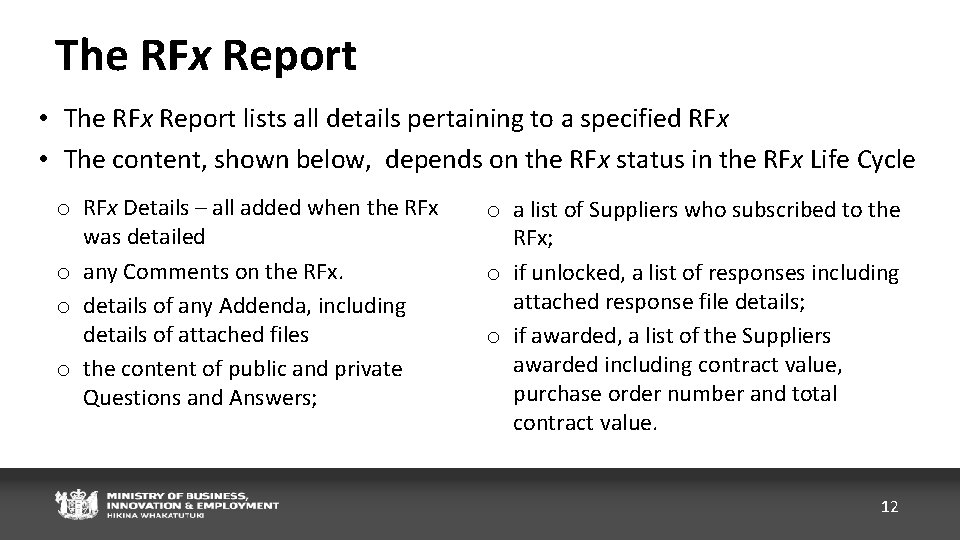
The RFx Report • The RFx Report lists all details pertaining to a specified RFx • The content, shown below, depends on the RFx status in the RFx Life Cycle o RFx Details – all added when the RFx was detailed o any Comments on the RFx. o details of any Addenda, including details of attached files o the content of public and private Questions and Answers; o a list of Suppliers who subscribed to the RFx; o if unlocked, a list of responses including attached response file details; o if awarded, a list of the Suppliers awarded including contract value, purchase order number and total contract value. 12
The Prospective Tenderers Report • useful when trying to calculate the potential number of respondents to an RFx • available once the RFx is “open” • displays details of Suppliers have subscribed to the RFx and the number of responses received • report can be downloaded as a spreadsheet. 13
The Uncommitted Responses Report • useful when checking that all Suppliers have correctly submitted a response • available to an ETCO once an RFx is closed (including any Late Time) • good practice to run this report prior to unlocking the RFx • ETCO can adjust the RFx Late Time to allow an affected the Supplier time to commit the response. • response is flagged as late, evaluation team decision to evaluate 14
System Reports • Aspects of the GETS system • Home Screen Command Bar pull down list • Parameters required for some reports 15
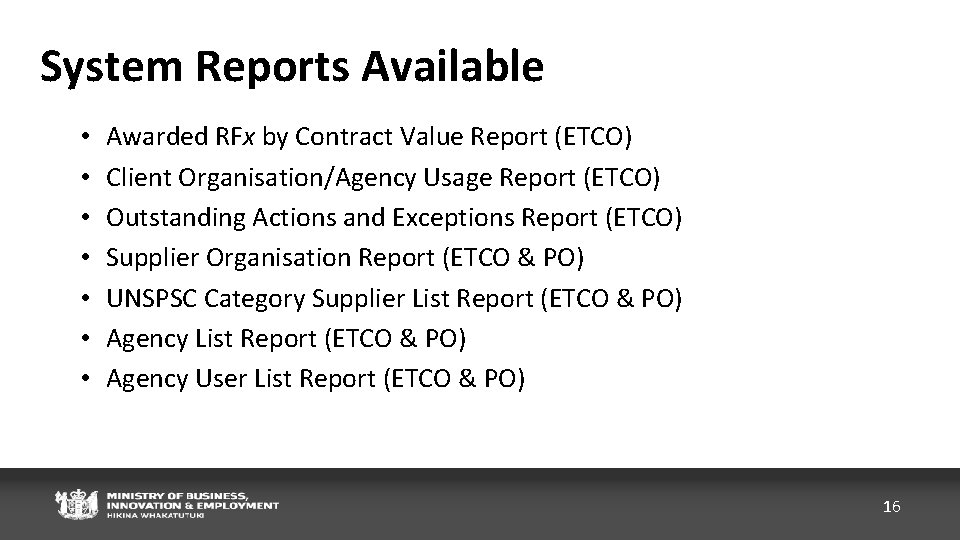
System Reports Available • • Awarded RFx by Contract Value Report (ETCO) Client Organisation/Agency Usage Report (ETCO) Outstanding Actions and Exceptions Report (ETCO) Supplier Organisation Report (ETCO & PO) UNSPSC Category Supplier List Report (ETCO & PO) Agency User List Report (ETCO & PO) 16
Awarded RFx by Contract Value Report Parameters • [Mandatory] Report start and end award dates • [Optional for all] - Select RFx Only - Show UNSPSC Categories - RFx assigned to selected UNSPSC Categories 18
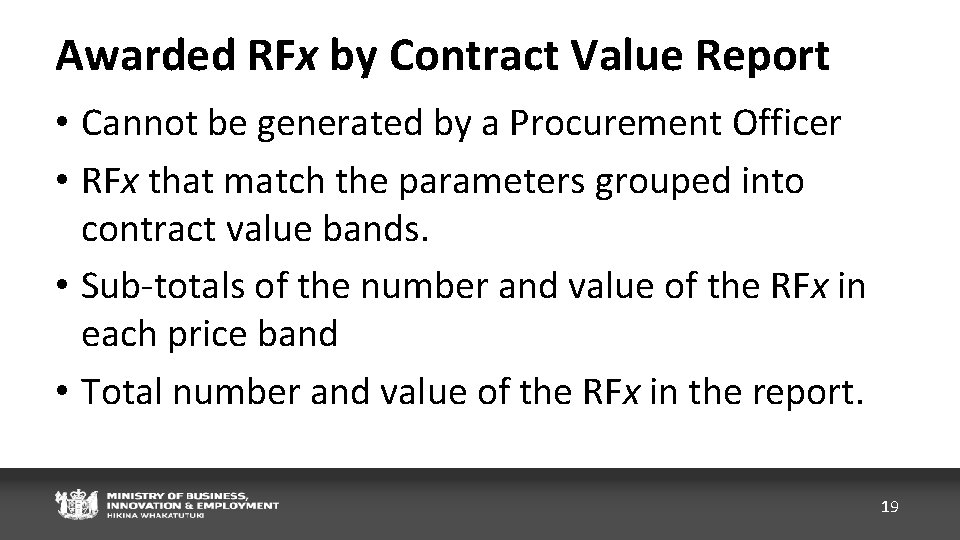
Awarded RFx by Contract Value Report • Cannot be generated by a Procurement Officer • RFx that match the parameters grouped into contract value bands. • Sub-totals of the number and value of the RFx in each price band • Total number and value of the RFx in the report. 19
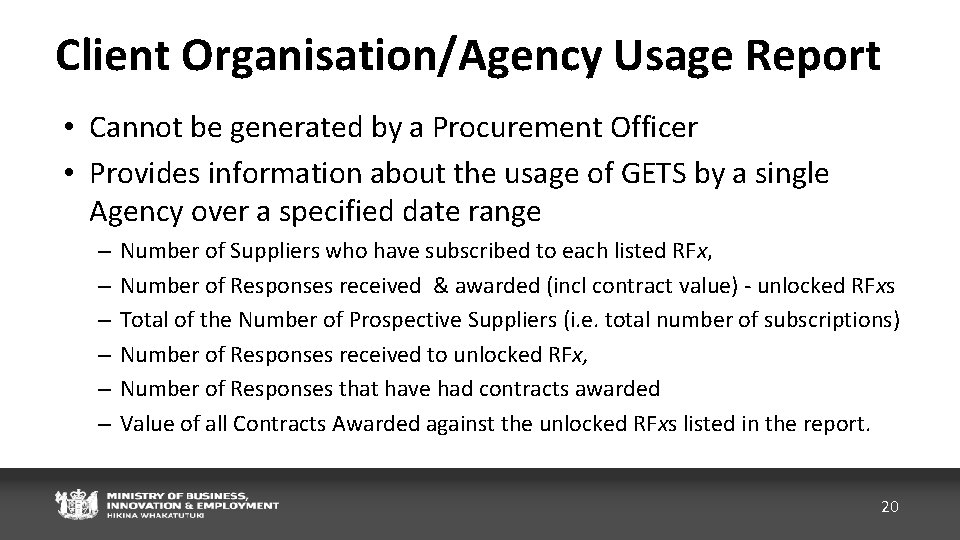
Client Organisation/Agency Usage Report • Cannot be generated by a Procurement Officer • Provides information about the usage of GETS by a single Agency over a specified date range – – – Number of Suppliers who have subscribed to each listed RFx, Number of Responses received & awarded (incl contract value) - unlocked RFxs Total of the Number of Prospective Suppliers (i. e. total number of subscriptions) Number of Responses received to unlocked RFx, Number of Responses that have had contracts awarded Value of all Contracts Awarded against the unlocked RFxs listed in the report. 20
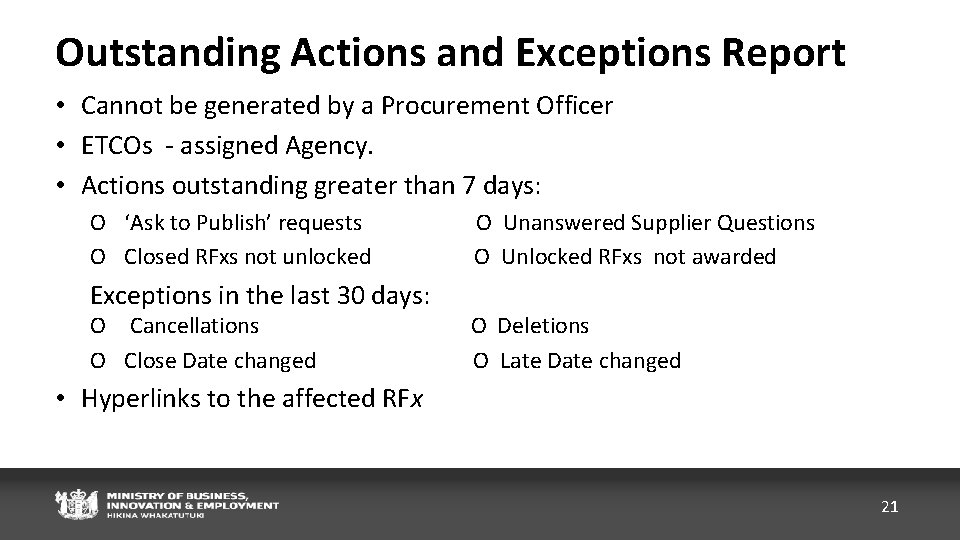
Outstanding Actions and Exceptions Report • Cannot be generated by a Procurement Officer • ETCOs - assigned Agency. • Actions outstanding greater than 7 days: O ‘Ask to Publish’ requests O Closed RFxs not unlocked Exceptions in the last 30 days: O Cancellations O Close Date changed O Unanswered Supplier Questions O Unlocked RFxs not awarded O Deletions O Late Date changed • Hyperlinks to the affected RFx 21
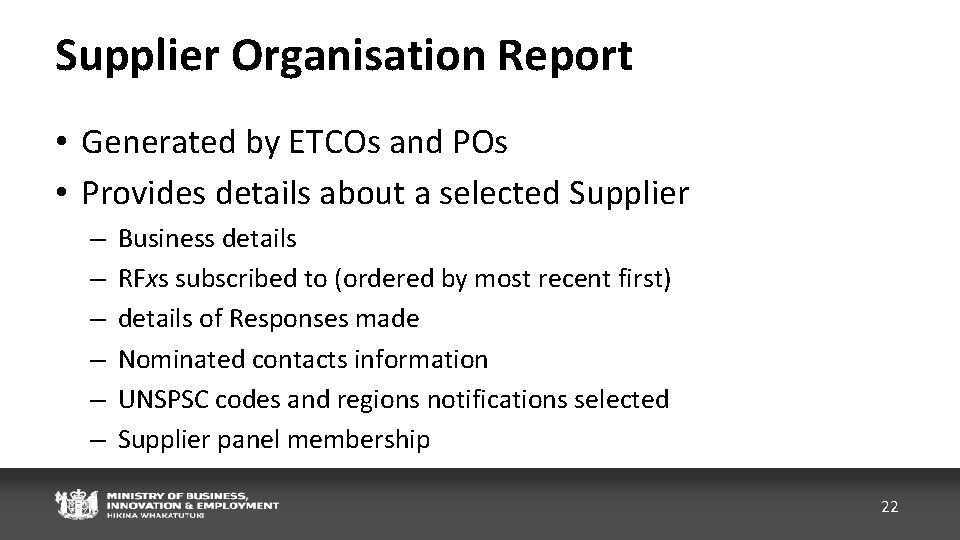
Supplier Organisation Report • Generated by ETCOs and POs • Provides details about a selected Supplier – – – Business details RFxs subscribed to (ordered by most recent first) details of Responses made Nominated contacts information UNSPSC codes and regions notifications selected Supplier panel membership 22
UNSPSC Category Supplier List Report • Generated by ETCOs and POs • Lists Suppliers that have registered to receive notification of RFxs associated with the specified UNSPSC category code (or one or more of its sub-categories). 23
Agency List Report • Generated by ETCOs and POs • Provides details about Agencies • The Agencies are grouped by Agency Tier and ordered by Agency name 24
Agency User List Report • Generated by ETCOs and POs • Provides a list of Users grouped by their Agency and ordered by their surname, showing their: – – – User Status Username, Surname and First Name E-mail address User role (ETCO or Procurement Officer) any Special Permissions (e. g. Prequalification Manager) 25
26
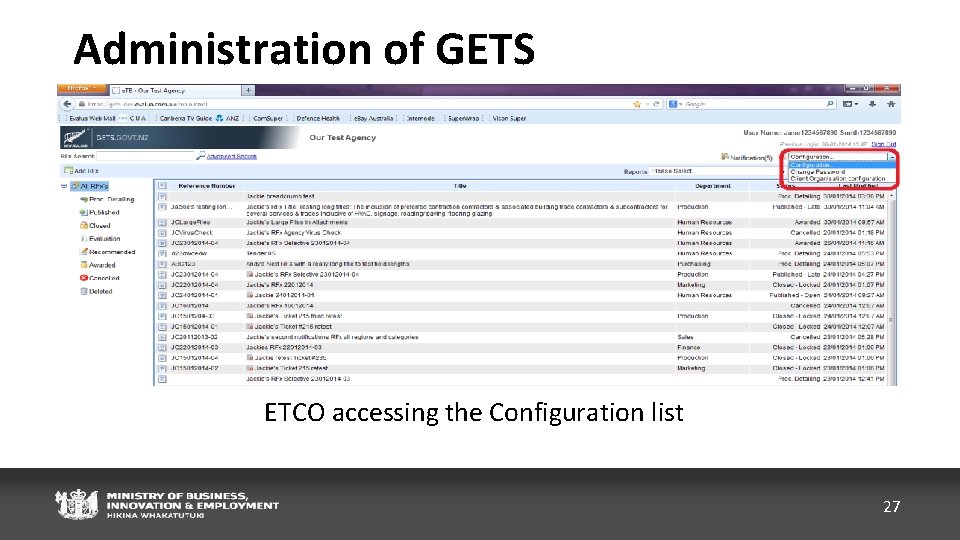
Administration of GETS ETCO accessing the Configuration list 27
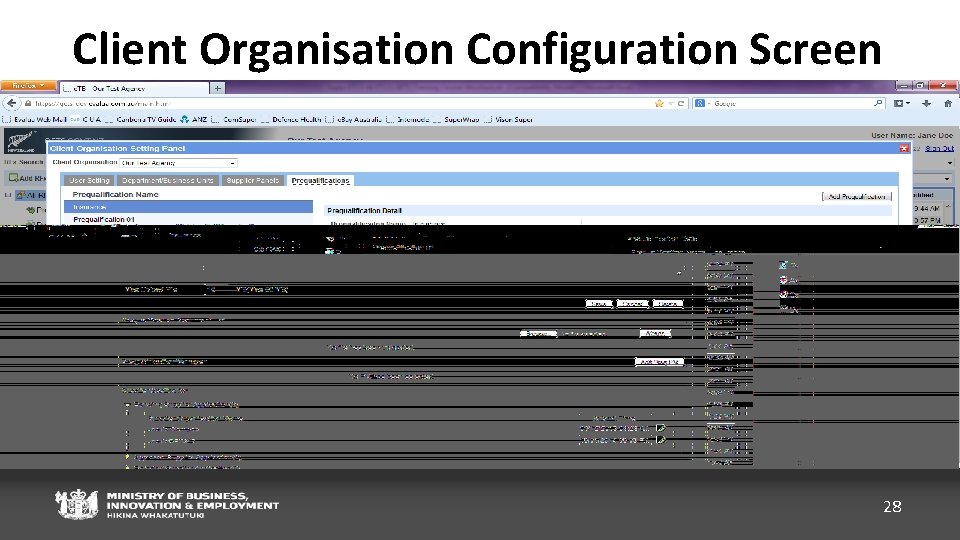
Client Organisation Configuration Screen 28
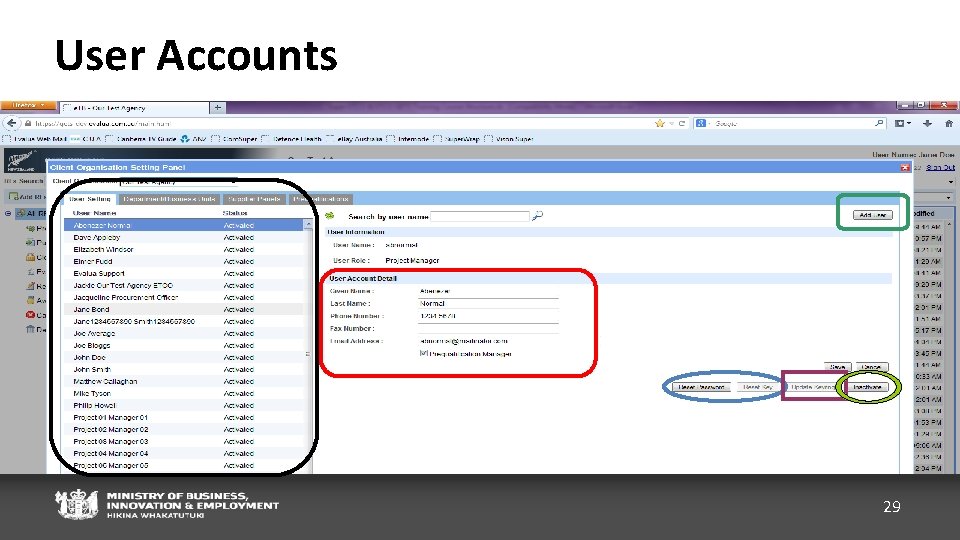
User Accounts 29
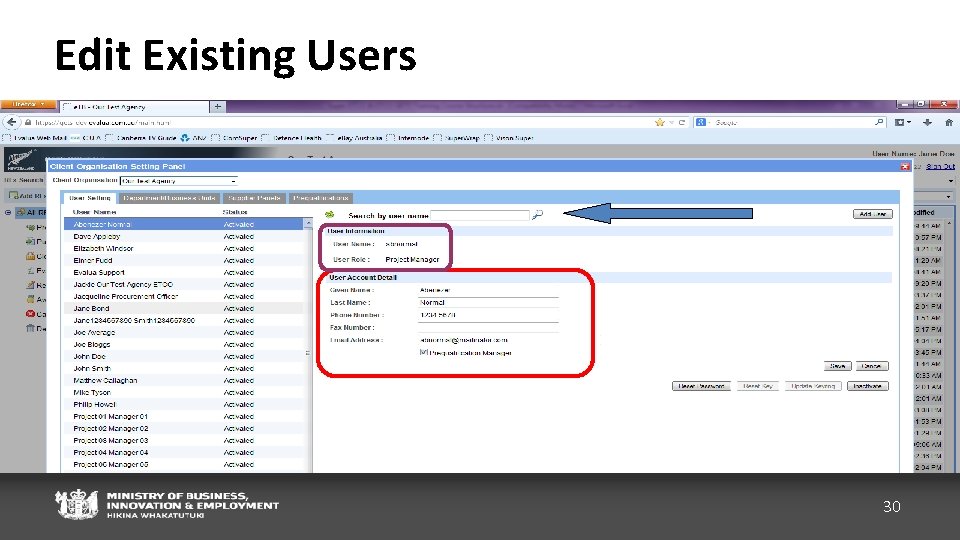
Edit Existing Users 30
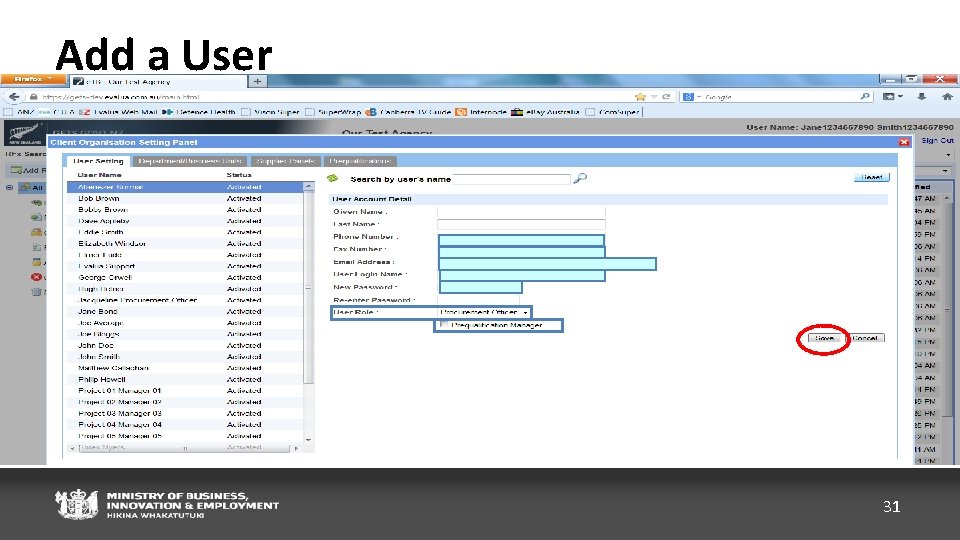
Add a User 31
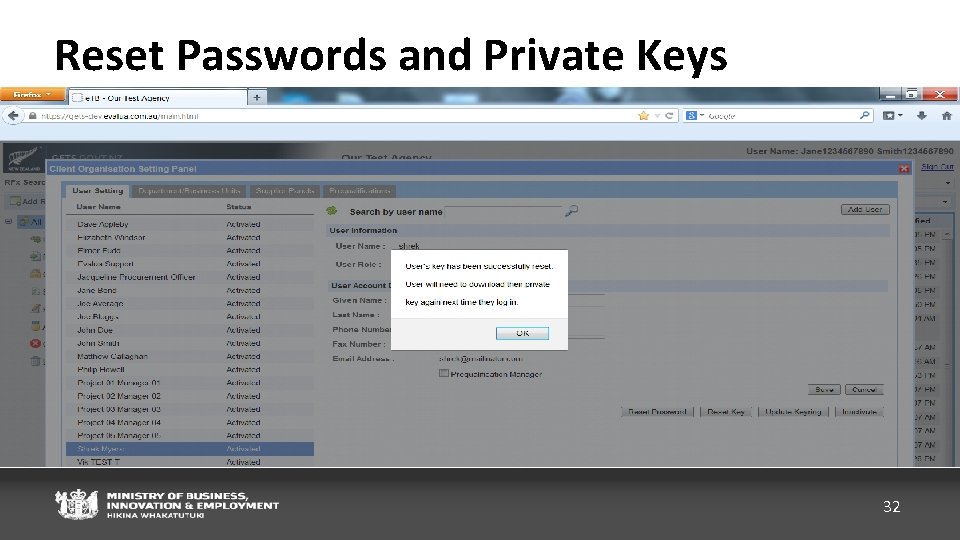
Reset Passwords and Private Keys 32
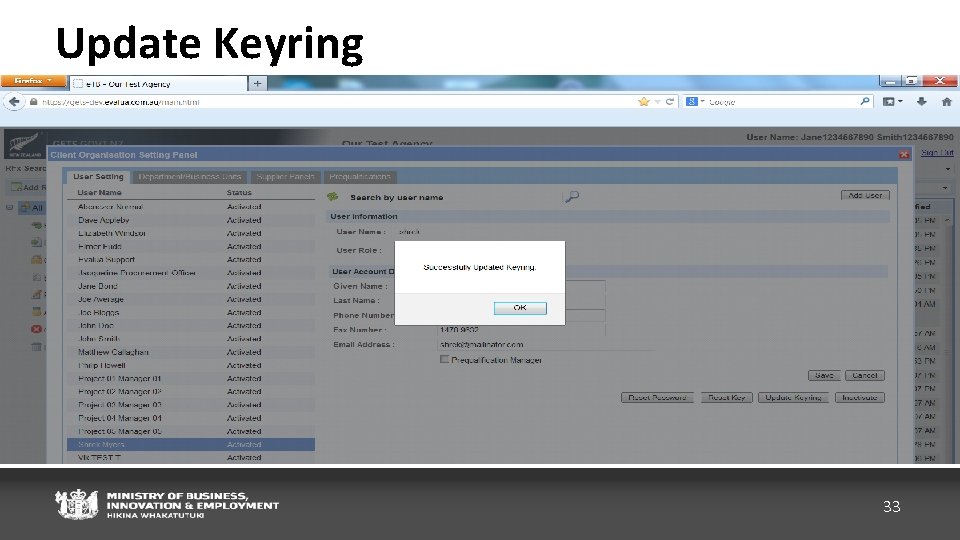
Update Keyring 33
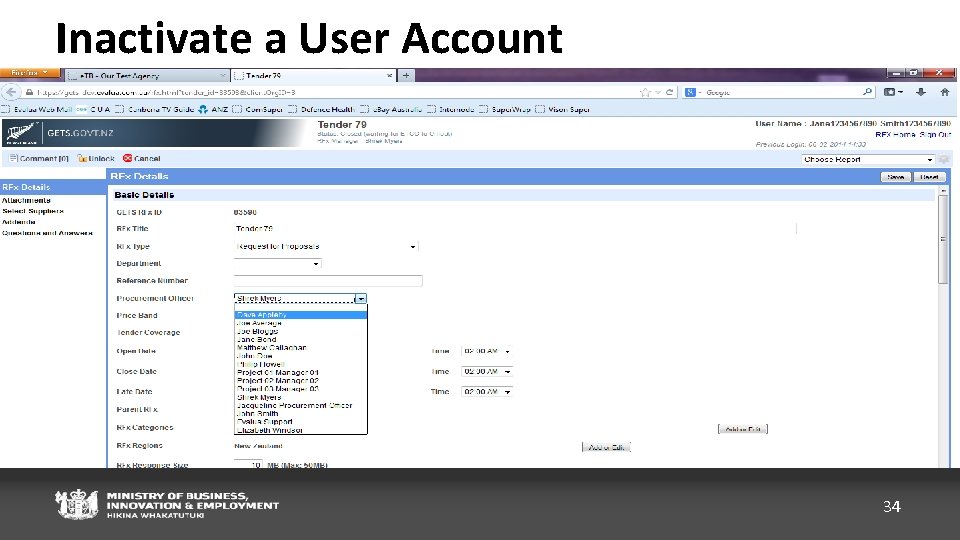
Inactivate a User Account 0 34
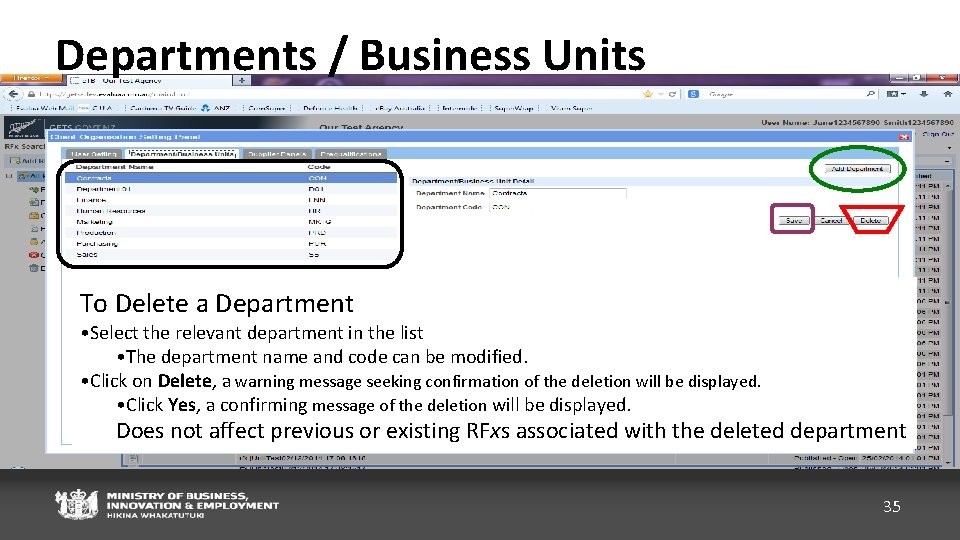
Departments / Business Units a Department To Delete a. To Department To Edit a. Add Department • Select the relevant department in the list • Click Add Department button • Select the relevant department in the list • The department name and code cancode befields modified. • The name and can be modified. • department In the Department Details enter a name and code (2 -5 characters, no spaces) • Click on Delete, warning • Clicka on Save. message seeking confirmation of the deletion will be displayed. • confirming The code ismessage used when RFx referencebe numbers are generated • Click Yes, of the deletion displayed. • A aconfirming message that the updatewill was successful will be displayed. • affect Click to Save Does not previous or existing RFxsor associated deleted department Changes a department’s name code will with only the apply to future RFx. 35
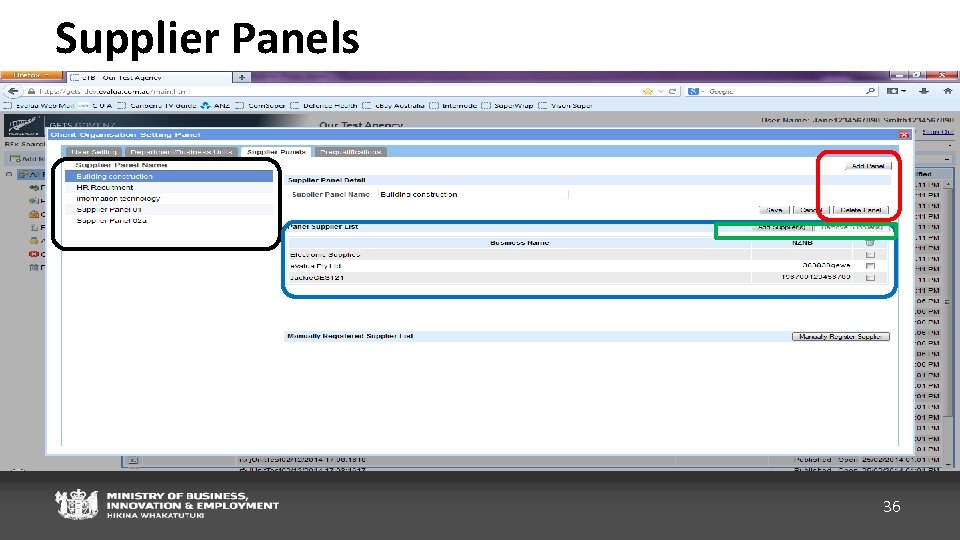
Supplier Panels 36
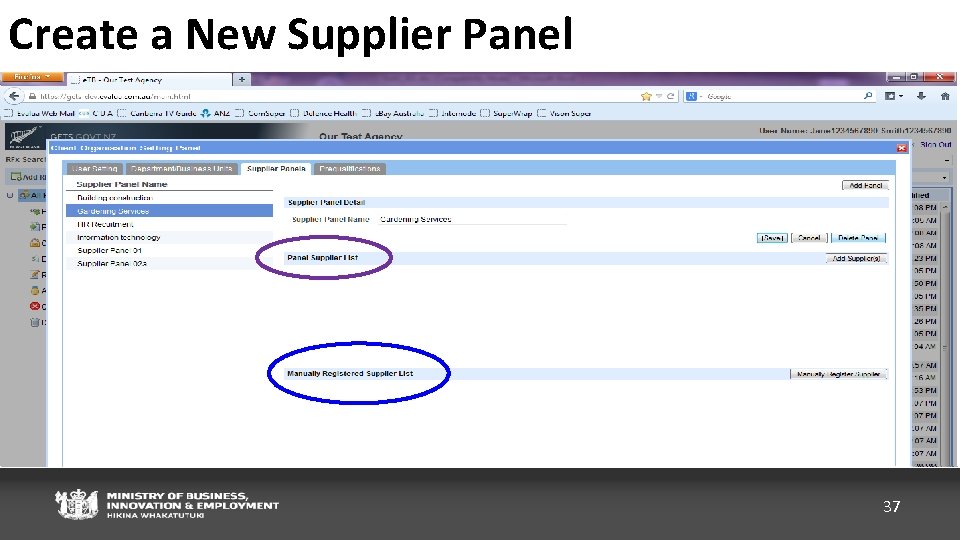
Create a New Supplier Panel 37
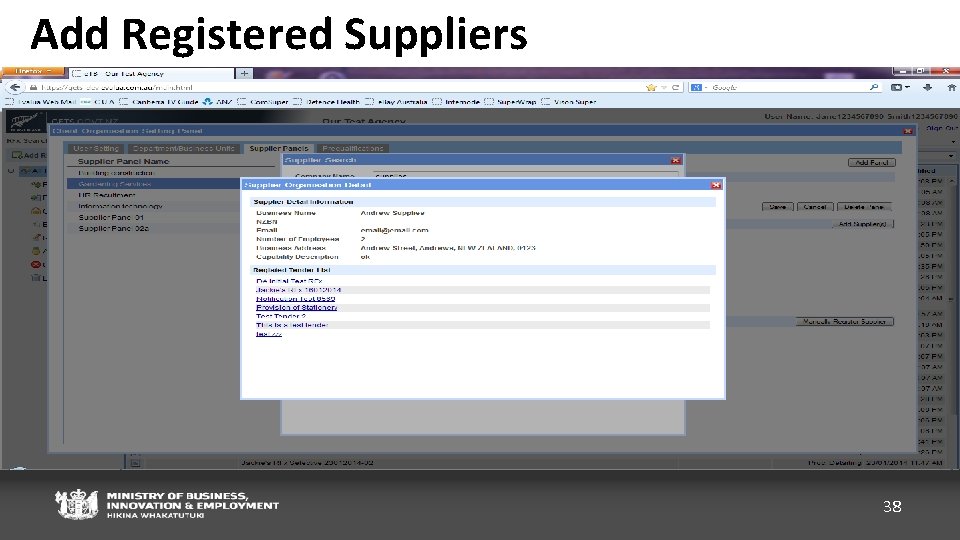
Add Registered Suppliers 38
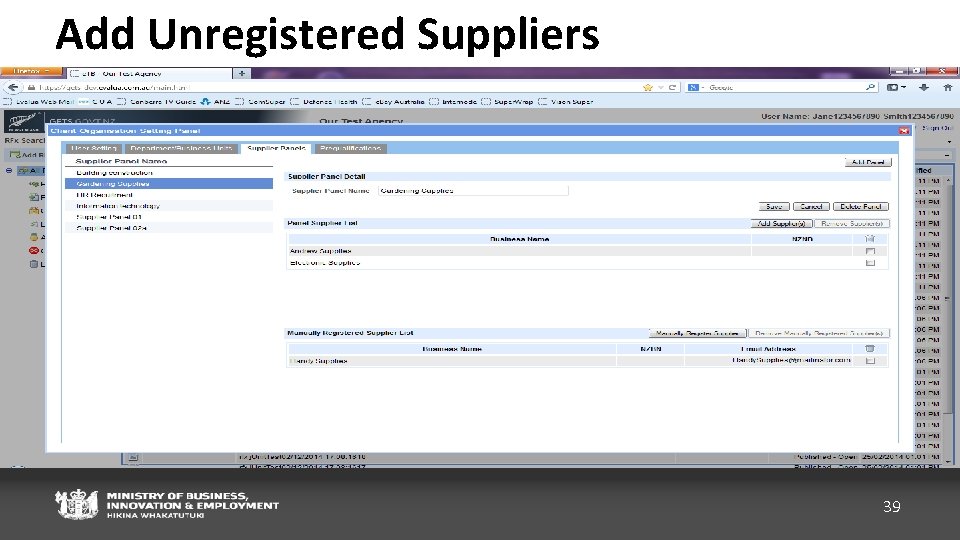
Add Unregistered Suppliers 39
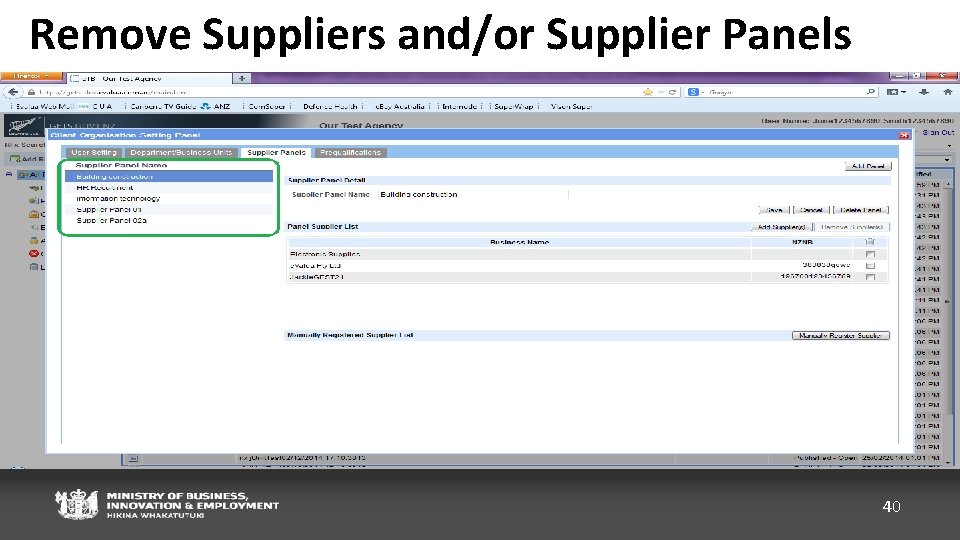
Remove Suppliers and/or Supplier Panels 40
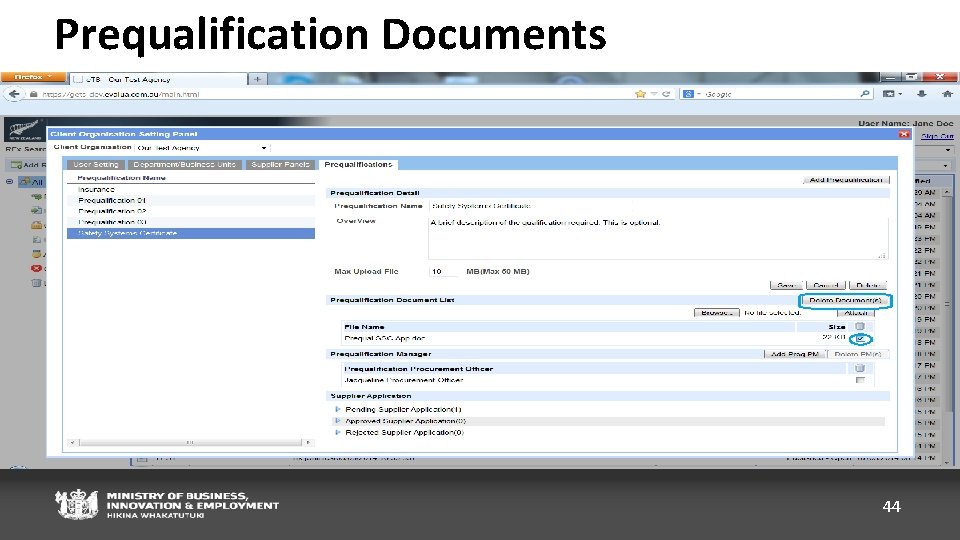
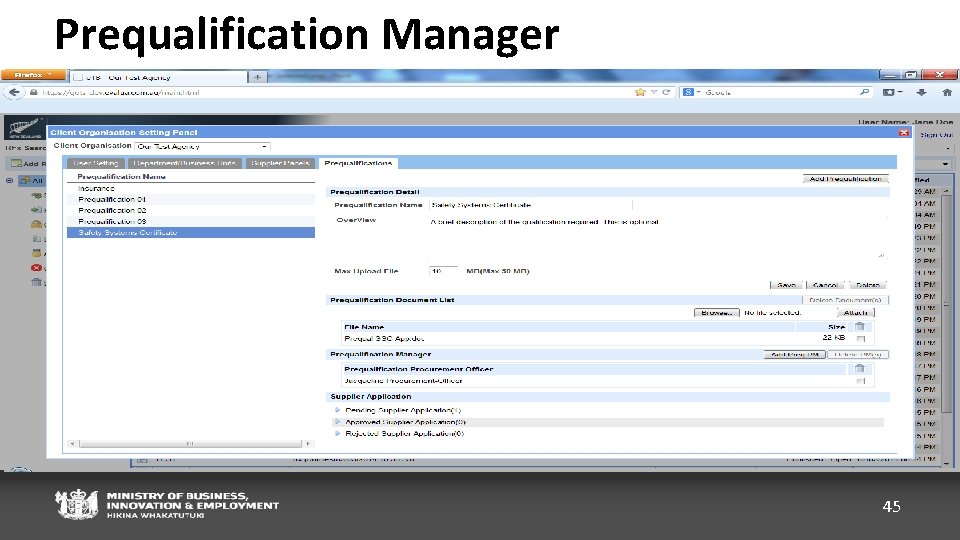
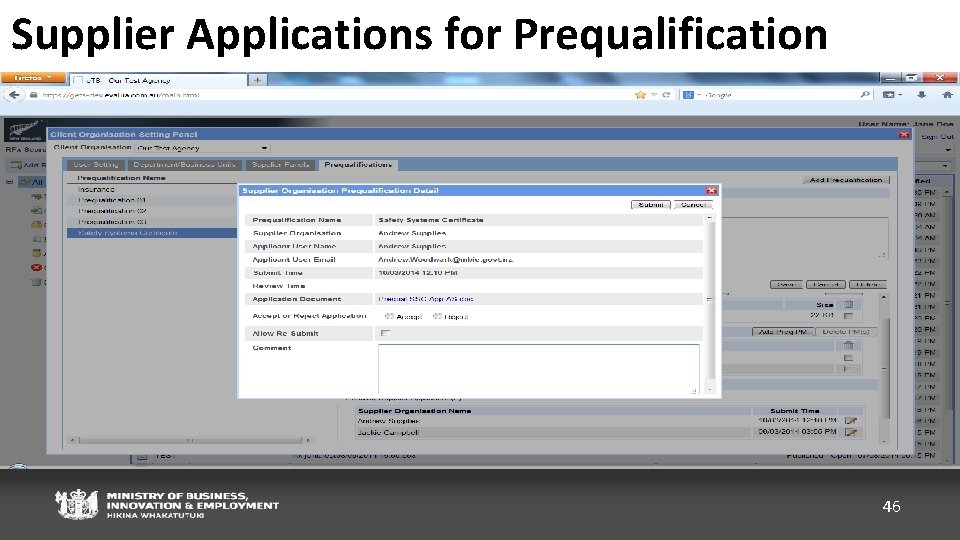
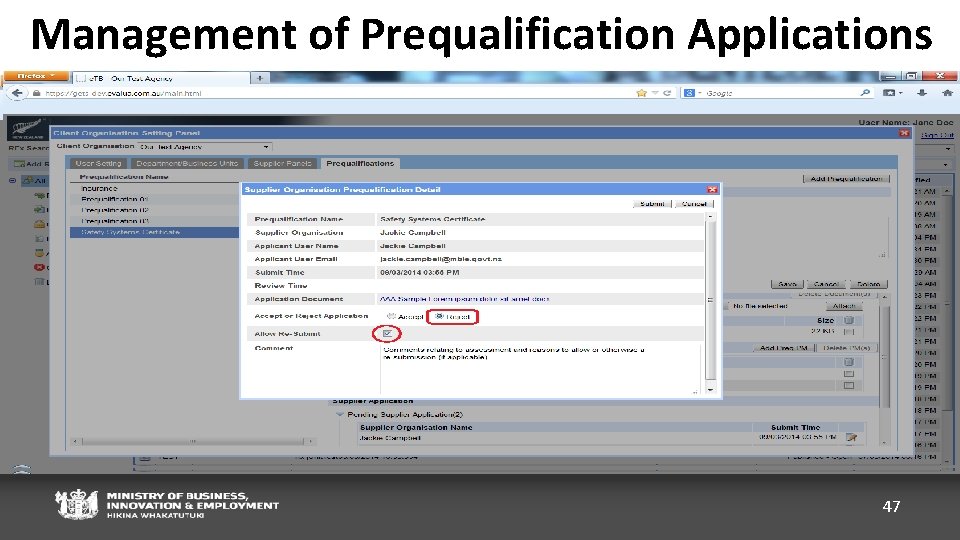
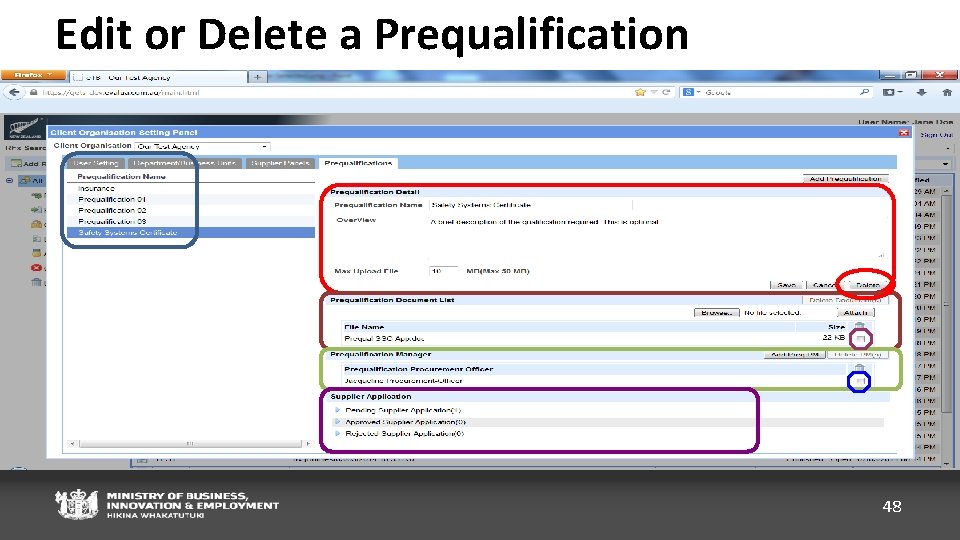
Prequalifications Requirements that prospective Suppliers must meet in order to submit a response to selected RFxs e. g. business insurance levels, financial position and/or specialist skills Consists of a title and an application form, typically a Microsoft Word Document, which asks the Supplier a series of questions related to the prequalification requirement. Completed application form submitted via GETS. 41
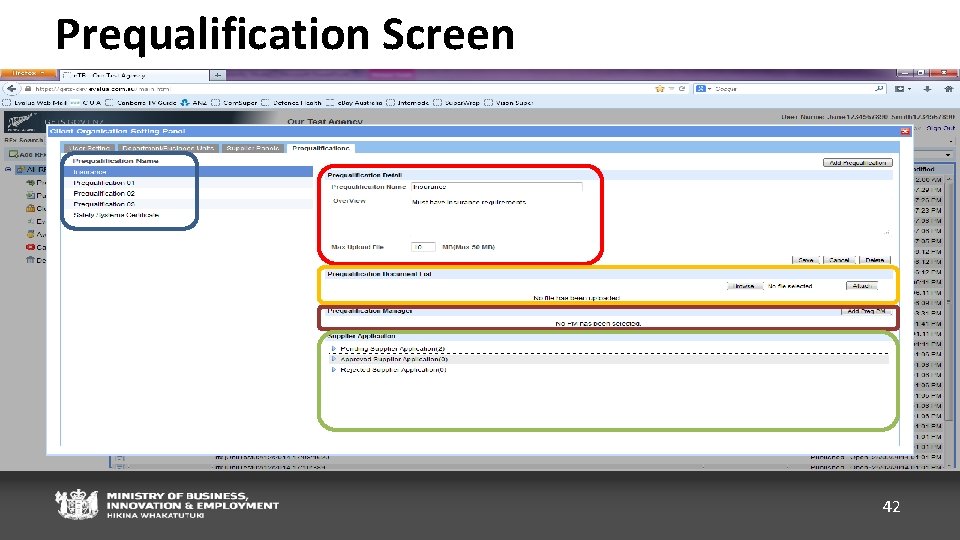
Prequalification Screen 42
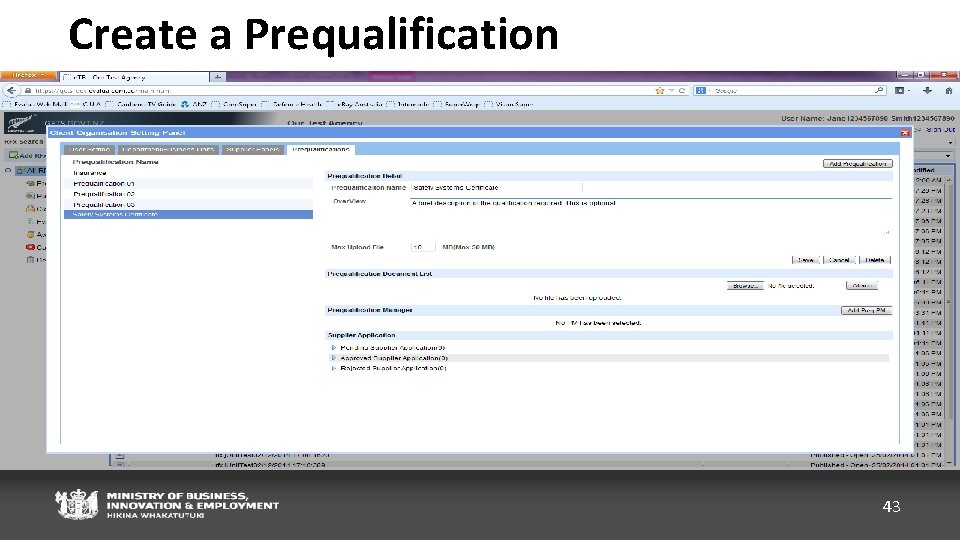
Create a Prequalification 43
Prequalification Documents 44
Prequalification Manager 45
Supplier Applications for Prequalification 46
Management of Prequalification Applications 47
Edit or Delete a Prequalification 48
49
End of Course