
GORDON SELLEY TONY HOSIER AMD GPU DEVELOPER TOOLS

- Slides: 46
GORDON SELLEY TONY HOSIER AMD GPU DEVELOPER TOOLS TEAM OPTIMIZING LINUX GAMES FOR AMD GRAPHICS USING GPU PERFSTUDIO 2
Background • • • GPU Perf. Studio 2 is AMD's performance and debugging tool for graphics applications Initially developed to support Direct. X and Open. GL on Windows® only Has recently been ported to Linux® Very useful when developing games for Steam Linux® Especially useful when optimizing games for AMD GPUs We are here to demonstrate GPUPerf. Studio 2 for Linux®
Presentation Overview • • • Introduction to GPU Perf. Studio 2 — What it is, what it does, how it works, & who uses it — Usage configurations Using GPU Perf. Studio 2 for Linux — How to use it with an Open. GL Linux® app — Demonstration of the main tool features Data-mining your game using GPU Perf. Studio 2 — Demonstration with a Steam Linux® game What’s new? Summary Questions
INTRODUCTION TO GPU PERFSTUDIO 2 What it is, what it does, how it works, & who uses it
What is GPU Perf. Studio 2? • • • GPU Perf. Studio 2 is AMD's performance and debugging tool for graphics applications A suite of tools that can be used to debug and increase performance on AMD GPUs Integrated Frame Profiler, Frame Debugger, and API Trace with CPU timing information Supports Open. GL 4. 2 applications on Windows® Supports Direct. X® 11, Direct. X® 10. 1 , Direct. X® 10 Now supports Linux®
What is GPU Perf. Studio 2? • • • A lightweight, no installer, no change to your game, drag and drop, suite of GPU tools Run from a USB drive No need for Visual Studio integration Runs with game executables No special driver or compilation required
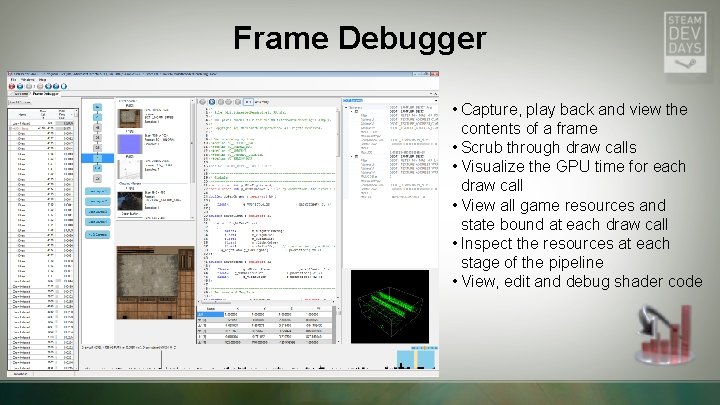
Frame Debugger • Capture, play back and view the contents of a frame • Scrub through draw calls • Visualize the GPU time for each draw call • View all game resources and state bound at each draw call • Inspect the resources at each stage of the pipeline • View, edit and debug shader code
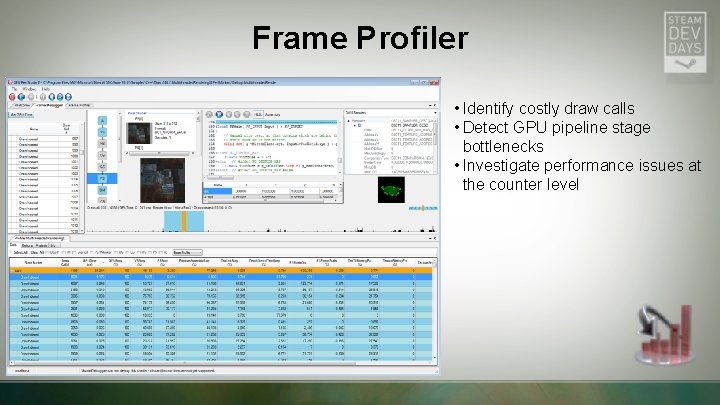
Frame Profiler • Identify costly draw calls • Detect GPU pipeline stage bottlenecks • Investigate performance issues at the counter level
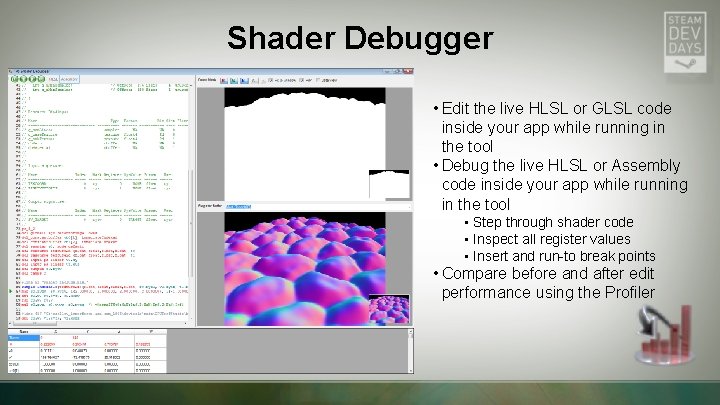
Shader Debugger • Edit the live HLSL or GLSL code inside your app while running in the tool • Debug the live HLSL or Assembly code inside your app while running in the tool • Step through shader code • Inspect all register values • Insert and run-to break points • Compare before and after edit performance using the Profiler
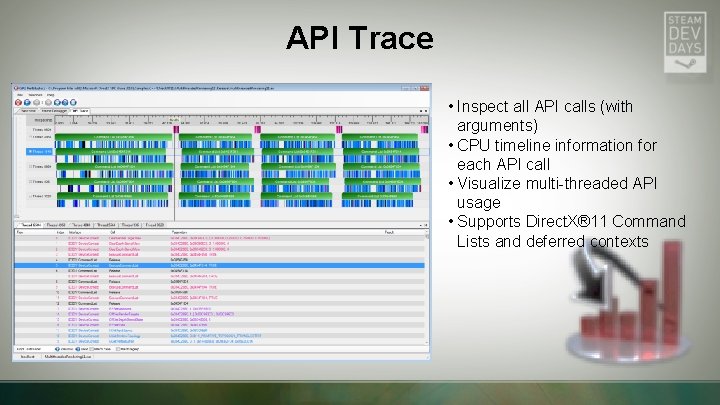
API Trace • Inspect all API calls (with arguments) • CPU timeline information for each API call • Visualize multi-threaded API usage • Supports Direct. X® 11 Command Lists and deferred contexts
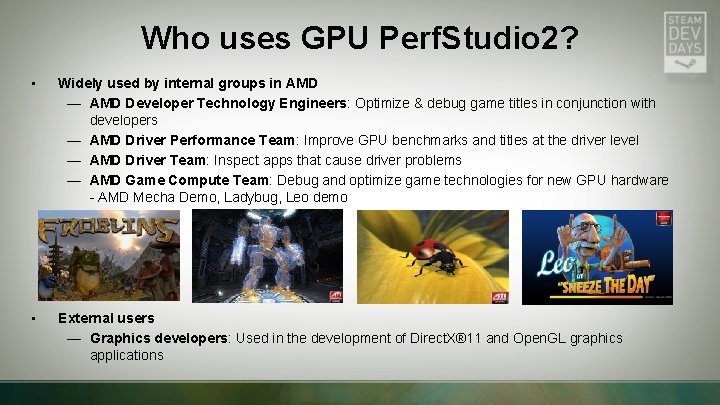
Who uses GPU Perf. Studio 2? • Widely used by internal groups in AMD — AMD Developer Technology Engineers: Optimize & debug game titles in conjunction with developers — AMD Driver Performance Team: Improve GPU benchmarks and titles at the driver level — AMD Driver Team: Inspect apps that cause driver problems — AMD Game Compute Team: Debug and optimize game technologies for new GPU hardware - AMD Mecha Demo, Ladybug, Leo demo • External users — Graphics developers: Used in the development of Direct. X® 11 and Open. GL graphics applications
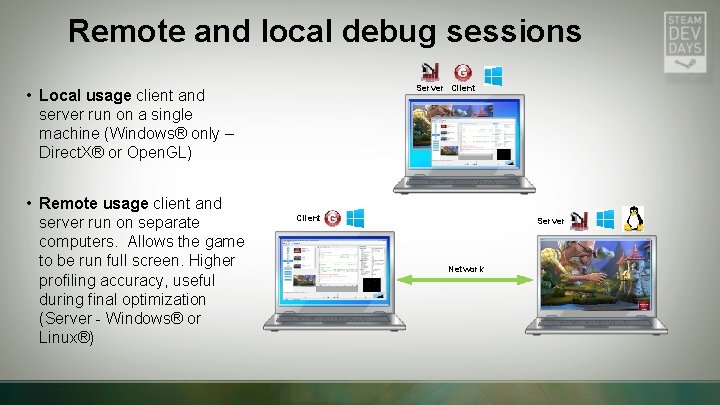
Remote and local debug sessions Server Client • Local usage client and server run on a single machine (Windows® only – Direct. X® or Open. GL) • Remote usage client and server run on separate computers. Allows the game to be run full screen. Higher profiling accuracy, useful during final optimization (Server - Windows® or Linux®) Client Server Network
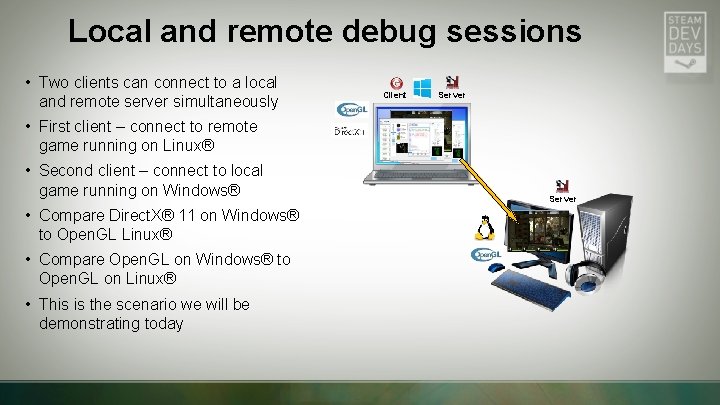
Local and remote debug sessions • Two clients can connect to a local and remote server simultaneously Client Server • First client – connect to remote game running on Linux® • Second client – connect to local game running on Windows® • Compare Direct. X® 11 on Windows® to Open. GL Linux® • Compare Open. GL on Windows® to Open. GL on Linux® • This is the scenario we will be demonstrating today Server
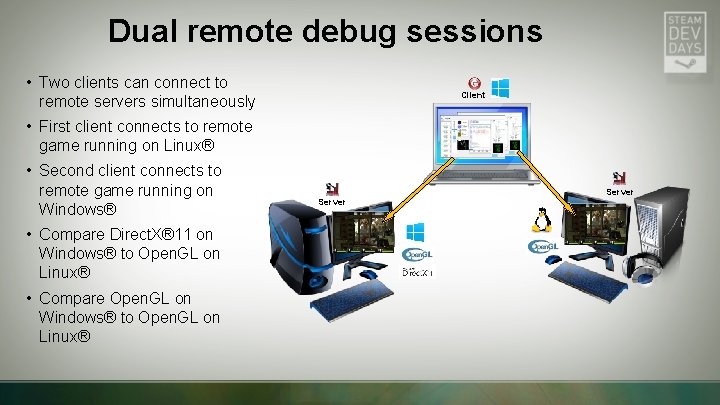
Dual remote debug sessions • Two clients can connect to remote servers simultaneously Client • First client connects to remote game running on Linux® • Second client connects to remote game running on Windows® • Compare Direct. X® 11 on Windows® to Open. GL on Linux® • Compare Open. GL on Windows® to Open. GL on Linux® Server
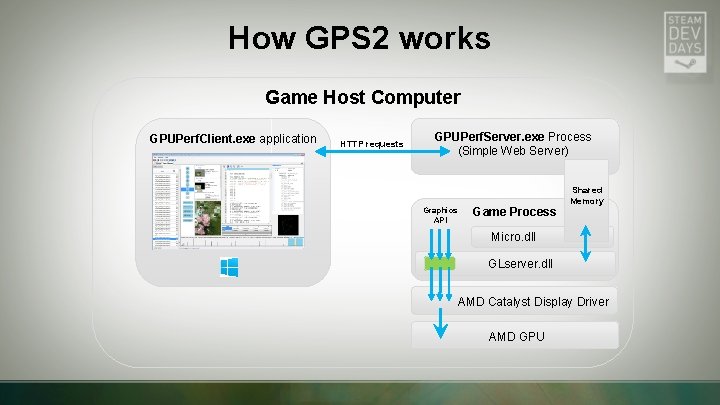
How GPS 2 works Game Host Computer GPUPerf. Client. exe application HTTP requests GPUPerf. Server. exe Process (Simple Web Server) Graphics API Game Process Shared Memory Micro. dll GLserver. dll AMD Catalyst Display Driver AMD GPU
USING GPU PERFSTUDIO 2 FOR LINUX
GPU Perf. Studio 2’s Open. GL Background • GPU Perf. Studio 2 (GPS 2) supported Open. GL early in its development • Open. GL support grew during the development of Brink and Rage — Used in house at AMD to debug driver issues and for GPU profiling • GPS 2 was used by Valve in the porting of Source Engine to Open. GL ― First tool that would work with a “large” Open. GL application • AMD’s g. DEBugger was also used by Valve — Helps in debugging context creation code by checking for common Open. GL context creation errors — g. DEBugger features now supported by AMD’s Code. XL
GPU Perf. Studio 2’s Open. GL Background • GPS 2 was used by Valve in the porting of Source Engine to Linux® • How? GPS 2 only ran on Windows® at the time? — Valve found that most AMD driver issues on Linux® also existed in the Windows® driver so could be debugged/reported on Windows® — The tools ecosystem on Windows® was already well developed so most of the work could be done on Windows® — No real need to move existing tools to Linux® (at that time)
GPU Perf. Studio 2’s Linux Background • Drawback of GPS 2 only running on Windows® — Not possible to profile the GPU directly on Linux® using GPS 2 • What about GPUPerf. API? — AMD’s library for accessing GPU performance counters on AMD GPUs — Available for Linux® and Windows® — Developers can integrate GPU profiling into their own tools using GPUPerf. API — AMD’s GPS 2 and Code. XL use GPUPerf. API under the hood • With the release of Steam for Linux® GPU tools are even more important to the game developer community at large • AMD started porting GPU Perf. Studio 2 to Linux® in mid-2013 — Targeted Steam for Linux® games — Standalone Open. GL applications
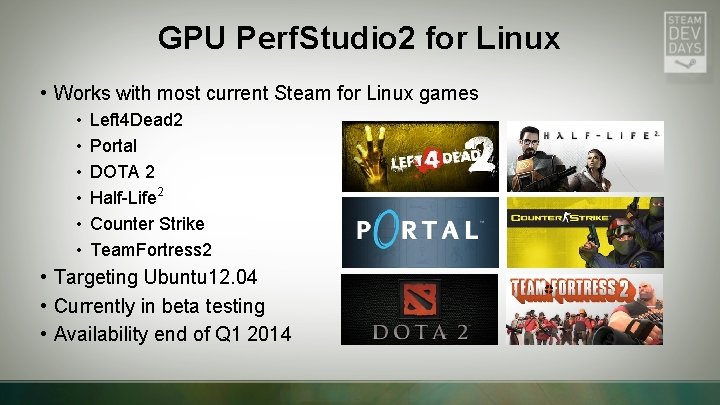
GPU Perf. Studio 2 for Linux • Works with most current Steam for Linux games • • • Left 4 Dead 2 Portal DOTA 2 Half-Life 2 Counter Strike Team. Fortress 2 • Targeting Ubuntu 12. 04 • Currently in beta testing • Availability end of Q 1 2014
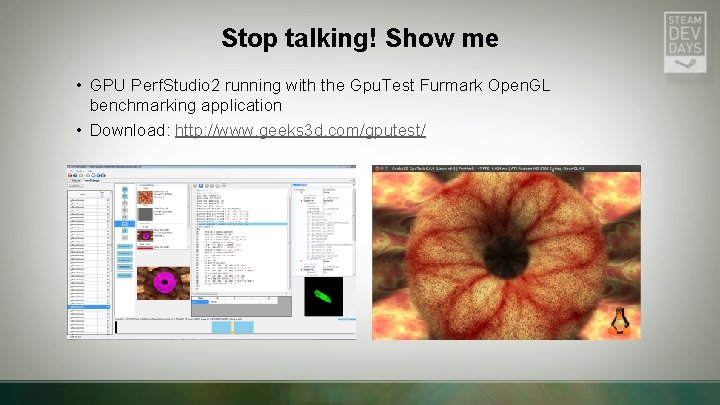
Stop talking! Show me • GPU Perf. Studio 2 running with the Gpu. Test Furmark Open. GL benchmarking application • Download: http: //www. geeks 3 d. com/gputest/
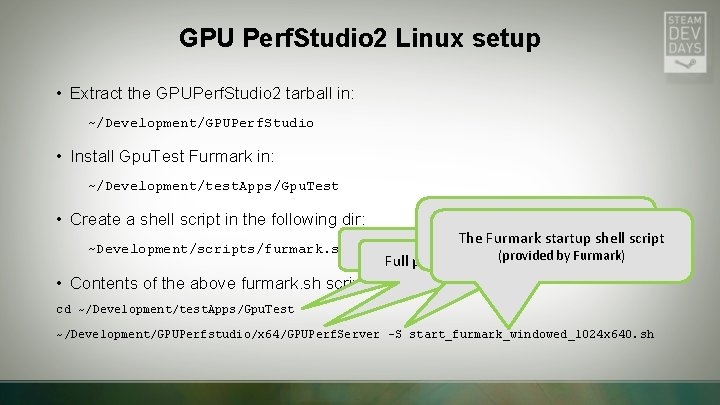
GPU Perf. Studio 2 Linux setup • Extract the GPUPerf. Studio 2 tarball in: ~/Development/GPUPerf. Studio • Install Gpu. Test Furmark in: ~/Development/test. Apps/Gpu. Test • Create a shell script in the following dir: ~Development/scripts/furmark. sh -S option specifies the shell The Furmark shell script that runsstartup the demo cd to the app directory (provided by Furmark) Full path to GPU Perf. Studio 2 • Contents of the above furmark. sh script: cd ~/Development/test. Apps/Gpu. Test ~/Development/GPUPerfstudio/x 64/GPUPerf. Server –S start_furmark_windowed_1024 x 640. sh
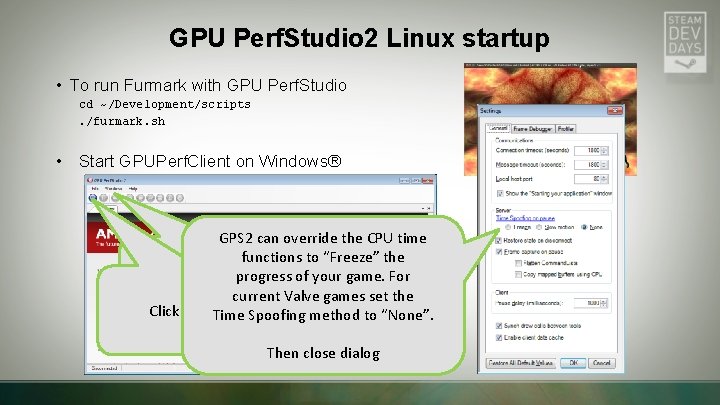
GPU Perf. Studio 2 Linux startup • To run Furmark with GPU Perf. Studio cd ~/Development/scripts. /furmark. sh • Start GPUPerf. Client on Windows® GPS 2 can override the CPU time functions to “Freeze” the Click on WindowsSettings of your game. For to bring up progress the settings current Valve games set the dialog Click Connect Time. Button Spoofing method to “None”. Then close dialog
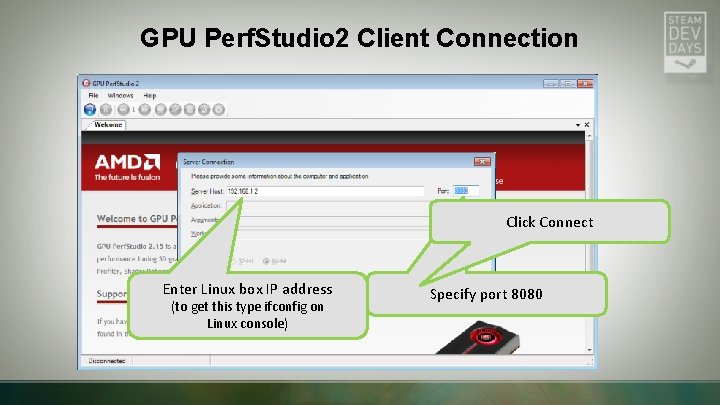
GPU Perf. Studio 2 Client Connection Click Connect Enter Linux box IP address (to get this type ifconfig on Linux console) Specify port 8080
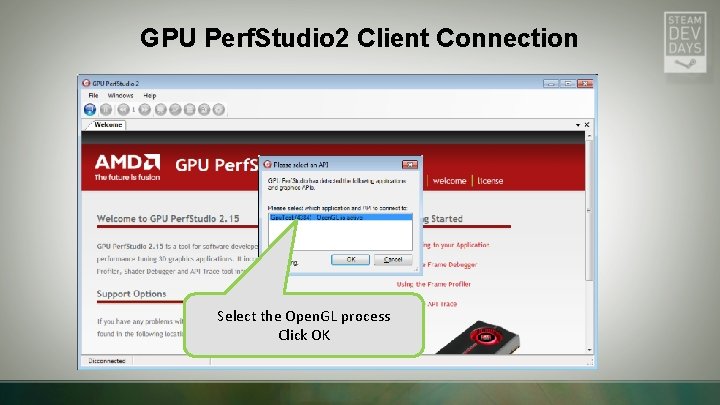
GPU Perf. Studio 2 Client Connection Select the Open. GL process Click OK
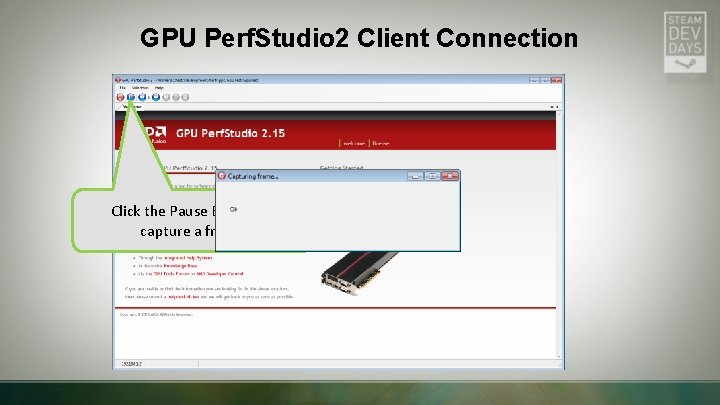
GPU Perf. Studio 2 Client Connection Click the Pause Button to capture a frame
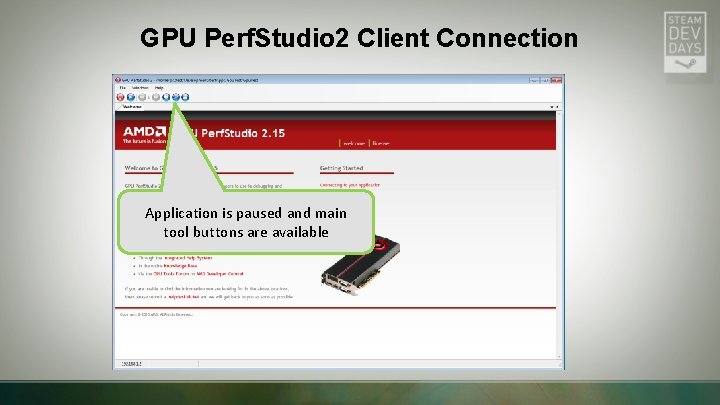
GPU Perf. Studio 2 Client Connection Application is paused and main tool buttons are available
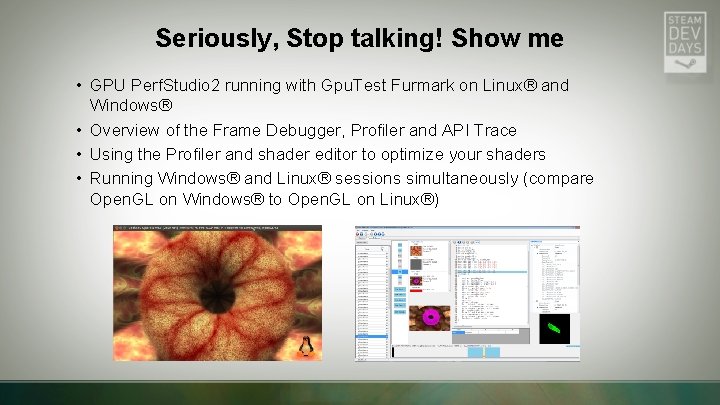
Seriously, Stop talking! Show me • GPU Perf. Studio 2 running with Gpu. Test Furmark on Linux® and Windows® • Overview of the Frame Debugger, Profiler and API Trace • Using the Profiler and shader editor to optimize your shaders • Running Windows® and Linux® sessions simultaneously (compare Open. GL on Windows® to Open. GL on Linux®)
DATA-MINING YOUR GAME USING GPU PERFSTUDIO 2
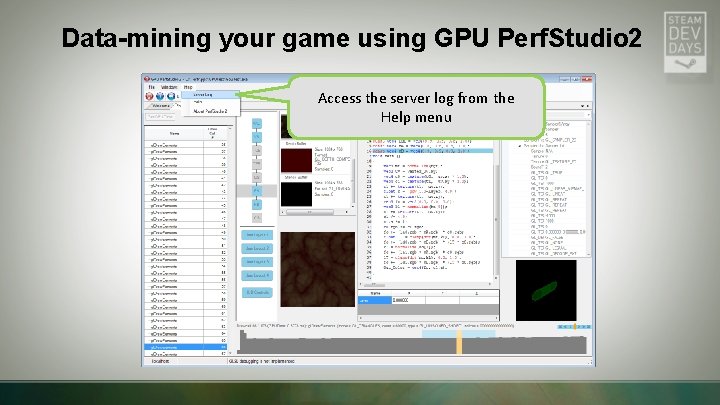
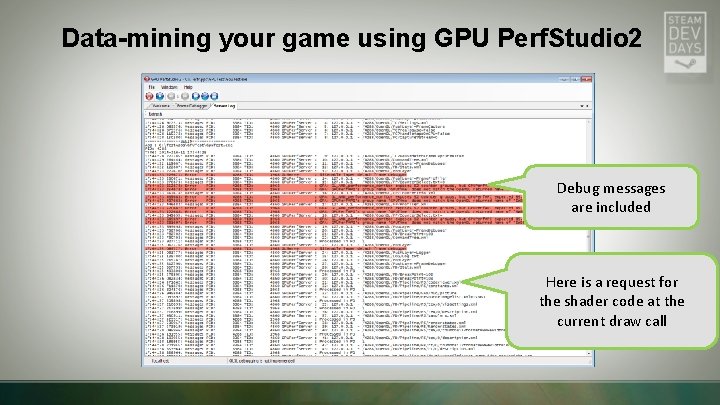
Data-mining your game using GPU Perf. Studio 2 • As we mentioned earlier GPU Perf. Studio 2 has web-like behavior • GPU Perf. Studio 2 modifies your game into a server that responds to specific commands for graphics API data • The GPUPerf. Client (a. NET app) makes requests to port 80 on Windows®, and port 8080 for Linux® servers • You can see the requests for data in the console output of the server • A history of the requests can be accessed in the GPUPerf. Client
Data-mining your game using GPU Perf. Studio 2 Access the server log from the Help menu
Data-mining your game using GPU Perf. Studio 2 Debug messages are included Here is a request for the shader code at the current draw call
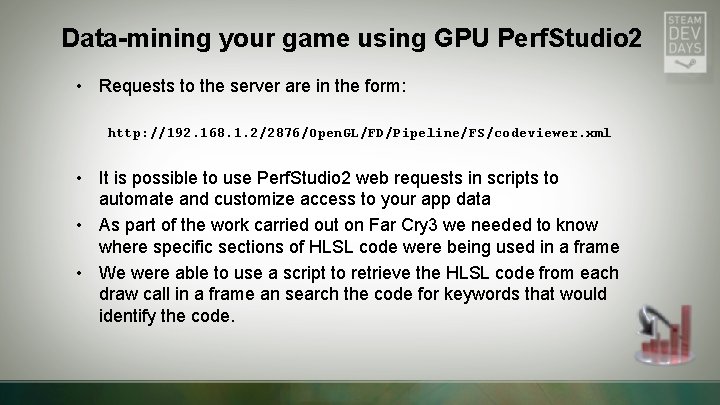
Data-mining your game using GPU Perf. Studio 2 • Requests to the server are in the form: http: //192. 168. 1. 2/2876/Open. GL/FD/Pipeline/FS/codeviewer. xml • It is possible to use Perf. Studio 2 web requests in scripts to automate and customize access to your app data • As part of the work carried out on Far Cry 3 we needed to know where specific sections of HLSL code were being used in a frame • We were able to use a script to retrieve the HLSL code from each draw call in a frame an search the code for keywords that would identify the code.
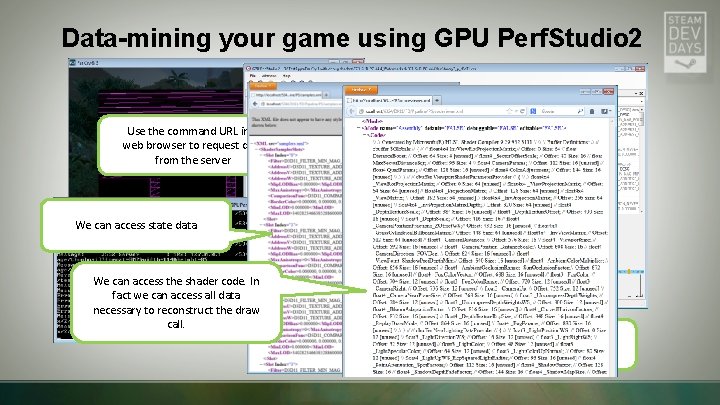
Data-mining your game using GPU Perf. Studio 2 Use the command URL in a web browser to request data from the server We can access state data We can access the shader code. In fact we can access all data necessary to reconstruct the draw call. Far. Cry 3 running with GPU Perf. Studio 2 We can see the data command requests in the server console window Attach the GPU Perf. Client, pause the app, move to draw call
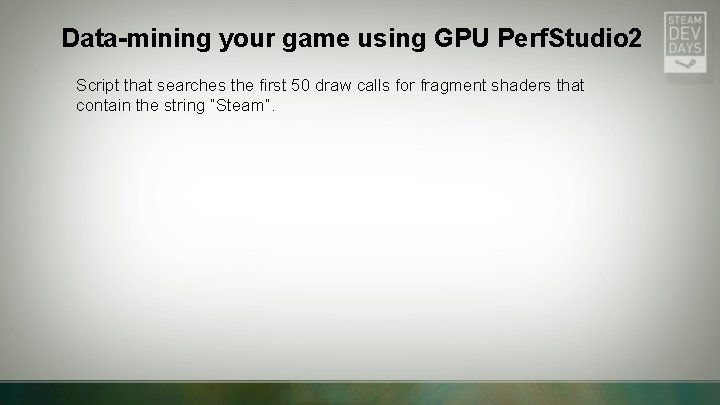
Data-mining your game using GPU Perf. Studio 2 Script that searches the first 50 draw calls for fragment shaders that contain the string “Steam”.
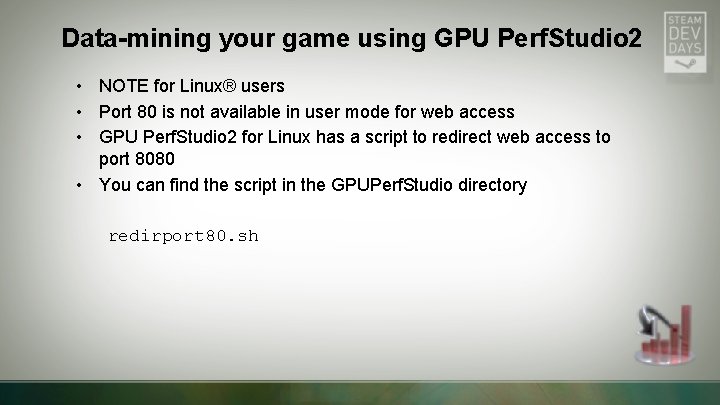
Data-mining your game using GPU Perf. Studio 2 • NOTE for Linux® users • Port 80 is not available in user mode for web access • GPU Perf. Studio 2 for Linux has a script to redirect web access to port 8080 • You can find the script in the GPUPerf. Studio directory redirport 80. sh
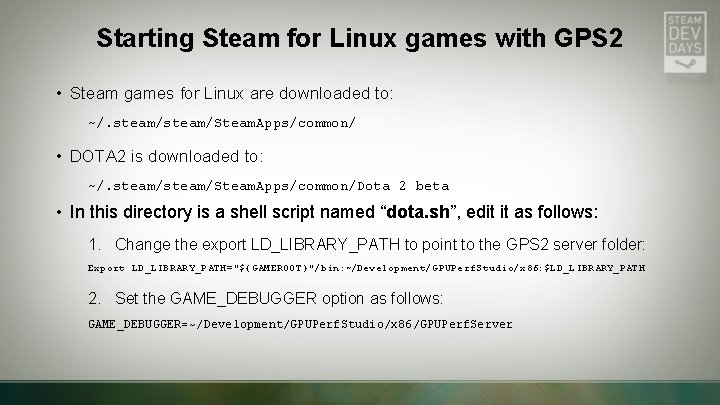
Starting Steam for Linux games with GPS 2 • Steam games for Linux are downloaded to: ~/. steam/Steam. Apps/common/ • DOTA 2 is downloaded to: ~/. steam/Steam. Apps/common/Dota 2 beta • In this directory is a shell script named “dota. sh”, edit it as follows: 1. Change the export LD_LIBRARY_PATH to point to the GPS 2 server folder: Export LD_LIBRARY_PATH="${GAMEROOT}"/bin: ~/Development/GPUPerf. Studio/x 86: $LD_LIBRARY_PATH 2. Set the GAME_DEBUGGER option as follows: GAME_DEBUGGER=~/Development/GPUPerf. Studio/x 86/GPUPerf. Server
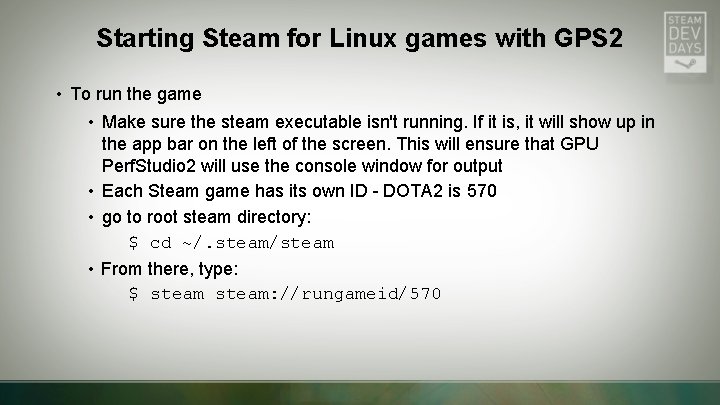
Starting Steam for Linux games with GPS 2 • To run the game • Make sure the steam executable isn't running. If it is, it will show up in the app bar on the left of the screen. This will ensure that GPU Perf. Studio 2 will use the console window for output • Each Steam game has its own ID - DOTA 2 is 570 • go to root steam directory: $ cd ~/. steam/steam • From there, type: $ steam: //rungameid/570
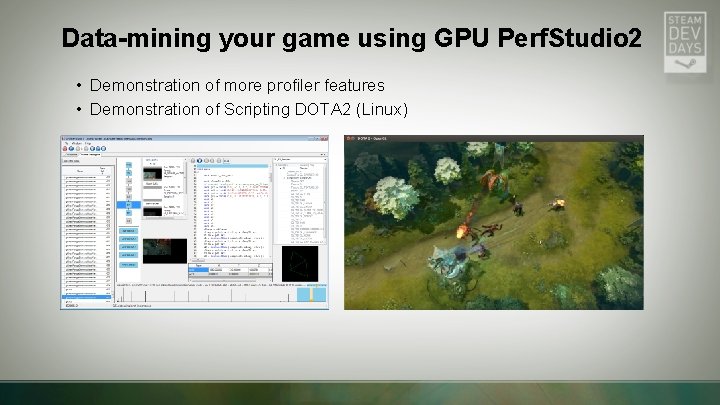
Data-mining your game using GPU Perf. Studio 2 • Demonstration of more profiler features • Demonstration of Scripting DOTA 2 (Linux)
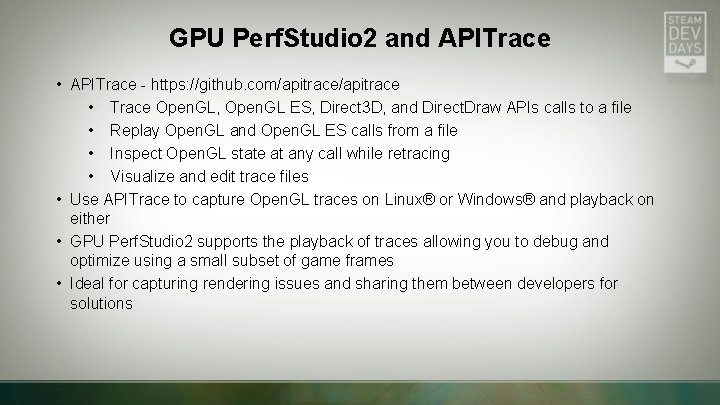
GPU Perf. Studio 2 and APITrace • APITrace - https: //github. com/apitrace • Trace Open. GL, Open. GL ES, Direct 3 D, and Direct. Draw APIs calls to a file • Replay Open. GL and Open. GL ES calls from a file • Inspect Open. GL state at any call while retracing • Visualize and edit trace files • Use APITrace to capture Open. GL traces on Linux® or Windows® and playback on either • GPU Perf. Studio 2 supports the playback of traces allowing you to debug and optimize using a small subset of game frames • Ideal for capturing rendering issues and sharing them between developers for solutions
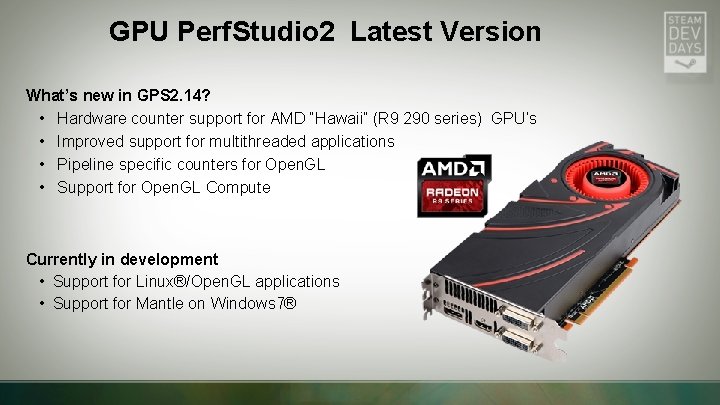
GPU Perf. Studio 2 Latest Version What’s new in GPS 2. 14? • Hardware counter support for AMD “Hawaii” (R 9 290 series) GPU’s • Improved support for multithreaded applications • Pipeline specific counters for Open. GL • Support for Open. GL Compute Currently in development • Support for Linux®/Open. GL applications • Support for Mantle on Windows 7®
Summary • GPU Perf. Studio 2 is AMD's performance and debugging tool for graphics applications • A suite of tools that can be used to debug and increase performance on AMD GPUs • Works on Windows® and Linux® • Ideal for debugging and optimizing Open. GL games on Windows® and Linux • Supports Steam for Linux games • Available end of Q 1 2014
Thank You • Rich Geldreich, Jason Mitchell and all at Valve who have used and supported GPUPerf. Studio 2 • Dan Ginsburg, Peter Lohrmann, and Graham Sellers for Open. GL support • Valve for inviting us to attend and present at Steam Dev Days 2014 • All who attended this presentation
AMD Graphics Tools Download Information • All AMD Graphics Tools http: //developer. amd. com/tools-and-sdks/graphics-development/ • GPU Perf. Studio 2 http: //developer. amd. com/tools-and-sdks/graphics-development/gpu-perfstudio-2/ • GPUPerf. API – Performance Counter Library http: //developer. amd. com/tools-and-sdks/graphics-development/gpuperfapi/ • Code. XL – GPU debugging for Open. CL™ & Open. GL API calls and Open. CL™ kernel http: //developer. amd. com/tools-and-sdks/heterogeneous-computing/codexl/ • g. DEBugger – Open. CL/Open. GL debugger (end-of-line) http: //developer. amd. com/tools-and-sdks/heterogeneous-computing/archivedtools/amd-gdebugger/
Questions? Gordon Selley gordon. selley@amd. com Tony Hosier tony. hosier@amd. com Download AMD Graphics Tools http: //developer. amd. com/tools-and-sdks/graphics-development/
GORDON SELLEY TONY HOSIER AMD GPU DEVELOPER TOOLS TEAM OPTIMIZING LINUX GAMES FOR AMD GRAPHICS USING GPU PERFSTUDIO 2