
Google Forms T Meredith UWE Ed Tech Specialist
- Slides: 14
Google Forms T. Meredith, UWE Ed Tech Specialist August 22, 2017
Uses for Google Forms • Survey/Feedback • Assessment/Evaluation • Program Proposals • RSVP • Registration • Reservations • Quiz
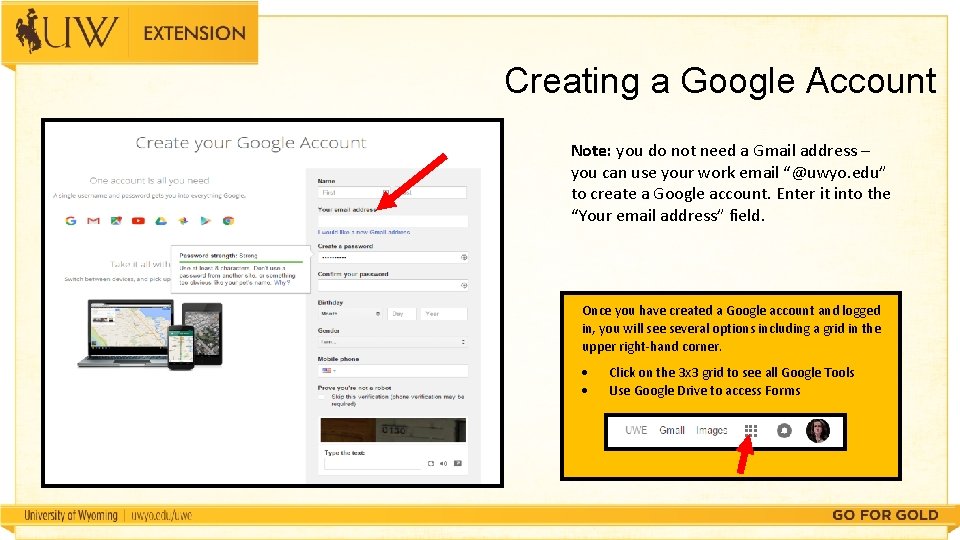
Creating a Google Account Note: you do not need a Gmail address – you can use your work email “@uwyo. edu” to create a Google account. Enter it into the “Your email address” field. Once you have created a Google account and logged in, you will see several options including a grid in the upper right-hand corner. Click on the 3 x 3 grid to see all Google Tools Use Google Drive to access Forms
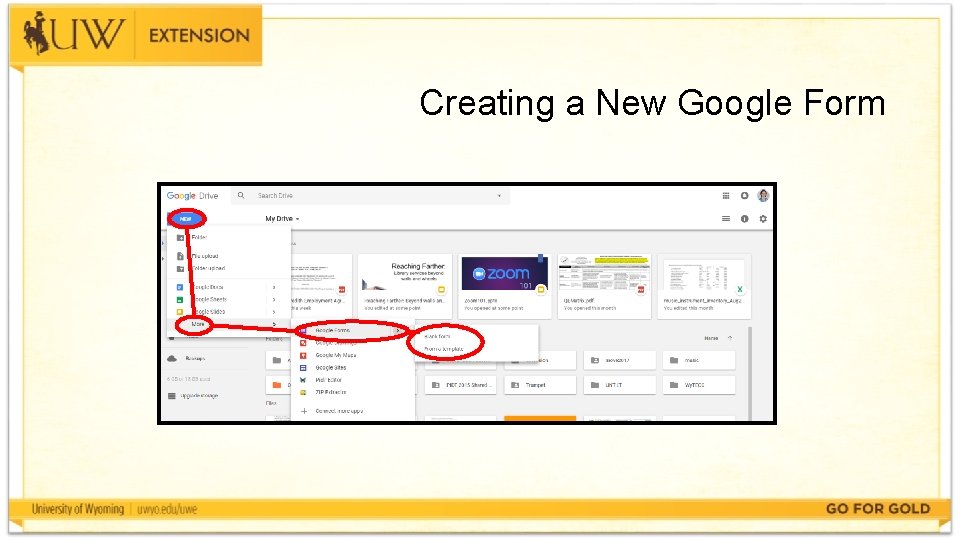
Creating a New Google Form
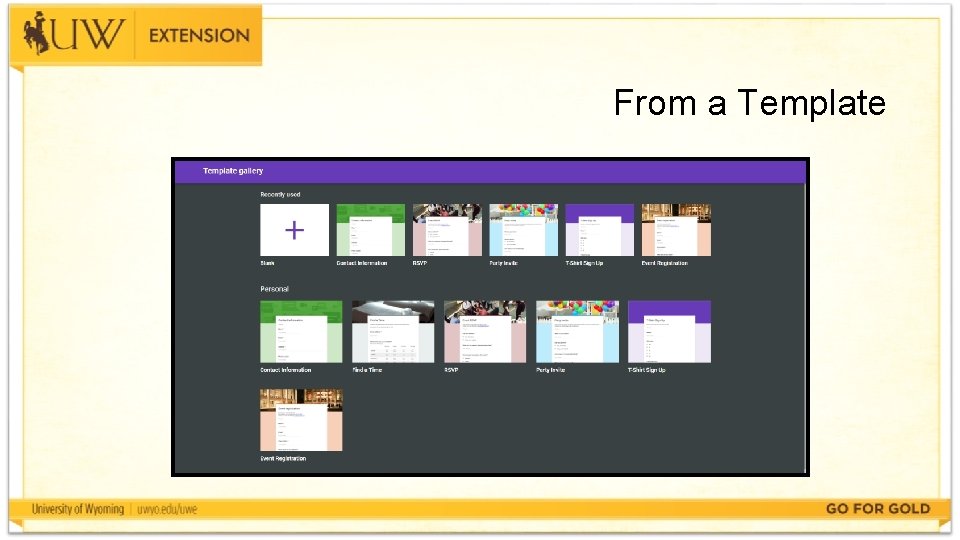
From a Template
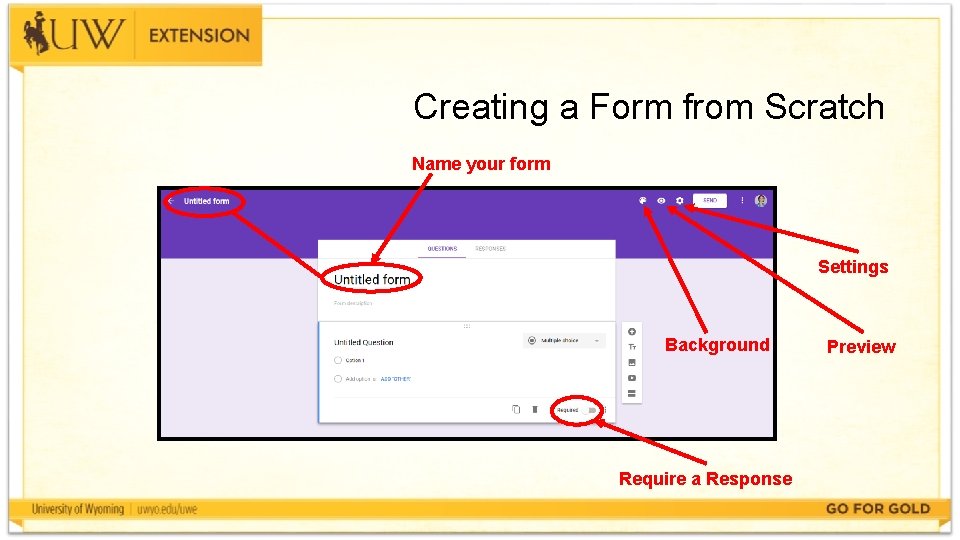
Creating a Form from Scratch Name your form Settings Background Require a Response Preview
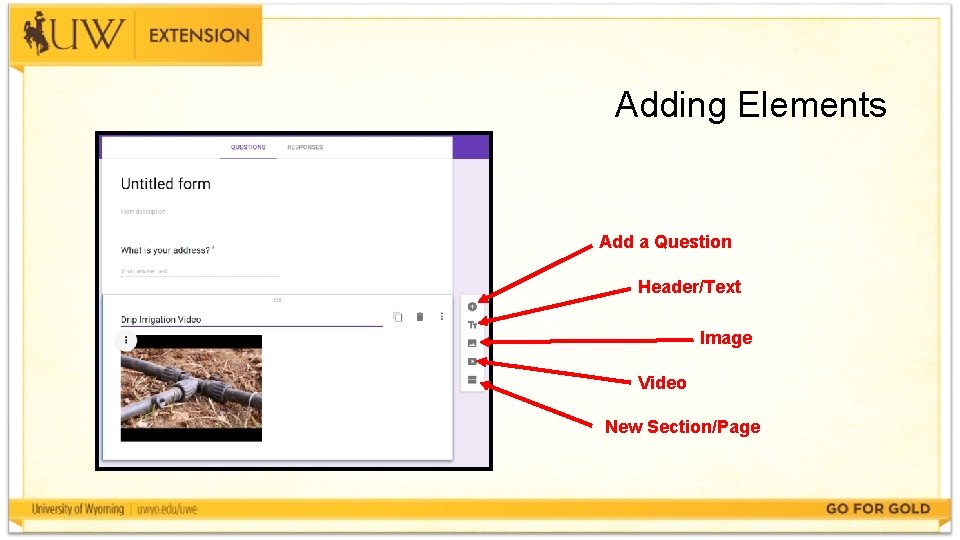
Adding Elements Add a Question Header/Text Image Video New Section/Page
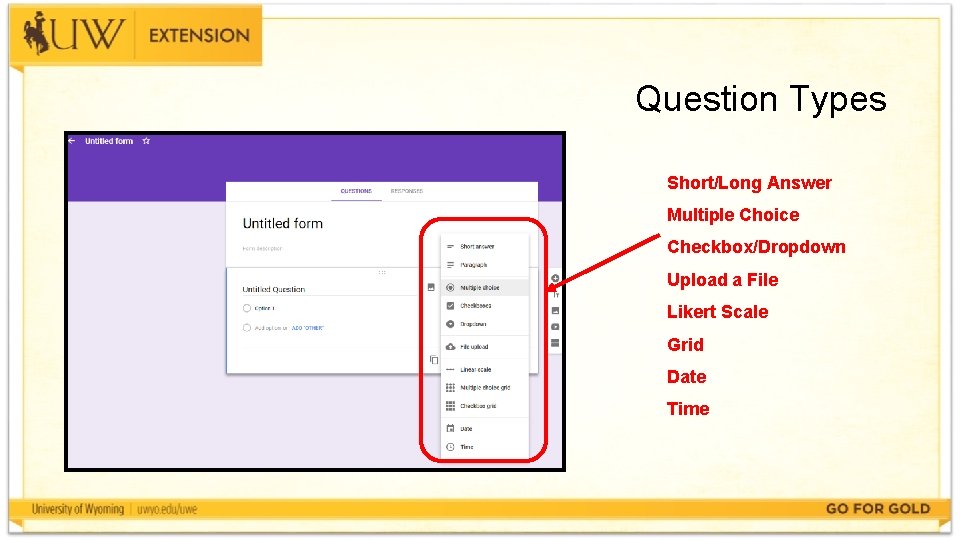
Question Types Short/Long Answer Multiple Choice Checkbox/Dropdown Upload a File Likert Scale Grid Date Time
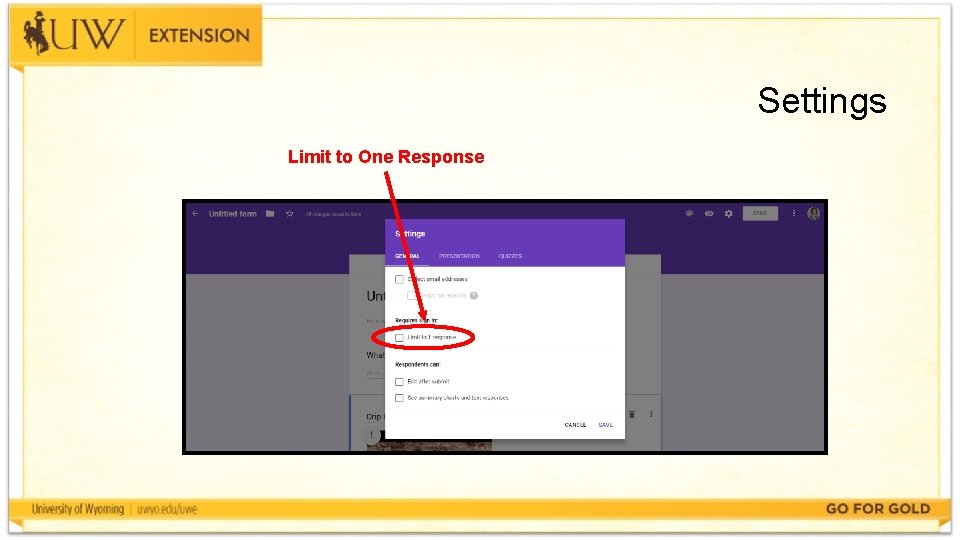
Settings Limit to One Response
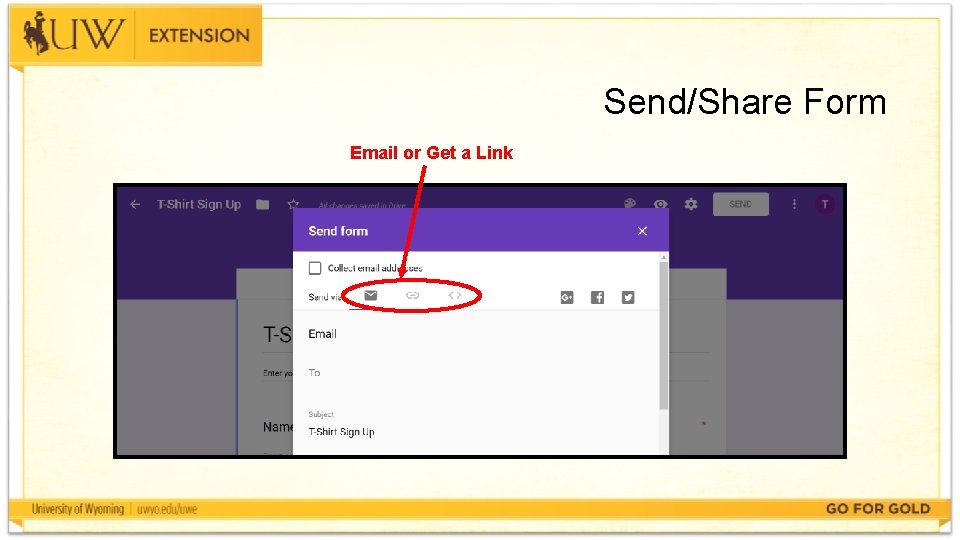
Send/Share Form Email or Get a Link
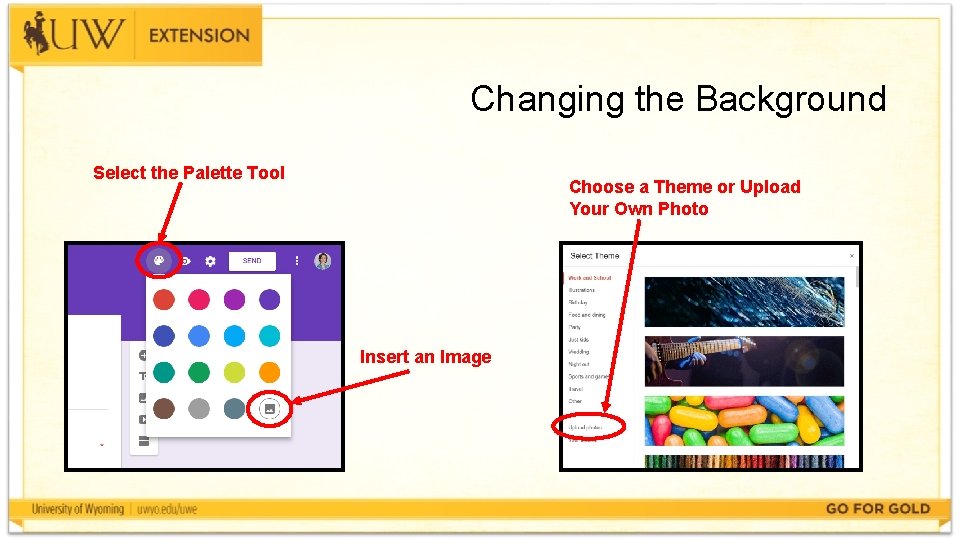
Changing the Background Select the Palette Tool Choose a Theme or Upload Your Own Photo Insert an Image
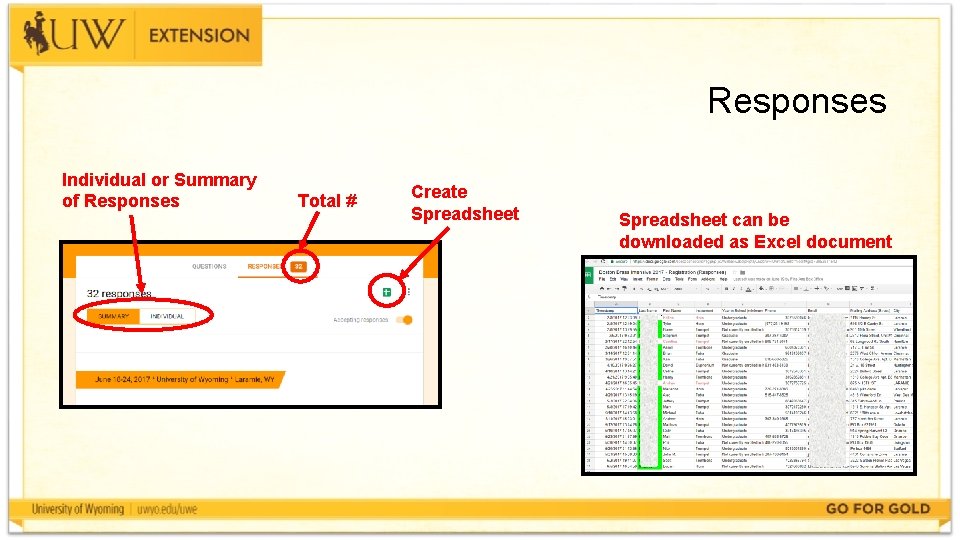
Responses Individual or Summary of Responses Total # Create Spreadsheet can be downloaded as Excel document
Activity Get credit toward your “Tech-spert” badge! Ø Create a Google form and send it to someone OR Ø Download data from a Google form When you have finished, go to this Google form and fill it out to receive credit: http: //tinyurl. com/10 things. August
Questions? Tamara Meredith, tamara. meredith@uwyo. edu