
GOOGLE DRIVE GOOGLE DOCS FOR COLLABORATION LIMM Business
GOOGLE DRIVE & GOOGLE DOCS FOR COLLABORATION LIMM Business Partners
Goal The teachers of Robinson Elementary School will increase collaboration on lesson plans with their grade level team members using Google Drive and Google Docs to create technology enhanced lessons.
Share documents with Google Drive and Google Docs Module 3 LIMM Business Partners
Share Google Docs and Google Drives The sharing of Google Docs in Google Drive is important in facilitating the collaboration process with team members.

Objectives for Module 3 � Using Google Docs the learners will create and edit files used for collaboration online and share with teammates with the recommended document creation with appropriate shared options. � Using share options in Google Drive and Google Docs, the learners will create a grade level lesson plan and identify and customize different levels of access and privilege for files and folders with all team members. � In a grade level meeting, use Google Docs to create lesson plans with peers using the comment feature to make necessary adjustments and share with each other so meeting times are decreased.
During this lesson you will: � Share documents with grade level using Google Docs & Google Drive � Share documents with different share settings & share options
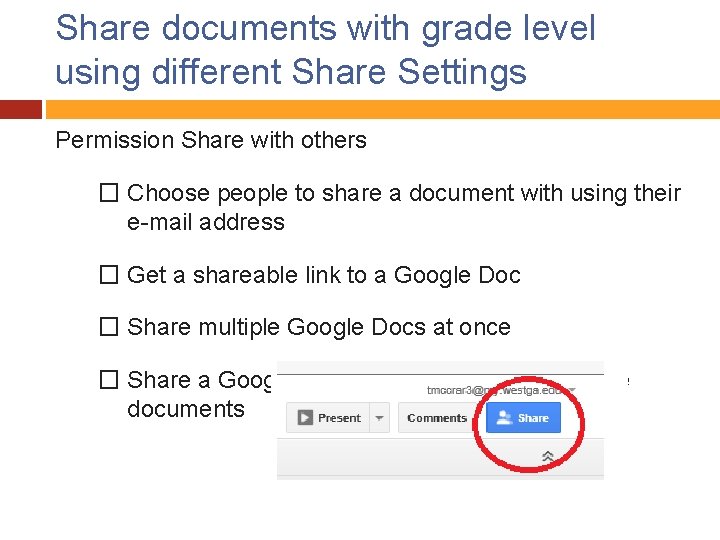
Share documents with grade level using different Share Settings Permission Share with others � Choose people to share a document with using their e-mail address � Get a shareable link to a Google Doc � Share multiple Google Docs at once � Share a Google Drive folder containing multiple documents
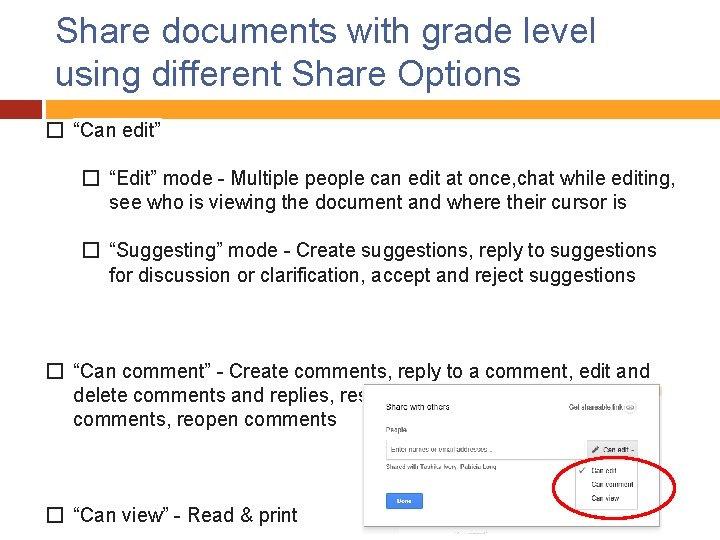
Share documents with grade level using different Share Options � “Can edit” � “Edit” mode - Multiple people can edit at once, chat while editing, see who is viewing the document and where their cursor is � “Suggesting” mode - Create suggestions, reply to suggestions for discussion or clarification, accept and reject suggestions � “Can comment” - Create comments, reply to a comment, edit and delete comments and replies, resolve a comment, view resolved comments, reopen comments � “Can view” - Read & print
Assessment: Module 3 We will now practice using the share features of Google Docs that we have learned about in this presentation.
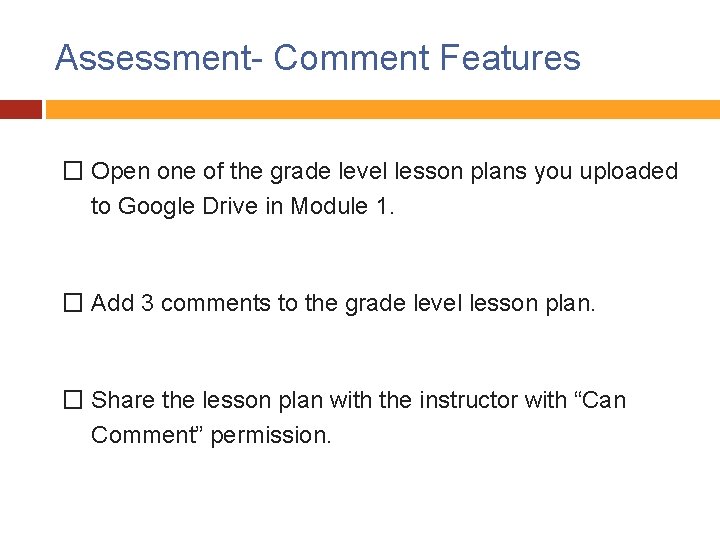
Assessment- Comment Features � Open one of the grade level lesson plans you uploaded to Google Drive in Module 1. � Add 3 comments to the grade level lesson plan. � Share the lesson plan with the instructor with “Can Comment” permission.
Google Drive & Google Docs Thank you for completing Module 3 in the Google Drive & Google Docs for Collaboration Course. You will now complete Module 4 using the Schoology website.
- Slides: 11