
GOOGLE DRIVE An Introduction to Cloud Storage GOALS

- Slides: 28
GOOGLE DRIVE An Introduction to Cloud Storage
GOALS & OBJECTIVES • Understand how cloud storage, stores documents for multiple users • Create a Gmail account • Construct documents • Invite others to share and edit the document • Upload stored Windows based files into Google Drive • Explore potential usage of Google Drive for use by Vista Community Church
WHAT IS GOOGLE DRIVE Google Docs in Plain English
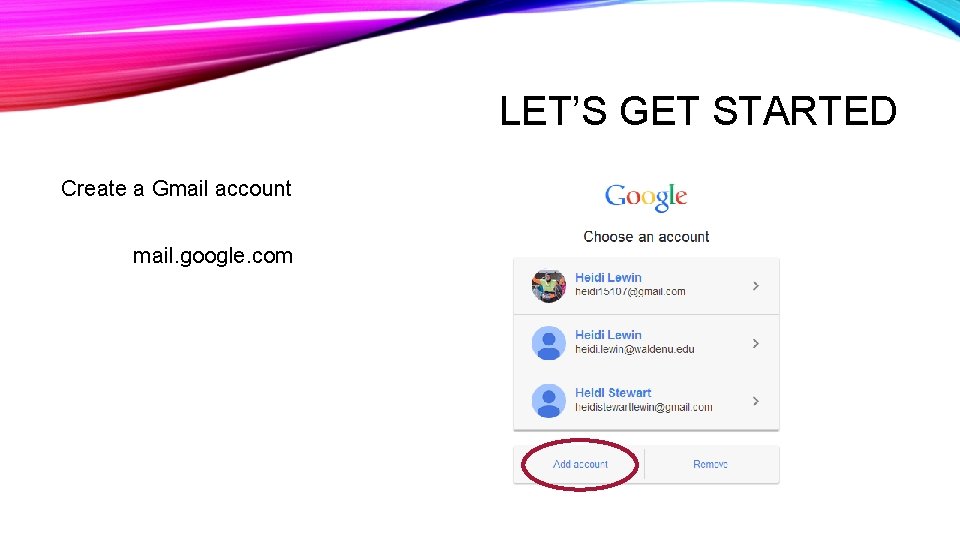
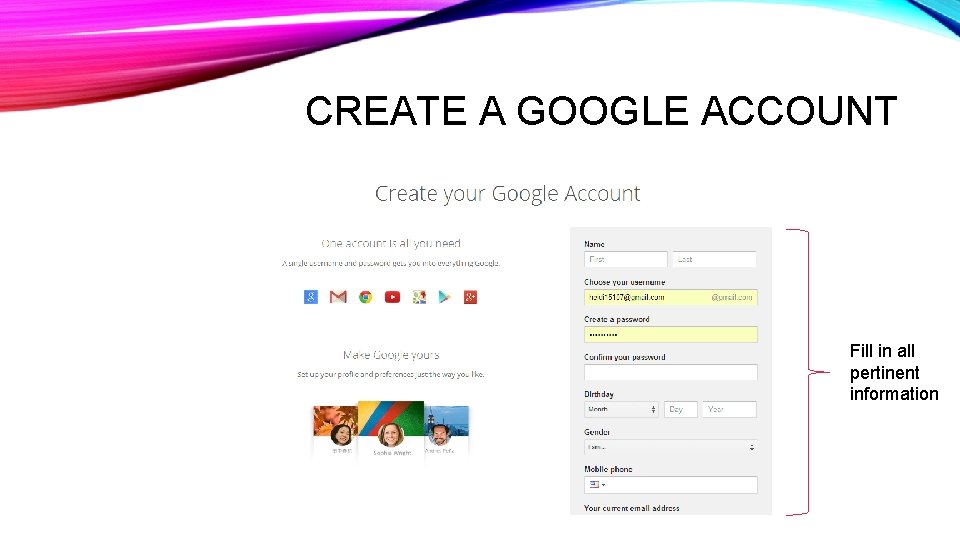
LET’S GET STARTED Create a Gmail account mail. google. com
CREATE A GOOGLE ACCOUNT Fill in all pertinent information
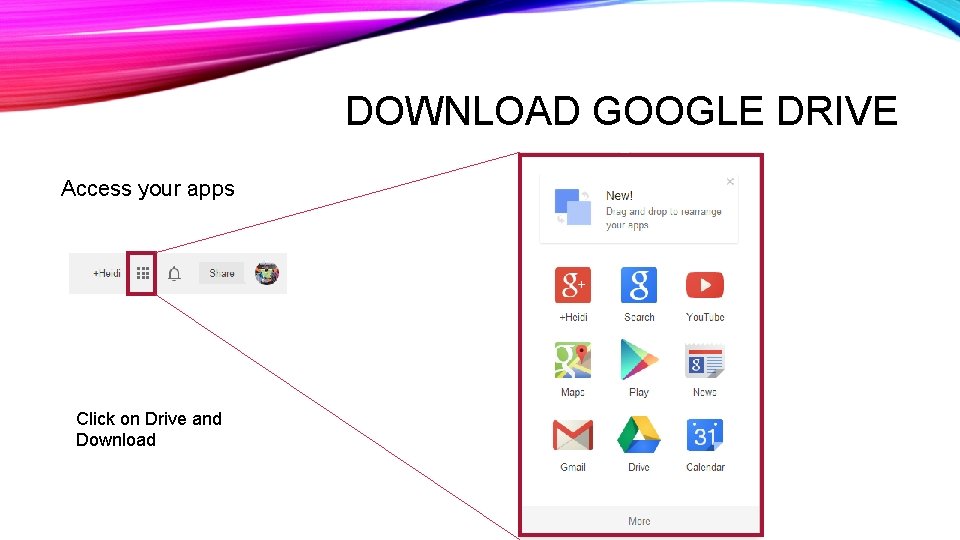
DOWNLOAD GOOGLE DRIVE Access your apps Click on Drive and Download
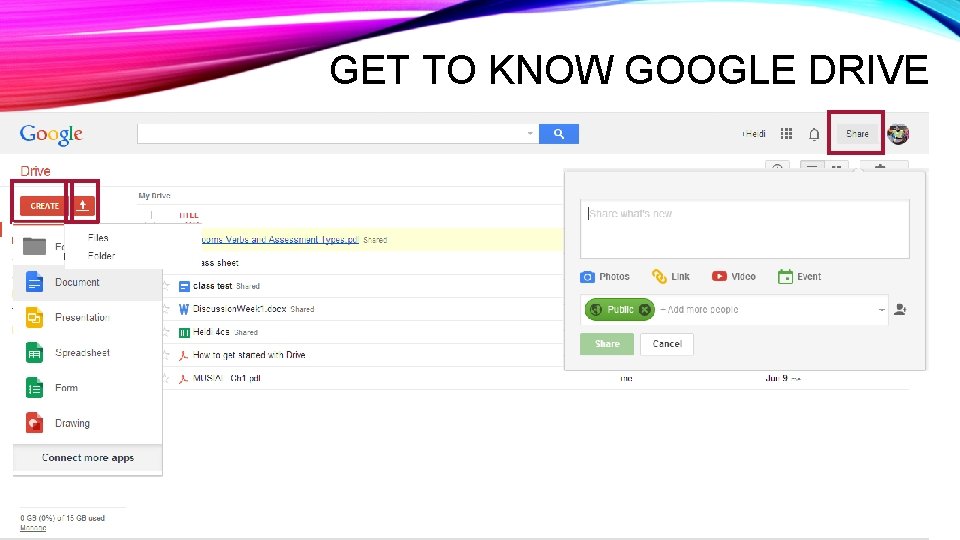
GET TO KNOW GOOGLE DRIVE
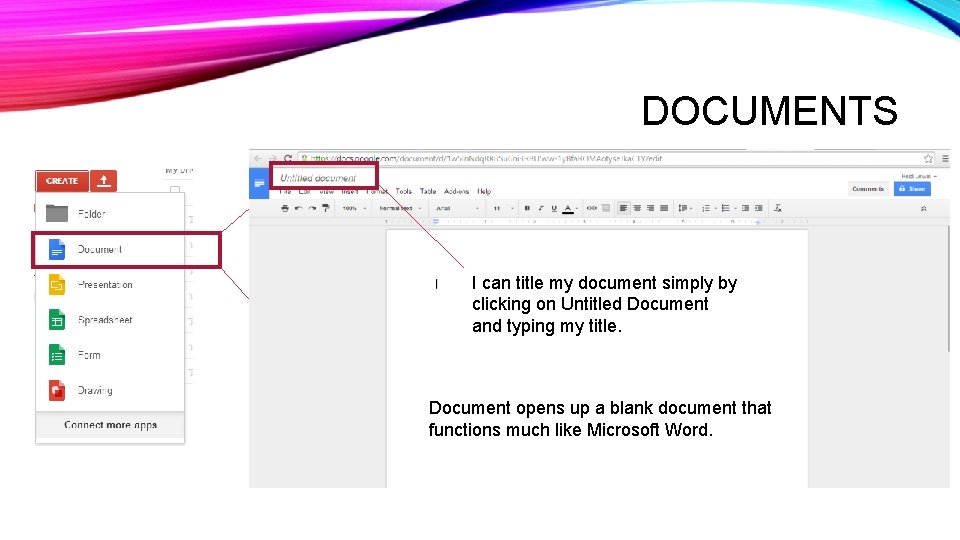
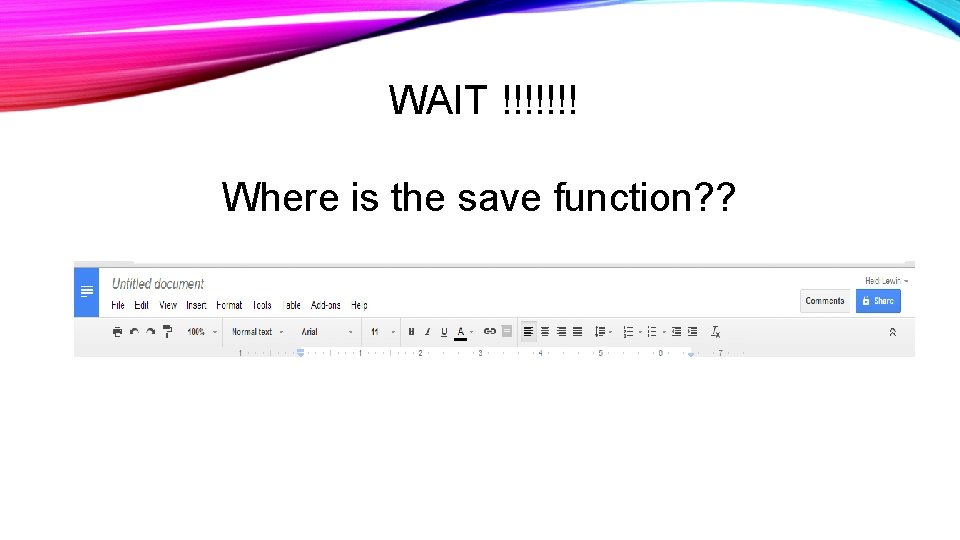
DOCUMENTS I can title my document simply by clicking on Untitled Document and typing my title. Document opens up a blank document that functions much like Microsoft Word.
WAIT !!!!!!! Where is the save function? ?
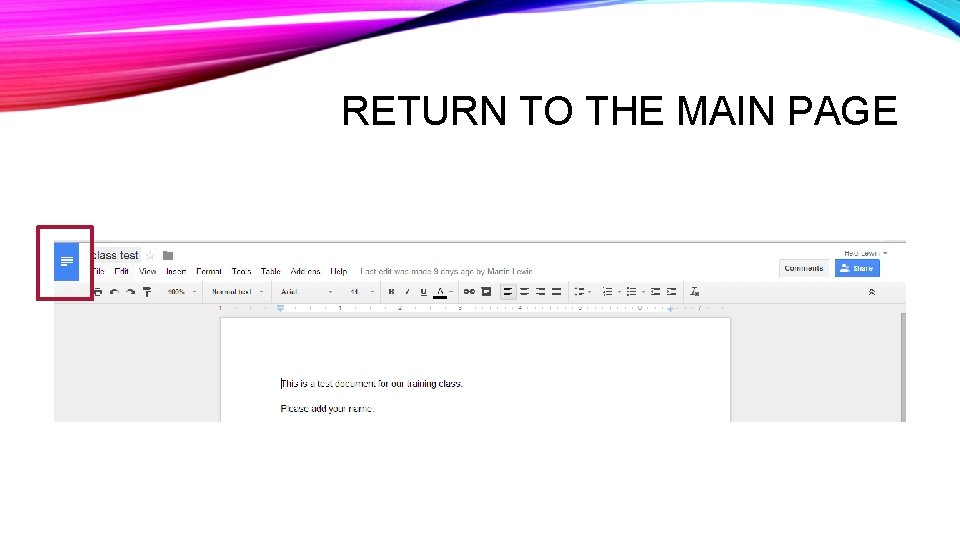
RETURN TO THE MAIN PAGE
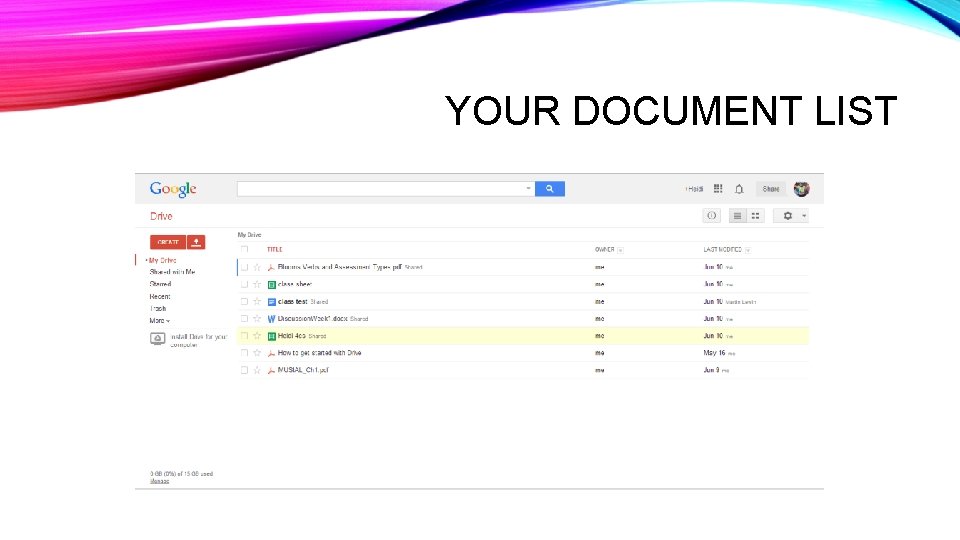
YOUR DOCUMENT LIST
KNOWLEDGE CHECK What kind of items can you create with Google Drive? a) Documents b) Forms c) Presentations d) Spreadsheets e) Drawings f) All of the above The correct answer is F
KNOWLEDGE CHECK How do you save a document using Google Drive? You do nothing. It saves automatically?
KNOWLEDGE CHECK True or False Documents you create are stored on a cloud and can be viewed by anyone? False. You and only the people that you share your documents with can view them and edit them.
LET’S CREATE A DOCUMENT 1. Click on create. 2. Select document 3. Once the document opens Click on Untitled Document 4. Type out your document 5. Return to the Main page 6. Document will now be in your list
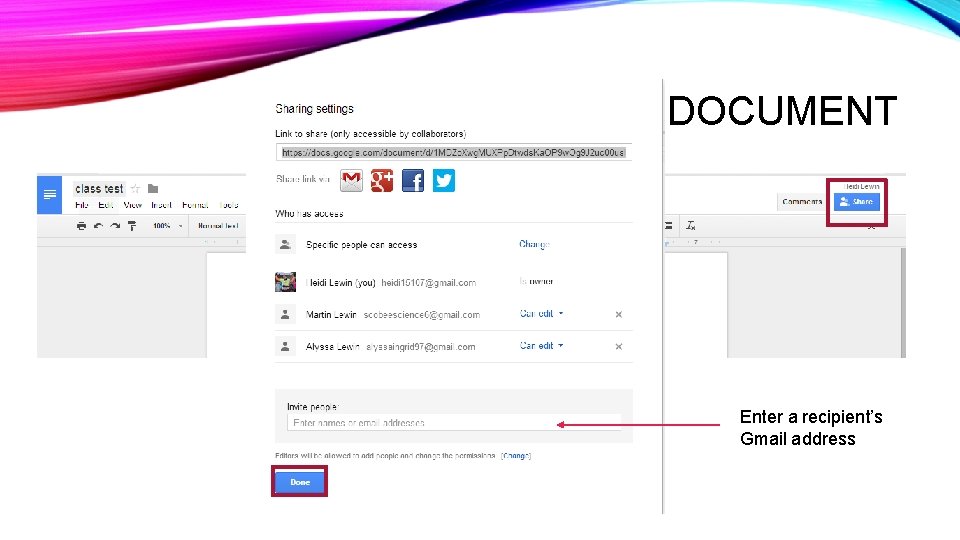
HOW TO SHARE A DOCUMENT Enter a recipient’s Gmail address
WHAT HAPPENS WHEN YOU SHARE A DOCUMENT?
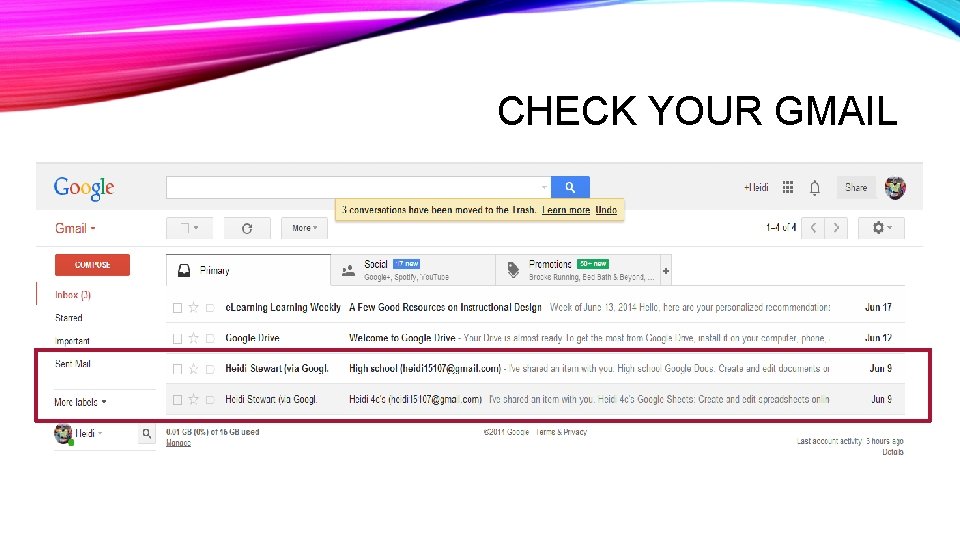
CHECK YOUR GMAIL
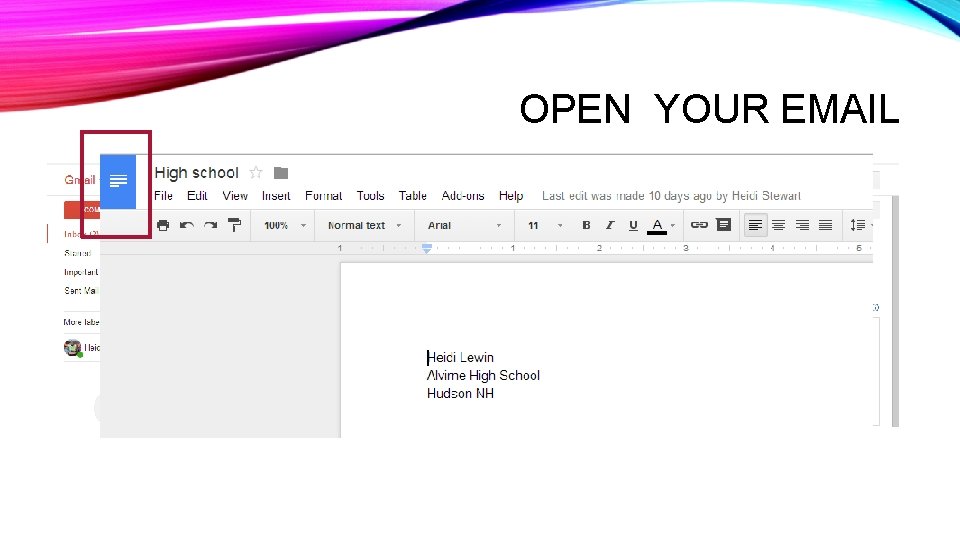
OPEN YOUR EMAIL Click
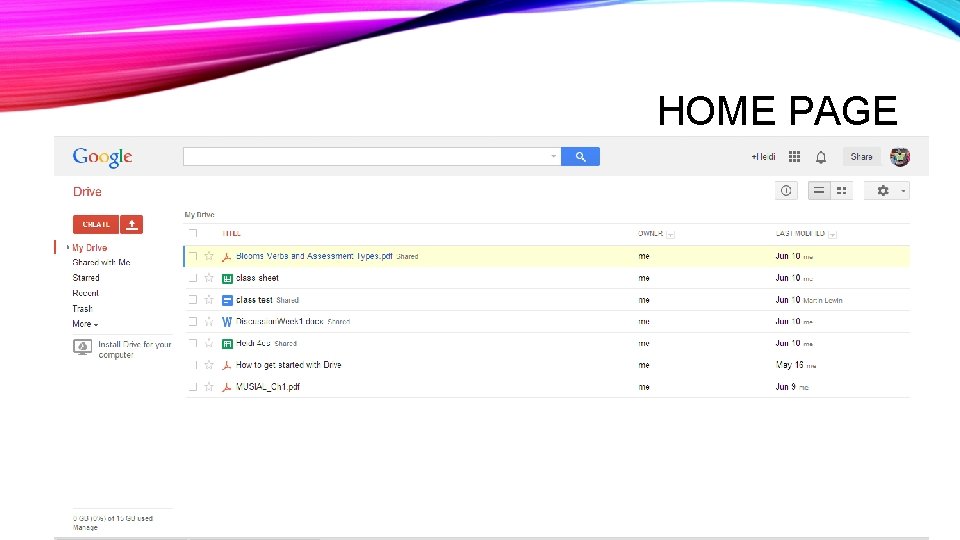
HOME PAGE
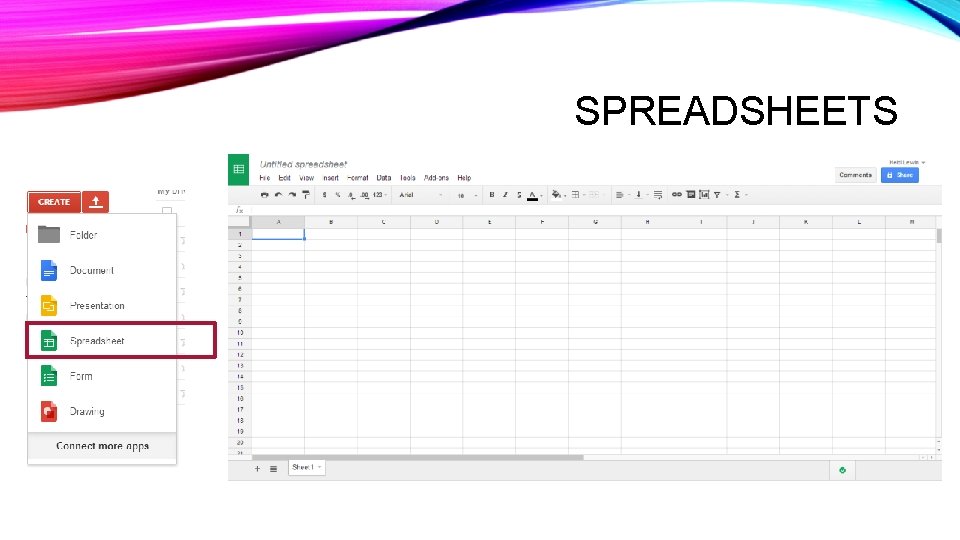
SPREADSHEETS
LET’S CREATE A SPREADSHEET 1. Click on create. 2. Select Spreadsheet 3. Once the spreadsheet opens Click on Untitled Spreadsheet 4. Type out your document 5. Return to the Main page 6. The Spreadsheet will now be in your list
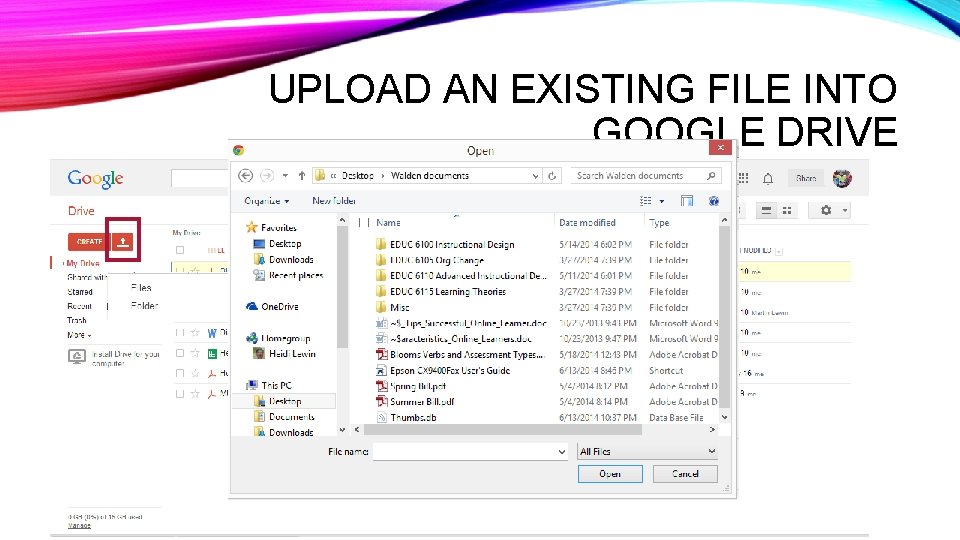
UPLOAD AN EXISTING FILE INTO GOOGLE DRIVE
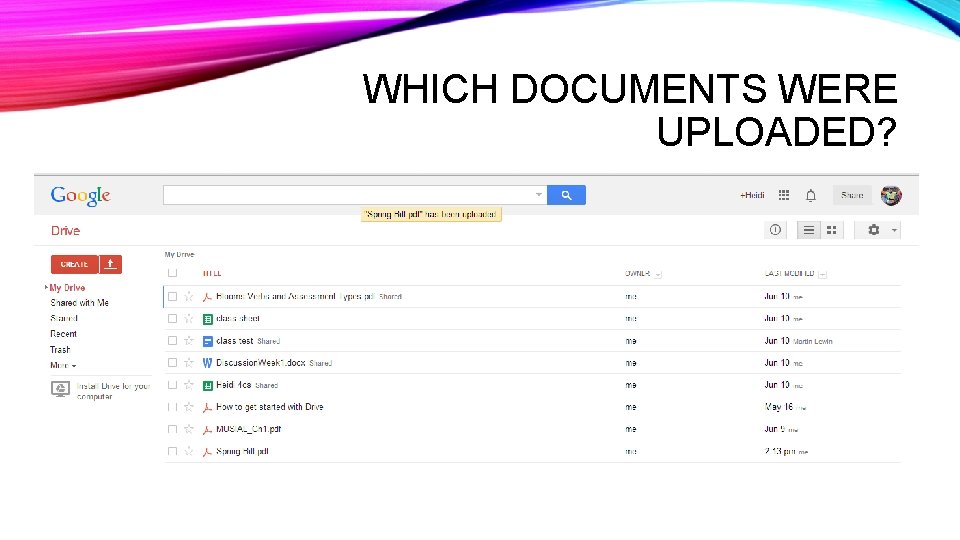
WHICH DOCUMENTS WERE UPLOADED?
HOW COULD YOU USE THIS?
QUESTIONS ? ?
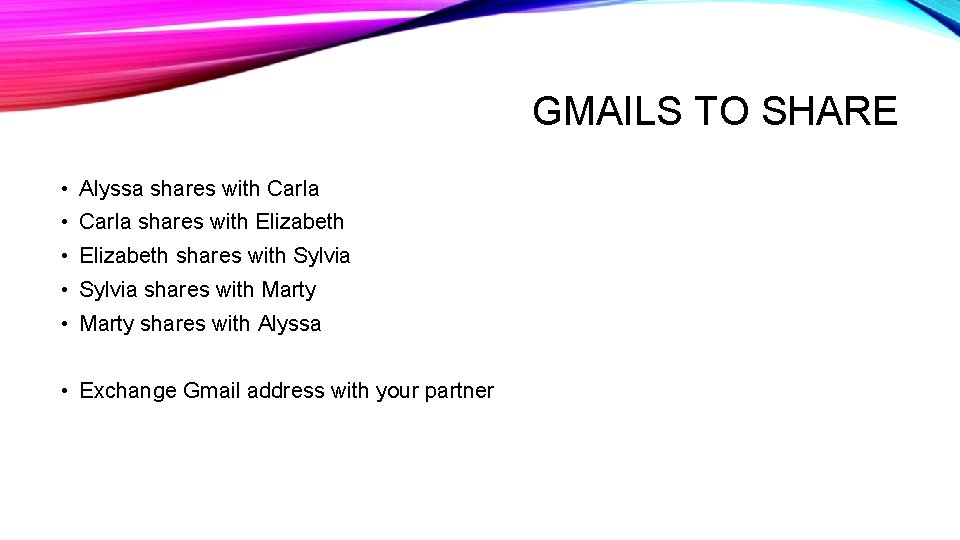
GMAILS TO SHARE • Alyssa shares with Carla • Carla shares with Elizabeth • Elizabeth shares with Sylvia • Sylvia shares with Marty • Marty shares with Alyssa • Exchange Gmail address with your partner
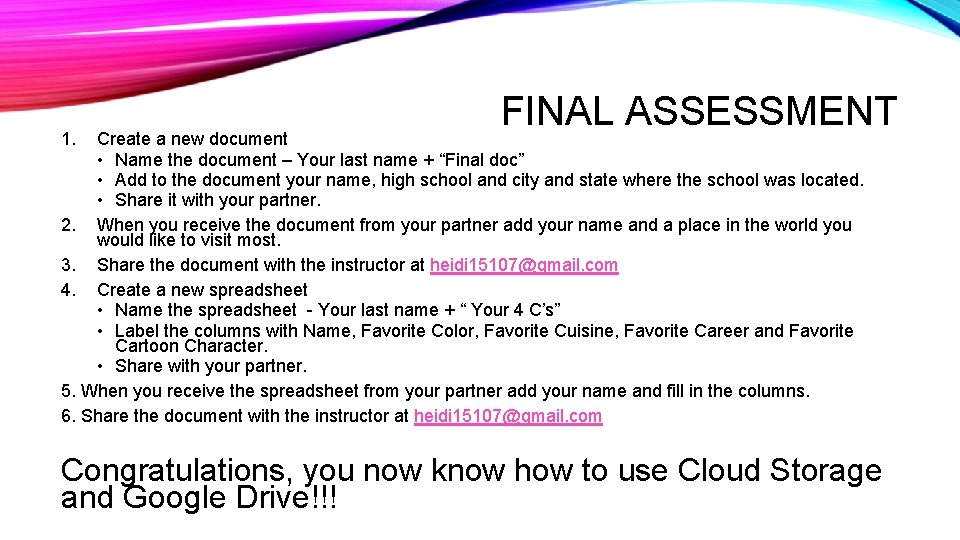
1. FINAL ASSESSMENT Create a new document • Name the document – Your last name + “Final doc” • Add to the document your name, high school and city and state where the school was located. • Share it with your partner. 2. When you receive the document from your partner add your name and a place in the world you would like to visit most. 3. Share the document with the instructor at heidi 15107@gmail. com 4. Create a new spreadsheet • Name the spreadsheet - Your last name + “ Your 4 C’s” • Label the columns with Name, Favorite Color, Favorite Cuisine, Favorite Career and Favorite Cartoon Character. • Share with your partner. 5. When you receive the spreadsheet from your partner add your name and fill in the columns. 6. Share the document with the instructor at heidi 15107@gmail. com Congratulations, you now know how to use Cloud Storage and Google Drive!!!