
Google Docs One of the greatest advantages of
- Slides: 36
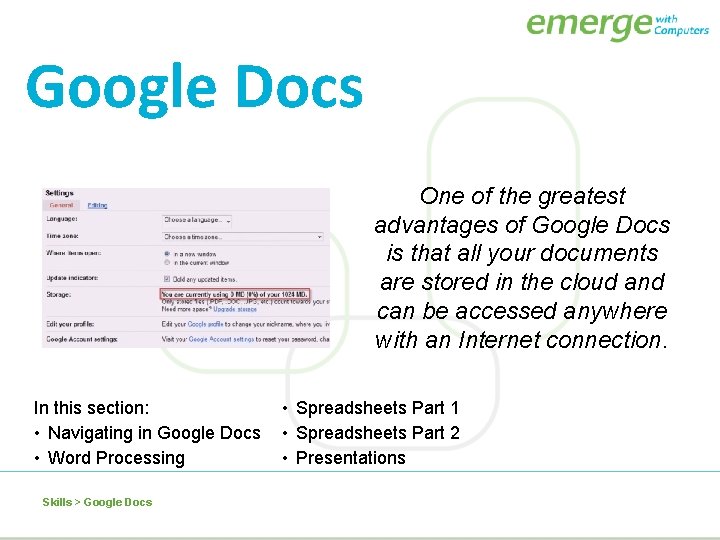
Google Docs One of the greatest advantages of Google Docs is that all your documents are stored in the cloud and can be accessed anywhere with an Internet connection. In this section: • Navigating in Google Docs • Word Processing Skills > Google Docs • Spreadsheets Part 1 • Spreadsheets Part 2 • Presentations
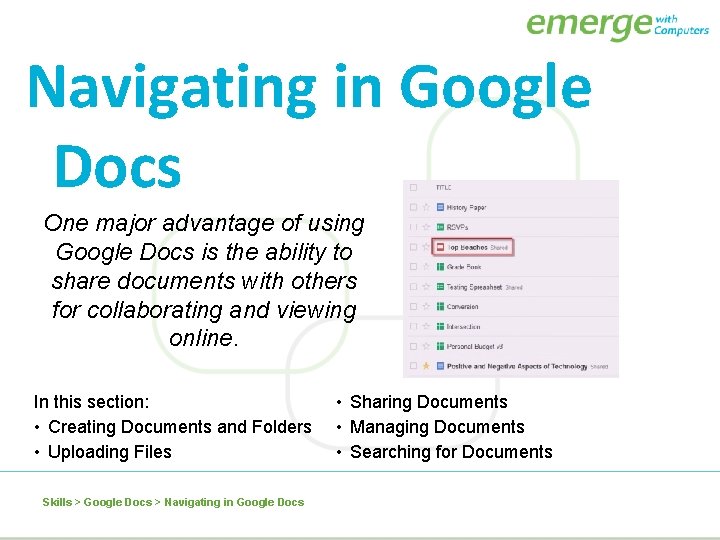
Navigating in Google Docs One major advantage of using Google Docs is the ability to share documents with others for collaborating and viewing online. In this section: • Creating Documents and Folders • Uploading Files Skills > Google Docs > Navigating in Google Docs • Sharing Documents • Managing Documents • Searching for Documents
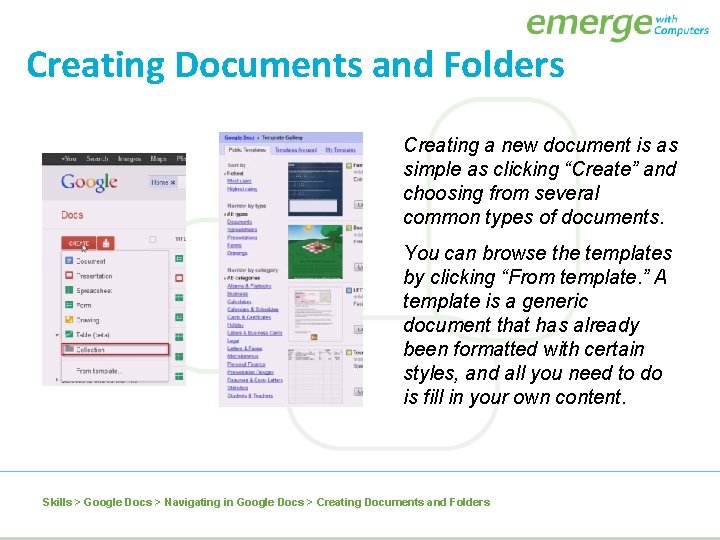
Creating Documents and Folders Creating a new document is as simple as clicking “Create” and choosing from several common types of documents. You can browse the templates by clicking “From template. ” A template is a generic document that has already been formatted with certain styles, and all you need to do is fill in your own content. Skills > Google Docs > Navigating in Google Docs > Creating Documents and Folders
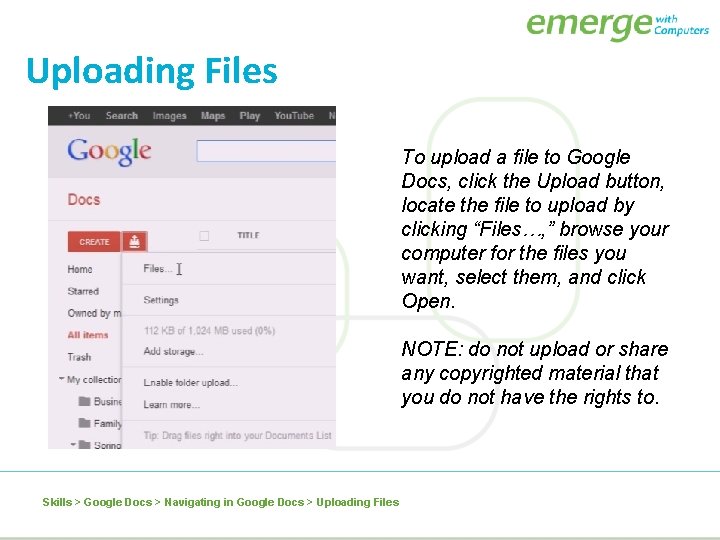
Uploading Files To upload a file to Google Docs, click the Upload button, locate the file to upload by clicking “Files…, ” browse your computer for the files you want, select them, and click Open. NOTE: do not upload or share any copyrighted material that you do not have the rights to. Skills > Google Docs > Navigating in Google Docs > Uploading Files
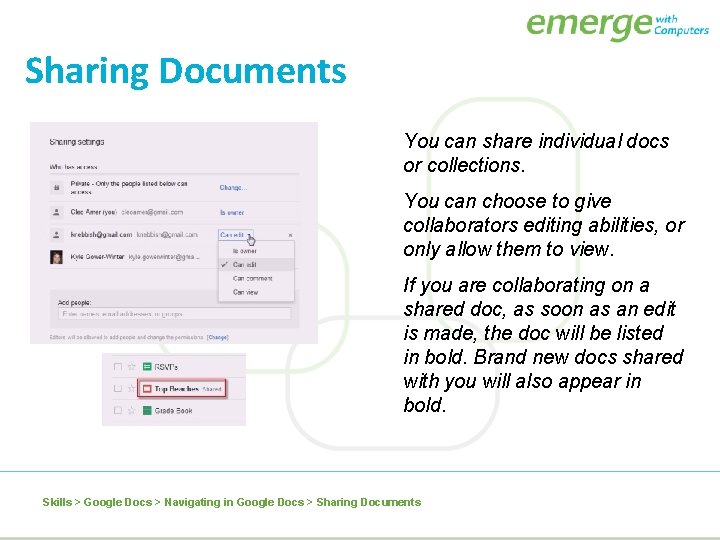
Sharing Documents You can share individual docs or collections. You can choose to give collaborators editing abilities, or only allow them to view. If you are collaborating on a shared doc, as soon as an edit is made, the doc will be listed in bold. Brand new docs shared with you will also appear in bold. Skills > Google Docs > Navigating in Google Docs > Sharing Documents
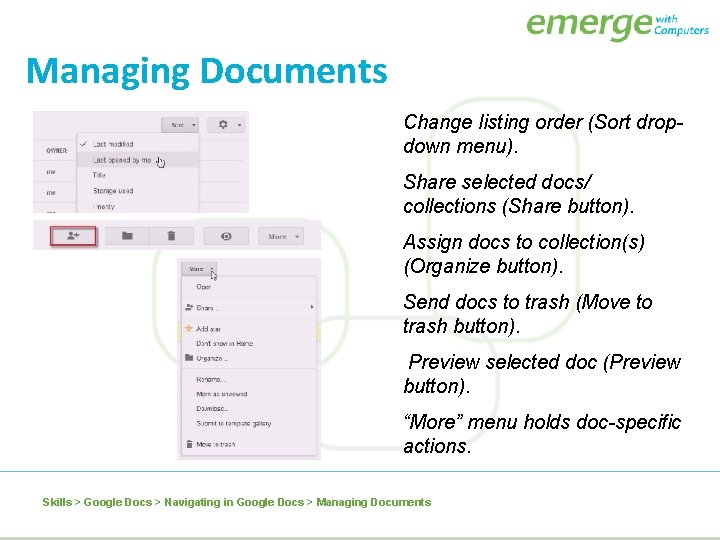
Managing Documents Change listing order (Sort dropdown menu). Share selected docs/ collections (Share button). Assign docs to collection(s) (Organize button). Send docs to trash (Move to trash button). Preview selected doc (Preview button). “More” menu holds doc-specific actions. Skills > Google Docs > Navigating in Google Docs > Managing Documents
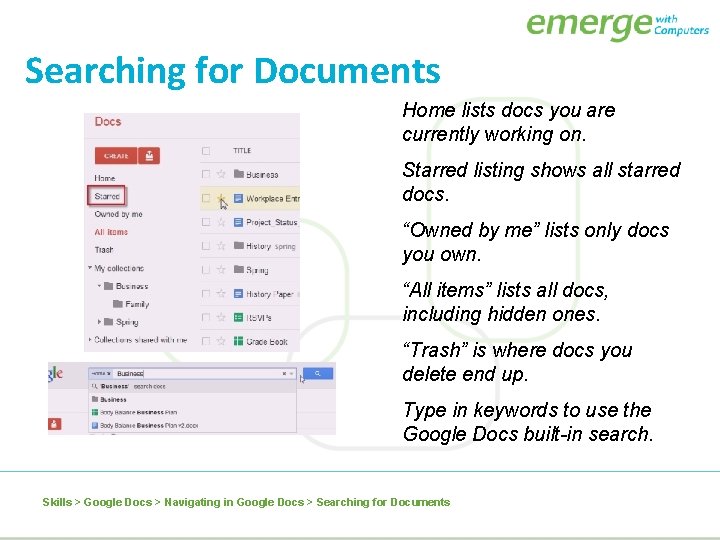
Searching for Documents Home lists docs you are currently working on. Starred listing shows all starred docs. “Owned by me” lists only docs you own. “All items” lists all docs, including hidden ones. “Trash” is where docs you delete end up. Type in keywords to use the Google Docs built-in search. Skills > Google Docs > Navigating in Google Docs > Searching for Documents
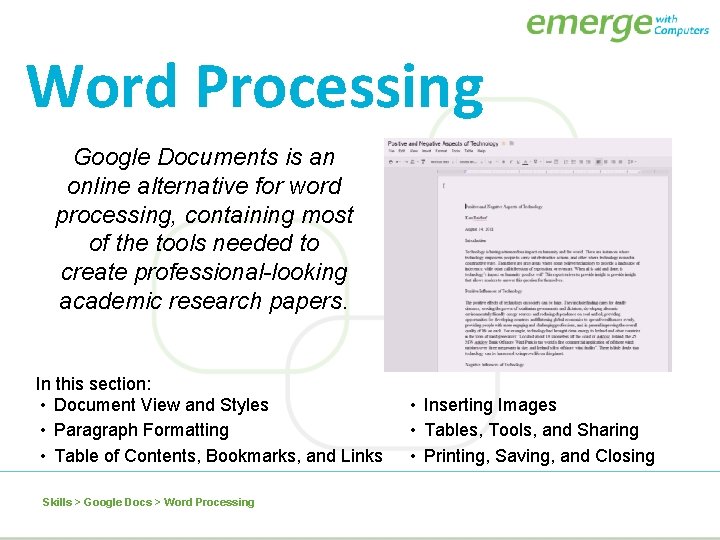
Word Processing Google Documents is an online alternative for word processing, containing most of the tools needed to create professional-looking academic research papers. In this section: • Document View and Styles • Paragraph Formatting • Table of Contents, Bookmarks, and Links Skills > Google Docs > Word Processing • Inserting Images • Tables, Tools, and Sharing • Printing, Saving, and Closing
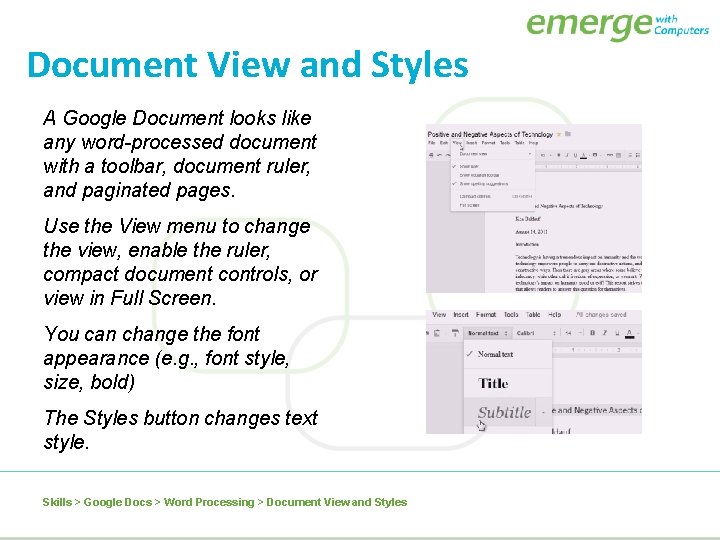
Document View and Styles A Google Document looks like any word-processed document with a toolbar, document ruler, and paginated pages. Use the View menu to change the view, enable the ruler, compact document controls, or view in Full Screen. You can change the font appearance (e. g. , font style, size, bold) The Styles button changes text style. Skills > Google Docs > Word Processing > Document View and Styles
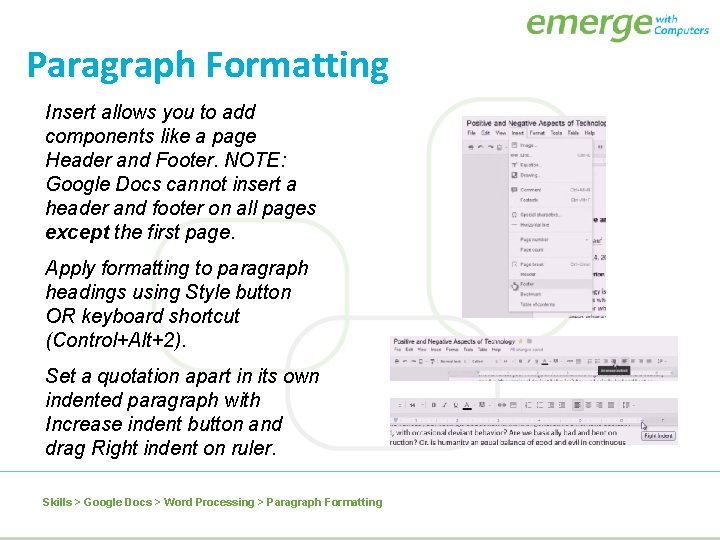
Paragraph Formatting Insert allows you to add components like a page Header and Footer. NOTE: Google Docs cannot insert a header and footer on all pages except the first page. Apply formatting to paragraph headings using Style button OR keyboard shortcut (Control+Alt+2). Set a quotation apart in its own indented paragraph with Increase indent button and drag Right indent on ruler. Skills > Google Docs > Word Processing > Paragraph Formatting
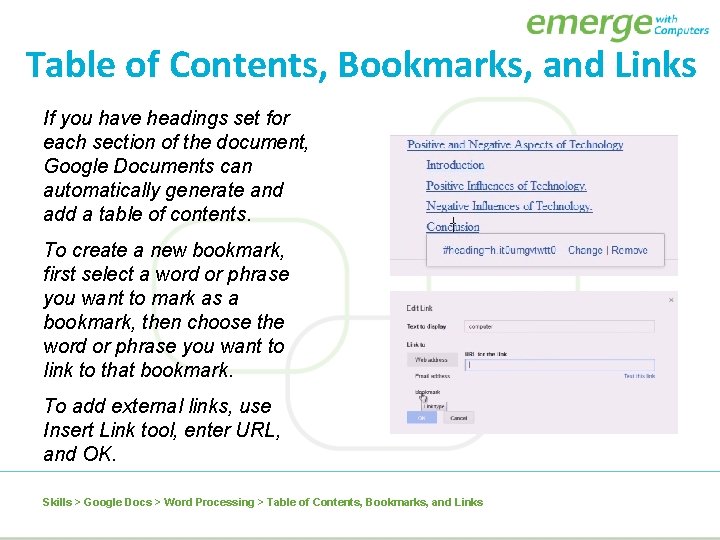
Table of Contents, Bookmarks, and Links If you have headings set for each section of the document, Google Documents can automatically generate and add a table of contents. To create a new bookmark, first select a word or phrase you want to mark as a bookmark, then choose the word or phrase you want to link to that bookmark. To add external links, use Insert Link tool, enter URL, and OK. Skills > Google Docs > Word Processing > Table of Contents, Bookmarks, and Links
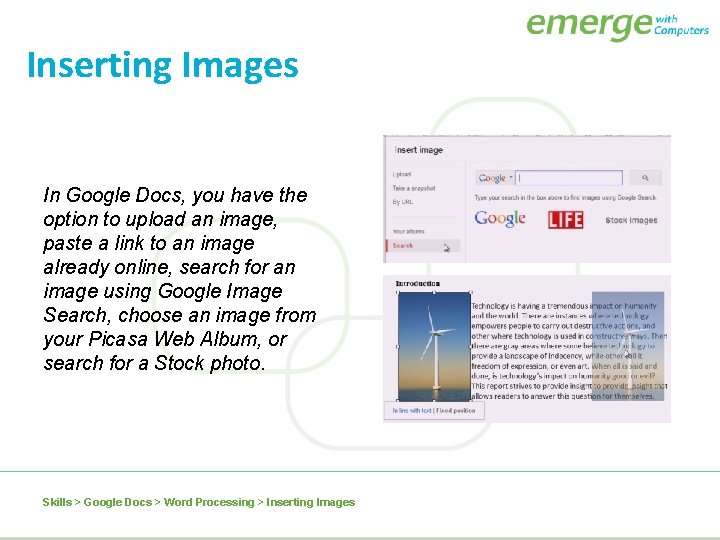
Inserting Images In Google Docs, you have the option to upload an image, paste a link to an image already online, search for an image using Google Image Search, choose an image from your Picasa Web Album, or search for a Stock photo. Skills > Google Docs > Word Processing > Inserting Images
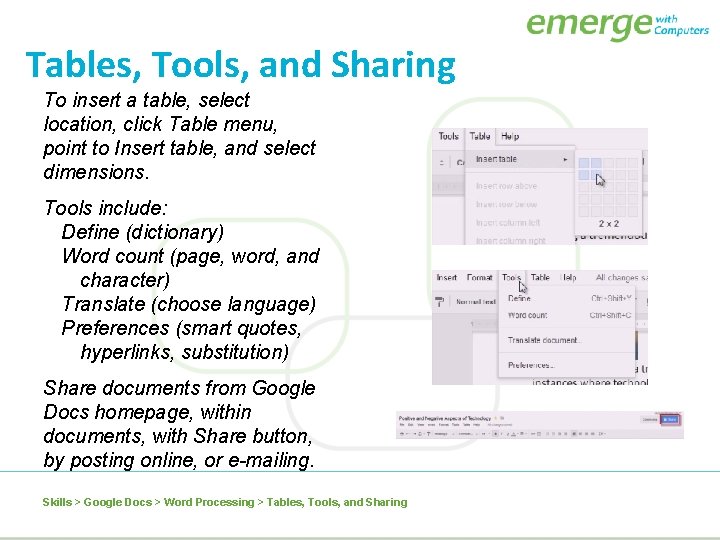
Tables, Tools, and Sharing To insert a table, select location, click Table menu, point to Insert table, and select dimensions. Tools include: Define (dictionary) Word count (page, word, and character) Translate (choose language) Preferences (smart quotes, hyperlinks, substitution) Share documents from Google Docs homepage, within documents, with Share button, by posting online, or e-mailing. Skills > Google Docs > Word Processing > Tables, Tools, and Sharing
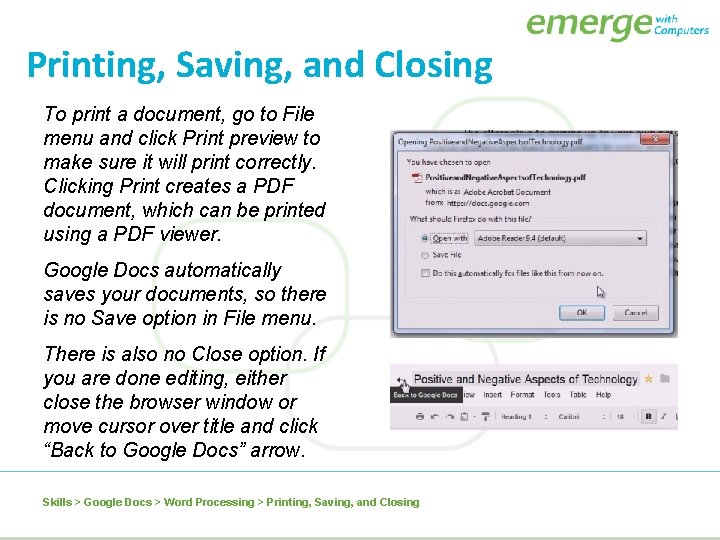
Printing, Saving, and Closing To print a document, go to File menu and click Print preview to make sure it will print correctly. Clicking Print creates a PDF document, which can be printed using a PDF viewer. Google Docs automatically saves your documents, so there is no Save option in File menu. There is also no Close option. If you are done editing, either close the browser window or move cursor over title and click “Back to Google Docs” arrow. Skills > Google Docs > Word Processing > Printing, Saving, and Closing
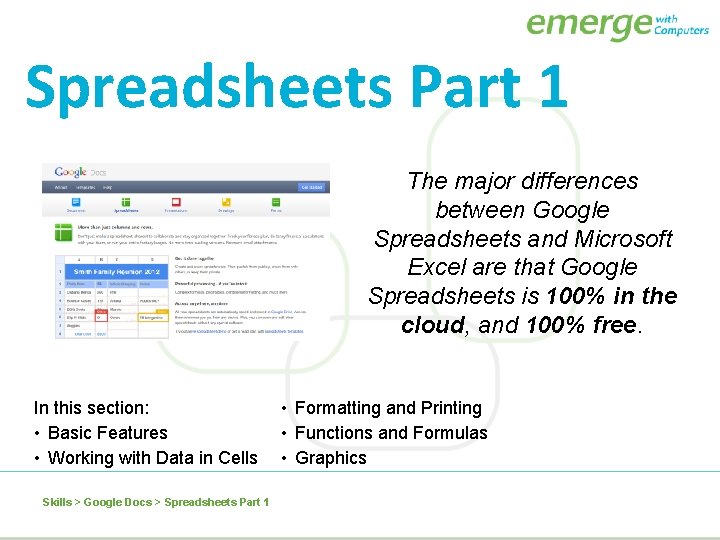
Spreadsheets Part 1 The major differences between Google Spreadsheets and Microsoft Excel are that Google Spreadsheets is 100% in the cloud, and 100% free. In this section: • Basic Features • Working with Data in Cells Skills > Google Docs > Spreadsheets Part 1 • Formatting and Printing • Functions and Formulas • Graphics
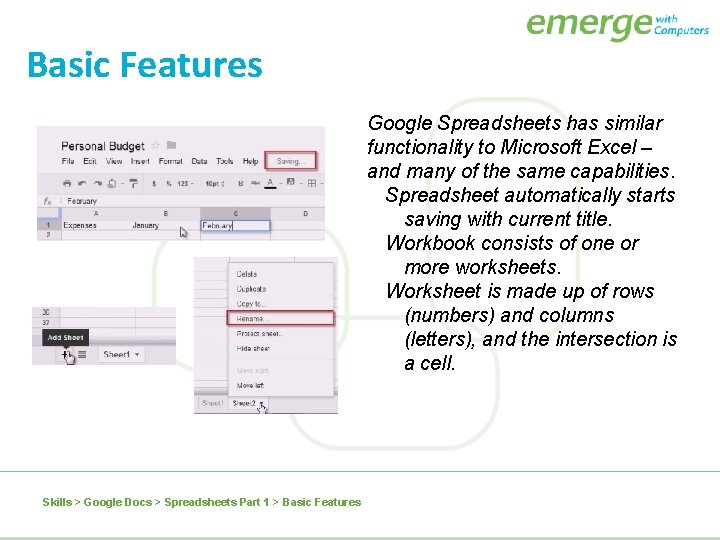
Basic Features Google Spreadsheets has similar functionality to Microsoft Excel – and many of the same capabilities. Spreadsheet automatically starts saving with current title. Workbook consists of one or more worksheets. Worksheet is made up of rows (numbers) and columns (letters), and the intersection is a cell. Skills > Google Docs > Spreadsheets Part 1 > Basic Features
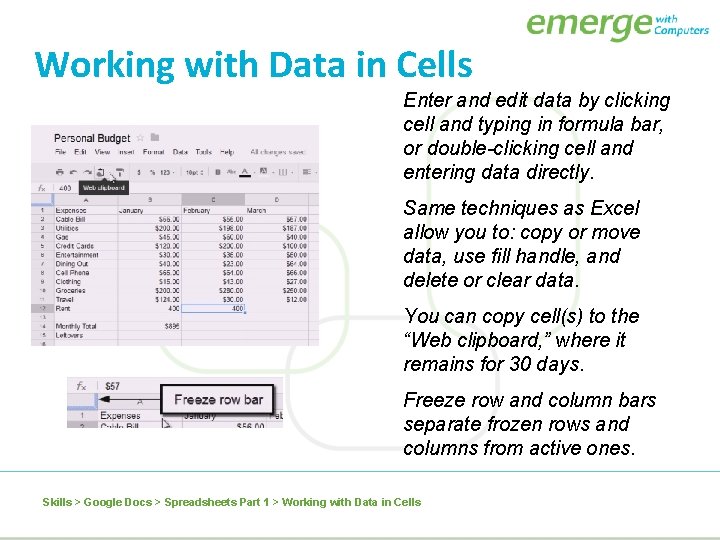
Working with Data in Cells Enter and edit data by clicking cell and typing in formula bar, or double-clicking cell and entering data directly. Same techniques as Excel allow you to: copy or move data, use fill handle, and delete or clear data. You can copy cell(s) to the “Web clipboard, ” where it remains for 30 days. Freeze row and column bars separate frozen rows and columns from active ones. Skills > Google Docs > Spreadsheets Part 1 > Working with Data in Cells
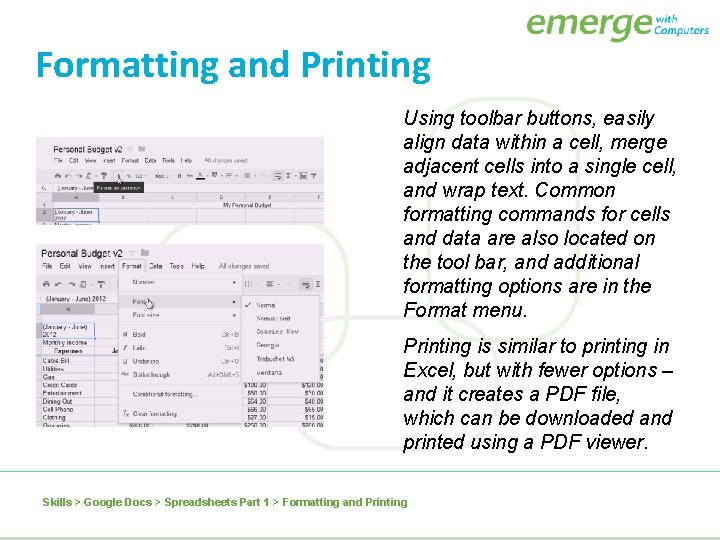
Formatting and Printing Using toolbar buttons, easily align data within a cell, merge adjacent cells into a single cell, and wrap text. Common formatting commands for cells and data are also located on the tool bar, and additional formatting options are in the Format menu. Printing is similar to printing in Excel, but with fewer options – and it creates a PDF file, which can be downloaded and printed using a PDF viewer. Skills > Google Docs > Spreadsheets Part 1 > Formatting and Printing
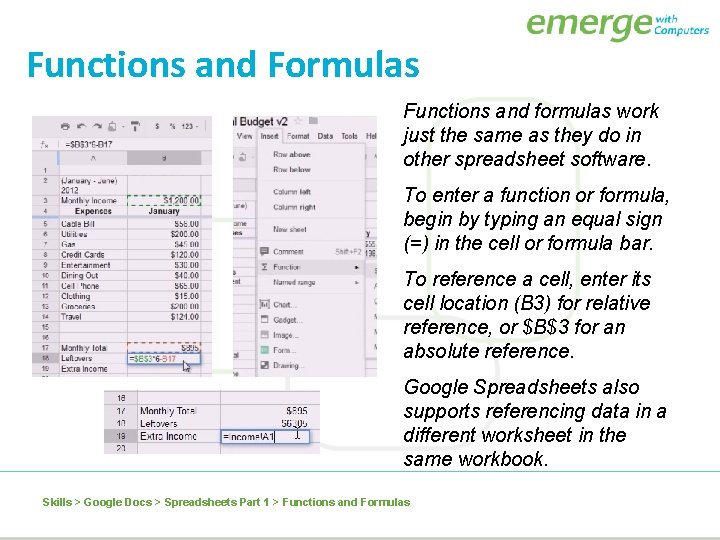
Functions and Formulas Functions and formulas work just the same as they do in other spreadsheet software. To enter a function or formula, begin by typing an equal sign (=) in the cell or formula bar. To reference a cell, enter its cell location (B 3) for relative reference, or $B$3 for an absolute reference. Google Spreadsheets also supports referencing data in a different worksheet in the same workbook. Skills > Google Docs > Spreadsheets Part 1 > Functions and Formulas
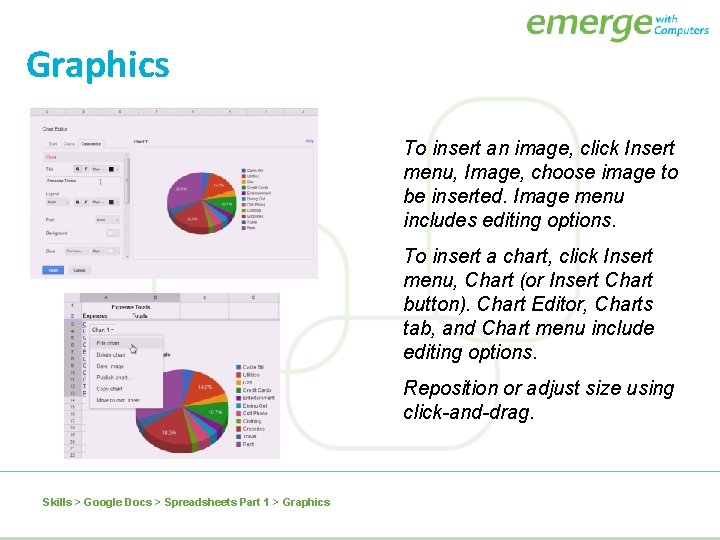
Graphics To insert an image, click Insert menu, Image, choose image to be inserted. Image menu includes editing options. To insert a chart, click Insert menu, Chart (or Insert Chart button). Chart Editor, Charts tab, and Chart menu include editing options. Reposition or adjust size using click-and-drag. Skills > Google Docs > Spreadsheets Part 1 > Graphics
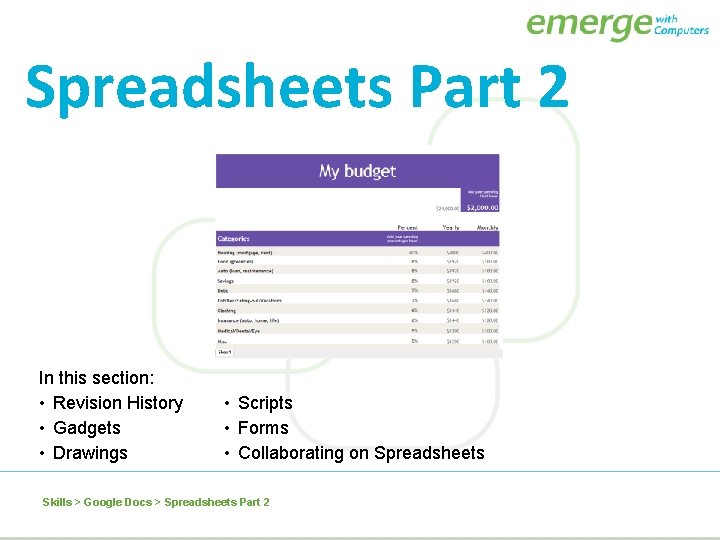
Spreadsheets Part 2 In this section: • Revision History • Gadgets • Drawings • Scripts • Forms • Collaborating on Spreadsheets Skills > Google Docs > Spreadsheets Part 2
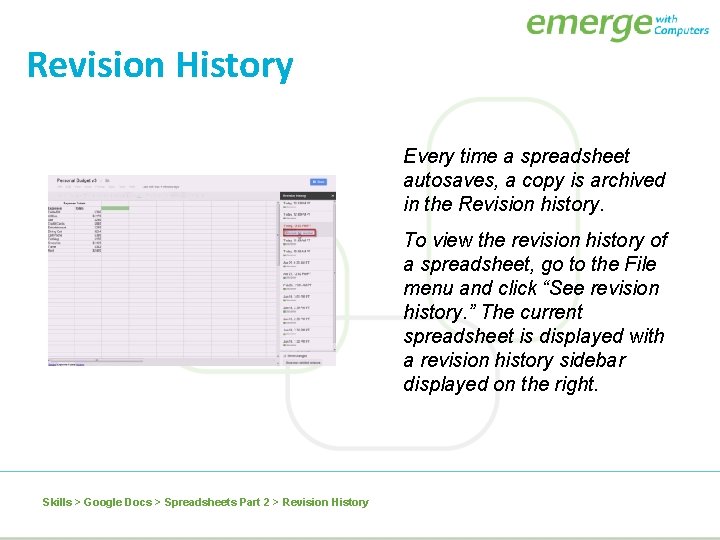
Revision History Every time a spreadsheet autosaves, a copy is archived in the Revision history. To view the revision history of a spreadsheet, go to the File menu and click “See revision history. ” The current spreadsheet is displayed with a revision history sidebar displayed on the right. Skills > Google Docs > Spreadsheets Part 2 > Revision History
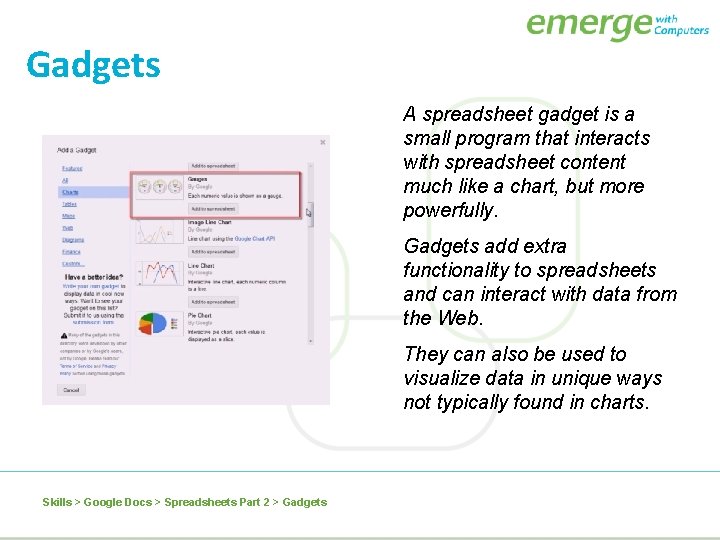
Gadgets A spreadsheet gadget is a small program that interacts with spreadsheet content much like a chart, but more powerfully. Gadgets add extra functionality to spreadsheets and can interact with data from the Web. They can also be used to visualize data in unique ways not typically found in charts. Skills > Google Docs > Spreadsheets Part 2 > Gadgets
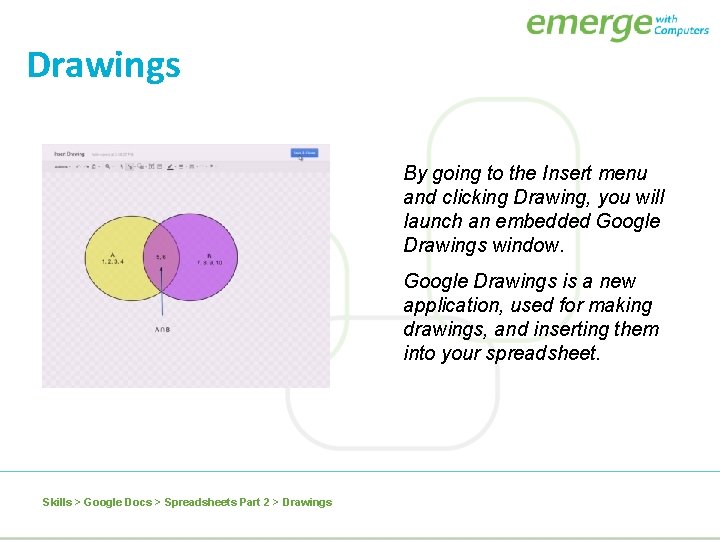
Drawings By going to the Insert menu and clicking Drawing, you will launch an embedded Google Drawings window. Google Drawings is a new application, used for making drawings, and inserting them into your spreadsheet. Skills > Google Docs > Spreadsheets Part 2 > Drawings
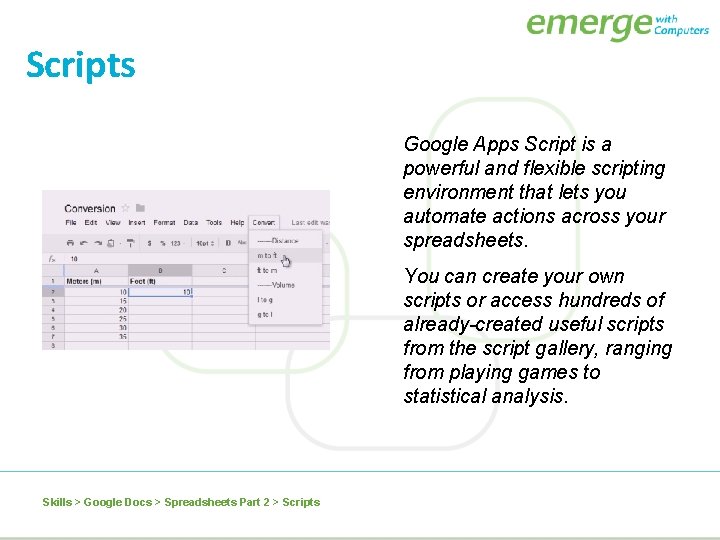
Scripts Google Apps Script is a powerful and flexible scripting environment that lets you automate actions across your spreadsheets. You can create your own scripts or access hundreds of already-created useful scripts from the script gallery, ranging from playing games to statistical analysis. Skills > Google Docs > Spreadsheets Part 2 > Scripts
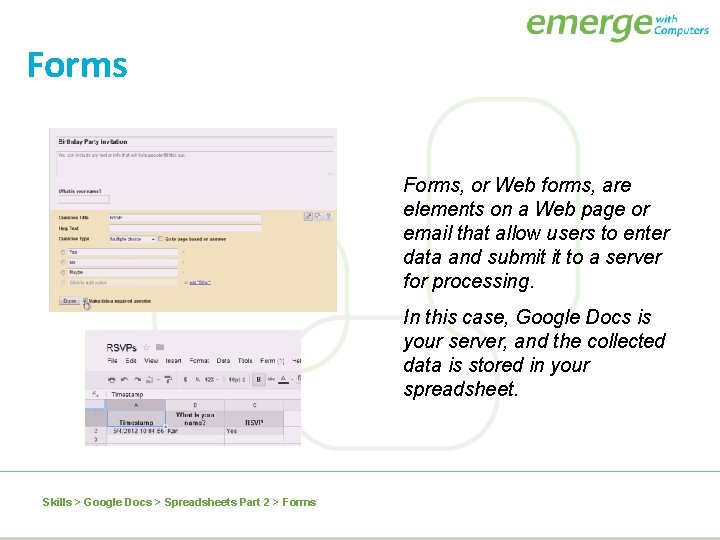
Forms, or Web forms, are elements on a Web page or email that allow users to enter data and submit it to a server for processing. In this case, Google Docs is your server, and the collected data is stored in your spreadsheet. Skills > Google Docs > Spreadsheets Part 2 > Forms
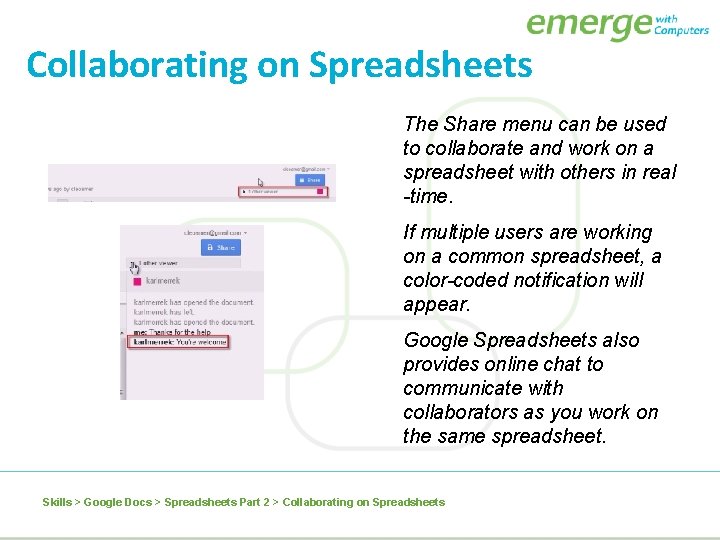
Collaborating on Spreadsheets The Share menu can be used to collaborate and work on a spreadsheet with others in real -time. If multiple users are working on a common spreadsheet, a color-coded notification will appear. Google Spreadsheets also provides online chat to communicate with collaborators as you work on the same spreadsheet. Skills > Google Docs > Spreadsheets Part 2 > Collaborating on Spreadsheets
Presentations The major differences between Google Presentations and Microsoft Power. Point are that Google Presentations is 100% in the cloud, and 100% free. In this section: • Basic Features • Inserting and Formatting Text • Inserting Graphics and Video • Formatting Graphics Objects Skills > Google Docs > Presentations • • Working with Tables Collaborating on Presentations Viewing Presentations Saving, Publishing, Downloading, and Printing
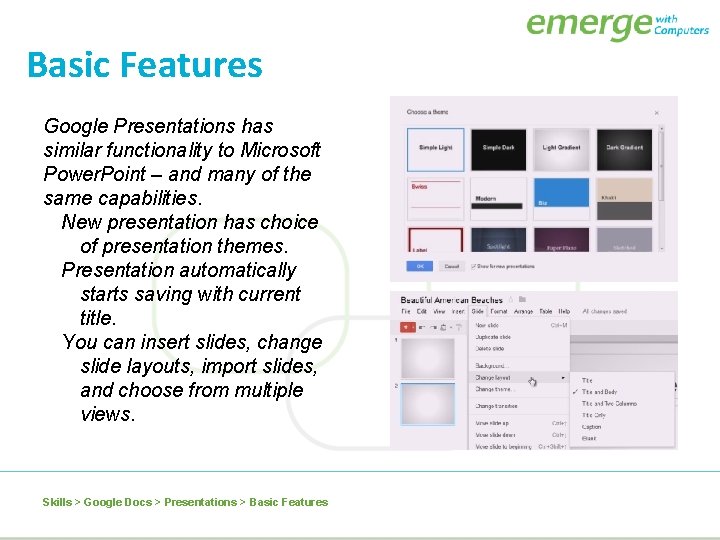
Basic Features Google Presentations has similar functionality to Microsoft Power. Point – and many of the same capabilities. New presentation has choice of presentation themes. Presentation automatically starts saving with current title. You can insert slides, change slide layouts, import slides, and choose from multiple views. Skills > Google Docs > Presentations > Basic Features
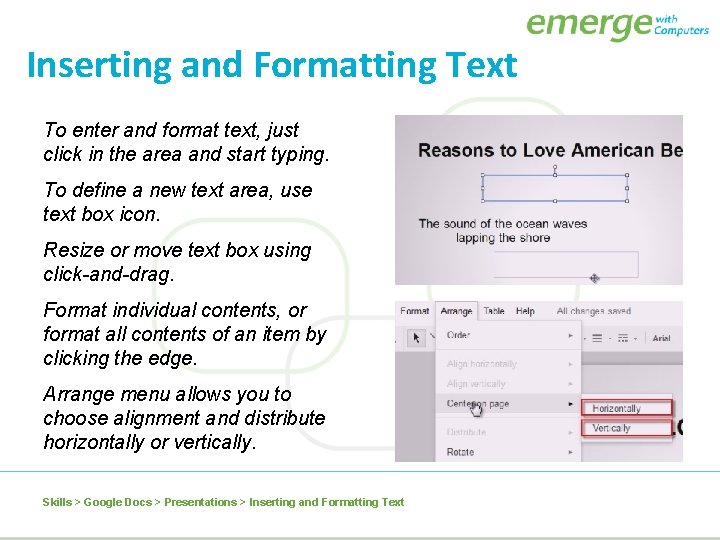
Inserting and Formatting Text To enter and format text, just click in the area and start typing. To define a new text area, use text box icon. Resize or move text box using click-and-drag. Format individual contents, or format all contents of an item by clicking the edge. Arrange menu allows you to choose alignment and distribute horizontally or vertically. Skills > Google Docs > Presentations > Inserting and Formatting Text
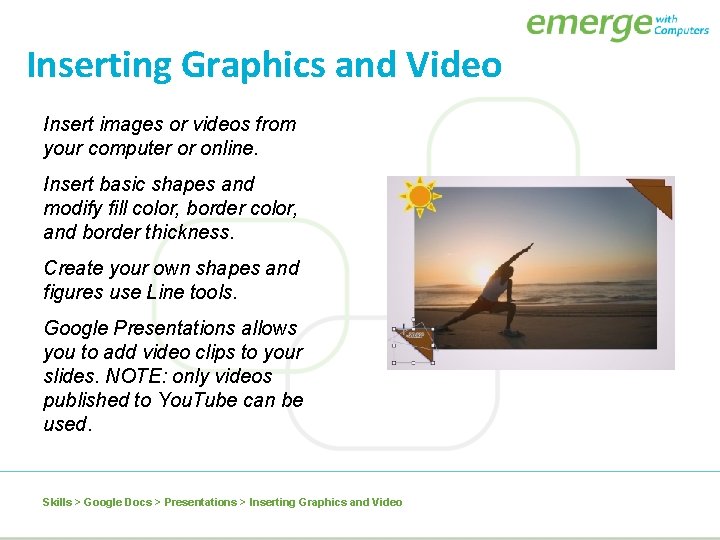
Inserting Graphics and Video Insert images or videos from your computer or online. Insert basic shapes and modify fill color, border color, and border thickness. Create your own shapes and figures use Line tools. Google Presentations allows you to add video clips to your slides. NOTE: only videos published to You. Tube can be used. Skills > Google Docs > Presentations > Inserting Graphics and Video
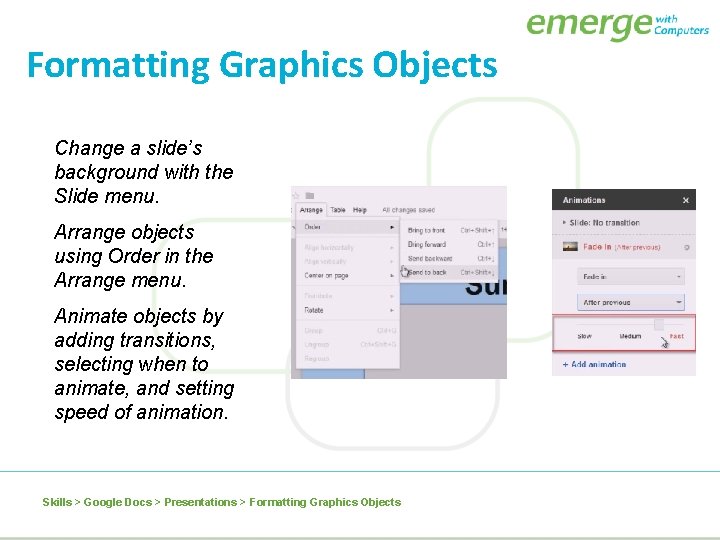
Formatting Graphics Objects Change a slide’s background with the Slide menu. Arrange objects using Order in the Arrange menu. Animate objects by adding transitions, selecting when to animate, and setting speed of animation. Skills > Google Docs > Presentations > Formatting Graphics Objects
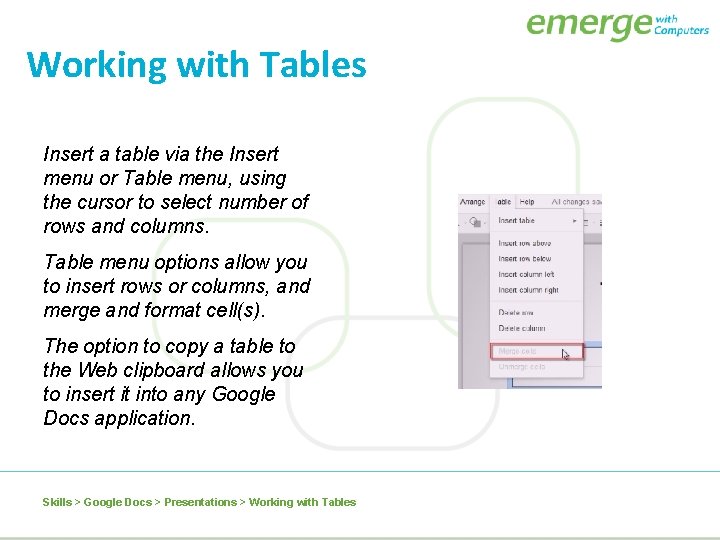
Working with Tables Insert a table via the Insert menu or Table menu, using the cursor to select number of rows and columns. Table menu options allow you to insert rows or columns, and merge and format cell(s). The option to copy a table to the Web clipboard allows you to insert it into any Google Docs application. Skills > Google Docs > Presentations > Working with Tables
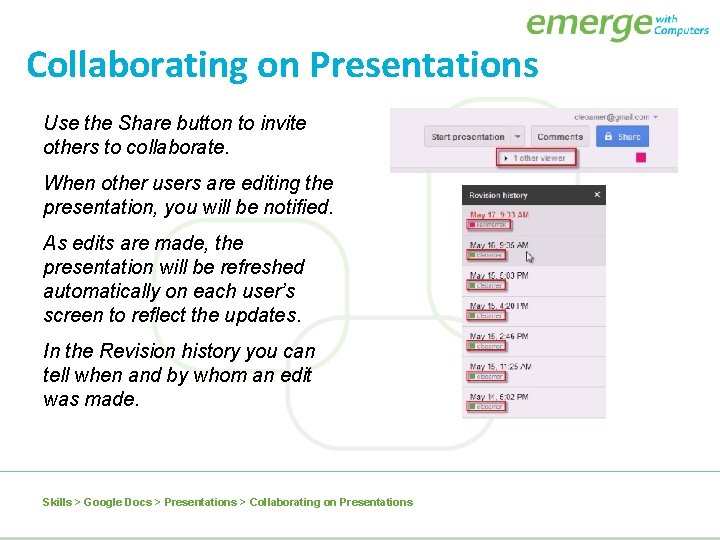
Collaborating on Presentations Use the Share button to invite others to collaborate. When other users are editing the presentation, you will be notified. As edits are made, the presentation will be refreshed automatically on each user’s screen to reflect the updates. In the Revision history you can tell when and by whom an edit was made. Skills > Google Docs > Presentations > Collaborating on Presentations
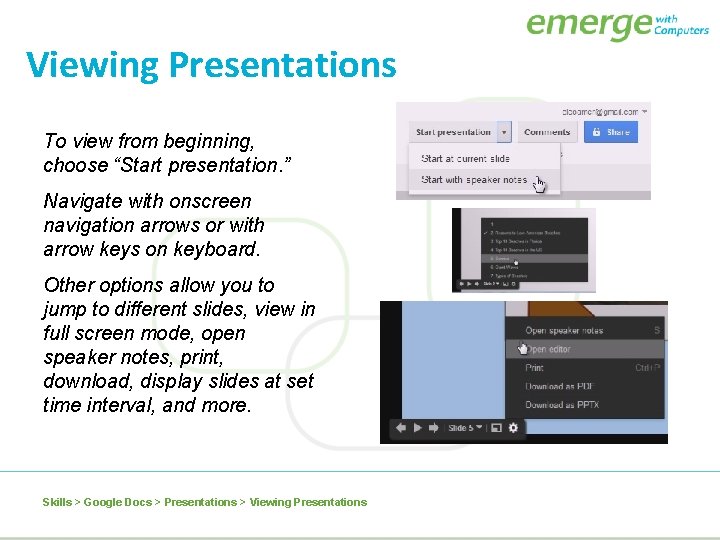
Viewing Presentations To view from beginning, choose “Start presentation. ” Navigate with onscreen navigation arrows or with arrow keys on keyboard. Other options allow you to jump to different slides, view in full screen mode, open speaker notes, print, download, display slides at set time interval, and more. Skills > Google Docs > Presentations > Viewing Presentations
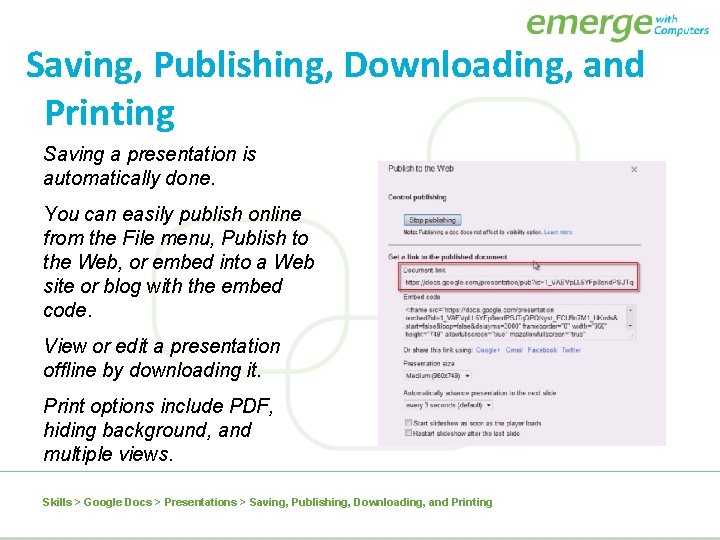
Saving, Publishing, Downloading, and Printing Saving a presentation is automatically done. You can easily publish online from the File menu, Publish to the Web, or embed into a Web site or blog with the embed code. View or edit a presentation offline by downloading it. Print options include PDF, hiding background, and multiple views. Skills > Google Docs > Presentations > Saving, Publishing, Downloading, and Printing