
Google Classroom Shortcuts Classroom google com Go to
- Slides: 4
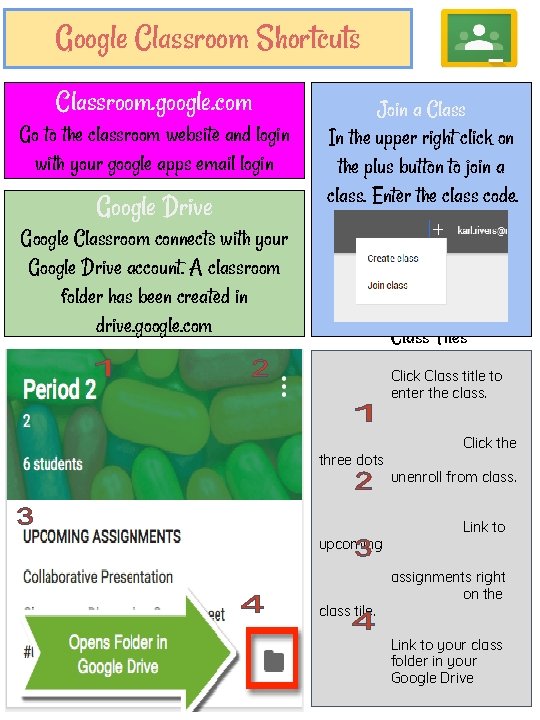
Google Classroom Shortcuts Classroom. google. com Go to the classroom website and login with your google apps email login Google Drive Join a Class In the upper right click on the plus button to join a class. Enter the class code. Google Classroom connects with your Google Drive account. A classroom folder has been created in drive. google. com Class Tiles Click Class title to enter the class. three dots upcoming class tile. Click the unenroll from class. Link to assignments right on the Link to your class folder in your Google Drive
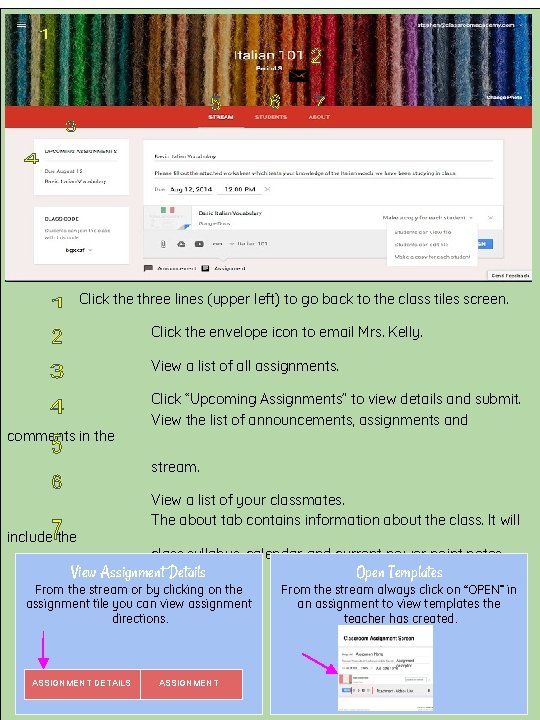
Click the three lines (upper left) to go back to the class tiles screen. Click the envelope icon to email Mrs. Kelly. View a list of all assignments. comments in the Click “Upcoming Assignments” to view details and submit. View the list of announcements, assignments and stream. include the View a list of your classmates. The about tab contains information about the class. It will class syllabus, calendar and current power point notes. View Assignment Details From the stream or by clicking on the assignment tile you can view assignment directions. ASSIGNMENT DETAILS ASSIGNMENT Open Templates From the stream always click on “OPEN” in an assignment to view templates the teacher has created.
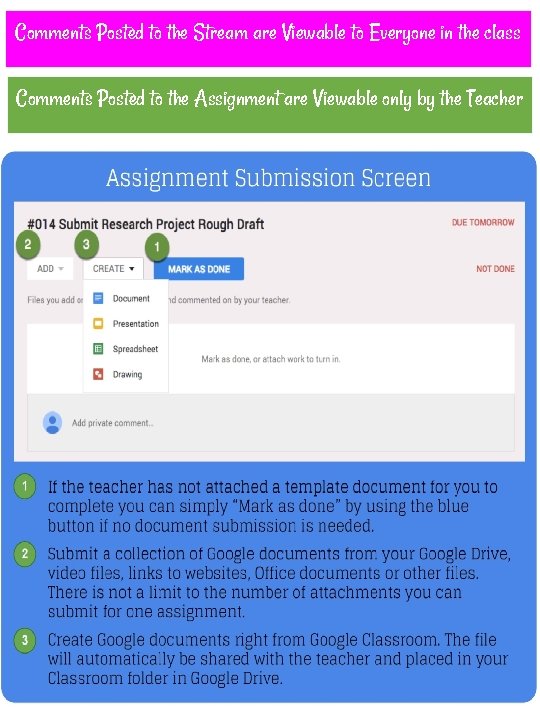
Comments Posted to the Stream are Viewable to Everyone in the class Comments Posted to the Assignment are Viewable only by the Teacher