
Google Classroom How to and Lessons Learned Link
- Slides: 23
Google Classroom How to and Lessons Learned! Link to presentation: https: //goo. gl/7 Qf. AOK
Why Google Classroom? Google Classroom is a great way to organize student work. Use Google Classroom to: • Assign, handout, collect, and grade student work. • Send class announcements • Hold class discussions Students can join the classroom by invitation or class code. Students can belong to multiple classes for multiple teachers. Teachers can share classrooms.
Getting Started Create an account by going to: classroom. google. com Log in using your gmail account information. The email that you use needs to be part of a school Google for Education domain. Select “Teacher” Click on “See How Classroom Works” for a guided tour. Need help? Google Classroom Help: Getting Started
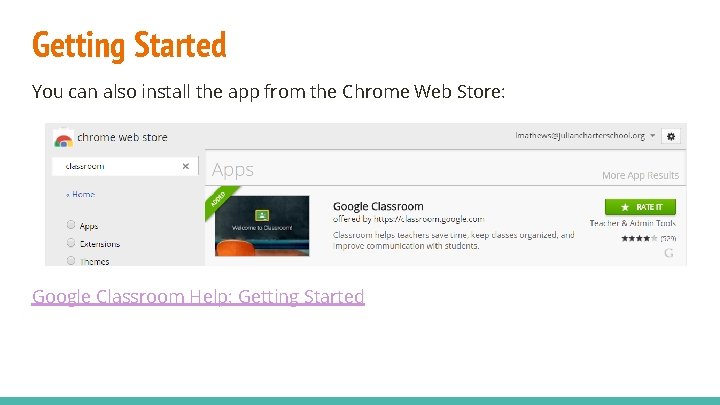
Getting Started You can also install the app from the Chrome Web Store: Google Classroom Help: Getting Started
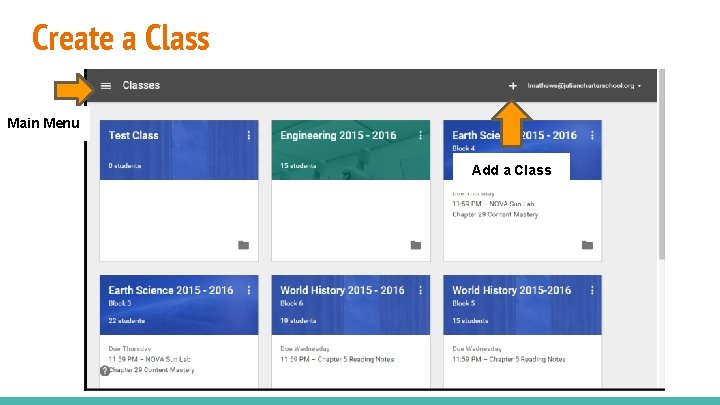
Create a Class Main Menu Add a Class
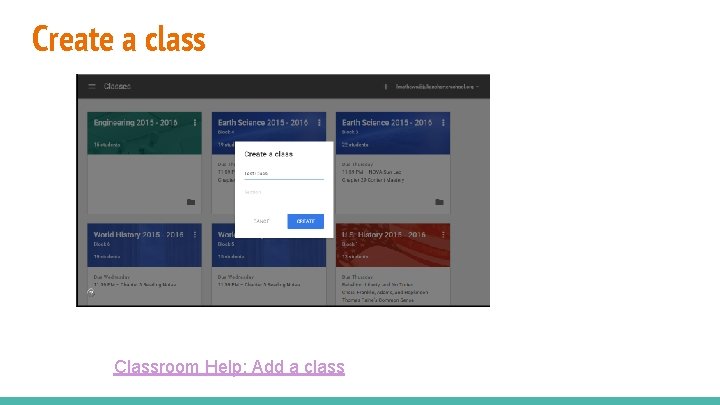
Create a class Classroom Help: Add a class
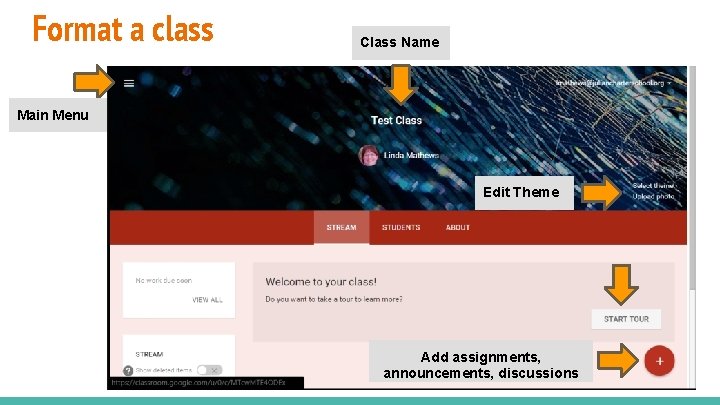
Format a class Class Name Main Menu Edit Theme Add assignments, announcements, discussions
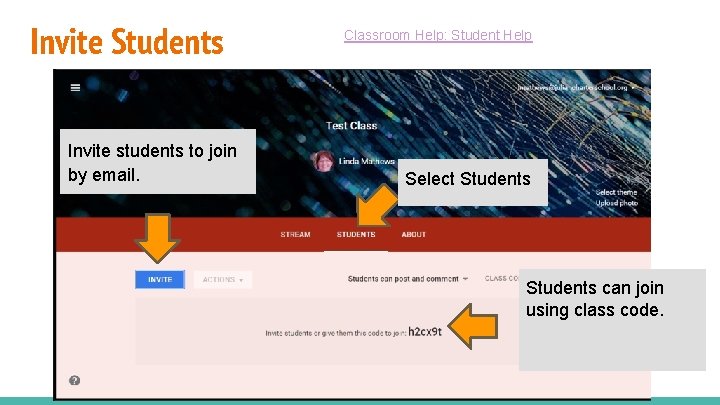
Invite Students Invite students to join by email. Classroom Help: Student Help Select Students can join using class code.
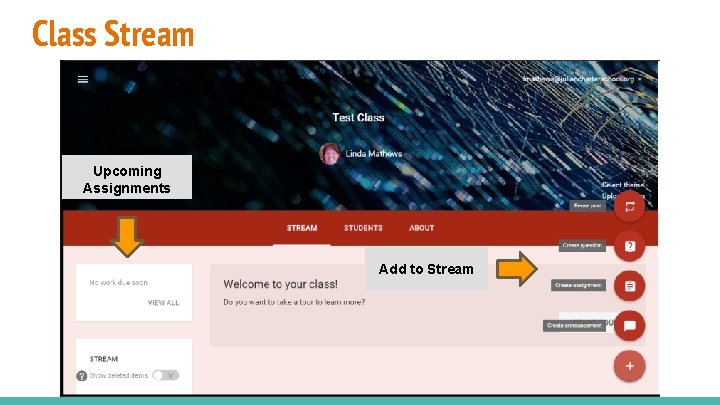
Class Stream Upcoming Assignments Add to Stream
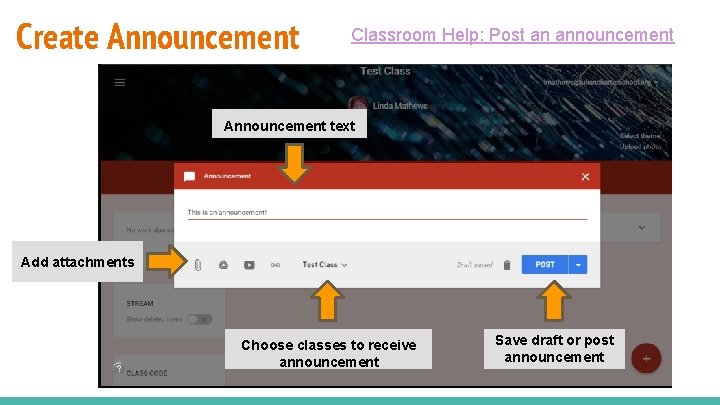
Create Announcement Classroom Help: Post an announcement Announcement text Add attachments Choose classes to receive announcement Save draft or post announcement
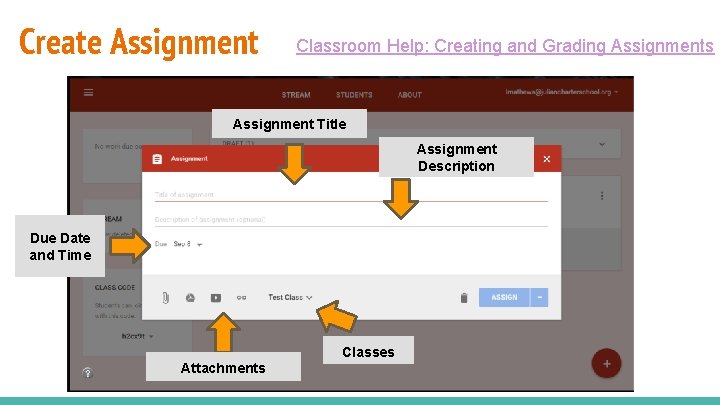
Create Assignment Classroom Help: Creating and Grading Assignments Assignment Title Assignment Description Due Date and Time Classes Attachments
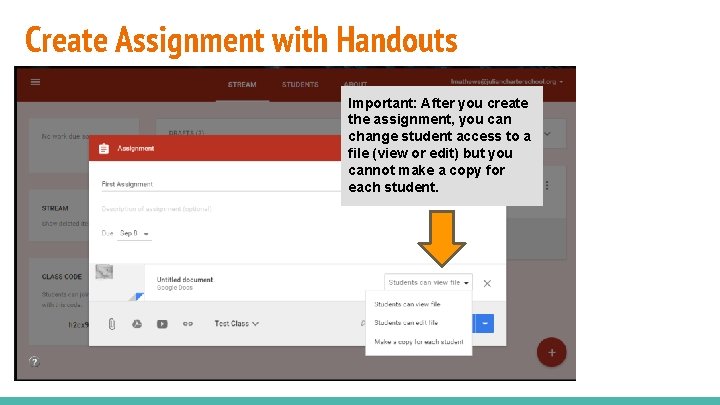
Create Assignment with Handouts Important: After you create the assignment, you can change student access to a file (view or edit) but you cannot make a copy for each student.
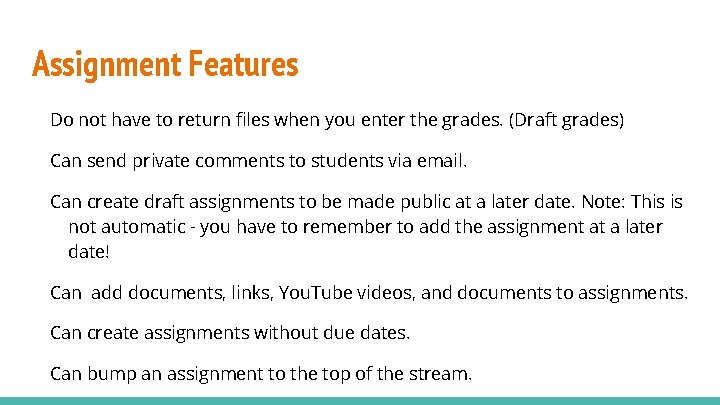
Assignment Features Do not have to return files when you enter the grades. (Draft grades) Can send private comments to students via email. Can create draft assignments to be made public at a later date. Note: This is not automatic - you have to remember to add the assignment at a later date! Can add documents, links, You. Tube videos, and documents to assignments. Can create assignments without due dates. Can bump an assignment to the top of the stream.
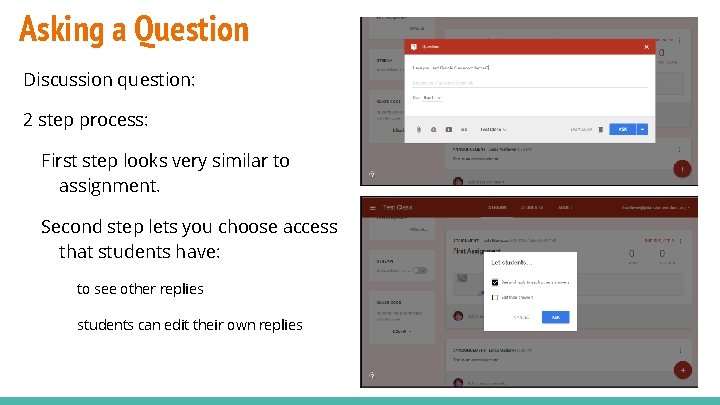
Asking a Question Discussion question: 2 step process: First step looks very similar to assignment. Second step lets you choose access that students have: to see other replies students can edit their own replies
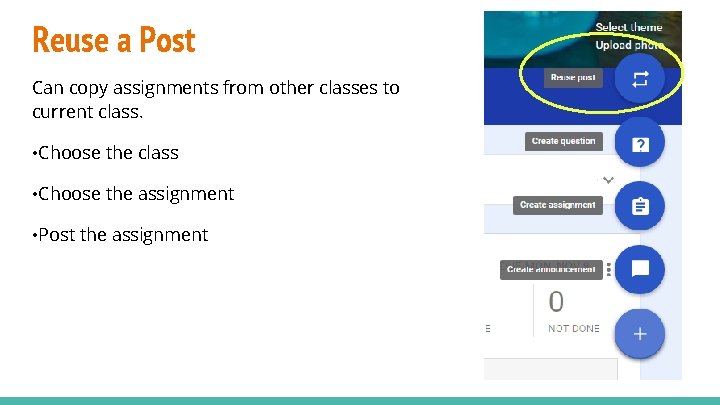
Reuse a Post Can copy assignments from other classes to current class. • Choose the class • Choose the assignment • Post the assignment
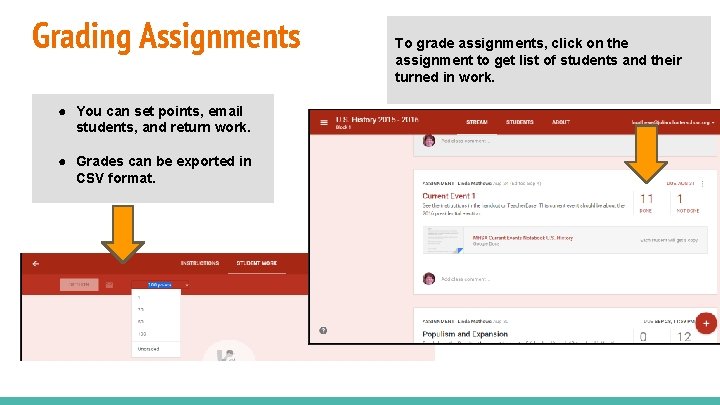
Grading Assignments ● You can set points, email students, and return work. ● Grades can be exported in CSV format. To grade assignments, click on the assignment to get list of students and their turned in work.
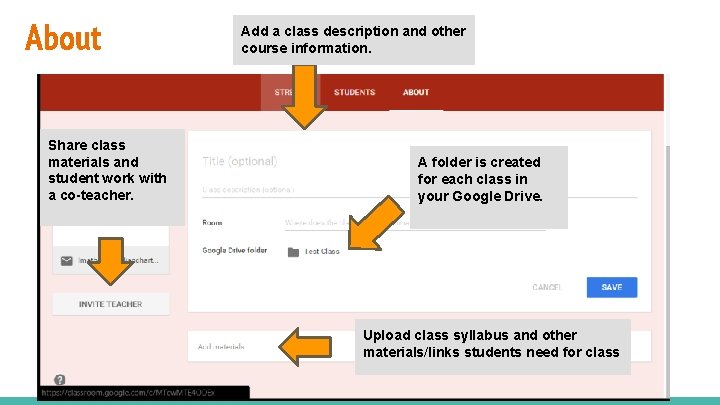
About Share class materials and student work with a co-teacher. Add a class description and other course information. A folder is created for each class in your Google Drive. Upload class syllabus and other materials/links students need for class
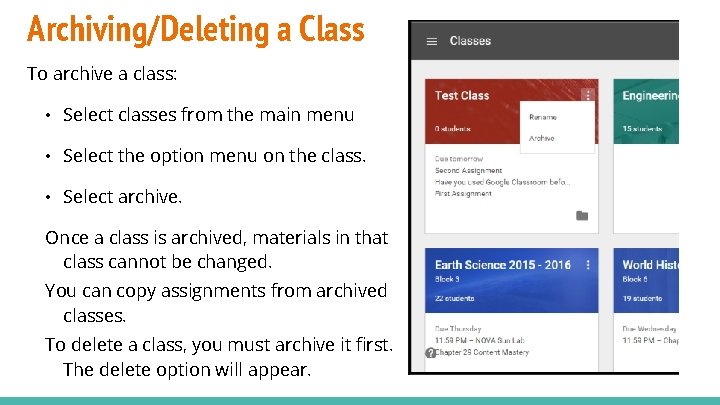
Archiving/Deleting a Class To archive a class: • Select classes from the main menu • Select the option menu on the class. • Select archive. Once a class is archived, materials in that class cannot be changed. You can copy assignments from archived classes. To delete a class, you must archive it first. The delete option will appear.
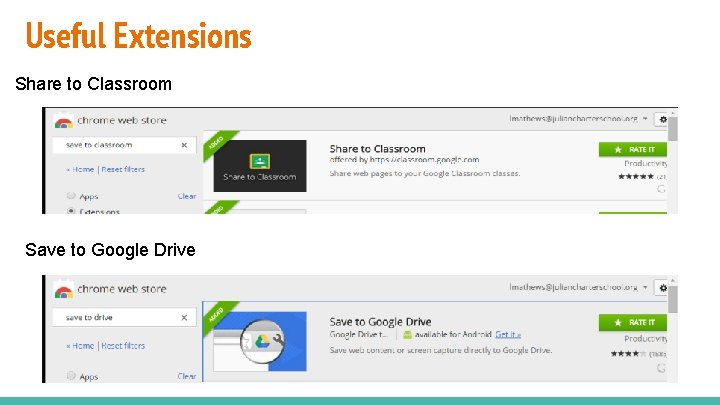
Useful Extensions Share to Classroom Save to Google Drive
Lessons Learned Although students are comfortable with phones and games, they are not always familiar with productivity tools. Walk them through Google Classroom several times. (Turninpaloozas, practice assignments) Need to have a way to indicate in gradebook if assignment is in Google Classroom (ONLINE, GCLASS, INCLASS) Remind students that turning in assignment is a 2 step process. Make sure students understand how to access handouts attached to lessons.
More Lessons Learned Students need a basic understanding of how permissions work on documents turned in. (Long term assignments) Make sure that students read the notes for assignments. Think about how you want to deal with assignments turned in to wrong assignment.
Classroom Support Google has a good Classroom support center: https: //support. google. com/edu/classroom/ Follow the Google Classroom for Education blog: http: //googleforeducation. blogspot. com/ You can also follow the blog on Twitter and Facebook.
Contact Me Linda Mathews Academy Instructor - Murrieta High School Academy My background: About me email: lmathews@juliancharterschool. org website: www. magistramathews. weebly. com The slide presentation is on my website.