
Google Classroom A Learning Management System What is
- Slides: 18
Google Classroom A Learning Management System
What is an LMS? A digital space that allows for the following: • Delivery of content • Creation and collection of assignments with real-time feedback • Collaboration • Discussion Examples: Edmodo, Moodle, Schoology … and Google Classroom
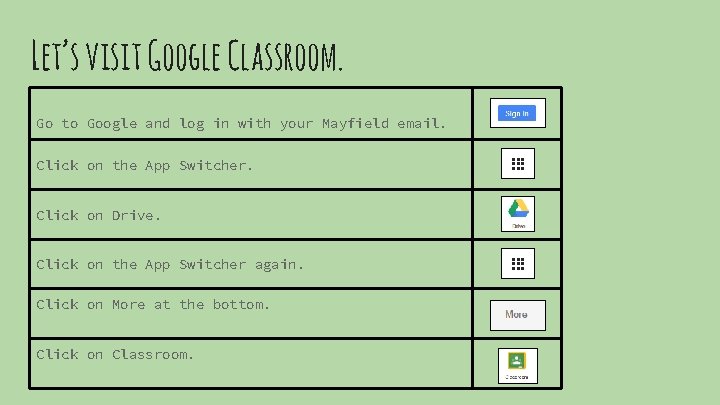
Let’s visit Google Classroom. Go to Google and log in with your Mayfield email. Click on the App Switcher. Click on Drive. Click on the App Switcher again. Click on More at the bottom. Click on Classroom.
Another way to visit Google Classroom: Go to https: //classroom. google. com Log in using your Mayfield email
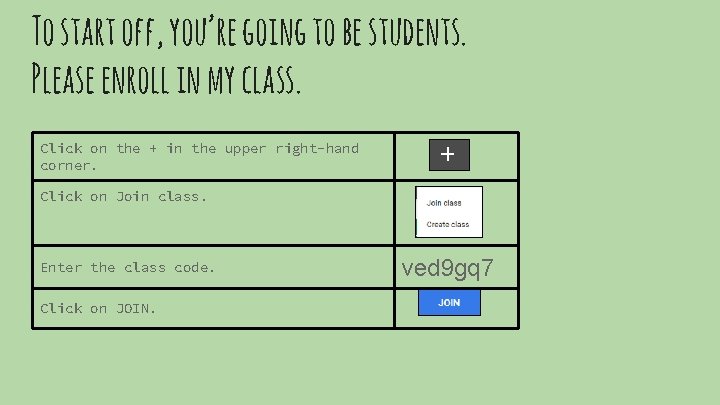
To start off, you’re going to be students. Please enroll in my class. Click on the + in the upper right-hand corner. Click on Join class. Enter the class code. Click on JOIN. ved 9 gq 7
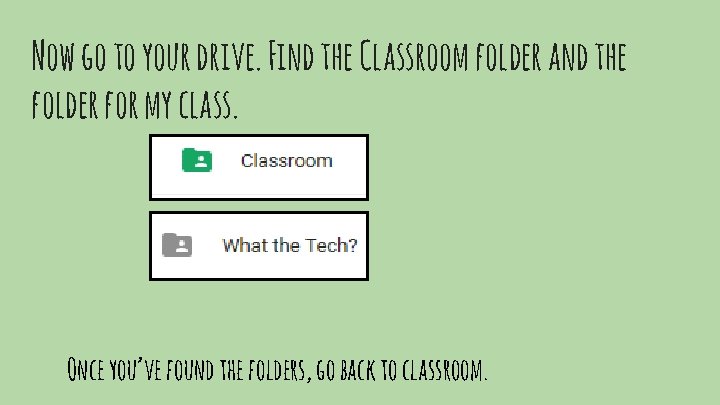
Now go to your drive. Find the Classroom folder and the folder for my class. Once you’ve found the folders, go back to classroom.
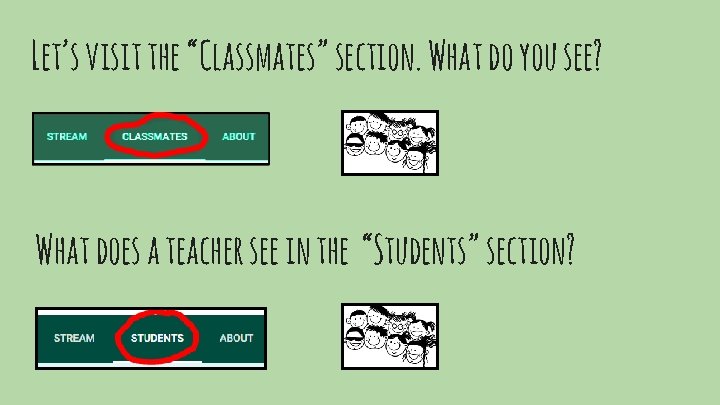
Let’s visit the “Classmates” section. What do you see? What does a teacher see in the “Students” section?
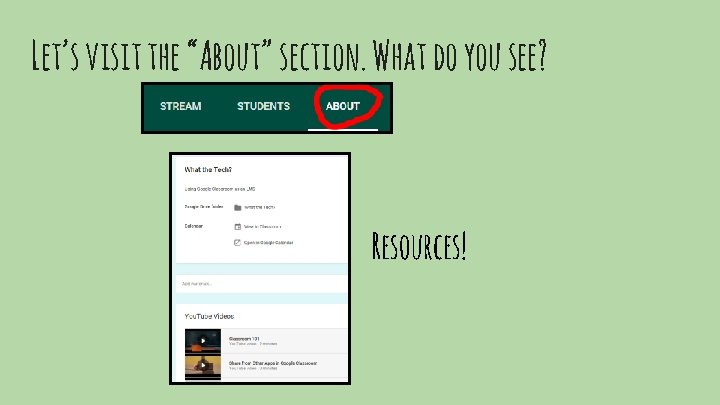
Let’s visit the “About” section. What do you see? Resources!
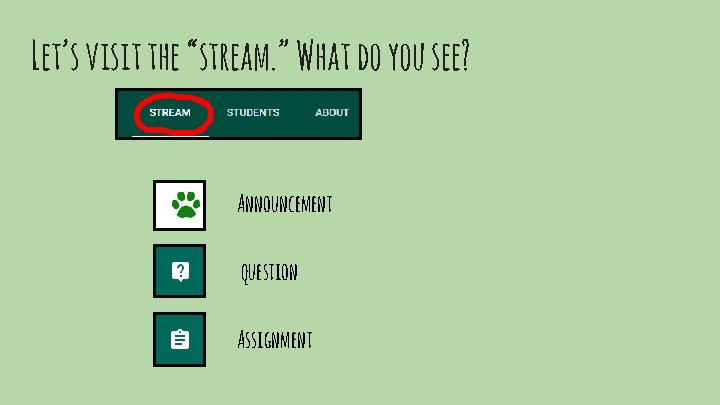
Let’s visit the “stream. ” What do you see? Announcement question Assignment
Do you need a Break? Take 5!
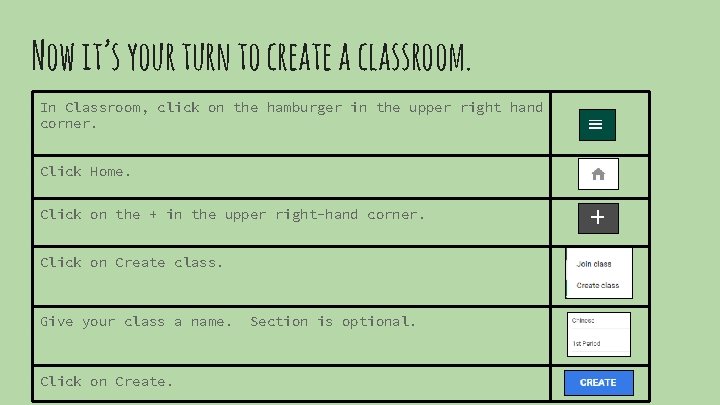
Now it’s your turn to create a classroom. In Classroom, click on the hamburger in the upper right hand corner. Click Home. Click on the + in the upper right-hand corner. Click on Create class. Give your class a name. Click on Create. Section is optional.
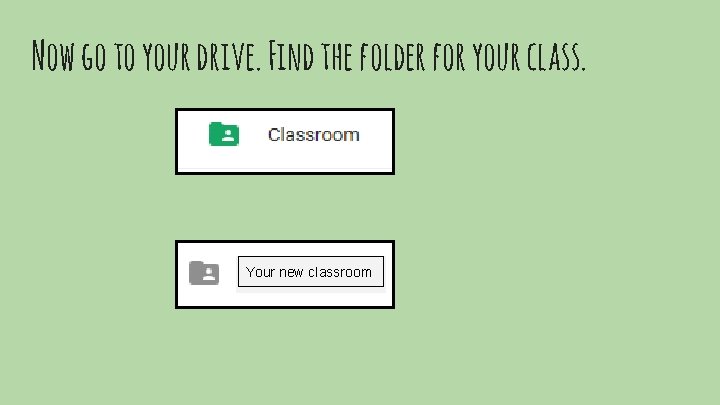
Now go to your drive. Find the folder for your class. Your new classroom
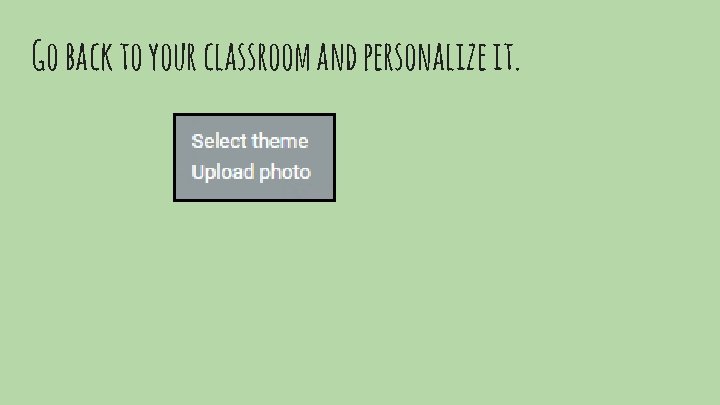
Go back to your classroom and personalize it.
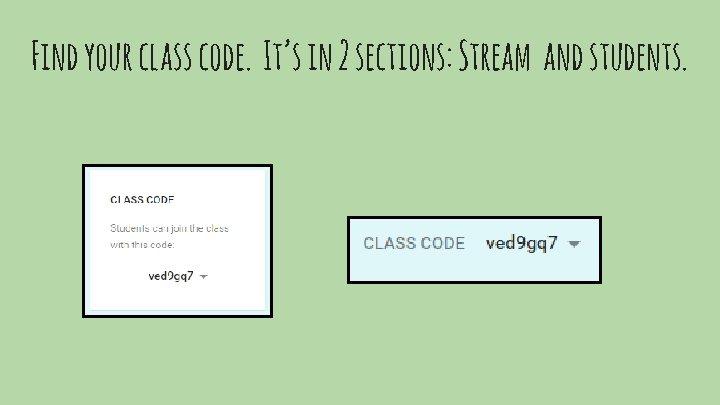
Find your class code. It’s in 2 sections: Stream and students.
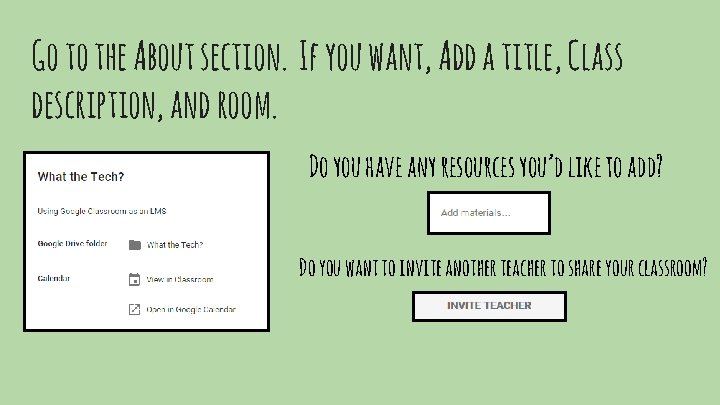
Go to the About section. If you want, Add a title, Class description, and room. Do you have any resources you’d like to add? Do you want to invite another teacher to share your classroom?
Before you go too far …. • Are you going to have more than one classroom? • How will you identify and organize your classrooms? period? By subject? By students’ needs? By • Do you want to post the same announcements, assignments, and questions to your classrooms?
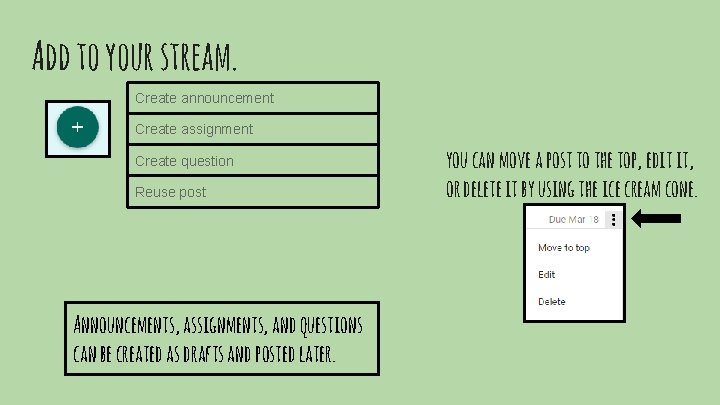
Add to your stream. Create announcement Create assignment Create question Reuse post Announcements, assignments, and questions can be created as drafts and posted later. you can move a post to the top, edit it, or delete it by using the ice cream cone.
If you have any questions about classroom, please email or call one of the tech integration team. Jan Carlson ext. 6782 Rob Gongola ext. 6799 Brent Kallay ext. 6794