
Google Certification Module 13 Level 1 What should

- Slides: 12
Google Certification Module 13 Level 1
What should I know at the end o f this module? ★ ★ ★ How to create and use labels How to use the Gmail search filter How to add Tasks through Gmail How to a task to Tasks directly How to translate to/send messages in other languages
Hello! I am Jana Gerard and I am a Level 1 & Level 2 Google Certified Educator as well as a Google Certified Trainer. I am also the Learning Specialist in charge of the IDEA Studio and I am here to help you become a Google Certified Educator. You can reach me at jgerard@lindenwood. edu or find me on Twitter @Jana. Gerard
Gmail
● Go to Gmail through your waffle in Drive ● This video explains how to forward your Lindenwood Gmail to your Lindenwood Outlook
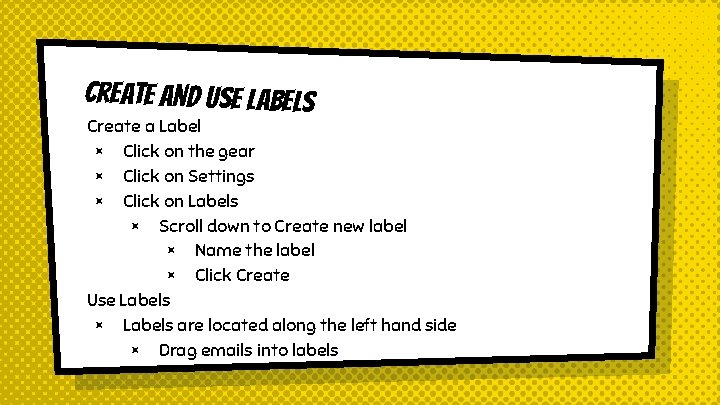
Create and Use Labels Create a Label × Click on the gear × Click on Settings × Click on Labels × Scroll down to Create new label × Name the label × Click Create Use Labels × Labels are located along the left hand side × Drag emails into labels
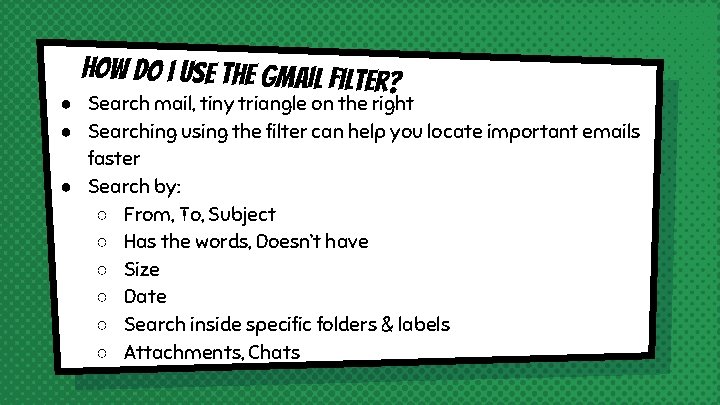
How do i use the Gmail filter? ● Search mail, tiny triangle on the right ● Searching using the filter can help you locate important emails faster ● Search by: ○ From, To, Subject ○ Has the words, Doesn’t have ○ Size ○ Date ○ Search inside specific folders & labels ○ Attachments, Chats
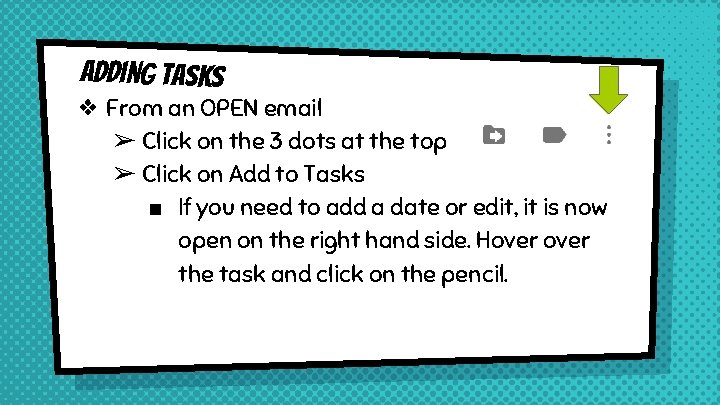
Adding Tasks ❖ From an OPEN email ➢ Click on the 3 dots at the top ➢ Click on Add to Tasks ■ If you need to add a date or edit, it is now open on the right hand side. Hover the task and click on the pencil.
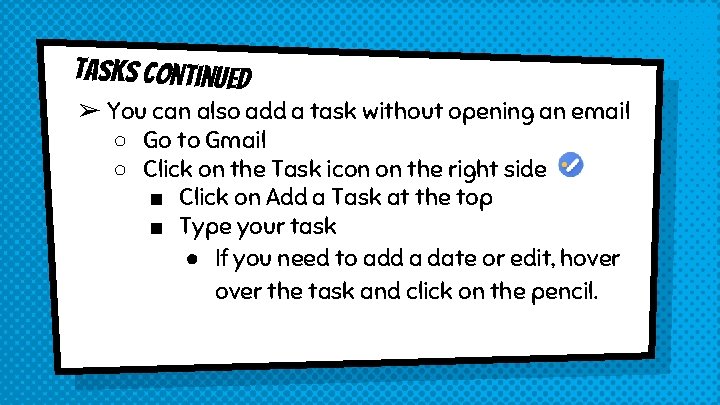
Tasks Continued ➢ You can also add a task without opening an email ○ Go to Gmail ○ Click on the Task icon on the right side ■ Click on Add a Task at the top ■ Type your task ● If you need to add a date or edit, hover the task and click on the pencil.
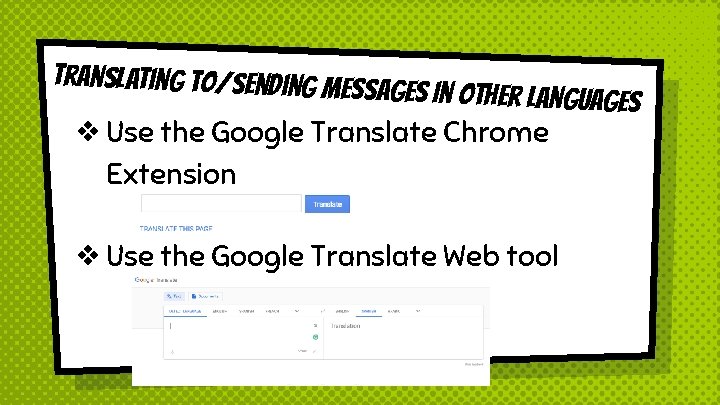
Translating to/Sending Mess ages In Other Languages ❖Use the Google Translate Chrome Extension ❖Use the Google Translate Web tool
Gmail Practice Tasks ● Practice Tasks
Credits Special thanks to all the people who made and released these awesome resources for free: × Presentation template by Slides. Carnival × Photograph by Startupstockphotos