
Going Beyond the Basics Objectives Use the Transform
Going Beyond the Basics
Objectives Use the Transform Each command Select within groups and make guides Modify objects with the Direct Selection tool Work with the stacking order Create interlocking objects Use the Unite shape mode Add visual complexity with the stacking order Apply effects
Using the Transform Each Command Offers the option to transform multiple objects simultaneously but individually Ø Great for making a complex pattern from a simple illustration Transform Each dialog box Ø One of nine reference points can be selected • Indicates which point the selected object will transform from
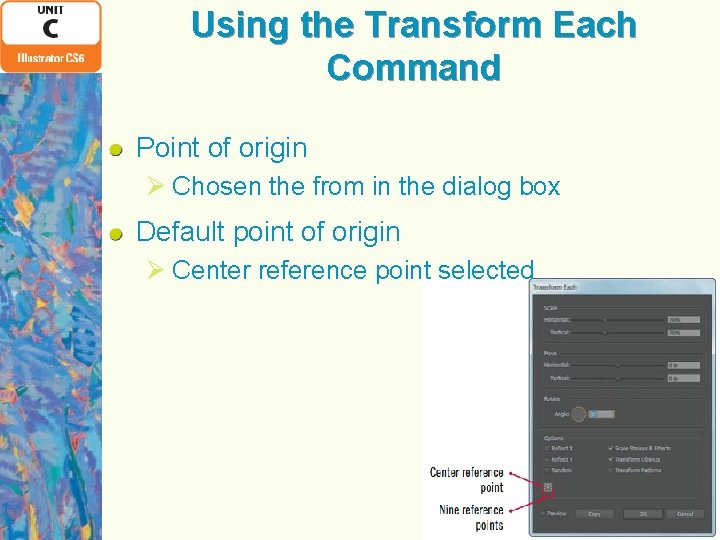
Using the Transform Each Command Point of origin Ø Chosen the from in the dialog box Default point of origin Ø Center reference point selected

Using the Transform Each Command FIGURE C-2: Squares are scaled 70% FIGURE C-3: Pattern created with the Transform Each command

Selecting Within Groups and Making Guides Selection tool Ø Used to select all objects in a group Direct Selection tool Ø Used to select individual objects within a group Make Guides command Ø Used to convert Illustrator objects into guides (i. e. , object guides)
Selecting Within Groups and Making Guides Working with guides Ø Quick keys for Hide, Lock, Make, and Release Guides Ø Use the Preferences dialog box with the Guides & Grid settings to change the color or style of guides
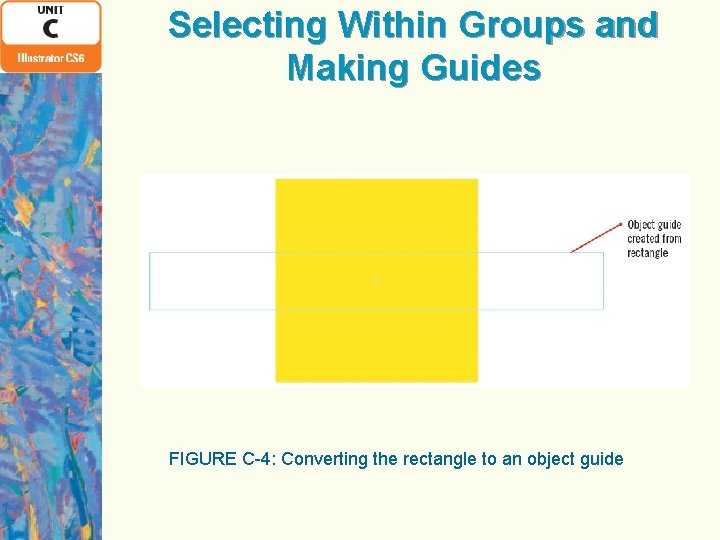
Selecting Within Groups and Making Guides FIGURE C-4: Converting the rectangle to an object guide
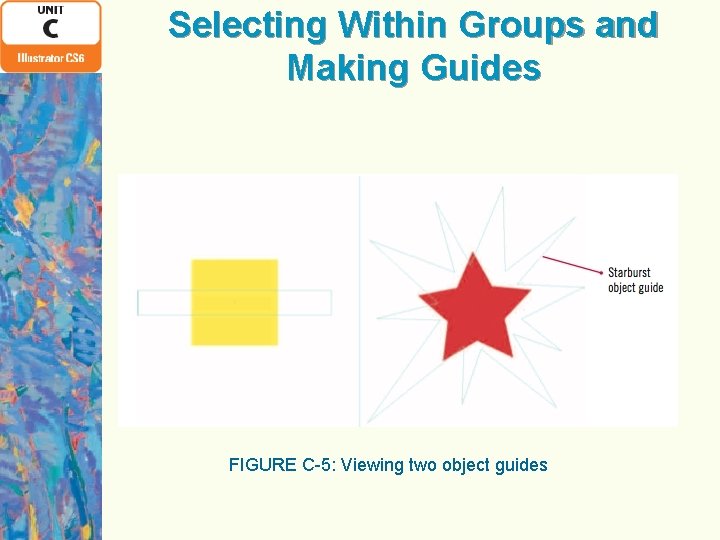
Selecting Within Groups and Making Guides FIGURE C-5: Viewing two object guides
Modifying Objects with the Direct Selection Tool Direct Selection tool performs two essential functions: Ø Selects individual objects within a group Ø Selects individual components of a single vector object • Select individual paths and anchor points on vector objects
Modifying Objects with the Direct Selection Tool Anchor points appear white or hollow Ø Hollow anchor points can be selected individually Ø When you apply the Add Anchor Points command, the entire object becomes selected
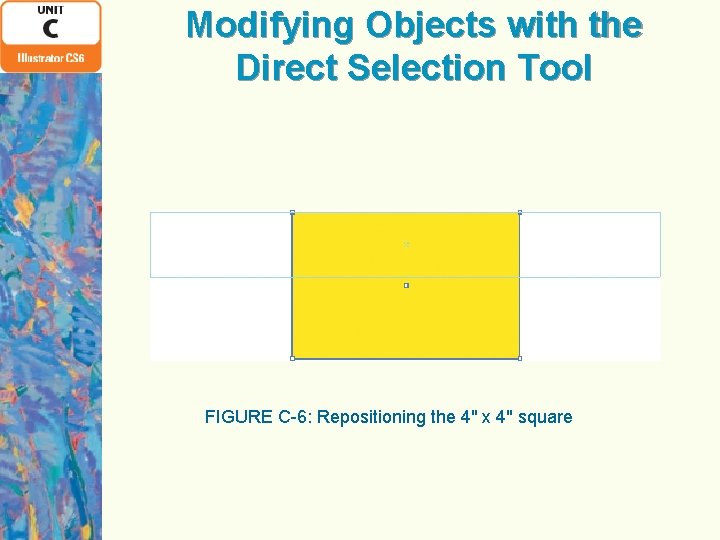
Modifying Objects with the Direct Selection Tool FIGURE C-6: Repositioning the 4" x 4" square
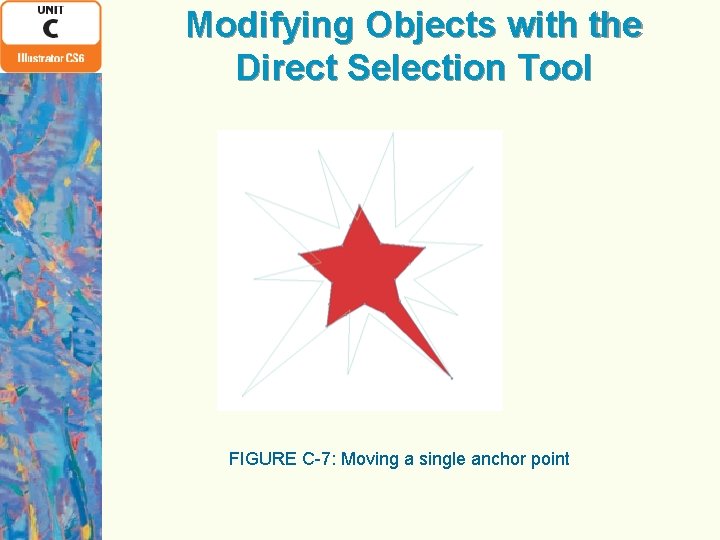
Modifying Objects with the Direct Selection Tool FIGURE C-7: Moving a single anchor point
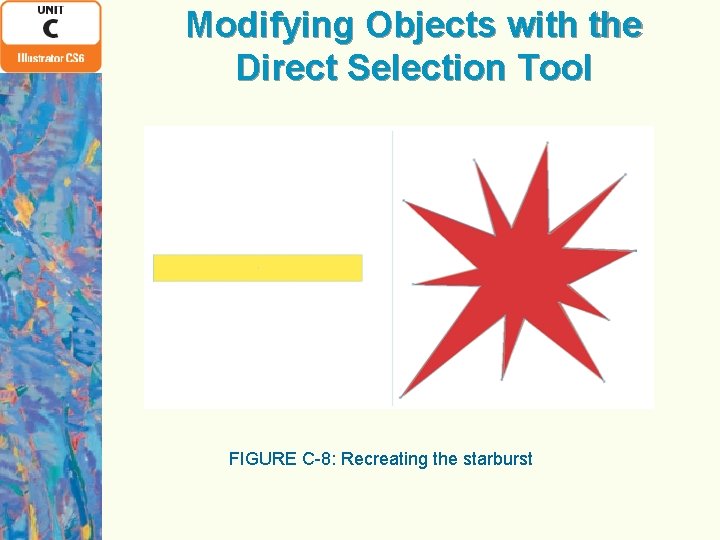
Modifying Objects with the Direct Selection Tool FIGURE C-8: Recreating the starburst
Working with the Stacking Order Stacking order Ø Order of how objects are arranged in front of and behind other objects on the artboard • Objects are created in front of the existing objects Ø Arrange commands on the Object menu • Allows you to manipulate stacking order Ø Draw Behind drawing mode • Allows objects to be created behind a object or at the bottom of the stacking order
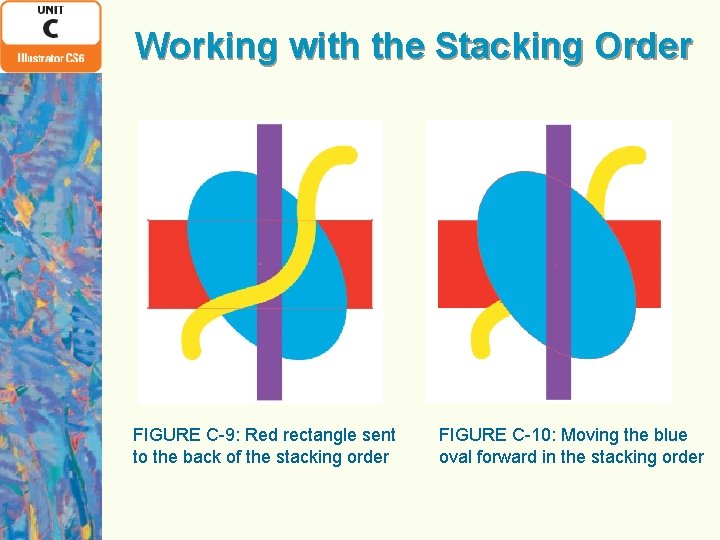
Working with the Stacking Order FIGURE C-9: Red rectangle sent to the back of the stacking order FIGURE C-10: Moving the blue oval forward in the stacking order
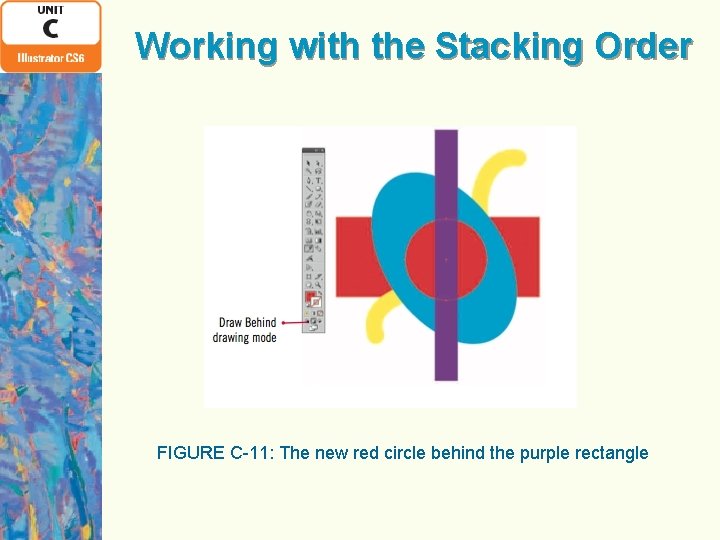
Working with the Stacking Order FIGURE C-11: The new red circle behind the purple rectangle
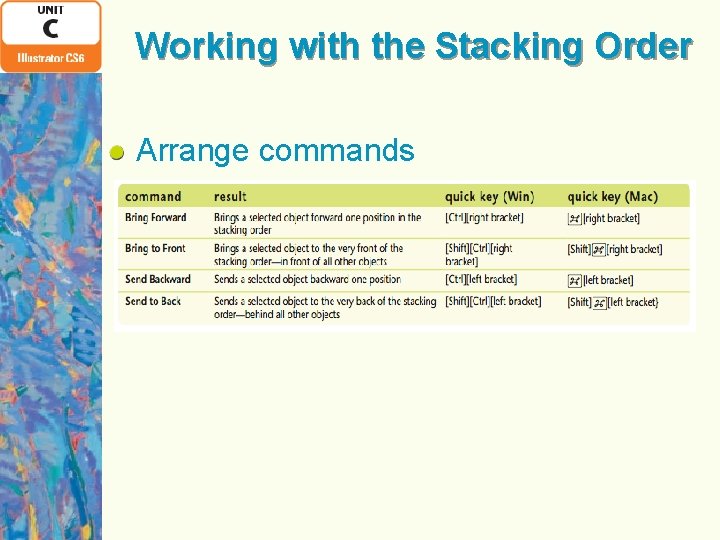
Working with the Stacking Order Arrange commands
Creating Interlocking Objects Line segments Ø Selected when you click a path with the Direct Selection tool Ø Fall within each set of two anchor points Interlocking objects Ø Created using the Paste In Front command
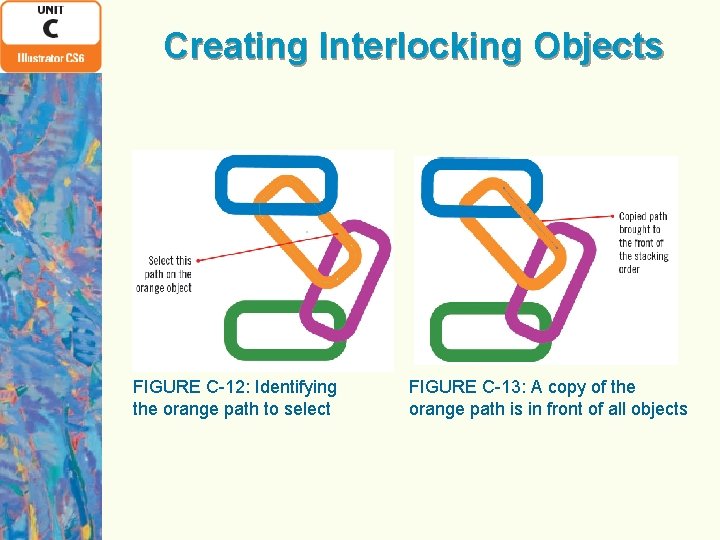
Creating Interlocking Objects FIGURE C-12: Identifying the orange path to select FIGURE C-13: A copy of the orange path is in front of all objects
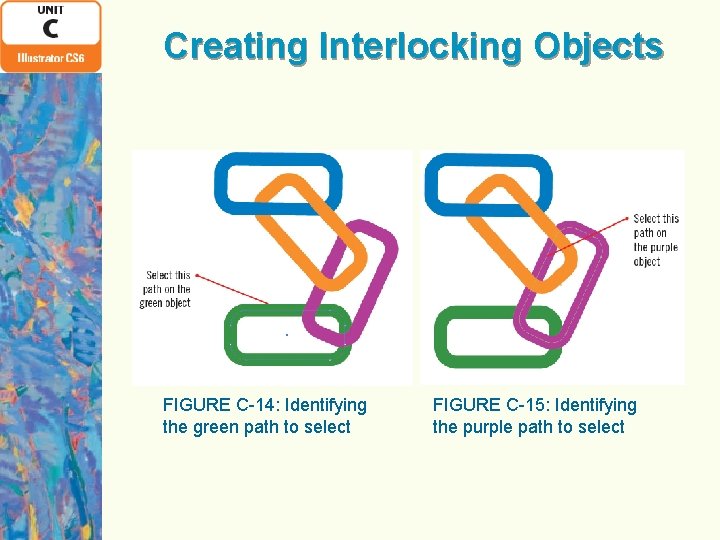
Creating Interlocking Objects FIGURE C-14: Identifying the green path to select FIGURE C-15: Identifying the purple path to select
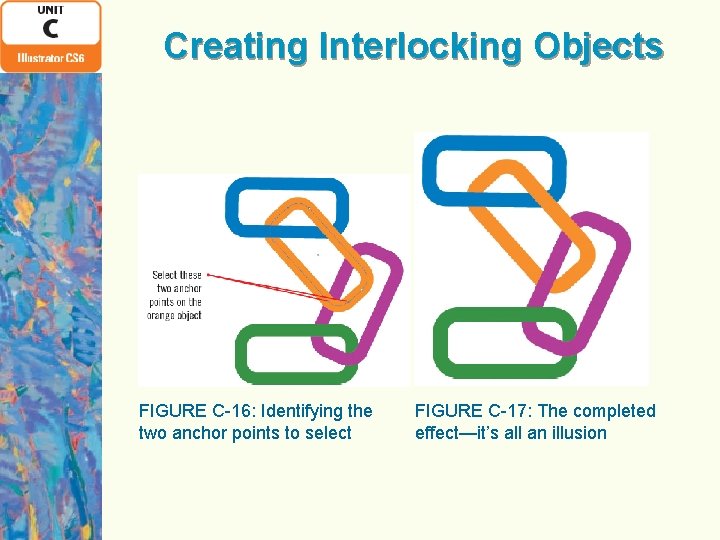
Creating Interlocking Objects FIGURE C-16: Identifying the two anchor points to select FIGURE C-17: The completed effect—it’s all an illusion
Using the Unite Shape Mode Pathfinder panel Ø Contains pre-programmed actions to perform basic functions on selected objects Ø Shape modes and pathfinders: allow new shapes to be created from overlapping objects • Shape modes: top row • Pathfinders: bottom row
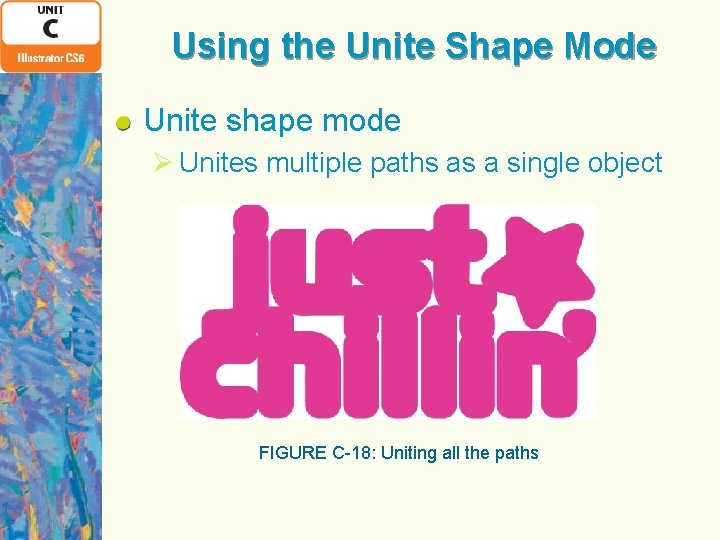
Using the Unite Shape Mode Unite shape mode Ø Unites multiple paths as a single object FIGURE C-18: Uniting all the paths
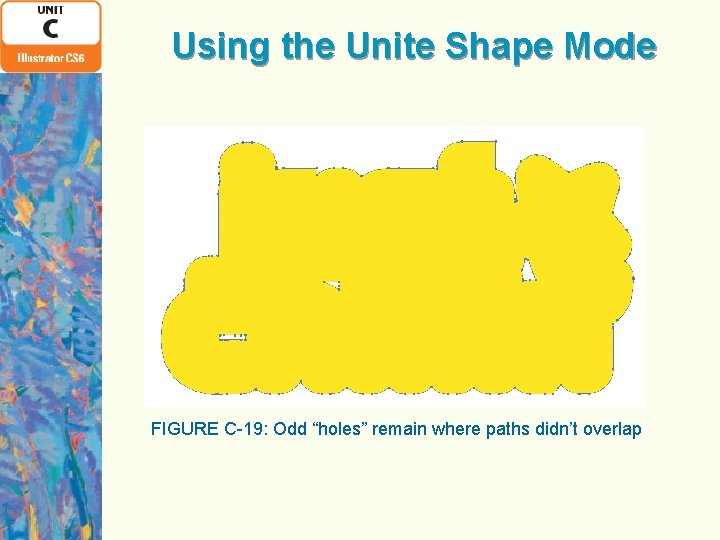
Using the Unite Shape Mode FIGURE C-19: Odd “holes” remain where paths didn’t overlap
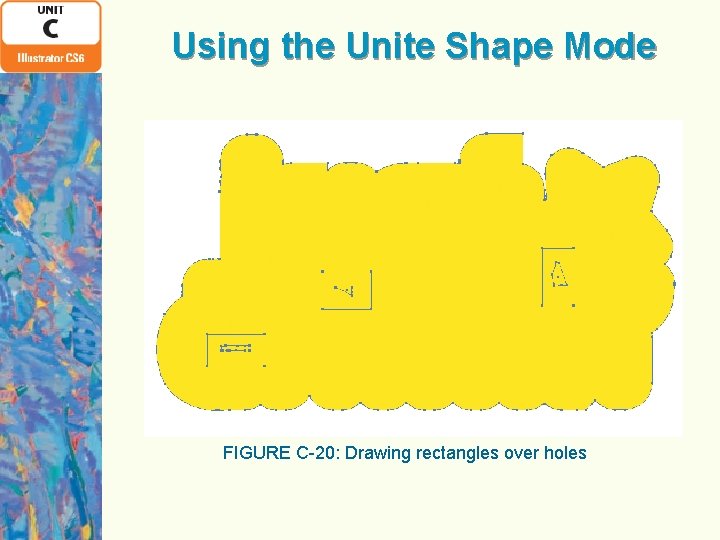
Using the Unite Shape Mode FIGURE C-20: Drawing rectangles over holes
Adding Visual Complexity with the Stacking Order Stacking order Ø Manages which objects are in front of or behind other objects Ø Can be used to add visual complexity to an illustration • Pasting new objects in front of or behind existing objects can add a sense of dimension, layering, and depth
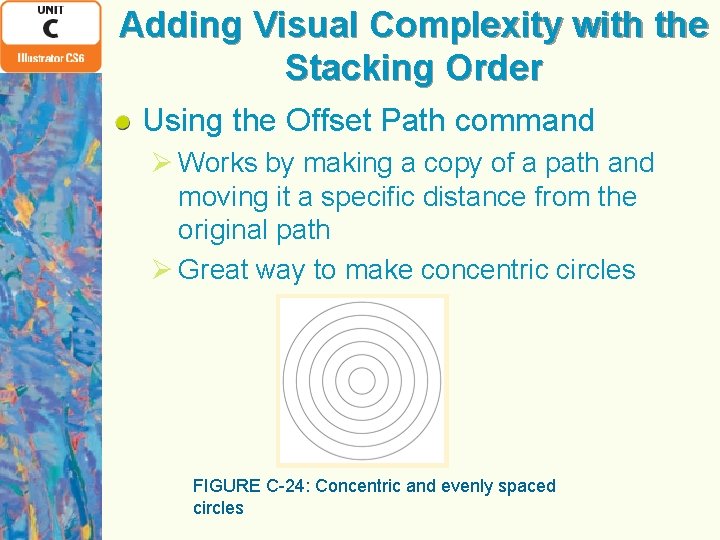
Adding Visual Complexity with the Stacking Order Using the Offset Path command Ø Works by making a copy of a path and moving it a specific distance from the original path Ø Great way to make concentric circles FIGURE C-24: Concentric and evenly spaced circles
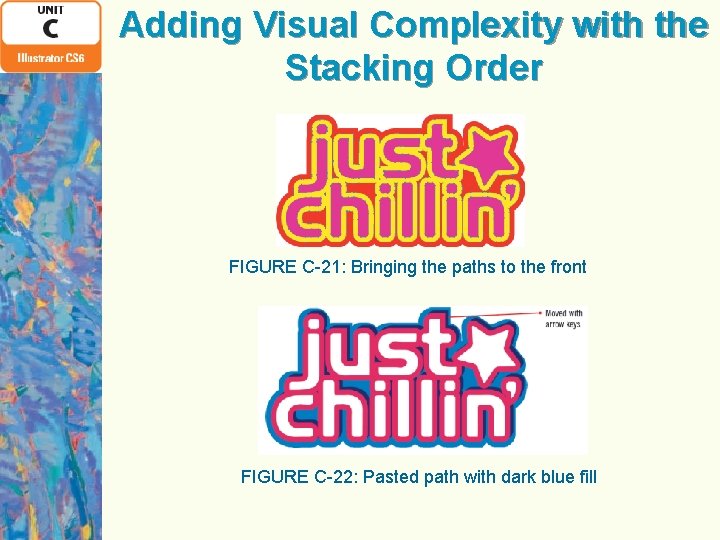
Adding Visual Complexity with the Stacking Order FIGURE C-21: Bringing the paths to the front FIGURE C-22: Pasted path with dark blue fill
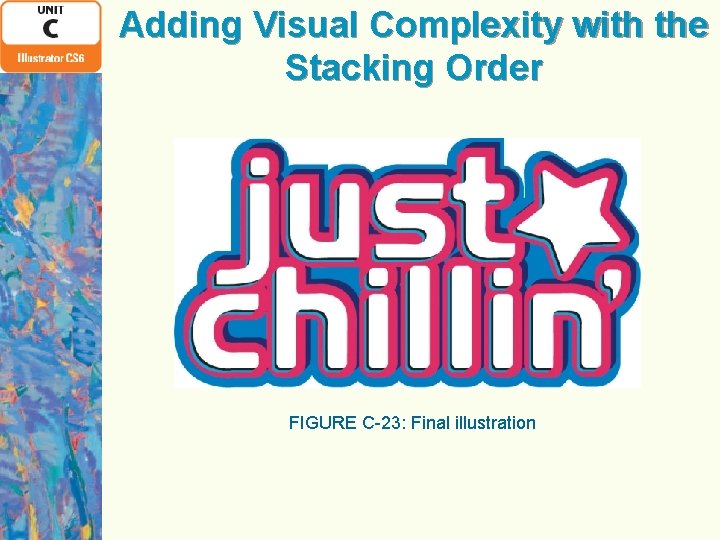
Adding Visual Complexity with the Stacking Order FIGURE C-23: Final illustration
Applying Effects Ø Operations that you can apply to an object to alter its appearance without actually altering the object itself Ø Distort, transform, warp, outline, and offset a path—among others—without changing the original size, anchor points, and shape of the object Ø Appearance refers to what an object looks like when an effect has been applied to it
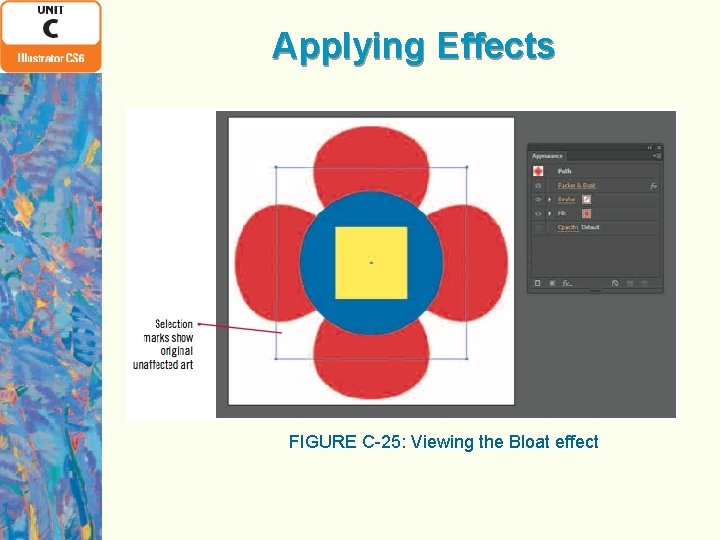
Applying Effects FIGURE C-25: Viewing the Bloat effect
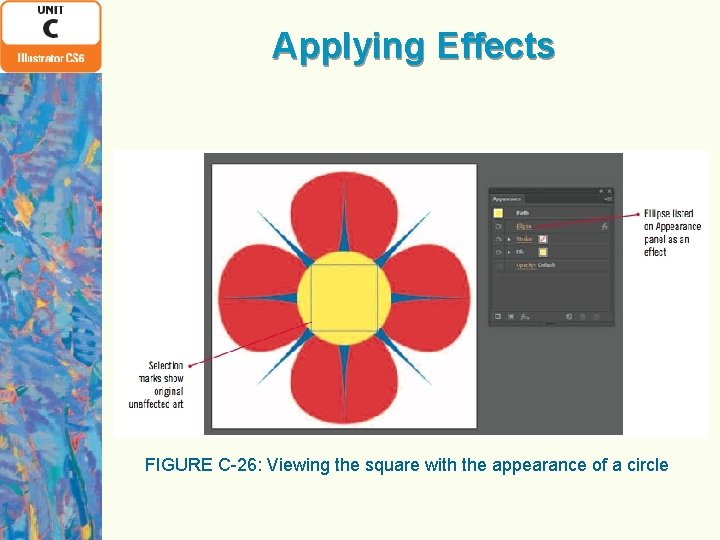
Applying Effects FIGURE C-26: Viewing the square with the appearance of a circle
Applying Effects If you use the Scale tool to try and create concentric circles, each successive circle is a percentage of a different size original circle Percentages are relative, not absolute, so the space between each circle and the original from which it was scaled keeps getting smaller, because the original keeps getting smaller With the Offset Path command, the offset is an absolute
Summary Ø Use the Transform Each command Ø Select within groups and make guides Ø Modify objects with the Direct Selection tool Ø Work with the stacking order Ø Create interlocking objects Ø Use the Unite shape mode Ø Add visual complexity with the stacking order Ø Apply effects
- Slides: 35