
GO with Microsoft Excel 2016 Comprehensive First Edition
- Slides: 35
GO! with Microsoft Excel 2016 Comprehensive First Edition Features – Chapter 1 Introduction to Microsoft Office 2016 Features Copyright © 2017 Pearson Education, Inc. All Rights Reserved.
Learning Objectives (1 of 2) • Explore Microsoft Office 2016 • Enter, Edit, and Check the Spelling of Text in an Office 2016 Program • Perform Commands from a Dialog Box • Create a Folder and Name and Save a File • Insert a Footer, Add Document Properties, Print a File, and Close a Desktop App Copyright © 2017 Pearson Education, Inc. All Rights Reserved.
Learning Objectives (2 of 2) • Open an Existing File and Save it with a New Name • Sign in to Office and Explore Options for a Microsoft Office Desktop App • Perform Commands from the Ribbon and Quick Access Toolbar • Apply Formatting in Office Programs and Inspect Documents • Compress Files and Get Help with Office • Install Apps for Office and Create a Microsoft Account Copyright © 2017 Pearson Education, Inc. All Rights Reserved.
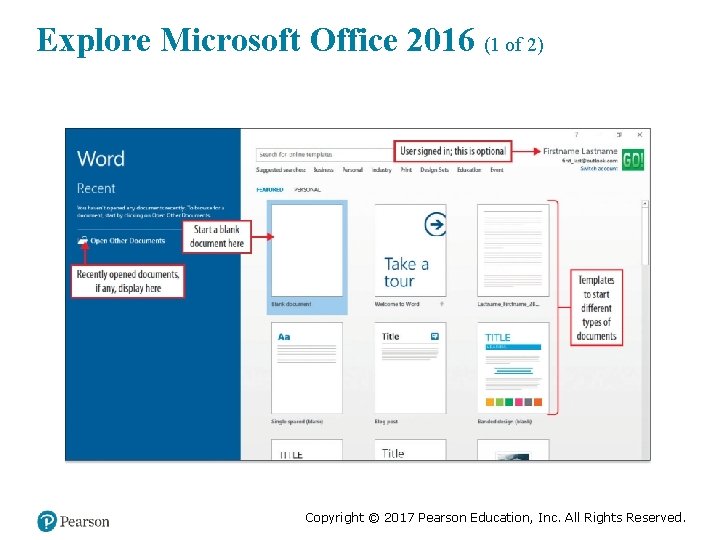
Explore Microsoft Office 2016 (1 of 2) Copyright © 2017 Pearson Education, Inc. All Rights Reserved.
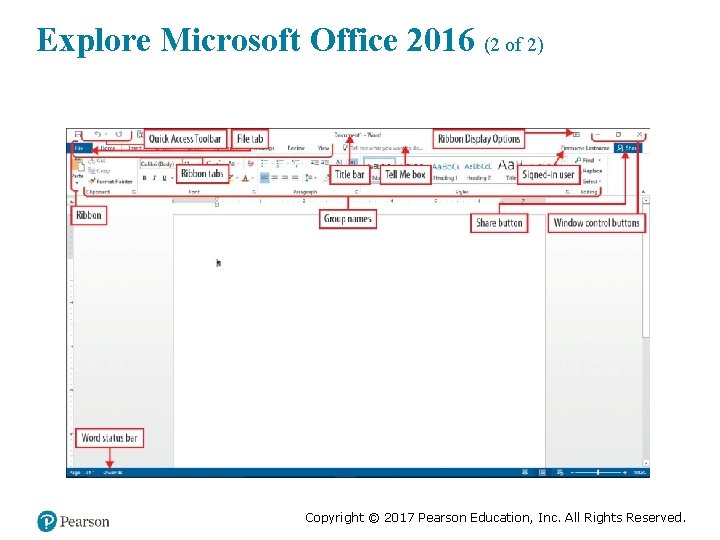
Explore Microsoft Office 2016 (2 of 2) Copyright © 2017 Pearson Education, Inc. All Rights Reserved.
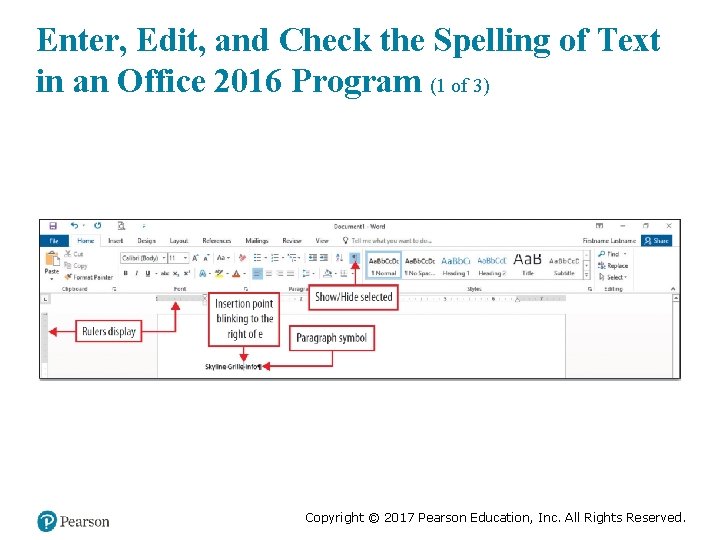
Enter, Edit, and Check the Spelling of Text in an Office 2016 Program (1 of 3) Copyright © 2017 Pearson Education, Inc. All Rights Reserved.
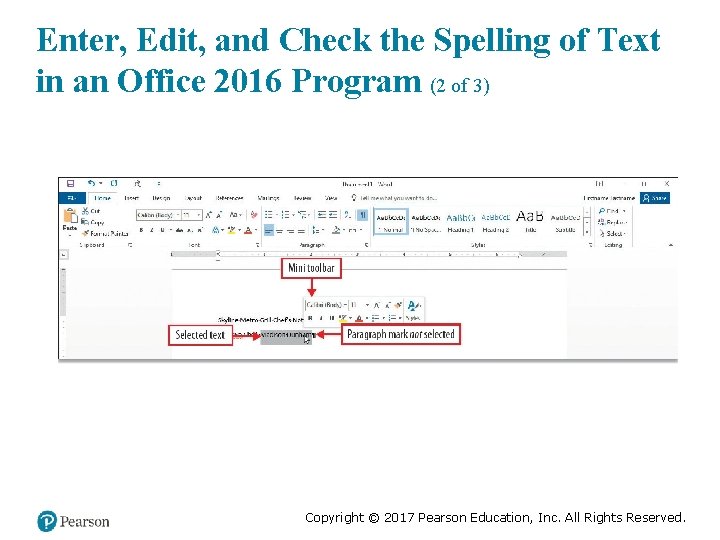
Enter, Edit, and Check the Spelling of Text in an Office 2016 Program (2 of 3) Copyright © 2017 Pearson Education, Inc. All Rights Reserved.
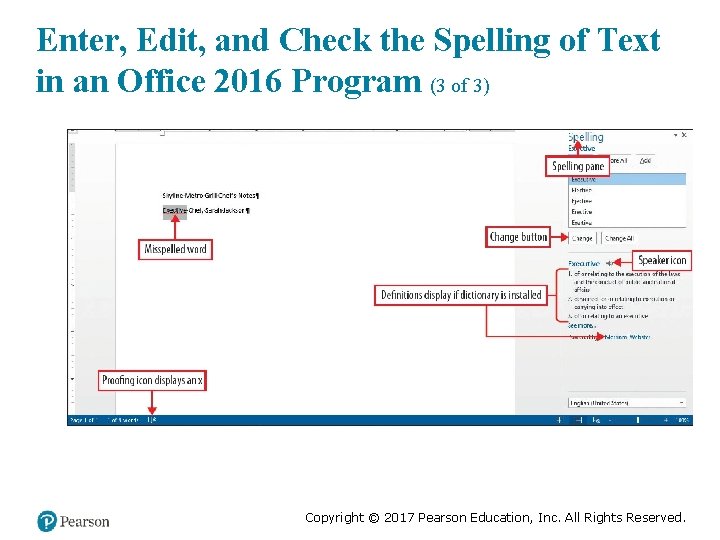
Enter, Edit, and Check the Spelling of Text in an Office 2016 Program (3 of 3) Copyright © 2017 Pearson Education, Inc. All Rights Reserved.
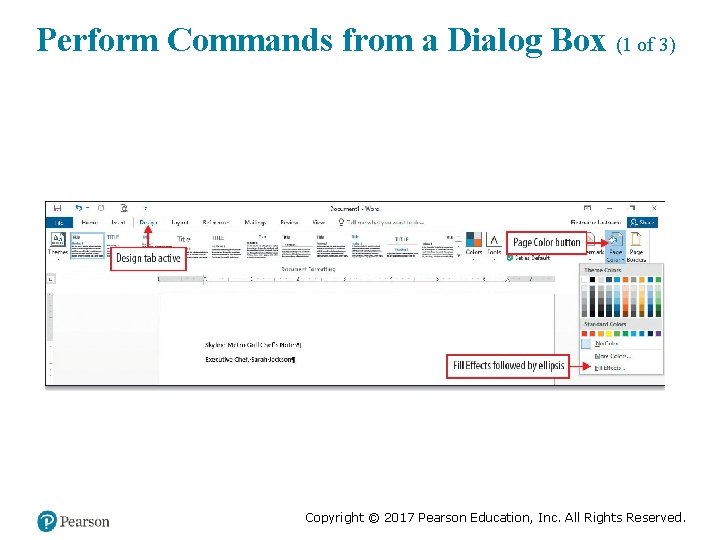
Perform Commands from a Dialog Box (1 of 3) Copyright © 2017 Pearson Education, Inc. All Rights Reserved.
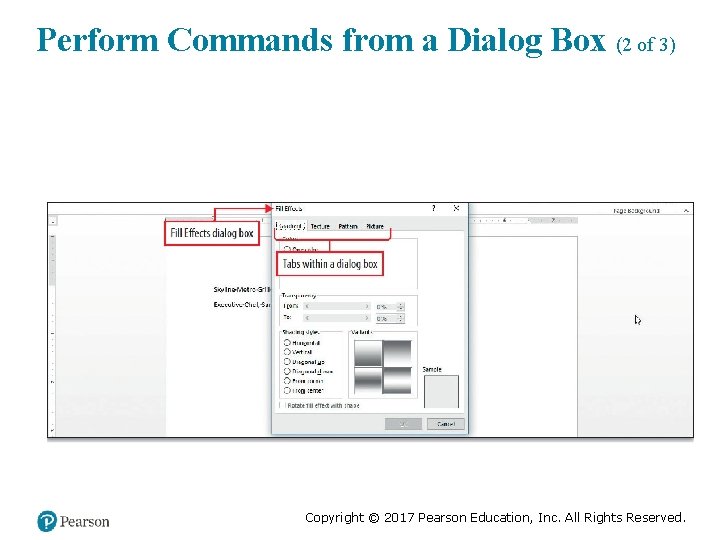
Perform Commands from a Dialog Box (2 of 3) Copyright © 2017 Pearson Education, Inc. All Rights Reserved.
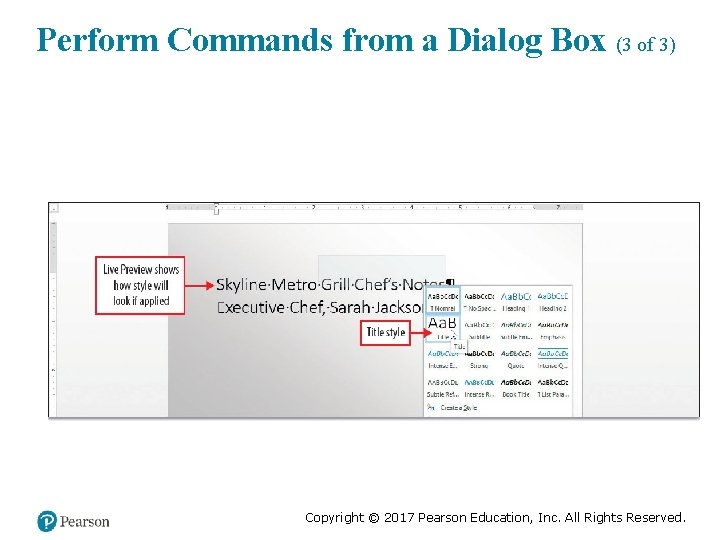
Perform Commands from a Dialog Box (3 of 3) Copyright © 2017 Pearson Education, Inc. All Rights Reserved.
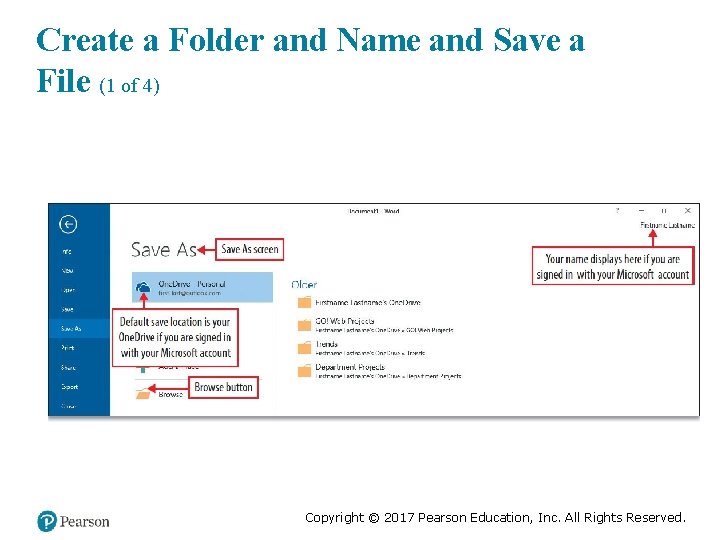
Create a Folder and Name and Save a File (1 of 4) Copyright © 2017 Pearson Education, Inc. All Rights Reserved.
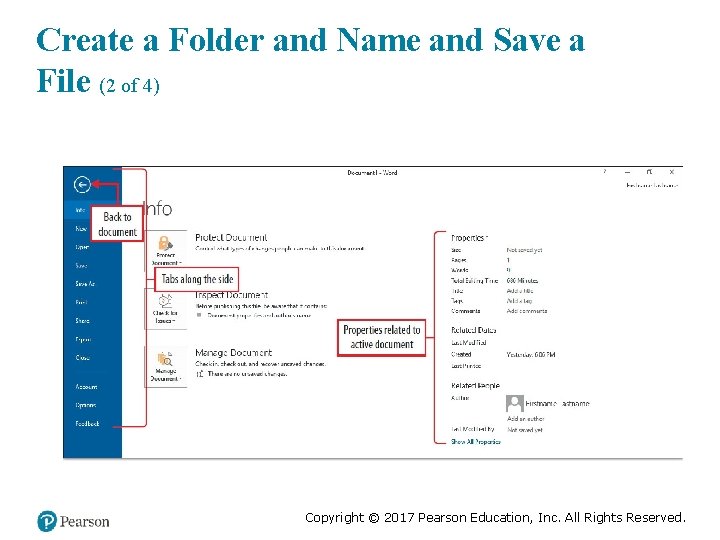
Create a Folder and Name and Save a File (2 of 4) Copyright © 2017 Pearson Education, Inc. All Rights Reserved.
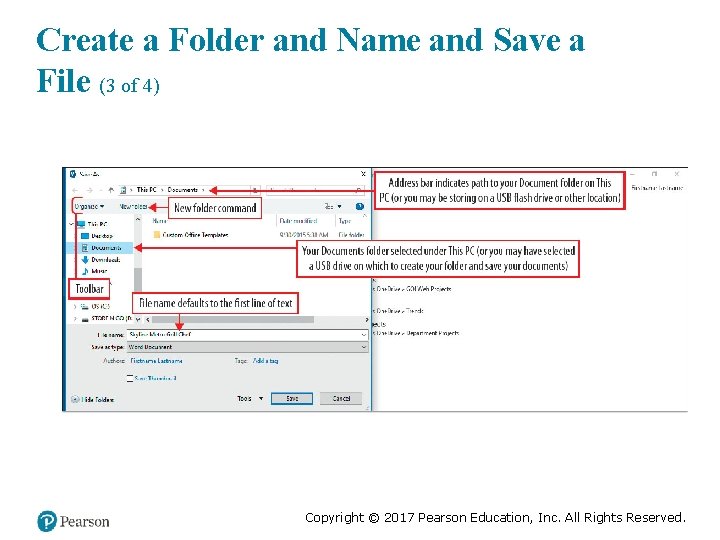
Create a Folder and Name and Save a File (3 of 4) Copyright © 2017 Pearson Education, Inc. All Rights Reserved.
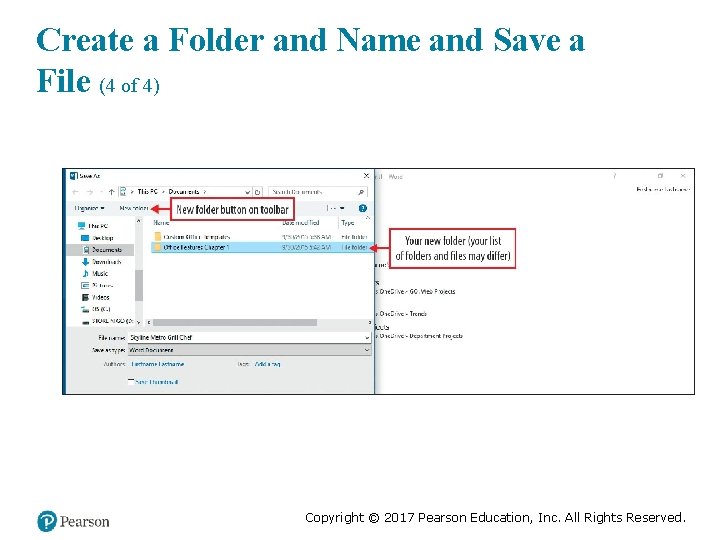
Create a Folder and Name and Save a File (4 of 4) Copyright © 2017 Pearson Education, Inc. All Rights Reserved.
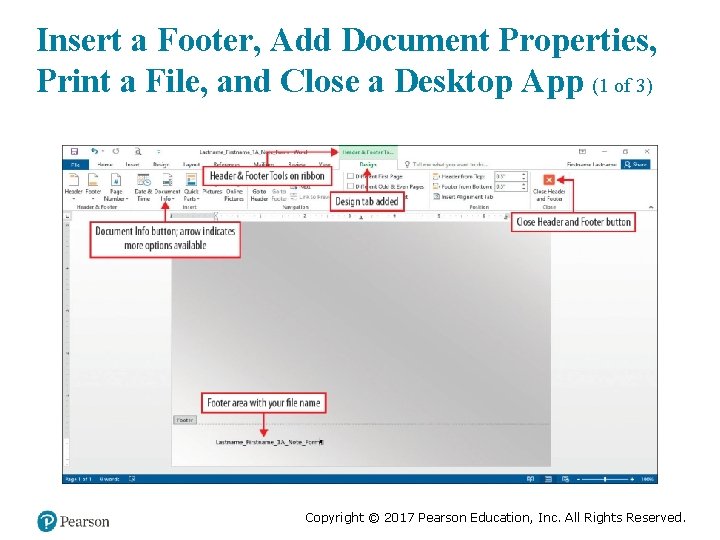
Insert a Footer, Add Document Properties, Print a File, and Close a Desktop App (1 of 3) Copyright © 2017 Pearson Education, Inc. All Rights Reserved.
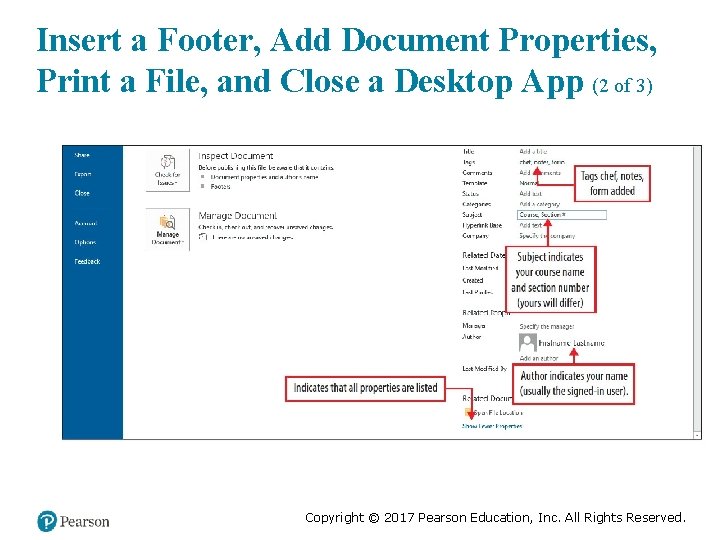
Insert a Footer, Add Document Properties, Print a File, and Close a Desktop App (2 of 3) Copyright © 2017 Pearson Education, Inc. All Rights Reserved.
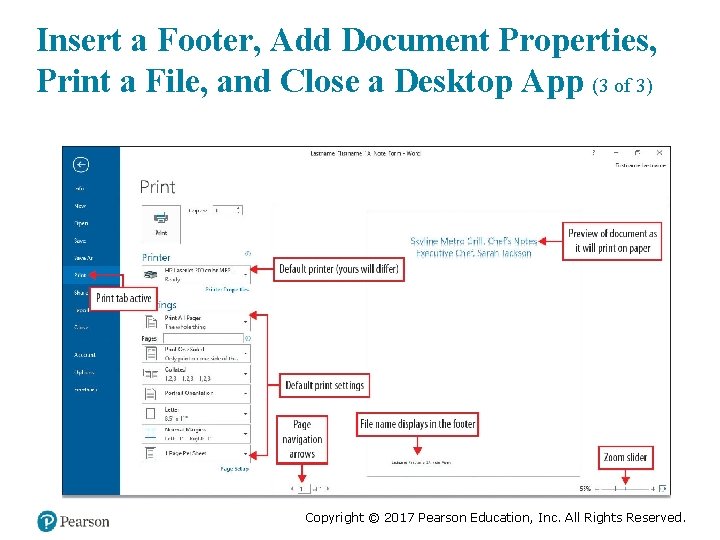
Insert a Footer, Add Document Properties, Print a File, and Close a Desktop App (3 of 3) Copyright © 2017 Pearson Education, Inc. All Rights Reserved.
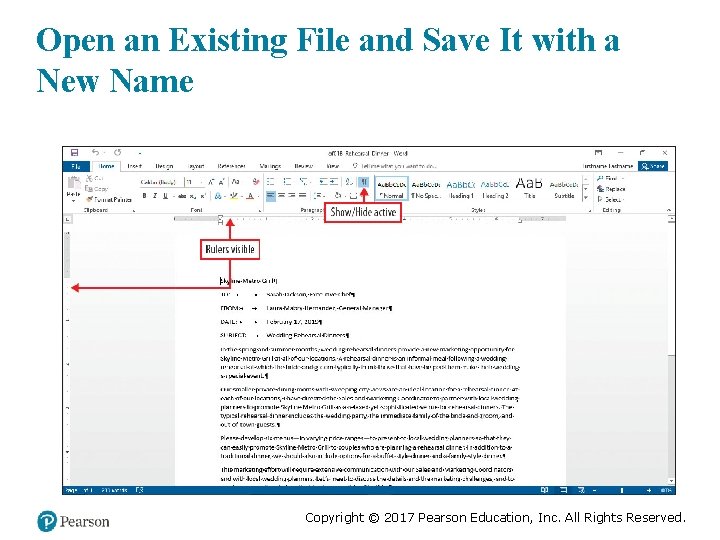
Open an Existing File and Save It with a New Name Copyright © 2017 Pearson Education, Inc. All Rights Reserved.
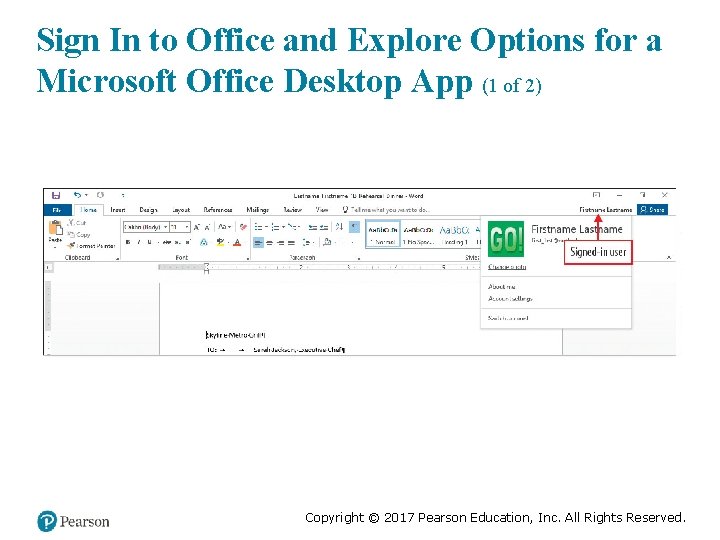
Sign In to Office and Explore Options for a Microsoft Office Desktop App (1 of 2) Copyright © 2017 Pearson Education, Inc. All Rights Reserved.
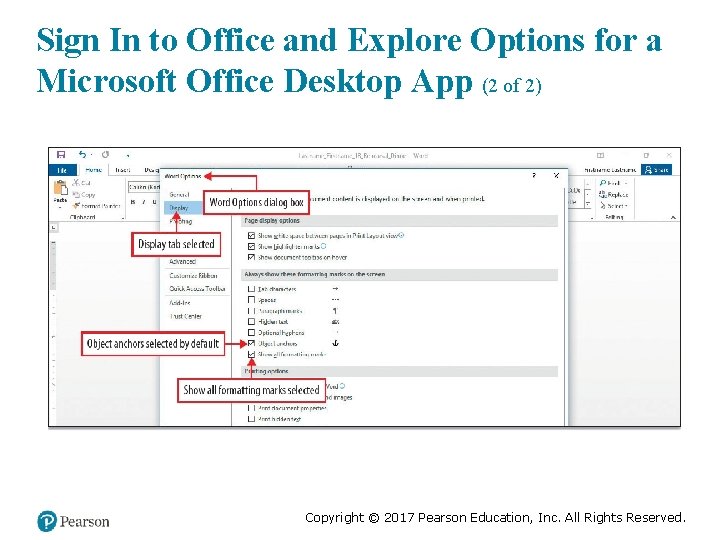
Sign In to Office and Explore Options for a Microsoft Office Desktop App (2 of 2) Copyright © 2017 Pearson Education, Inc. All Rights Reserved.
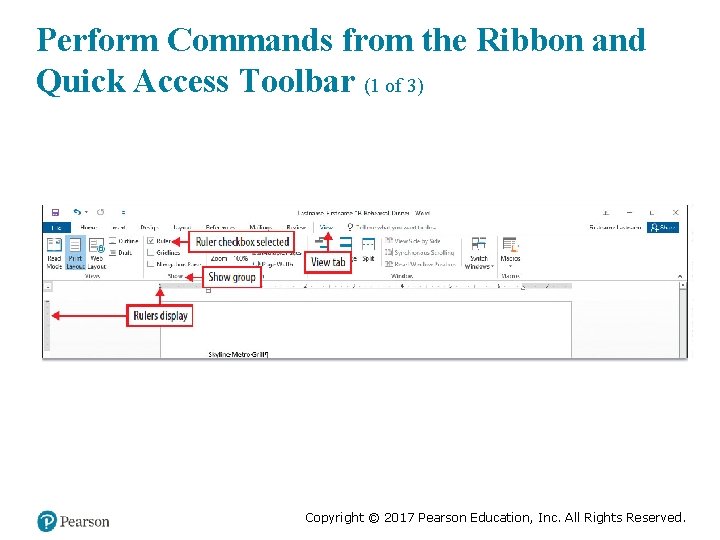
Perform Commands from the Ribbon and Quick Access Toolbar (1 of 3) Copyright © 2017 Pearson Education, Inc. All Rights Reserved.
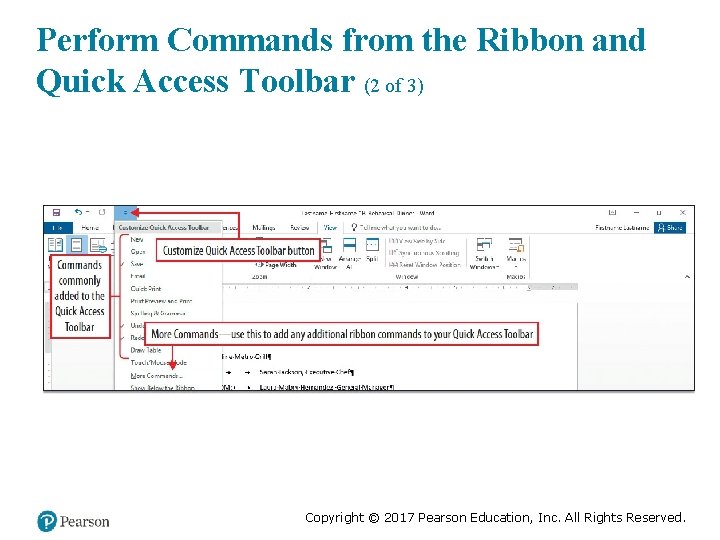
Perform Commands from the Ribbon and Quick Access Toolbar (2 of 3) Copyright © 2017 Pearson Education, Inc. All Rights Reserved.
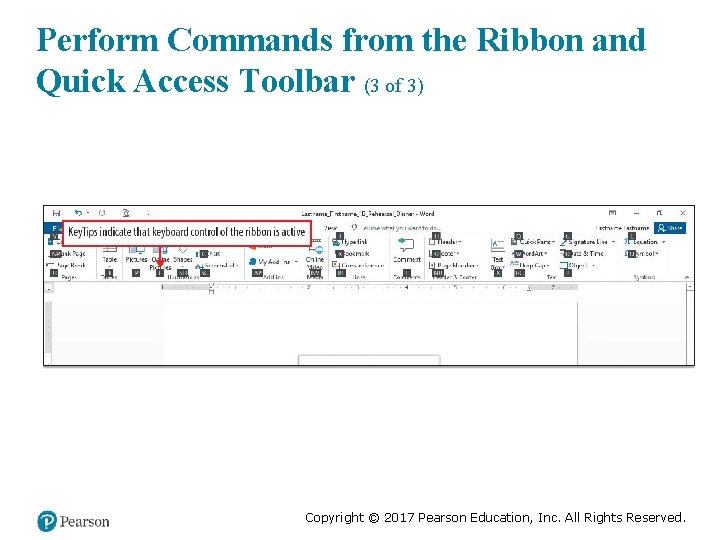
Perform Commands from the Ribbon and Quick Access Toolbar (3 of 3) Copyright © 2017 Pearson Education, Inc. All Rights Reserved.
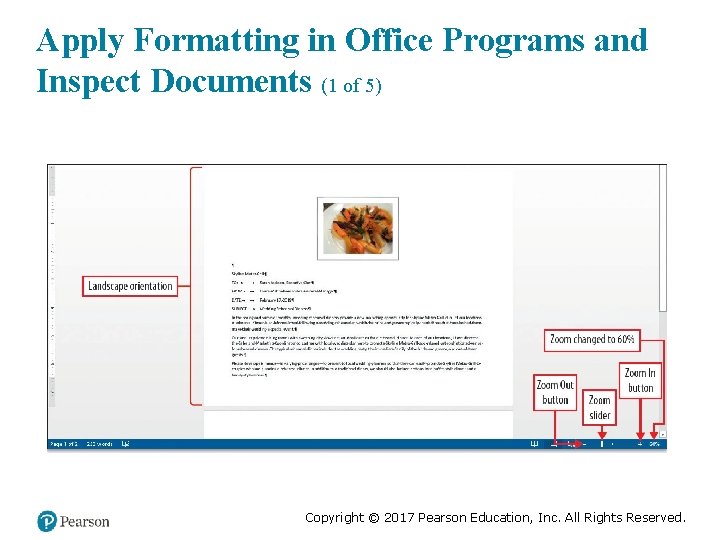
Apply Formatting in Office Programs and Inspect Documents (1 of 5) Copyright © 2017 Pearson Education, Inc. All Rights Reserved.
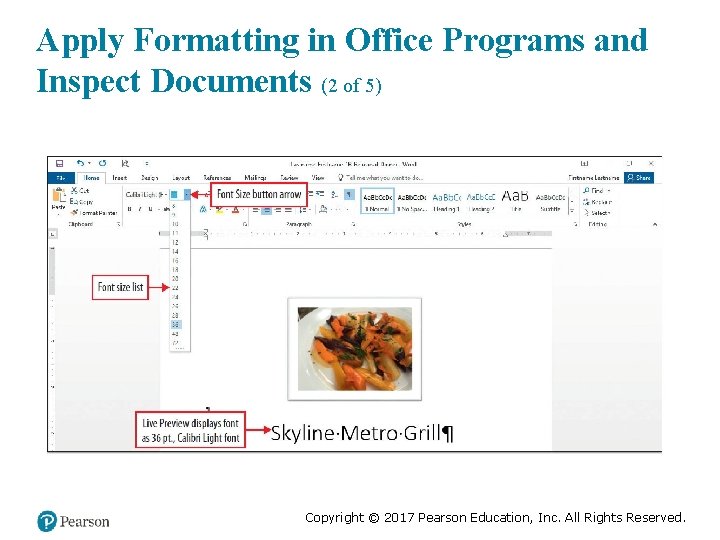
Apply Formatting in Office Programs and Inspect Documents (2 of 5) Copyright © 2017 Pearson Education, Inc. All Rights Reserved.
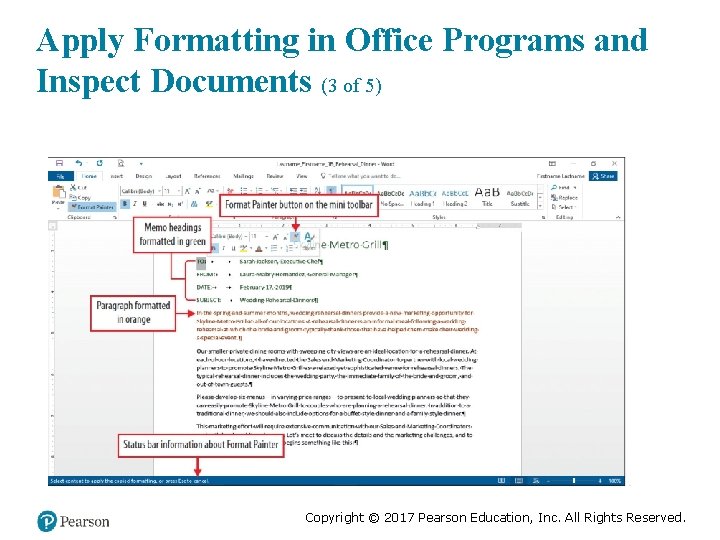
Apply Formatting in Office Programs and Inspect Documents (3 of 5) Copyright © 2017 Pearson Education, Inc. All Rights Reserved.
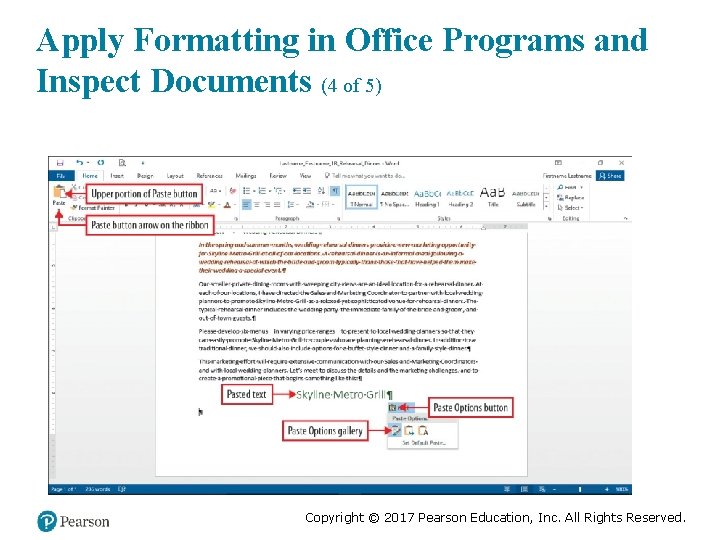
Apply Formatting in Office Programs and Inspect Documents (4 of 5) Copyright © 2017 Pearson Education, Inc. All Rights Reserved.
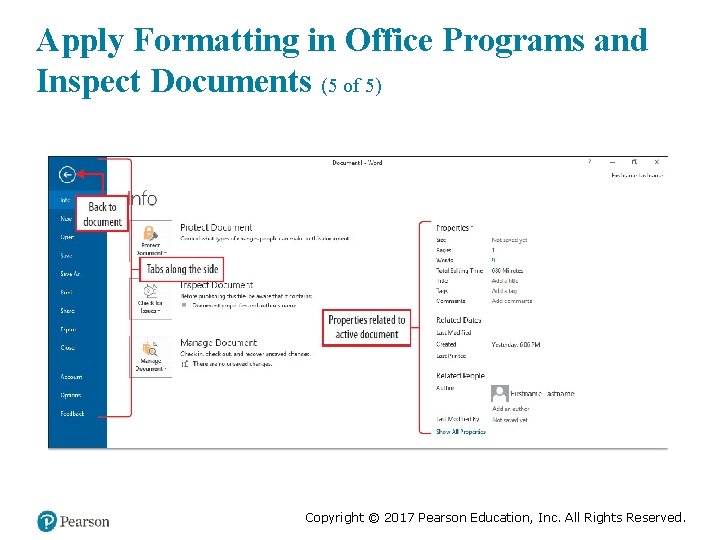
Apply Formatting in Office Programs and Inspect Documents (5 of 5) Copyright © 2017 Pearson Education, Inc. All Rights Reserved.
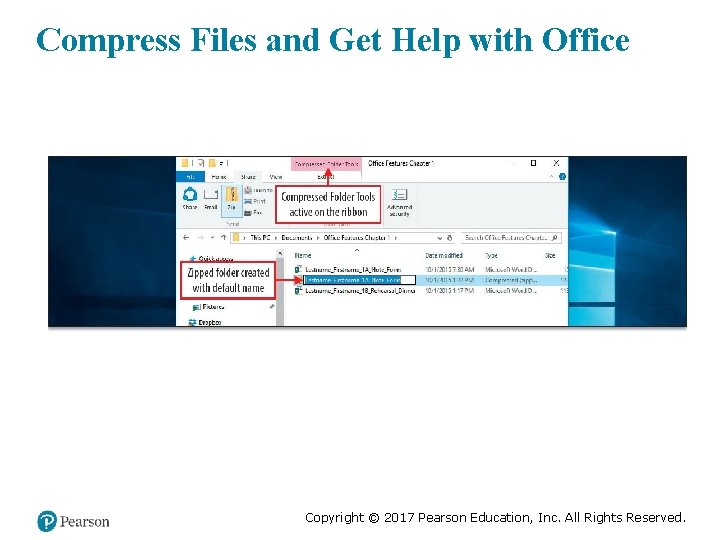
Compress Files and Get Help with Office Copyright © 2017 Pearson Education, Inc. All Rights Reserved.
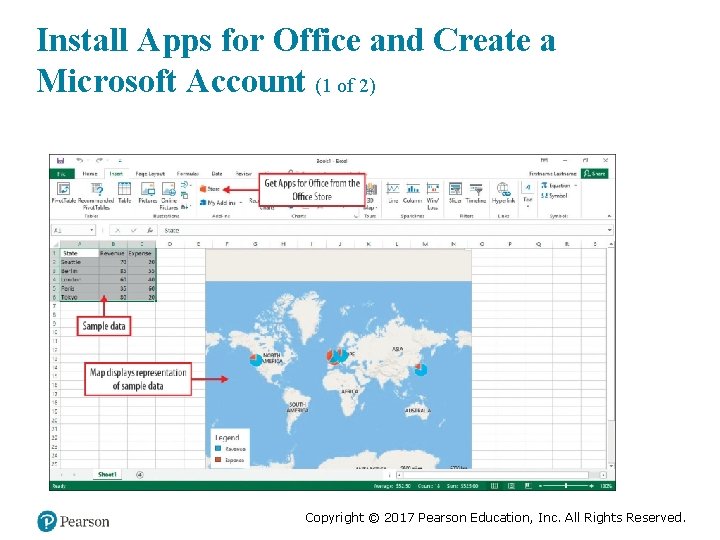
Install Apps for Office and Create a Microsoft Account (1 of 2) Copyright © 2017 Pearson Education, Inc. All Rights Reserved.
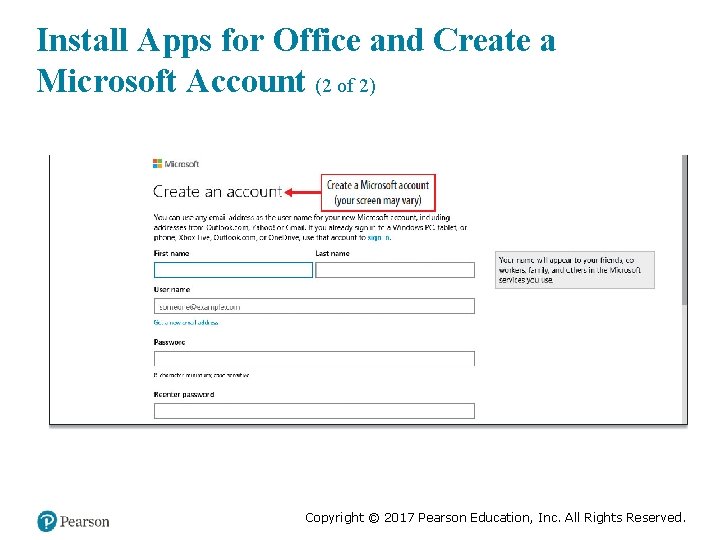
Install Apps for Office and Create a Microsoft Account (2 of 2) Copyright © 2017 Pearson Education, Inc. All Rights Reserved.
Summary • Many Office features and commands are the same in all Office desktop apps • A desktop app is installed on your computer and requires an operating system • An app refers to a self-contained program designed for a single purpose • In an Office app, you can add Apps for Office that combine cloud services and web technologies Copyright © 2017 Pearson Education, Inc. All Rights Reserved.
Questions Copyright © 2017 Pearson Education, Inc. All Rights Reserved.
Copyright © 2017 Pearson Education, Inc. All Rights Reserved.