
Go To Webcast Presenter Training Presenting in a
Go. To. Webcast Presenter Training
Presenting in a Webcast • You will be giving a live presentation of audio and slides, with live questions submitted by the audience. • You will be speaking over the phone. Your audio will be encoded and streamed to your audience. • You will also be controlling your slides, which are synchronized with your phone’s audio. • The audience can submit questions at any time during the webcast by typing the question in the “Ask a Question” box. Presenters can respond verbally and/or by typing a response, which can be shared with the individual only or the entire audience.
Getting Started There are some things you will need on the day of the live show: • A telephone with a quality headset or handset for EACH presenter Cordless/Wireless headsets or cell phones of any kind should be avoided Speakerphones have poor sound quality and tend to pick up background noise. If you must use a speakerphone, try putting something padding under the phone (things around the office such as legal pads or newspapers will do the trick) and make sure the phone is away from computer fans, projectors, and air conditioning units. • A hardcopy printout of your slides Make sure you printout the same PPT file that has been uploaded. In case your computer or internet connection fails, you can reference your slides while your Production Manager flips the slides for you. • A wired internet connection Wireless can work, but we do not recommend it as the signal can be subject to interference. • The same computer you used for presenter training is ideal
The Day of the Webcast • Presenter’s login credentials will be provided in advance by the Production Manager. • Pre-call time is usually 30 minutes prior to the event’s scheduled start. • On the Pre-call, the Production Manager will perform audio level checks. Any remaining time can be used to review the Live Studio interface and/or discuss details with other speakers. • The Production Manager will handle starting and stopping the webcast. • The Production Manager can send a message to the audience at any time before or during the presentation if needed.
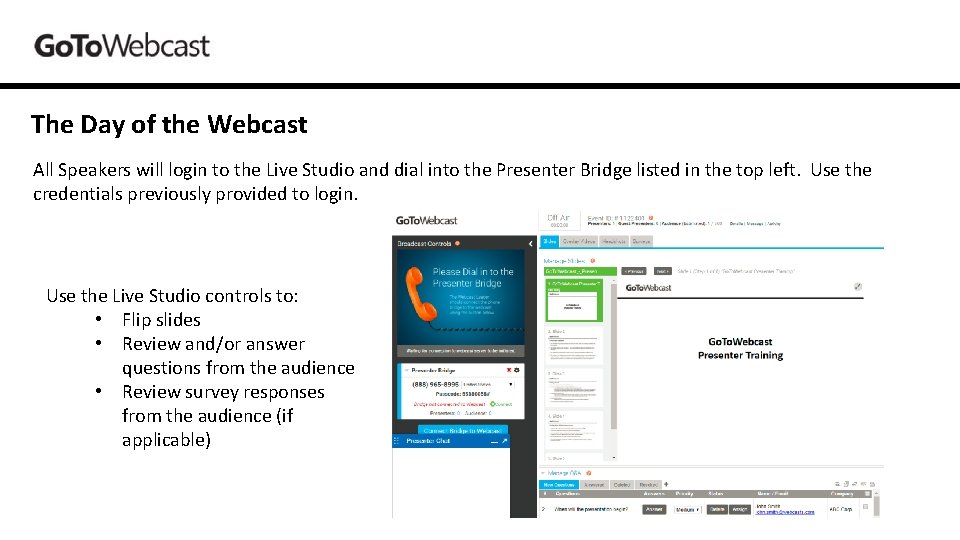
The Day of the Webcast All Speakers will login to the Live Studio and dial into the Presenter Bridge listed in the top left. Use the credentials previously provided to login. Use the Live Studio controls to: • Flip slides • Review and/or answer questions from the audience • Review survey responses from the audience (if applicable)
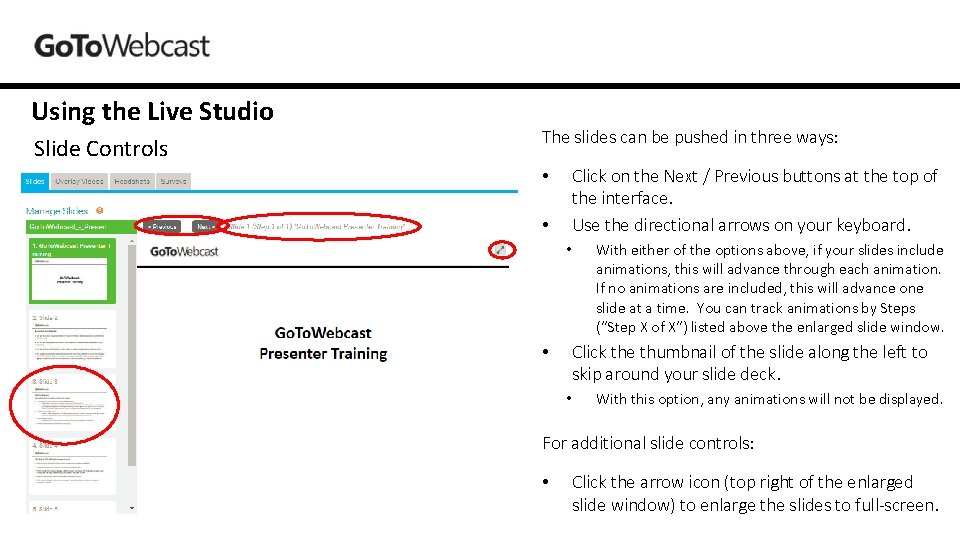
Using the Live Studio Slide Controls The slides can be pushed in three ways: Click on the Next / Previous buttons at the top of the interface. Use the directional arrows on your keyboard. • • • With either of the options above, if your slides include animations, this will advance through each animation. If no animations are included, this will advance one slide at a time. You can track animations by Steps (“Step X of X”) listed above the enlarged slide window. Click the thumbnail of the slide along the left to skip around your slide deck. • • With this option, any animations will not be displayed. For additional slide controls: • Click the arrow icon (top right of the enlarged slide window) to enlarge the slides to full-screen.

Using the Live Studio Q&A Controls Questions will automatically load at the bottom of the Live Studio. It is suggested that you take questions at the end of the presentation by asking and answering them verbally. • Click “Answer” to share a text answer with viewers. This will share the question and answer with the audience. Questions and answers can be shared with the individual that asked the question or with all viewers. • Click “Delete” to delete a question from the “New Questions” queue. Questions will not be permanently deleted. You can access these questions on the “Deleted” tab and in reports after your webcast.
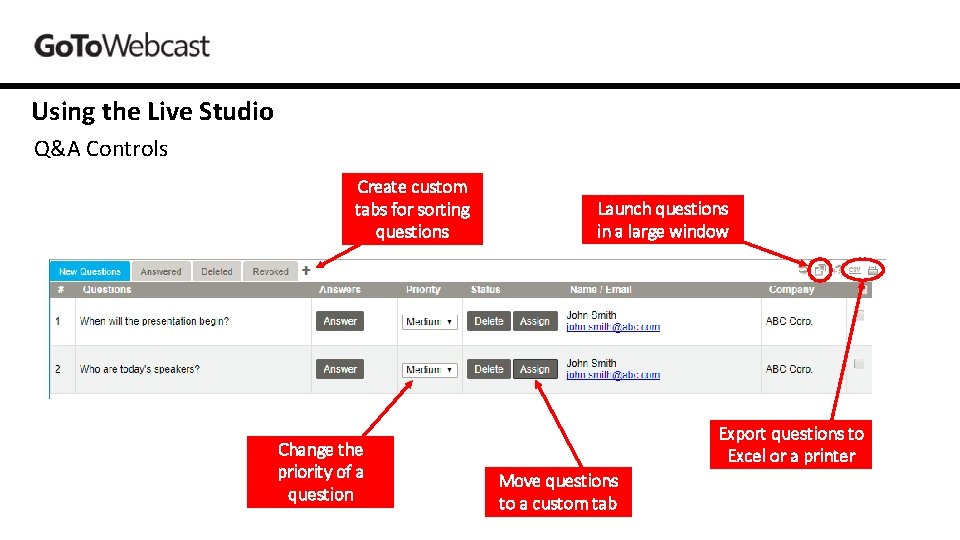
Using the Live Studio Q&A Controls Create custom tabs for sorting questions Change the priority of a question Launch questions in a large window Export questions to Excel or a printer Move questions to a custom tab
Using the Live Studio Q&A Controls - FAQs Does the audience see these questions? Ø No. If you see questions you don’t like, you can delete them from the New Questions queue. • How do I answer questions? Ø It is best to read the questions out loud to the audience and then answer the questions verbally. If you will have a moderator on your event, the moderator should read the questions and then ask the speaker(s) to answer them. • How do I know who submitted a question? Ø If the information is collected, you should be able to see the Name, Company, and Email of the viewer that submitted the question. • Can I make the Q&A window bigger? Ø Yes, click (top right of the Q&A section) to launch the Q&A in its own window. •
Additional Content For any additional content, confirm with your Production Manager who will be responsible for sending the content to viewers and when the content will be sent. Surveys • Surveys are manually pushed out to the audience. • Surveys can be sent by your Production Manager or the event Administrator. • Once a survey has been pushed out, you can view results by clicking the “Surveys” tab and then clicking the survey name along the left. • You can discuss the results with the audience and push the results out in a pie chart or a bar graph. • Click the button to switch the results between a bar graph and pie chart. • Click “Send Results to Audience” to display the chart that you see on your screen to viewers. Overlay Videos • Overlay Videos are manually pushed out to the audience. • Videos can be sent by your Production Manager or the event Administrator.
After the Live Event • The archive process will begin automatically. a replay will be available to all users about 30 – 45 minutes after the live event concludes. • The link for the live event can be used to access the archive. • Reporting will be available shortly after the live event through the platform’s reporting portal.
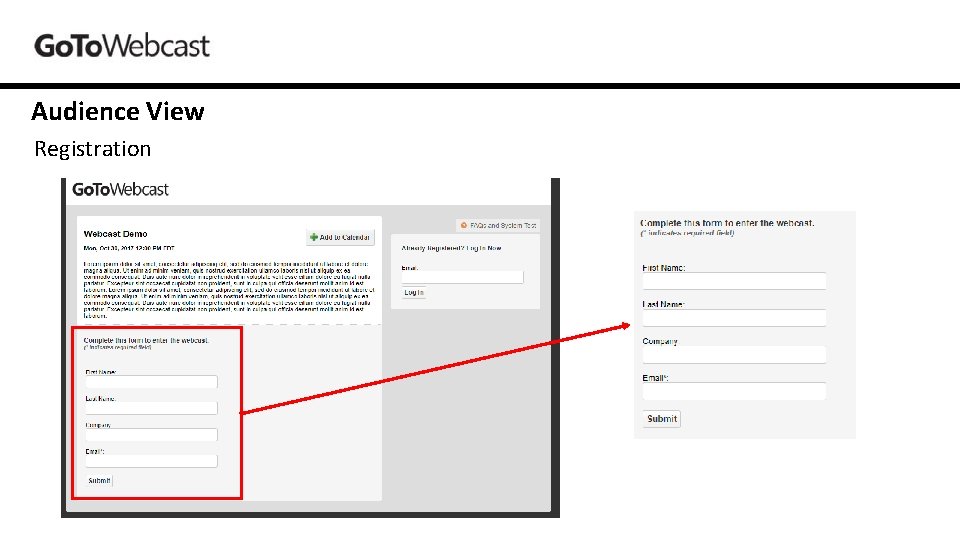
Audience View Registration
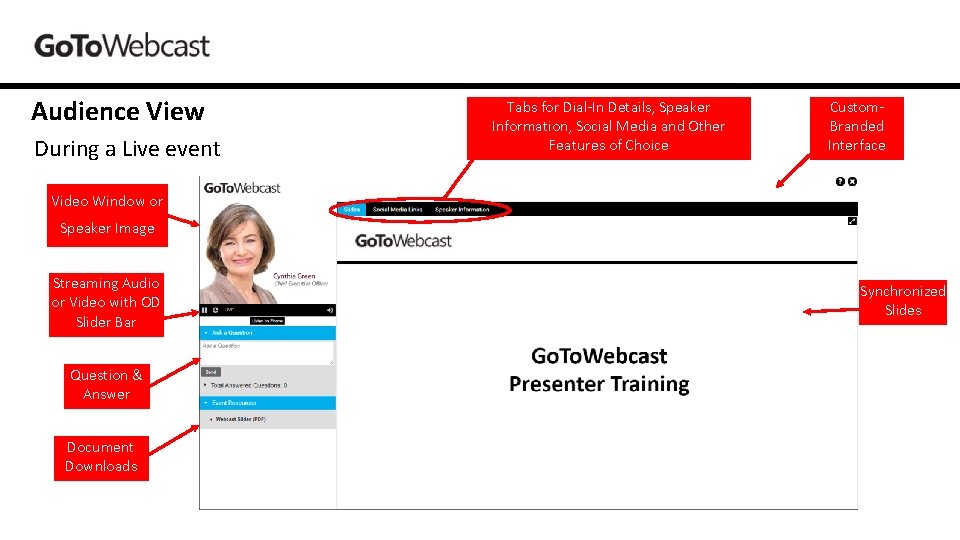
Audience View During a Live event Tabs for Dial-In Details, Speaker Information, Social Media and Other Features of Choice Custom. Branded Interface Video Window or Speaker Image Streaming Audio or Video with OD Slider Bar Question & Answer Document Downloads Synchronized Slides
- Slides: 13