
GMAIL BASICS the Salem Public Library 1 Presented
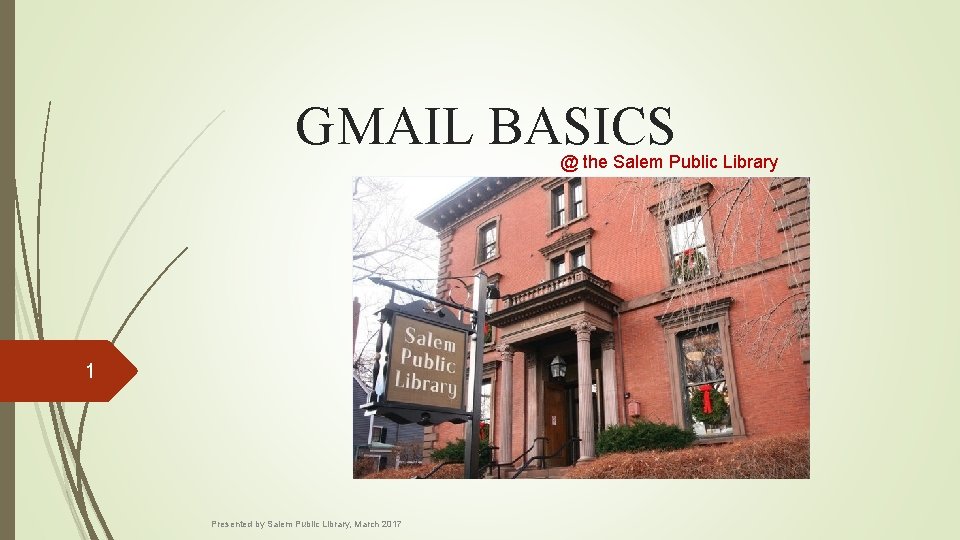
GMAIL BASICS @ the Salem Public Library 1 Presented by Salem Public Library, March 2017
2 CLASS OBJECTIVES: Some terminology: What is email? What is a username? What are the different parts of an email address? What are the advantages of using email? What do I need to access my email account? How do I create a strong password to protect my account? Email account creation. ***MOST SALEM PUBLIC LIBRARY COMPUTERS PROVIDE INTERNET ACCESS & CAN BE USED TO SEND/RECEIVE EMAILS. THIS SERVICE IS FREE. EACH PATRON IS ENTITLED TO 90 MINUTES OF COMPUTER TIME PER DAY. *** Presented by Salem Public Library, March 2017
3 WHAT IS EMAIL? “E-mail” = stands for “Electronic-mail” Is a system for sending and receiving messages from one user to another via a computer with an internet connection. Is one of the most widely used features of the internet. “Email” functions both as a verb and a noun Noun: “This morning I am going to check my email. ” Verb: “I need to email my sister this afternoon. ” Presented by Salem Public Library, March 2017
4 WHAT ARE THE ADVANTAGES TO USING EMAIL? There are quite a few advantages to using this system for communicating: Your messages are delivered quickly. Your messages can be delivered across large distances. Accessible from anywhere at any time. You don’t have to be at home to get your mail. You can access it from any computer or mobile device that has an internet connection. Email is often required in order to access other desirable services on the internet. For example, if you’d like an Amazon. com account you are required to have an email address so you can be safely identified and contacted. Presented by Salem Public Library, March 2017
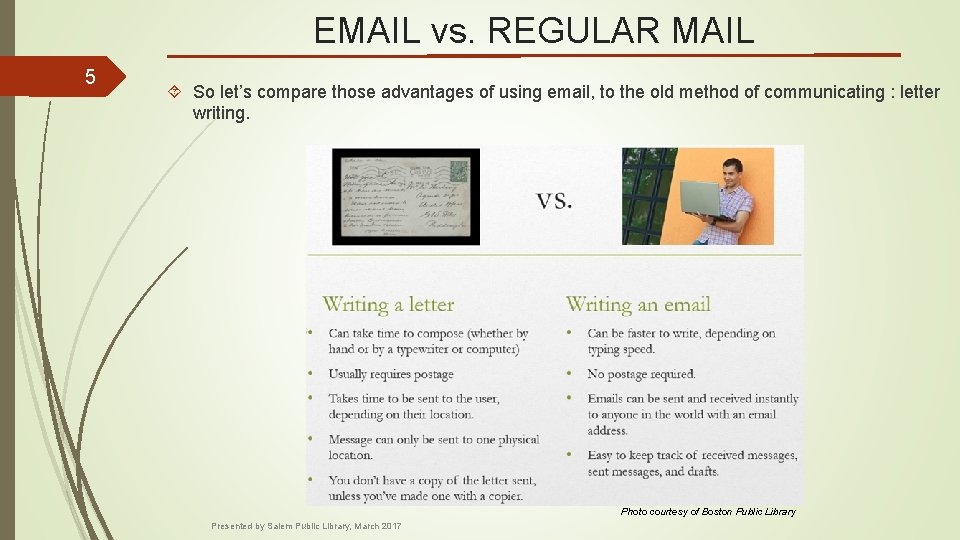
EMAIL vs. REGULAR MAIL 5 So let’s compare those advantages of using email, to the old method of communicating : letter writing. Photo courtesy of Boston Public Library Presented by Salem Public Library, March 2017
6 WHAT DO I NEED TO ACCESS EMAIL? A computer. Internet access. An email account. For our class, we will be using GMAIL. However, some other free web-based email services are: Photo courtesy of Google Images Presented by Salem Public Library, March 2017
7 WHAT IS AN EMAIL ADDRESS? When you create an email account, you will receive an email address. An email address is an address specific to the email user or group. Think of your email address as an electronic version of your postage address. sal@noblenet. org is the library’s email address. 370 Essex Street Salem, MA is the library’s physical address. In both cases, it’s important that you spell the address correctly so the library will receive your message. Therefore, it's important to learn how to write email addresses correctly, so your emails will be delivered to the correct person. Presented by Salem Public Library, March 2017
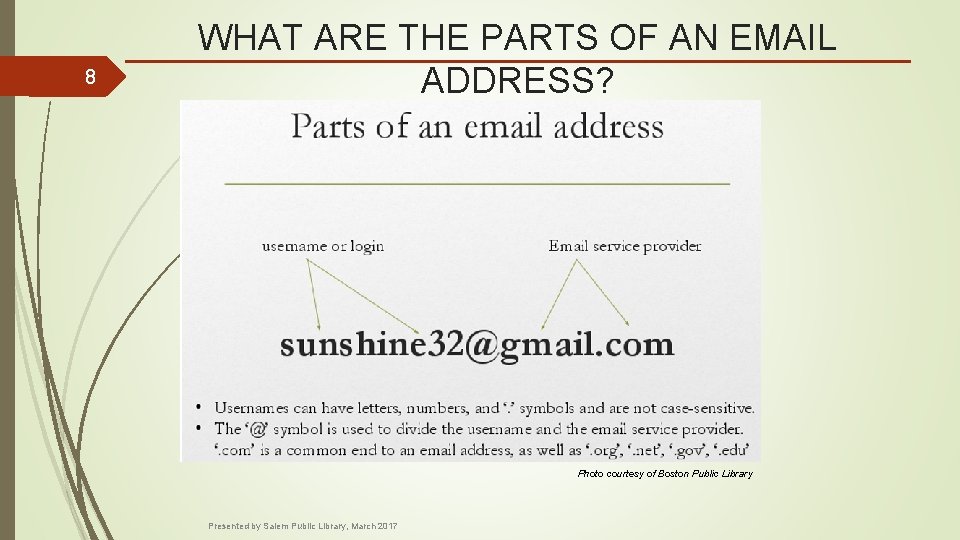
8 WHAT ARE THE PARTS OF AN EMAIL ADDRESS? Photo courtesy of Boston Public Library Presented by Salem Public Library, March 2017
9 WHAT’S IN A USERNAME? Make it personal! Your username is your electronic identity. The more personal it is, the easier it will be to remember. Make it unique! No two people can share the same username. So many of the most common usernames are already taken. You may have to insert symbols or numbers in order to make yours unique. Presented by Salem Public Library, March 2017 Photo courtesy of Boston Public Library
10 WHAT’S IN A USERNAME? (CONTINUED) Make it safe and appropriate. Consider the audience that will be sending and receiving messages from your email address. If it is for professional use, you might want to consider a first initial plus your last name. However, if your email account is solely for personal use, you have more freedom to get creative with your username. (i. e. a nickname, a favorite number, your pet’s name, etc. ) Presented by Salem Public Library, March 2017 Photo courtesy of Google Images
11 WHAT’S IN A PASSWORD? Passwords provide the first line of defense against unauthorized access to your computer. You should have strong passwords for all accounts on your computer. While short, easy-to-remember passwords are simpler, they can also pose serious risks to your online security. So it’s best to use long, complex, not easily guessed passwords - while doing your best to keep it relatively easy for you to remember. Photo courtesy of Google Images Presented by Salem Public Library, March 2017
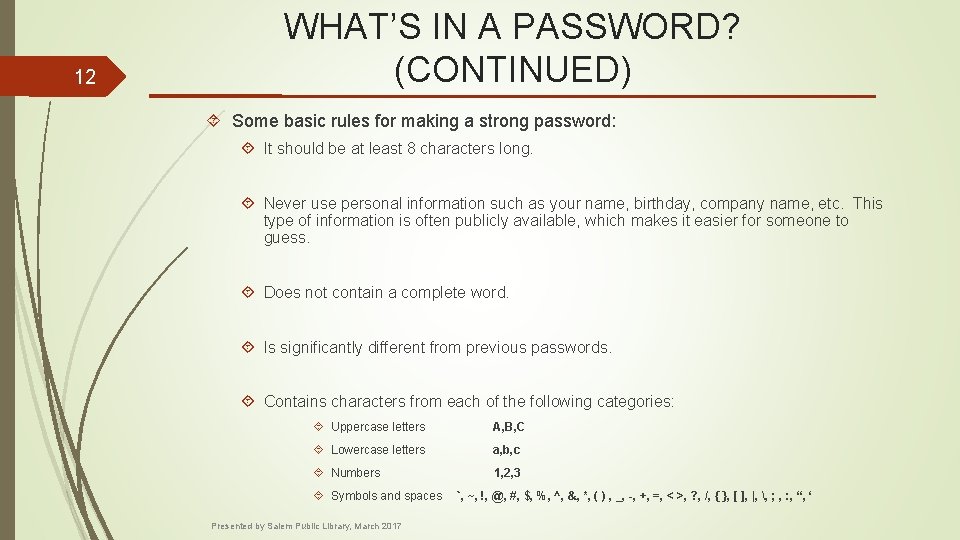
12 WHAT’S IN A PASSWORD? (CONTINUED) Some basic rules for making a strong password: It should be at least 8 characters long. Never use personal information such as your name, birthday, company name, etc. This type of information is often publicly available, which makes it easier for someone to guess. Does not contain a complete word. Is significantly different from previous passwords. Contains characters from each of the following categories: Uppercase letters A, B, C Lowercase letters a, b, c Numbers 1, 2, 3 Symbols and spaces Presented by Salem Public Library, March 2017 `, ~, !, @, #, $, %, ^, &, *, ( ) , _, -, +, =, < >, ? , /, { }, [ ], |, , ; , : , “, ‘
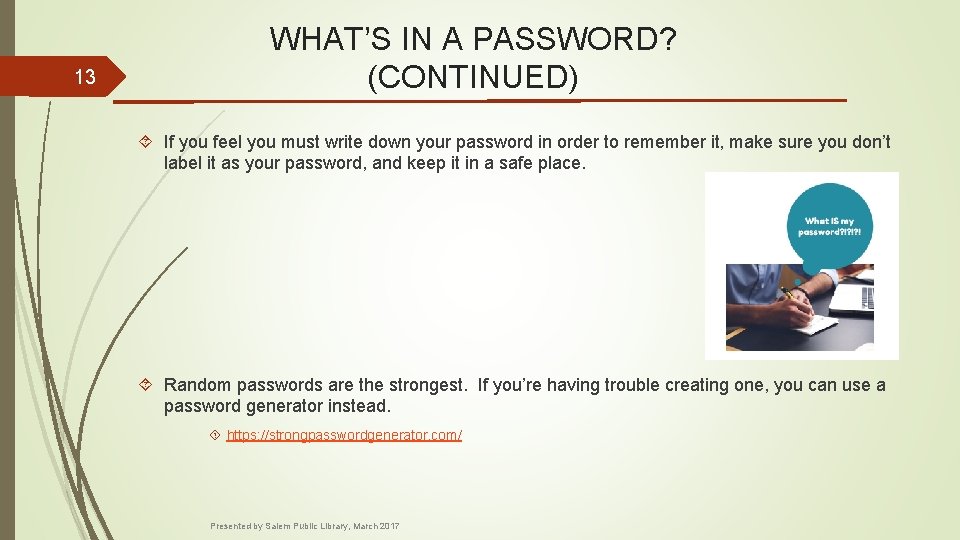
13 WHAT’S IN A PASSWORD? (CONTINUED) If you feel you must write down your password in order to remember it, make sure you don’t label it as your password, and keep it in a safe place. Random passwords are the strongest. If you’re having trouble creating one, you can use a password generator instead. https: //strongpasswordgenerator. com/ Presented by Salem Public Library, March 2017
14 WHAT IF I FORGET MY PASSWORD? !? ! § It happens to all of us! Most email service providers have a method of password retrieval. Usually, it’s either a back-up email address or a cellphone number that you’ll need to provide when you sign up for your email account tonight. § If you’re ever locked out of your account, they will send a code to either the phone number or the email address provided. With that code, you can regain access to your email account. Photo courtesy of Google Images Presented by Salem Public Library, March 2017
15 A FEW MORE POINTS ABOUT EMAIL Email providers offer you more than the ability to send messages to friends and family. Most programs also offer “productivity tools” for your convenience. Productivity tools that are typically packaged with an email account: Online calendars to help you manage your schedule. An address book to store your friends/co-workers email addresses. Word processing programs, spreadsheets and more. Instant messaging tools (like texting but over the internet). Salem Public Library will explore these features in an upcoming adult program, “Google Tools. ” This class will focus solely on the Google mail service otherwise known as GMAIL. Presented by Salem Public Library, March 2017
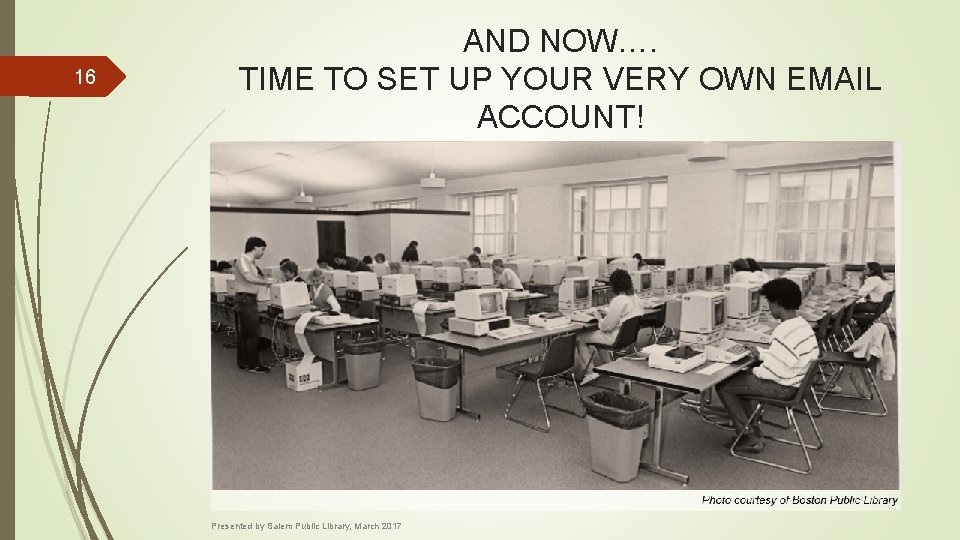
16 AND NOW…. TIME TO SET UP YOUR VERY OWN EMAIL ACCOUNT! Presented by Salem Public Library, March 2017
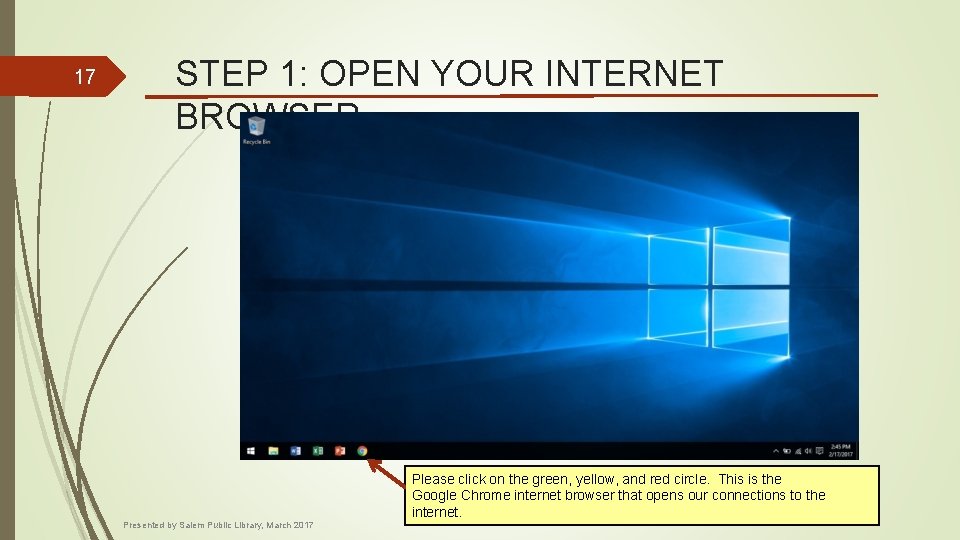
17 STEP 1: OPEN YOUR INTERNET BROWSER Presented by Salem Public Library, March 2017 Please click on the green, yellow, and red circle. This is the Google Chrome internet browser that opens our connections to the internet.
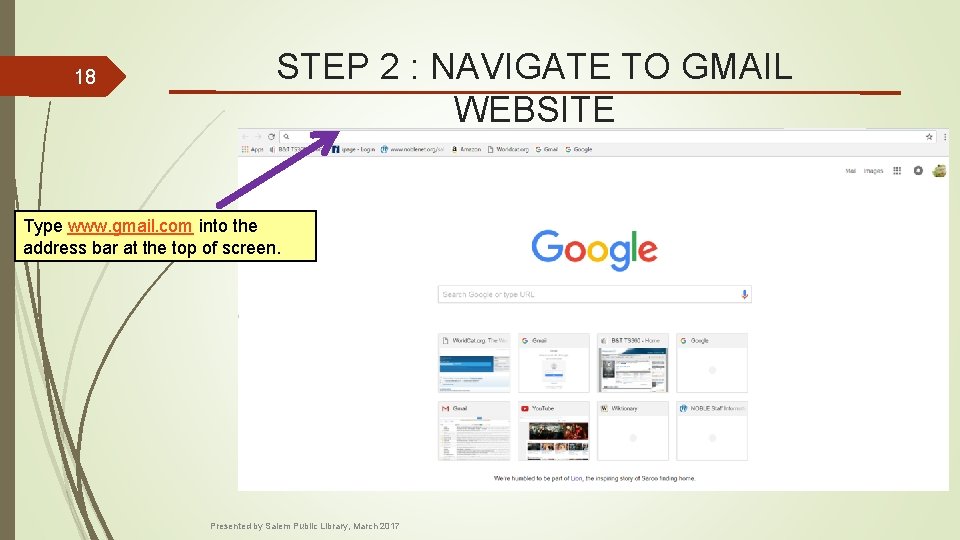
18 STEP 2 : NAVIGATE TO GMAIL WEBSITE Type www. gmail. com into the address bar at the top of screen. Presented by Salem Public Library, March 2017
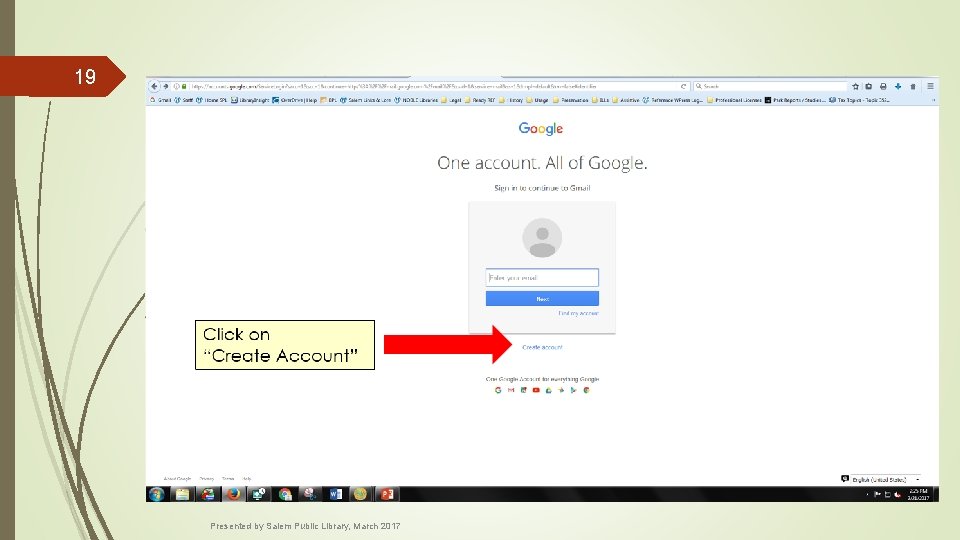
19 Presented by Salem Public Library, March 2017
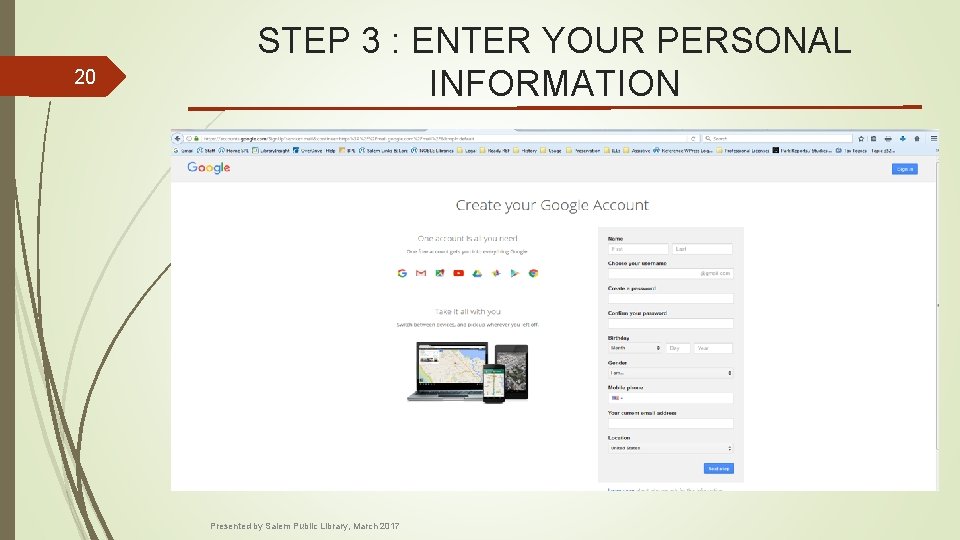
20 STEP 3 : ENTER YOUR PERSONAL INFORMATION Presented by Salem Public Library, March 2017
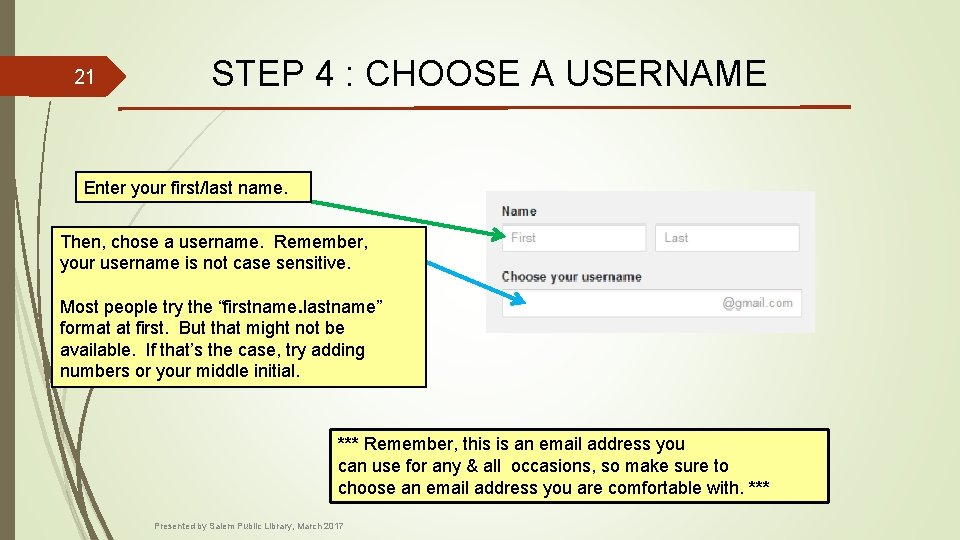
21 STEP 4 : CHOOSE A USERNAME Enter your first/last name. Then, chose a username. Remember, your username is not case sensitive. Most people try the “firstname. lastname” format at first. But that might not be available. If that’s the case, try adding numbers or your middle initial. *** Remember, this is an email address you can use for any & all occasions, so make sure to choose an email address you are comfortable with. *** Presented by Salem Public Library, March 2017
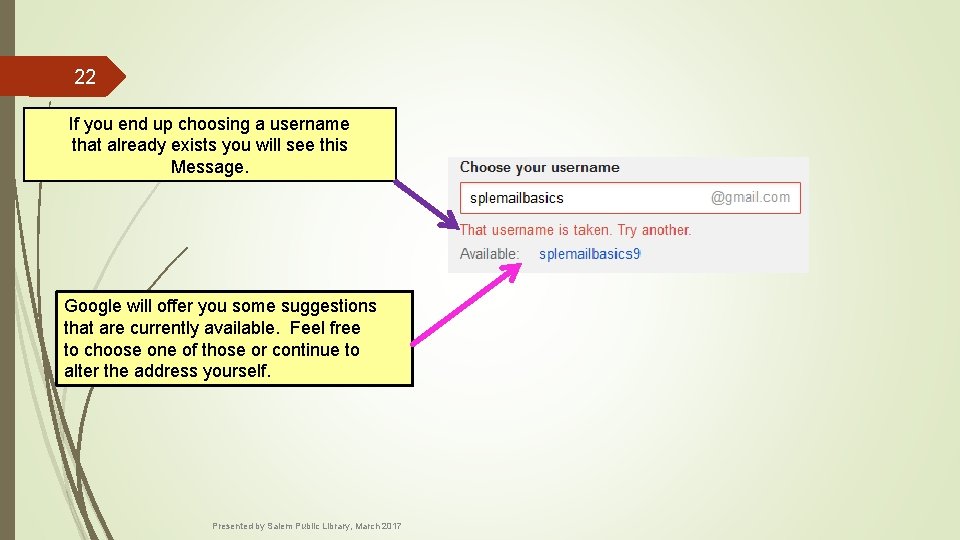
22 If you end up choosing a username that already exists you will see this Message. Google will offer you some suggestions that are currently available. Feel free to choose one of those or continue to alter the address yourself. Presented by Salem Public Library, March 2017
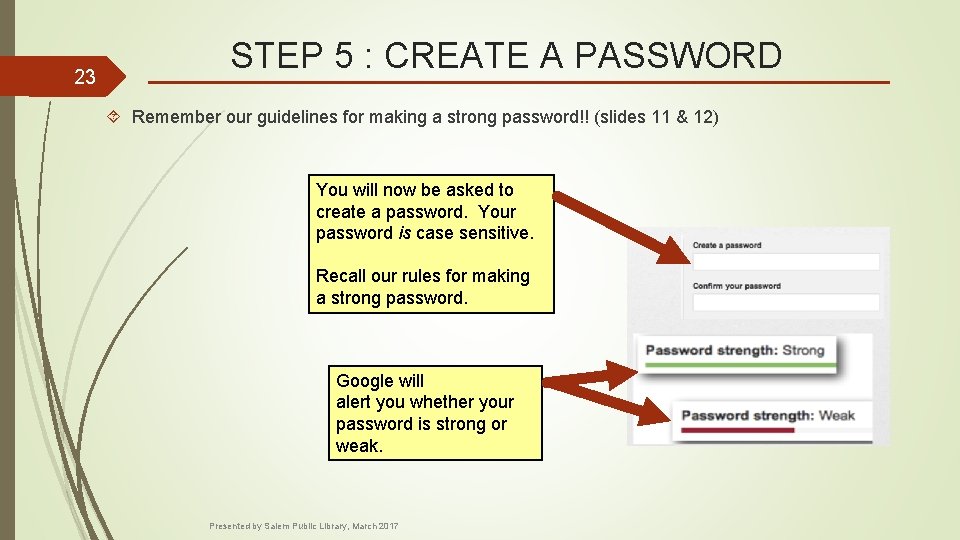
23 STEP 5 : CREATE A PASSWORD Remember our guidelines for making a strong password!! (slides 11 & 12) You will now be asked to create a password. Your password is case sensitive. Recall our rules for making a strong password. Google will alert you whether your password is strong or weak. Presented by Salem Public Library, March 2017
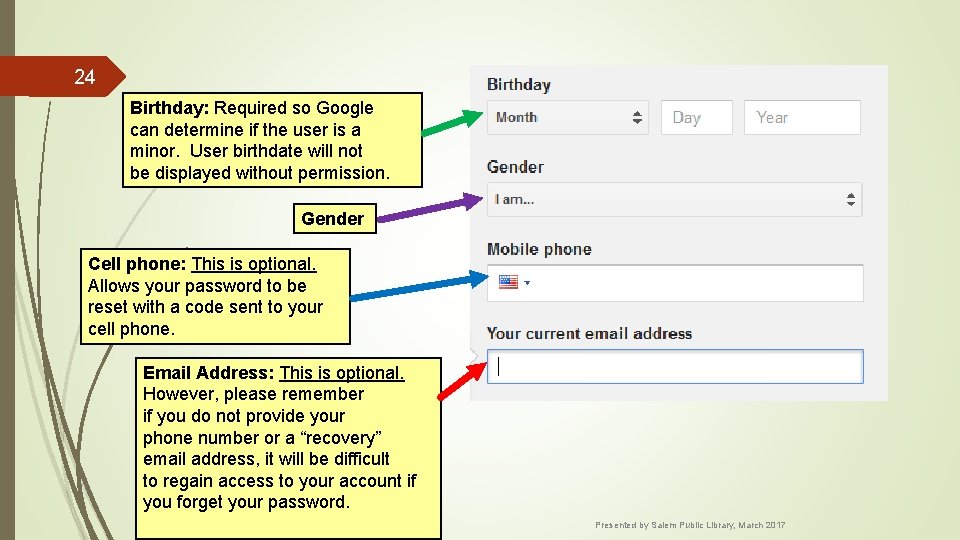
24 Birthday: Required so Google can determine if the user is a minor. User birthdate will not be displayed without permission. Gender Cell phone: This is optional. Allows your password to be reset with a code sent to your cell phone. Email Address: This is optional. However, please remember if you do not provide your phone number or a “recovery” email address, it will be difficult to regain access to your account if you forget your password. Presented by Salem Public Library, March 2017
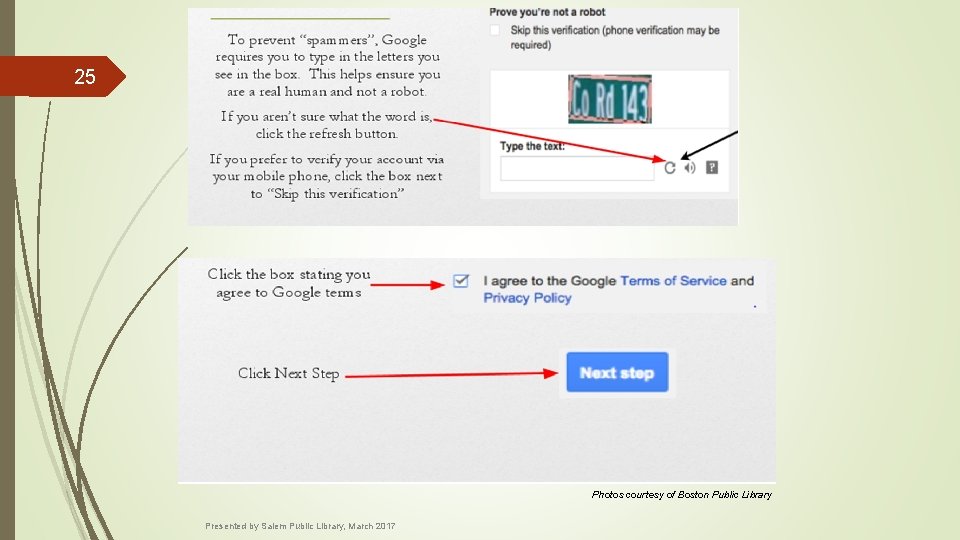
25 Photos courtesy of Boston Public Library Presented by Salem Public Library, March 2017
26 NOW IT’S TIME FOR PAPER AND PENCIL Please take a minute to record your new email address and password on your activity sheet. Photo courtesy of Canva. com Presented by Salem Public Library, March 2017
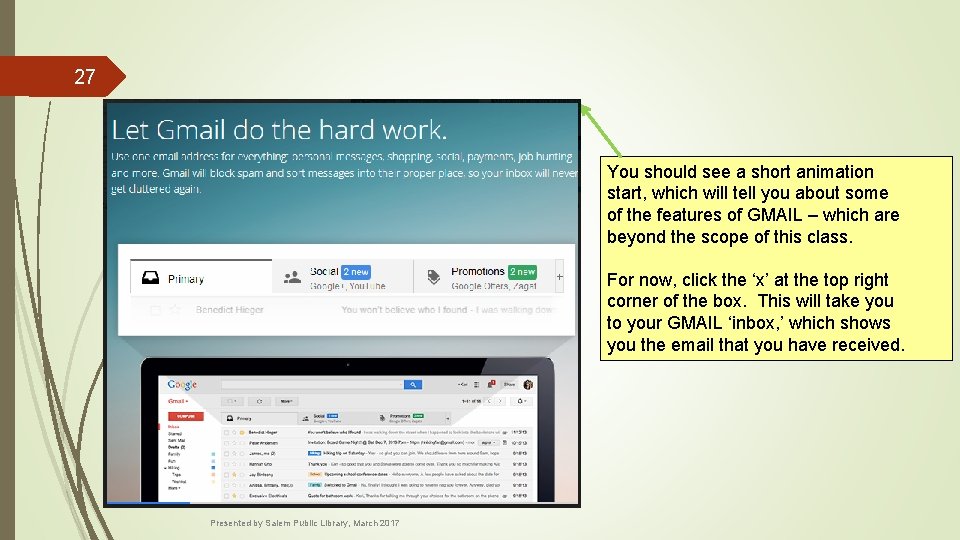
27 You should see a short animation start, which will tell you about some of the features of GMAIL – which are beyond the scope of this class. For now, click the ‘x’ at the top right corner of the box. This will take you to your GMAIL ‘inbox, ’ which shows you the email that you have received. Presented by Salem Public Library, March 2017
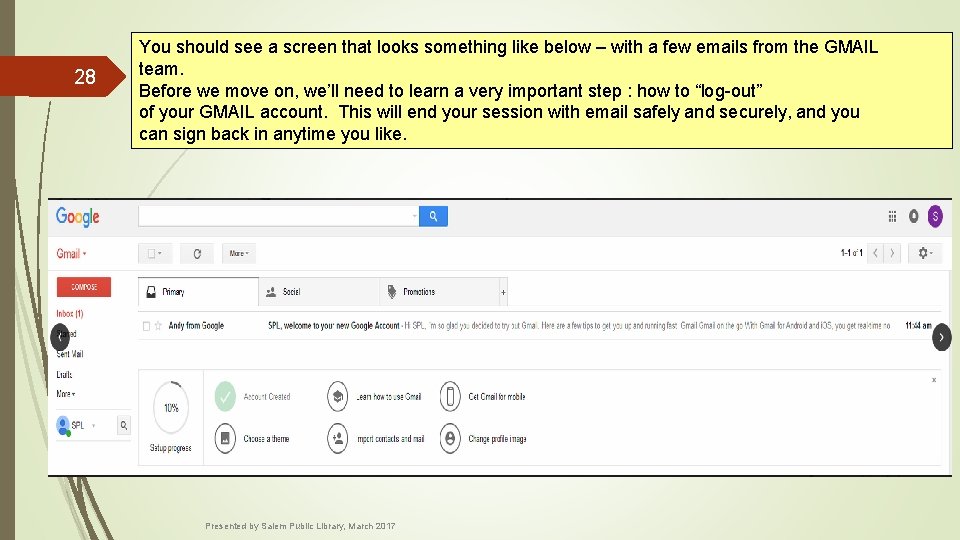
28 You should see a screen that looks something like below – with a few emails from the GMAIL team. Before we move on, we’ll need to learn a very important step : how to “log-out” of your GMAIL account. This will end your session with email safely and securely, and you can sign back in anytime you like. Presented by Salem Public Library, March 2017
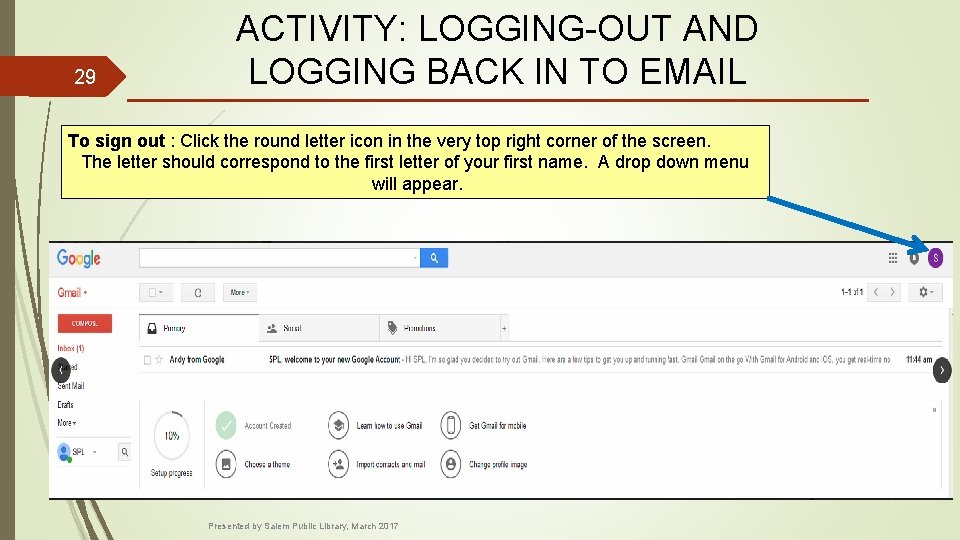
29 ACTIVITY: LOGGING-OUT AND LOGGING BACK IN TO EMAIL To sign out : Click the round letter icon in the very top right corner of the screen. The letter should correspond to the first letter of your first name. A drop down menu will appear. Presented by Salem Public Library, March 2017
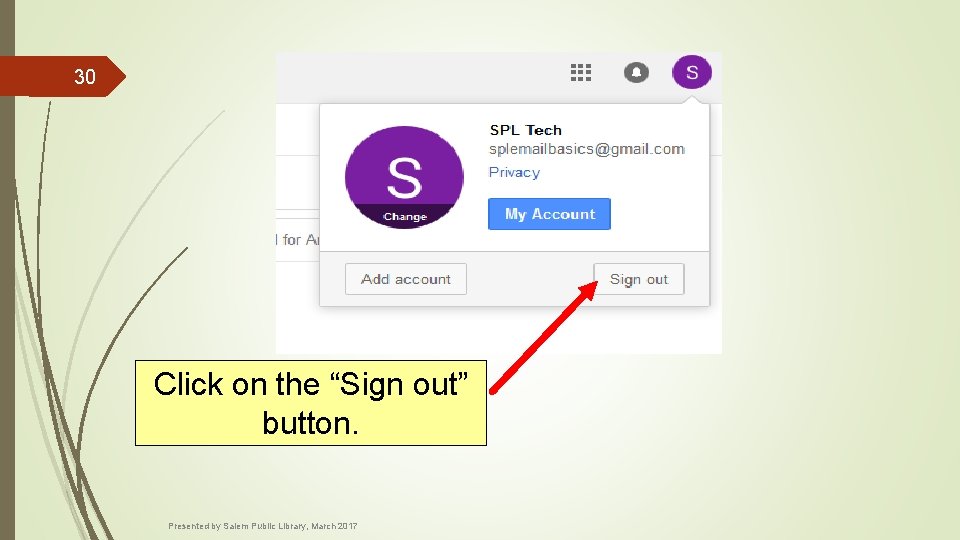
30 Click on the “Sign out” button. Presented by Salem Public Library, March 2017
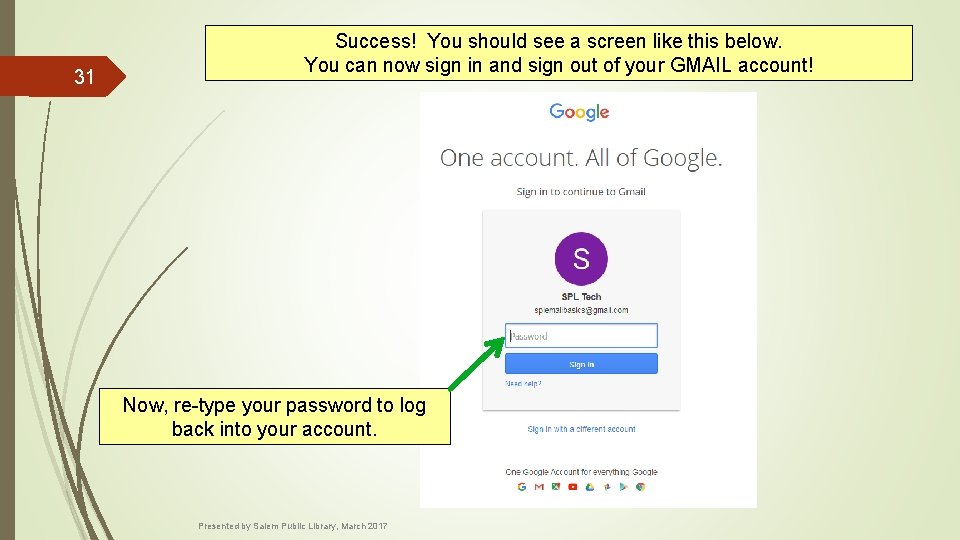
31 Success! You should see a screen like this below. You can now sign in and sign out of your GMAIL account! Now, re-type your password to log back into your account. Presented by Salem Public Library, March 2017
32 CLASS AGENDA (PART TWO): Now that you have your new GMAIL account…let’s learn… Basic terminology: What is an inbox? What is an attachment? What do “cc” and “bcc” mean? How to write and send an email & some helpful features available to you during email composition. Presented by Salem Public Library, March 2017
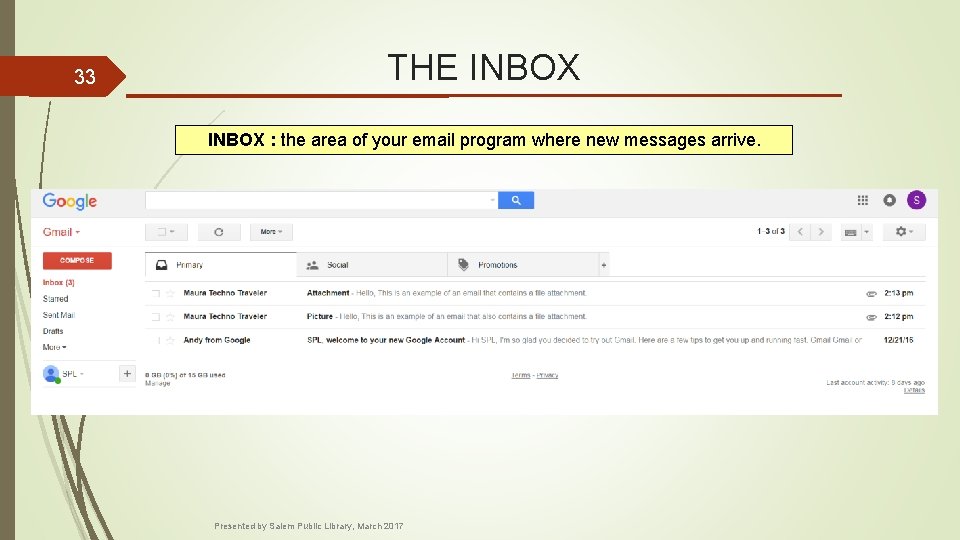
33 THE INBOX : the area of your email program where new messages arrive. Presented by Salem Public Library, March 2017
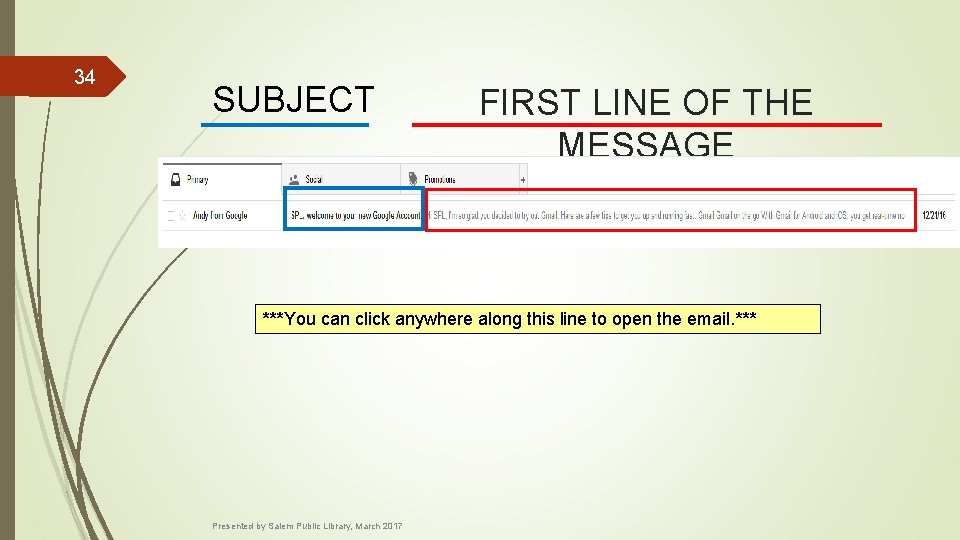
34 SUBJECT FIRST LINE OF THE MESSAGE ***You can click anywhere along this line to open the email. *** Presented by Salem Public Library, March 2017
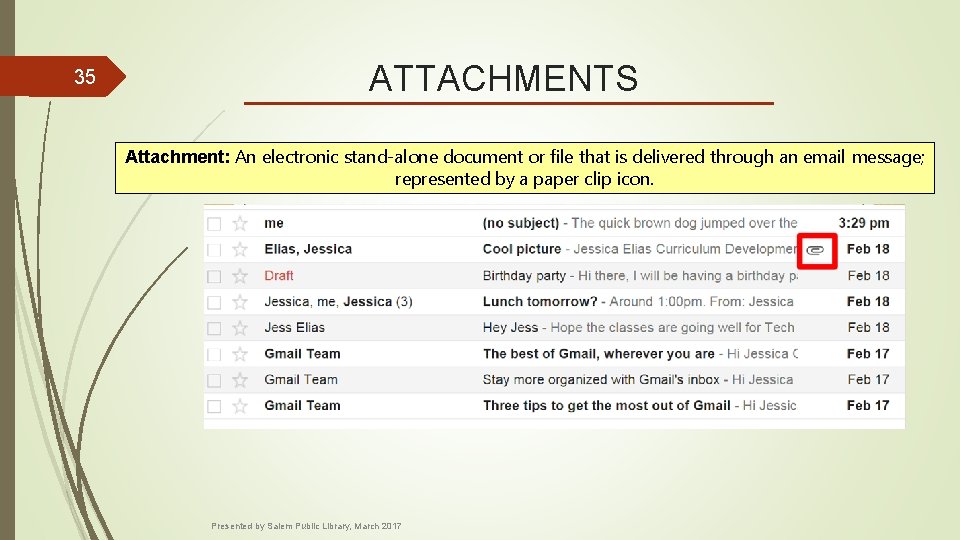
35 ATTACHMENTS Attachment: An electronic stand-alone document or file that is delivered through an email message; represented by a paper clip icon. Presented by Salem Public Library, March 2017
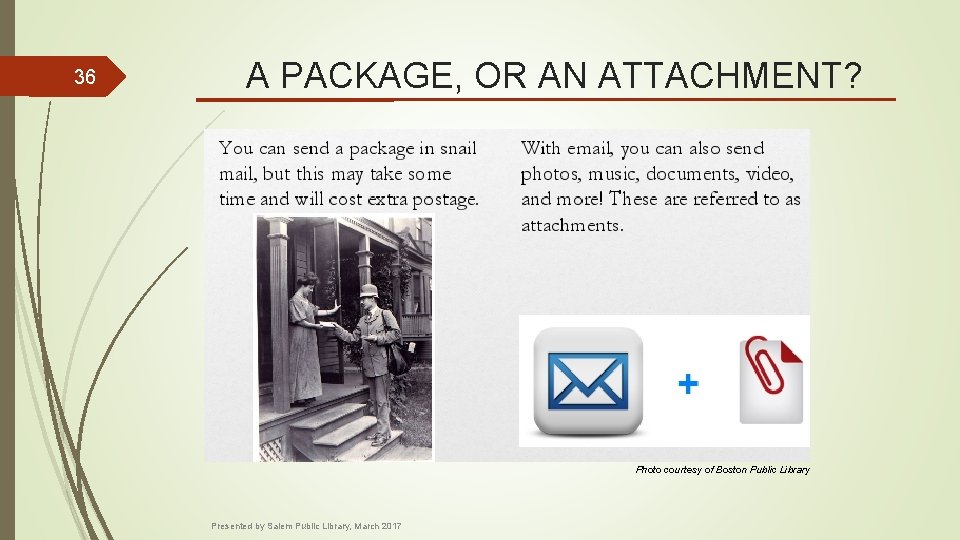
36 A PACKAGE, OR AN ATTACHMENT? Photo courtesy of Boston Public Library Presented by Salem Public Library, March 2017
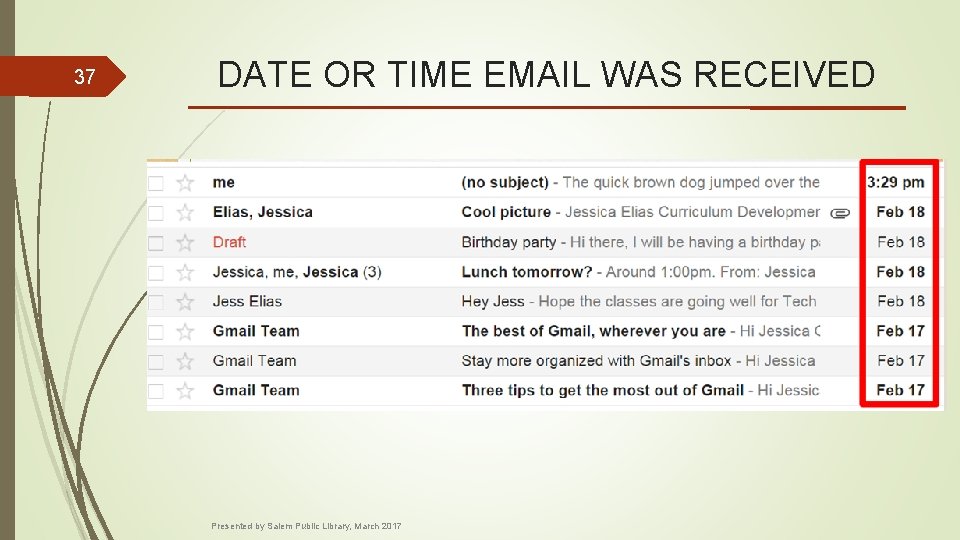
37 DATE OR TIME EMAIL WAS RECEIVED Presented by Salem Public Library, March 2017
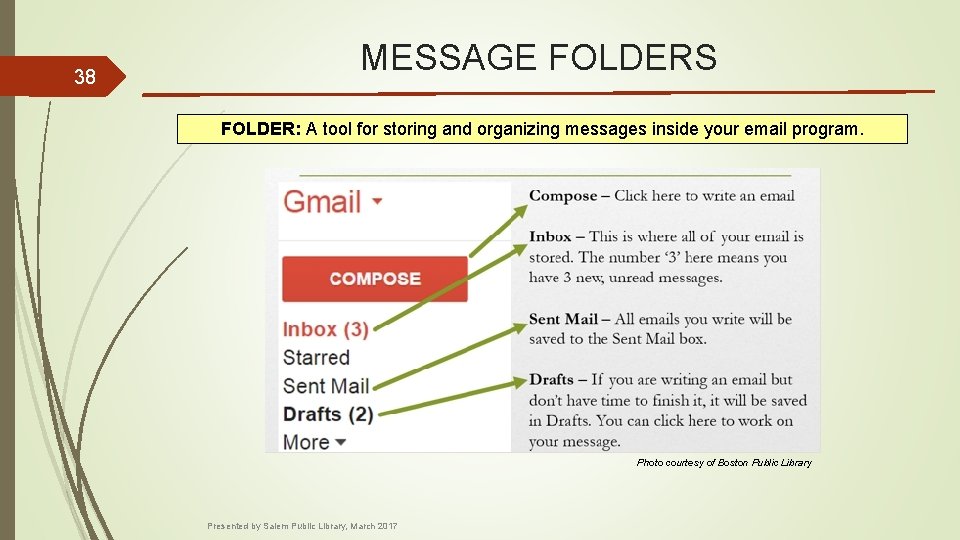
38 MESSAGE FOLDERS FOLDER: A tool for storing and organizing messages inside your email program. Photo courtesy of Boston Public Library Presented by Salem Public Library, March 2017
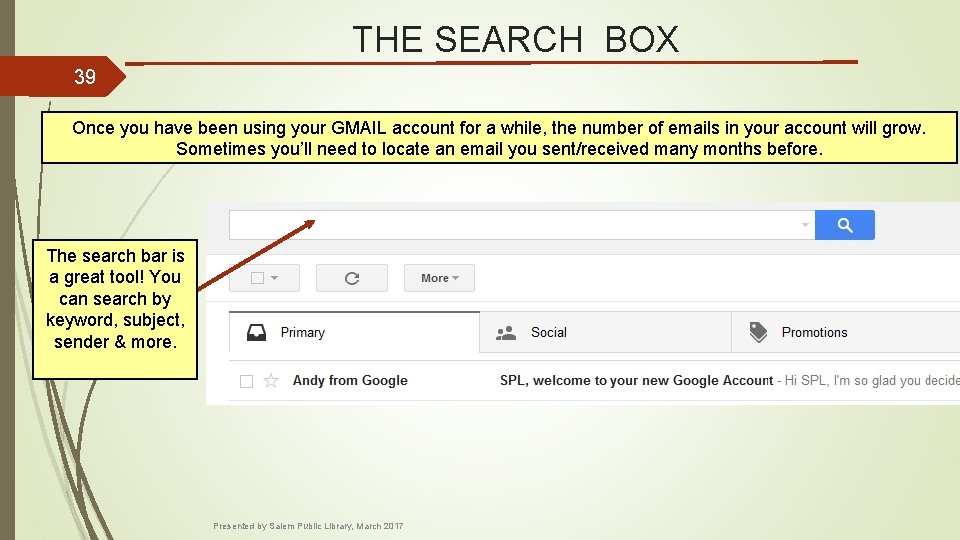
THE SEARCH BOX 39 Once you have been using your GMAIL account for a while, the number of emails in your account will grow. Sometimes you’ll need to locate an email you sent/received many months before. The search bar is a great tool! You can search by keyword, subject, sender & more. Presented by Salem Public Library, March 2017
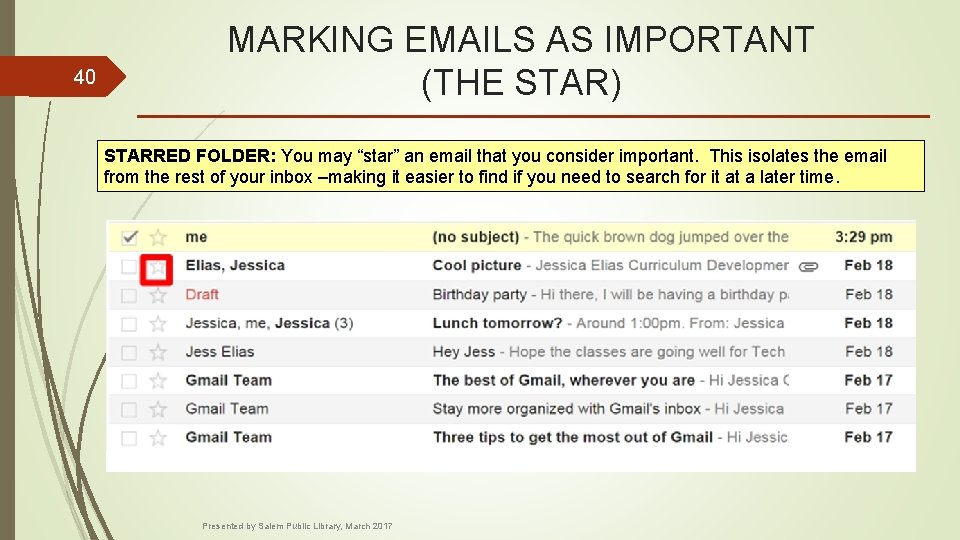
40 MARKING EMAILS AS IMPORTANT (THE STAR) STARRED FOLDER: You may “star” an email that you consider important. This isolates the email from the rest of your inbox –making it easier to find if you need to search for it at a later time. Presented by Salem Public Library, March 2017
41 DEMONSTRATION : WRITING AN EMAIL Now that we know about our inbox and how to get around it, let’s start emailing!! Please watch the instructor show to compose and send an email. Presented by Salem Public Library, March 2017
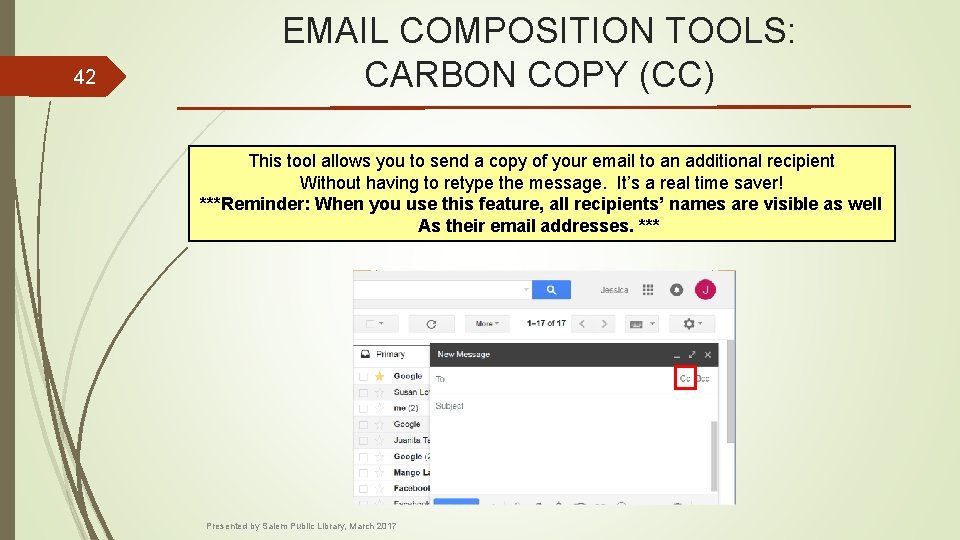
42 EMAIL COMPOSITION TOOLS: CARBON COPY (CC) This tool allows you to send a copy of your email to an additional recipient Without having to retype the message. It’s a real time saver! ***Reminder: When you use this feature, all recipients’ names are visible as well As their email addresses. *** Presented by Salem Public Library, March 2017
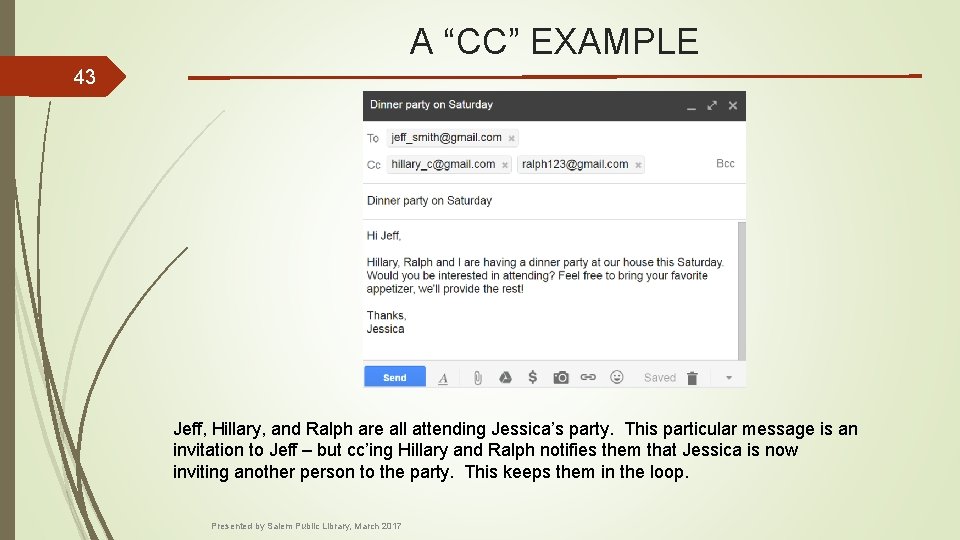
A “CC” EXAMPLE 43 Jeff, Hillary, and Ralph are all attending Jessica’s party. This particular message is an invitation to Jeff – but cc’ing Hillary and Ralph notifies them that Jessica is now inviting another person to the party. This keeps them in the loop. Presented by Salem Public Library, March 2017
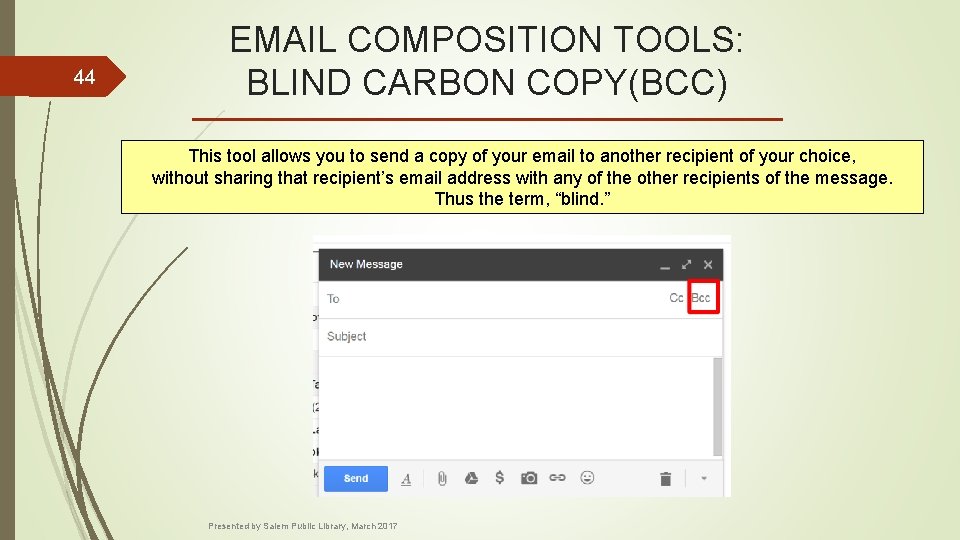
44 EMAIL COMPOSITION TOOLS: BLIND CARBON COPY(BCC) This tool allows you to send a copy of your email to another recipient of your choice, without sharing that recipient’s email address with any of the other recipients of the message. Thus the term, “blind. ” Presented by Salem Public Library, March 2017
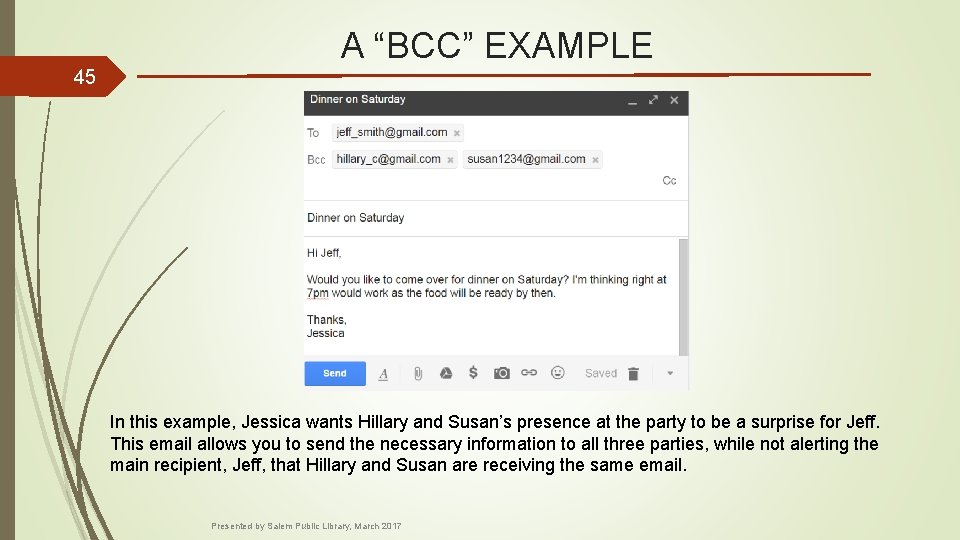
A “BCC” EXAMPLE 45 In this example, Jessica wants Hillary and Susan’s presence at the party to be a surprise for Jeff. This email allows you to send the necessary information to all three parties, while not alerting the main recipient, Jeff, that Hillary and Susan are receiving the same email. Presented by Salem Public Library, March 2017
46 ACTIVITY: NOW IT’S YOUR TURN!! 1. Hit compose to begin a new email. 2. The email you’ll send your message to is splemailbasics@gmail. com 3. Give your email a proper subject. Anything is fine. 4. Type a brief message in the body of the email. 5. Hit send. Presented by Salem Public Library, March 2017
47 EMAIL COMPOSITION TOOLS: ATTACHMENTS A feature of email is the ability to “attach” files to your email. So in addition to the information in the message body text, you can add files to the email (i. e. photos, word documents, music files, etc. ) that you wish to share with the recipient. Attachments are marked by the paper clip icon Whenever you’d like to attach a file – seek this icon. Just like with paper messages, you use a paperclip to attach more information to the top sheet. Please watch as the instructor demonstrates how to attach a file to an email. Unfortunately, due to time considerations, we don’t have time for you to practice this exercise with this class. However, I will send you home with some instructions on how to use this email feature. Presented by Salem Public Library, March 2017
48 CONCERNING ATTACHMENTS…. If you include an attachment to an email, make sure you refer to it in your email message. Something as simple as, “I’ve attached a couple of photos to this email” will work. Attach your file(s) before writing your message. It’s very easy to focus on the message and how you want to word it and then forget to attach your files. Presented by Salem Public Library, March 2017
TAKE-HOME ACTIVITIES 49 At your convenience, I’d like you to practice some of the skills we didn’t have time to practice tonight. The activity sheet you received will help you do so. These skills may prove challenging to practice on your own. If you get stuck, please feel free to contact me with your questions. Please do so by either emailing our class’ address (splemailbasics@gmail. com) or by calling 978 -744 -0860 and ask for me by name. If I’m not available, please ask to speak with Alyssa, the head of our Reference Department. Photo courtesy of Google Images Presented by Salem Public Library, March 2017
50 WHAT ABOUT SECURITY ISSUES/PRIVACY? One major concern that most people have about communicating electronically is security. This is a very legitimate concern that we don’t think should go unaddressed. However, due to time considerations, we simply do not have time to discuss this issue today. Photo courtesy of Google Images So I will be emailing you an email security presentation created by the Boston Public Library that you can view at your leisure. It will be an email attachment that you will be able to practice opening from home! Also, there is a very useful online resource about technology at www. gcflearnfree. org. There is no cost associated with using it. Presented by Salem Public Library, March 2017
51 THANK YOU FOR COMING! We are very glad to have helped you learn to utilize this valuable tool! Please fill out a very brief survey before you leave. Photo courtesy of Canva. com Presented by Salem Public Library, March 2017
52 WORKS CITED: Boston Public Library. “Introduction to Gmail, Parts 1, 2 and 3. ” (http: //guides. bpl. org/c. php? g=8189&p=3251474) GCF Learnfree. org. “Gmail” and “Email Basics” presentation materials. (http: //www. gcflearnfree. org/gmail/) & (http: //www. gcflearnfree. org/email 101/) Presented by Salem Public Library, March 2017
- Slides: 52