
GLOBE Introduction to Data Entry and Setting up
GLOBE Introduction to Data Entry and Setting up Your Data Entry Site Why Enter Data? What do I need to begin? How to Create a Data Entry Site 9/17/2020 1
Introduction • This package will help you setup your data entry site so you can begin entering data into the GLOBE database • This presentation is available online as well as a video which walks you through the steps. http: //www. globe. gov/get-trained/using-the-globe-website • There is a section for you to try things for yourself after the demonstration and a section to test your knowledge at the end. • Questions – contact help@globe. gov 29/17/20 20
Why Enter Data? • As a GLOBE teacher, doing the protocols is only one part of “Doing GLOBE”. Reporting and analyzing the data is just as important. The GLOBE website provides tools to input, report and analyze your data. 39/17/20 20
Why Enter Data? • Data is kept permanently. Your school data is available for you and others to analyze now and in the future. • Tools will help you plot and export data • You will be able to analyze data from year to year and by comparing data from other schools and countries • Your school will have an opportunity to be recognized as a GLOBE science honor roll school • Your students will get to see their data on the site • Your students will be able to share their data with the worldwide community • Scientists will be able to view and use your data in their studies • Often funding for support is based on activity. If there is no activity, this will impact funding 49/17/20 20
How to Start – what do I need? • A GLOBE teacher account • You must be trained • Your account *should* be setup if you’ve completed your training. If not, contact your trainer or help@globe. gov • A GLOBE school • Your account should already be connected with your school • A Data site for your school • enter the characteristics of the site in the GLOBE Data Entry area 59/17/20 20
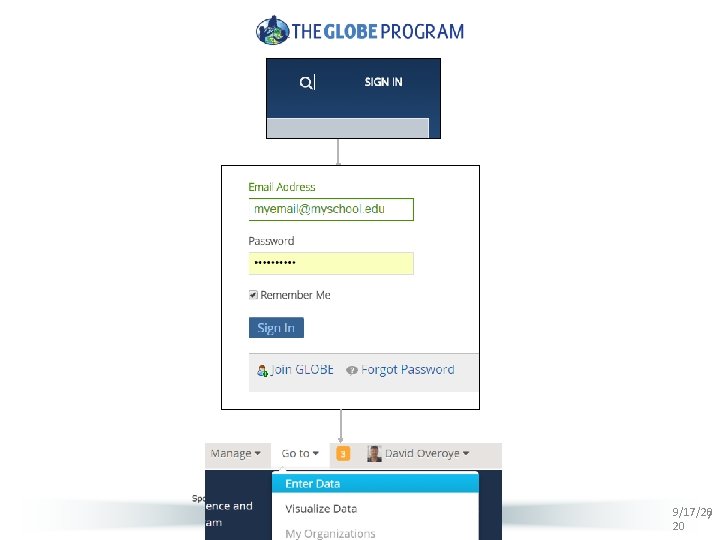
Accessing the Data Entry System • Click the Login button on the top right of the GLOBE website • Enter your email for the username and your password • You can select Forgot Password and a link will be sent to your email address to allow you to reset your password • If there is no account, contact your trainer or help@globe. gov • If you haven’t been trained, you will not be able to enter data • Select “Enter Data” from the Goto dropdown • Or under GLOBE Data select Enter Data • Or http: //data. globe. gov 69/17/20 20
9/17/20 7 20
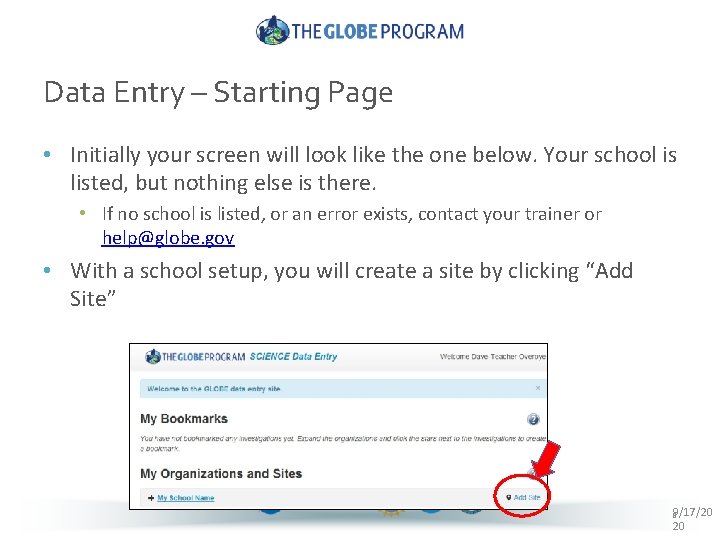
Data Entry – Starting Page • Initially your screen will look like the one below. Your school is listed, but nothing else is there. • If no school is listed, or an error exists, contact your trainer or help@globe. gov • With a school setup, you will create a site by clicking “Add Site” 89/17/20 20
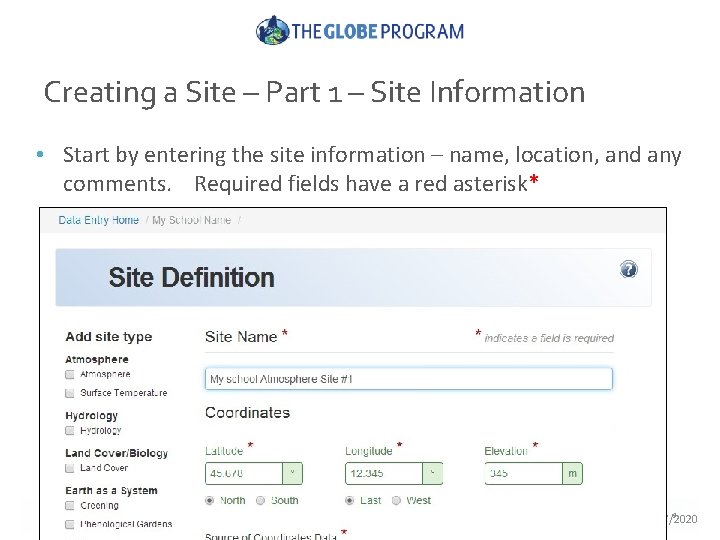
Creating a Site – Part 1 – Site Information • Start by entering the site information – name, location, and any comments. Required fields have a red asterisk* 9 9/17/2020
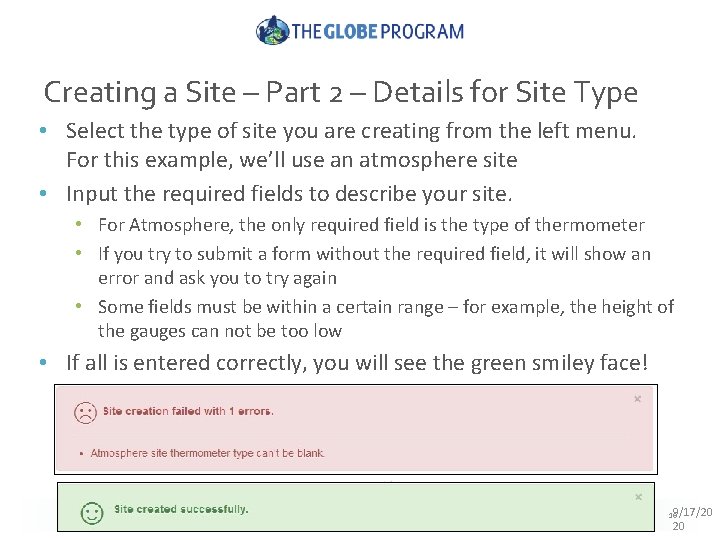
Creating a Site – Part 2 – Details for Site Type • Select the type of site you are creating from the left menu. For this example, we’ll use an atmosphere site • Input the required fields to describe your site. • For Atmosphere, the only required field is the type of thermometer • If you try to submit a form without the required field, it will show an error and ask you to try again • Some fields must be within a certain range – for example, the height of the gauges can not be too low • If all is entered correctly, you will see the green smiley face! 109/17/20 20
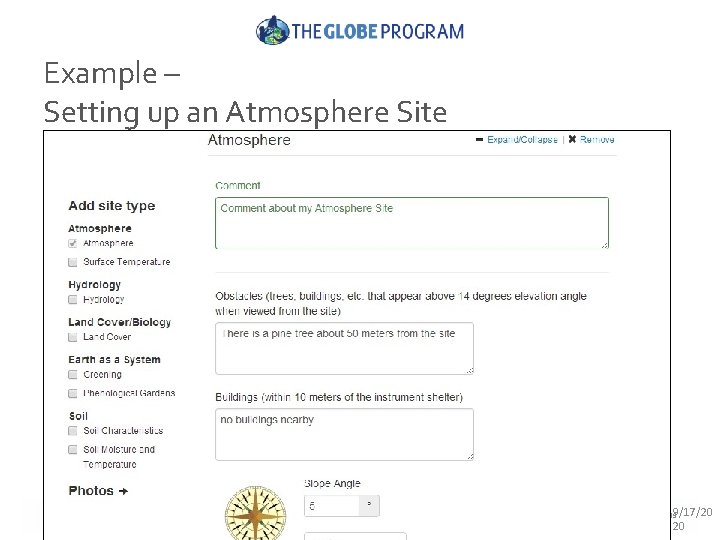
Example – Setting up an Atmosphere Site 119/17/20 20
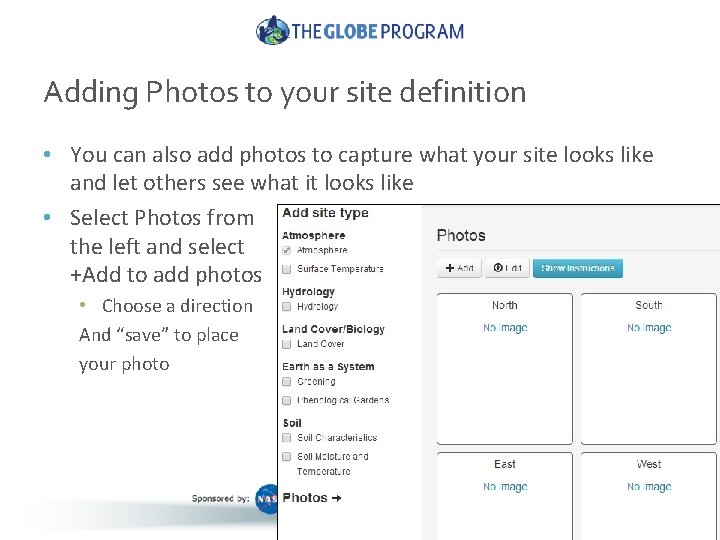
Adding Photos to your site definition • You can also add photos to capture what your site looks like and let others see what it looks like • Select Photos from the left and select +Add to add photos • Choose a direction And “save” to place your photo 129/17/20 20
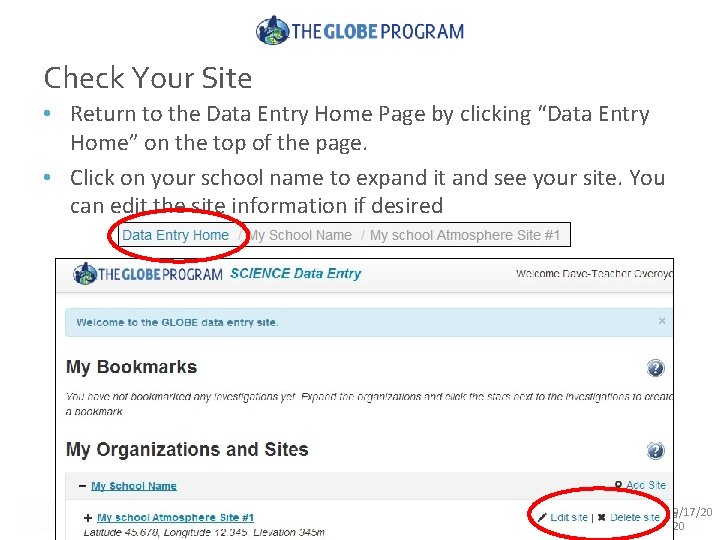
Check Your Site • Return to the Data Entry Home Page by clicking “Data Entry Home” on the top of the page. • Click on your school name to expand it and see your site. You can edit the site information if desired 139/17/20 20
Your Turn – Create a Site • Login and select Enter Data from the “go to” menu • Or to practice – choose - Training Data Entry from the Data Entry Page • Create an atmosphere site – this is all test data, so don’t worry about being accurate (you can make up lat/long) • Submit your atmosphere site and return to Data Entry Home • Edit your site and change the site name • Save the site and return to the Data Entry Home 149/17/20 20
Test – what do you do if this happens to you? 1. I can’t login it says “No Account” 2. I can’t login it says “Incorrect Password” 3. I can login, but when I click on the Data Entry link, it says I’m not authorized, or I’m not associated with a school 4. I want to change the name of my site 5. When I look at the site location in the visualization system, it shows my site in the wrong place. 159/17/20 20
Test - Answers 1) I can’t login it says “No Account” a) If this is a workshop that is on the GLOBE website, go to the workshop page and signup for the workshop. Ask your trainer to approve your account. http: //www. globe. gov/events/workshops b) Ask your trainer if they can setup your account for you. c) Send an email to the helpdesk and tell them information about the workshop you attended and your school information and they can help you help@globe. gov 2) I can’t login - it says “Incorrect Password” a) Select the “Forgot Password” link to receive a new password 3) I can login, but when I click on the Data Entry link, it says I’m not authorized, or I’m not associated with a school a) Ask your trainer to make sure your school is added to GLOBE. gov and you are a teacher in that school, or send the information to help@globe. gov b) Ask your trainer if they marked you as having completed your training. You will not be able to enter real data until they mark your training as complete 169/17/20 20
Test - Answers 4) I want to change the name of my site 1) Select “Enter Live Data”, click on your school name. 2) Click on “Edit” next to the site whose name you want to change 3) Save your changes 5) My site is in the wrong location? 1) Select “Enter Live Data”, click on your school name. 2) Click on “Edit” next to the site whose location you want to change 3) Input the correct latitude and longitude for your site 4) Save the site 5) Use the visualization system to be sure it is in the right place 17
Next Steps • Congratulations – you should have • A GLOBE Account • A GLOBE School • Setup a Site in training • You can now • Continue to Part 2 – Entering Measurement Data • Consider setting up your site in the Production environment Questions – contact the GLOBE Helpdesk – help@globe. gov 189/17/20 20
- Slides: 18