
Give control to others Quick Start Guide Allow
- Slides: 2
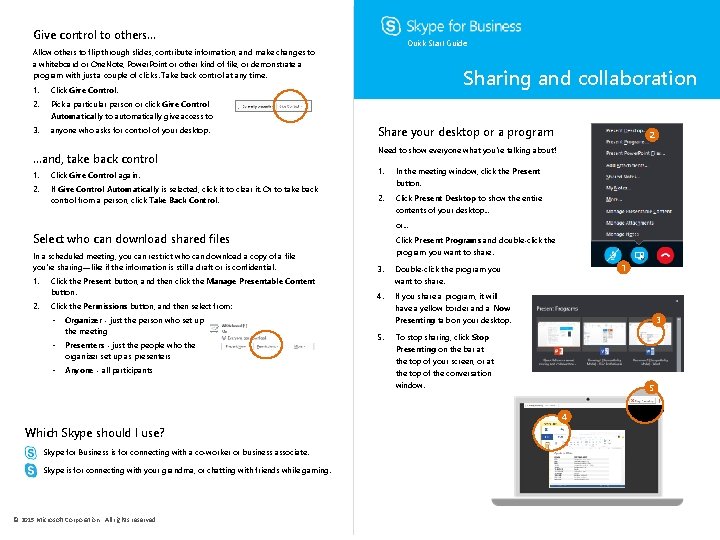
Give control to others… Quick Start Guide Allow others to flip through slides, contribute information, and make changes to a whiteboard or One. Note, Power. Point or other kind of file, or demonstrate a program with just a couple of clicks. Take back control at any time. 1. Click Give Control. 2. Pick a particular person or click Give Control Automatically to automatically give access to 3. anyone who asks for control of your desktop. …and, take back control Sharing and collaboration Share your desktop or a program 2 Need to show everyone what you’re talking about? 1. Click Give Control again. 1. 2. If Give Control Automatically is selected, click it to clear it. Or to take back control from a person, click Take Back Control. 2. In the meeting window, click the Present button. Click Present Desktop to show the entire contents of your desktop… or… Select who can download shared files In a scheduled meeting, you can restrict who can download a copy of a file you’re sharing—like if the information is still a draft or is confidential. 1. Click the Present button, and then click the Manage Presentable Content button. 2. Click the Permissions button, and then select from: • Organizer - just the person who set up the meeting • Presenters - just the people who the organizer set up as presenters • Anyone - all participants Click Present Programs and double-click the program you want to share. 3. 1 Double-click the program you want to share. 4. 5. If you share a program, it will have a yellow border and a Now Presenting tab on your desktop. 3 To stop sharing, click Stop Presenting on the bar at the top of your screen, or at the top of the conversation window. 5 4 Which Skype should I use? Skype for Business is for connecting with a co-worker or business associate. Skype is for connecting with your grandma, or chatting with friends while gaming. © 2015 Microsoft Corporation. All rights reserved.
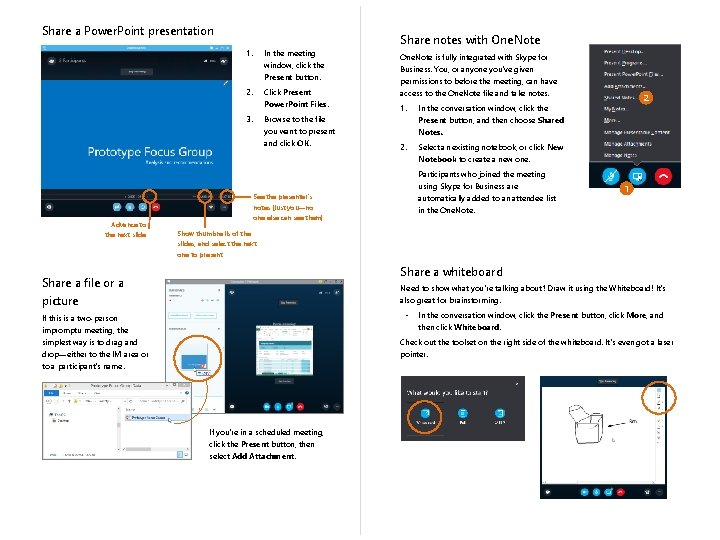
Share a Power. Point presentation Share notes with One. Note 1. In the meeting window, click the Present button. 2. Click Present Power. Point Files. 3. Browse to the file you want to present and click OK. One. Note is fully integrated with Skype for Business. You, or anyone you’ve given permissions to before the meeting, can have access to the One. Note file and take notes. 1. In the conversation window, click the Present button, and then choose Shared Notes. 2. Select an existing notebook, or click New 2 Notebook to create a new one. Participants who joined the meeting using Skype for Business are automatically added to an attendee list in the One. Note. See the presenter’s notes (just you—no Advance to the next slide one else can see them) 1 Show thumbnails of the slides, and select the next one to present Share a whiteboard Share a file or a picture Need to show what you’re talking about? Draw it using the Whiteboard! It’s also great for brainstorming. • If this is a two-person impromptu meeting, the simplest way is to drag and drop—either to the IM area or to a participant’s name. In the conversation window, click the Present button, click More, and then click Whiteboard. Check out the toolset on the right side of the whiteboard. It’s even got a laser pointer. If you’re in a scheduled meeting, click the Present button, then select Add Attachment.