
GIS TRAINING QGIS 3 6 first steps Raster
- Slides: 38
GIS TRAINING QGIS 3. 6 first steps
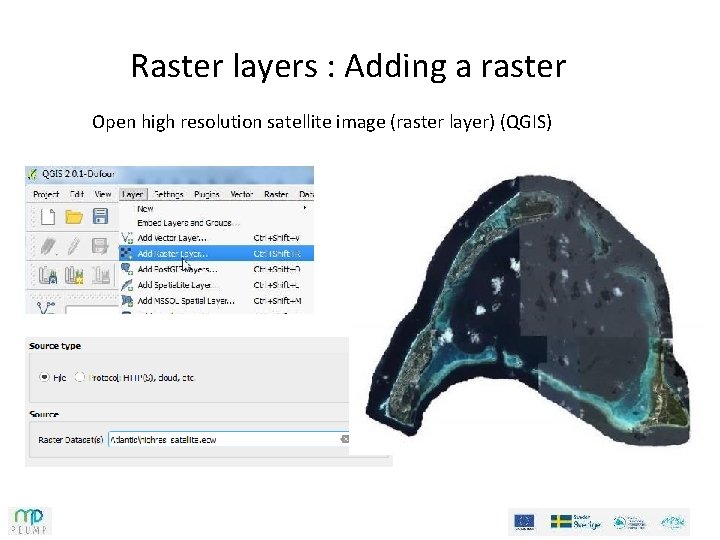
Raster layers : Adding a raster Open high resolution satellite image (raster layer) (QGIS)
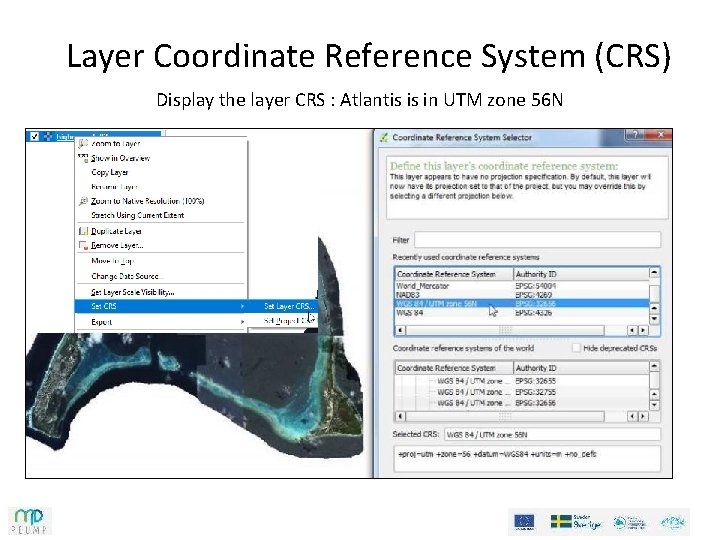
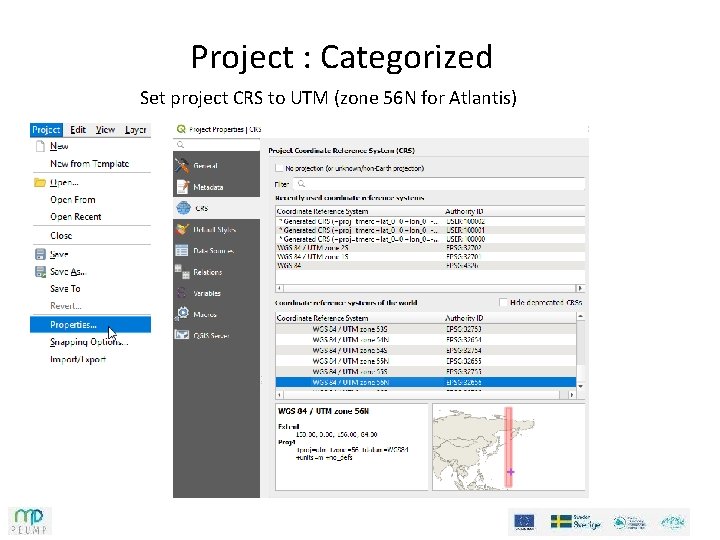
Layer Coordinate Reference System (CRS) Display the layer CRS : Atlantis is in UTM zone 56 N
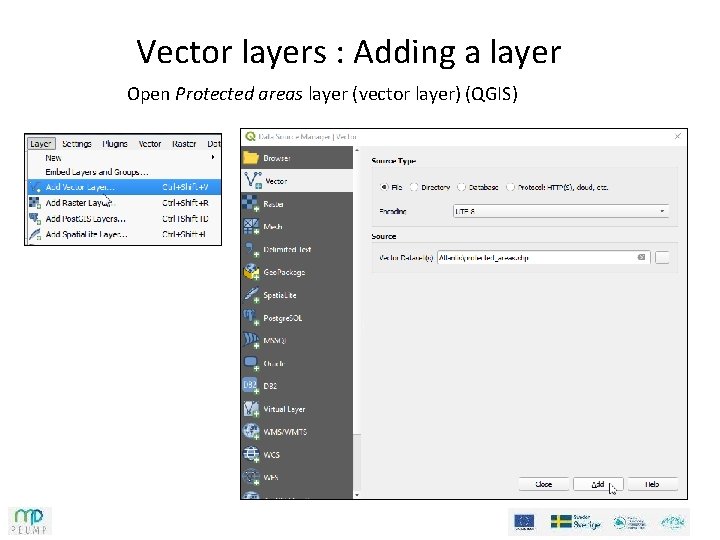
Vector layers : Adding a layer Open Protected areas layer (vector layer) (QGIS)
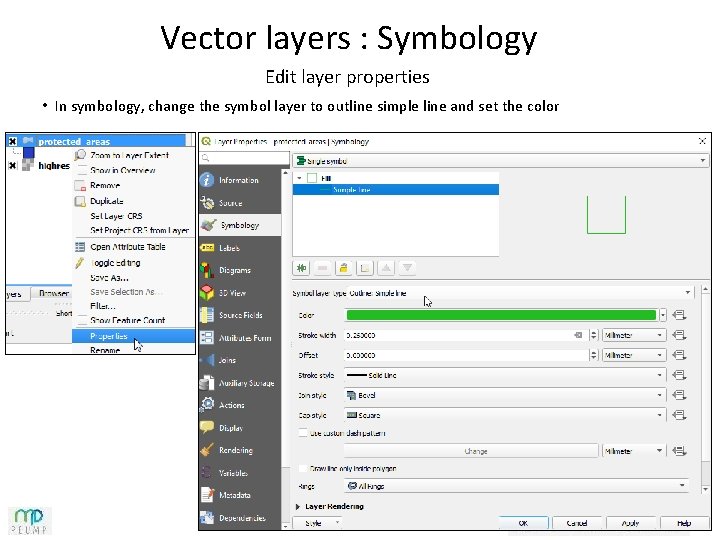
Vector layers : Symbology Edit layer properties • In symbology, change the symbol layer to outline simple line and set the color
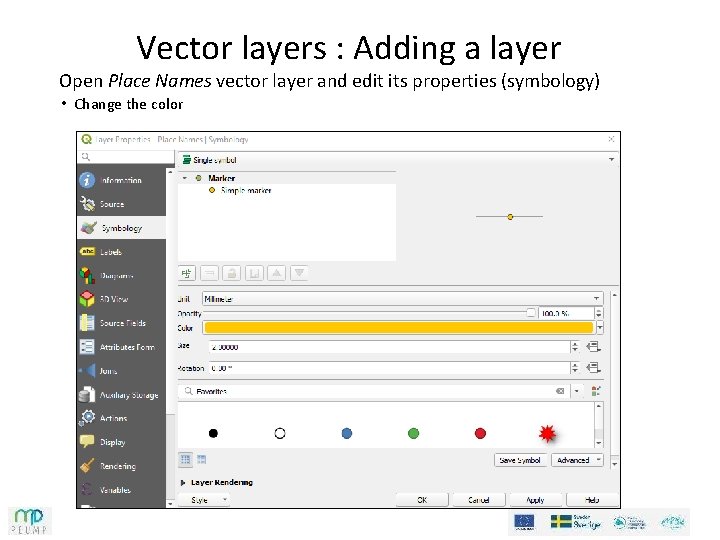
Vector layers : Adding a layer Open Place Names vector layer and edit its properties (symbology) • Change the color
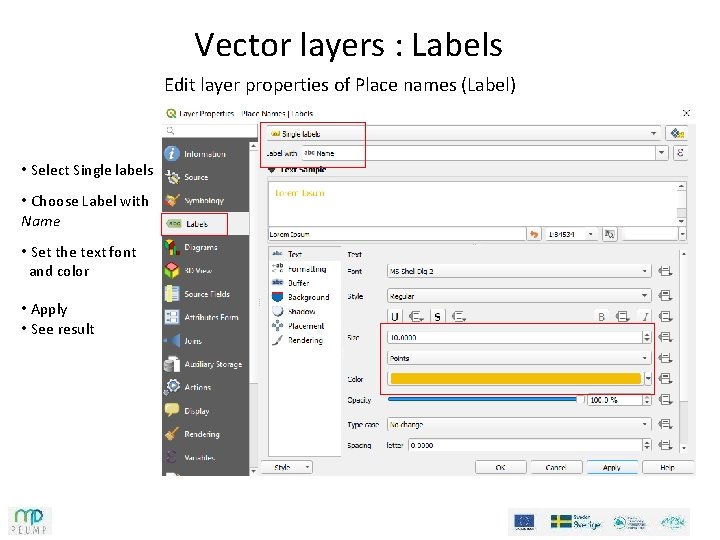
Vector layers : Labels Edit layer properties of Place names (Label) • Select Single labels • Choose Label with Name • Set the text font and color • Apply • See result
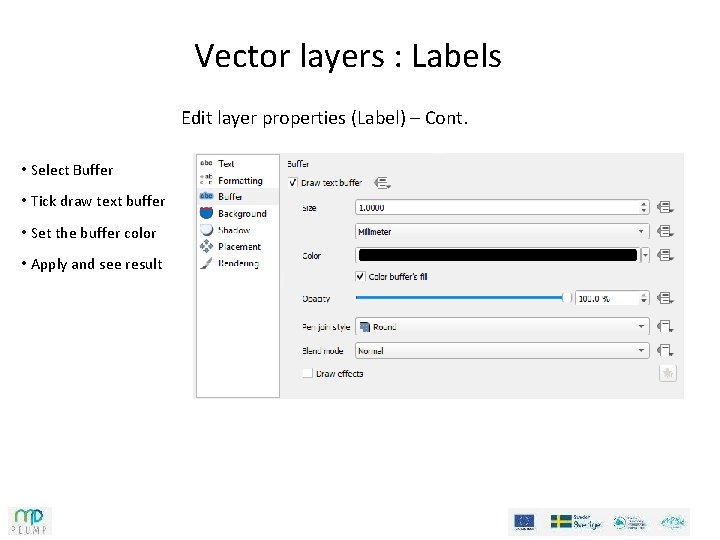
Vector layers : Labels Edit layer properties (Label) – Cont. • Select Buffer • Tick draw text buffer • Set the buffer color • Apply and see result
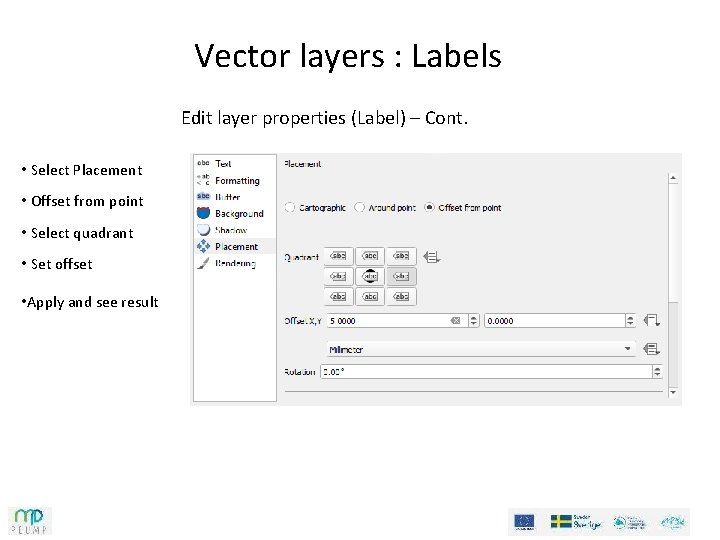
Vector layers : Labels Edit layer properties (Label) – Cont. • Select Placement • Offset from point • Select quadrant • Set offset • Apply and see result
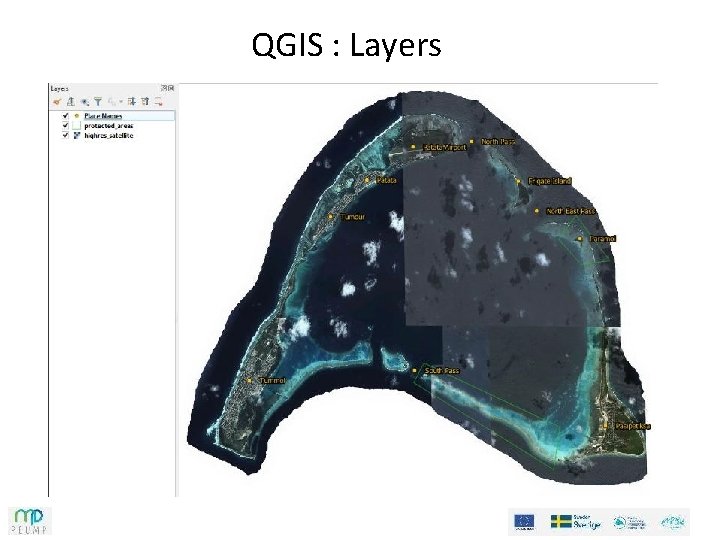
QGIS : Layers
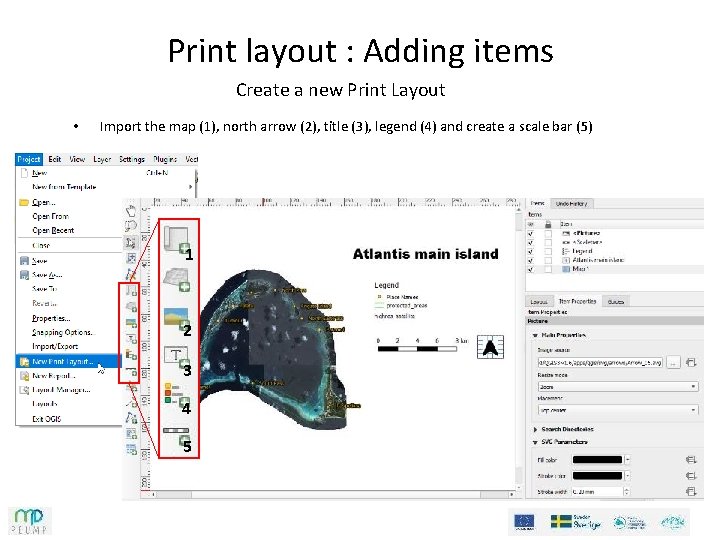
Print layout : Adding items Create a new Print Layout • Import the map (1), north arrow (2), title (3), legend (4) and create a scale bar (5) 1 2 3 4 5
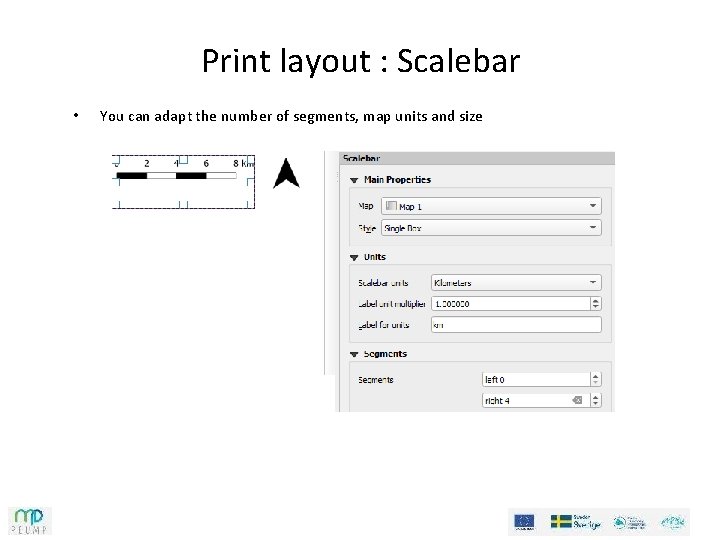
Print layout : Scalebar • You can adapt the number of segments, map units and size
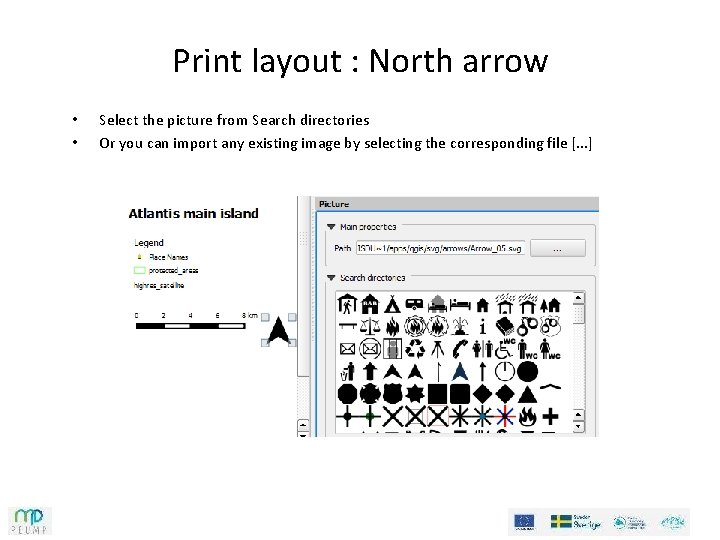
Print layout : North arrow • • Select the picture from Search directories Or you can import any existing image by selecting the corresponding file [. . . ]
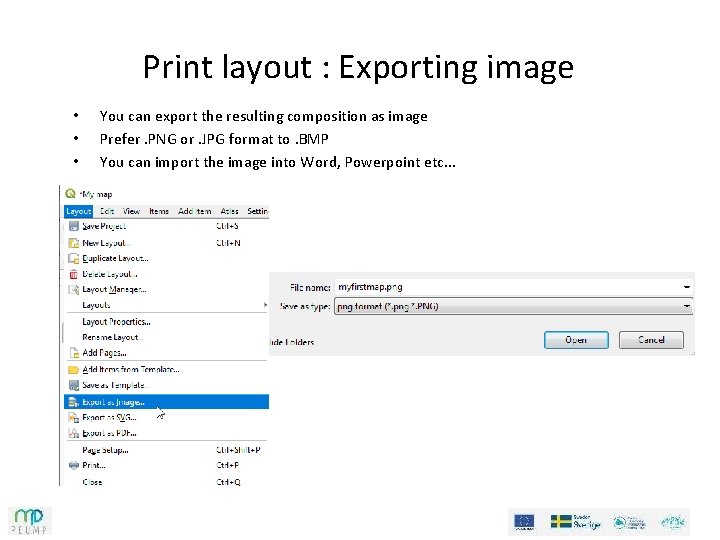
Print layout : Exporting image • • • You can export the resulting composition as image Prefer. PNG or. JPG format to. BMP You can import the image into Word, Powerpoint etc. . .
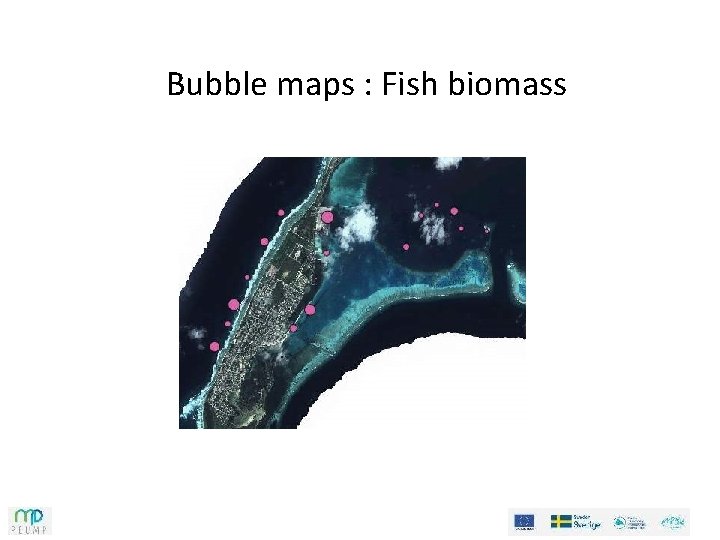
Bubble maps : Fish biomass
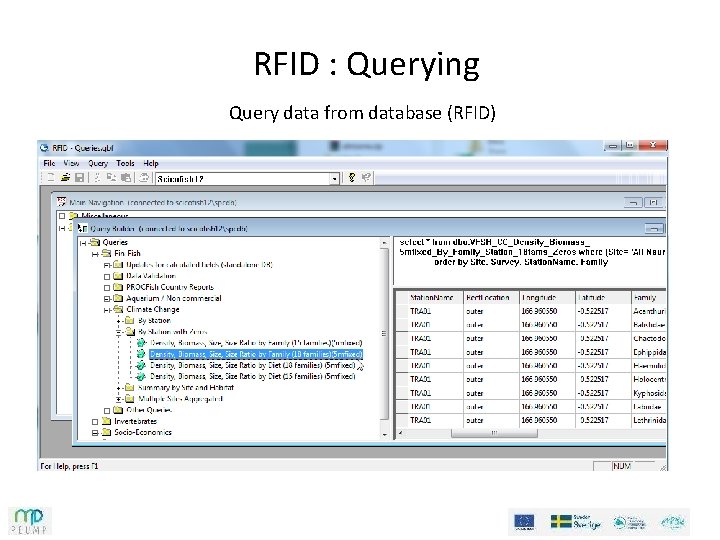
RFID : Querying Query data from database (RFID)
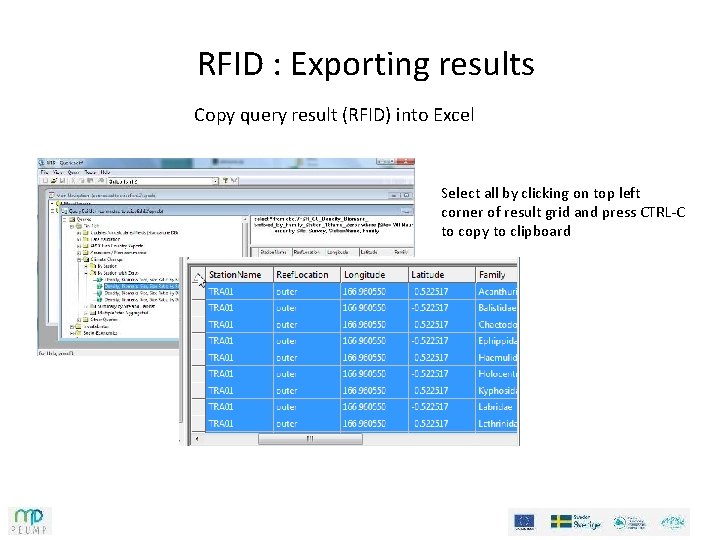
RFID : Exporting results Copy query result (RFID) into Excel Select all by clicking on top left corner of result grid and press CTRL-C to copy to clipboard
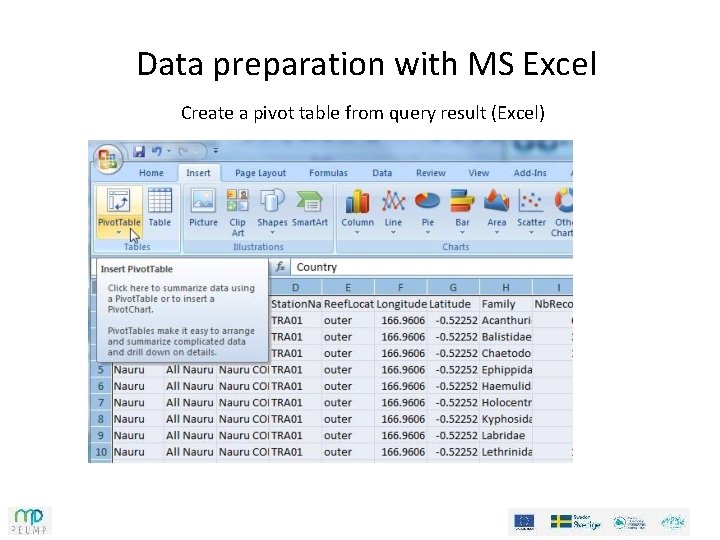
Data preparation with MS Excel Create a pivot table from query result (Excel)
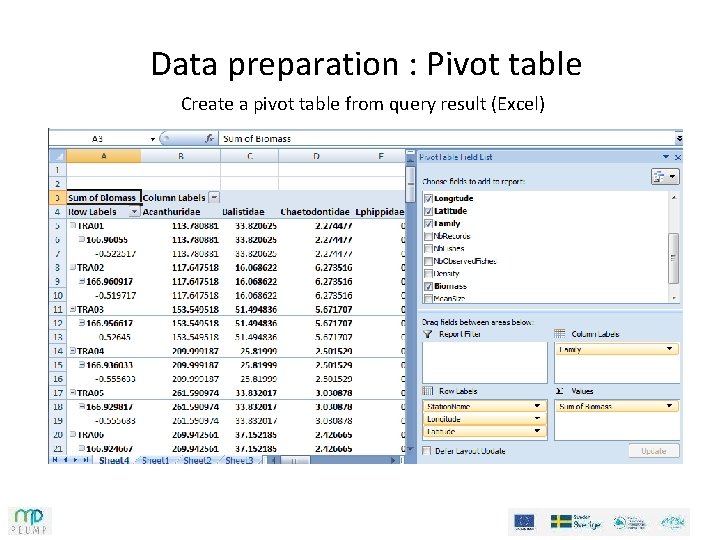
Data preparation : Pivot table Create a pivot table from query result (Excel)
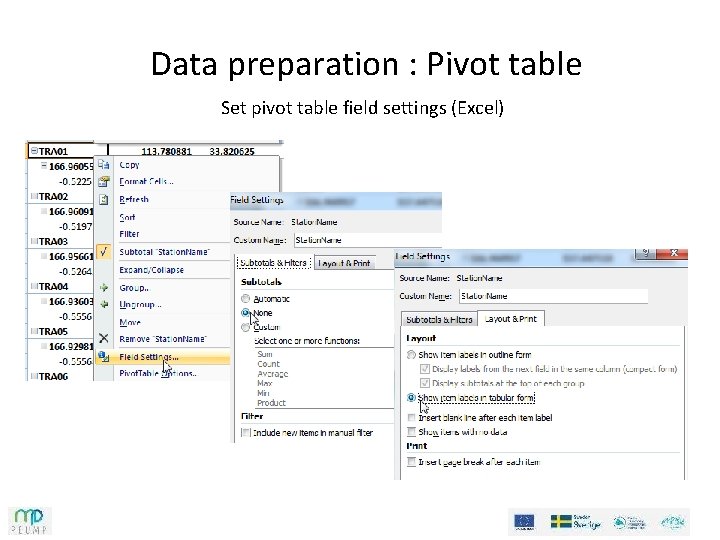
Data preparation : Pivot table Set pivot table field settings (Excel)
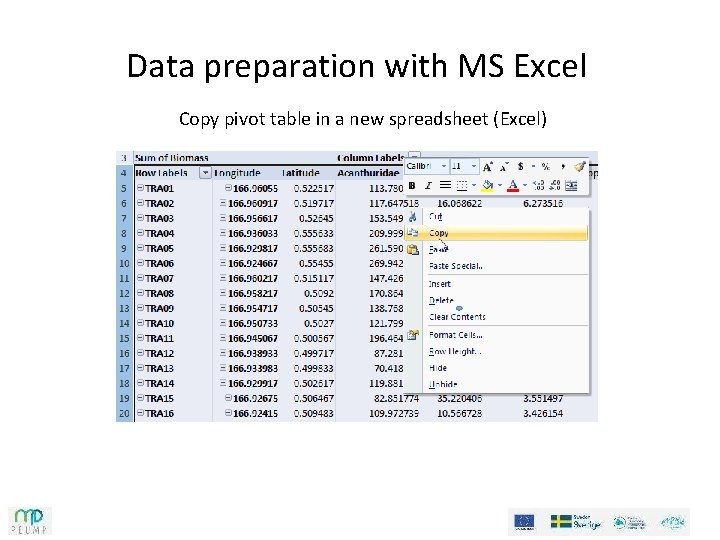
Data preparation with MS Excel Copy pivot table in a new spreadsheet (Excel)
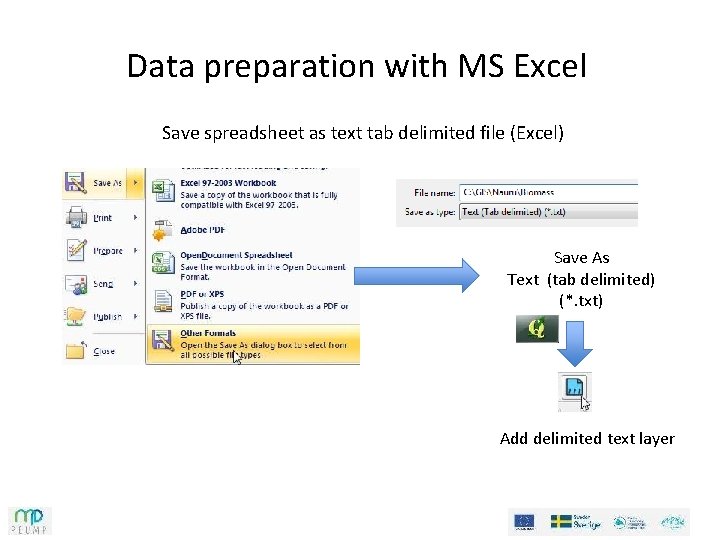
Data preparation with MS Excel Save spreadsheet as text tab delimited file (Excel) Save As Text (tab delimited) (*. txt) Add delimited text layer
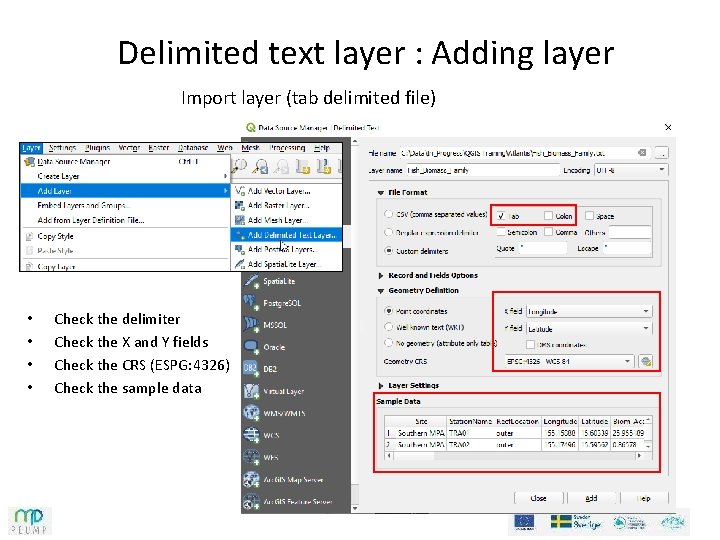
Delimited text layer : Adding layer Import layer (tab delimited file) • • Check the delimiter Check the X and Y fields Check the CRS (ESPG: 4326) Check the sample data
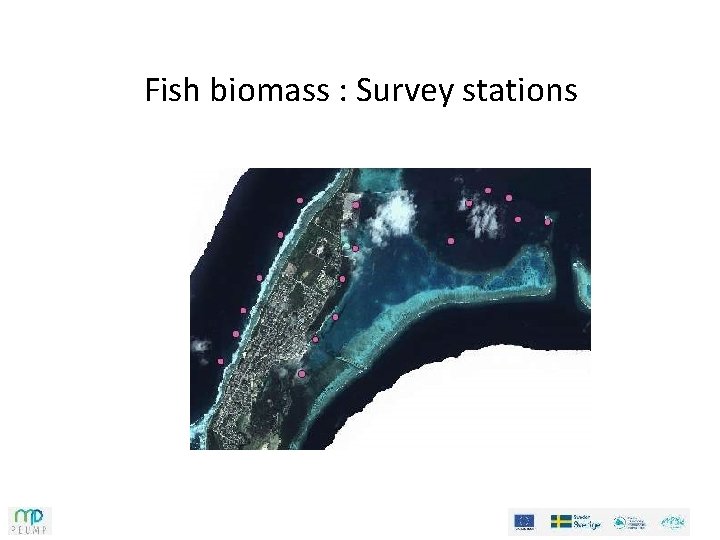
Fish biomass : Survey stations
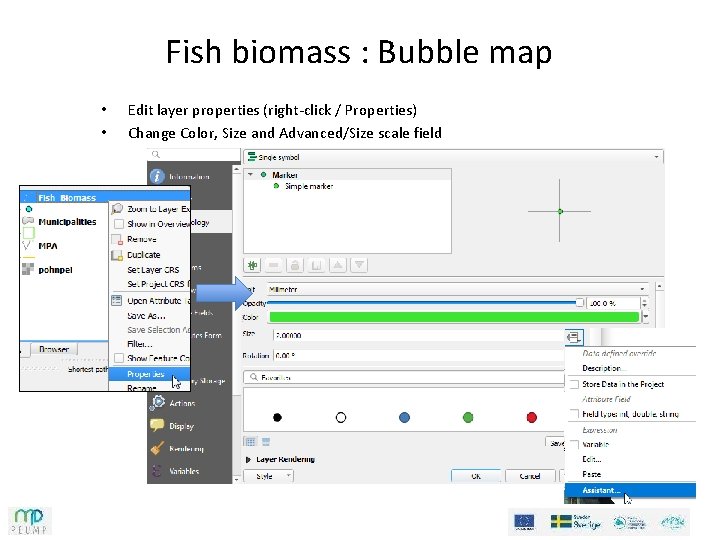
Fish biomass : Bubble map • • Edit layer properties (right-click / Properties) Change Color, Size and Advanced/Size scale field
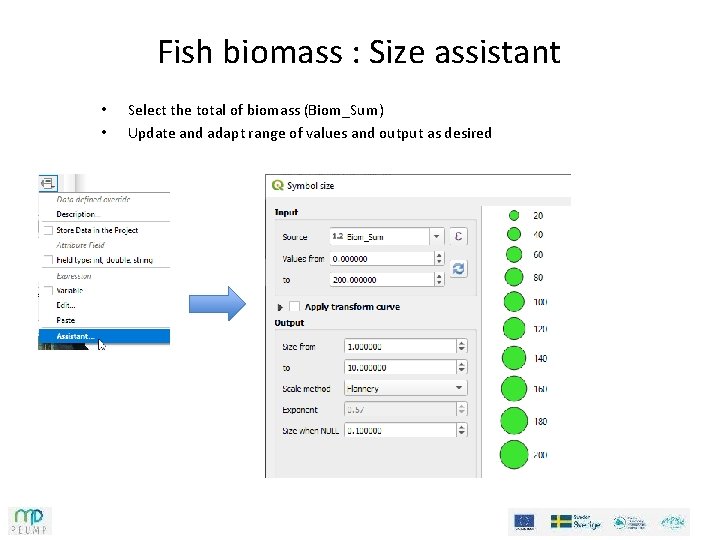
Fish biomass : Size assistant • • Select the total of biomass (Biom_Sum) Update and adapt range of values and output as desired
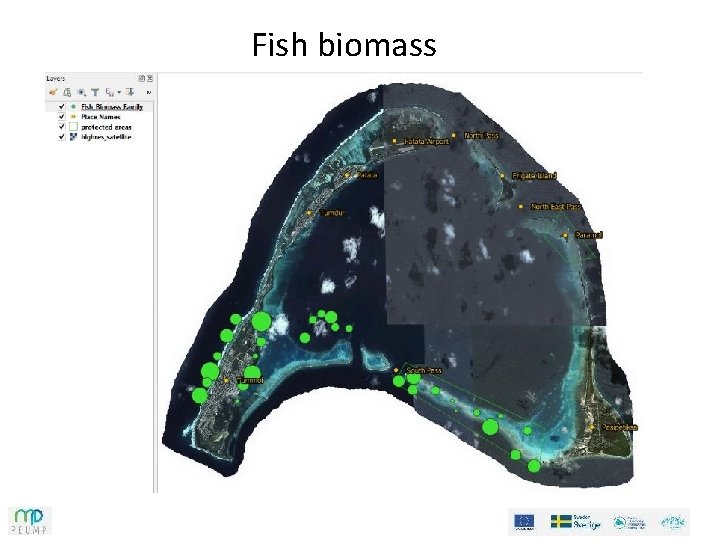
Fish biomass
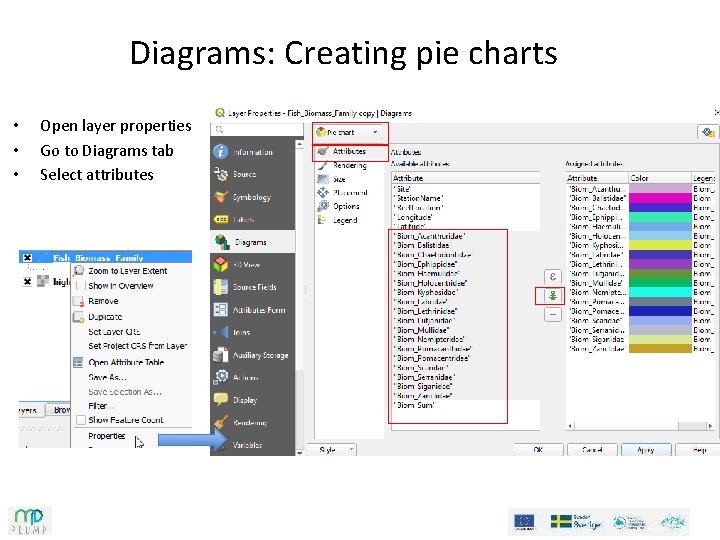
Diagrams: Creating pie charts • • • Open layer properties Go to Diagrams tab Select attributes
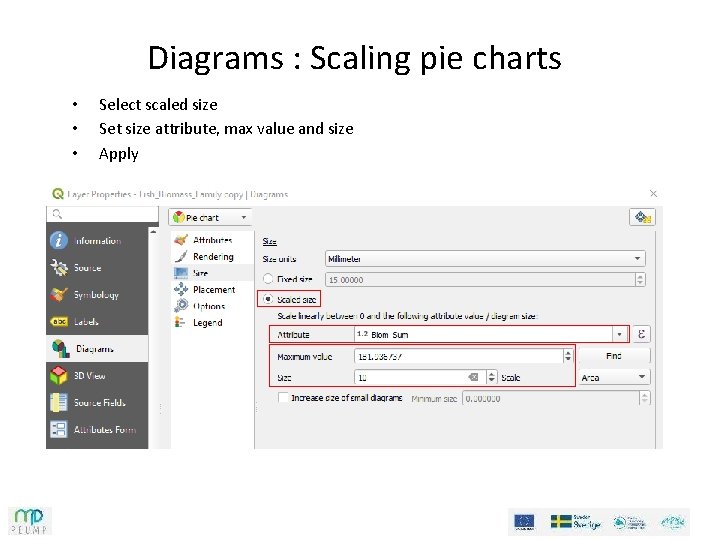
Diagrams : Scaling pie charts • • • Select scaled size Set size attribute, max value and size Apply
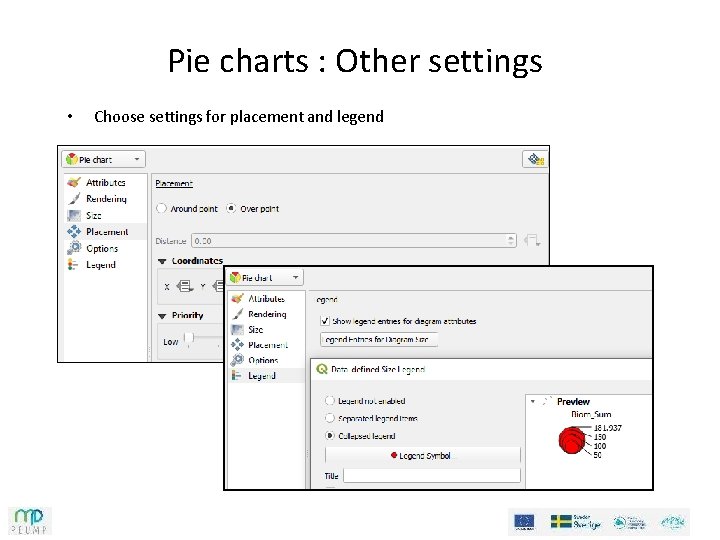
Pie charts : Other settings • Choose settings for placement and legend
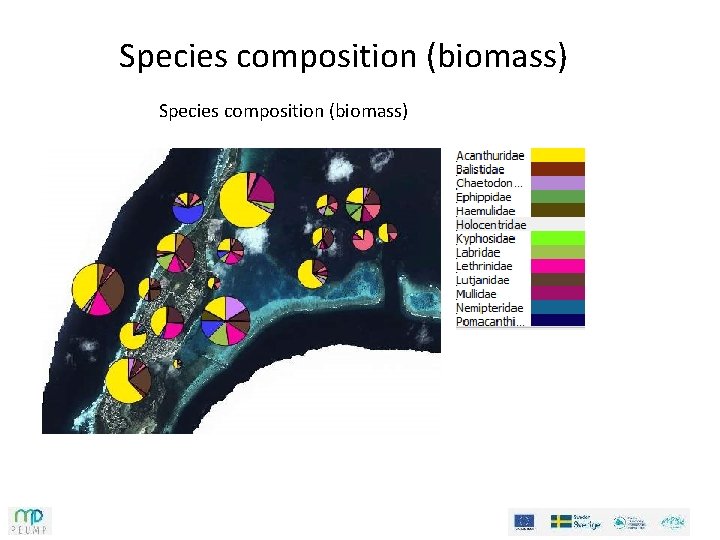
Species composition (biomass)
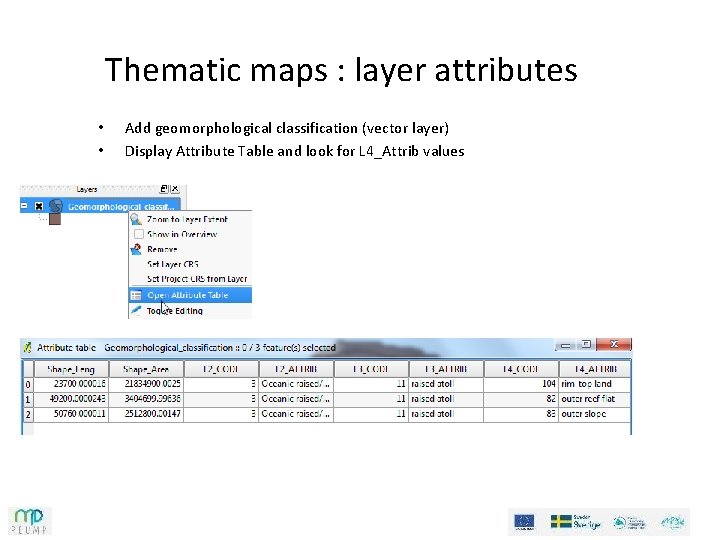
Thematic maps : layer attributes • • Add geomorphological classification (vector layer) Display Attribute Table and look for L 4_Attrib values
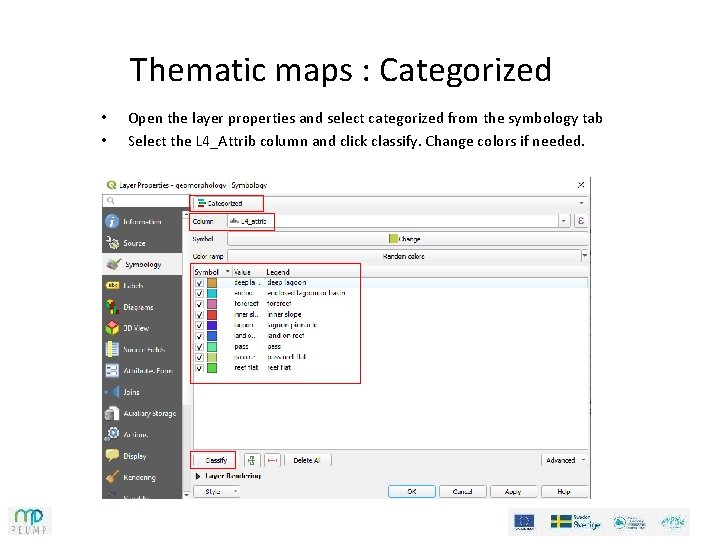
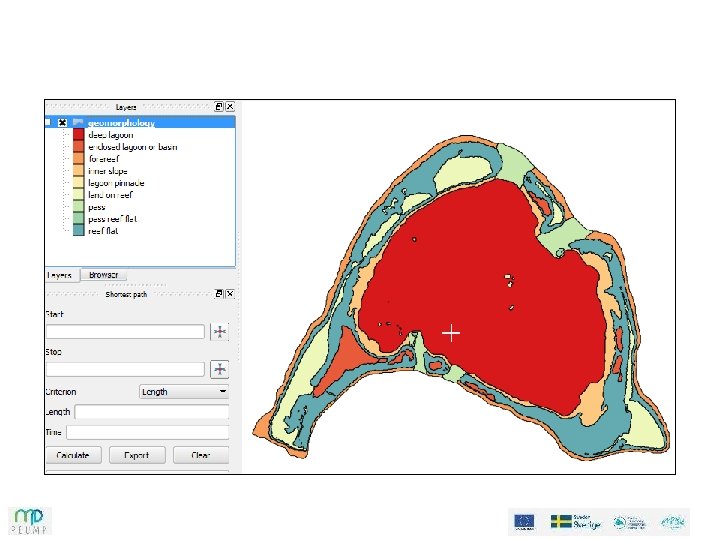
Thematic maps : Categorized • • Open the layer properties and select categorized from the symbology tab Select the L 4_Attrib column and click classify. Change colors if needed.
Project : Categorized Set project CRS to UTM (zone 56 N for Atlantis)
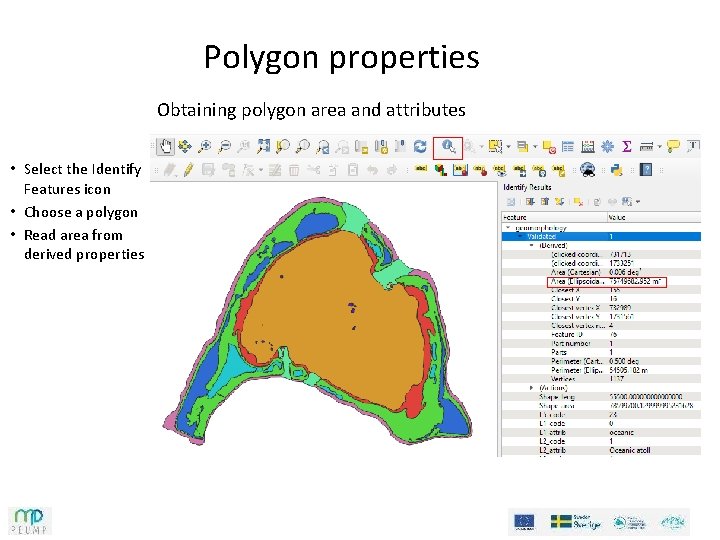
Polygon properties Obtaining polygon area and attributes • Select the Identify Features icon • Choose a polygon • Read area from derived properties
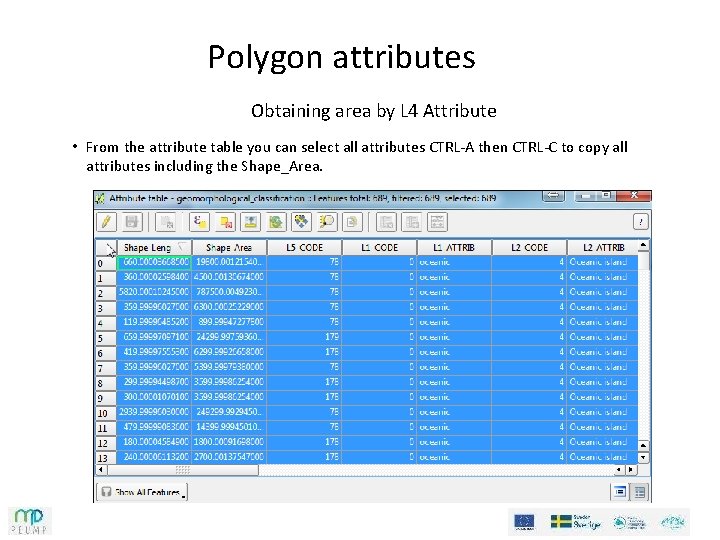
Polygon attributes Obtaining area by L 4 Attribute • From the attribute table you can select all attributes CTRL-A then CTRL-C to copy all attributes including the Shape_Area.
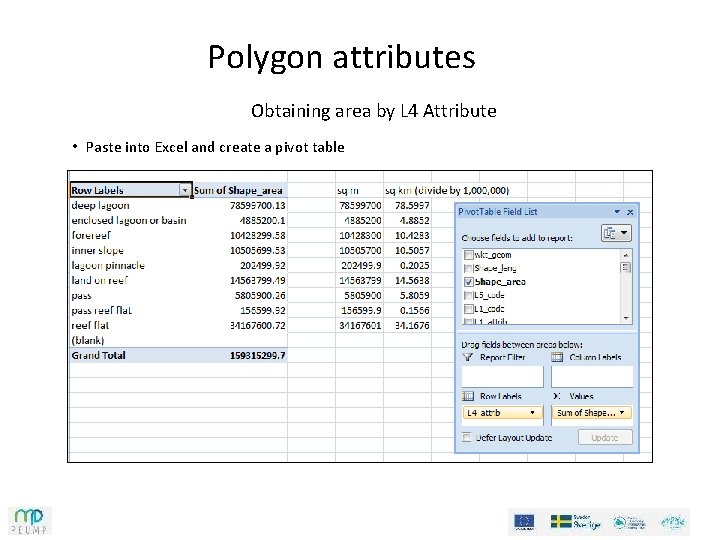
Polygon attributes Obtaining area by L 4 Attribute • Paste into Excel and create a pivot table