
GIS TRAINING Creation and manipulation of vector layers


- Slides: 30
GIS TRAINING Creation and manipulation of vector layers
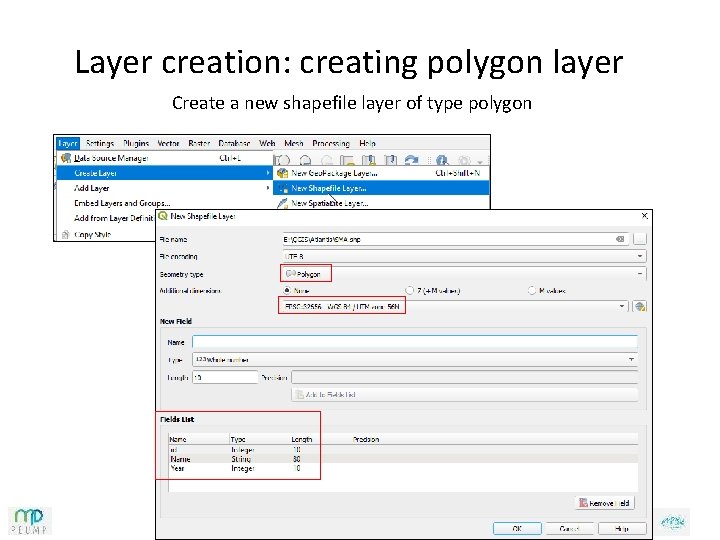
Layer creation: creating polygon layer Create a new shapefile layer of type polygon
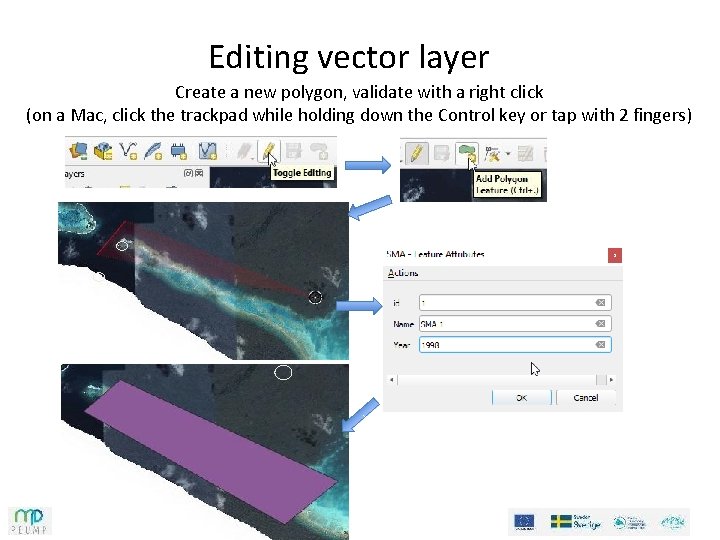
Editing vector layer Create a new polygon, validate with a right click (on a Mac, click the trackpad while holding down the Control key or tap with 2 fingers)
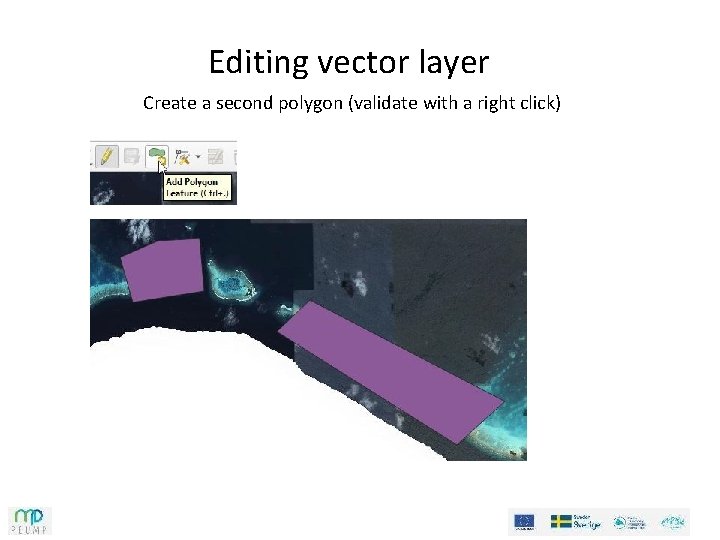
Editing vector layer Create a second polygon (validate with a right click)
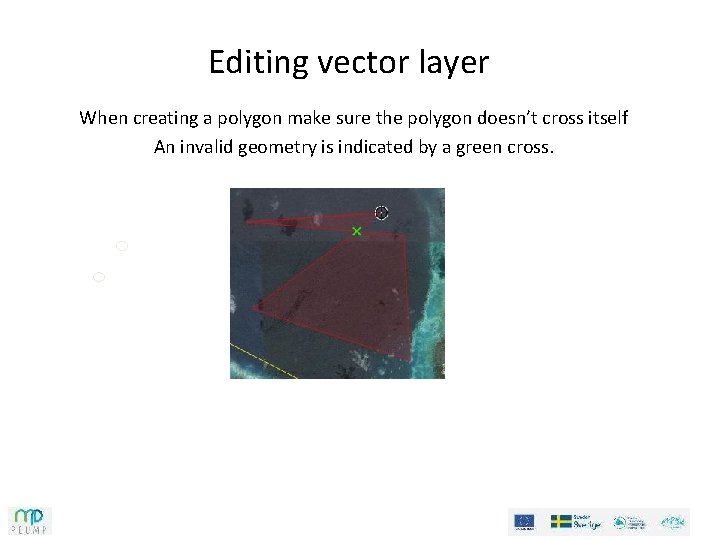
Editing vector layer When creating a polygon make sure the polygon doesn’t cross itself An invalid geometry is indicated by a green cross.
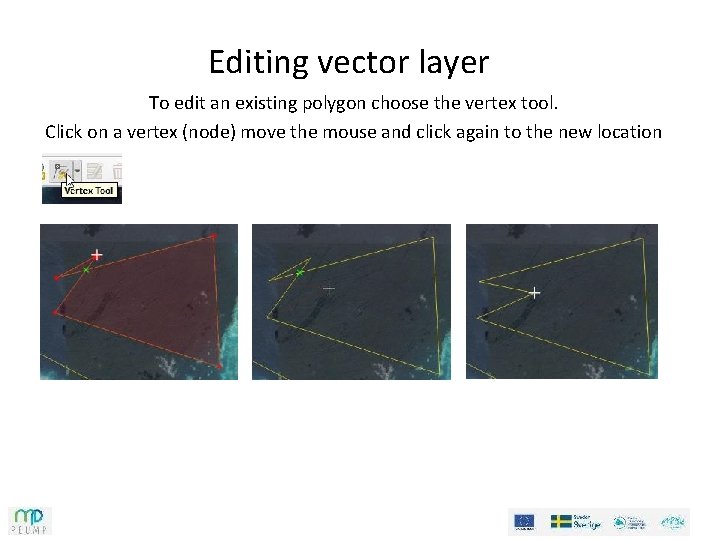
Editing vector layer To edit an existing polygon choose the vertex tool. Click on a vertex (node) move the mouse and click again to the new location
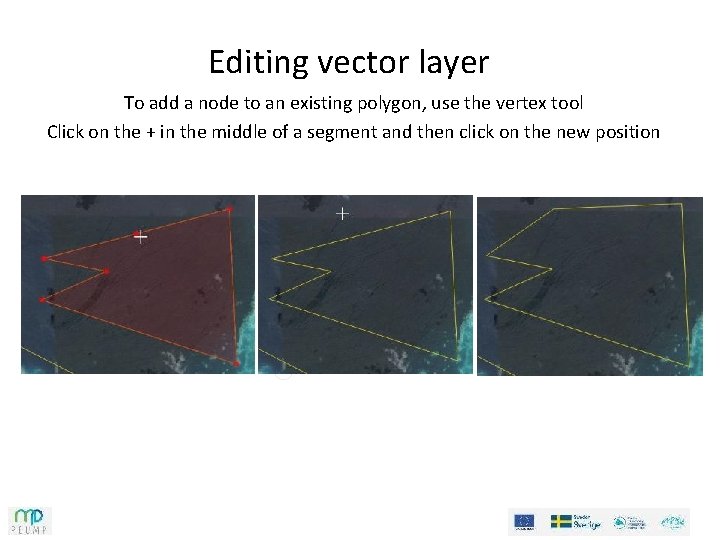
Editing vector layer To add a node to an existing polygon, use the vertex tool Click on the + in the middle of a segment and then click on the new position
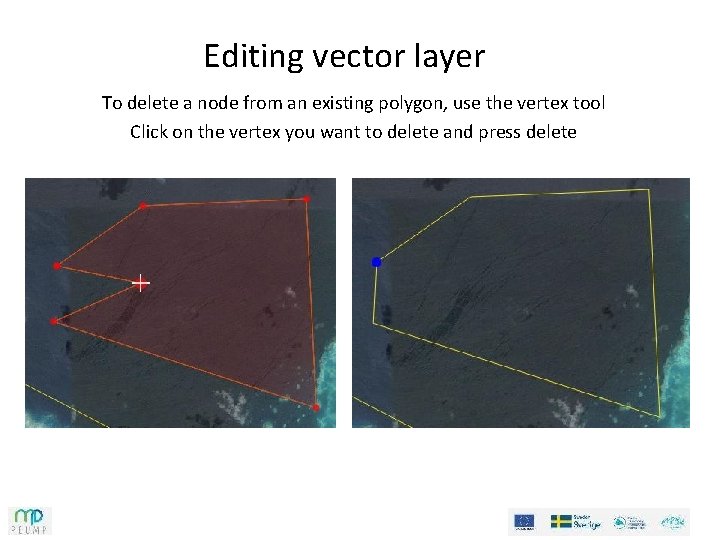
Editing vector layer To delete a node from an existing polygon, use the vertex tool Click on the vertex you want to delete and press delete
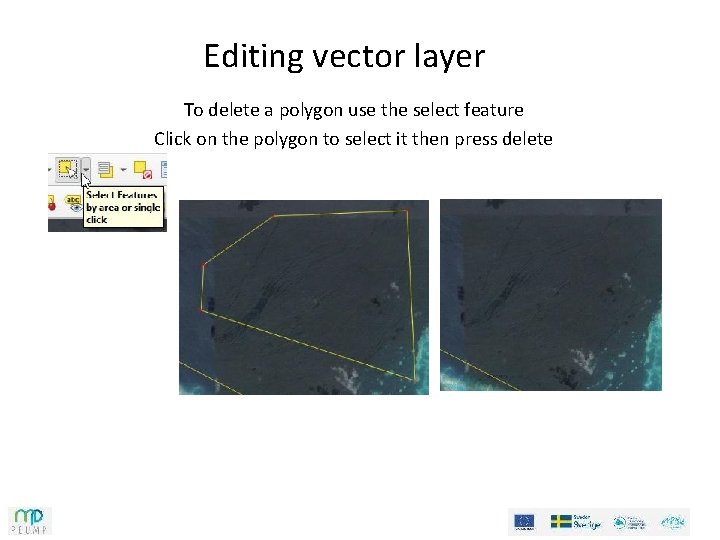
Editing vector layer To delete a polygon use the select feature Click on the polygon to select it then press delete
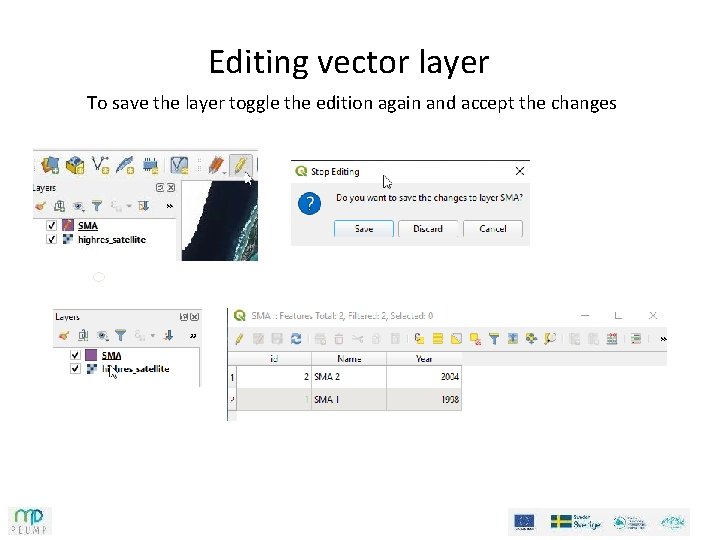
Editing vector layer To save the layer toggle the edition again and accept the changes
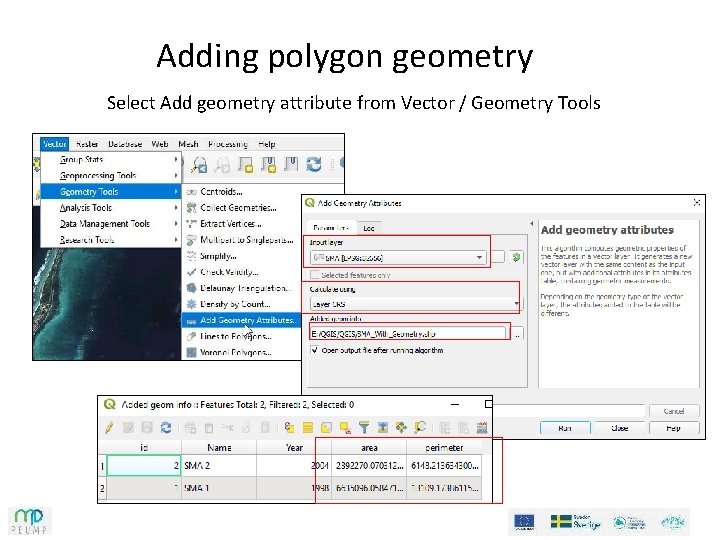
Adding polygon geometry Select Add geometry attribute from Vector / Geometry Tools
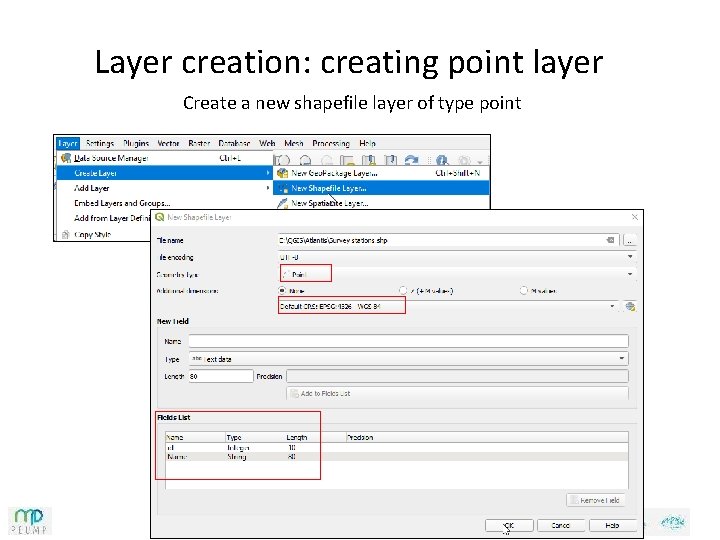
Layer creation: creating point layer Create a new shapefile layer of type point
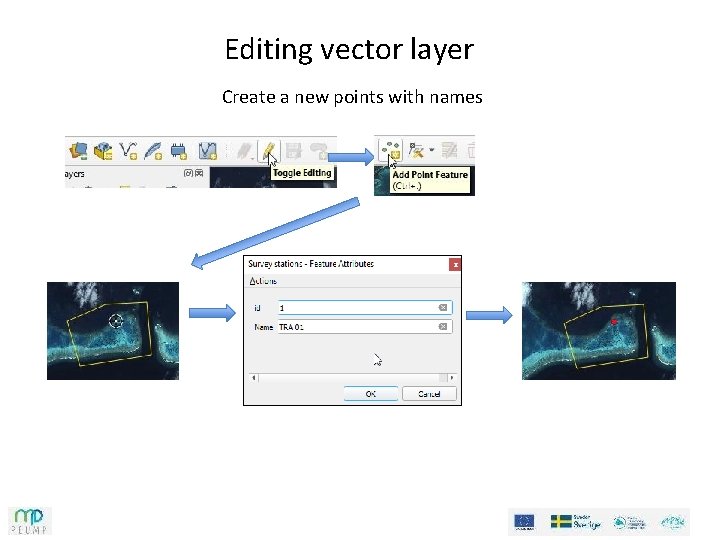
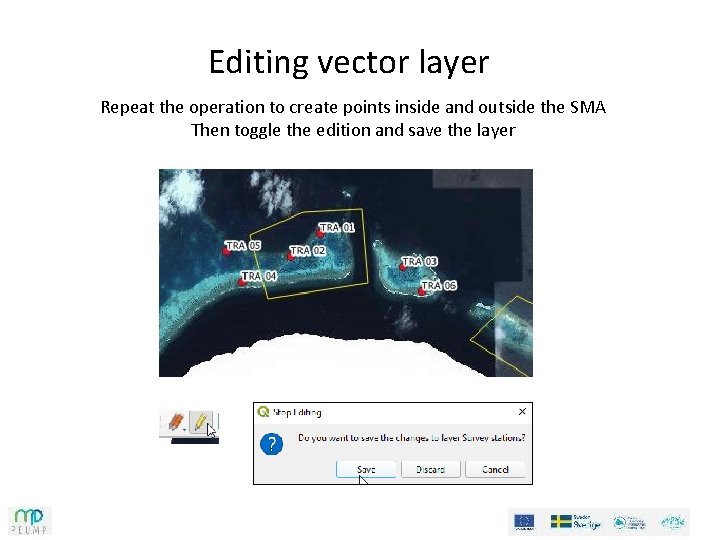
Editing vector layer Create a new points with names
Editing vector layer Repeat the operation to create points inside and outside the SMA Then toggle the edition and save the layer
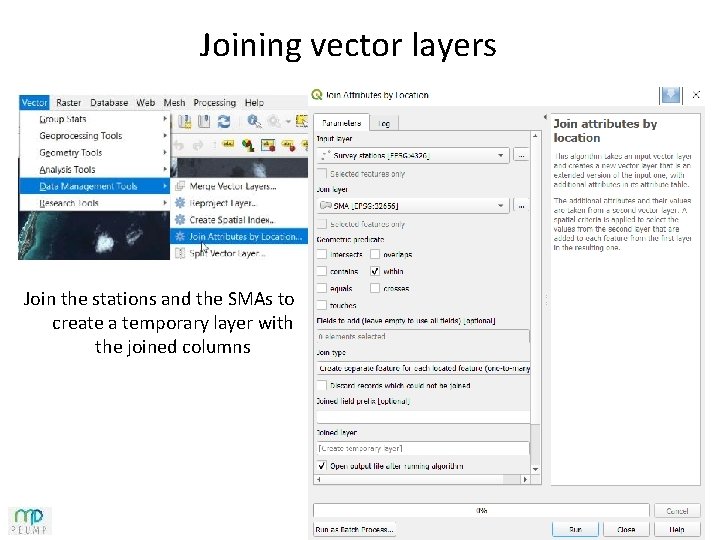
Joining vector layers Join the stations and the SMAs to create a temporary layer with the joined columns
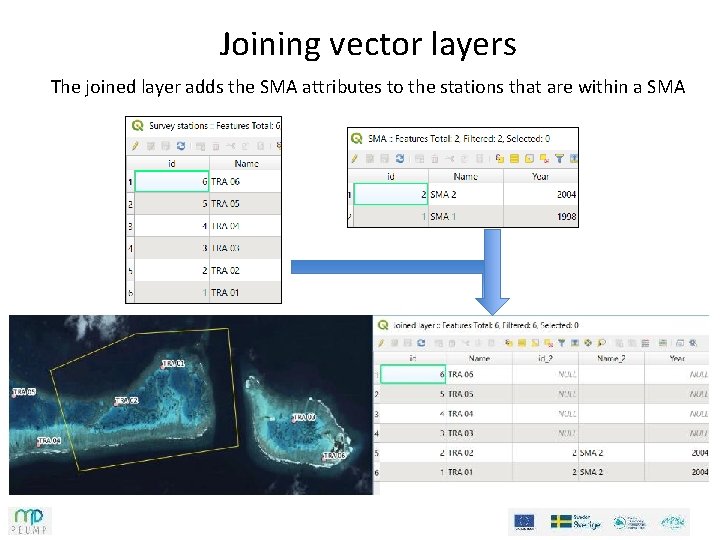
Joining vector layers The joined layer adds the SMA attributes to the stations that are within a SMA
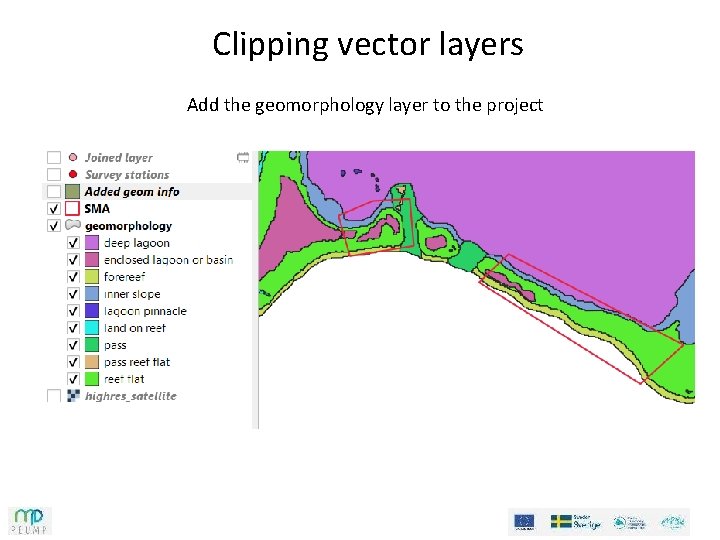
Clipping vector layers Add the geomorphology layer to the project
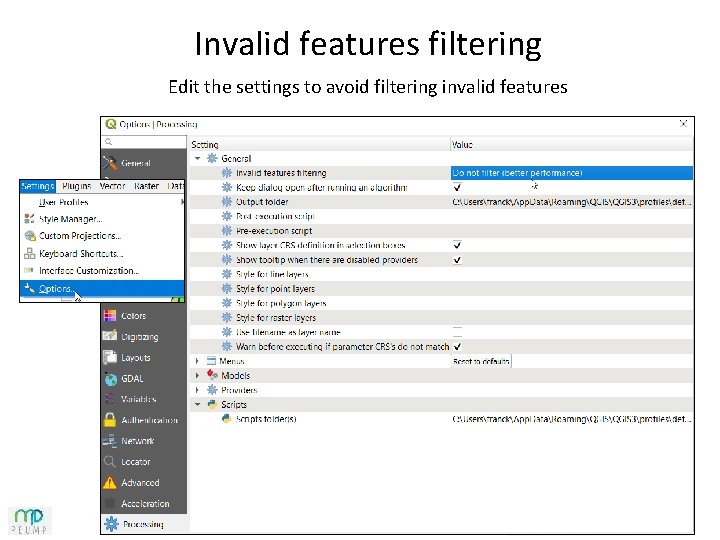
Invalid features filtering Edit the settings to avoid filtering invalid features
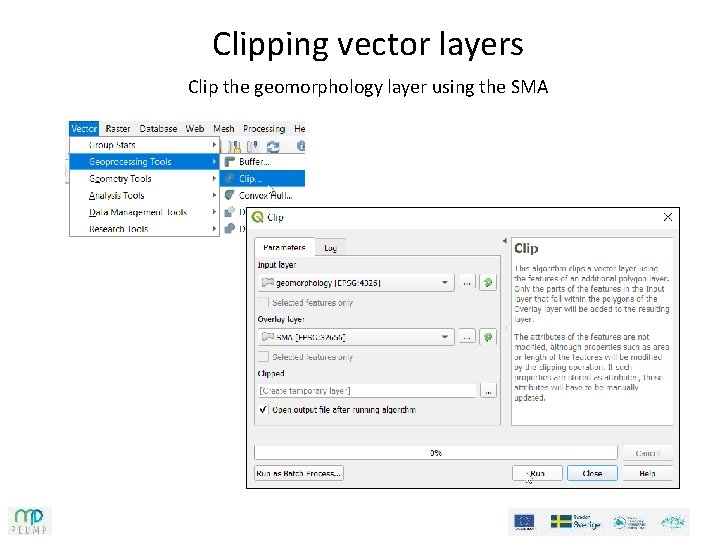
Clipping vector layers Clip the geomorphology layer using the SMA
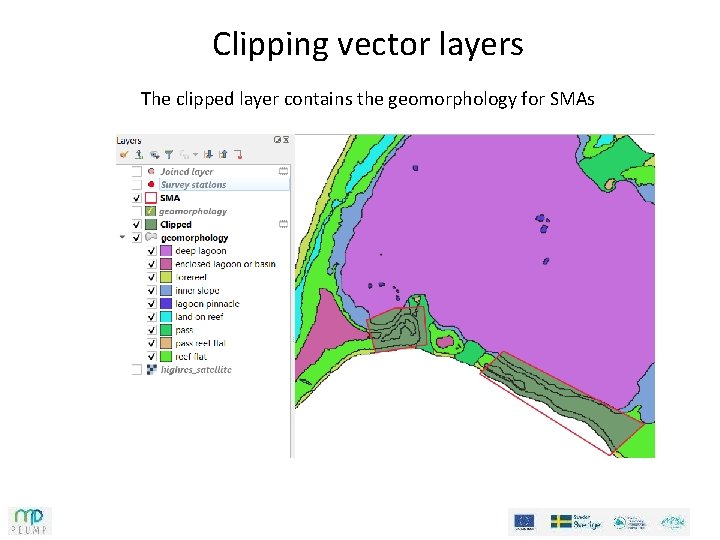
Clipping vector layers The clipped layer contains the geomorphology for SMAs
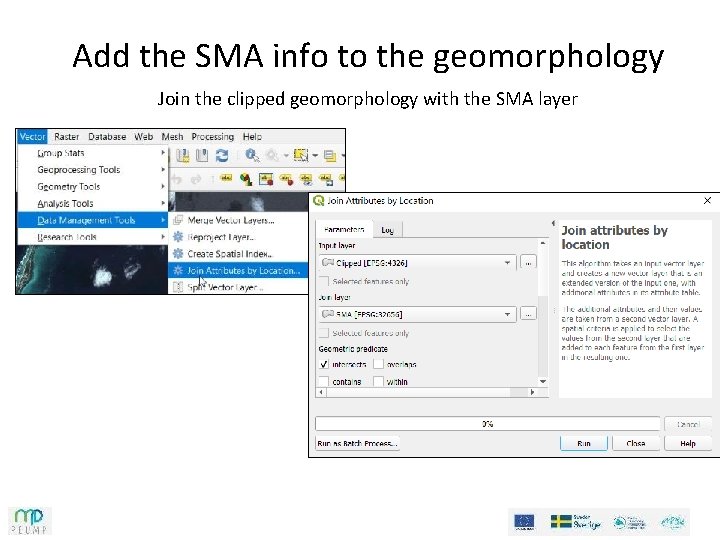
Add the SMA info to the geomorphology Join the clipped geomorphology with the SMA layer
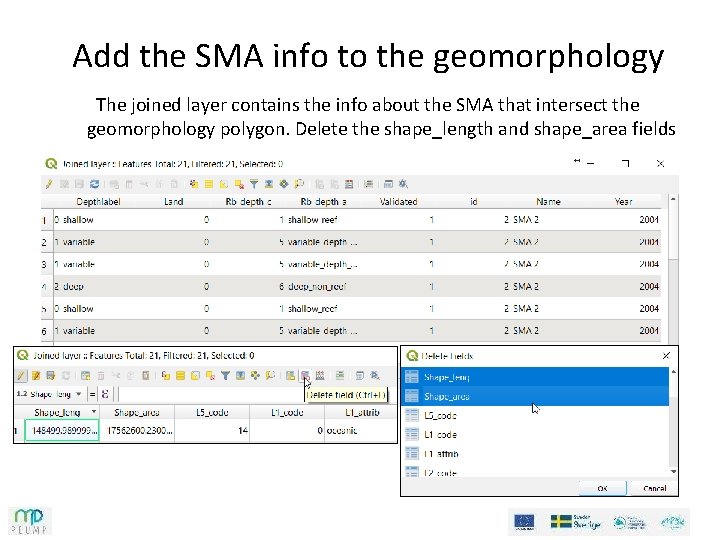
Add the SMA info to the geomorphology The joined layer contains the info about the SMA that intersect the geomorphology polygon. Delete the shape_length and shape_area fields
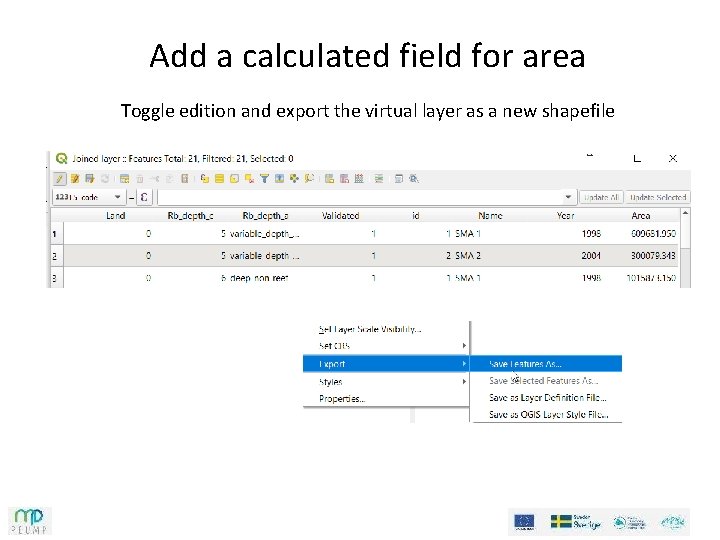
Add a calculated field for area Open the field calculator and add a decimal field for geometry/$area
Add a calculated field for area Toggle edition and export the virtual layer as a new shapefile
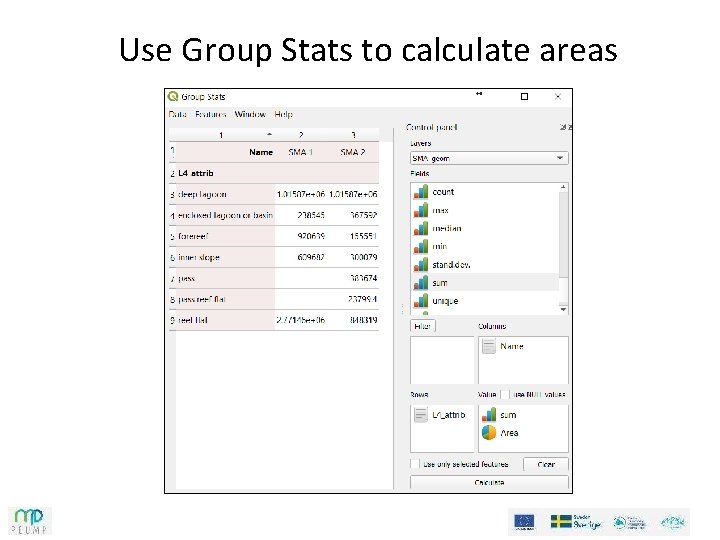
Use Group Stats to calculate areas
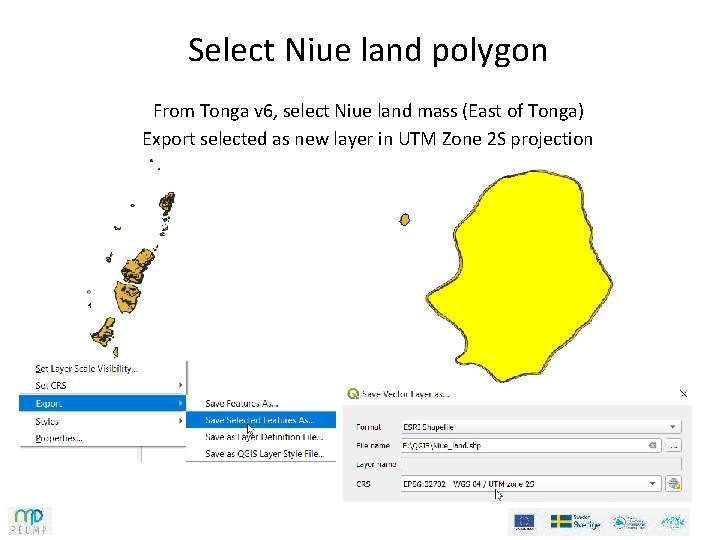
Select Niue land polygon From Tonga v 6, select Niue land mass (East of Tonga) Export selected as new layer in UTM Zone 2 S projection
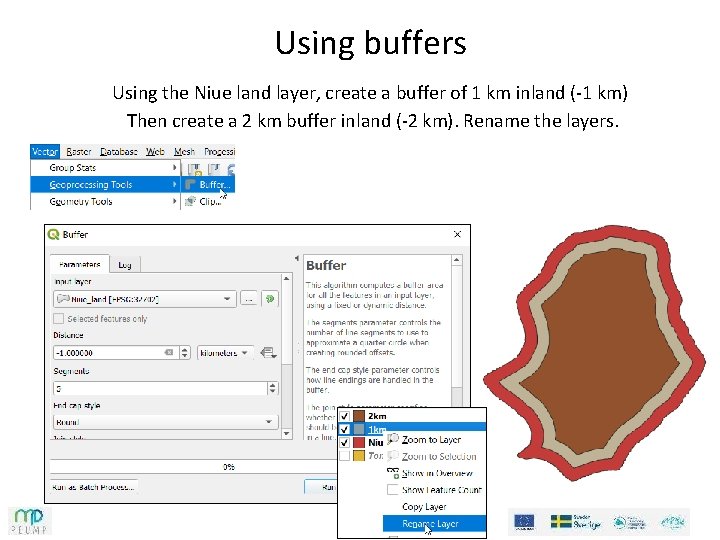
Using buffers Using the Niue land layer, create a buffer of 1 km inland (-1 km) Then create a 2 km buffer inland (-2 km). Rename the layers.
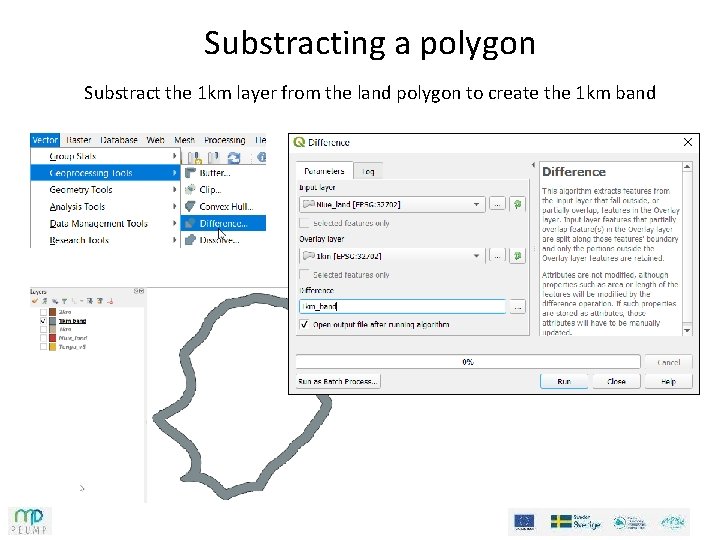
Substracting a polygon Substract the 1 km layer from the land polygon to create the 1 km band
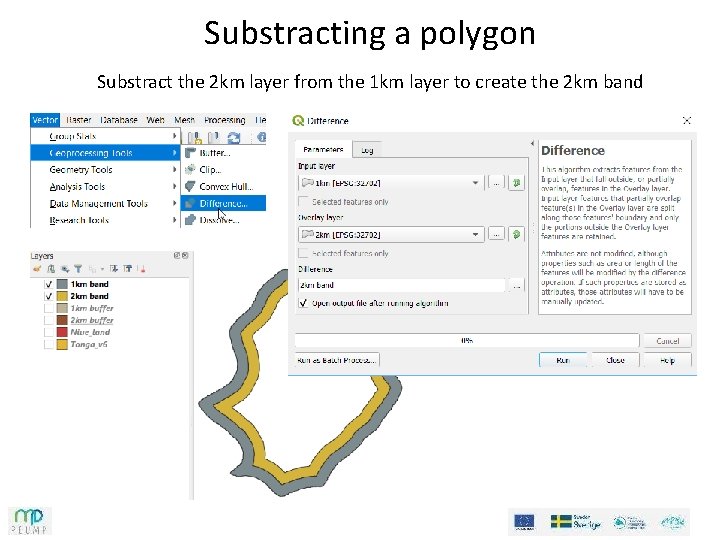
Substracting a polygon Substract the 2 km layer from the 1 km layer to create the 2 km band
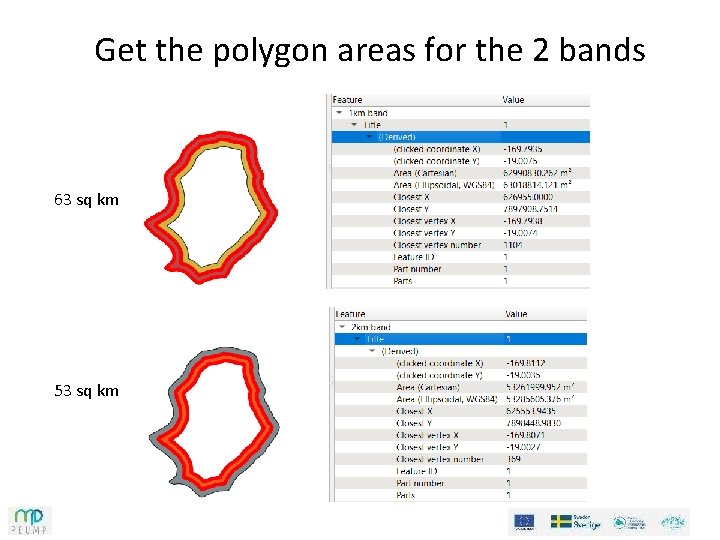
Get the polygon areas for the 2 bands 63 sq km 53 sq km