
GIS and Geologic Mapping Day 2 Tools and
- Slides: 108
GIS and Geologic Mapping Day 2 Tools and methods to get started using GIS geologic mapping USGS Astrogeology GIS Labs Sep 22, 2010
Agenda – Day 2 § Query and Spatial Analysis – Crater/Feature Tools § Freie Universität Berlin (Kneissl) /USGS (Nava) § Crater density walk-though § Bringing in Data and Setting Projections – – Rasters Shapefiles (interpolation) ASCII Files (feature lists, gridded rasters) 3 D Viewers Lunch § Creating Figures (Layouts) § GIS Helper Tools – Hawths, Geodesic, USGS Image Tools § Arc. Map 10 – what to expect 2
Querying Spatial data § GIS empowers the user to perform spatial searches across any or all data within a project § A “query” is “a request to select features or records from a database or feature” § Very easy “question-driven” dialog boxes allow user to string together multiple queries § Queries are most easily performed using a dialog box in Arc. Map 3 GIS for Planetary Mappers
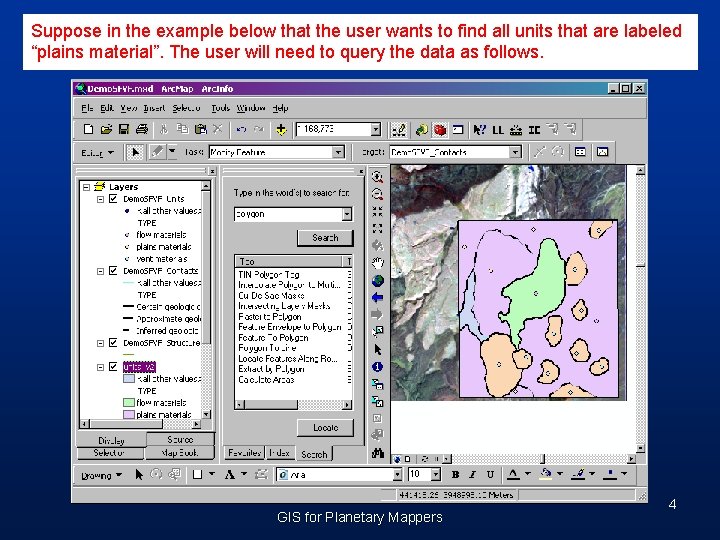
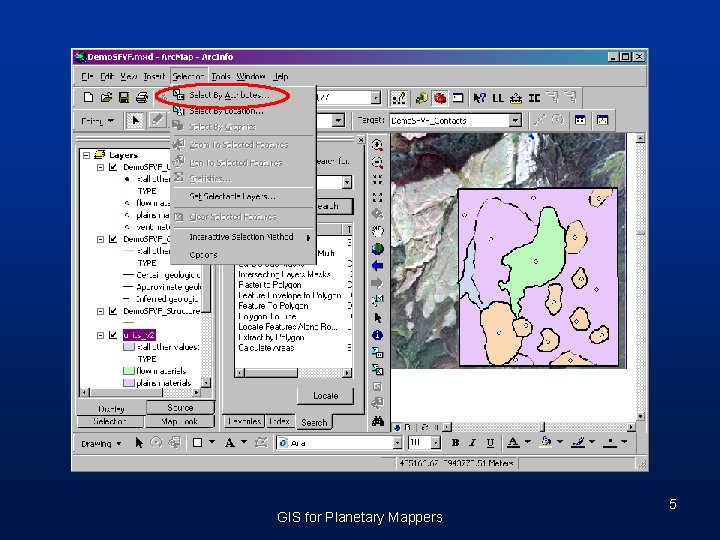
Suppose in the example below that the user wants to find all units that are labeled “plains material”. The user will need to query the data as follows. GIS for Planetary Mappers 4
GIS for Planetary Mappers 5
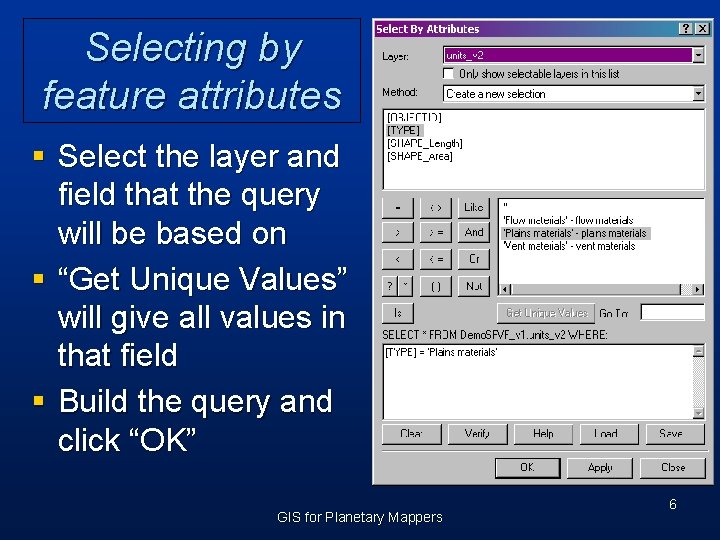
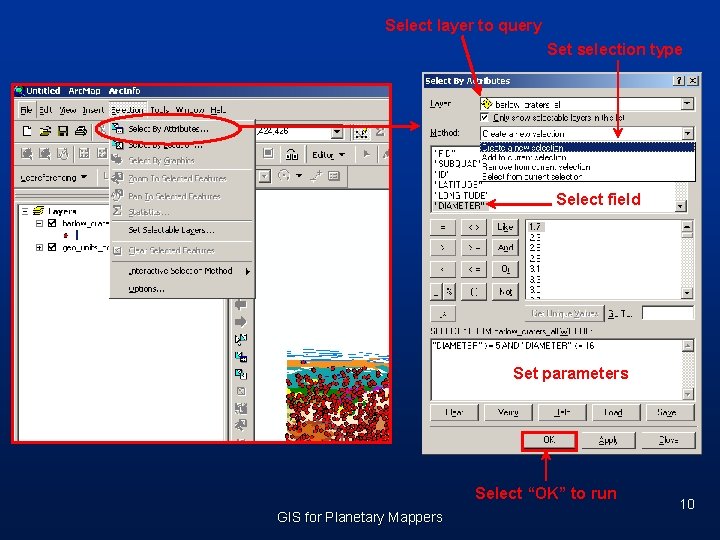
Selecting by feature attributes § Select the layer and field that the query will be based on § “Get Unique Values” will give all values in that field § Build the query and click “OK” GIS for Planetary Mappers 6
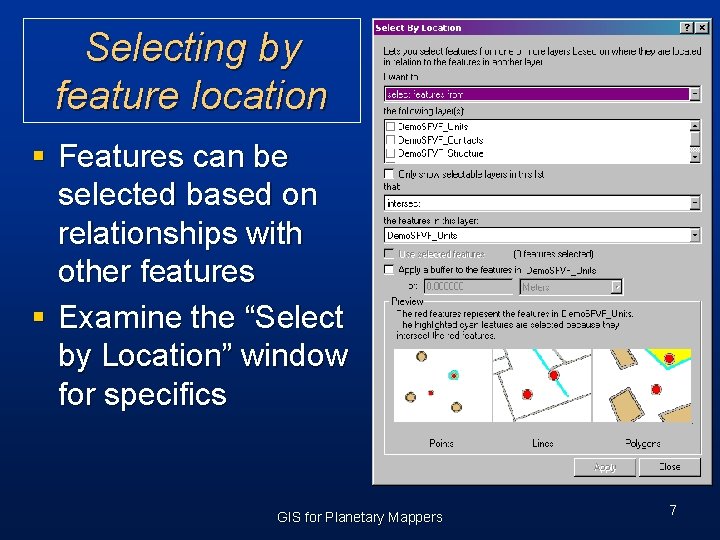
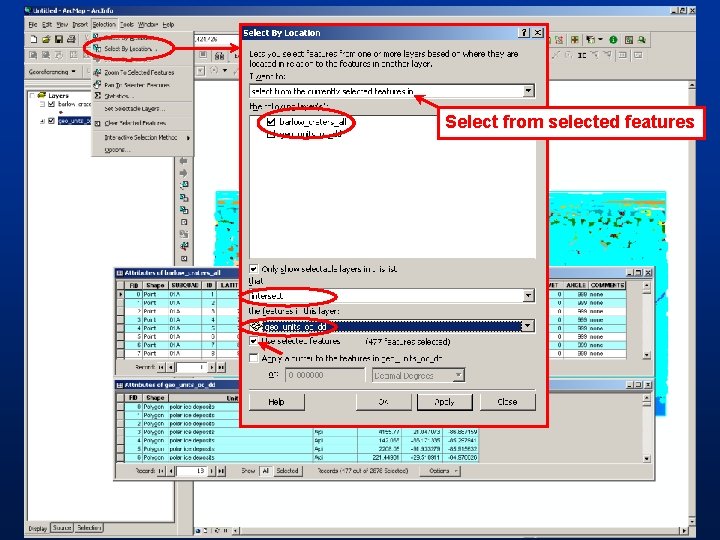
Selecting by feature location § Features can be selected based on relationships with other features § Examine the “Select by Location” window for specifics GIS for Planetary Mappers 7
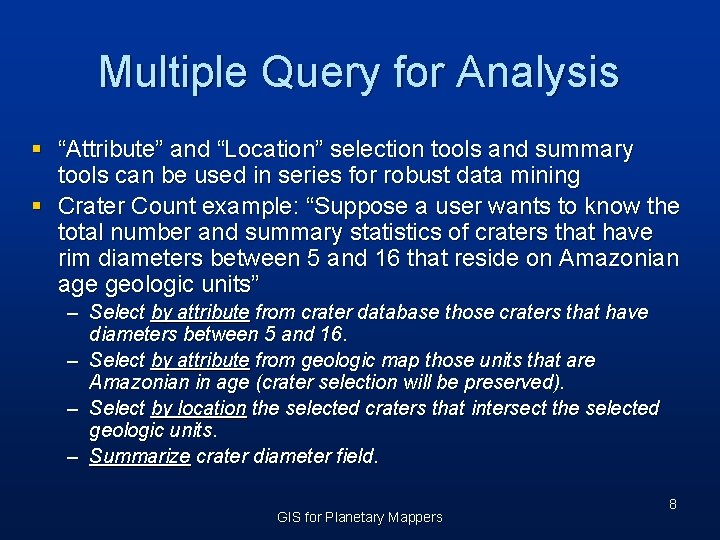
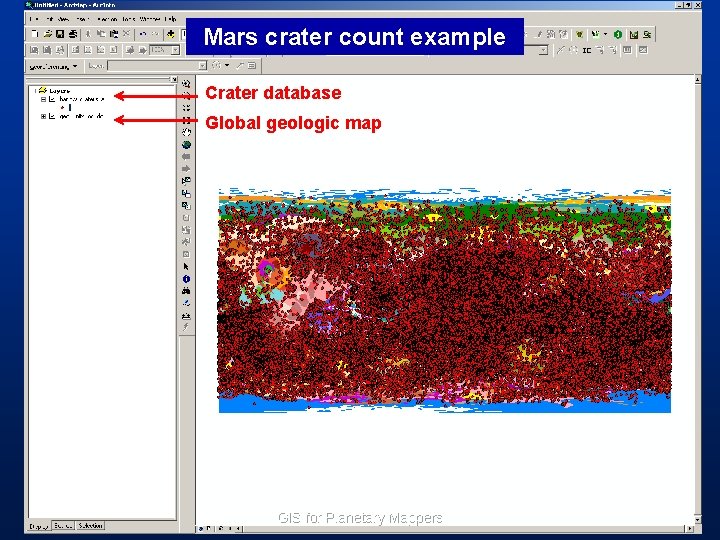
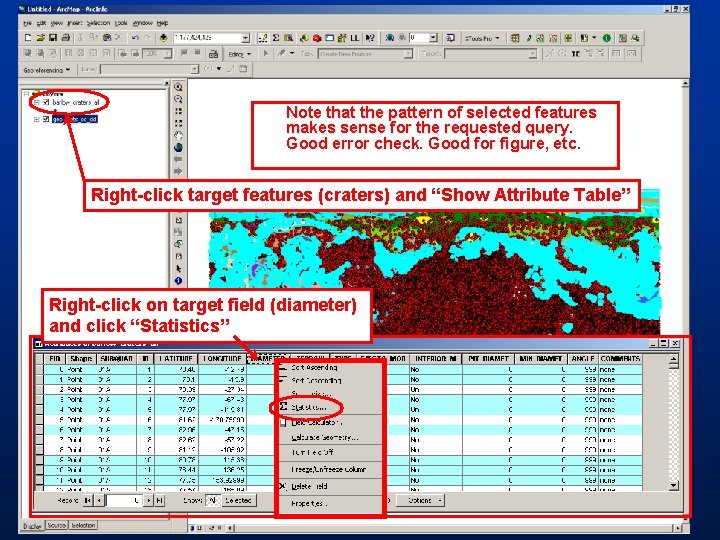
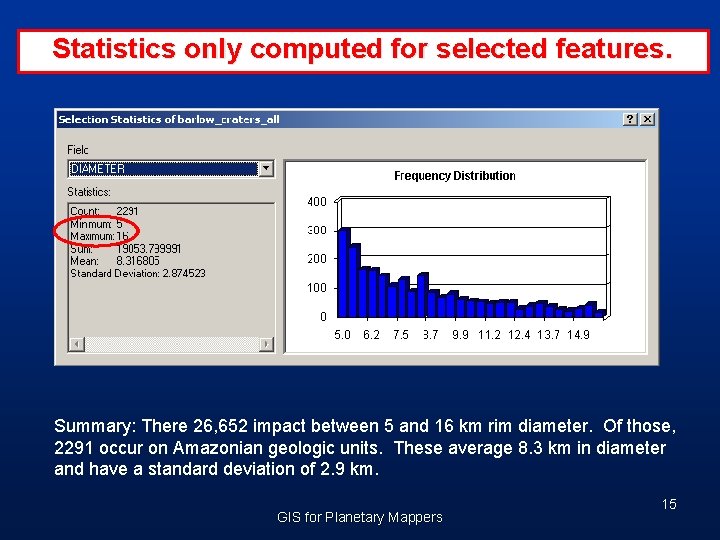
Multiple Query for Analysis § “Attribute” and “Location” selection tools and summary tools can be used in series for robust data mining § Crater Count example: “Suppose a user wants to know the total number and summary statistics of craters that have rim diameters between 5 and 16 that reside on Amazonian age geologic units” – Select by attribute from crater database those craters that have diameters between 5 and 16. – Select by attribute from geologic map those units that are Amazonian in age (crater selection will be preserved). – Select by location the selected craters that intersect the selected geologic units. – Summarize crater diameter field. GIS for Planetary Mappers 8
Mars crater count example Crater database Global geologic map GIS for Planetary Mappers
Select layer to query Set selection type Select field Set parameters Select “OK” to run GIS for Planetary Mappers 10
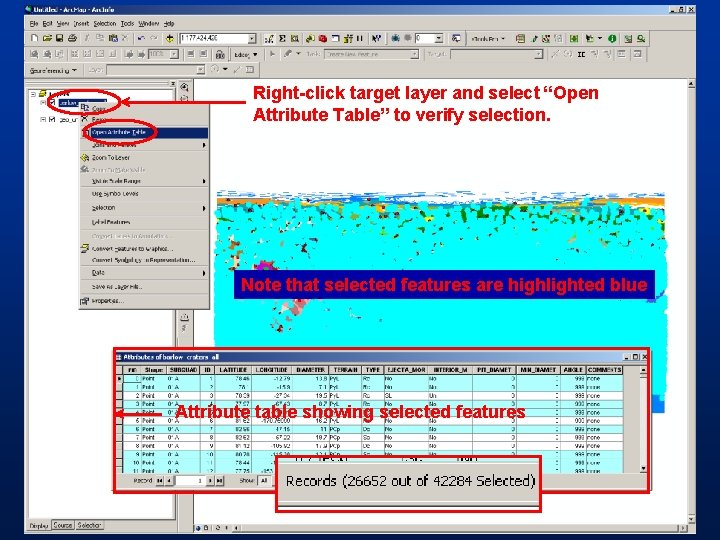
Right-click target layer and select “Open Attribute Table” to verify selection. Note that selected features are highlighted blue Attribute table showing selected features
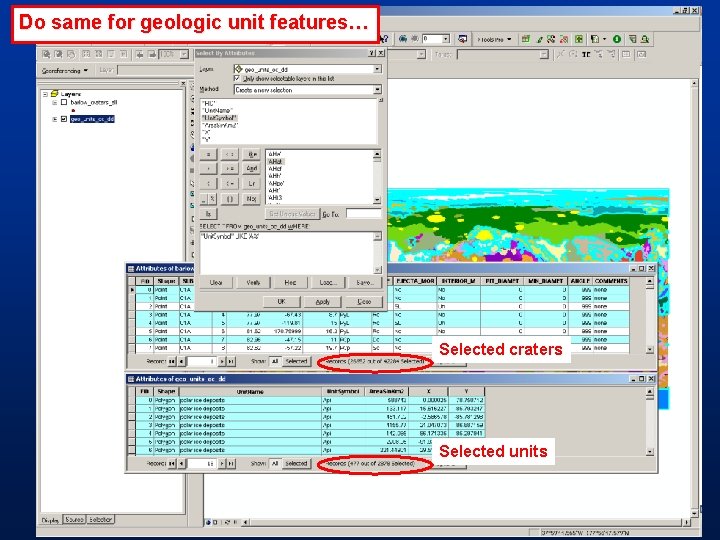
Do same for geologic unit features… Selected craters Selected units
Select from selected features
Note that the pattern of selected features makes sense for the requested query. Good error check. Good for figure, etc. Right-click target features (craters) and “Show Attribute Table” Right-click on target field (diameter) and click “Statistics”
Statistics only computed for selected features. Summary: There 26, 652 impact between 5 and 16 km rim diameter. Of those, 2291 occur on Amazonian geologic units. These average 8. 3 km in diameter and have a standard deviation of 2. 9 km. GIS for Planetary Mappers 15
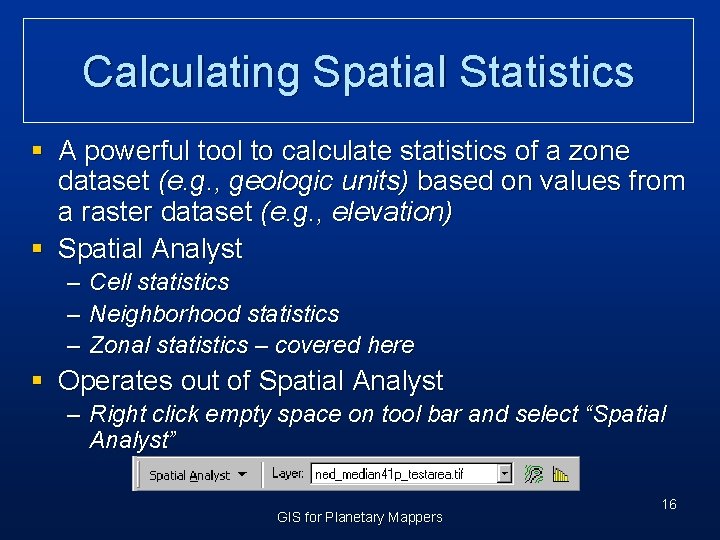
Calculating Spatial Statistics § A powerful tool to calculate statistics of a zone dataset (e. g. , geologic units) based on values from a raster dataset (e. g. , elevation) § Spatial Analyst – Cell statistics – Neighborhood statistics – Zonal statistics – covered here § Operates out of Spatial Analyst – Right click empty space on tool bar and select “Spatial Analyst” GIS for Planetary Mappers 16
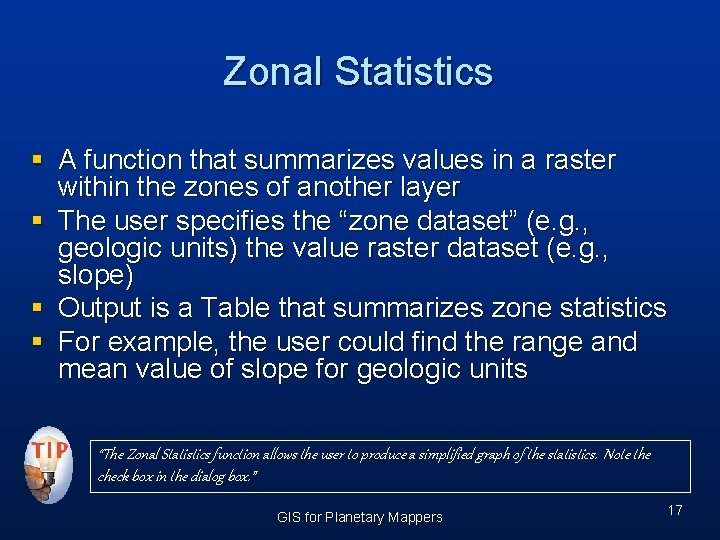
Zonal Statistics § A function that summarizes values in a raster within the zones of another layer § The user specifies the “zone dataset” (e. g. , geologic units) the value raster dataset (e. g. , slope) § Output is a Table that summarizes zone statistics § For example, the user could find the range and mean value of slope for geologic units “The Zonal Statistics function allows the user to produce a simplified graph of the statistics. Note the check box in the dialog box. ” GIS for Planetary Mappers 17
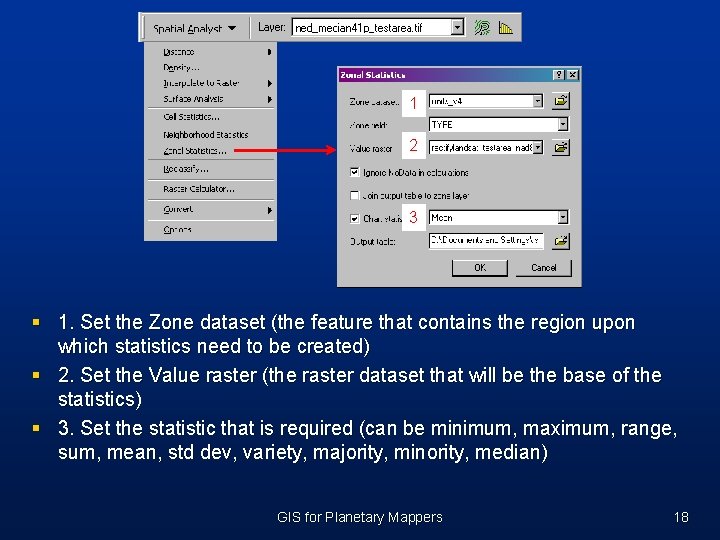
1 2 3 § 1. Set the Zone dataset (the feature that contains the region upon which statistics need to be created) § 2. Set the Value raster (the raster dataset that will be the base of the statistics) § 3. Set the statistic that is required (can be minimum, maximum, range, sum, mean, std dev, variety, majority, minority, median) GIS for Planetary Mappers 18
Crater Helper Tools (or the Crater/Feature tools) for Arc. Map By Richard A Nava http: //webgis. wr. usgs. gov/pigwad/tutorials/scripts GIS for Planetary Mappers
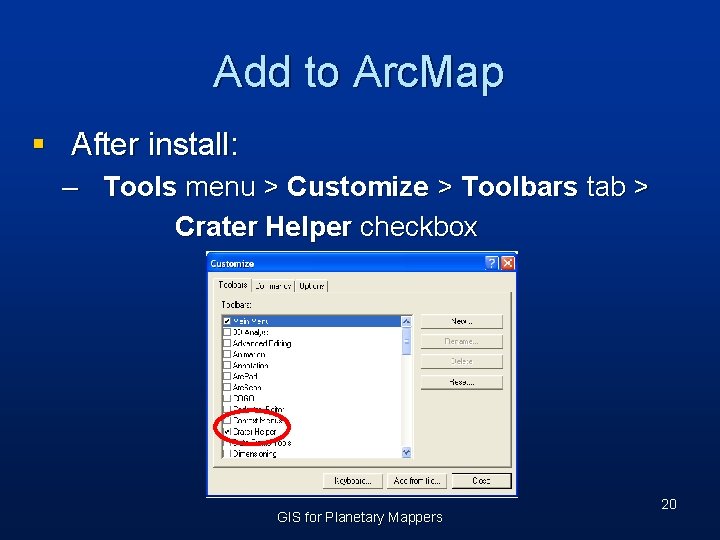
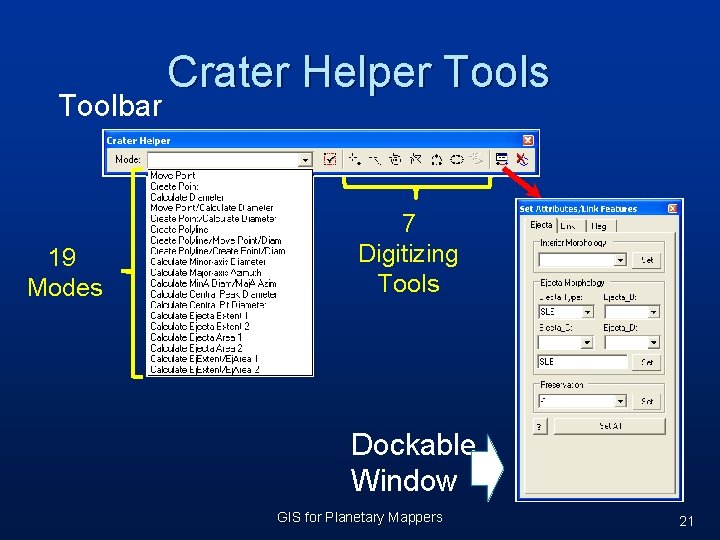
Add to Arc. Map § After install: – Tools menu > Customize > Toolbars tab > Crater Helper checkbox GIS for Planetary Mappers 20
Toolbar 19 Modes Crater Helper Tools 7 Digitizing Tools Dockable Window GIS for Planetary Mappers 21
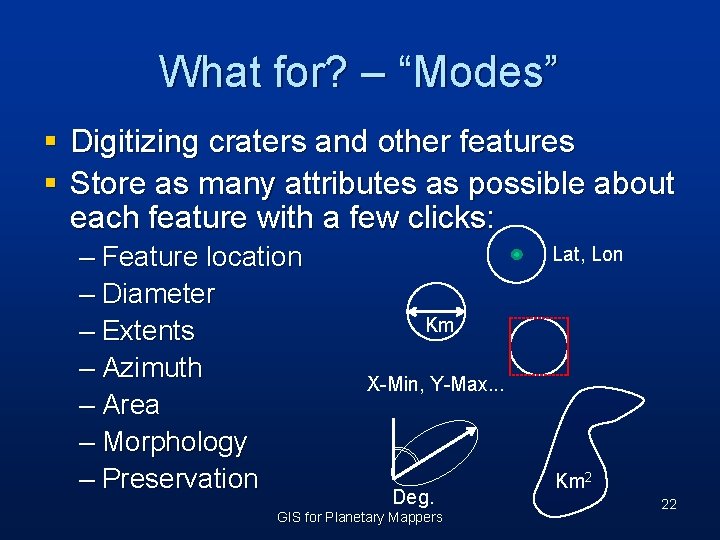
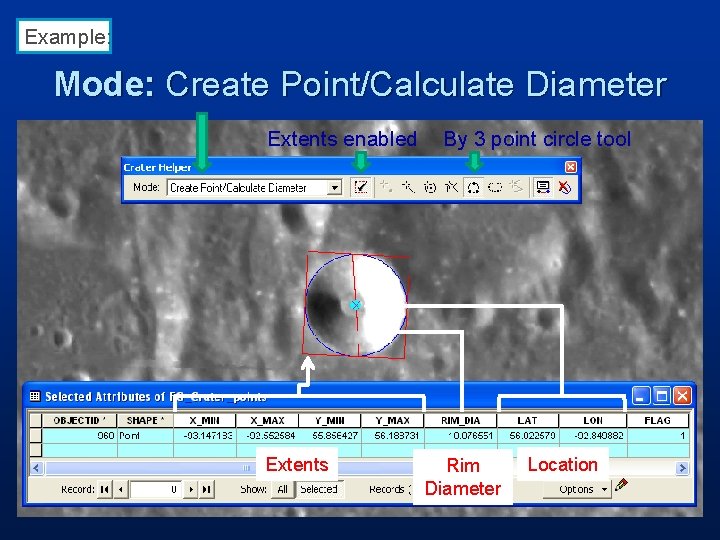
What for? – “Modes” § Digitizing craters and other features § Store as many attributes as possible about each feature with a few clicks: – Feature location – Diameter – Extents – Azimuth – Area – Morphology – Preservation Lat, Lon Km X-Min, Y-Max. . . Deg. GIS for Planetary Mappers Km 2 22
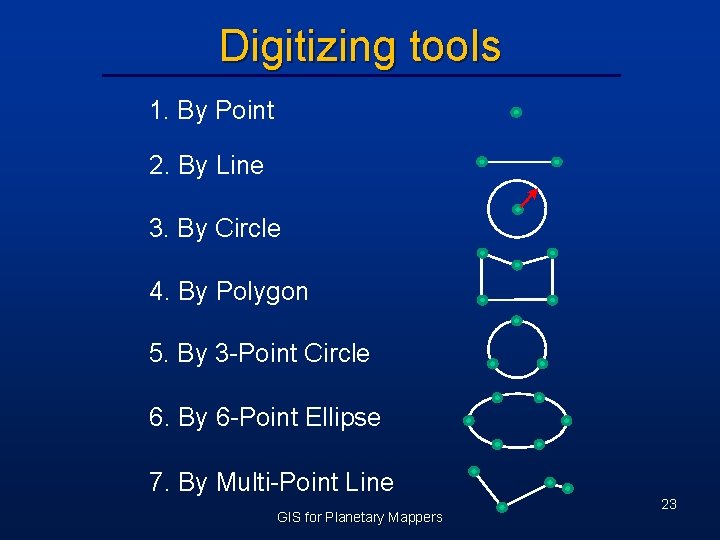
Digitizing tools 1. By Point 2. By Line 3. By Circle 4. By Polygon 5. By 3 -Point Circle 6. By 6 -Point Ellipse 7. By Multi-Point Line GIS for Planetary Mappers 23
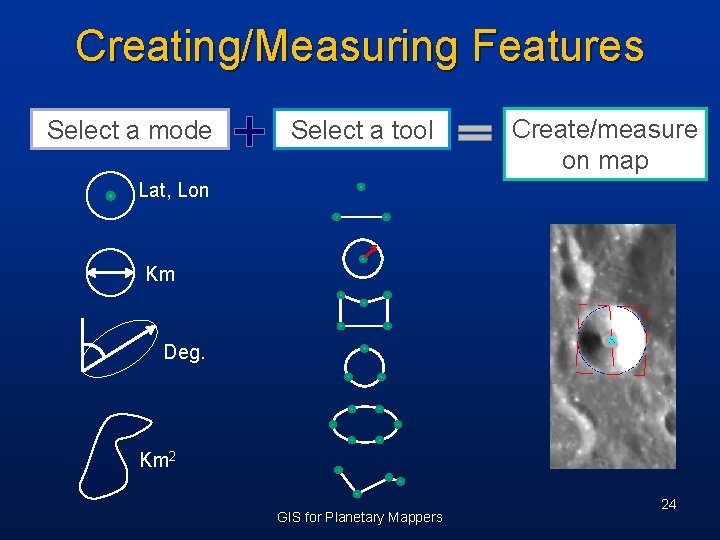
Creating/Measuring Features Select a mode Select a tool Create/measure on map Lat, Lon Km Deg. Km 2 GIS for Planetary Mappers 24
Example: Mode: Create Point/Calculate Diameter Extents enabled Extents By 3 point circle tool Rim Diameter Location
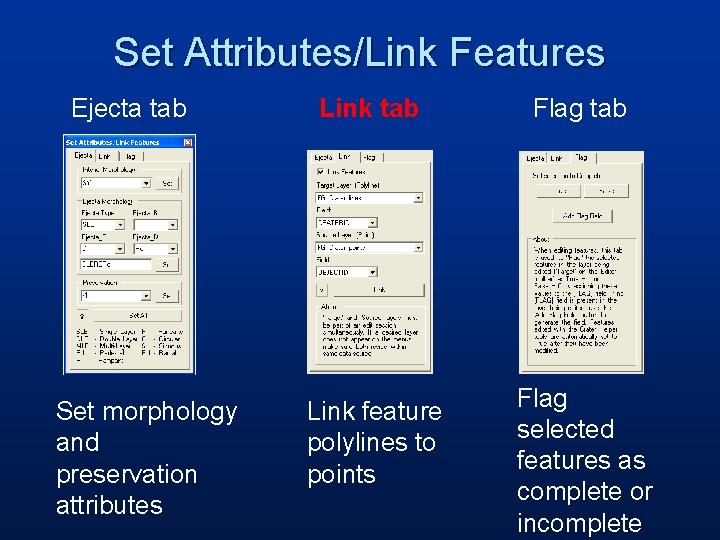
Set Attributes/Link Features Ejecta tab Set morphology and preservation attributes Link tab Link feature polylines to points Flag tab Flag selected features as complete or incomplete
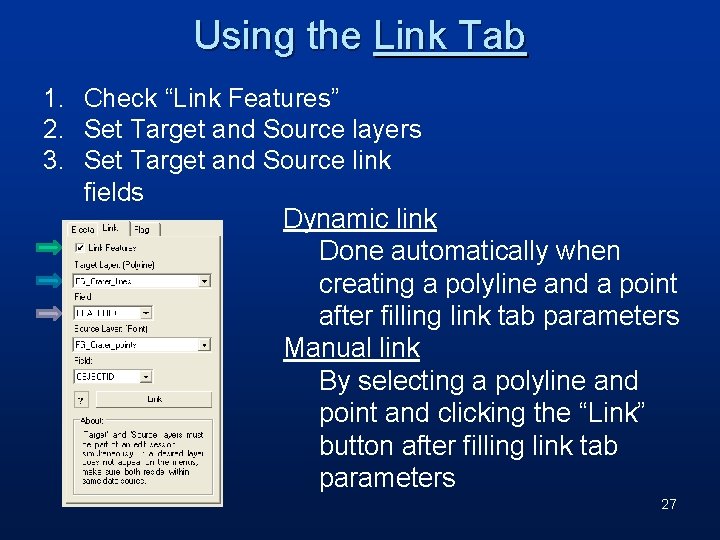
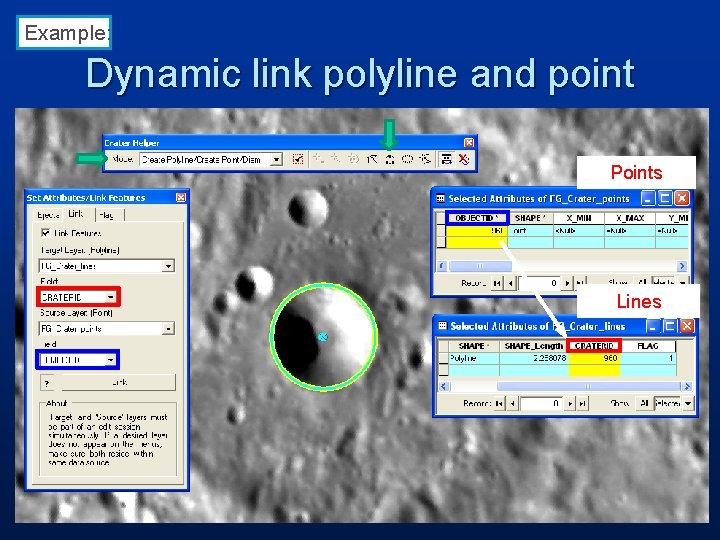
Using the Link Tab 1. Check “Link Features” 2. Set Target and Source layers 3. Set Target and Source link fields Dynamic link Done automatically when creating a polyline and a point after filling link tab parameters Manual link By selecting a polyline and point and clicking the “Link” button after filling link tab parameters 27
Example: Dynamic link polyline and point Points Lines
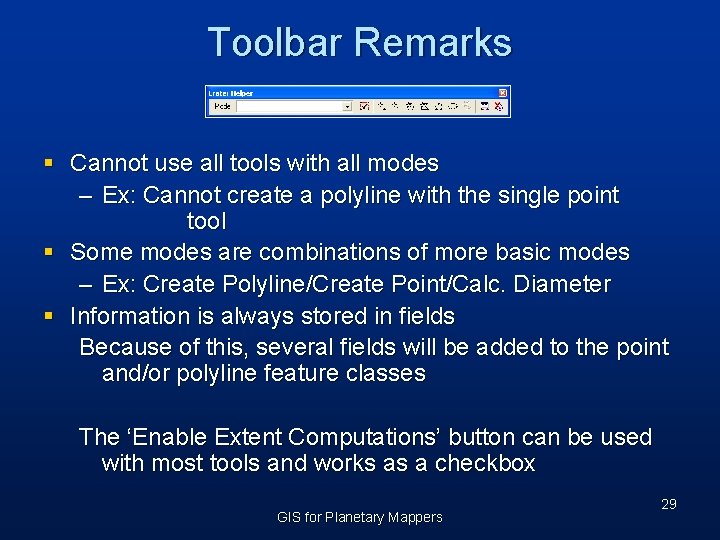
Toolbar Remarks § Cannot use all tools with all modes – Ex: Cannot create a polyline with the single point tool § Some modes are combinations of more basic modes – Ex: Create Polyline/Create Point/Calc. Diameter § Information is always stored in fields Because of this, several fields will be added to the point and/or polyline feature classes The ‘Enable Extent Computations’ button can be used with most tools and works as a checkbox GIS for Planetary Mappers 29
Tools for Crater Statistics by Freie University GIS for Planetary Mappers
Crater. Tools § Crater. Tools is a GIS add-on toolbar – Download: http: //hrscview. fu-berlin. de/software. html – Publication: Kneissl T. , van Gasselt S. , Neukum G. , Map-projection-independent crater size-frequency determination in GIS environments - New software tool for Arc. GIS, Planetary and Space Science, 2010. GIS for Planetary Mappers 31
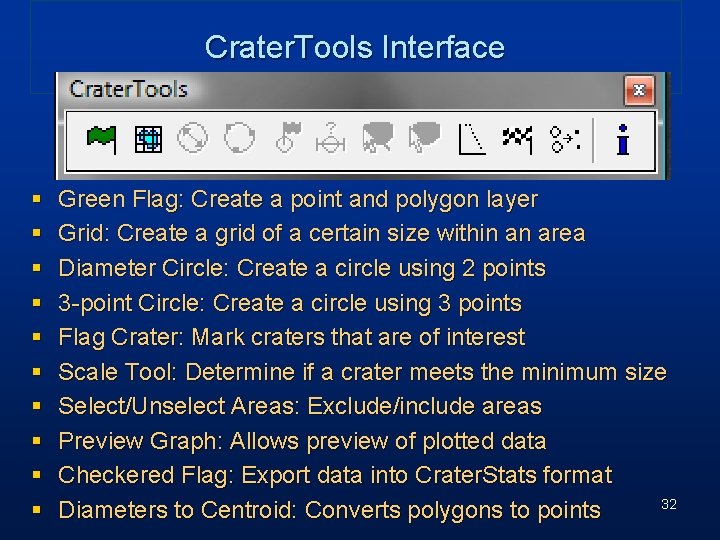
Crater. Tools Interface § § § § § Green Flag: Create a point and polygon layer Grid: Create a grid of a certain size within an area Diameter Circle: Create a circle using 2 points 3 -point Circle: Create a circle using 3 points Flag Crater: Mark craters that are of interest Scale Tool: Determine if a crater meets the minimum size Select/Unselect Areas: Exclude/include areas Preview Graph: Allows preview of plotted data Checkered Flag: Export data into Crater. Stats format 32 Diameters to Centroid: Converts polygons to points
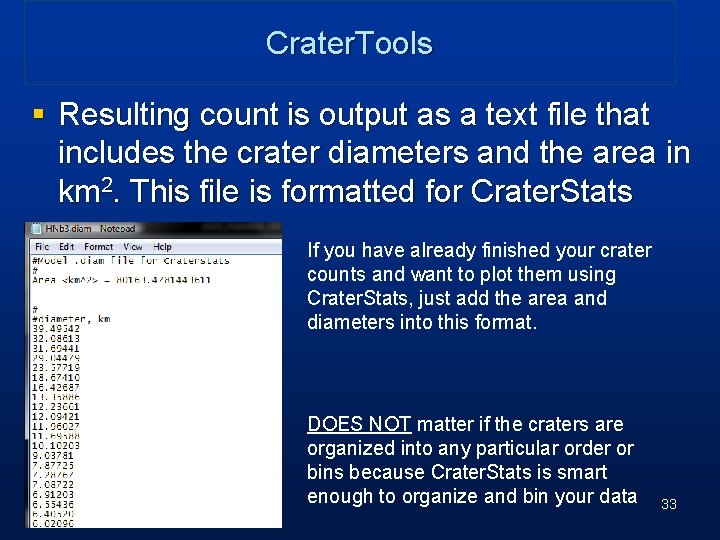
Crater. Tools § Resulting count is output as a text file that includes the crater diameters and the area in km 2. This file is formatted for Crater. Stats If you have already finished your crater counts and want to plot them using Crater. Stats, just add the area and diameters into this format. DOES NOT matter if the craters are organized into any particular order or bins because Crater. Stats is smart enough to organize and bin your data 33
Crater. Stats § Produces uniform plots of crater statistic and fit isochrons to deposition and resurfacing – Download: http: //hrscview. fu-berlin. de/software. html § Also need to download the IDL virtual machine – also at the location above – Publication: Michael G. G. , Neukum G. , Planetary surface dating from crater size-frequency distribution measurements: Partial resurfacing events and statistical age uncertainty, Earth and Planetary Science Letters, 2010, DOI: 10. 1016/j. epsl. 2009. 12. 041 GIS for Planetary Mappers 34
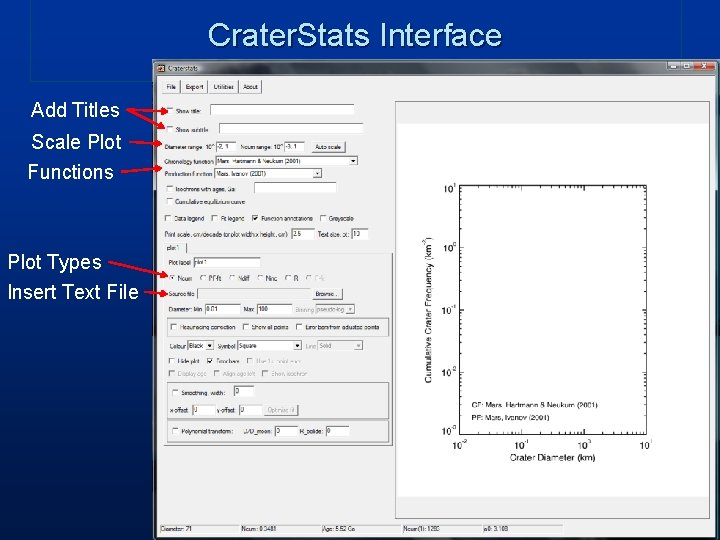
Crater. Stats Interface Add Titles Scale Plot Functions Plot Types Insert Text File
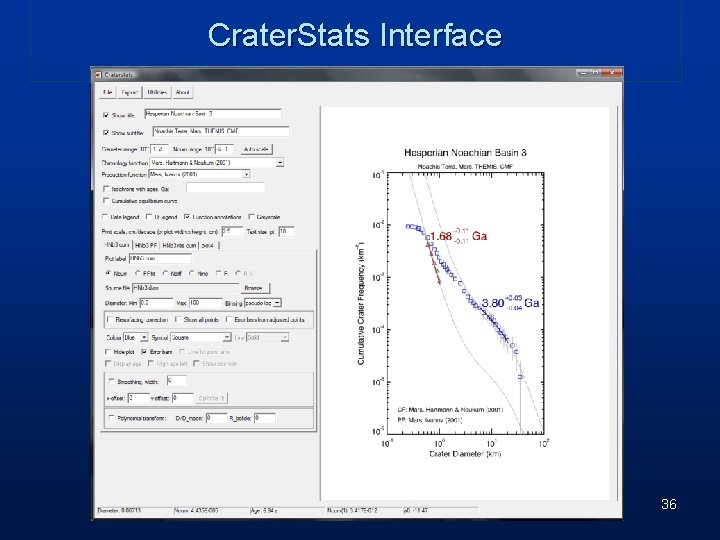
Crater. Stats Interface 36
break GIS for Planetary Mappers 37
Standard projections § Standard projections in planetary – Simple Cylindrical (Equidistance Cylindrical, Equirectangular) § rectangular global (decimal degrees or meters), simple “database” projection. – Sinusoidal § Used for global and many tiled data releases, equal area projection. – Mercator § Conformal, only use for equatorial areas, used in the Mars 1: 5 M series. – Transverse Mercator § Good for local areas “large” scale maps. A Small scale map shows more land area, but with smaller representations and, therefore, lesser detail. GIS for Planetary Mappers 38
Standard projections – cont’d § Standard projections in planetary – Polar Stereographic § Good for polar, error increases away from central latitude (usually 90 or -90). Scale should be based on polar radius, can use polar radius. – Lambert Conformal § Good for mid latitudes. Error increases away from both standard parallels. – Orthographic § Globe view, not good for mapping as the limb falls away, makes for pretty figures but you need 3 globes to portray an entire planet. ISIS uses a spherical equation – Mollweide § Coming of age projection, global GIS for Planetary Mappers 39
Standard projections – cont’d § Other projections in planetary – Lambert Azimuthal § Good for mid latitude and polar, equal area, VICAR/HRSC team uses it for polar areas. – Robinson § Good for figures (similar to Mollweide) GIS for Planetary Mappers 40
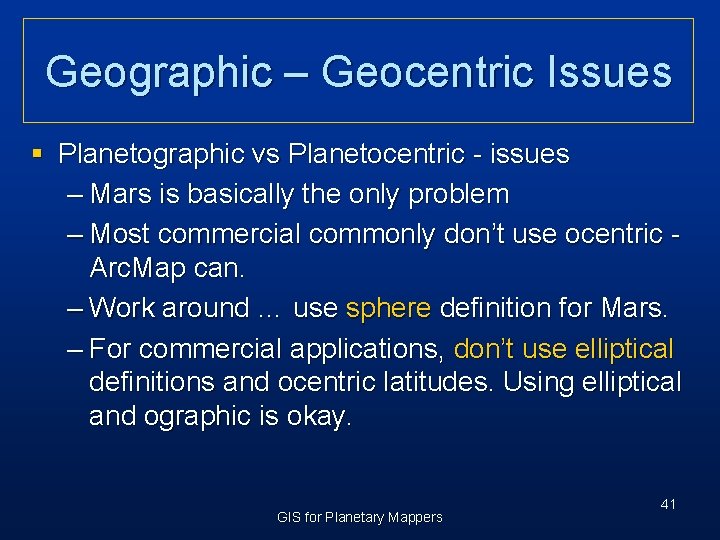
Geographic – Geocentric Issues § Planetographic vs Planetocentric - issues – Mars is basically the only problem – Most commercial commonly don’t use ocentric Arc. Map can. – Work around … use sphere definition for Mars. – For commercial applications, don’t use elliptical definitions and ocentric latitudes. Using elliptical and ographic is okay. GIS for Planetary Mappers 41
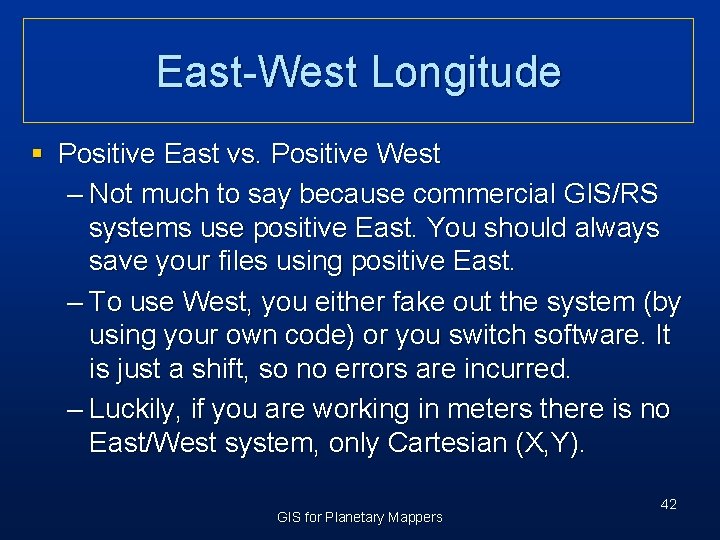
East-West Longitude § Positive East vs. Positive West – Not much to say because commercial GIS/RS systems use positive East. You should always save your files using positive East. – To use West, you either fake out the system (by using your own code) or you switch software. It is just a shift, so no errors are incurred. – Luckily, if you are working in meters there is no East/West system, only Cartesian (X, Y). GIS for Planetary Mappers 42
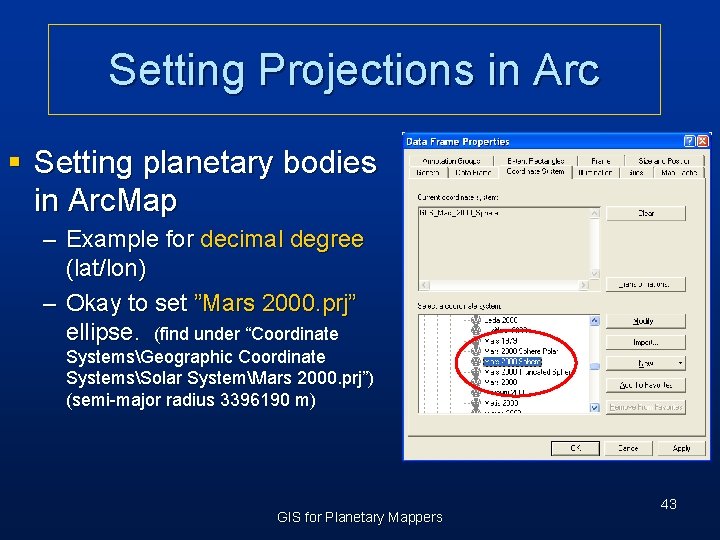
Setting Projections in Arc § Setting planetary bodies in Arc. Map – Example for decimal degree (lat/lon) – Okay to set ”Mars 2000. prj” ellipse. (find under “Coordinate SystemsGeographic Coordinate SystemsSolar SystemMars 2000. prj”) (semi-major radius 3396190 m) GIS for Planetary Mappers 43
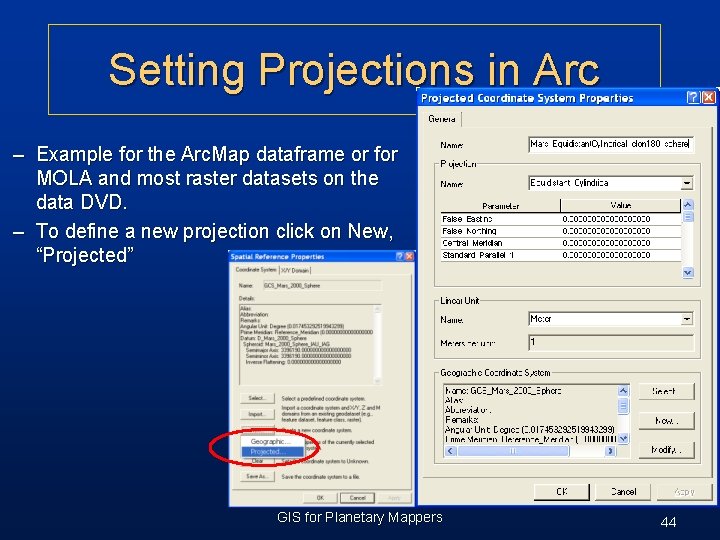
Setting Projections in Arc – Example for the Arc. Map dataframe or for MOLA and most raster datasets on the data DVD. – To define a new projection click on New, “Projected” GIS for Planetary Mappers 44
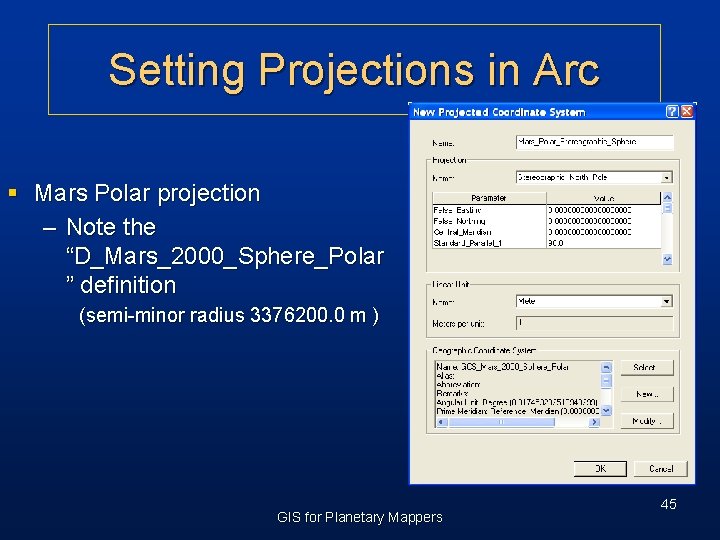
Setting Projections in Arc § Mars Polar projection – Note the “D_Mars_2000_Sphere_Polar ” definition (semi-minor radius 3376200. 0 m ) GIS for Planetary Mappers 45
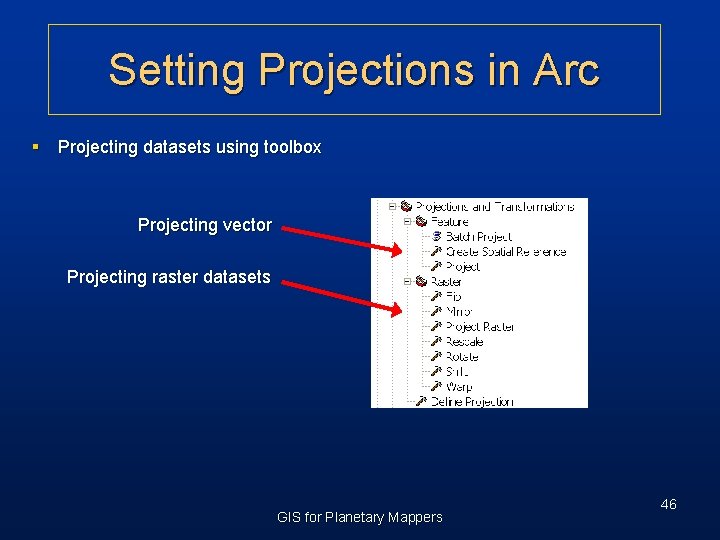
Setting Projections in Arc § Projecting datasets using toolbox Projecting vector Projecting raster datasets GIS for Planetary Mappers 46
§ Hands-on (lon/lat display and data frame projections) GIS for Planetary Mappers 47
Simple Image Registration Using a GIS Worldfile GIS for Planetary Mappers 48
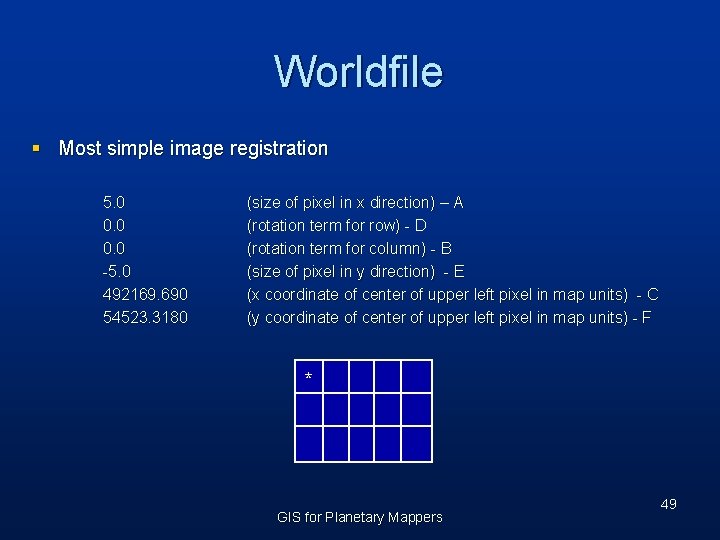
Worldfile § Most simple image registration 5. 0 0. 0 -5. 0 492169. 690 54523. 3180 (size of pixel in x direction) – A (rotation term for row) - D (rotation term for column) - B (size of pixel in y direction) - E (x coordinate of center of upper left pixel in map units) - C (y coordinate of center of upper left pixel in map units) - F * GIS for Planetary Mappers 49
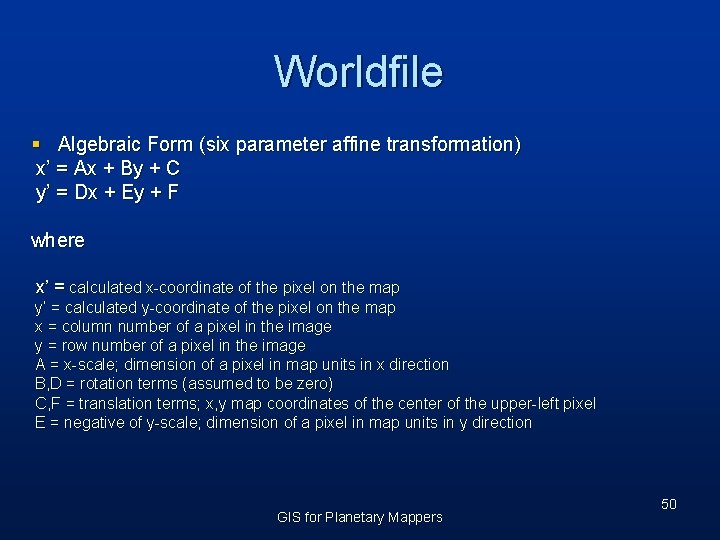
Worldfile § Algebraic Form (six parameter affine transformation) x’ = Ax + By + C y’ = Dx + Ey + F where x’ = calculated x-coordinate of the pixel on the map y’ = calculated y-coordinate of the pixel on the map x = column number of a pixel in the image y = row number of a pixel in the image A = x-scale; dimension of a pixel in map units in x direction B, D = rotation terms (assumed to be zero) C, F = translation terms; x, y map coordinates of the center of the upper-left pixel E = negative of y-scale; dimension of a pixel in map units in y direction GIS for Planetary Mappers 50
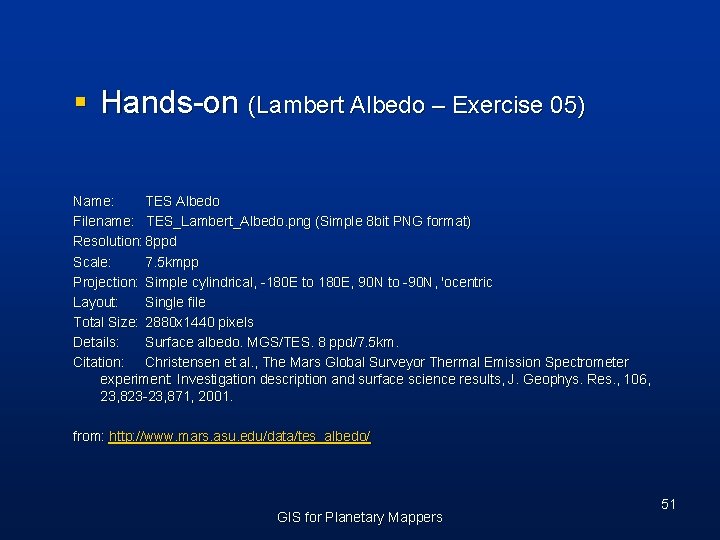
§ Hands-on (Lambert Albedo – Exercise 05) Name: TES Albedo Filename: TES_Lambert_Albedo. png (Simple 8 bit PNG format) Resolution: 8 ppd Scale: 7. 5 kmpp Projection: Simple cylindrical, -180 E to 180 E, 90 N to -90 N, 'ocentric Layout: Single file Total Size: 2880 x 1440 pixels Details: Surface albedo. MGS/TES. 8 ppd/7. 5 km. Citation: Christensen et al. , The Mars Global Surveyor Thermal Emission Spectrometer experiment: Investigation description and surface science results, J. Geophys. Res. , 106, 23, 823 -23, 871, 2001. from: http: //www. mars. asu. edu/data/tes_albedo/ GIS for Planetary Mappers 51
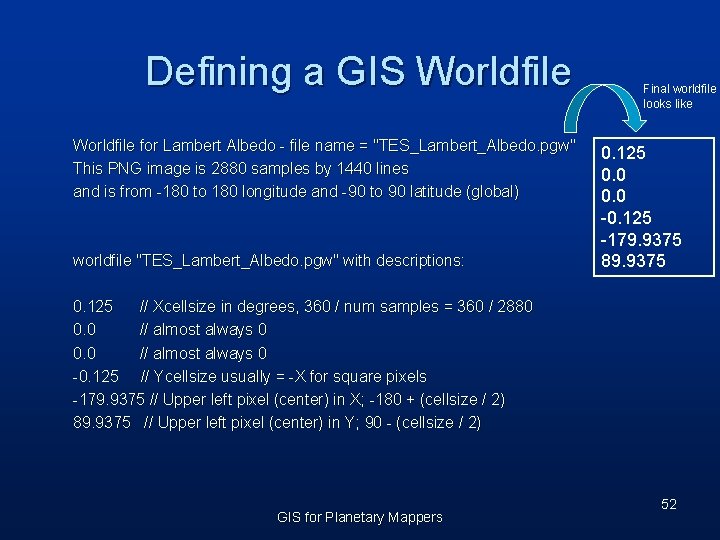
Defining a GIS Worldfile for Lambert Albedo - file name = "TES_Lambert_Albedo. pgw" This PNG image is 2880 samples by 1440 lines and is from -180 to 180 longitude and -90 to 90 latitude (global) worldfile "TES_Lambert_Albedo. pgw" with descriptions: Final worldfile looks like 0. 125 0. 0 -0. 125 -179. 9375 89. 9375 0. 125 // Xcellsize in degrees, 360 / num samples = 360 / 2880 0. 0 // almost always 0 -0. 125 // Ycellsize usually = -X for square pixels -179. 9375 // Upper left pixel (center) in X; -180 + (cellsize / 2) 89. 9375 // Upper left pixel (center) in Y; 90 - (cellsize / 2) GIS for Planetary Mappers 52
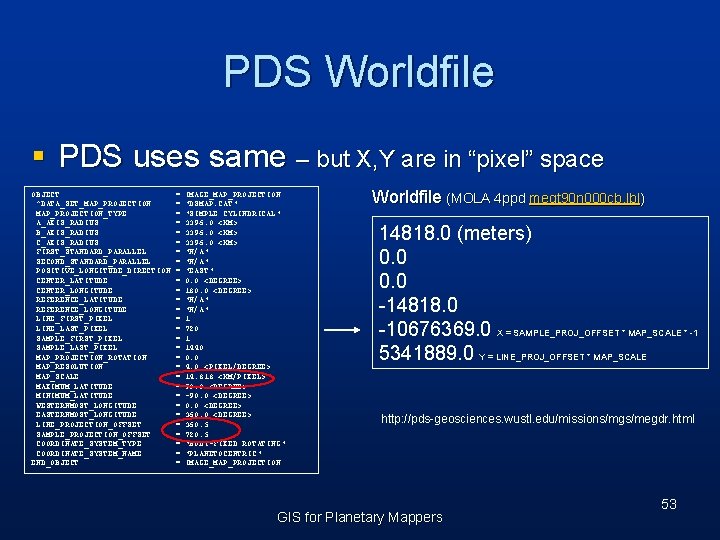
PDS Worldfile § PDS uses same – but X, Y are in “pixel” space OBJECT ^DATA_SET_MAP_PROJECTION_TYPE A_AXIS_RADIUS B_AXIS_RADIUS C_AXIS_RADIUS FIRST_STANDARD_PARALLEL SECOND_STANDARD_PARALLEL POSITIVE_LONGITUDE_DIRECTION CENTER_LATITUDE CENTER_LONGITUDE REFERENCE_LATITUDE REFERENCE_LONGITUDE LINE_FIRST_PIXEL LINE_LAST_PIXEL SAMPLE_FIRST_PIXEL SAMPLE_LAST_PIXEL MAP_PROJECTION_ROTATION MAP_RESOLUTION MAP_SCALE MAXIMUM_LATITUDE MINIMUM_LATITUDE WESTERNMOST_LONGITUDE EASTERNMOST_LONGITUDE LINE_PROJECTION_OFFSET SAMPLE_PROJECTION_OFFSET COORDINATE_SYSTEM_TYPE COORDINATE_SYSTEM_NAME END_OBJECT = = = = = = = = IMAGE_MAP_PROJECTION "DSMAP. CAT" "SIMPLE CYLINDRICAL" 3396. 0 <KM> "N/A" "EAST" 0. 0 <DEGREE> 180. 0 <DEGREE> "N/A" 1 720 1 1440 0. 0 4. 0 <PIXEL/DEGREE> 14. 818 <KM/PIXEL> 90. 0 <DEGREE> -90. 0 <DEGREE> 360. 5 720. 5 "BODY-FIXED ROTATING" "PLANETOCENTRIC" IMAGE_MAP_PROJECTION Worldfile (MOLA 4 ppd megt 90 n 000 cb. lbl) 14818. 0 (meters) 0. 0 -14818. 0 -10676369. 0 X = SAMPLE_PROJ_OFFSET * MAP_SCALE * -1 5341889. 0 Y = LINE_PROJ_OFFSET * MAP_SCALE http: //pds-geosciences. wustl. edu/missions/mgs/megdr. html GIS for Planetary Mappers 53
Loading PDS and ISIS 2/3 Images GIS for Planetary Mappers 54
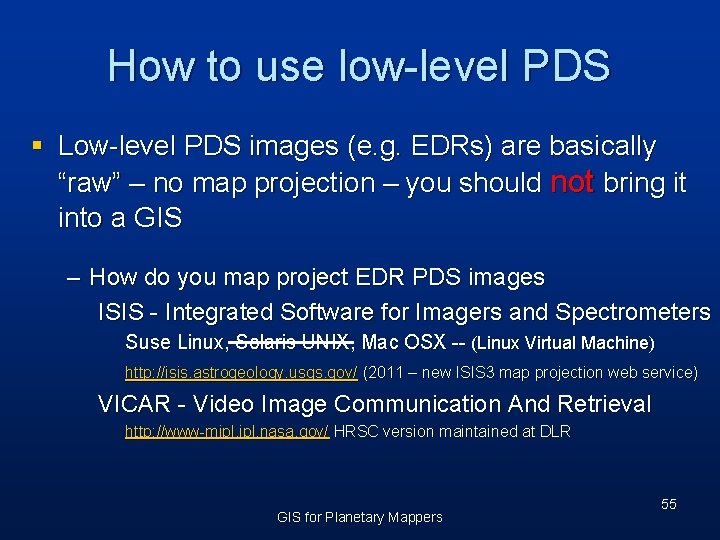
How to use low-level PDS § Low-level PDS images (e. g. EDRs) are basically “raw” – no map projection – you should not bring it into a GIS – How do you map project EDR PDS images ISIS - Integrated Software for Imagers and Spectrometers Suse Linux, Solaris UNIX, Mac OSX -- (Linux Virtual Machine) http: //isis. astrogeology. usgs. gov/ (2011 – new ISIS 3 map projection web service) VICAR - Video Image Communication And Retrieval http: //www-mipl. jpl. nasa. gov/ HRSC version maintained at DLR GIS for Planetary Mappers 55
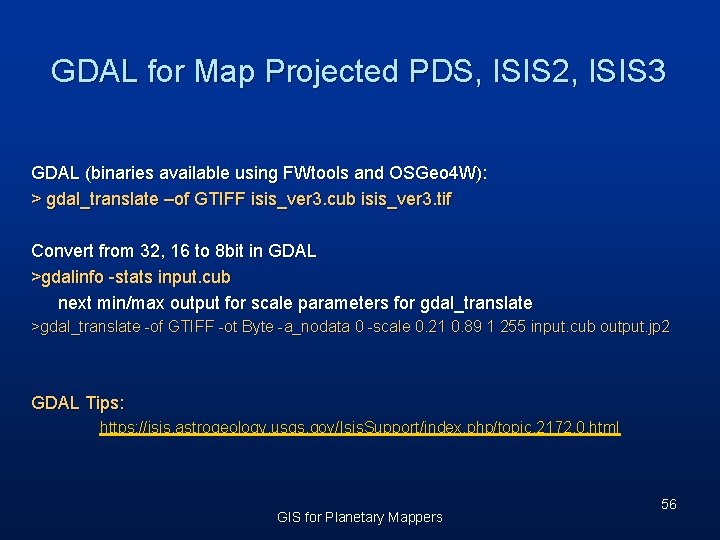
GDAL for Map Projected PDS, ISIS 2, ISIS 3 GDAL (binaries available using FWtools and OSGeo 4 W): > gdal_translate –of GTIFF isis_ver 3. cub isis_ver 3. tif Convert from 32, 16 to 8 bit in GDAL >gdalinfo -stats input. cub next min/max output for scale parameters for gdal_translate >gdal_translate -of GTIFF -ot Byte -a_nodata 0 -scale 0. 21 0. 89 1 255 input. cub output. jp 2 GDAL Tips: https: //isis. astrogeology. usgs. gov/Isis. Support/index. php/topic, 2172. 0. html GIS for Planetary Mappers 56
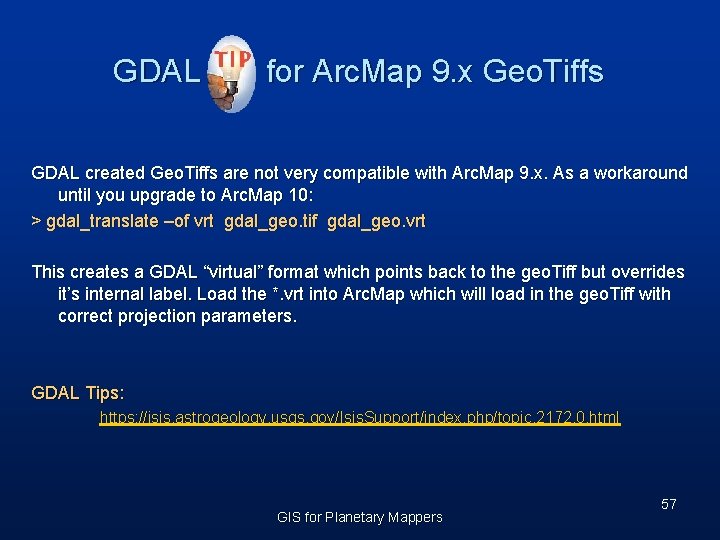
GDAL for Arc. Map 9. x Geo. Tiffs GDAL created Geo. Tiffs are not very compatible with Arc. Map 9. x. As a workaround until you upgrade to Arc. Map 10: > gdal_translate –of vrt gdal_geo. tif gdal_geo. vrt This creates a GDAL “virtual” format which points back to the geo. Tiff but overrides it’s internal label. Load the *. vrt into Arc. Map which will load in the geo. Tiff with correct projection parameters. GDAL Tips: https: //isis. astrogeology. usgs. gov/Isis. Support/index. php/topic, 2172. 0. html GIS for Planetary Mappers 57
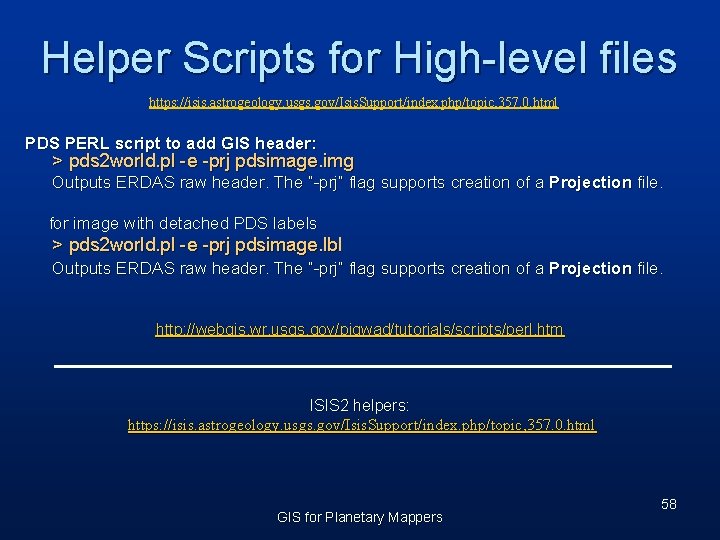
Helper Scripts for High-level files https: //isis. astrogeology. usgs. gov/Isis. Support/index. php/topic, 357. 0. html PDS PERL script to add GIS header: > pds 2 world. pl -e -prj pdsimage. img Outputs ERDAS raw header. The “-prj” flag supports creation of a Projection file. for image with detached PDS labels > pds 2 world. pl -e -prj pdsimage. lbl Outputs ERDAS raw header. The “-prj” flag supports creation of a Projection file. http: //webgis. wr. usgs. gov/pigwad/tutorials/scripts/perl. htm ISIS 2 helpers: https: //isis. astrogeology. usgs. gov/Isis. Support/index. php/topic, 357. 0. html GIS for Planetary Mappers 58
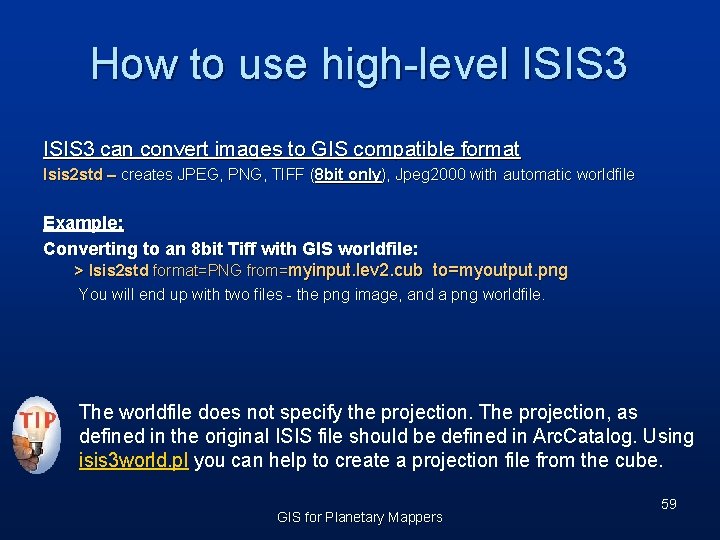
How to use high-level ISIS 3 can convert images to GIS compatible format Isis 2 std – creates JPEG, PNG, TIFF (8 bit only), Jpeg 2000 with automatic worldfile Example: Converting to an 8 bit Tiff with GIS worldfile: > Isis 2 std format=PNG from=myinput. lev 2. cub to=myoutput. png You will end up with two files - the png image, and a png worldfile. The worldfile does not specify the projection. The projection, as defined in the original ISIS file should be defined in Arc. Catalog. Using isis 3 world. pl you can help to create a projection file from the cube. GIS for Planetary Mappers 59
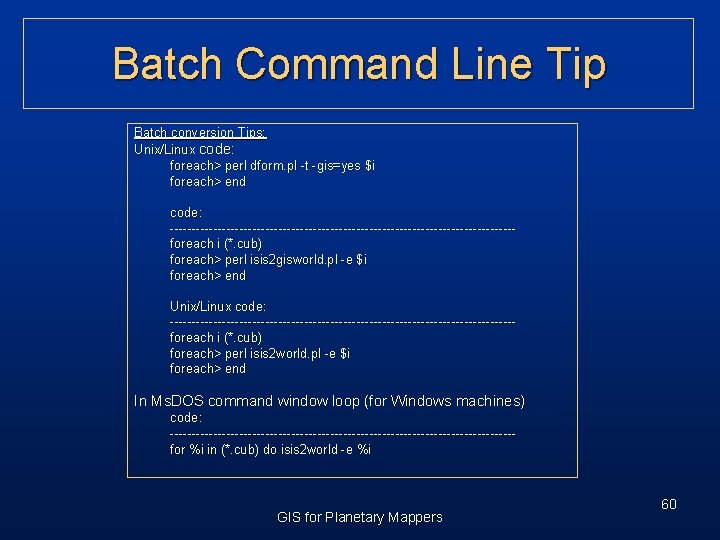
Batch Command Line Tip Batch conversion Tips: Unix/Linux code: foreach> perl dform. pl -t -gis=yes $i foreach> end code: ----------------------------------------foreach i (*. cub) foreach> perl isis 2 gisworld. pl -e $i foreach> end Unix/Linux code: ----------------------------------------foreach i (*. cub) foreach> perl isis 2 world. pl -e $i foreach> end In Ms. DOS command window loop (for Windows machines) code: ----------------------------------------for %i in (*. cub) do isis 2 world -e %i GIS for Planetary Mappers 60
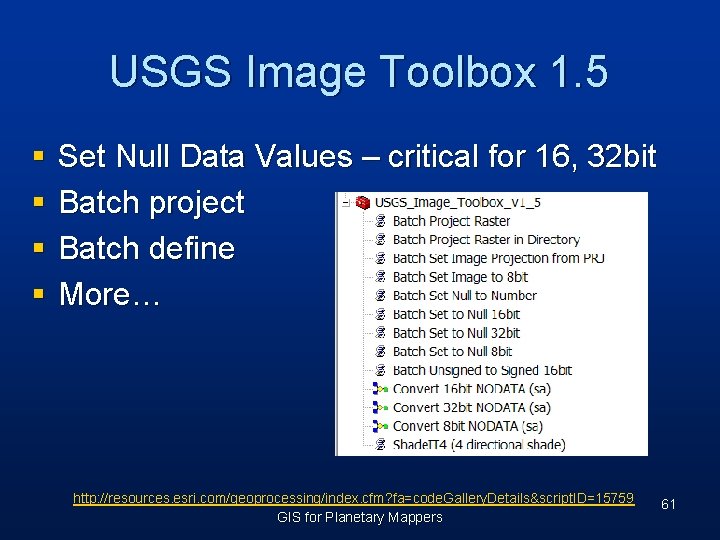
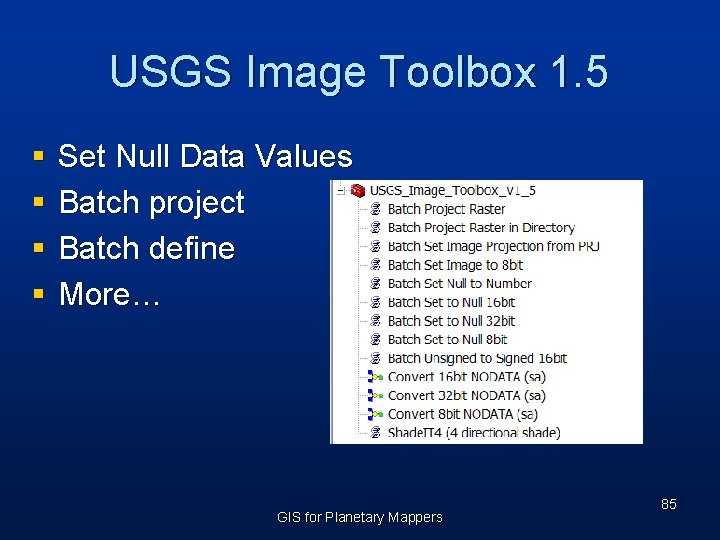
USGS Image Toolbox 1. 5 § § Set Null Data Values – critical for 16, 32 bit Batch project Batch define More… http: //resources. esri. com/geoprocessing/index. cfm? fa=code. Gallery. Details&script. ID=15759 GIS for Planetary Mappers 61
Hands-on (Hi. RISE – Exercise 01) § Note: most Hi. RISE Jp 2 images have embedded geospatial labels. However, they contain a Equirectangular parameter flaw when using GDAL. To fix, remap this parameter for Arc. Map Fire up Fwtools (portable) and run: > Arcmap 9_fixjp 2 PSP_004365_1745_COLOR. LBL Related: https: //isis. astrogeology. usgs. gov/Isis. Support/index. php/topic, 2339. 0. html https: //isis. astrogeology. usgs. gov/Isis. Support/index. php/topic, 1815. msg 9742. html#msg 9742 By setting the data frame to the projection of the Hi. RISE image you can now further nudge the Hi. RISE registration using Arc. Map’s Georegistration Toolbar. GIS for Planetary Mappers 62
Cell Statistics § “A function that calculates a statistic for each cell of an output raster that is based on the values of each cell in the same location of multiple input rasters. ” - paraphrased from ESRI’s online GIS dictionary § For example, the user could find the range and maximum value of albedo from multiple overlapping images acquired in different seasons “Spatial Analyst tools such as cell statistics provide critical analytical components for the interpretation of raster and vector data. Statistics can help improve the quality of geologic maps. ” GIS for Planetary Mappers 63
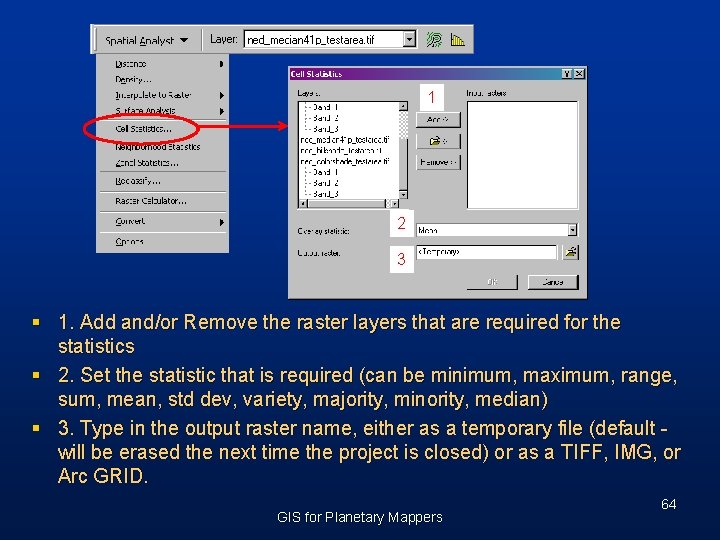
1 2 3 § 1. Add and/or Remove the raster layers that are required for the statistics § 2. Set the statistic that is required (can be minimum, maximum, range, sum, mean, std dev, variety, majority, minority, median) § 3. Type in the output raster name, either as a temporary file (default will be erased the next time the project is closed) or as a TIFF, IMG, or Arc GRID. GIS for Planetary Mappers 64
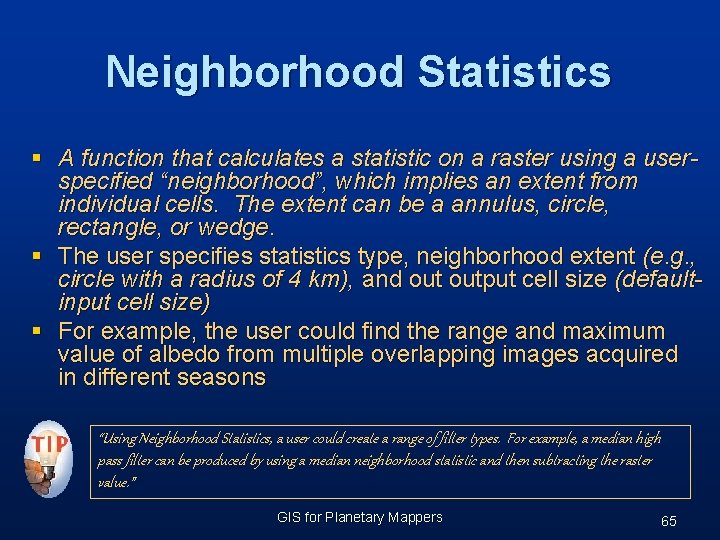
Neighborhood Statistics § A function that calculates a statistic on a raster using a userspecified “neighborhood”, which implies an extent from individual cells. The extent can be a annulus, circle, rectangle, or wedge. § The user specifies statistics type, neighborhood extent (e. g. , circle with a radius of 4 km), and output cell size (defaultinput cell size) § For example, the user could find the range and maximum value of albedo from multiple overlapping images acquired in different seasons “Using Neighborhood Statistics, a user could create a range of filter types. For example, a median high pass filter can be produced by using a median neighborhood statistic and then subtracting the raster value. ” GIS for Planetary Mappers 65
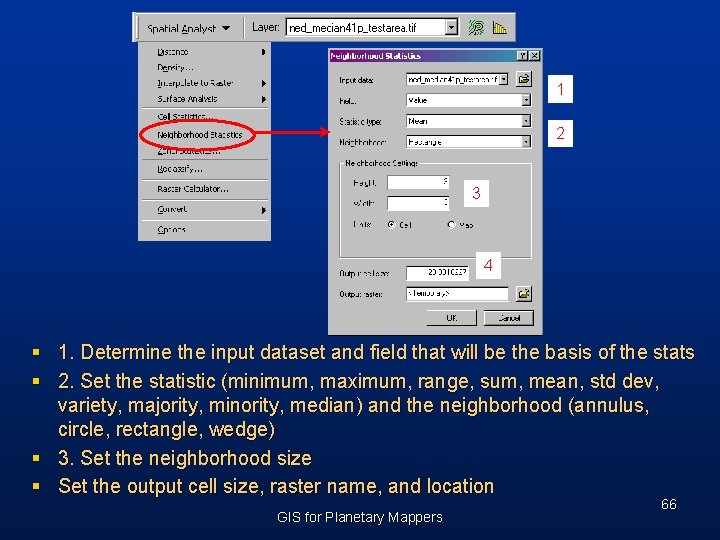
1 2 3 4 § 1. Determine the input dataset and field that will be the basis of the stats § 2. Set the statistic (minimum, maximum, range, sum, mean, std dev, variety, majority, minority, median) and the neighborhood (annulus, circle, rectangle, wedge) § 3. Set the neighborhood size § Set the output cell size, raster name, and location GIS for Planetary Mappers 66
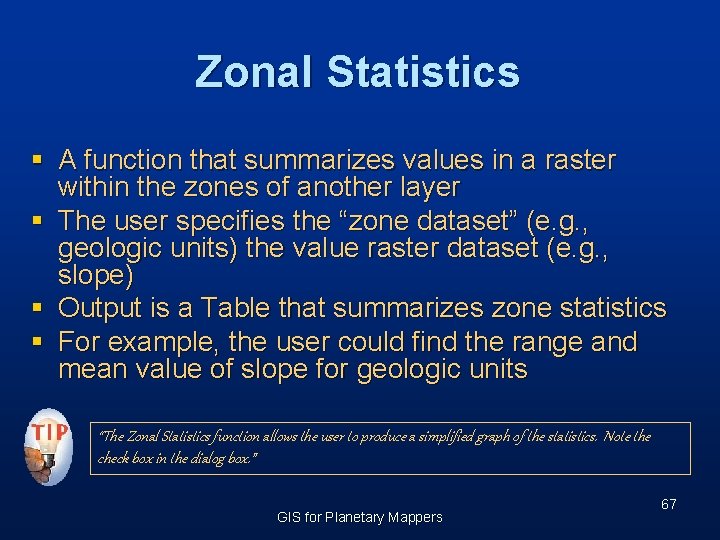
Zonal Statistics § A function that summarizes values in a raster within the zones of another layer § The user specifies the “zone dataset” (e. g. , geologic units) the value raster dataset (e. g. , slope) § Output is a Table that summarizes zone statistics § For example, the user could find the range and mean value of slope for geologic units “The Zonal Statistics function allows the user to produce a simplified graph of the statistics. Note the check box in the dialog box. ” GIS for Planetary Mappers 67
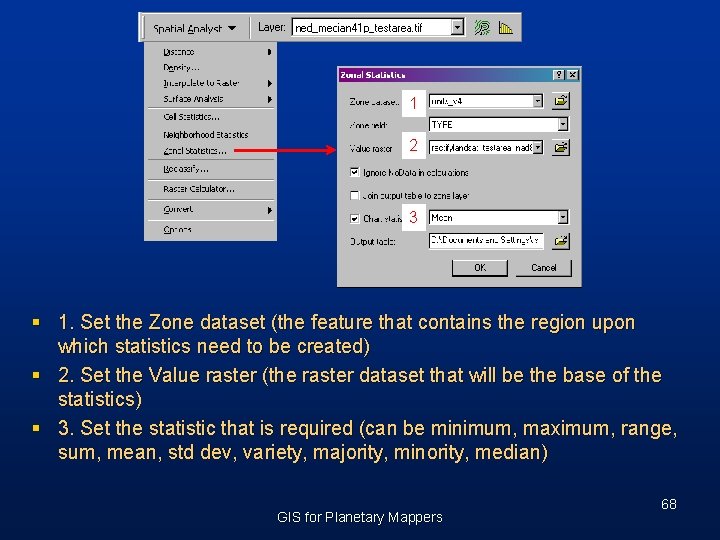
1 2 3 § 1. Set the Zone dataset (the feature that contains the region upon which statistics need to be created) § 2. Set the Value raster (the raster dataset that will be the base of the statistics) § 3. Set the statistic that is required (can be minimum, maximum, range, sum, mean, std dev, variety, majority, minority, median) GIS for Planetary Mappers 68
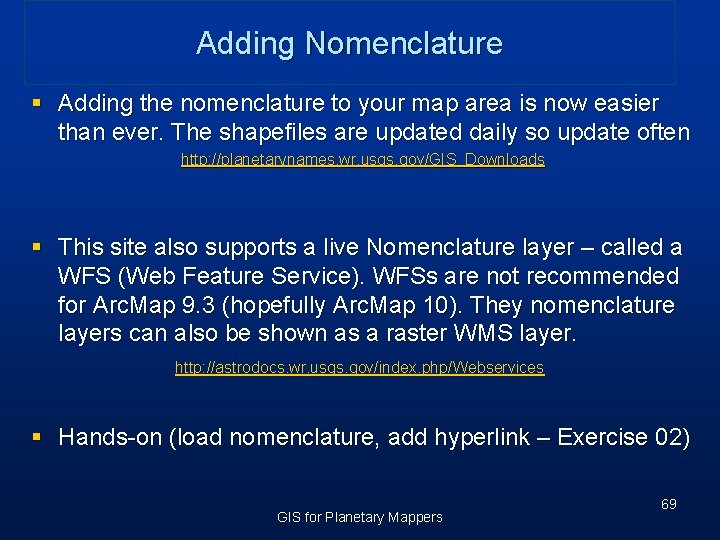
Adding Nomenclature § Adding the nomenclature to your map area is now easier than ever. The shapefiles are updated daily so update often http: //planetarynames. wr. usgs. gov/GIS_Downloads § This site also supports a live Nomenclature layer – called a WFS (Web Feature Service). WFSs are not recommended for Arc. Map 9. 3 (hopefully Arc. Map 10). They nomenclature layers can also be shown as a raster WMS layer. http: //astrodocs. wr. usgs. gov/index. php/Webservices § Hands-on (load nomenclature, add hyperlink – Exercise 02) GIS for Planetary Mappers 69
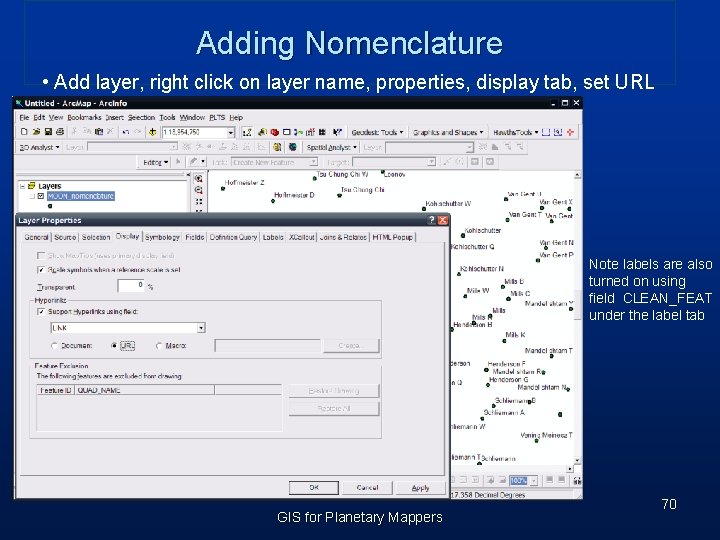
Adding Nomenclature • Add layer, right click on layer name, properties, display tab, set URL Note labels are also turned on using field CLEAN_FEAT under the label tab GIS for Planetary Mappers 70
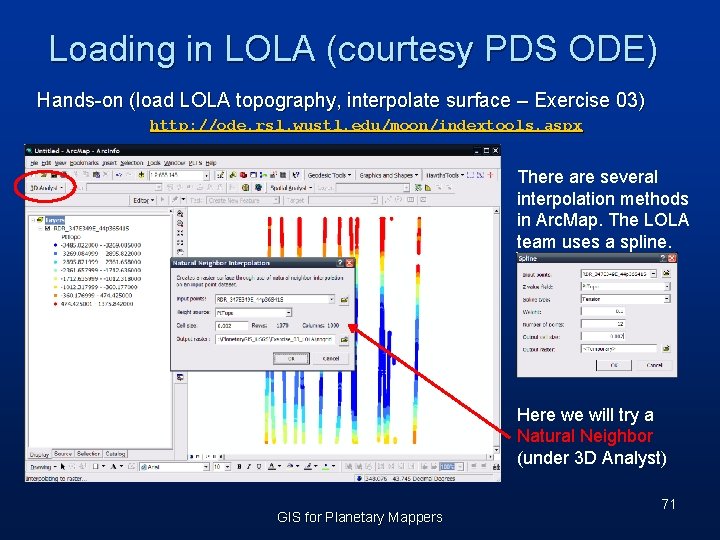
Loading in LOLA (courtesy PDS ODE) Hands-on (load LOLA topography, interpolate surface – Exercise 03) http: //ode. rsl. wustl. edu/moon/indextools. aspx There are several interpolation methods in Arc. Map. The LOLA team uses a spline. Here we will try a Natural Neighbor (under 3 D Analyst) GIS for Planetary Mappers 71
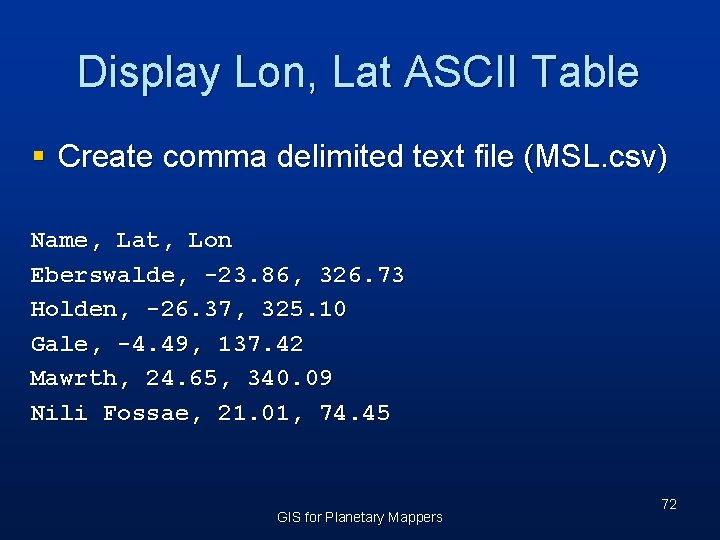
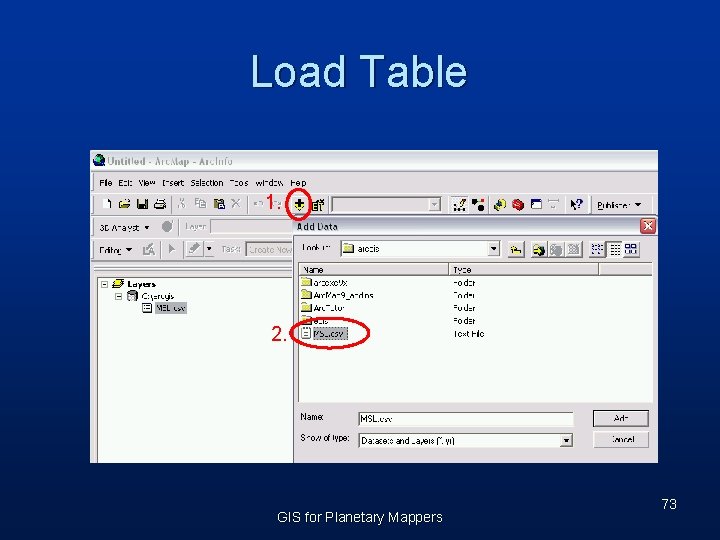
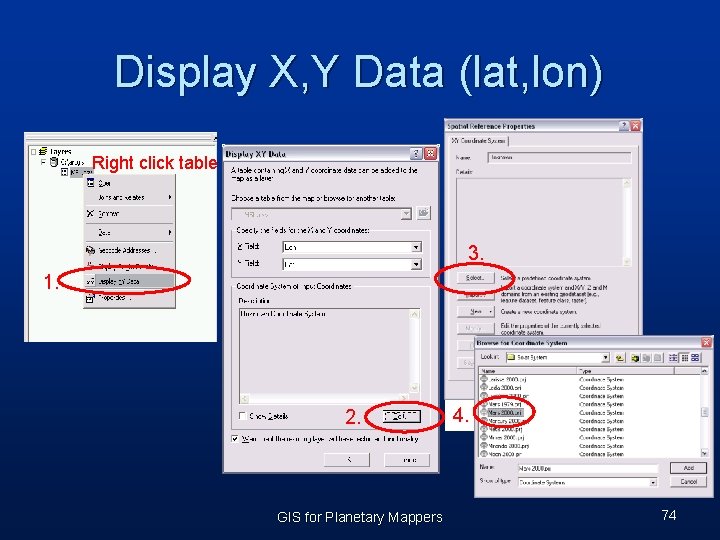
Display Lon, Lat ASCII Table § Create comma delimited text file (MSL. csv) Name, Lat, Lon Eberswalde, -23. 86, 326. 73 Holden, -26. 37, 325. 10 Gale, -4. 49, 137. 42 Mawrth, 24. 65, 340. 09 Nili Fossae, 21. 01, 74. 45 GIS for Planetary Mappers 72
Load Table 1. 2. GIS for Planetary Mappers 73
Display X, Y Data (lat, lon) Right click table 3. 1. 2. GIS for Planetary Mappers 4. 74
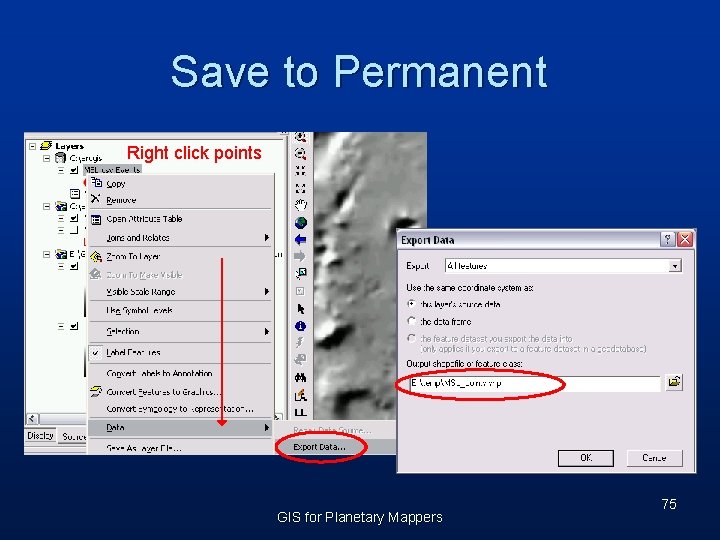
Save to Permanent Right click points GIS for Planetary Mappers 75
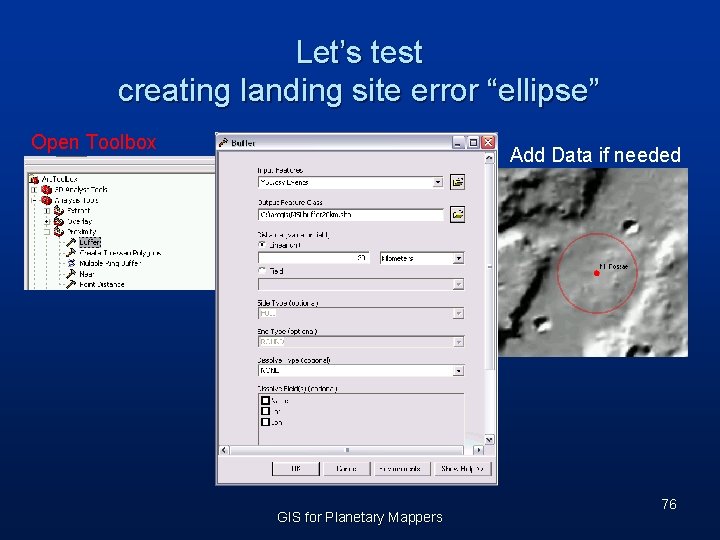
Let’s test creating landing site error “ellipse” Open Toolbox Add Data if needed GIS for Planetary Mappers 76
3 D Viewers Please see: http: //webgis. wr. usgs. gov/pigwad/tutorials/15 min_planetary_3 D_overview. pdf GIS for Planetary Mappers 77
GIS Tools GIS for Planetary Mappers 78
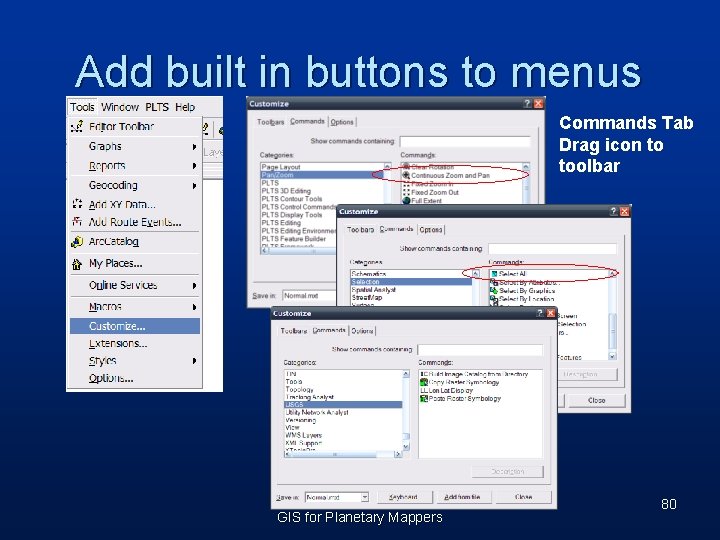
Customizing Arc. Map 4 Methods for adding functionality § Add built in buttons to menus § Install downloaded programs §DLL libraries §Tools (python) § Calculator scripts §Create buttons/macros for custom tools GIS for Planetary Mappers 79
Add built in buttons to menus Commands Tab Drag icon to toolbar GIS for Planetary Mappers 80
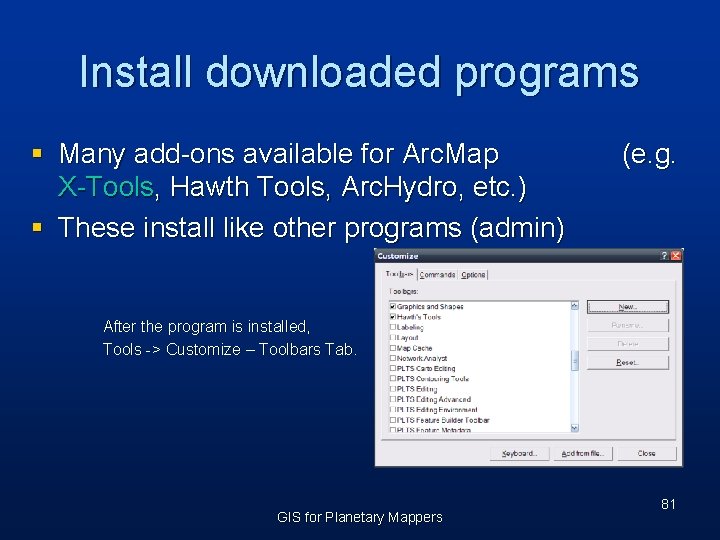
Install downloaded programs § Many add-ons available for Arc. Map X-Tools, Hawth Tools, Arc. Hydro, etc. ) § These install like other programs (admin) (e. g. After the program is installed, Tools -> Customize – Toolbars Tab. GIS for Planetary Mappers 81
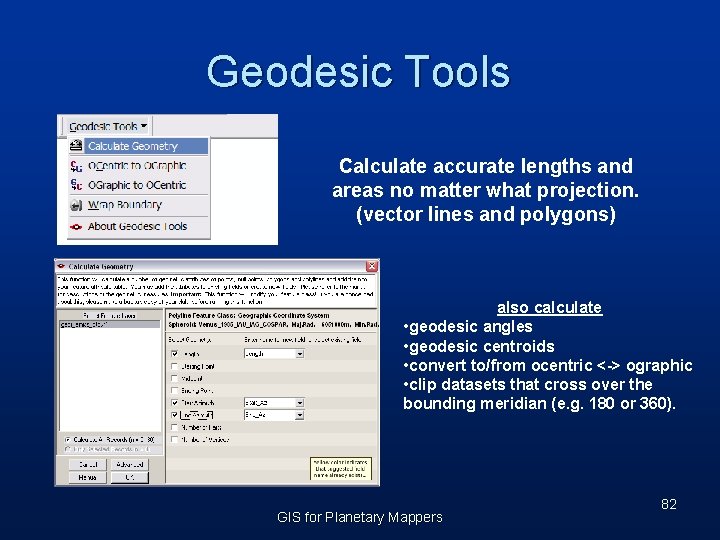
Geodesic Tools Calculate accurate lengths and areas no matter what projection. (vector lines and polygons) also calculate • geodesic angles • geodesic centroids • convert to/from ocentric <-> ographic • clip datasets that cross over the bounding meridian (e. g. 180 or 360). GIS for Planetary Mappers 82
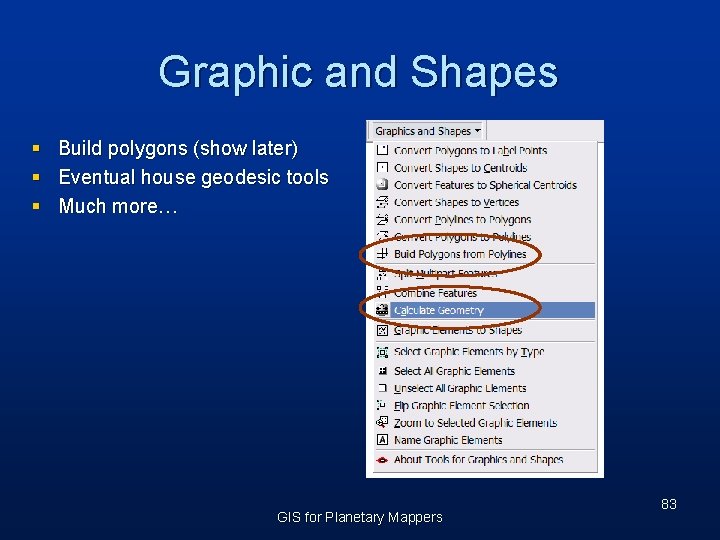
Graphic and Shapes § § § Build polygons (show later) Eventual house geodesic tools Much more… GIS for Planetary Mappers 83
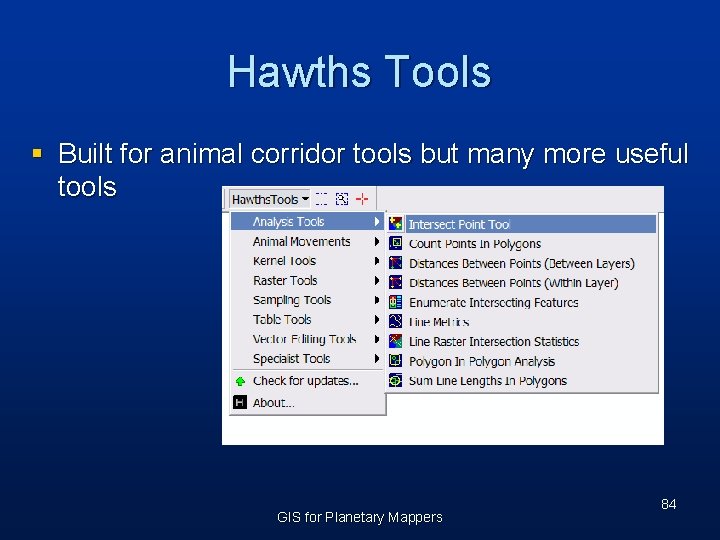
Hawths Tools § Built for animal corridor tools but many more useful tools GIS for Planetary Mappers 84
USGS Image Toolbox 1. 5 § § Set Null Data Values Batch project Batch define More… GIS for Planetary Mappers 85
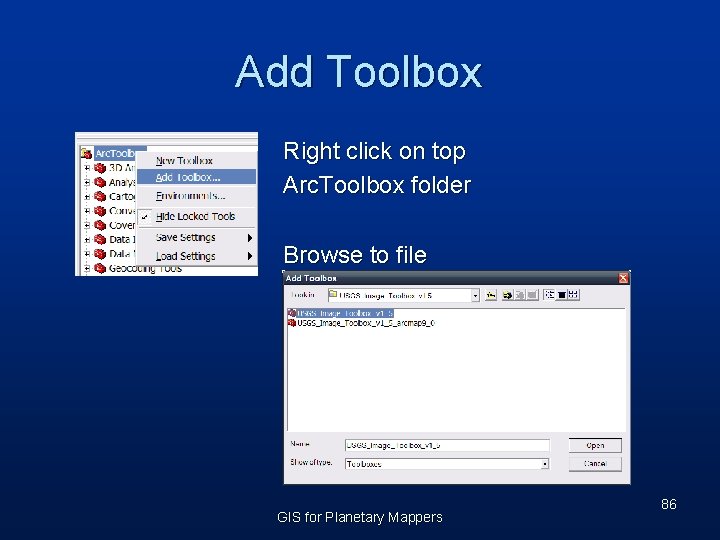
Add Toolbox Right click on top Arc. Toolbox folder Browse to file GIS for Planetary Mappers 86
Arc. Scripts § Download files from the ESRI website: (http: //support. esri. com/index. cfm? fa=downloads. gateway) § Search Arc. Scripts for the tool of interest § Be sure that the tool is built for your version of Arc. GIS § Download the zip file to your computer GIS for Planetary Mappers 87
Use the Easy Calculate Scripts § Easy Calculate is a set of expressions (currently 110) for the Arc. GIS Field Calculator. § Calculate some spatial characteristics of the features, edit the shapes, add records to a target layer, draw graphics etc. § Tip: to calculate geometry field in Arc. Map 9. 3 (select field, type: Ctrl, Shift, F) http: //www. ian-ko. com/free_arcgis. htm GIS for Planetary Mappers 88
Layouts Making and printing maps using Arc. Map GIS for Planetary Mappers 89
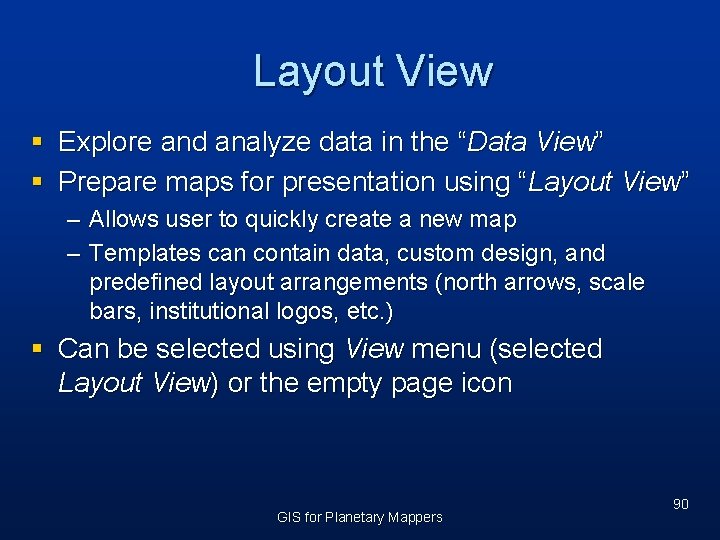
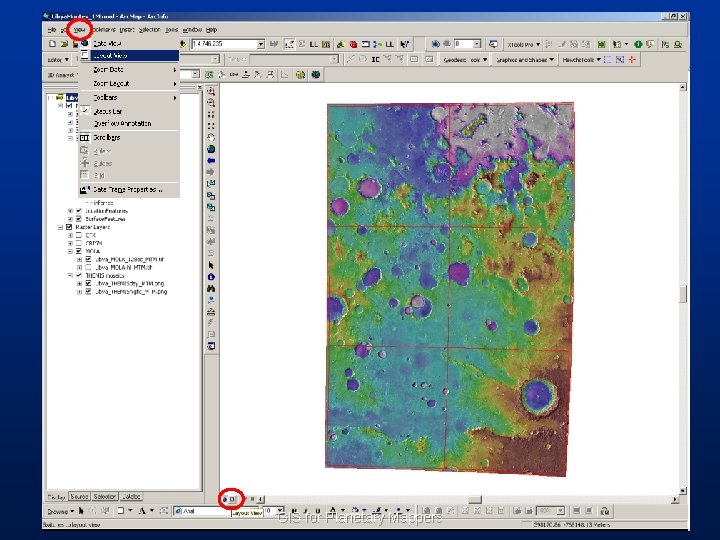
Layout View § Explore and analyze data in the “Data View” § Prepare maps for presentation using “Layout View” – Allows user to quickly create a new map – Templates can contain data, custom design, and predefined layout arrangements (north arrows, scale bars, institutional logos, etc. ) § Can be selected using View menu (selected Layout View) or the empty page icon GIS for Planetary Mappers 90
GIS for Planetary Mappers
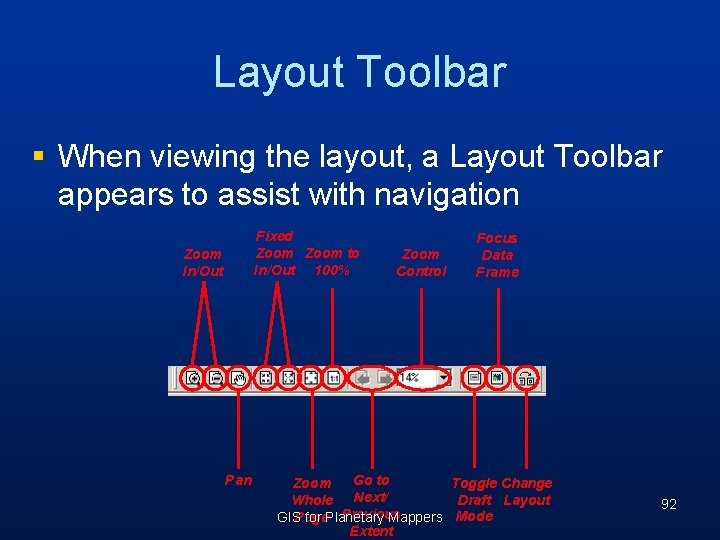
Layout Toolbar § When viewing the layout, a Layout Toolbar appears to assist with navigation Fixed Zoom to In/Out 100% Zoom In/Out Pan Zoom Control Focus Data Frame Go to Toggle Change Zoom Next/ Draft Layout Whole Previous GISPage for Planetary Mappers Mode Extent 92
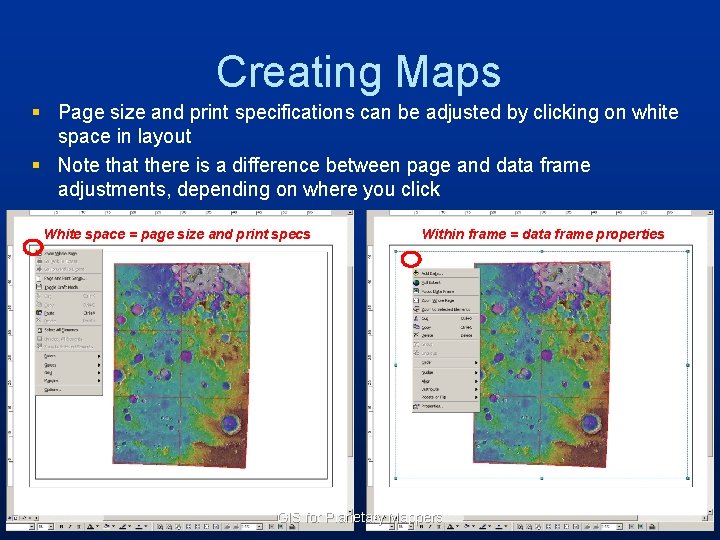
Creating Maps § Page size and print specifications can be adjusted by clicking on white space in layout § Note that there is a difference between page and data frame adjustments, depending on where you click White space = page size and print specs Within frame = data frame properties GIS for Planetary Mappers
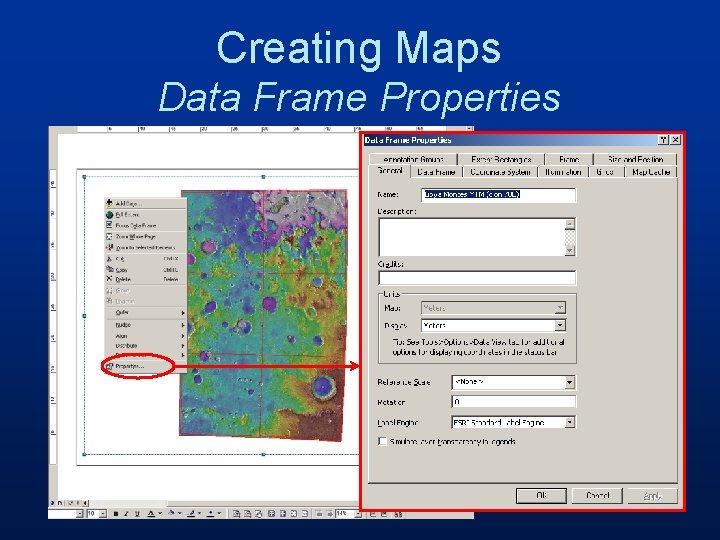
Creating Maps Data Frame Properties
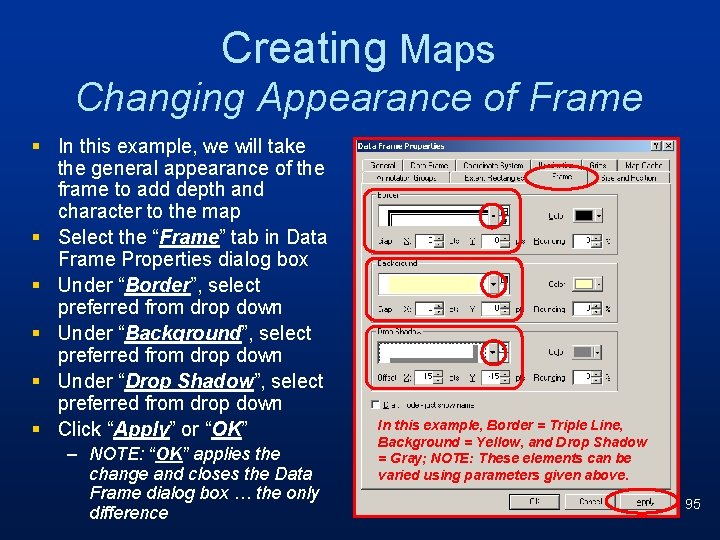
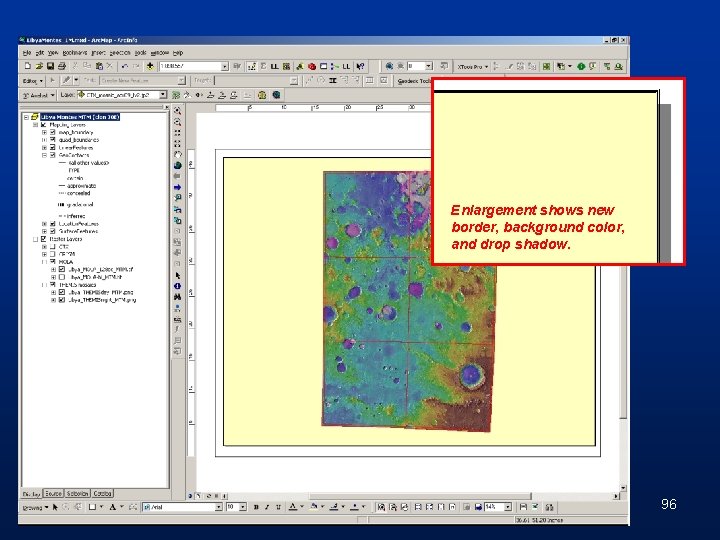
Creating Maps Changing Appearance of Frame § In this example, we will take the general appearance of the frame to add depth and character to the map § Select the “Frame” tab in Data Frame Properties dialog box § Under “Border”, select preferred from drop down § Under “Background”, select preferred from drop down § Under “Drop Shadow”, select preferred from drop down § Click “Apply” or “OK” – NOTE: “OK” applies the change and closes the Data Frame dialog box … the only difference In this example, Border = Triple Line, Background = Yellow, and Drop Shadow = Gray; NOTE: These elements can be varied using parameters given above. 95
Enlargement shows new border, background color, and drop shadow. 96
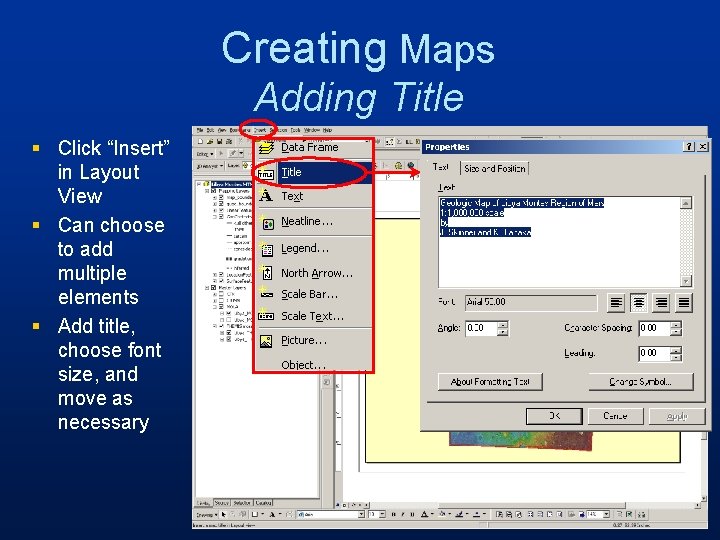
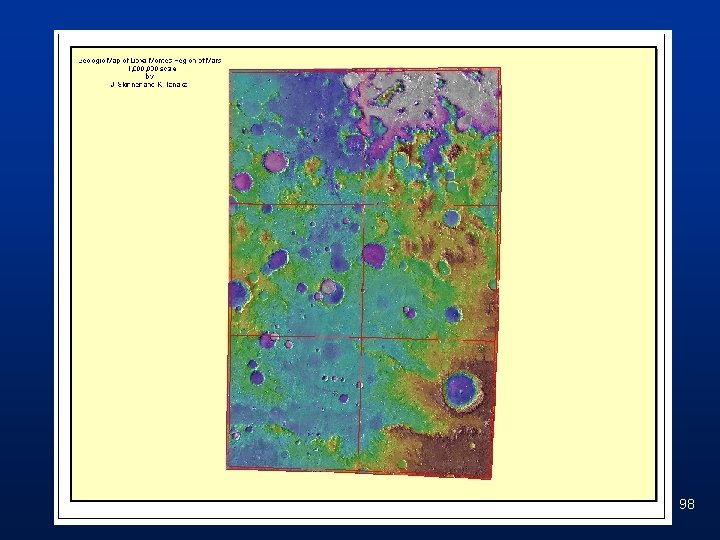
Creating Maps Adding Title § Click “Insert” in Layout View § Can choose to add multiple elements § Add title, choose font size, and move as necessary
98
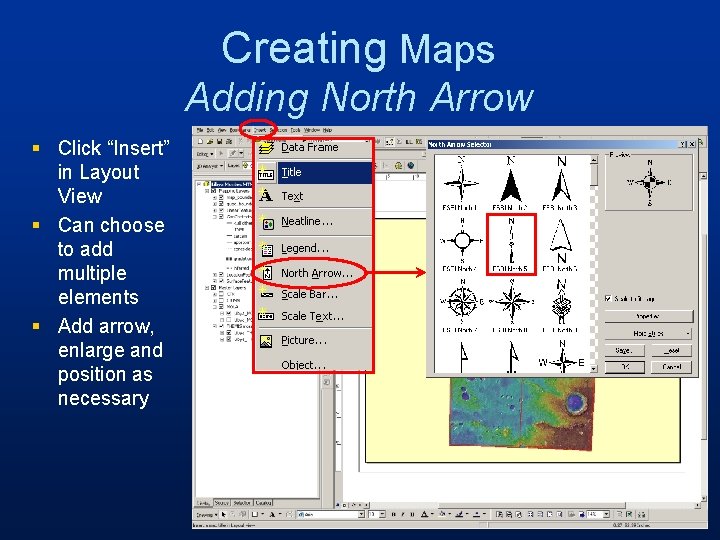
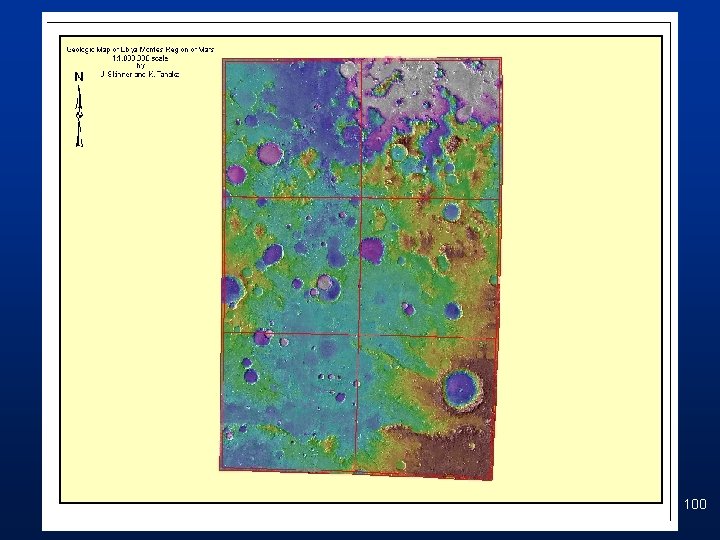
Creating Maps Adding North Arrow § Click “Insert” in Layout View § Can choose to add multiple elements § Add arrow, enlarge and position as necessary
100
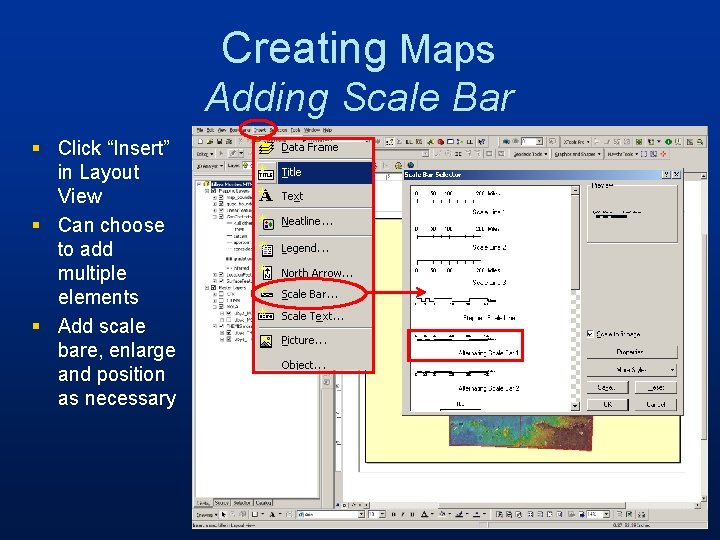
Creating Maps Adding Scale Bar § Click “Insert” in Layout View § Can choose to add multiple elements § Add scale bare, enlarge and position as necessary
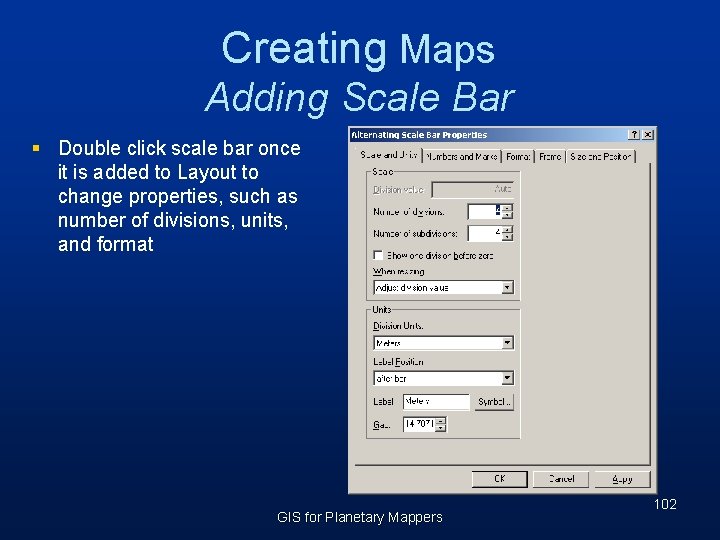
Creating Maps Adding Scale Bar § Double click scale bar once it is added to Layout to change properties, such as number of divisions, units, and format GIS for Planetary Mappers 102
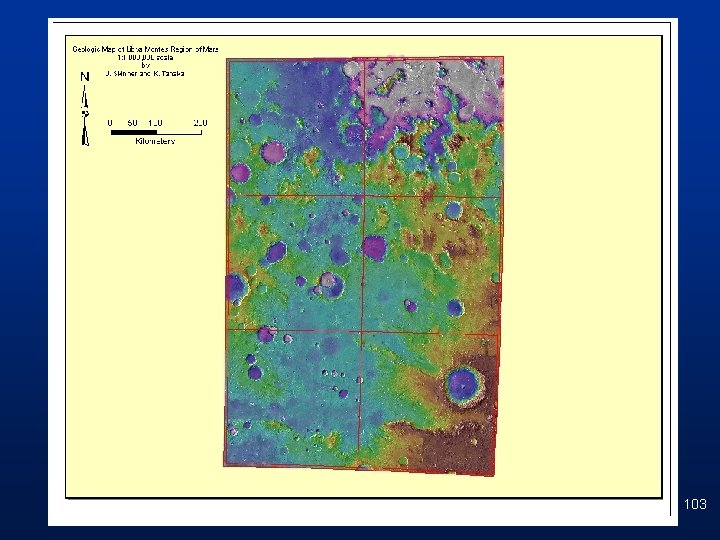
103
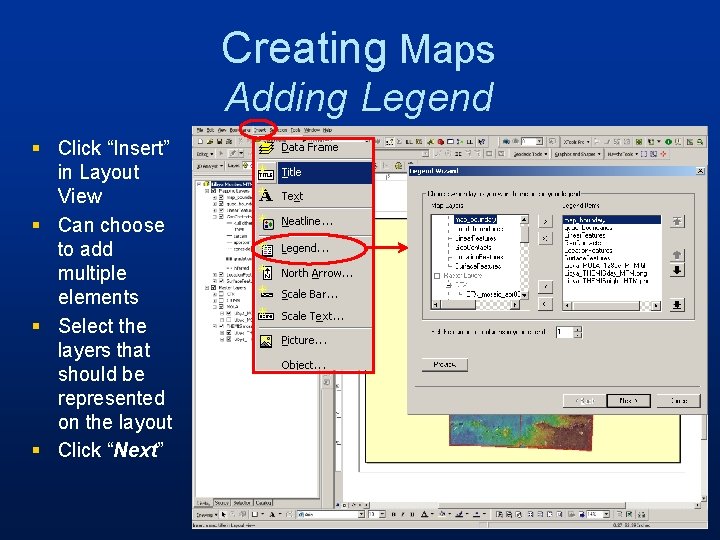
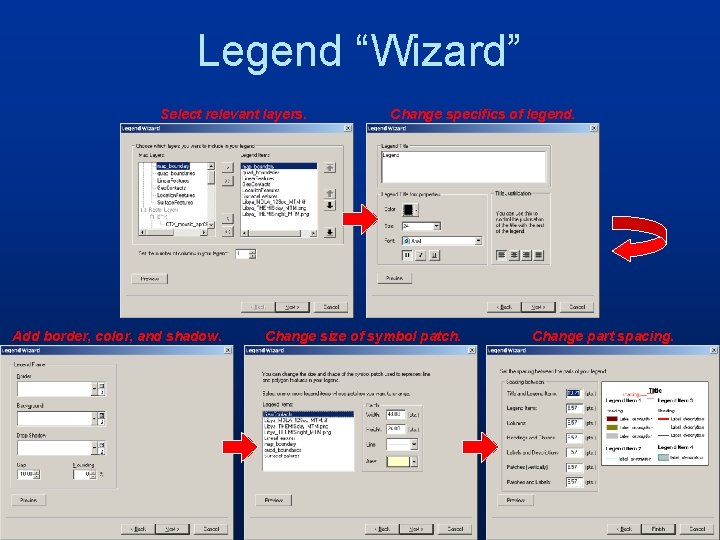
Creating Maps Adding Legend § Click “Insert” in Layout View § Can choose to add multiple elements § Select the layers that should be represented on the layout § Click “Next”
Legend “Wizard” Select relevant layers. Add border, color, and shadow. Change specifics of legend. Change size of symbol patch. Change part spacing.
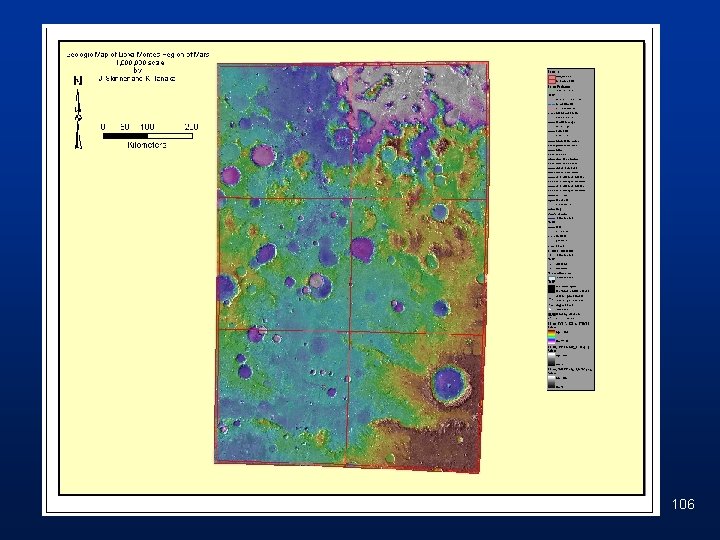
106
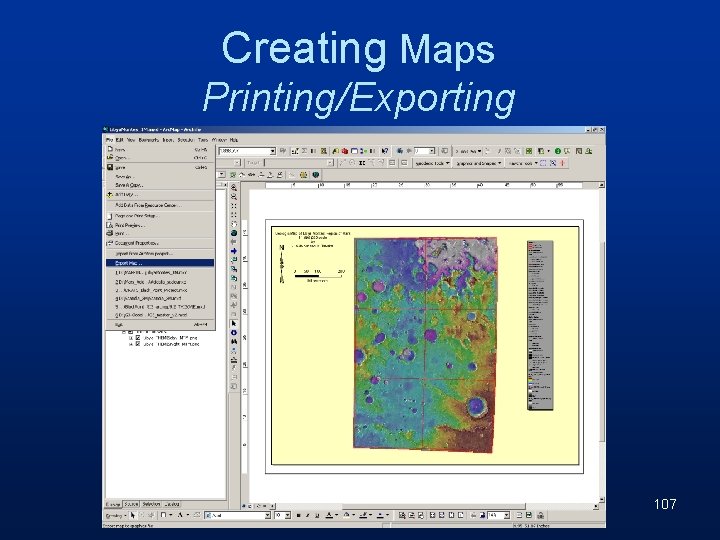
Creating Maps Printing/Exporting 107
Questions? GIS for Planetary Mappers 108