
GETTING TO KNOW YOUR KEYBOARD How I can

GETTING TO KNOW YOUR KEYBOARD How I can make the most effective use of my keystrokes
We will be looking at. . . • Using the ‘Function’ keys. • Key combinations using the ‘Control’ (Ctrl) key. • Other, miscellaneous tips.
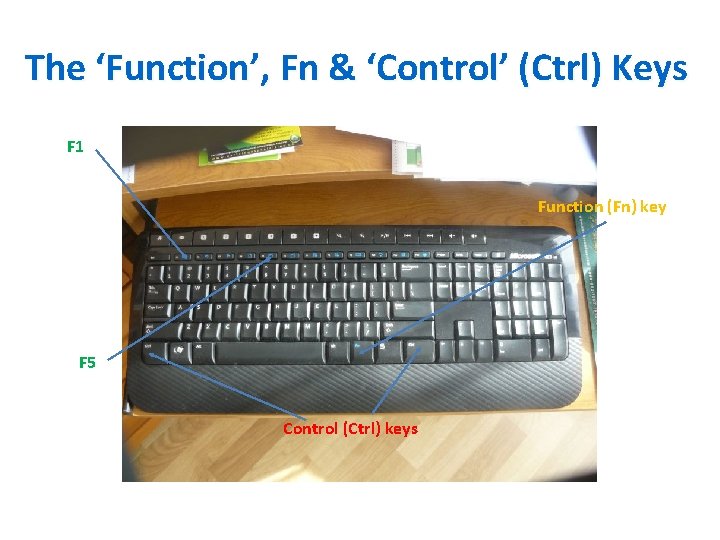
The ‘Function’, Fn & ‘Control’ (Ctrl) Keys F 1 Function (Fn) key F 5 Control (Ctrl) keys
The ‘Function’ (F) Keys • F 1 – Contextual Help Key. (Regardless of what you are doing, the F 1 key will always provide appropriate help information. ) • Windows Key + F 1 opens Microsoft Windows Support Centre.
The ‘Function’ (F) Keys (cont. ) • F 2 – Renames a highlighted icon, file or folder. • Alt + Ctrl + F 2 – Opens a document in Word. • Ctrl + F 2 – Displays Print Preview window in Word. • Enables quick renaming of file or folder.
The ‘Function’ (F) Keys (cont. ) • F 3 – Opens Search feature on Desktop. • Shift + F 3 – Change text in Word from upper to lower case (or a capital letter at beginning of every word).
The ‘Function’ (F) Keys (cont. ) • F 4 - Opens the address bar in Windows Explorer and Internet Explorer. • Repeat the last action in M/S Word. • Alt + F 4 closes the program window currently active. • Ctrl + F 4 closes the open window in the current active window.
The ‘Function’ (F) Keys (cont. ) • F 5 – Refresh/reload the current page. • Refresh the list of contents in a folder. • Open the ‘find’, replace’ and ‘go-to’ window in Word. • Starts a slideshow in Power. Point.
The ‘Function’ (F) Keys (cont. ) • F 6 – Move the cursor to Address Bar in your Internet browser. • Ctrl + Shift + F 6 opens to another open document in Word. • Reduce speaker volume (on some laptops).
The ‘Function’ (F) Keys (cont. ) • F 7 – Spellcheck / grammar check in Word. • Shift + F 7 runs Thesaurus check on highlighted word. • Increase speaker volume (on some laptops).
The ‘Function’ (F) Keys (cont. ) • F 8 – Used to enter Windows Startup menu. (Commonly used to access Windows Safe Mode. )
The ‘Function’ (F) Keys (cont. ) • F 9 – Refresh document in Word. • Send / Receive e-mail messages in Microsoft Outlook. • Reduces screen brightness (on some laptops).
The ‘Function’ (F) Keys (cont. ) • F 10 – Activates Menu Bar of an open application. • Shift + F 10 – Same as right-clicking on highlighted icon, file or internet link. • Increases screen brightness (on some laptops).
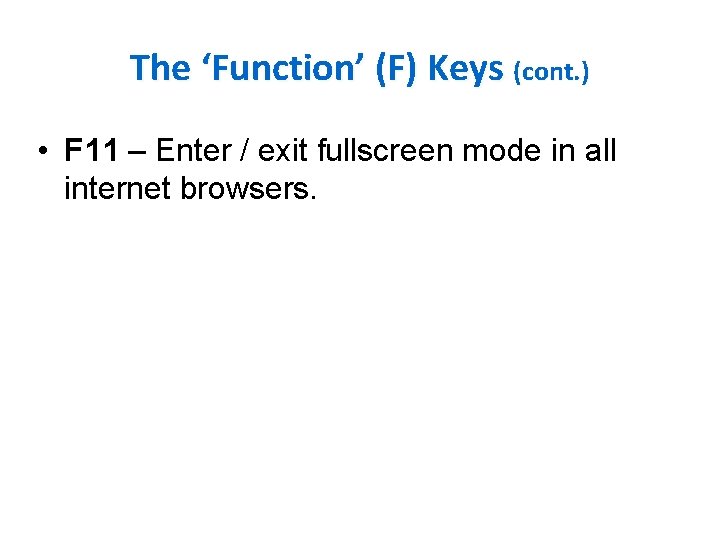
The ‘Function’ (F) Keys (cont. ) • F 11 – Enter / exit fullscreen mode in all internet browsers.
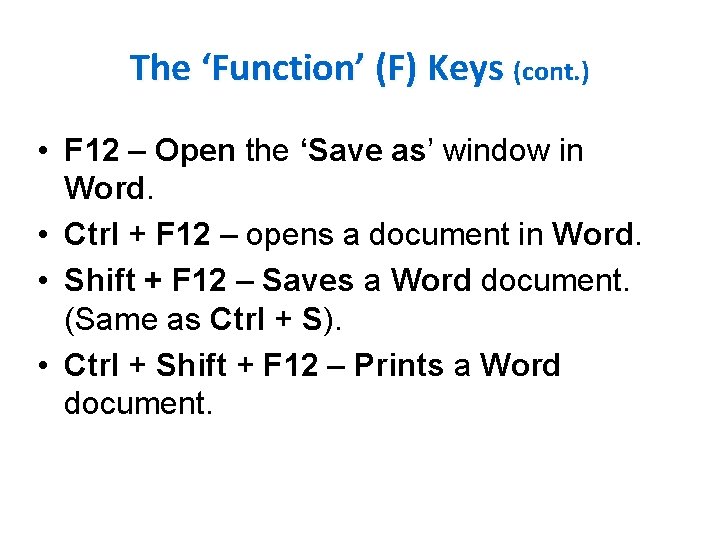
The ‘Function’ (F) Keys (cont. ) • F 12 – Open the ‘Save as’ window in Word. • Ctrl + F 12 – opens a document in Word. • Shift + F 12 – Saves a Word document. (Same as Ctrl + S). • Ctrl + Shift + F 12 – Prints a Word document.
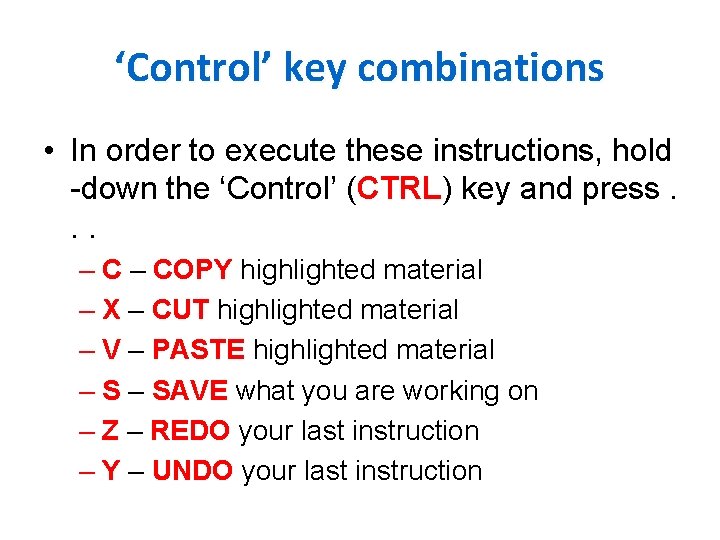
‘Control’ key combinations • In order to execute these instructions, hold -down the ‘Control’ (CTRL) key and press. . . – COPY highlighted material – X – CUT highlighted material – V – PASTE highlighted material – SAVE what you are working on – Z – REDO your last instruction – Y – UNDO your last instruction
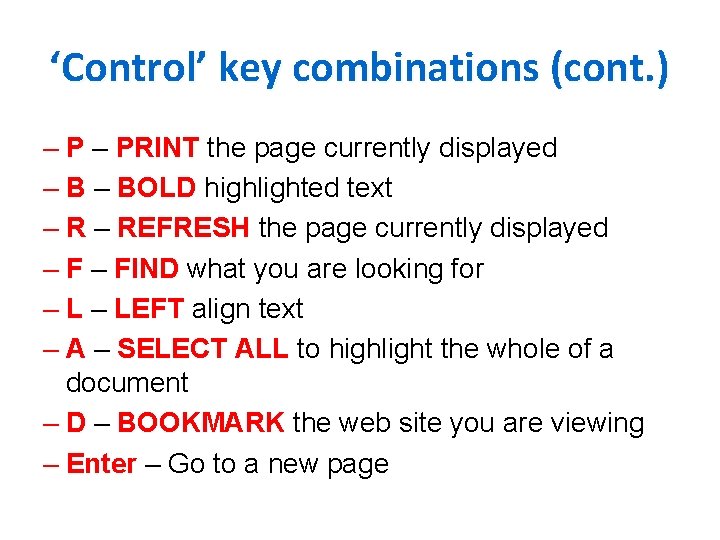
‘Control’ key combinations (cont. ) – PRINT the page currently displayed – BOLD highlighted text – REFRESH the page currently displayed – FIND what you are looking for – LEFT align text – A – SELECT ALL to highlight the whole of a document – D – BOOKMARK the web site you are viewing – Enter – Go to a new page
Miscellaneous Tips: – Highlighting text &/or pictures/images: • Place the cursor at the beginning of the section you want to highlight. • Hold-down the SHIFT key. • Move the cursor to the end of the section you want to highlight and left-click.
Miscellaneous Tips: (cont. ) – Highlighting text &/or pictures/images: (cont. ) • When using M/S Word, place the cursor in the left margin opposite the beginning of the section you want to highlight. • Hold-down the LEFT MOUSE BUTTON. • Drag the cursor down the left margin to the end of the section you want to highlight and release the left mouse button.
Miscellaneous Tips: (cont. ) – Highlighting text &/or pictures/images: (cont. ) • Place the cursor at the beginning of the section you want to highlight. • Hold-down the LEFT MOUSE BUTTON. • Drag the cursor down to the end of the section you want to highlight and release the left mouse button.
Miscellaneous Tips: (cont. ) – Highlighting a single word: • Place the cursor anywhere within the word you want to highlight and double-click. – Highlighting a whole paragraph: • Place the cursor anywhere within the paragraph you want to highlight and triple-click. – Don’t forget the use of your ‘END’ key: • This automatically moves your cursor to the end of the line you are working on.
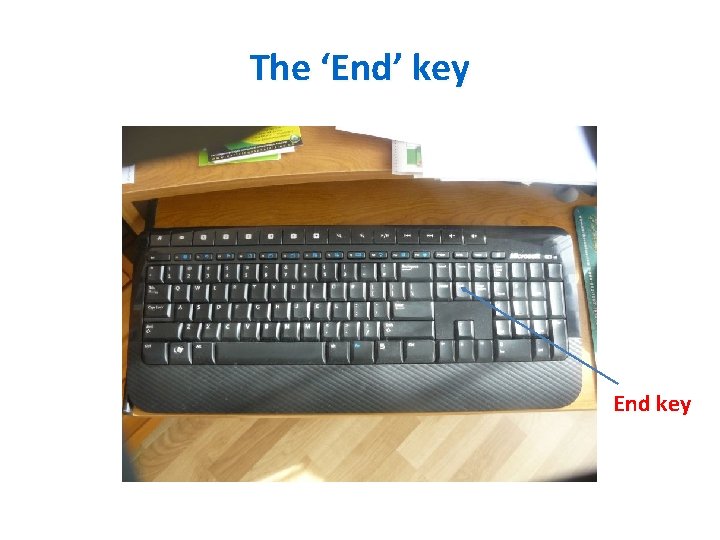
The ‘End’ key End key
Miscellaneous Tips: (cont. ) – Highlighting lists: • To highlight the whole of a list, place the cursor at the beginning of the list, hold-down the ‘SHIFT’ key, move the cursor to the end of the list and leftclick. • To highlight individual entries in a list, highlight the first entry, hold-down the ‘CTRL’ key, highlight each of the other entries you want to include, then execute your action (e. g. delete).
Miscellaneous Tips: (cont. ) – Don’t be afraid to use your ‘UNDO’ icon: • The ‘UNDO’ icon is at the very top of the screen in most applications. (It’s the blue arrow pointing to the left. ) • Clicking on this icon will literally ‘undo’ your last action. You’ll understand this better when we create some text to practice on in a short while.
Let’s see how it works. . . We’ll now create a short document (preferably using Microsoft Word) and practice on it to see how some of the items we’ve been discussing actually work.
- Slides: 25