
Getting started with SPSS Dr Jenny Freeman Mathematics

- Slides: 70
Getting started with SPSS Dr Jenny Freeman Mathematics & Statistics Help University of Sheffield
Learning outcomes By the end of this session you should understand: • The different windows in SPSS • The difference between Data View and Variable View By the end of this session you should be able to: • Open SPSS and create a new data file • Read data in from existing files, both SPSS and EXCEL • Recode data to create new variables • Produce simple plots, data summaries and tables • Edit plots • Save files and output
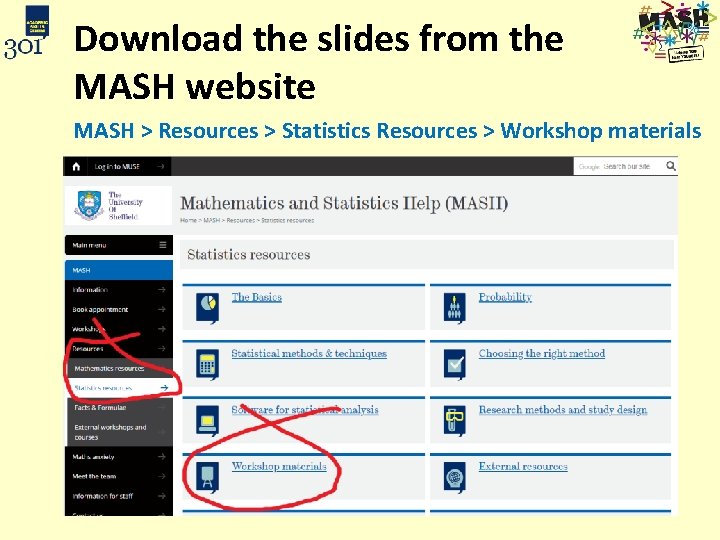
Download the slides from the MASH website MASH > Resources > Statistics Resources > Workshop materials
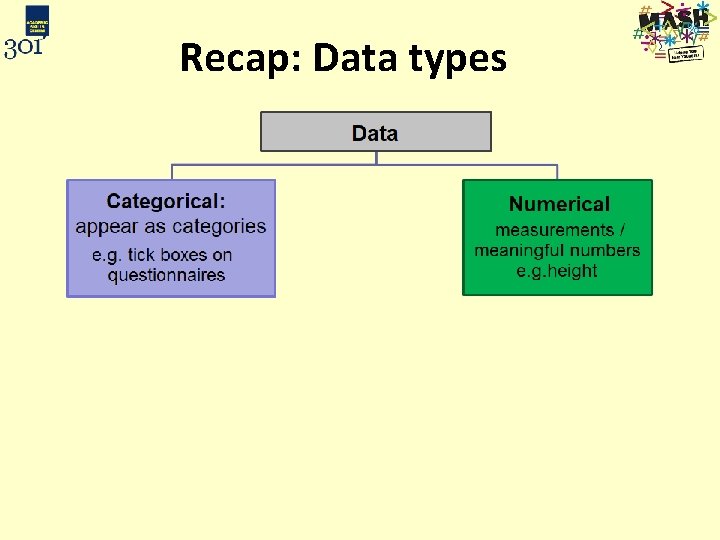
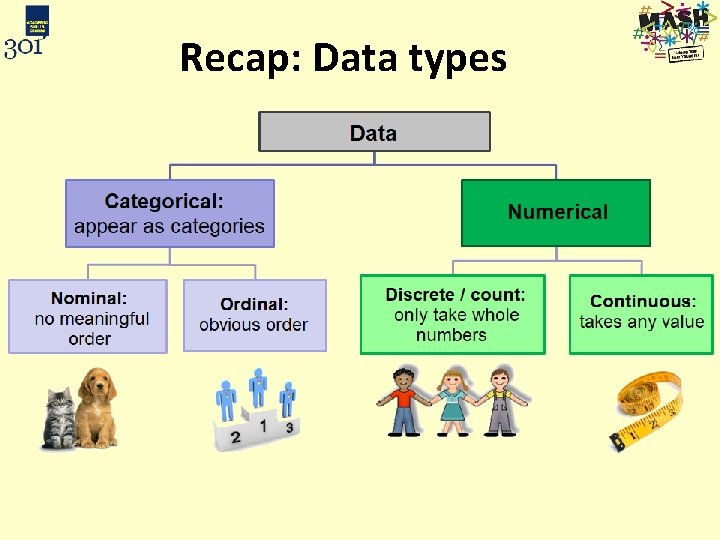
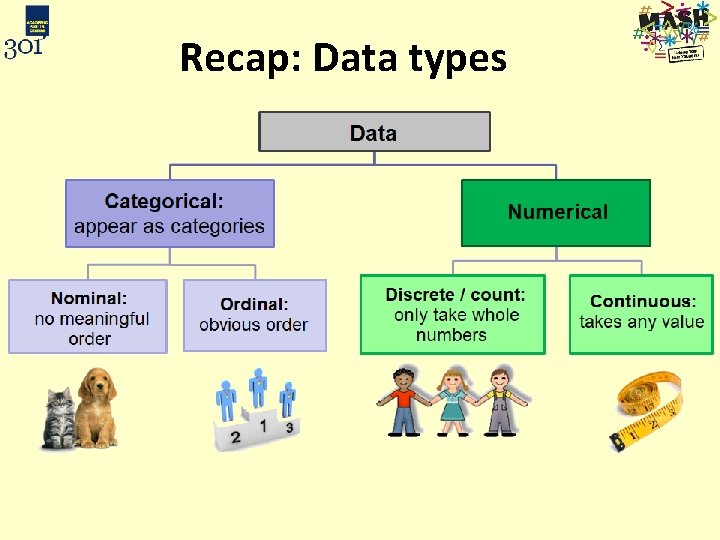
Recap: Data types
Recap: Data types
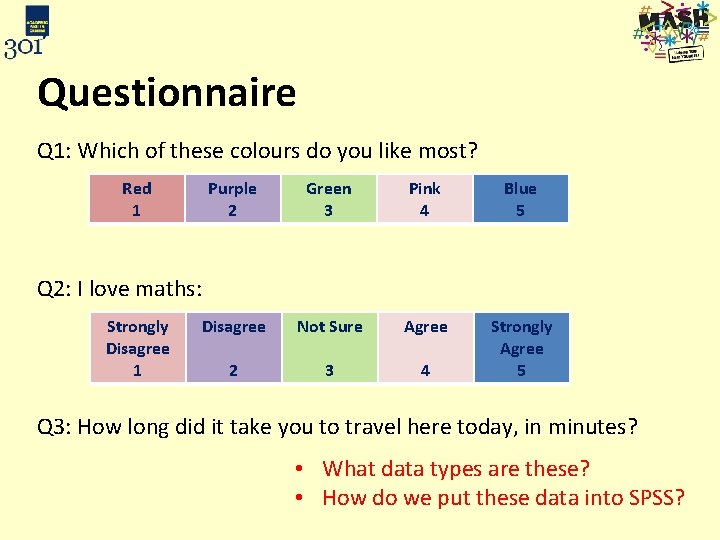
Questionnaire Q 1: Which of these colours do you like most? Red 1 Purple 2 Green 3 Pink 4 Blue 5 Disagree Not Sure Agree 2 3 4 Strongly Agree 5 Q 2: I love maths: Strongly Disagree 1 Q 3: How long did it take you to travel here today, in minutes? • What data types are these? • How do we put these data into SPSS?
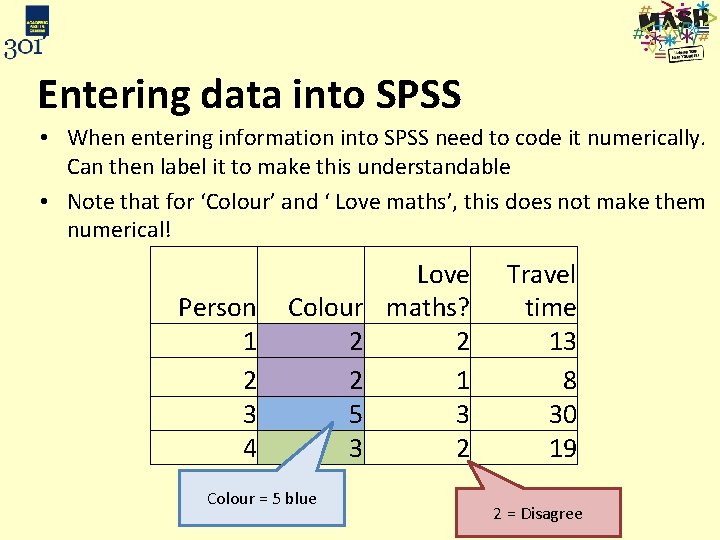
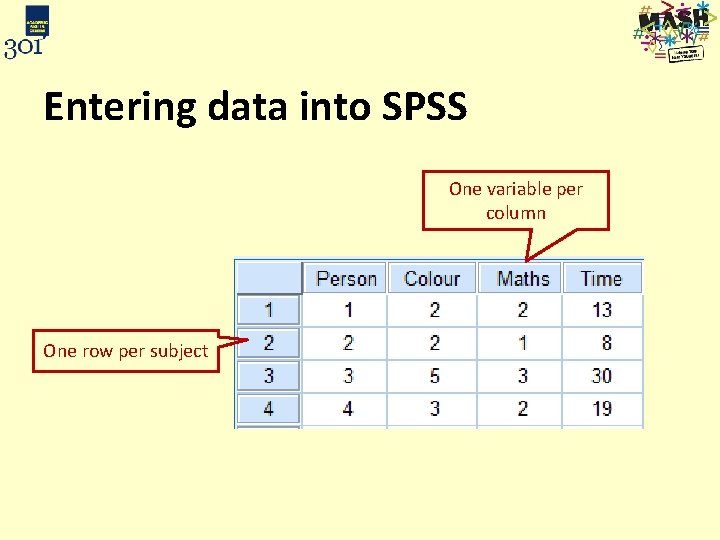
Entering data into SPSS • When entering information into SPSS need to code it numerically. Can then label it to make this understandable • Note that for ‘Colour’ and ‘ Love maths’, this does not make them numerical! Person 1 2 3 4 Colour 2 2 5 3 Colour = 5 blue Love maths? 2 1 3 2 Travel time 13 8 30 19 2 = Disagree
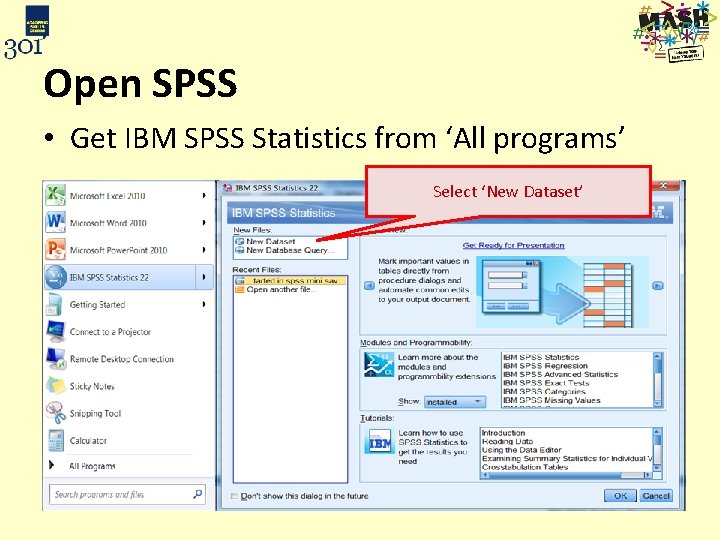
Open SPSS • Get IBM SPSS Statistics from ‘All programs’ Select ‘New Dataset’
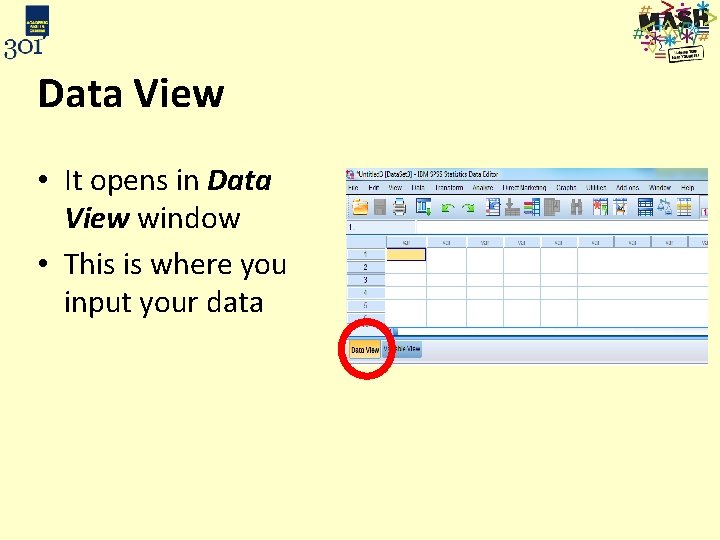
Data View • It opens in Data View window • This is where you input your data
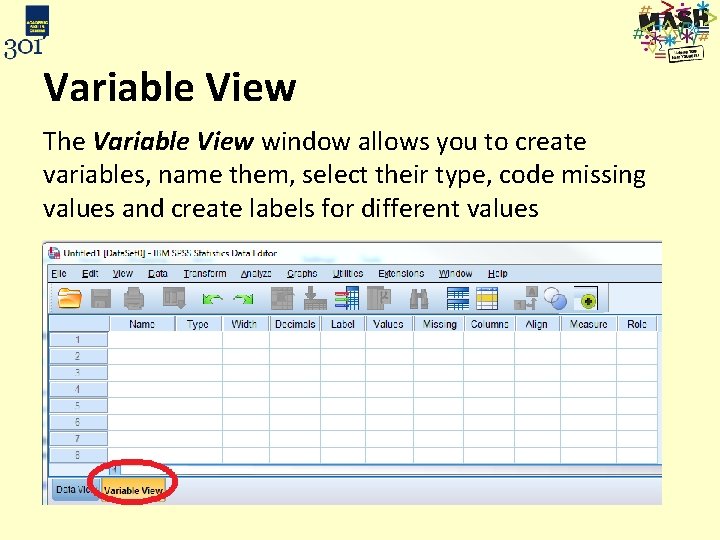
Variable View The Variable View window allows you to create variables, name them, select their type, code missing values and create labels for different values
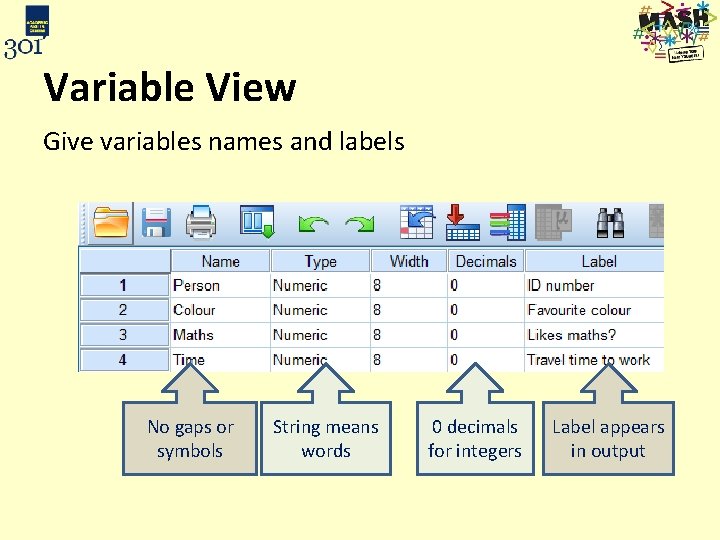
Variable View Give variables names and labels No gaps or symbols String means words 0 decimals for integers Label appears in output
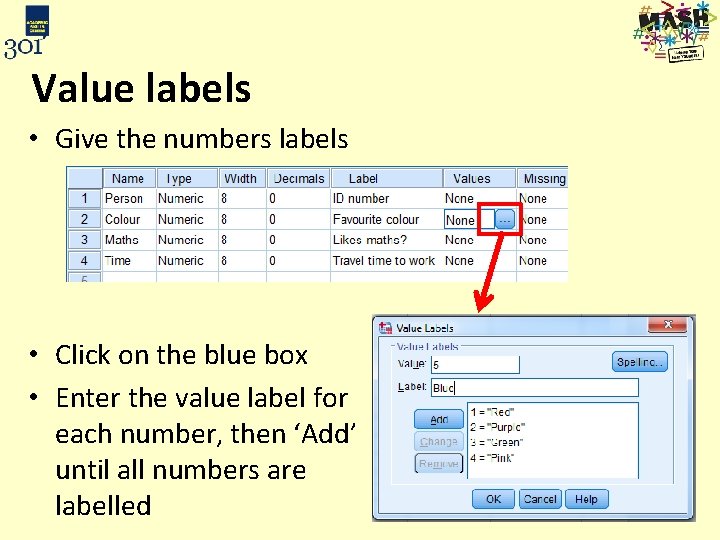
Value labels • Give the numbers labels • Click on the blue box • Enter the value label for each number, then ‘Add’ until all numbers are labelled
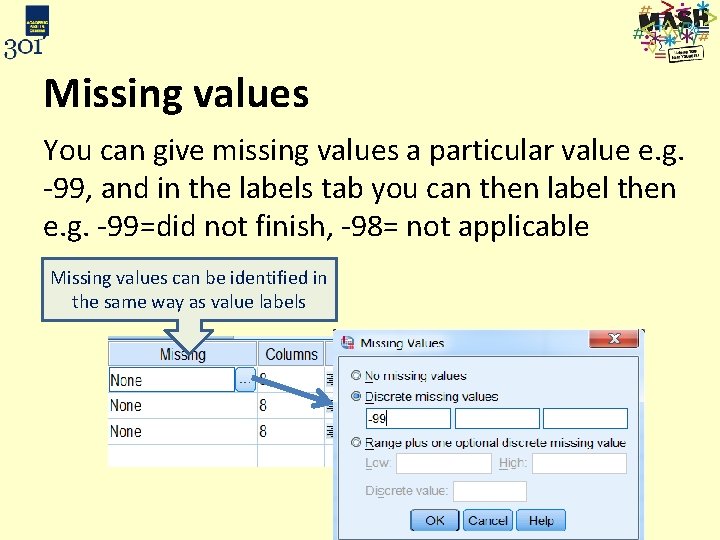
Missing values You can give missing values a particular value e. g. -99, and in the labels tab you can then label then e. g. -99=did not finish, -98= not applicable Missing values can be identified in the same way as value labels
Entering data into SPSS One variable per column One row per subject
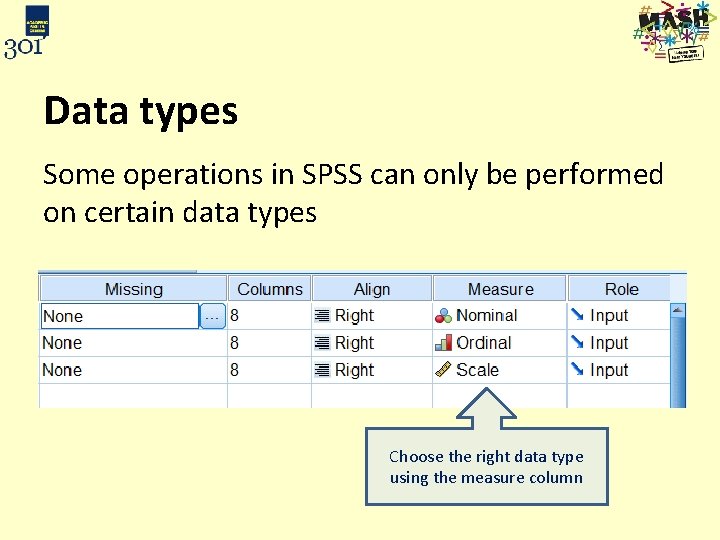
Data types Some operations in SPSS can only be performed on certain data types Choose the right data type using the measure column
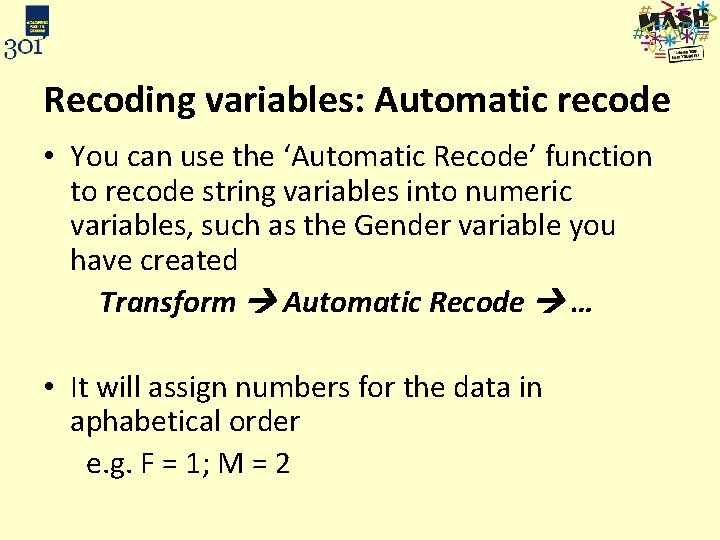
Recoding variables: Automatic recode • You can use the ‘Automatic Recode’ function to recode string variables into numeric variables, such as the Gender variable you have created Transform Automatic Recode … • It will assign numbers for the data in aphabetical order e. g. F = 1; M = 2
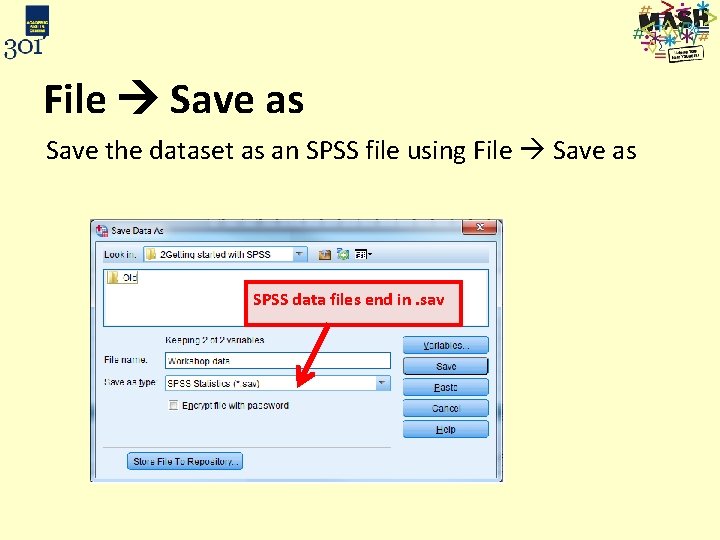
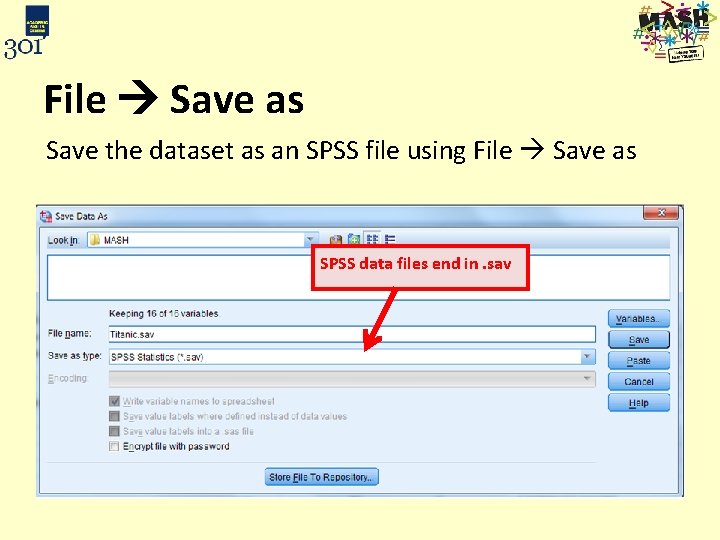
File Save as Save the dataset as an SPSS file using File Save as SPSS data files end in. sav
Exercise 1: Entering data into SPSS 1. Open SPSS and select ‘New Dataset’ from the options 2. Go to ‘Variable View’ and create the dataset template for inputting the 5 variables on the handout: ID, Colour, Maths, Time, Gender 3. Input the data, creating numeric codes for ‘Favourite colour’ and ‘Love_maths’. Input ‘Gender’ as a string variable 4. Use Automatic recode to create a new Gender variable with numeric codes rather than the string variable
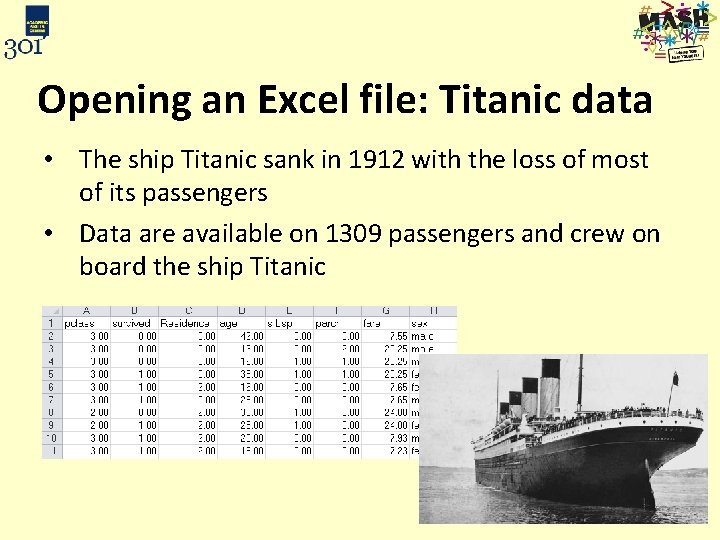
Opening an Excel file: Titanic data • The ship Titanic sank in 1912 with the loss of most of its passengers • Data are available on 1309 passengers and crew on board the ship Titanic
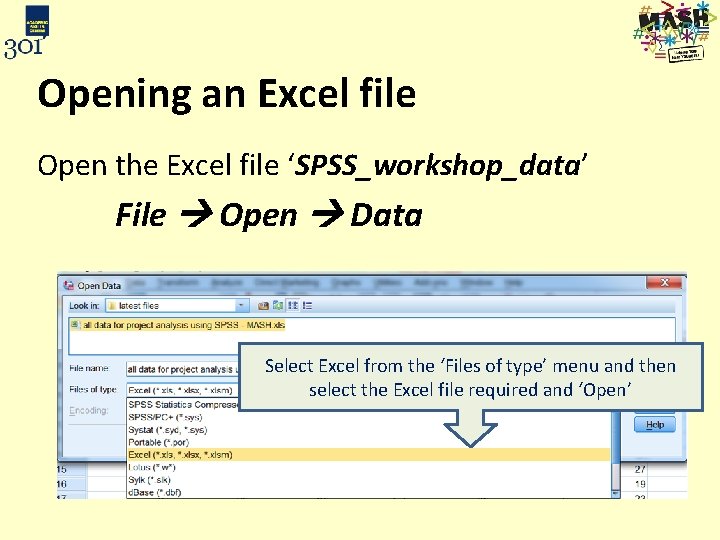
Opening an Excel file Open the Excel file ‘SPSS_workshop_data’ File Open Data Select Excel from the ‘Files of type’ menu and then select the Excel file required and ‘Open’
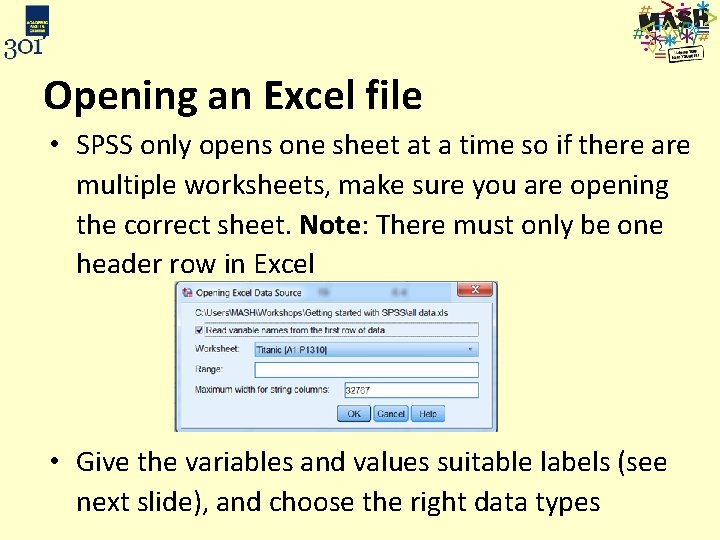
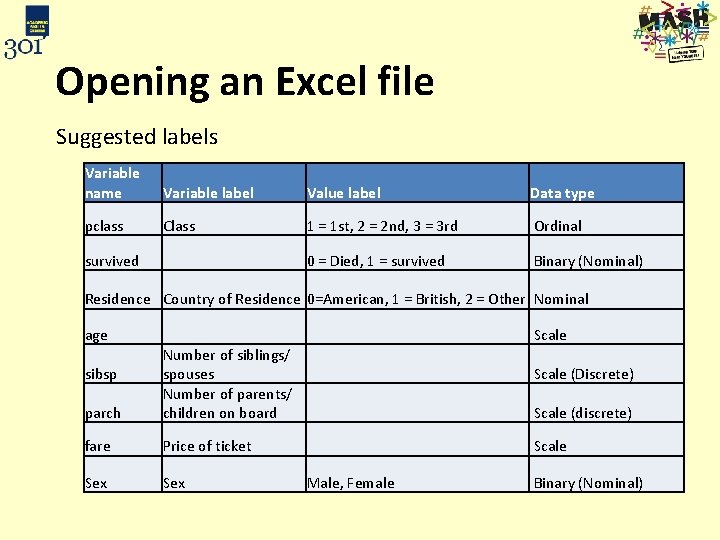
Opening an Excel file • SPSS only opens one sheet at a time so if there are multiple worksheets, make sure you are opening the correct sheet. Note: There must only be one header row in Excel • Give the variables and values suitable labels (see next slide), and choose the right data types
Opening an Excel file Suggested labels Variable name Variable label Value label Data type pclass Class 1 = 1 st, 2 = 2 nd, 3 = 3 rd Ordinal survived 0 = Died, 1 = survived Binary (Nominal) Residence Country of Residence 0=American, 1 = British, 2 = Other Nominal age Scale parch Number of siblings/ spouses Number of parents/ children on board fare Price of ticket Scale Sex Male, Female Binary (Nominal) sibsp Scale (Discrete) Scale (discrete)
File Save as Save the dataset as an SPSS file using File Save as SPSS data files end in. sav
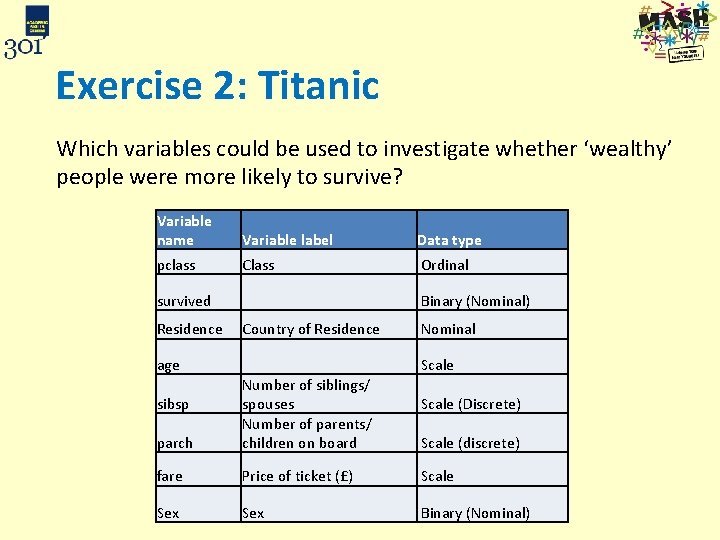
Exercise 2: Titanic Which variables could be used to investigate whether ‘wealthy’ people were more likely to survive? Variable name Variable label Data type pclass Class Ordinal survived Binary (Nominal) Residence Country of Residence Nominal age Scale parch Number of siblings/ spouses Number of parents/ children on board fare Price of ticket (£) Scale Sex Binary (Nominal) sibsp Scale (Discrete) Scale (discrete)
Summarising categorical data in SPSS
Summarising categorical data • %’s are preferable unless there are small frequencies • Bar/ pie charts for one categorical variable • Contingency tables and stacked/ multiple bar charts for assessing relationships between 2 categorical variables • Research question: Who are the most dangerous drivers in Britain?
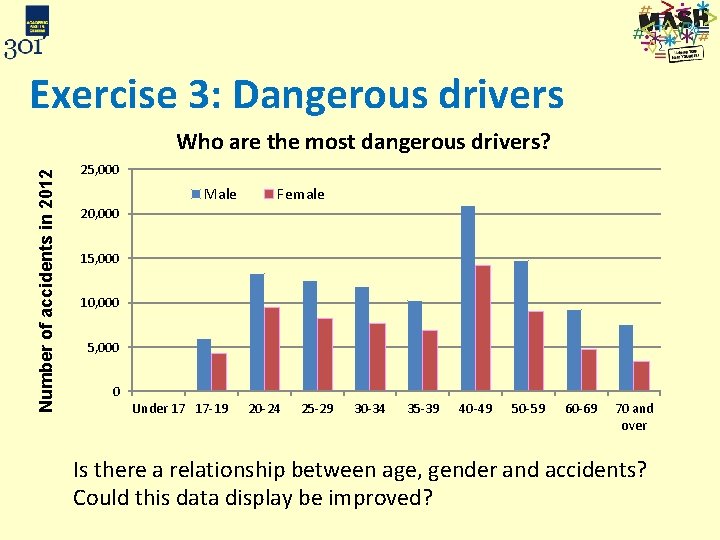
Exercise 3: Dangerous drivers Number of accidents in 2012 Who are the most dangerous drivers? 25, 000 Male Female 20, 000 15, 000 10, 000 5, 000 0 Under 17 17 -19 20 -24 25 -29 30 -34 35 -39 40 -49 50 -59 60 -69 70 and over Is there a relationship between age, gender and accidents? Could this data display be improved?
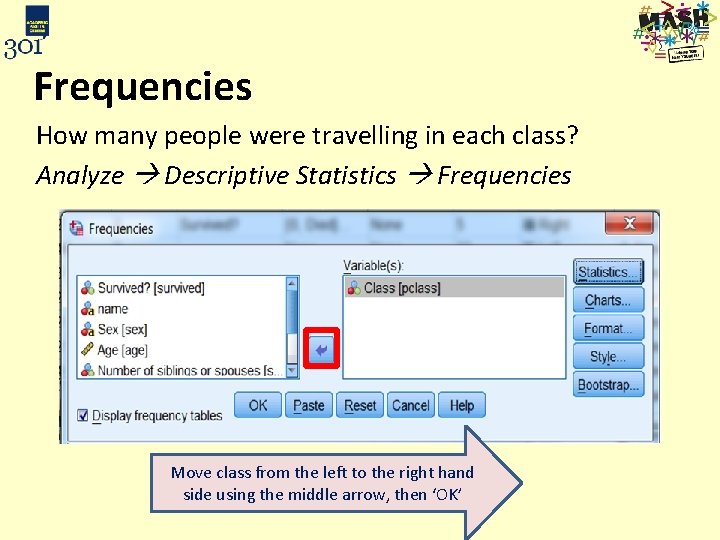
Frequencies How many people were travelling in each class? Analyze Descriptive Statistics Frequencies Move class from the left to the right hand side using the middle arrow, then ‘OK’
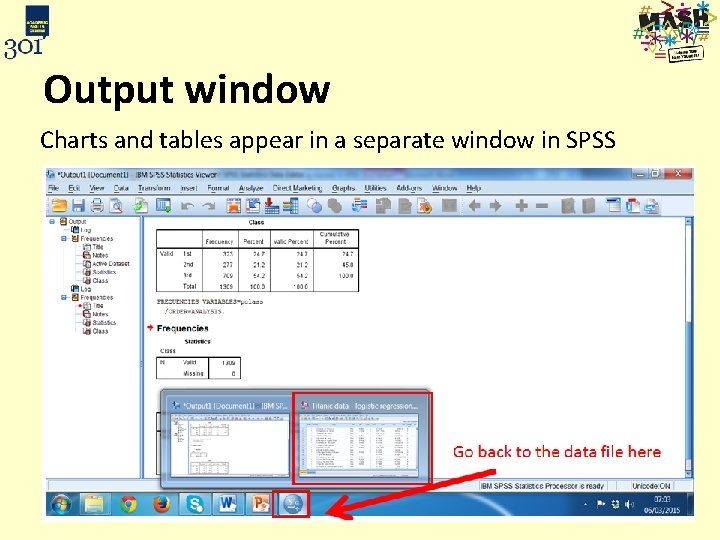
Output window Charts and tables appear in a separate window in SPSS
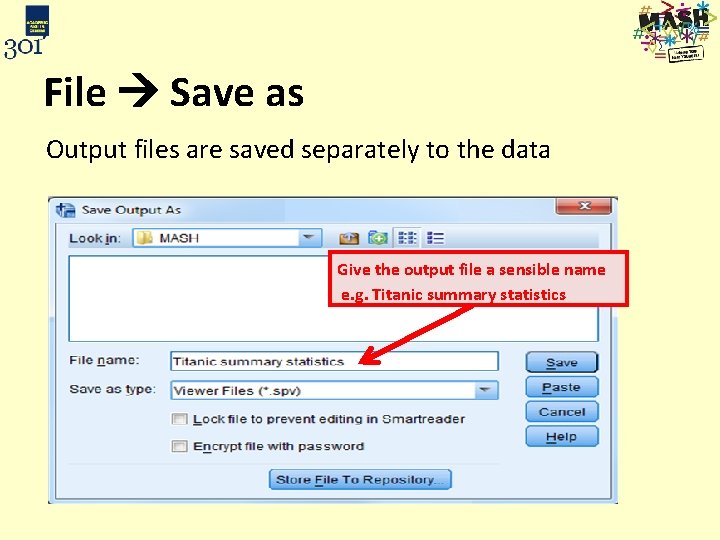
File Save as Output files are saved separately to the data Give the output file a sensible name e. g. Titanic summary statistics
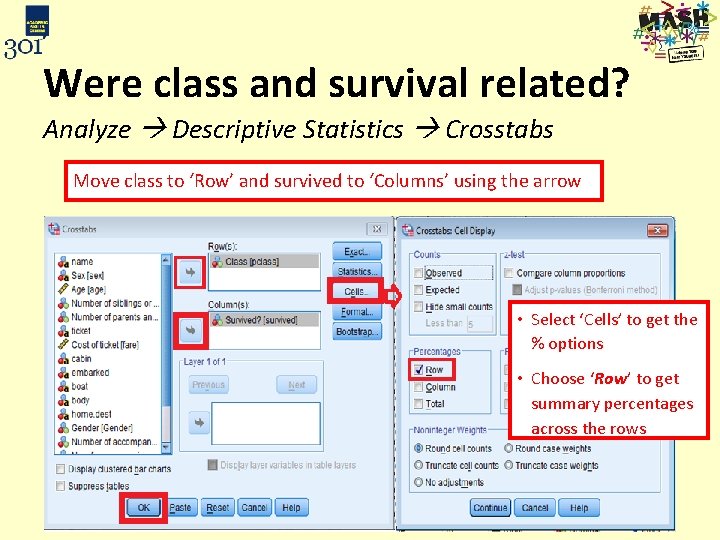
Were class and survival related? Analyze Descriptive Statistics Crosstabs Move class to ‘Row’ and survived to ‘Columns’ using the arrow • Select ‘Cells’ to get the % options • Choose ‘Row’ to get summary percentages across the rows
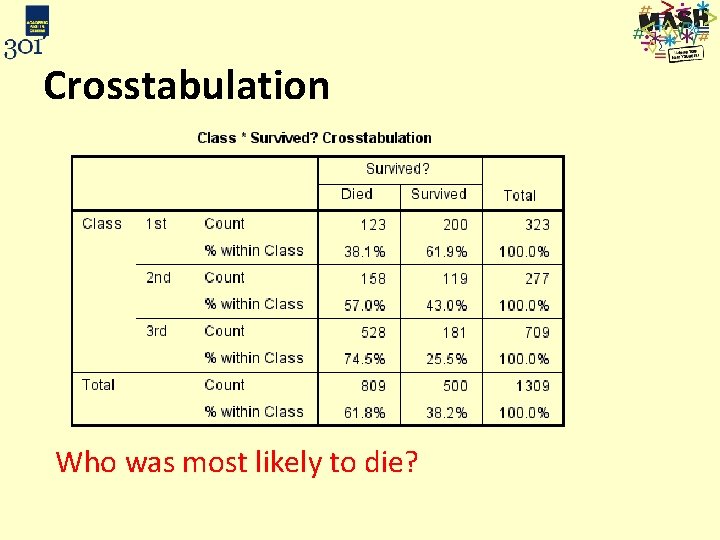
Crosstabulation Who was most likely to die?
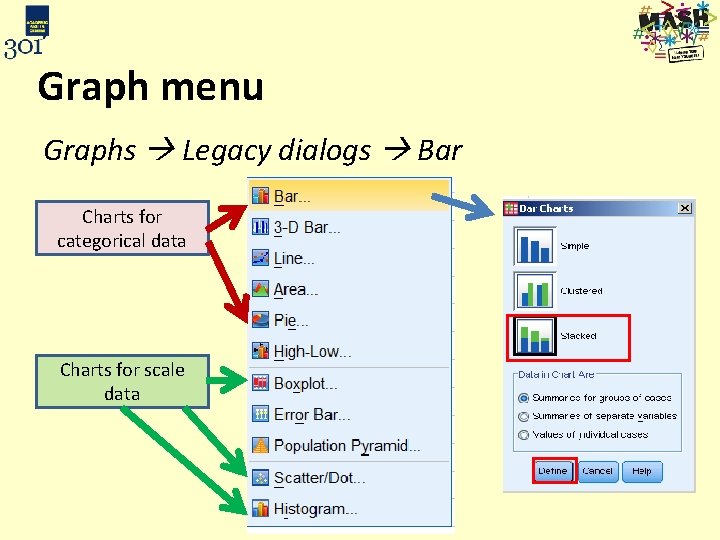
Graph menu Graphs Legacy dialogs Bar Charts for categorical data Charts for scale data
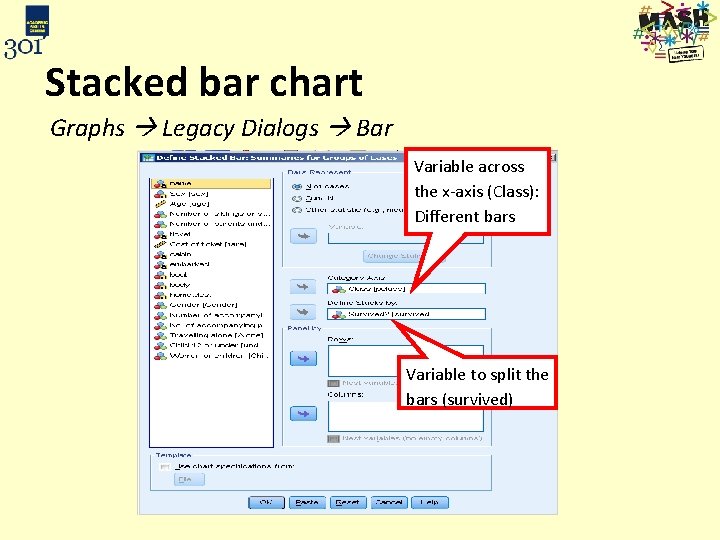
Stacked bar chart Graphs Legacy Dialogs Bar Variable across the x-axis (Class): Different bars Variable to split the bars (survived)
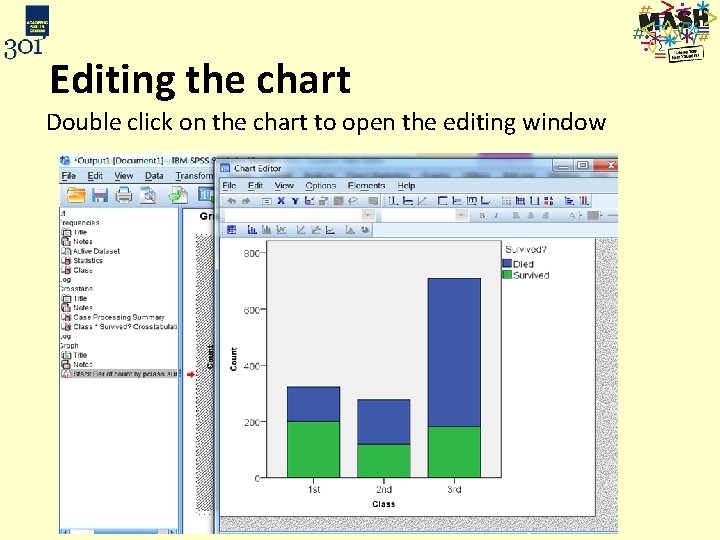
Editing the chart Double click on the chart to open the editing window
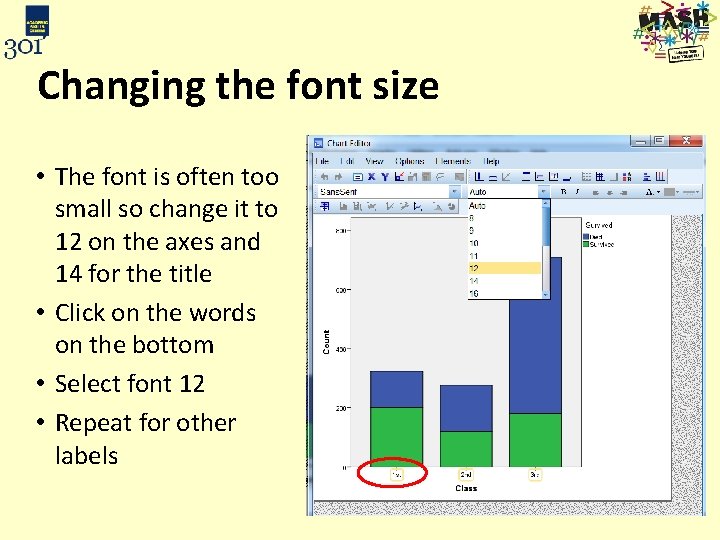
Changing the font size • The font is often too small so change it to 12 on the axes and 14 for the title • Click on the words on the bottom • Select font 12 • Repeat for other labels
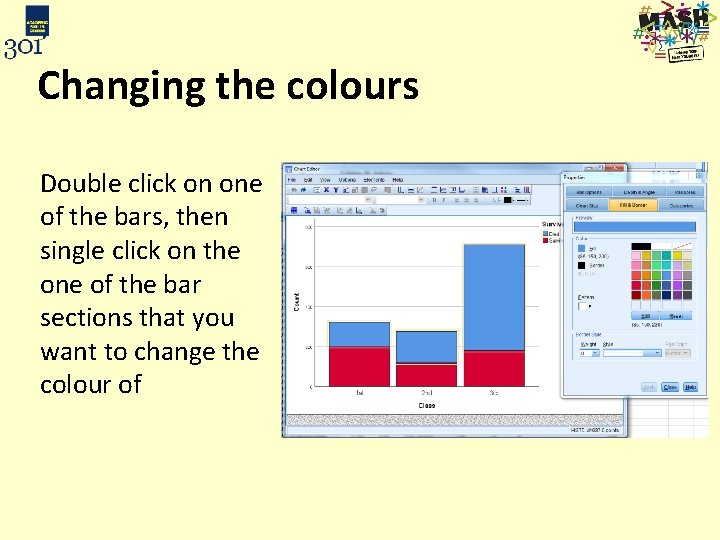
Changing the colours Double click on one of the bars, then single click on the one of the bar sections that you want to change the colour of
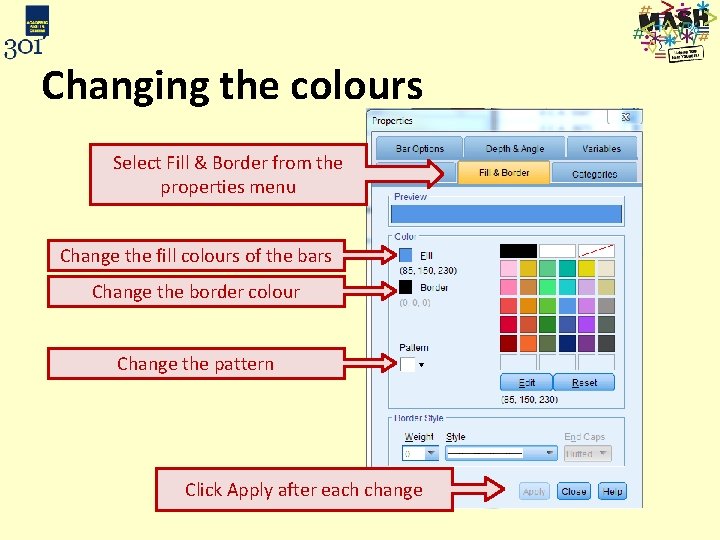
Changing the colours Select Fill & Border from the properties menu Change the fill colours of the bars Change the border colour Change the pattern Click Apply after each change
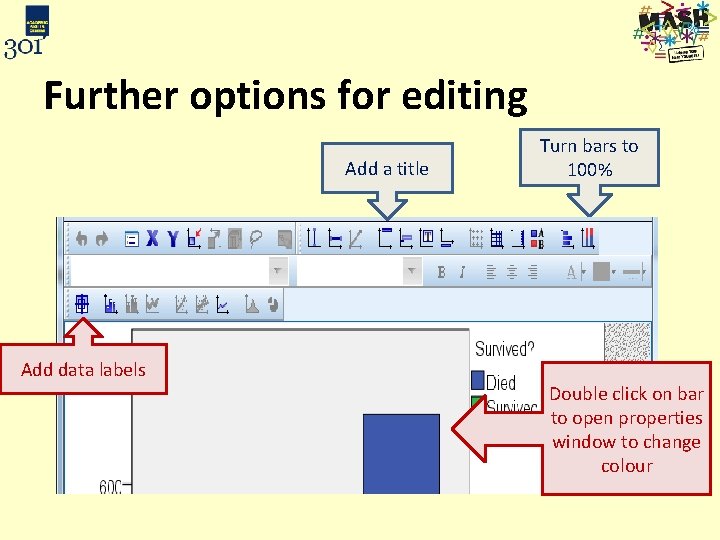
Further options for editing Add a title Add data labels Turn bars to 100% Double click on bar to open properties window to change colour
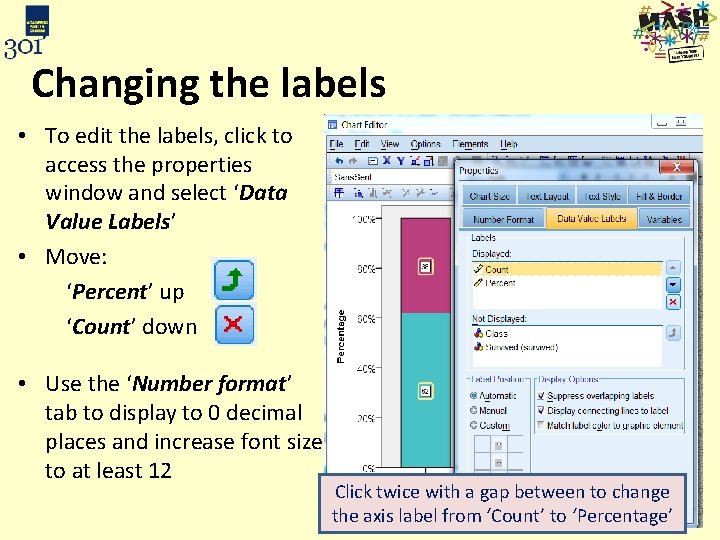
Changing the labels • To edit the labels, click to access the properties window and select ‘Data Value Labels’ • Move: ‘Percent’ up ‘Count’ down • Use the ‘Number format’ tab to display to 0 decimal places and increase font size to at least 12 Click twice with a gap between to change the axis label from ‘Count’ to ‘Percentage’
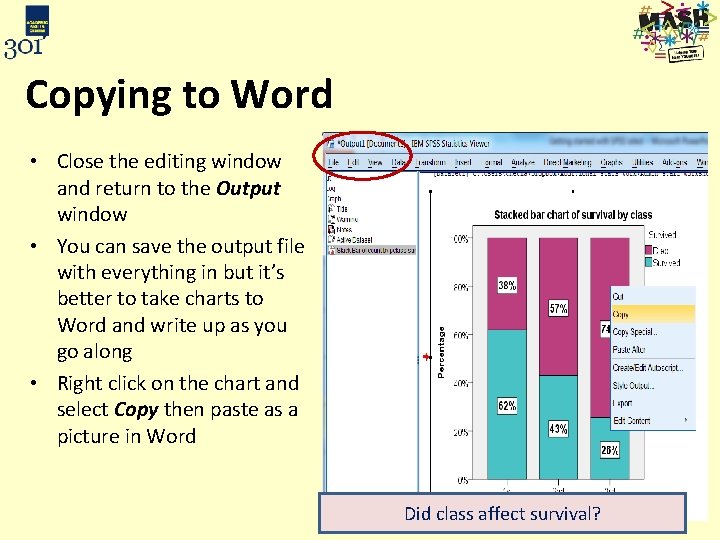
Copying to Word • Close the editing window and return to the Output window • You can save the output file with everything in but it’s better to take charts to Word and write up as you go along • Right click on the chart and select Copy then paste as a picture in Word Did class affect survival?
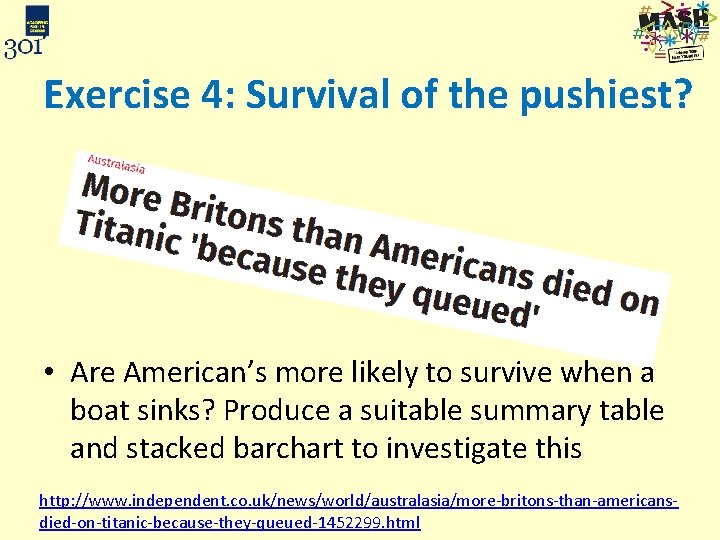
Exercise 4: Survival of the pushiest? • Are American’s more likely to survive when a boat sinks? Produce a suitable summary table and stacked barchart to investigate this http: //www. independent. co. uk/news/world/australasia/more-britons-than-americansdied-on-titanic-because-they-queued-1452299. html
Summarising continuous data
Recap: Data types
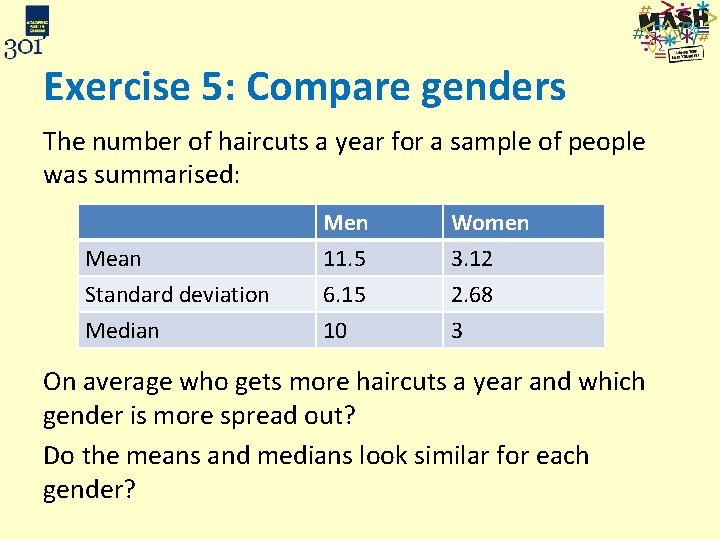
Exercise 5: Compare genders The number of haircuts a year for a sample of people was summarised: Mean Standard deviation Median Men 11. 5 6. 15 10 Women 3. 12 2. 68 3 On average who gets more haircuts a year and which gender is more spread out? Do the means and medians look similar for each gender?
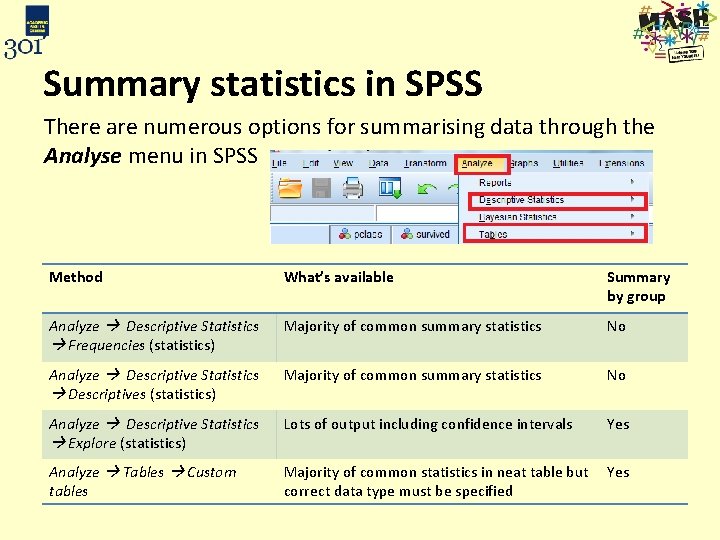
Summary statistics in SPSS There are numerous options for summarising data through the Analyse menu in SPSS Method What’s available Summary by group Analyze Descriptive Statistics Frequencies (statistics) Majority of common summary statistics No Analyze Descriptive Statistics Descriptives (statistics) Majority of common summary statistics No Analyze Descriptive Statistics Explore (statistics) Lots of output including confidence intervals Yes Analyze Tables Custom tables Majority of common statistics in neat table but Yes correct data type must be specified
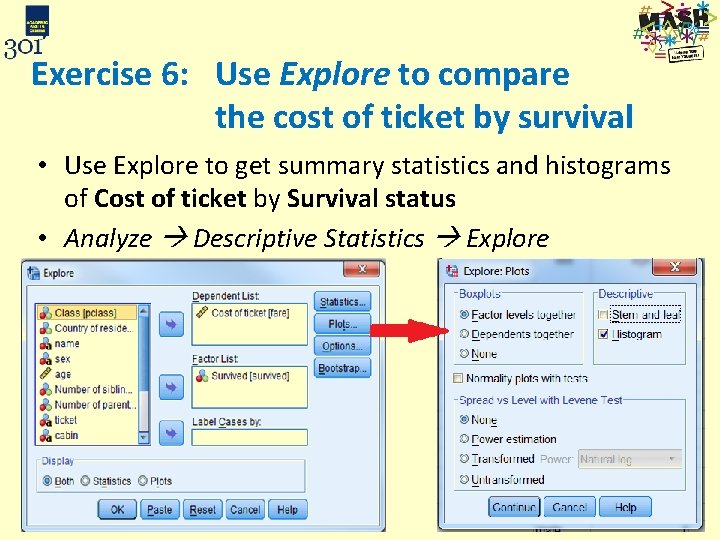
Exercise 6: Use Explore to compare the cost of ticket by survival • Use Explore to get summary statistics and histograms of Cost of ticket by Survival status • Analyze Descriptive Statistics Explore
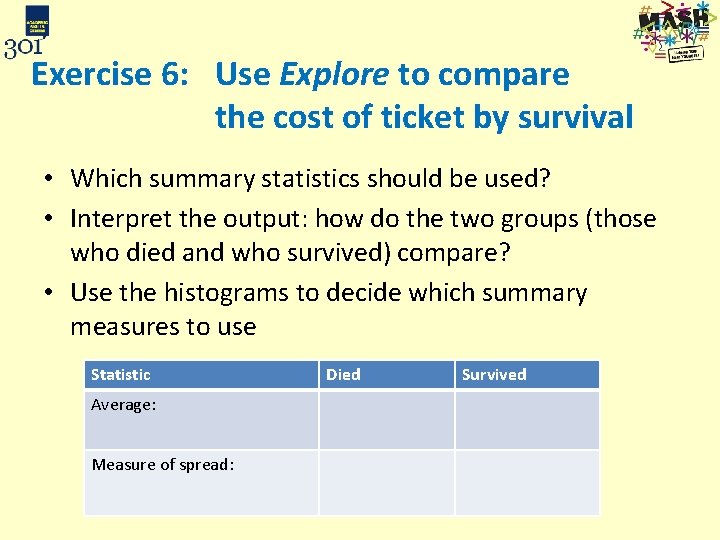
Exercise 6: Use Explore to compare the cost of ticket by survival • Which summary statistics should be used? • Interpret the output: how do the two groups (those who died and who survived) compare? • Use the histograms to decide which summary measures to use Statistic Average: Measure of spread: Died Survived
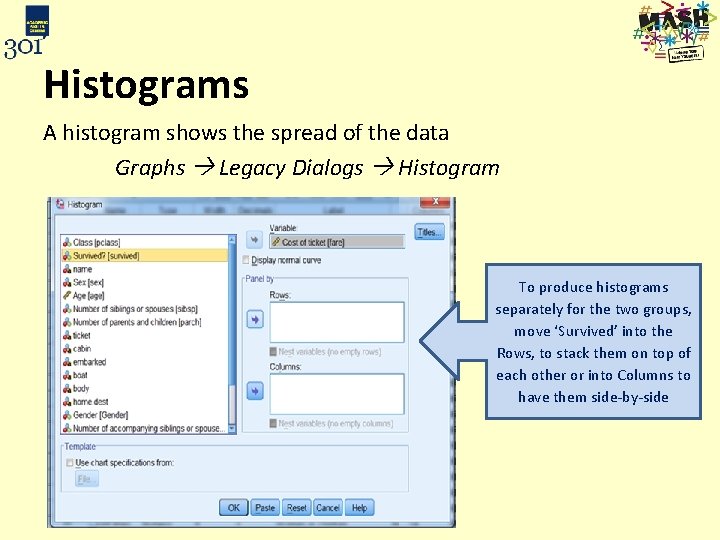
Histograms A histogram shows the spread of the data Graphs Legacy Dialogs Histogram To produce histograms separately for the two groups, move ‘Survived’ into the Rows, to stack them on top of each other or into Columns to have them side-by-side
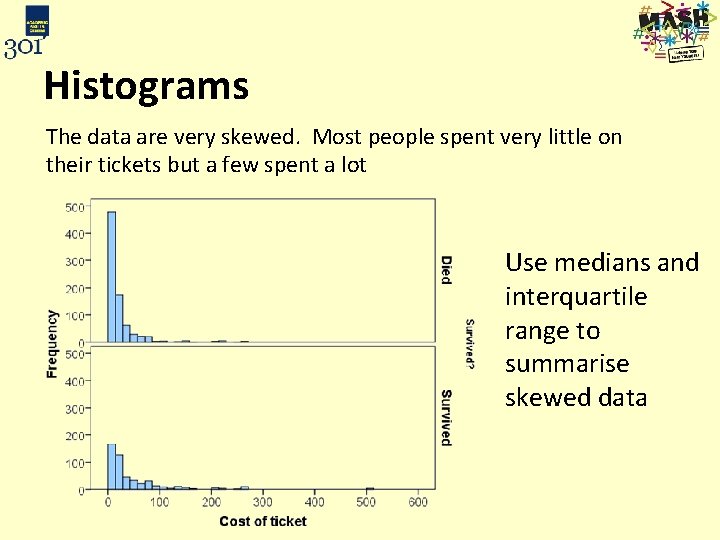
Histograms The data are very skewed. Most people spent very little on their tickets but a few spent a lot Use medians and interquartile range to summarise skewed data
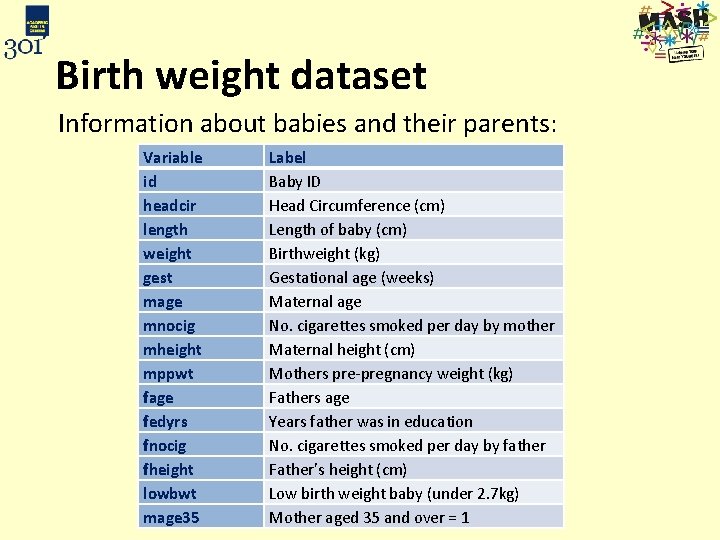
Birth weight dataset Information about babies and their parents: Variable id headcir length weight gest mage mnocig mheight mppwt fage fedyrs fnocig fheight lowbwt mage 35 Label Baby ID Head Circumference (cm) Length of baby (cm) Birthweight (kg) Gestational age (weeks) Maternal age No. cigarettes smoked per day by mother Maternal height (cm) Mothers pre-pregnancy weight (kg) Fathers age Years father was in education No. cigarettes smoked per day by father Father’s height (cm) Low birth weight baby (under 2. 7 kg) Mother aged 35 and over = 1
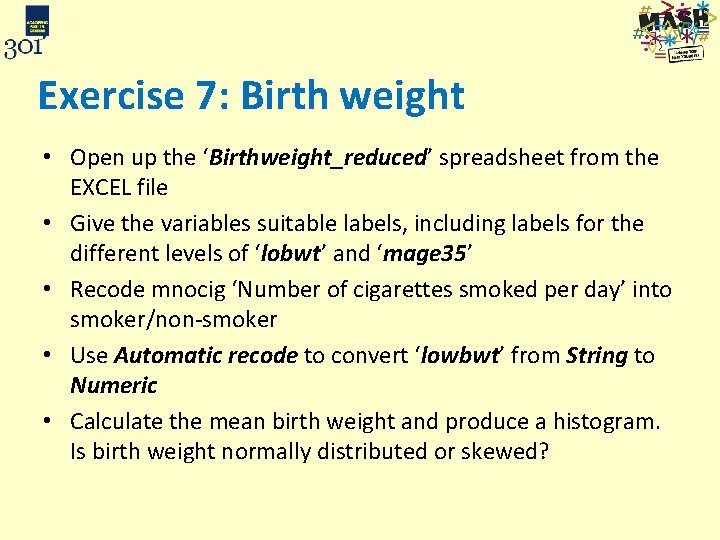
Exercise 7: Birth weight • Open up the ‘Birthweight_reduced’ spreadsheet from the EXCEL file • Give the variables suitable labels, including labels for the different levels of ‘lobwt’ and ‘mage 35’ • Recode mnocig ‘Number of cigarettes smoked per day’ into smoker/non-smoker • Use Automatic recode to convert ‘lowbwt’ from String to Numeric • Calculate the mean birth weight and produce a histogram. Is birth weight normally distributed or skewed?
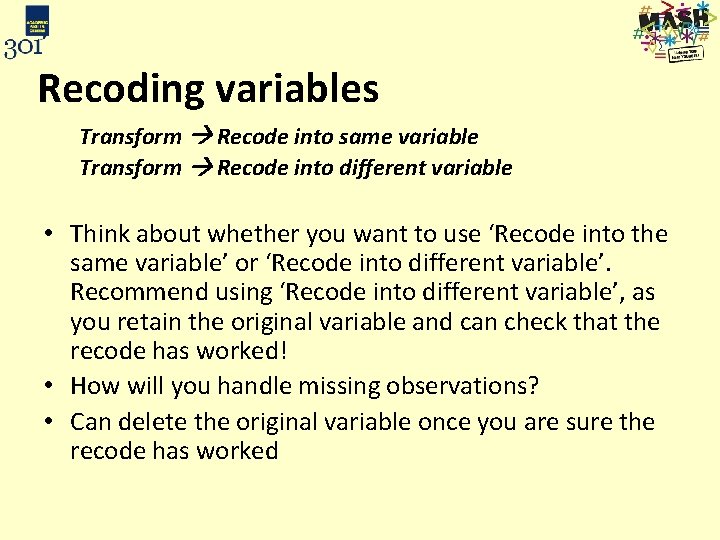
Recoding variables Transform Recode into same variable Transform Recode into different variable • Think about whether you want to use ‘Recode into the same variable’ or ‘Recode into different variable’. Recommend using ‘Recode into different variable’, as you retain the original variable and can check that the recode has worked! • How will you handle missing observations? • Can delete the original variable once you are sure the recode has worked
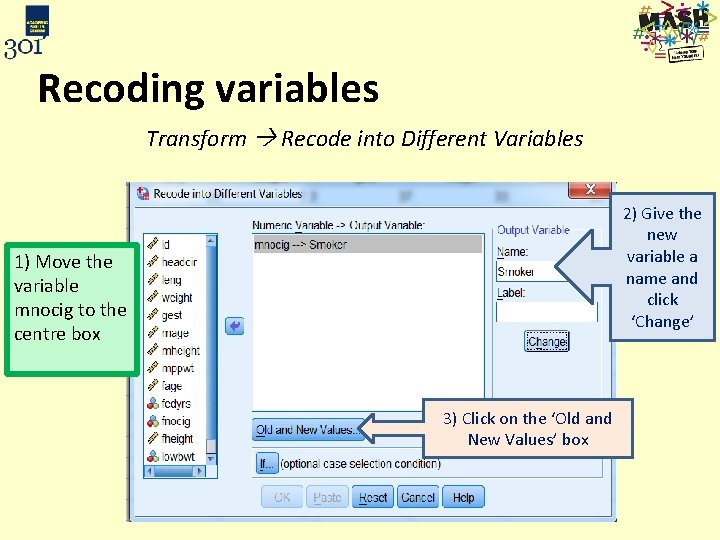
Recoding variables Transform Recode into Different Variables 2) Give the new variable a name and click ‘Change’ 1) Move the variable mnocig to the centre box 3) Click on the ‘Old and New Values’ box
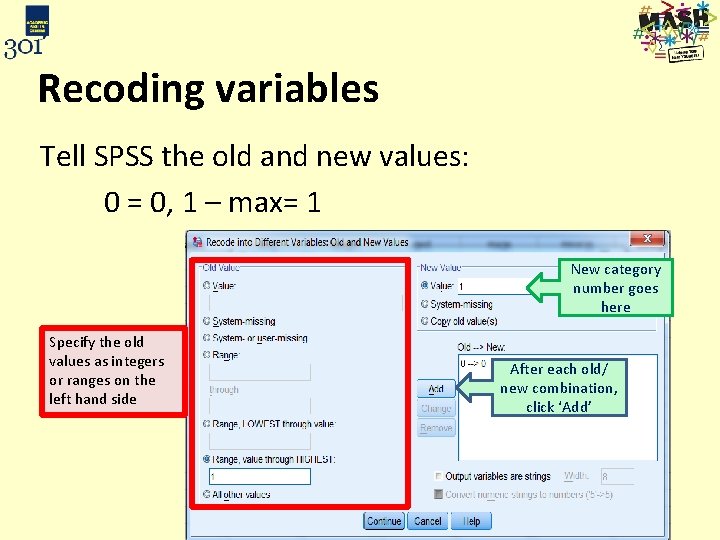
Recoding variables Tell SPSS the old and new values: 0 = 0, 1 – max= 1 New category number goes here Specify the old values as integers or ranges on the left hand side After each old/ new combination, click ‘Add’
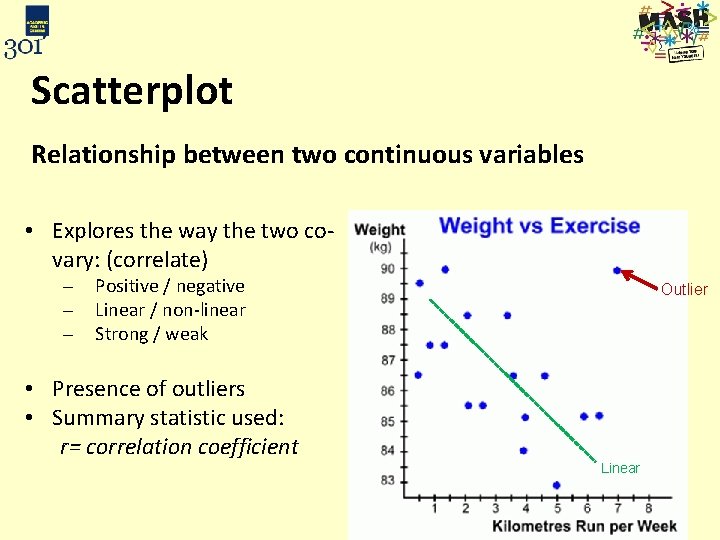
Scatterplot Relationship between two continuous variables • Explores the way the two covary: (correlate) Positive / negative Linear / non-linear Strong / weak • Presence of outliers • Summary statistic used: r= correlation coefficient Outlier Linear
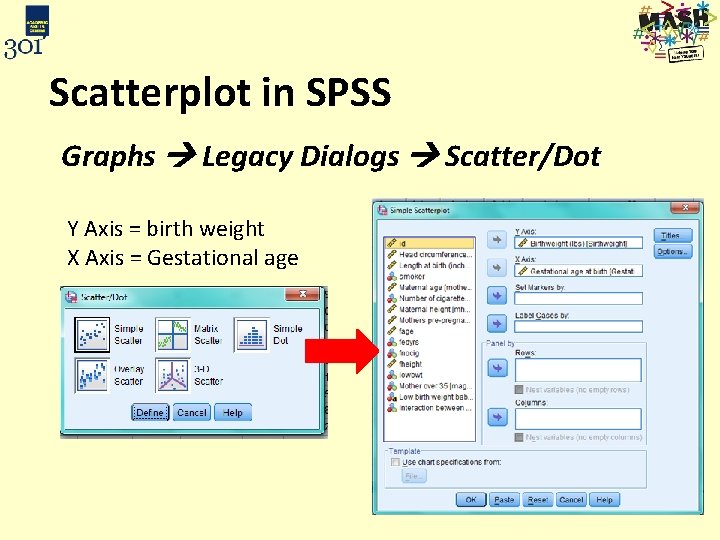
Scatterplot in SPSS Graphs Legacy Dialogs Scatter/Dot Y Axis = birth weight X Axis = Gestational age
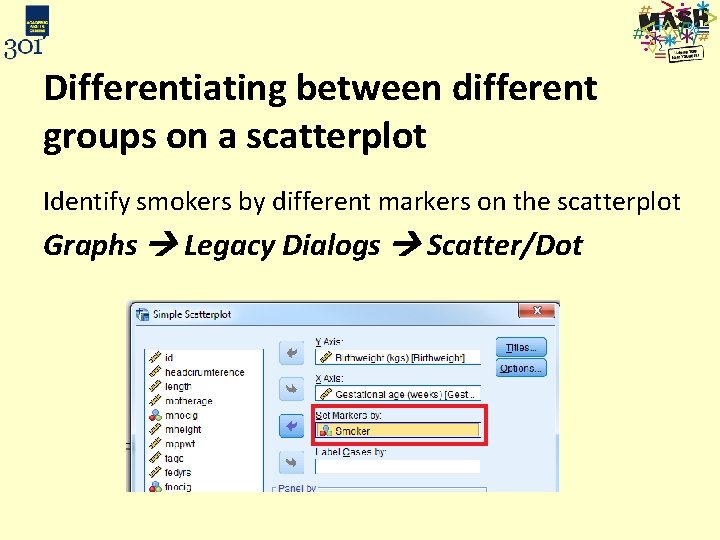
Differentiating between different groups on a scatterplot Identify smokers by different markers on the scatterplot Graphs Legacy Dialogs Scatter/Dot
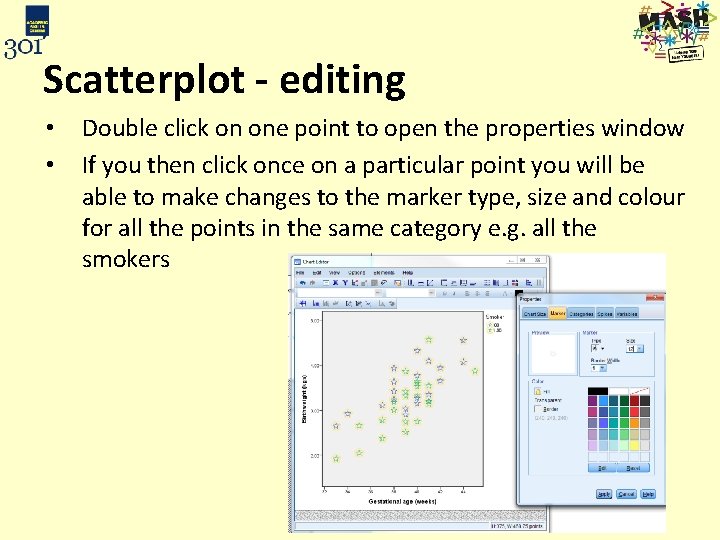
Scatterplot - editing • • Double click on one point to open the properties window If you then click once on a particular point you will be able to make changes to the marker type, size and colour for all the points in the same category e. g. all the smokers
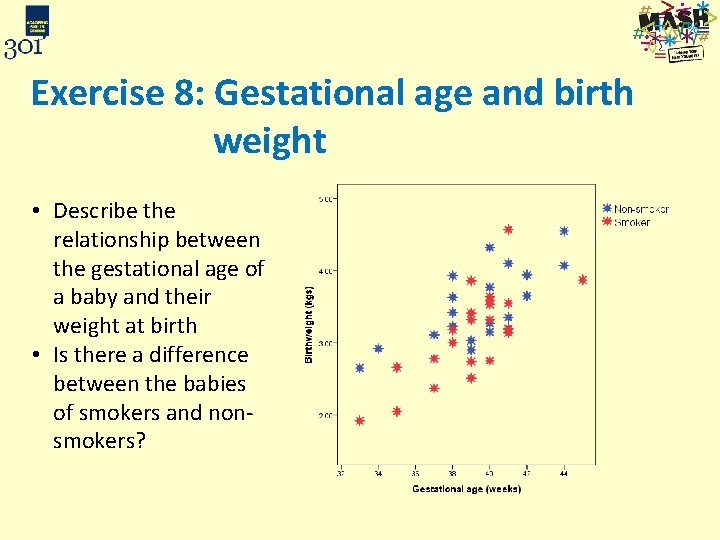
Exercise 8: Gestational age and birth weight • Describe the relationship between the gestational age of a baby and their weight at birth • Is there a difference between the babies of smokers and nonsmokers?
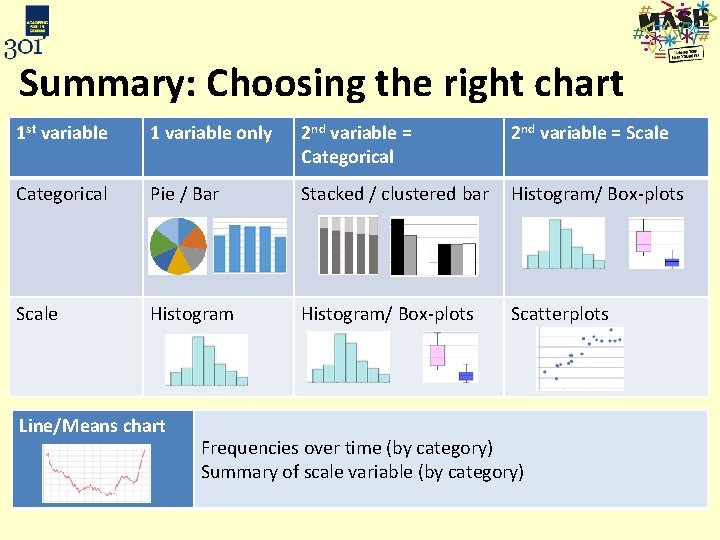
Summary: Choosing the right chart 1 st variable 1 variable only 2 nd variable = Categorical 2 nd variable = Scale Categorical Pie / Bar Stacked / clustered bar Histogram/ Box-plots Scale Histogram/ Box-plots Scatterplots Line/Means chart Frequencies over time (by category) Summary of scale variable (by category)
Learning outcomes By the end of this session you should understand: • The different windows in SPSS • The difference between Data View and Variable View By the end of this session you should be able to: • Open SPSS and create a new data file • Read data in from existing files, both SPSS and EXCEL • Recode data to create new variables • Produce simple plots, data summaries and tables • Edit plots • Save files and output
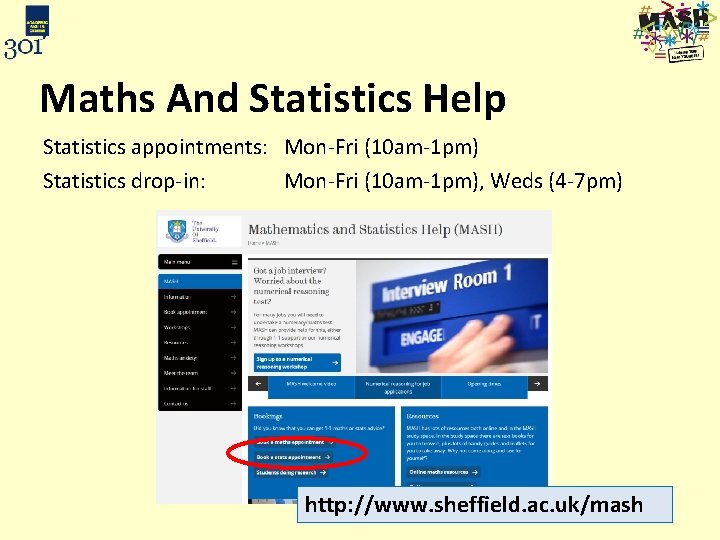
Maths And Statistics Help Statistics appointments: Mon-Fri (10 am-1 pm) Statistics drop-in: Mon-Fri (10 am-1 pm), Weds (4 -7 pm) http: //www. sheffield. ac. uk/mash
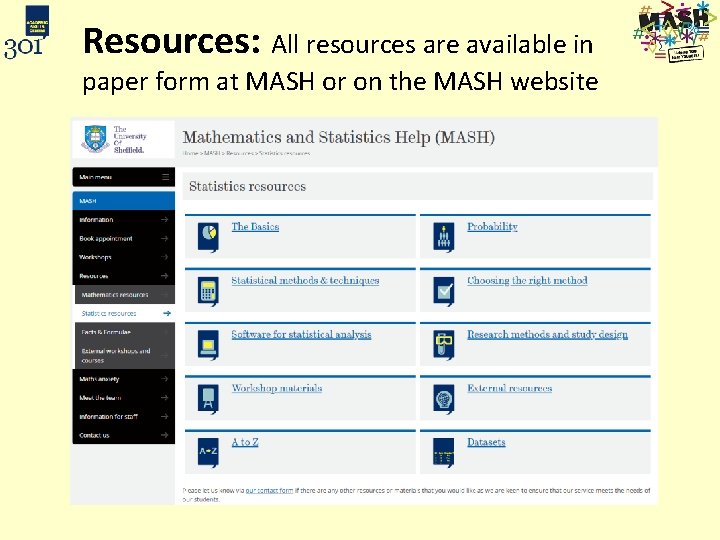
Resources: All resources are available in paper form at MASH or on the MASH website
Contacts Staff Jenny Freeman (j. v. freeman@sheffield. ac. uk) Basile Marquier (b. marquier@sheffield. ac. uk) Marta Emmett (m. emmett@sheffield. ac. uk) Website http: //www. sheffield. ac. uk/mash Follow MASH on twitter: @mash_uos
Tell us what you think and win £ 10! We would love to hear your comments and feedback on this session Please fill in this very short survey via the link or QR code (you need to log into MUSE but it is anonymous): http: //bit. ly/301 workshop for your chance to win £ 10 of SU vouchers (weekly draw)! Thanks for your input!
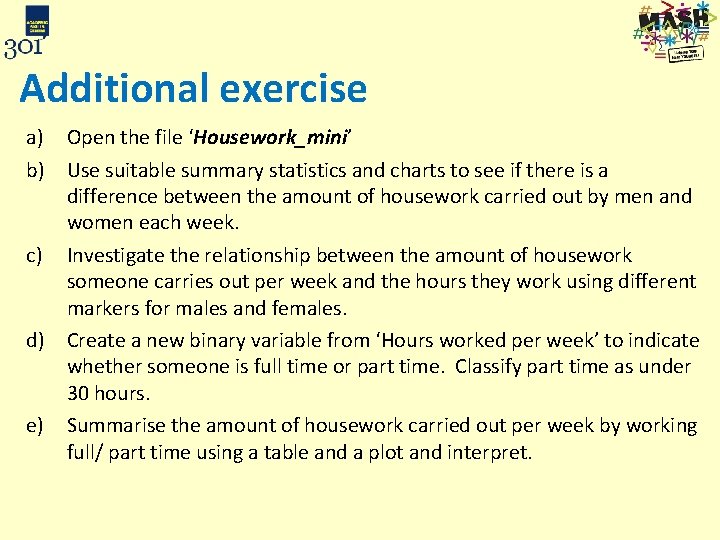
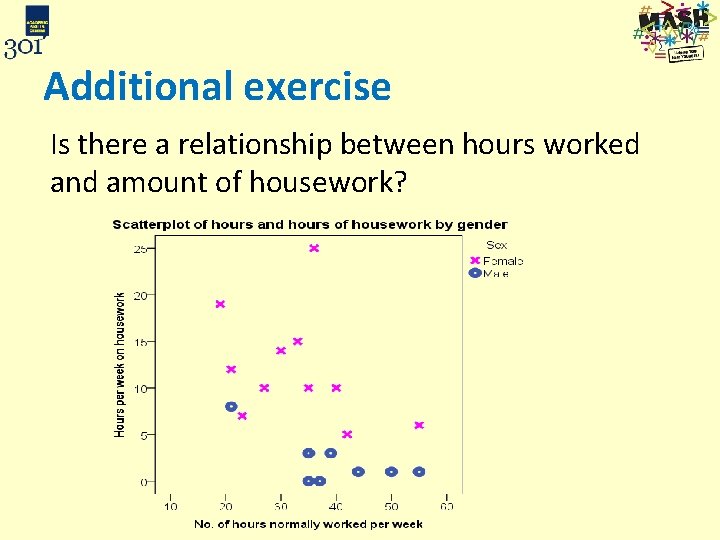
Additional exercise a) Open the file ‘Housework_mini’ b) Use suitable summary statistics and charts to see if there is a difference between the amount of housework carried out by men and women each week. c) Investigate the relationship between the amount of housework someone carries out per week and the hours they work using different markers for males and females. d) Create a new binary variable from ‘Hours worked per week’ to indicate whether someone is full time or part time. Classify part time as under 30 hours. e) Summarise the amount of housework carried out per week by working full/ part time using a table and a plot and interpret.
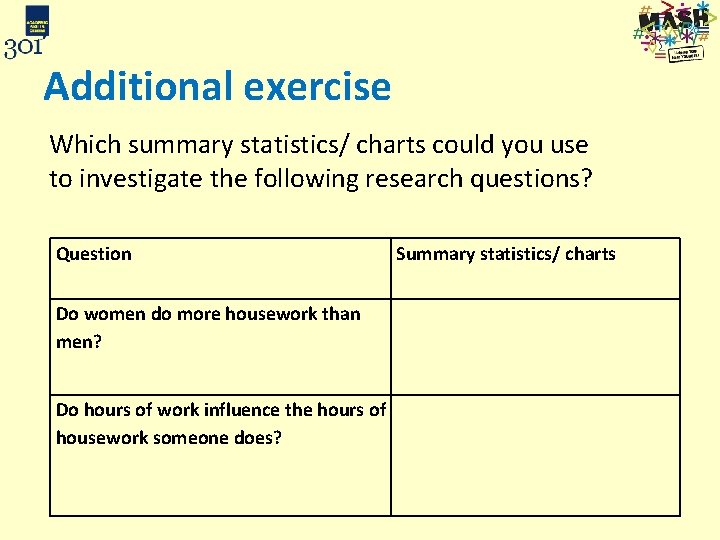
Additional exercise Which summary statistics/ charts could you use to investigate the following research questions? Question Summary statistics/ charts Do women do more housework than men? Do hours of work influence the hours of housework someone does?
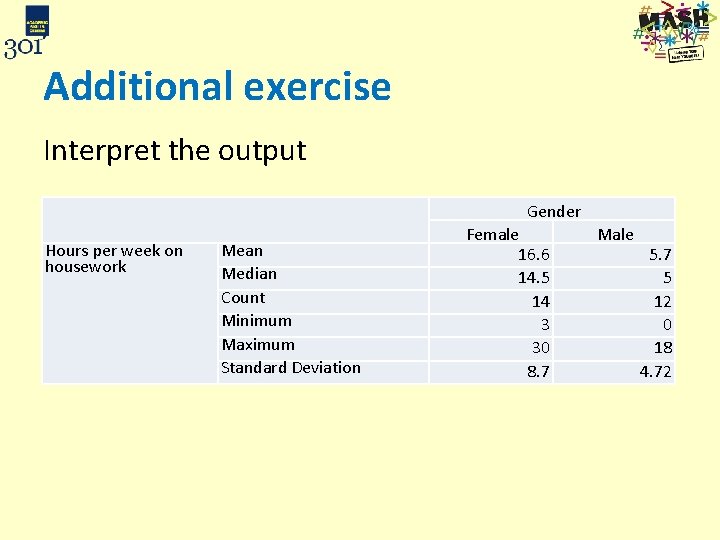
Additional exercise Interpret the output Hours per week on housework Gender Mean Median Count Minimum Maximum Standard Deviation Female 16. 6 14. 5 14 3 30 8. 7 Male 5. 7 5 12 0 18 4. 72
Additional exercise Is there a relationship between hours worked and amount of housework?